# Windows 11 Optimization for Realtime Applications

General Purpose Operating Systems (GPOS) like Windows are designed to maintain user responsiveness with many programs and services running, while real-time operating systems ([RTOS](https://en.wikipedia.org/wiki/Real-time_operating_system)) are designed to run critical applications reliably and with precise timing. A GPOS can handle multiple tasks concurrently but is not ideal for important, time-sensitive applications due to latency and synchronization issues. A GPOS can also operate without time constraints, so tasks may sometimes fail or take longer to execute. For this reason, it may be necessary to optimize Windows 11 to improve performance in Motive.

{% hint style="warning" %}
These optimizations involve disabling various Windows security features, so it is crucial to ensure that the PC is isolated from the internet or other potential sources of malware.
{% endhint %}

## Local Group Policy Editor

Many of the recommended optimizations are completed using Window’s *Local Group Policy Editor*. To open this program:

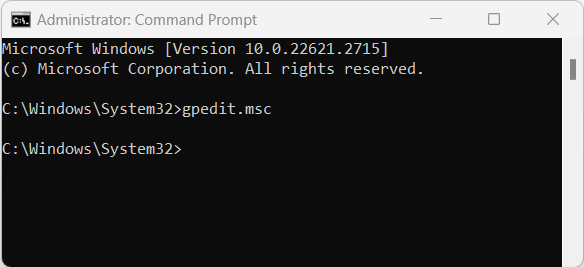
<figure><img src="https://2867085706-files.gitbook.io/~/files/v0/b/gitbook-x-prod.appspot.com/o/spaces%2FuHClgoIWDmmoXSr2eD9q%2Fuploads%2Fugh25xaIBQcBG3KTrngZ%2FOpen%20Windows%20Local%20Group%20Policy%20Editor.png?alt=media&#x26;token=fc41180e-8bd0-44d5-8817-ca8e4ee7d0f4" alt="" width="438"><figcaption><p>Windows Command Prompt in Administrator mode.</p></figcaption></figure>

#### **Steps:**

1. From the Windows search bar, type *CMD*.
2. Run *Command Prompt* as administrator.&#x20;
3. At the command line, type *gpedit.msc* and press enter.
4. This will open the *Local Group Policy Editor* window.&#x20;

{% hint style="danger" %}
Local Group Policy Editor is available only with a Windows Professional License.&#x20;
{% endhint %}

## Disable Firewall

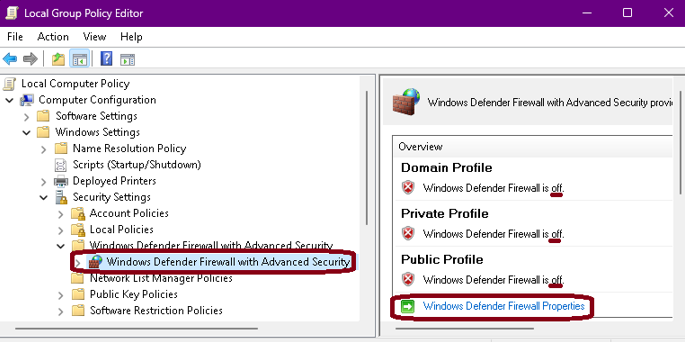
Set a Local Group Policy to disable Private, Public, and Domain firewalls.&#x20;

{% hint style="warning" %}
Once these policies are implemented, the firewall cannot be re-enabled by any other means.&#x20;
{% endhint %}

<figure><img src="https://2867085706-files.gitbook.io/~/files/v0/b/gitbook-x-prod.appspot.com/o/spaces%2FuHClgoIWDmmoXSr2eD9q%2Fuploads%2F42cu9SM0z2sdQaOreGze%2FLocal%20GPEditor%20-%20Firewall.png?alt=media&#x26;token=19dccd1f-59ea-43bc-8095-2c530894d0b7" alt=""><figcaption><p>Local Group Policy Editor:  Windows Defender Firewall and Advanced Security Overview.</p></figcaption></figure>

#### **Steps:**

1. Open Window’s [Local Group Policy Editor](#local-group-policy-editor).
2. Navigate to *Computer Configuration -> Windows Settings -> Security Settings -> Windows Defender Firewall with Advanced Security.*
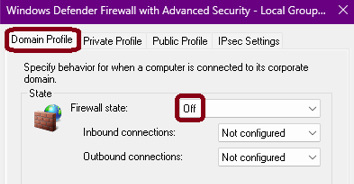
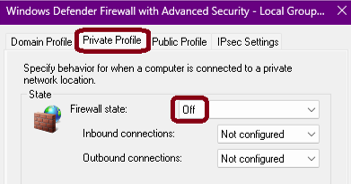
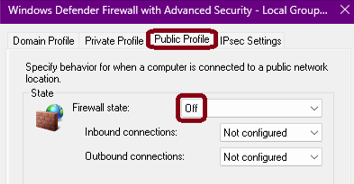
3. The Overview panel shows the current status of the firewall. Click *Windows Defender Firewall Properties* to change the state of the *Domain, Private,* and *Public* profiles to *Off* then click OK.

<div><figure><img src="https://2867085706-files.gitbook.io/~/files/v0/b/gitbook-x-prod.appspot.com/o/spaces%2FuHClgoIWDmmoXSr2eD9q%2Fuploads%2F9Ee43RkpNKk3DaoimPqq%2FWindows%20Firewall%20-%20Domain%20settings.png?alt=media&#x26;token=76d3a889-95d6-4a6e-b109-f544a47fd6e0" alt=""><figcaption><p>Domain Profile settings.</p></figcaption></figure> <figure><img src="https://2867085706-files.gitbook.io/~/files/v0/b/gitbook-x-prod.appspot.com/o/spaces%2FuHClgoIWDmmoXSr2eD9q%2Fuploads%2FbituAkHfQaxCECKfZpFD%2FWindows%20Firewall%20-%20Private%20settings.png?alt=media&#x26;token=ceab01b0-7938-46e1-9421-df908f7ca158" alt=""><figcaption><p>Private Profile settings.</p></figcaption></figure> <figure><img src="https://2867085706-files.gitbook.io/~/files/v0/b/gitbook-x-prod.appspot.com/o/spaces%2FuHClgoIWDmmoXSr2eD9q%2Fuploads%2Fdk6c2npixVJZuzIS6gf5%2FWindows%20Firewall%20-%20Public%20settings%20.png?alt=media&#x26;token=f089ff7d-23bc-439e-8e08-830b03087ea5" alt=""><figcaption><p>Public Profile settings.</p></figcaption></figure></div>

## Disable Antivirus

Set a Local Group Policy to disable Microsoft Defender Antivirus.&#x20;

{% hint style="warning" %}
Once this policy is implemented, the Windows Defender Antivirus cannot be re-enabled in Virus & Threat Protection.
{% endhint %}

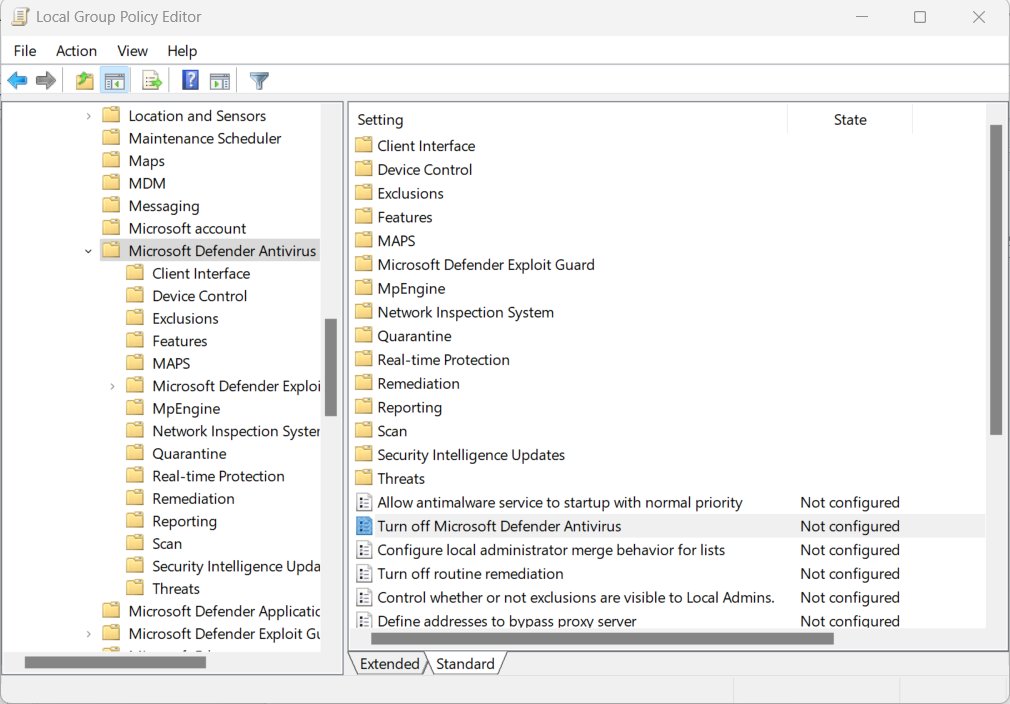
<figure><img src="https://2867085706-files.gitbook.io/~/files/v0/b/gitbook-x-prod.appspot.com/o/spaces%2FuHClgoIWDmmoXSr2eD9q%2Fuploads%2FKp3BxT7RP4VjDz6l8QRE%2FLGPEditor%20-%20MS%20Anti-virus.png?alt=media&#x26;token=b830c79c-6546-4074-a6d7-39bd13646ec4" alt="" width="563"><figcaption><p>Local Group Policy Editor:  Microsoft Defender Antivirus settings.</p></figcaption></figure>

#### **Steps:**

1. Open Window’s [Local Group Policy Editor](#local-group-policy-editor).
2. Navigate to *Computer Configuration -> Administrative Templates -> Windows Components -> Microsoft Defender Antivirus*.
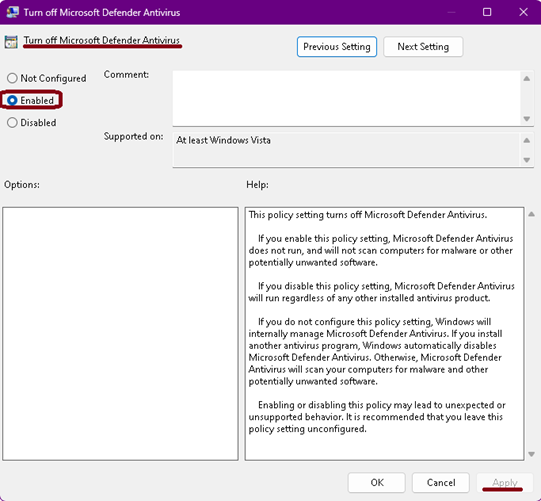
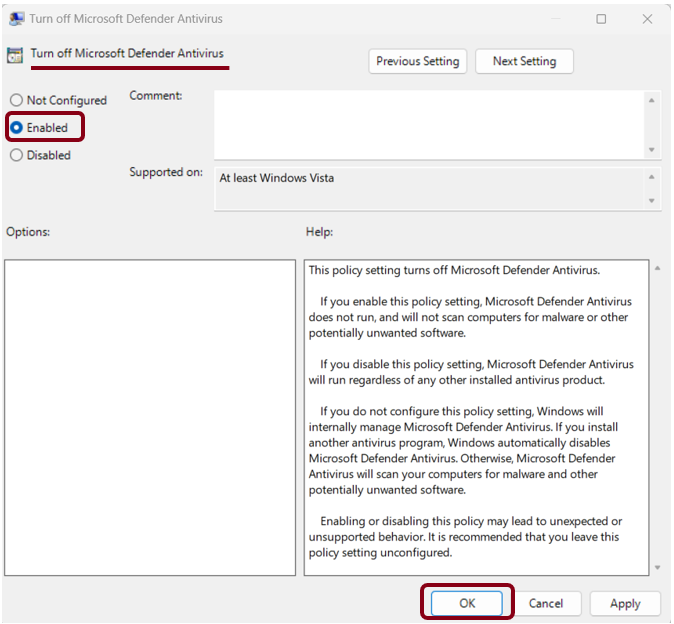
3. Double-click *Turn Off Microsoft Defender Antivirus*.
4. Select *Enabled* and click OK.

<figure><img src="https://2867085706-files.gitbook.io/~/files/v0/b/gitbook-x-prod.appspot.com/o/spaces%2FuHClgoIWDmmoXSr2eD9q%2Fuploads%2F7mqpfvezPCa9S0gfBn0h%2Fimage.png?alt=media&#x26;token=3396094c-6bea-4289-bbc0-d02a2b1f22e9" alt="" width="406"><figcaption><p>Turning off Microsoft Defender Antivirus.</p></figcaption></figure>

## Disable Anti-malware

Use the following processes to disable anti-malware services.

### Disable Real-time Protection

#### **Steps:**

1. Open Window’s [Local Group Policy Editor](#local-group-policy-editor).
2. Navigate to:  *Computer Configuration -> Administrative Templates -> Windows Components -> Microsoft Defender Antivirus -> Real-time Protection.*
3. Double-click *Turn off real-time Protection*.
4. Set the policy to Enabled and click OK.

<figure><img src="https://2867085706-files.gitbook.io/~/files/v0/b/gitbook-x-prod.appspot.com/o/spaces%2FuHClgoIWDmmoXSr2eD9q%2Fuploads%2FSK2FV3oSKOoXULyYozqr%2FLGPEditor%20-%20turn%20off%20MS%20Antivirus%20property.png?alt=media&#x26;token=c5ba8514-aa7d-4dfd-8041-ebd9c1ec04dc" alt="" width="506"><figcaption><p>Turning off Microsoft Defender Real-time Protection</p></figcaption></figure>

### Disable Defender Notifications With the *OptiTrack\_ForceDefenderOFF.bat* Script&#x20;

Save the following script to a batch file named *OptiTrack\_ForceDefenderOFF.bat*, in the common Windows startup folder: *C:\ProgramData\Microsoft\Windows\Start Menu\Programs\StartUp*.

{% code overflow="wrap" %}

```powershell
@cmd /c schtasks /Query /TN PauseDef 2>nul && schtasks /Run /TN PauseDef || powershell -c "$q=\"`n`n`t`t PAUSE DEFENDER `n`n\"; echo $q; Start-Process cmd.exe -ArgumentList ('/q '+$q+' /c schtasks.exe /create /ru \"%username%\" /sc once /tn PauseDef /tr \"wmic.exe /namespace:\\root\Microsoft\Windows\Defender path MSFT_MpPreference call set DisableRealtimeMonitoring=TRUE\" /sd 01/01/2030 /st 00:00:00 /it /rl highest /f & schtasks.exe /run /tn PauseDef') -Verb RunAs"
```

{% endcode %}

### Prevent Anti-malware Service Executable from Scanning its Own Folder

#### Steps:

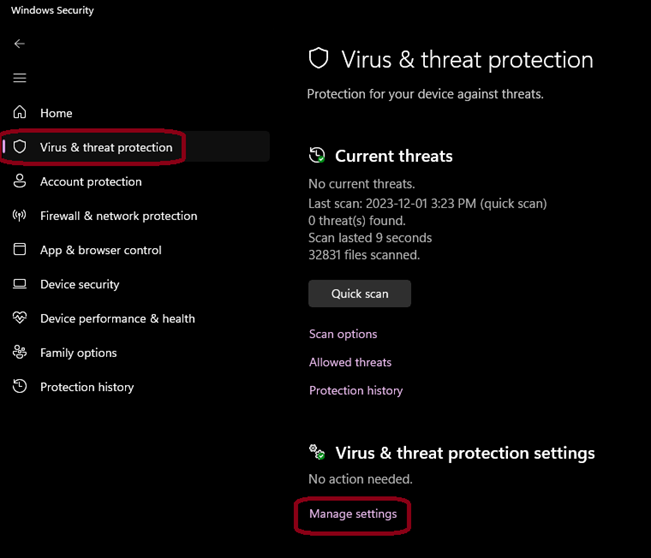
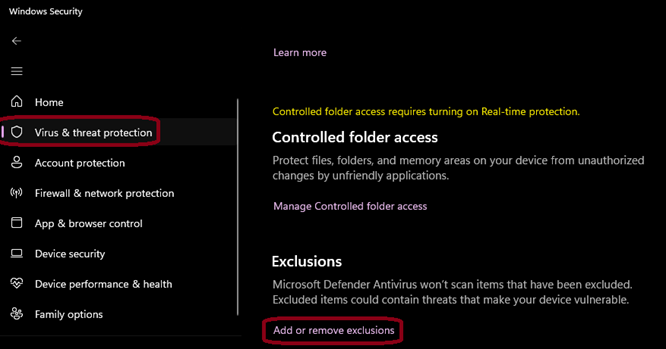
1. Go to *Settings -> Update & security -> Windows Security -> Virus & Threat Protection*.
2. Click *Manage Settings* at the bottom of the screen.
3. Scroll to the *Exclusions* section and click *Add or remove exclusions*.
4. Navigate to *C:\Program Files\Windows Defender*.
5. Click the *Select Folder* button.
6. Restart the computer to decrease the RAM usage by the *Antimalware Service Executable* in Task Manager Processes.

<div><figure><img src="https://2867085706-files.gitbook.io/~/files/v0/b/gitbook-x-prod.appspot.com/o/spaces%2FuHClgoIWDmmoXSr2eD9q%2Fuploads%2Fx1kglrCqp5Mj5peSwltk%2Fimage.png?alt=media&#x26;token=a3bbc732-2ede-497d-a42e-d0f010a8dd26" alt=""><figcaption><p>Windows Security Settings.</p></figcaption></figure> <figure><img src="https://2867085706-files.gitbook.io/~/files/v0/b/gitbook-x-prod.appspot.com/o/spaces%2FuHClgoIWDmmoXSr2eD9q%2Fuploads%2FibbOKrB53QJMvcIGEOWd%2FWin%20Security%20Virus%20Exclusions.png?alt=media&#x26;token=9ae676d7-701d-446b-b164-482dfe1c1681" alt=""><figcaption><p>Virus &#x26; threat protection settings:  Exclusions.</p></figcaption></figure></div>

### Disable Windows Notifications

Stop notifications from Windows and installed applications.

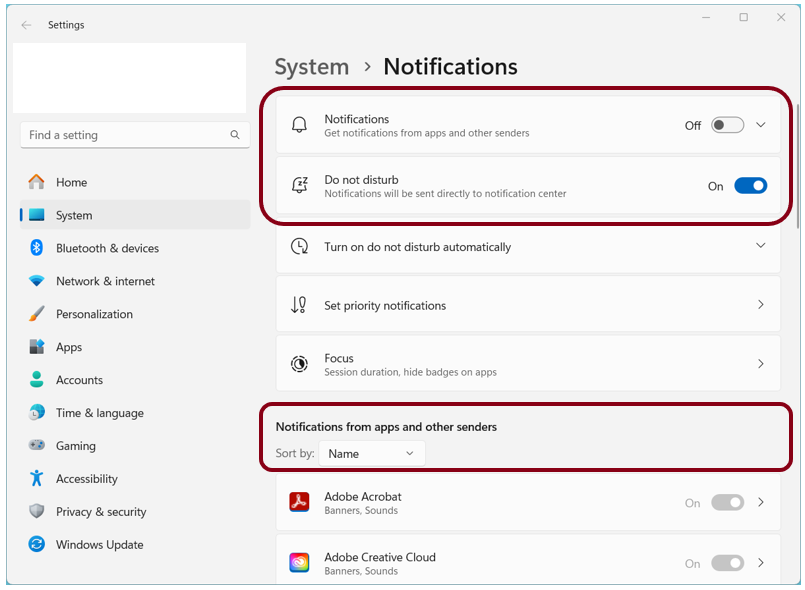
<figure><img src="https://2867085706-files.gitbook.io/~/files/v0/b/gitbook-x-prod.appspot.com/o/spaces%2FuHClgoIWDmmoXSr2eD9q%2Fuploads%2Fyv4O3FFhYfxTLMAX4SZL%2FWindows%20System%20Notifications.png?alt=media&#x26;token=5874215c-20ef-463d-93c0-e8c2f35eb6af" alt="" width="563"><figcaption><p>Windows System Notification Settings.</p></figcaption></figure>

#### Steps:

1. Right-click on the clock on the Task Bar to open the Notifications panel.
2. Select *Notification Settings*.
3. Set *Notifications* to Off.
4. Turn *Do Not Disturb* On.
5. Scroll through the list of *Notifications from apps and other senders* and turn *Off* any that are set to *On*.
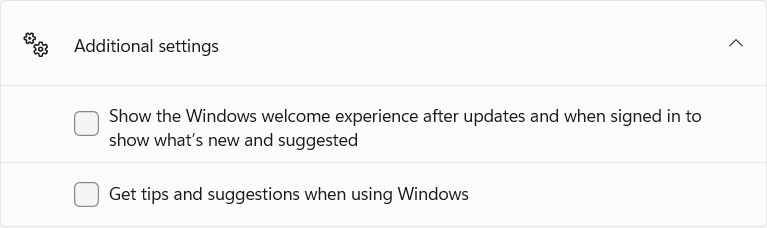
6. At the bottom of the list, click *Additional Settings.*
7. Deselect all options in the *Additional Settings* list.&#x20;

<figure><img src="https://2867085706-files.gitbook.io/~/files/v0/b/gitbook-x-prod.appspot.com/o/spaces%2FuHClgoIWDmmoXSr2eD9q%2Fuploads%2FJWQqNcoidofdoBME1FSy%2FWindows%20Notifications%20Additional%20settings.png?alt=media&#x26;token=823c5bcc-217f-4798-bdcf-f3e2aab6aff0" alt="" width="563"><figcaption><p>Additional Notification Options for Windows.</p></figcaption></figure>

## Windows Task Scheduler

Stop scheduled tasks from running.

### Disable All Scheduled Tasks

#### Steps:

1. Open the *Windows Task Scheduler* application.
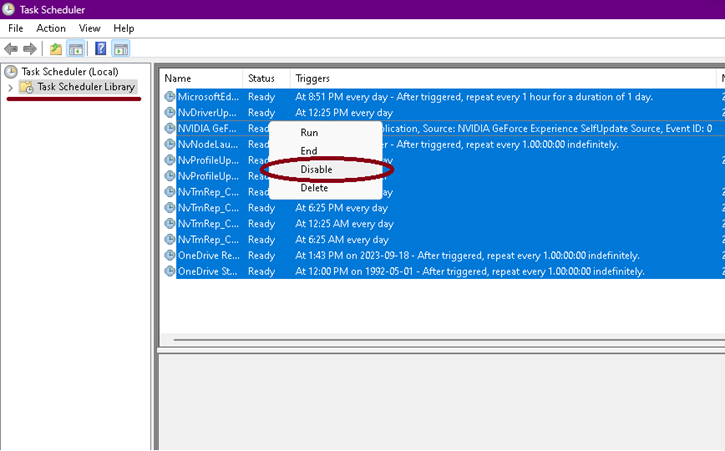
2. Select all the task in the *Task Scheduler Library* list.
3. Right-click and select *Disable*.

<figure><img src="https://2867085706-files.gitbook.io/~/files/v0/b/gitbook-x-prod.appspot.com/o/spaces%2FuHClgoIWDmmoXSr2eD9q%2Fuploads%2FBKOymCoPpJ3dYoP7SFxz%2Fimage.png?alt=media&#x26;token=db25e869-6ed9-481b-80c9-c9c500827b38" alt="" width="544"><figcaption><p>Windows Task Scheduler Library.</p></figcaption></figure>

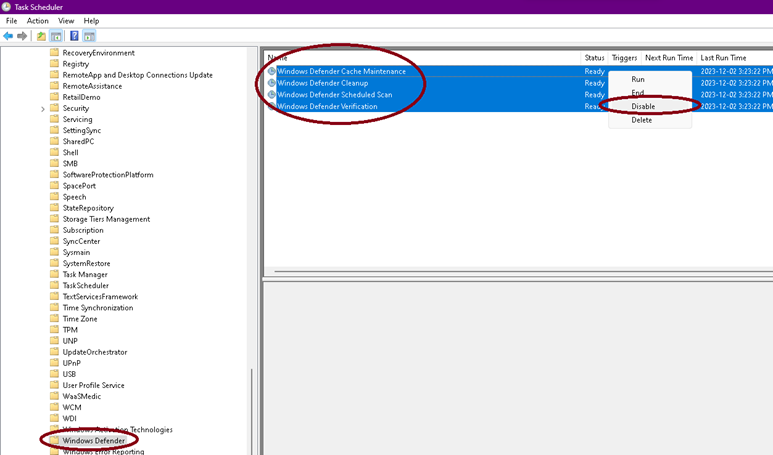
### Disable all Windows Defender Tasks

#### Steps:

1. Open the *Windows Task Scheduler* application.
2. Navigate to *Microsoft -> Windows -> Windows Defender*.
3. Select all the tasks in the list.
4. Right-click and select *Disable*.

<figure><img src="https://2867085706-files.gitbook.io/~/files/v0/b/gitbook-x-prod.appspot.com/o/spaces%2FuHClgoIWDmmoXSr2eD9q%2Fuploads%2FCdZvrs1gjTc3Uwfie52S%2Fimage.png?alt=media&#x26;token=5d88e503-60e9-4eff-bc66-906d6b0f89ab" alt="" width="563"><figcaption><p>Windows Task Scheduler:  Windows Defender Tasks.</p></figcaption></figure>

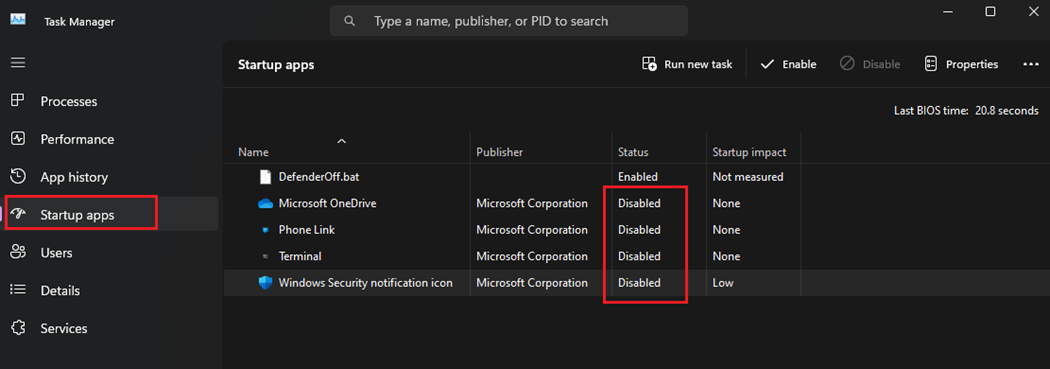
## Disable Startup Applications

Stop unnecessary applications from loading at startup.

#### Steps:

1. Open the *Windows Task Manager* application.
2. Click the *Startup apps* tab button.
3. Disable all unnecessary startup apps.

{% hint style="warning" %}
**DO NOT** disable *OptiTrack\_ForceDefenderOff.bat*.
{% endhint %}

<figure><img src="https://2867085706-files.gitbook.io/~/files/v0/b/gitbook-x-prod.appspot.com/o/spaces%2FuHClgoIWDmmoXSr2eD9q%2Fuploads%2FU4gMeVbFdi0kDs21ijtF%2Fimage.png?alt=media&#x26;token=b698fbe1-3124-4f92-b22e-7c4c913a247b" alt="" width="563"><figcaption><p>Task Manager:  Startup apps window.</p></figcaption></figure>

## Disc Drive Optimizations

* Turn off HDD/SSD Encryption (for example, BitLocker Drive Encryption Service).
* Turn off HDD/SSD Compression.

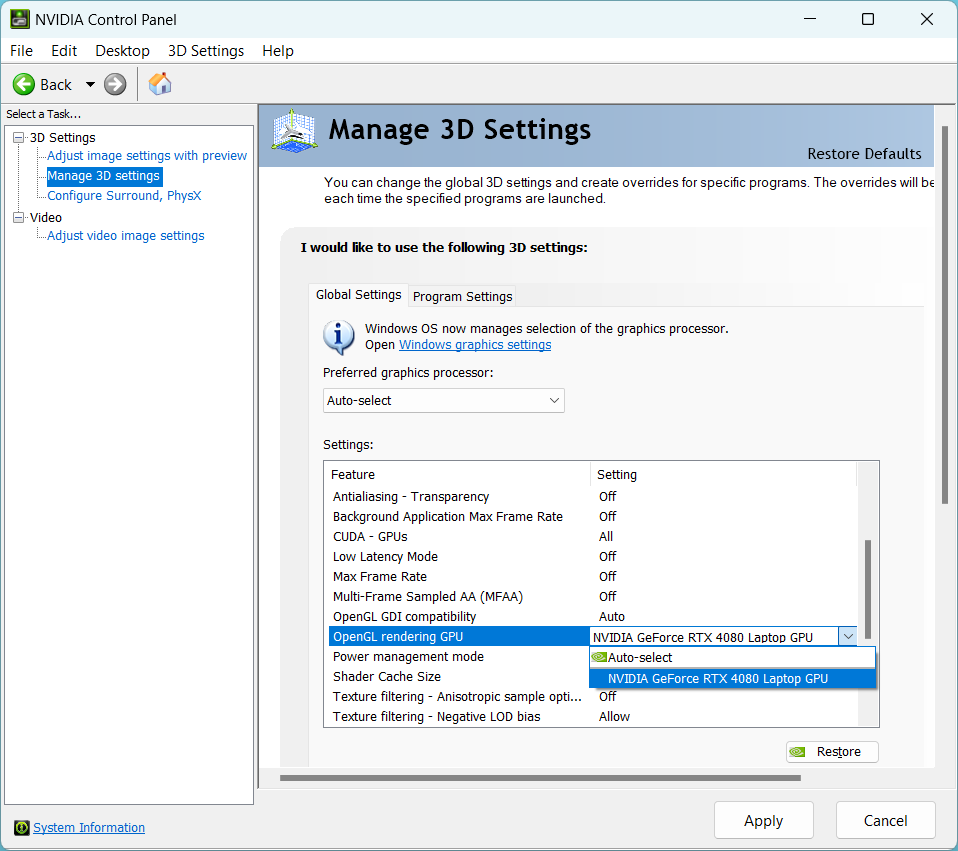
## OpenGL setting in NVIDIA Control Panel

1. Open Nvidia Control Panel and Navigate to *3D settings -> Manage 3D Settings*&#x20;
2. Select the *Global Settings* tab.
3. Set *OpenGL rendering GPU* to the dedicated GPU card.

<figure><img src="https://2867085706-files.gitbook.io/~/files/v0/b/gitbook-x-prod.appspot.com/o/spaces%2FuHClgoIWDmmoXSr2eD9q%2Fuploads%2FnYXARBucad9SiuGwPswX%2FNVIDIA%20OpenGL%20Rendering.png?alt=media&#x26;token=cd4b80bd-2736-47b5-800a-7a0afa07cc32" alt="" width="563"><figcaption><p>NVIDIA Control Panel:  Manage 3D Settings.</p></figcaption></figure>

## Network Settings

Use the recommended network configuration.

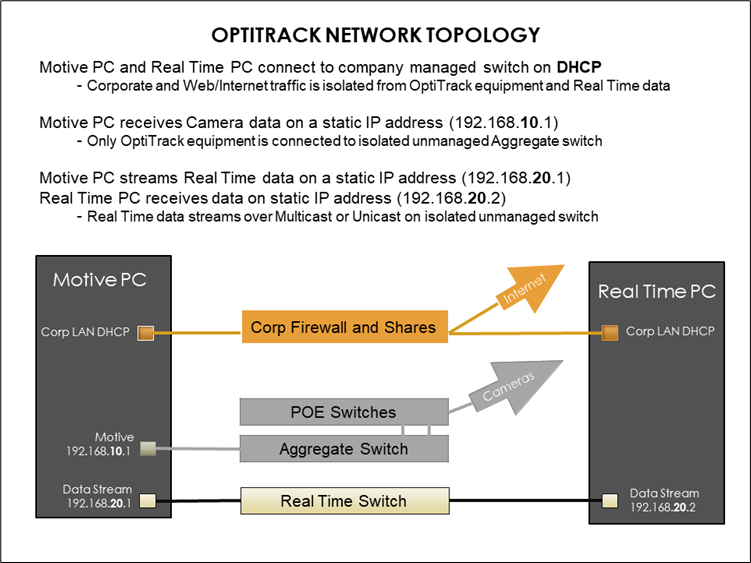
### Network Topology <a href="#nicsettings" id="nicsettings"></a>

* Use Static IPs for Camera and Streaming Network Interface Cards (NICs)
* Isolate the following on three different NICs:

1. Local Area Network
2. Incoming camera data
3. Outgoing streaming data

<figure><img src="https://2867085706-files.gitbook.io/~/files/v0/b/gitbook-x-prod.appspot.com/o/spaces%2FuHClgoIWDmmoXSr2eD9q%2Fuploads%2FvLpaMefFXwbhDlPAmTEp%2Fimage.png?alt=media&#x26;token=f5097787-9d32-4401-a14b-028821c166b9" alt="" width="563"><figcaption><p>Recommended Network Topology for OptiTrack systems.</p></figcaption></figure>

### Camera and Streaming Network Interface Card (NIC) Configuration Settings

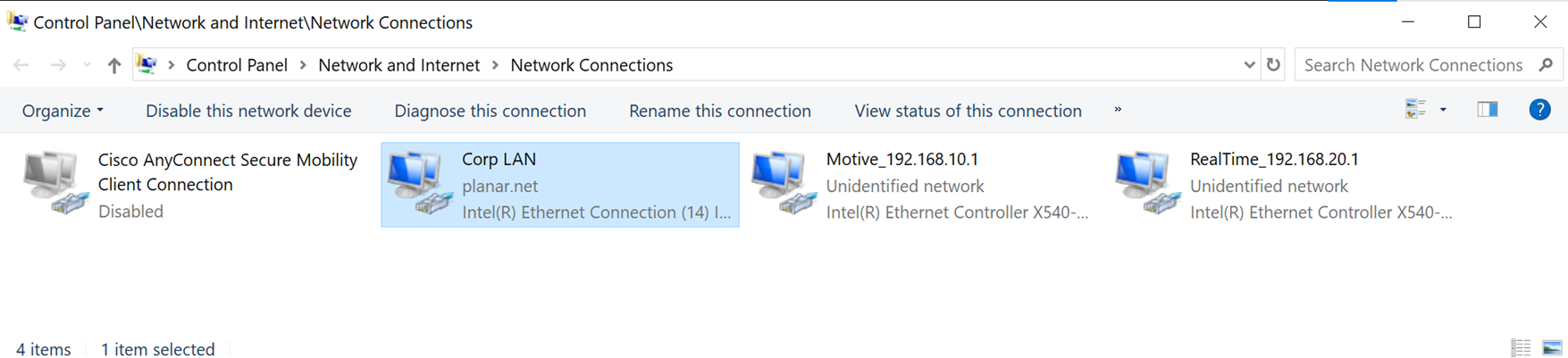
Type *Network* in the Windows search bar to find and open the Control Panel to *View Network Connections.* The image below shows the three NICs specified above.&#x20;

<figure><img src="https://2867085706-files.gitbook.io/~/files/v0/b/gitbook-x-prod.appspot.com/o/spaces%2FuHClgoIWDmmoXSr2eD9q%2Fuploads%2FV8mYwaWhpsufK6GLZ42T%2Fimage.png?alt=media&#x26;token=0b5fb136-cc5e-406e-b746-4035c94abc4e" alt=""><figcaption><p>Isolated network connections for a Motive workstation.</p></figcaption></figure>

#### Configure Static IP

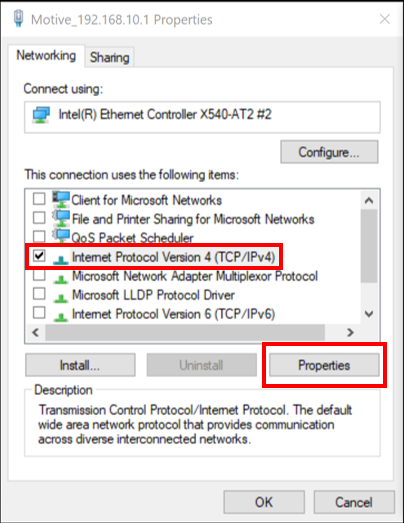
1. Double-click or right-click the NIC you wish to configure and select *Properties*.
2. From the Properties screen, disable all protocols except IPv4.\ <br>

   <figure><img src="https://2867085706-files.gitbook.io/~/files/v0/b/gitbook-x-prod.appspot.com/o/spaces%2FuHClgoIWDmmoXSr2eD9q%2Fuploads%2FApYj1crGO1Yb8rFHW6x6%2FNIC%20Protocols%20for%20Motive%20PC.png?alt=media&#x26;token=7e1ac9c1-6582-4077-a938-4ad6f4985bb2" alt=""><figcaption></figcaption></figure>
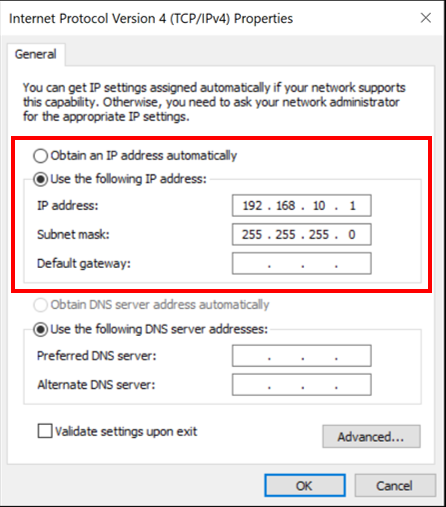
3. With IPv4 selected, click the *Properties* button.
4. Select *Use the following IP address:*&#x20;
   1. For the NIC connected to the Camera network, enter IP address 192.168.10.1
   2. For the NIC connected to the realtime network, enter IP address 192.168.20.1
5. Enter 255.255.255.0 for the Subnet mask.
6. Click OK to save and return to the Properties window.&#x20;

<figure><img src="https://2867085706-files.gitbook.io/~/files/v0/b/gitbook-x-prod.appspot.com/o/spaces%2FuHClgoIWDmmoXSr2eD9q%2Fuploads%2FQdghcy5I937jBbotfN8C%2FIP%20Settings%20for%20Motive%20PC.png?alt=media&#x26;token=4128d8a7-5817-4b76-8299-5e42867ad4e9" alt=""><figcaption><p>Static IP address configuration.</p></figcaption></figure>

#### Configure NIC settings

Set the following properties to the value specified:

* Interrupt Moderation = Disabled
* Interrupt Moderation Rate = Disabled
* Jumbo Packets = Disabled
* Max Number RSS Queues = 16
* Receive Buffers = 4096 (max)
* Receive Side scaling = Enabled
* Speed and Duplex = Auto-Negotiate
* Transmit Buffers = 16384 (max)

**Steps:**

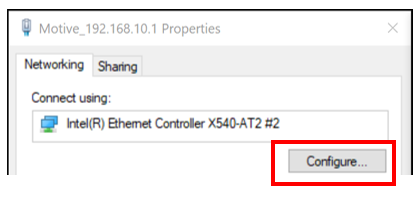
<figure><img src="https://2867085706-files.gitbook.io/~/files/v0/b/gitbook-x-prod.appspot.com/o/spaces%2FuHClgoIWDmmoXSr2eD9q%2Fuploads%2FBorhWSPA1oNToDKw8Dm6%2FNetwork%20-%20Configure%20NIC.png?alt=media&#x26;token=7a4d31a9-9341-4d14-93df-fa433a611cfe" alt=""><figcaption></figcaption></figure>

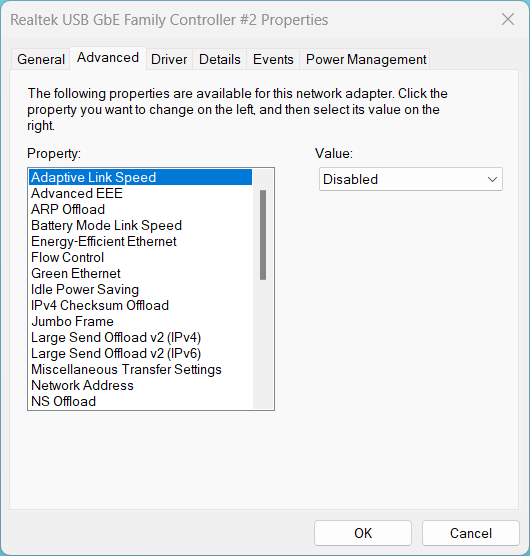
1. From the Properties window, click the *Configure...* button to customize NIC settings.
2. Click the *Advanced* tab. \ <br>

   <figure><img src="https://2867085706-files.gitbook.io/~/files/v0/b/gitbook-x-prod.appspot.com/o/spaces%2FuHClgoIWDmmoXSr2eD9q%2Fuploads%2FR4iBcSjVxMG2g9Ztm1Hu%2Fimage.png?alt=media&#x26;token=1f9f8752-24b3-4561-9d31-3be581aab976" alt="" width="398"><figcaption><p>NIC Advanced Configuration Properties<br></p></figcaption></figure>
3. To update a setting, select it from the *Property:* list and update the *Value* field on the right.
4. Update all of the settings listed above.
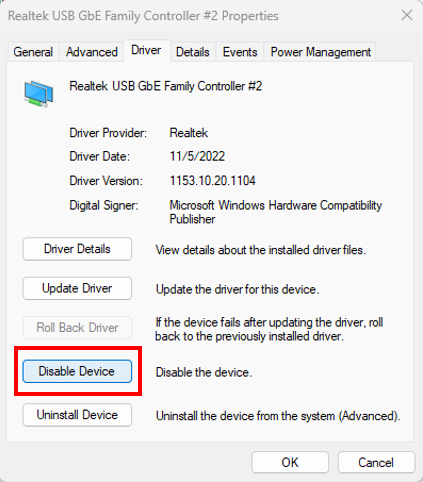
5. Click the *Driver* tab.
6. Click *Disable*, then *Enable* to restart the NIC with the new settings.&#x20;

<figure><img src="https://2867085706-files.gitbook.io/~/files/v0/b/gitbook-x-prod.appspot.com/o/spaces%2FuHClgoIWDmmoXSr2eD9q%2Fuploads%2F1pprp3w5x1EDk7T32toz%2FNIC%20-%20Disable%20HIGHLIGHTED.png?alt=media&#x26;token=abd593ae-6c9a-4838-93f4-0625ccefca21" alt="" width="317"><figcaption><p>NIC Advanced Configuration Properties</p></figcaption></figure>

{% hint style="warning" %}
Use the settings supplied by your IT department to connect to corporate or institutional networks.
{% endhint %}

## Set Motive.exe Priority

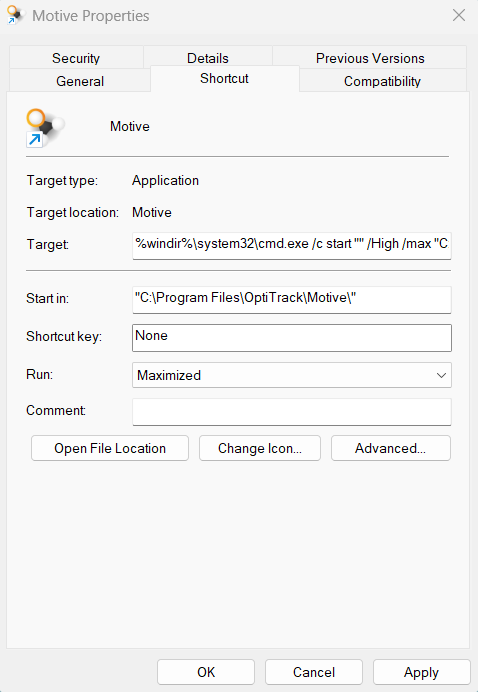
Customize the Motive desktop shortcut to launch the program with high priority.

<figure><img src="https://2867085706-files.gitbook.io/~/files/v0/b/gitbook-x-prod.appspot.com/o/spaces%2FuHClgoIWDmmoXSr2eD9q%2Fuploads%2Fy3d4NetqLqtZELmtA0MU%2FMotive%20Shortcut%20Properties.png?alt=media&#x26;token=2cba6374-437b-4ab4-8e8e-fd6448921a19" alt="" width="359"><figcaption><p>Motive shortcut properties window.</p></figcaption></figure>

* On the desktop, right-click the Motive shortcut and select *Properties*.
* Select the *Shortcut* tab.
* Copy and paste the text below into the *Target* field:

{% code overflow="wrap" %}

```
%windir%\system32\cmd.exe /c start "" /High /max "C:\Program Files\OptiTrack\Motive\Motive.exe"
```

{% endcode %}

* Set the *Run* property to *Maximized*.
* Click *OK* to save your changes and close the window.