Settings: Live Pipeline

Motive's Live Pipeline Settings defined.

Overview

Use the Application Settings panel to customize Motive and set default values. This page will cover the items available on the Live Pipeline tab. Properties are Standard unless noted otherwise.

circle-info

Solver settings for recorded captures:

Please note that these settings apply only to Live 3D data. To optimize the solver settings for captures that are already recorded, adjust the solver values from the properties of the corresponding TAK file.

Live Pipeline settings contain camera filter and solver settings for obtaining 3D data in Motive. These settings are optimized by default to provide high-quality tracking for most applications.

Please see the following pages for descriptions of the settings on other tabs:

Application Settings can be accessed from the View menu or by clicking the A screenshot of the Settings button in Motive. icon on the main toolbar.

circle-info

Advanced Settings

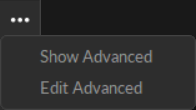
The Settings panel contains advanced settings that are hidden by default. To access these settings, click the A screenshot of the Menu button in Motive. button in the top right corner.

Use the Edit Advanced option to customize which settings are in the Advanced Settings category and which appear in the standard view, to show only the settings that are needed specifically for your capture application.

A screenshot of the menu options available in the Settings panel.
Show or Edit Advanced Settings.
circle-info

To restore all settings to their default values, select Reset Settings from the Edit menu.

Solver Settings

Solver settings control how each marker's trajectory is reconstructed into the 3D space and how Rigid Bodies, Skeletons, and Trained Markersets track. The solver is designed to work for most applications using the default settings. However, in some instances, changing settings will lead to better tracking results.

The standard settings are those most likely to be customized by the user. We recommend exercising caution before making adjustments to any Solver advanced settings.

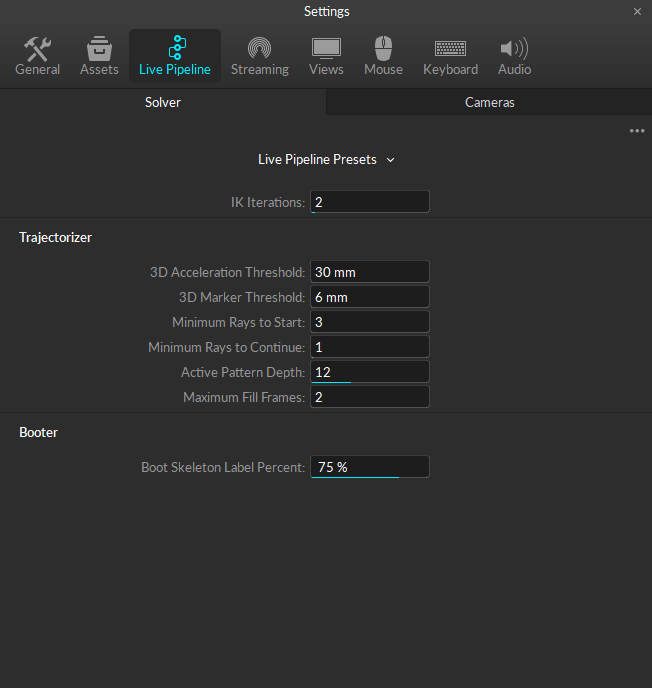
A screenshot of the Settings panel, Live Pipeline section, Solver Tab - basic settings only.
Basic Live Pipeline Solver settings.

General Solver Settings

A screenshot of the standard and advanced settings available in the General section of the Live Pipeline settings.
Basic and Advanced General settings on the Live Pipeline Solver tab.
chevron-rightLive Pipeline Presetshashtag

Live Pipeline Presets provide an easy way to switch between the default (Motive) and custom solver settings, such as the With Reconstruction Bounds preset.

A screenshot of the Live Pipeline Preset solver options from the Motive Settings panel, Live Pipeline settings.

Click the drop down to select a new preset or to Import, Save, or Delete existing configurations. Presets are saved as .MOTIVE files in:

C:\ProgramData\OptiTrack\Motive\LiveReconstructionSettings

  • Import Preset: Allows the user to browse to a previously-saved preset .MOTIVE file in another location on the local computer or on a network drive.

  • Save Preset: Saves the current configuration as a new .MOTIVE file. If the file is saved in the Presets folder, it will appear in the top section of the drop down list.

  • Delete Preset: Removes obsolete presets from the list and deletes the .MOTIVE file.

  • Open Presets Folder: Opens the Presets folder in an Explorer window for direct file management. Use this option if you wish to move files in bulk or to save old presets in an alternate location.

chevron-rightDoF Prediction Percent (Advanced)hashtag

Controls the deceleration of the asset joint angles in the absence of other evidence. For example, a setting of 60% will reduce the velocity by 99% in 8 frames; whereas 80% will take 21 frames to get to the same velocity reduction.

chevron-rightIK Iterationshashtag

Sets the number of inverse kinematic (IK) solve iterations to perform for a skeleton to get to the final pose in each frame when the skeleton is tracking continuously. Note that larger numbers increase the CPU usage and increase batch processing times.

See the advanced property Boot IK Iterations to set the number of iterations when the skeleton is booting.

circle-check
chevron-rightResidual Threshold (Advanced)hashtag

The residual is the distance between a Marker Constraint and its assigned trajectory. If the residual exceeds this threshold, then that assignment will be broken. A larger value helps catch rapid acceleration of limbs, for example.

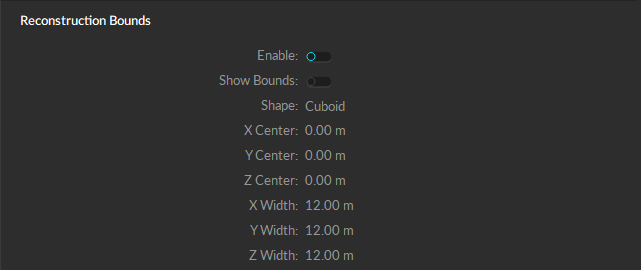
Reconstruction Bounds

These properties are only available when Advanced settings are displayed.

A screenshot of the advanced settings available in the Reconstruction Bounds section of the Live Pipeline settings.
Advanced Reconstruction Bounds settings on the Live Pipeline Solver tab.
chevron-rightEnablehashtag

Ignores reconstructed 3D points outside of the reconstruction bounds.

chevron-rightShow Boundshashtag

Adds a visual display to the 3D Viewport that shows the limits of the reconstruction bounds.

chevron-rightShapehashtag

This setting establishes the general shape of the reconstruction bounds. Options are:

  • Cuboid

  • Cylinder

  • Spherical

  • Ellipsoid

chevron-rightAdditional Reconstruction Bound Settingshashtag

The rest of the settings in this section can be modified in relation to center, width, radius, and height.

Trajectorizer

The Trajectorizer settings control how the 2D marker data is converted into 3D points in the calibrated volume. The Trajectorizer performs reconstruction of 2D data into 3D data, and these settings control how markers are created in the 3D scene over time.

A screenshot of the standard and advanced settings available in the Trajectorizer section of the Live Pipeline settings.
Basic and Advanced Trajectorizer settings on the Live Pipeline Solver tab.
chevron-right3D Acceleration Thresholdhashtag
  • What it does: This setting controls the maximum distance between a marker trajectory and its predicted position.

  • When to change: This setting may need to be increased when tracking extra fast assets. The default setting should track most applications. Attempt to track with default settings first, and if there are any gaps in the marker trajectories, you can incrementally increase the distance until stable tracking is achieved.

chevron-right3D Marker Thresholdhashtag

This setting controls the maximum distance between a ray and the marker origin.

chevron-right3D Merge Threshold (Advanced)hashtag

Two marker trajectories discovered within this distance are merged into a single trajectory.

chevron-right2D Threshold (Advanced)hashtag

A marker trajectory is predicted on a new frame and then projected in all the cameras. To be assigned to a marker detection in a particular camera, the distance (in pixels) must not exceed this threshold.

chevron-right2D Marker Threshold (Advanced)hashtag

The maximum number of pixels between a camera detection and the projection of its marker.

chevron-rightAngle Threshold (Advanced)hashtag

The new marker trajectory is generated at the intersection of two rays through detections in different cameras. Each detection must be the only candidate within this many pixels of the projection of the other ray.

chevron-rightMarker Prediction Percent (Advanced)hashtag

Marker trajectories are predicted on the next frame to have moved with this percentage of their velocity on the previous frame.

chevron-rightSkeleton Reversion Percent (Advanced)hashtag

When a Skeleton marker trajectory is not seen, its predicted position reverts towards its assigned Marker Constraints by this percentage.

chevron-rightRigid Body Reversion Percent (Advanced)hashtag

When a Rigid Body marker trajectory is not seen, its predicted position reverts towards its assigned Marker Constraints by this percentage.

chevron-rightMinimum Rays to Starthashtag
  • What it does: This sets the minimum number of tracked rays that need to converge on one location to create a new marker in 3D. This is also the minimum number of calibrated cameras that see the same target marker within the 3D threshold value for them to initially get trajectorized into a 3D point.

  • When to change: For large volumes with high camera counts, increasing this value may provide more accurate and robust tracking. The default value of 3 works well with most medium and small-sized volumes. For volumes that only have two cameras, the trajectorizer will use a value of 2 even when it's not explicitly set.

chevron-rightMinimum Rays to Continuehashtag
  • What it does: This sets the minimum number of rays that need to converge on one location to continue tracking a marker that already initialized near that location. A value of 1 will use asset definitions to continue tracking markers even when a 3D marker could not have been created from the camera data without the additional asset information.

  • When to change: This is set to 1 by default. It means that Motive will continue the 3D data trajectory as long as at least one ray is obtained and the asset definition matches. When single ray tracking is not desired or for volumes with a large number of cameras, change this value to 2 to utilize camera overlaps in the volume.

chevron-rightActive Pattern Depthhashtag
  • What it does: This setting is used for tracking active markers only. It sets the number of frames of motion capture data used to uniquely identify the ID value of an active marker.

  • When to change: When using a large number of active tags or active pucks, this setting may need to be increased. We recommend using the active batch programmer when configuring multiple active components, and when each batch of active devices has been programmed, the programmer will provide a minimum active pattern depth value that should be used in Motive.

chevron-rightMinimum Active Count (Advanced)hashtag
  • What it does: The total number of rays that must contribute to an active marker before it is considered active and given an ID value.

  • When to change: Change this setting to increase the confidence in the accuracy of active marker ID values (not changed very often).

chevron-rightMaximum Fill Frameshashtag
  • What it does: The number of frames of data that the solver will attempt to fill if a marker goes missing for some reason. This value must be at least 1 if you are using active markers.

  • When to change: If you would like more or fewer frames to be filled when there are small gaps.

Booter

The Booter settings control when the assets start tracking, or boot, on the trajectorized 3D markers in the scene, which determine when Rigid Bodies and/or Skeletons track on a set of markers.

A screenshot of the Booter section of the Advanced Solver properties on the Live Pipeline tab of the Motive Application settings panel.
Basic and Advanced Booter settings on the Live Pipeline Solver tab.
chevron-rightMissing Marker Penalty Value (Advanced)hashtag

The penalty for leaving Marker Constraints unassigned (per label graph edge).

chevron-rightBoot Residual Threshold (Advanced)hashtag

The maximum average distance between the marker trajectory and the Marker Constraints before the asset is rebooted.

  • What it does: This controls the maximum distance between a pair of Marker Constraints to be considered as an edge in the label graph.

  • When to change: The default settings should work for most applications. This value may need to be increased to track large assets with markers that are far apart.

chevron-rightBoot Skeleton Label Percenthashtag
  • What it does: This sets the percentage of Skeleton markers that need to be trajectorized in order to track the corresponding Skeleton(s). If needed, this setting can also be configured per each asset from the corresponding asset properties using the Properties pane.

  • When to change: The default settings should work for most applications. Set this value to about 75% to help keep Skeletons from booting on other markers in the volume if there are similar Skeleton definitions or lots of loose markers in the scene. If you would like Skeletons to boot faster when entering the volume, then you can set this value lower.

chevron-rightBoot Residual Percent (Advanced)hashtag

This value controls how willing an asset is to boot onto markers. A higher value will make assets boot faster when entering the volume. A lower value will stop assets from booting onto other markers when they leave the volume.

chevron-rightBoot IK Iterations (Advanced)hashtag

Sets the number of inverse kinematic (IK) solve iterations to perform for a skeleton to get to the final pose when the skeleton is booting or has been occluded or otherwise left and re-entered the scene. Note that larger numbers increase the CPU usage and increase batch processing times.

See the standard property IK Iterations to set the number of iterations when the skeleton is already tracking.

circle-check
chevron-rightBoot Max Assets (Advanced)hashtag

The maximum number of assets to boot per frame.

Cameras Settings

This Cameras tab of the Live Pipeline settings is used to configure the filter properties for all the cameras in the system.

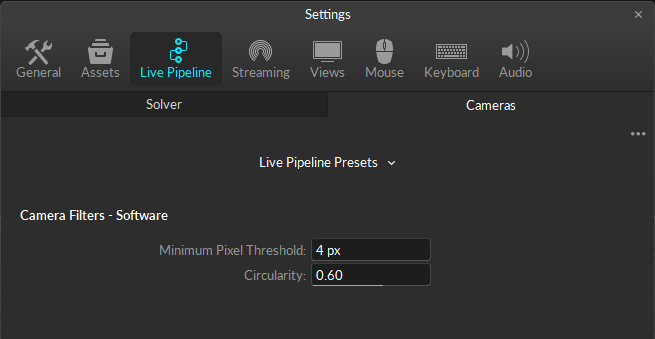
A screenshot of the Basic settings on the Cameras tab of the Live Pipeline section of the Motive application settings panel.
Basic Live Pipeline Cameras settings.
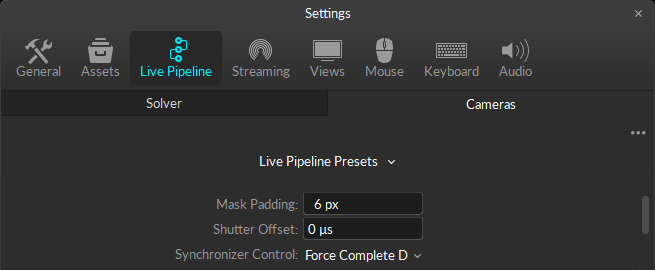
General Cameras Settings

A screenshot of the Advanced General settings on the Cameras tab of the Live Pipeline section of the Motive application settings panel.
Basic and Advanced General settings on the Live Pipeline Cameras tab.
chevron-rightLive Pipeline Presetshashtag

Live Pipeline Presets provide an easy way to switch between the default (Motive) and custom solver settings, such as the With Reconstruction Bounds preset.

A screenshot of the Live Pipeline Preset solver options from the Motive Settings panel, Live Pipeline settings.

Click the drop down to select a new preset or to Import, Save, or Delete existing configurations. Presets are saved as .MOTIVE files in:

C:\ProgramData\OptiTrack\Motive\LiveReconstructionSettings

  • Import Preset: Allows the user to browse to a previously-saved preset .MOTIVE file in another location on the local computer or on a network drive.

  • Save Preset: Saves the current configuration as a new .MOTIVE file. If the file is saved in the Presets folder, it will appear in the top section of the drop down list.

  • Delete Preset: Removes obsolete presets from the list and deletes the .MOTIVE file.

  • Open Presets Folder: Opens the Presets folder in an Explorer window for direct file management. Use this option if you wish to move files in bulk or to save old presets in an alternate location.

chevron-rightMask Padding (Advanced)hashtag

Changes the padding around masks by pixels.

chevron-rightShutter Offset (Advanced)hashtag

Delay this group from sync pulse by this amount.

chevron-rightSynchronizer Control (Advanced)hashtag

Controls how the synchronizer operates. Options include:

  • Force Timely Delivery

  • Favor Timely Delivery

  • Force Complete Delivery

Camera Filters - Software

A screenshot of the Advanced Camera Filters - Software settings on the Cameras tab of the Live Pipeline section of the Motive application settings panel.
Basic and Advanced Camera Filters - Software settings on the Live Pipeline Cameras tab.
chevron-rightFilter Type (Advanced)hashtag

Choose the filter type. Options include:

  • Size and Roundness

  • None

chevron-rightMinimum Pixel Thresholdhashtag

Establishes the minimum pixel size of a 2D object (a collection of pixels grouped together) for the object to be included in the Point Cloud reconstruction.

All pixels must first meet the brightness threshold defined in the Cameras pane in order to be grouped as a 2D object. This setting can be used to filter out small reflections that are flickering in the view. The default value for the minimum pixel size is 4, which means that there must be 4 or more pixels in a group for a ray to be generated.

chevron-rightMaximum Pixel Threshold (Advanced)hashtag

The maximum allowable size of the 2D object (pixels over threshold).

chevron-rightCircularityhashtag

This property sets the threshold of the circularity filter. Valid range is between 0 and 1; with 1 being a perfectly round reflection and 0 being flat.

Using this 2D object filter, the software identifies marker reflections based on the shape, specifically the roundness, of the group of thresholded pixels. A higher circularity setting will filter out all other reflections that are not circular. We recommend optimizing this setting so that extraneous reflections are efficiently filtered out while true marker reflections are not.

When using lower resolution cameras to capture smaller markers at a long distance, the marker reflection may appear to be more pixelated and non-circular. In this case, you may need to lower the circularity filter value for the reflection to be considered a 2D object from the camera view. This setting may also need to be lowered when tracking non-spherical markers in order to avoid filtering those reflections.

A screenshot of the 2D Camera view, showing reflections that do not meet the minimum circularity filter.
The circle filter omitting non-circular reflections from a 2D camera view.

Camera Filters - Hardware

The Camera Filters - Hardware section is shown only when the advanced settings are displayed.

A screenshot of the Advanced Camera Filters - Hardware settings on the Cameras tab of the Live Pipeline section of the Motive application settings panel.
Basic and Advanced Camera Filters - Hardware settings on the Live Pipeline Cameras tab.
chevron-rightIntrusion Bandhashtag

The size of the guard region beyond the object margin for neighbor detection.

chevron-rightGrayscale Floorhashtag

The pixel intensity of the grayscale floor (pixel intensity).

chevron-rightObject Margin Diameterhashtag

The minimum space (in pixels) between objects before they begin to overlap.

chevron-rightObject Skewhashtag

The number of pixels a 2D object is allowed to lean.

chevron-rightMax Aspect Tolerancehashtag

The maximum allowable aspect tolerance to process a 2D object (width:height).

chevron-rightAspect Basehashtag

The allowable aspect tolerance for very small objects.

chevron-rightAspect Step Sizehashtag

The rate at which the aspect tolerance relaxes as object size increases.

Last updated

Was this helpful?