# Settings: General

Use the Application Settings panel to customize Motive and set default values. This page will cover the items available on the General tab. Properties are Standard unless noted otherwise.&#x20;

Please see the following pages for descriptions of the settings on other tabs:

* [Settings: Assets](https://docs.optitrack.com/v3.1/motive-ui-panes/settings/settings-assets)
* [Settings: Live Pipeline](https://docs.optitrack.com/v3.1/motive-ui-panes/settings/settings-live-pipeline)
* [Settings: Streaming](https://docs.optitrack.com/v3.1/motive-ui-panes/settings/settings-streaming)
* [Settings: Views](https://docs.optitrack.com/v3.1/motive-ui-panes/settings/settings-views)
* [Settings: Mouse and Keyboard](https://docs.optitrack.com/v3.1/motive-ui-panes/settings/settings-mouse-and-keyboard)
* [Settings: Audio](https://docs.optitrack.com/v3.1/motive-ui-panes/settings/settings-audio)

Application Settings can be accessed from the [View menu](https://docs.optitrack.com/v3.1/toolbar-command-bar#view) or by clicking the <img src="https://2867085706-files.gitbook.io/~/files/v0/b/gitbook-x-prod.appspot.com/o/spaces%2FuHClgoIWDmmoXSr2eD9q%2Fuploads%2FtablHazHEo4pOwK3zSeJ%2FSettings%20button.png?alt=media&#x26;token=dc989781-cdfe-4c42-a5b7-8d28f157a00a" alt="" data-size="line"> icon on the main toolbar.&#x20;

![Standard Settings on the General Tab of the Settings Panel.](https://2867085706-files.gitbook.io/~/files/v0/b/gitbook-x-prod.appspot.com/o/spaces%2FuHClgoIWDmmoXSr2eD9q%2Fuploads%2F4b3lQZC3dTdLiVwZJ3qX%2FSettings%20-%20General%20No%20Advanced.png?alt=media\&token=b3cb737e-d535-4481-8709-552e6037a5a7)

{% hint style="info" %}
**Advanced Settings**

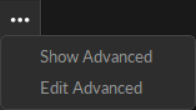
The Settings panel contains advanced settings that are hidden by default. To access these settings, click the <img src="https://2867085706-files.gitbook.io/~/files/v0/b/gitbook-x-prod.appspot.com/o/spaces%2FuHClgoIWDmmoXSr2eD9q%2Fuploads%2FspzTMkSDn6iVdNqIb7Ds%2FMotive%20Context%20Menu.png?alt=media&#x26;token=a370a04f-76c1-4b8c-bc55-8b154d94c0af" alt="" data-size="line"> button in the top right corner.&#x20;

Use the *Edit Advanced* option to customize which settings are in the *Advanced Settings* category and which appear in the standard view, to show only the settings that are needed specifically for your capture application.&#x20;
{% endhint %}

<figure><img src="https://2867085706-files.gitbook.io/~/files/v0/b/gitbook-x-prod.appspot.com/o/spaces%2FuHClgoIWDmmoXSr2eD9q%2Fuploads%2Fsa52iU2URloMzzenae4U%2FSettings%20-%20Show%20or%20Edit%20advanced.png?alt=media&#x26;token=83731d48-75f4-4232-97eb-1b71cb7fa59e" alt=""><figcaption><p>Show or Edit Advanced Settings.</p></figcaption></figure>

{% hint style="info" %}
To restore all settings to their default values, select *Reset Settings* from the Edit menu.
{% endhint %}

## General Settings

The following items are available in the top section of the General section. Settings are Standard unless noted otherwise.&#x20;

<figure><img src="https://2867085706-files.gitbook.io/~/files/v0/b/gitbook-x-prod.appspot.com/o/spaces%2FuHClgoIWDmmoXSr2eD9q%2Fuploads%2FT7Be8d2sjzwJiR8jywOQ%2FSettings%20-%20General%20Tab%20General%20advanced.png?alt=media&#x26;token=39e514c2-d2b9-4f3b-b171-c4b574fb7272" alt="" width="325"><figcaption><p>General Settings - Standard and Advanced.</p></figcaption></figure>

#### **Take Suffix**

Set the separator (\_) and string format specifiers (%03d) for the suffix added after existing file names.

#### **Auto Archive Takes**

Enable auto-archiving of *Takes* when [trimming *Takes*](https://docs.optitrack.com/v3.1/motive/data-editing#trimming-captured-takes).

#### **Device Profile&#x20;*****(Advanced Setting)***

Set the default device profile, in XML format, to load into Motive. The device profile determines and configures the settings for peripheral devices such as force plates, NI-DAQ, or navigation controllers.

#### **Persistent Data Folders**

When enabled, all of the session folders loaded in the [Data pane](https://docs.optitrack.com/v3.1/motive-ui-panes/data-pane) when exiting will be available again when launching Motive the next time.

#### **Glove Server Address&#x20;*****(Advanced Setting)***

Enter the IP address of the glove server, if one is used. Leave blank to use the Local Host IP.

#### Log Filename *(Advanced Setting)*

Click the folder icon to the right of the field to select a text file to write the Motive event log to. This allows you to maintain a continuous log that persists between sessions, which can be helpful for troubleshooting.&#x20;

### Camera Displays

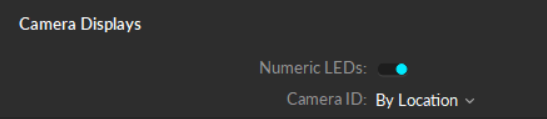
The following items are available in the Camera Displays section. Settings are Standard unless noted otherwise.&#x20;

<figure><img src="https://2867085706-files.gitbook.io/~/files/v0/b/gitbook-x-prod.appspot.com/o/spaces%2FuHClgoIWDmmoXSr2eD9q%2Fuploads%2FZKxoQOBFkkBTJQ6gUKo4%2FSettings%20General%20Tab%20-%20Camera%20Advanced.png?alt=media&#x26;token=83a80fbc-63de-48e1-add4-dd3e53d301cd" alt="" width="410"><figcaption><p>Camera Displays Settings - Standard and Advanced.</p></figcaption></figure>

#### **Numeric LEDs&#x20;*****(Advanced Setting)***

Display the assigned camera number on the front of each camera.

#### **Camera ID**

Set how Camera IDs are assigned for each camera in a setup. Available options are:

* **By Location:**  Follows the positional order in a clockwise direction, starting from the -X and -Z quadrant with respect to the origin.
* **By Serial Number:**  Numbers the cameras in numerical order by serial number.
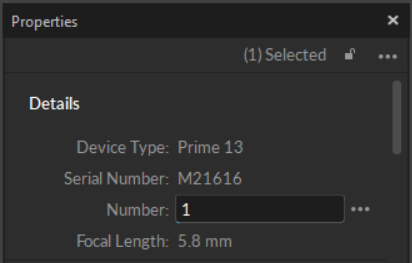
* **Custom:** Opens the *Number* property field for editing in the *Camera Properties* pane.

<figure><img src="https://2867085706-files.gitbook.io/~/files/v0/b/gitbook-x-prod.appspot.com/o/spaces%2FuHClgoIWDmmoXSr2eD9q%2Fuploads%2FIABSnvpt2b1SJ6dgHS1d%2FProperties%20-%20Camera%20Custom%20Number.png?alt=media&#x26;token=2b73bce6-8227-4c77-b594-917023b11196" alt="" width="309"><figcaption><p>Camera Properties with Custom Camera Number.</p></figcaption></figure>

### Status Rings

Set the color of the [RGB Status Indicator Ring LEDs](https://docs.optitrack.com/v3.1/hardware/camera-status-indicators) (Prime Series cameras only) to indicate various camera statuses in Motive.

<figure><img src="https://2867085706-files.gitbook.io/~/files/v0/b/gitbook-x-prod.appspot.com/o/spaces%2FuHClgoIWDmmoXSr2eD9q%2Fuploads%2FzZmXoO8T4bv2y4S0XOzt%2FSettings%20-%20Status%20Rings.png?alt=media&#x26;token=acc53948-939f-4b19-b70c-6ed1d058f6df" alt="" width="340"><figcaption><p>Status Ring settings - Standard and Advanced. </p></figcaption></figure>

**Live**

(Default: Blue) Camera is in Live mode.

#### **Recording**

(Default: Green) Camera is recording a capture.

#### **Playback**

(Default: Black) Camera is idle while Motive is in playback mode.

#### **Selection**

(Default: Yellow) Camera is selected.

#### **Video Mode**

(Default: Orange) Camera is in video (reference) mode.

#### **Hibernation Visual**

(Default: Enabled) Enable the hibernation light for all cameras when Motive is closed.

#### Calibration Camera Visuals *(Advanced Setting)*

(Default:  Enabled) Display visuals of wanding coverage in the Camera Viewport during calibration.&#x20;

#### Disable All Lights

(Default:  Off) Turn off all numeric LEDs and ring lights on all cameras in the system.

### Aim Assist

All of the Aim Assist settings are standard settings.

<figure><img src="https://2867085706-files.gitbook.io/~/files/v0/b/gitbook-x-prod.appspot.com/o/spaces%2FuHClgoIWDmmoXSr2eD9q%2Fuploads%2Fl0rJ1UDJerbzBEUmvoQn%2FSettings%20-%20General%20Aim%20Asst.png?alt=media&#x26;token=c17dc119-682c-4011-b8a2-7bb814b06242" alt=""><figcaption><p>Aim Assist Settings. </p></figcaption></figure>

#### **Switch to Video when Aiming**

(Default:  On) Set the Aim Assist button on the back of the camera to toggle the camera between MJPEG mode and back to the default camera group record mode.&#x20;

#### **Aiming Crosshairs**

(Default: Grayscale Only) Display aiming crosshairs on the the camera in the Camera Viewport. Options are None, Grayscale Only, All Modes.

#### **Aiming Button LED**

(Default:  On) Enable the LED light on the Aim Assist button on the back of the Prime Series cameras.

### Calibration Settings *(Advanced)*

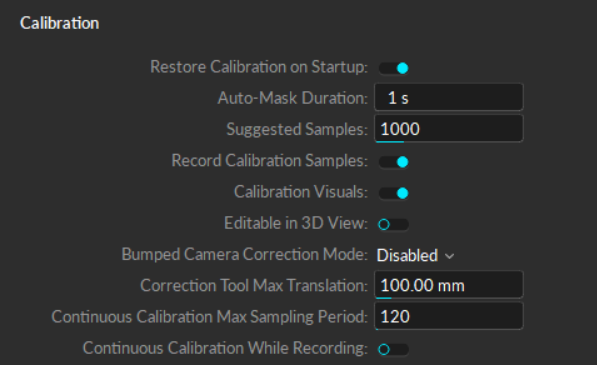
All calibration settings are part of the General tab's Advanced Settings.&#x20;

<figure><img src="https://2867085706-files.gitbook.io/~/files/v0/b/gitbook-x-prod.appspot.com/o/spaces%2FuHClgoIWDmmoXSr2eD9q%2Fuploads%2FSC4iciqMYDdBDJUJngRK%2FSettings%20-%20General%20Calibration.png?alt=media&#x26;token=5dadb3b4-cbaa-428c-89ad-34422d642b13" alt="" width="448"><figcaption><p>Calibration settings.</p></figcaption></figure>

### Calibration

#### **Restore Calibration on Startup**

(Default:  On) Automatically load the previous, or last saved, calibration file when starting Motive.

#### **Auto-Mask Duration**

(Default:  1 s) The duration, in seconds, that the camera system will auto-detect extraneous reflections for masking during [Calibration](https://docs.optitrack.com/v3.1/motive/calibration) process.

#### **Suggested Samples**

(Default:  1,000) Number of samples suggested for calibration. During the [wanding](https://docs.optitrack.com/v3.1/motive/calibration#wanding) process, the camera status in the [Calibration pane](https://docs.optitrack.com/v3.1/motive-ui-panes/calibration-pane) will turn bright green as cameras reach this target.

#### Record Calibration Samples

(Default:  On) Save two *TAKE* files in the current data folder every time a calibration is performed:  one for the calibration wanding and one for the ground plane. &#x20;

#### **Calibration Visual**

(Default:  On) Display visuals of wanding coverage in the Camera Viewport during calibration.&#x20;

#### **Editable in 3D View**

(Default:  Off) Allows editing of the camera calibration position with the 3D Gizmo tool.

#### **Bumped Camera Correction Mode**

(Default:  Disabled) Select the default mode for Bumped Camera correction. Options are *Disabled, Camera Samples,* and *Selected Camera.* Please see the page [Continuous Calibration (Info Pane) ](https://docs.optitrack.com/v3.1/motive/calibration/continuous-calibration-info-pane)for more information on these settings and the Bumped Camera tool.&#x20;

#### **Correction Tool Max Translation**

(Default:  100 mm) The maximum distance cameras can be translated by the position correction tool, in mm.

#### Continuous Calibration Max Sampling Period

(Default:  120) The maximum length, in seconds, that samples are collected during continuous calibration.&#x20;

#### Continuous Calibration While Recording

(Default:  Off) Allows Continuous Calibration to continue running while recording is in progress.

### Network *(Advanced)*

The Network setting is part of the General tab's Advanced Settings.&#x20;

<figure><img src="https://2867085706-files.gitbook.io/~/files/v0/b/gitbook-x-prod.appspot.com/o/spaces%2FuHClgoIWDmmoXSr2eD9q%2Fuploads%2FCgZfLIy7VDwj0AwH2jpa%2FSettings%20-%20General%20Networking.png?alt=media&#x26;token=6678f960-91e8-4c55-bc1a-ea3a52cc6d25" alt="" width="360"><figcaption><p>Network Settings.</p></figcaption></figure>

#### **LLDP (PoE+) Detection**

(Default:  Override) Enable detection of PoE+ switches by High Power cameras (Prime 17W, PrimeX 22, Prime 41, and PrimeX41). LLDP allows the cameras to communicate directly with the switch and determine power availability to increase output to the IR LED rings.&#x20;

{% hint style="warning" %}
When using Ethernet switches that are not PoE+ enabled or switches that are not LLDP enabled, cameras will not go into high power mode even with this setting on.
{% endhint %}

### Editing

All of the Editing settings are standard settings.

<figure><img src="https://2867085706-files.gitbook.io/~/files/v0/b/gitbook-x-prod.appspot.com/o/spaces%2FuHClgoIWDmmoXSr2eD9q%2Fuploads%2F0sSsRNd104P3iA7YPM7p%2FSettings%20-%20General%20Editing.png?alt=media&#x26;token=4b6194d1-0a8e-4340-8289-77c401693a4a" alt="" width="389"><figcaption><p>Editing Settings.</p></figcaption></figure>

#### Take Auto-Save

(Default:  Always Ask) Set Motive's default behavior when changes are made to a *TAKE* file.  Options are:&#x20;

* Do Not Auto-Save:  Changes made to *TAKE* files must be manually saved.
* Auto-Save:  Updates the *TAKE* file as changes are made.&#x20;
* Always Ask:  Prompts the user to save *TAKE* files upon exit. &#x20;