# Unreal Engine: Live Link Camera Stream Setup

## Overview

Motive’s Live Link plug-in for Unreal Engine includes the ability to stream tracked rigid bodies for Virtual Production and InCamera VFX (ICVFX).&#x20;

Motive tracks video cameras using a CinePuck, an active device equipped with an IMU. The CinePuck  mounts directly to the video camera and, when aligned with the camera lens as a Rigid Body, tracks the camera's focal point so it can be replicated virtually in the Unreal Engine environment.&#x20;

The Camera Role in Unreal Engine can now be used for the Tracked Camera Rigid Body. This means that you can now connect a lens file with the associated Live Link Camera Role Asset. In Unreal Engine, users can calibrate for lens distortion and nodal offset, and use the camera with a Lens Encoder, if desired.&#x20;

This document provides instructions to setup and link a Rigid Body in Motive to a Live Link Camera Role in Unreal Engine. For information on ICVFX production in general, please see the page [Unreal Engine: OptiTrack InCamera VFX](https://docs.optitrack.com/v3.1/virtual-production/unreal-engine-optitrack-incamera-vfx).&#x20;

{% hint style="info" %}
We used the standard *InCameraVFX* template in Unreal Engine for our sample project. The template includes all the necessary macros and assets needed for virtual production.&#x20;

This template is located under *Film / Video & Live Events* in the Unreal Project Browser. &#x20;
{% endhint %}

## Create Camera Asset in Motive

Motive will stream the camera as a Live Link Rigid Body asset.&#x20;

#### Connect the CinePuck and BaseStation

* Plug the [BaseStation](https://docs.optitrack.com/v3.1/active-components/active-components-hardware/basestation) into one of the Power over Ethernet (PoE) switches on the OptiTrack camera network.&#x20;
* Firmly attach the [CinePuck](https://docs.optitrack.com/v3.1/active-components/active-components-hardware/cinepuck) to the Studio Camera using the SmallRig NATO Rail and Clamps on the cage of the camera.
* The CinePuck can be mounted anywhere on the camera. For best results, put the puck closer to the lens.
* Power on the CinePuck, and let it calibrate the IMU bias. The lights will flash red and orange during calibration and change to green when done.

{% hint style="info" %}
We recommend powering the CinePuck with a USB cable while filming to avoid running out of battery power. A light on the CinePuck will indicate when the power is connected.
{% endhint %}

![CinePuck mounted via SmallRig NATO rig.](https://content.gitbook.com/content/uHClgoIWDmmoXSr2eD9q/blobs/5ldCRmCvpyZ5vkPUUG3n/CinePuck%20mouted%20to%20NATO%20rig.png)

#### Create a Rigid Body

A CinePuck is tracked in Motive as a Rigid Body asset. For detailed instructions on creating a [rigid body asset](https://docs.optitrack.com/v3.1/motive-ui-panes/builder-pane#rigid-body-create), Please see the [Builder pane](https://docs.optitrack.com/v3.1/motive-ui-panes/builder-pane) page. For instructions on pairing the IMU, please see the [IMU Sensor Fusion](https://docs.optitrack.com/v3.1/motive/imu-sensor-fusion) page.&#x20;

## Attach the Camera Role in Unreal Engine

* In Unreal Engine, click the <img src="https://2867085706-files.gitbook.io/~/files/v0/b/gitbook-x-prod.appspot.com/o/spaces%2FuHClgoIWDmmoXSr2eD9q%2Fuploads%2FW5mGoQB07cGU3XARC8ld%2FUE%20Add%20Source%20Button.png?alt=media&#x26;token=9aa7623d-3ebb-4bcb-97db-d7ade47acf63" alt="" data-size="line"> button on the Live Link tab to add a new Live Link source.
* Select *OptiTrack Source*, check *Connect Automatically*, enter the IP address for the Motive PC in the *Server Address* field, the IP address for the Unreal PC in the *Client Address* field, and click *Create*. Enter 127.0.0.1 in both fields if running both on the same PC. Leave the Connection Type as Multicast and click create.

<figure><img src="https://2867085706-files.gitbook.io/~/files/v0/b/gitbook-x-prod.appspot.com/o/spaces%2FuHClgoIWDmmoXSr2eD9q%2Fuploads%2Fr9B3hIN8gt5hZnQZqLnJ%2FUE%20-%20LiveLink%20Connect%20to%20Source.png?alt=media&#x26;token=e37795a3-78ad-4a5b-8f97-4c47b8bd3f5d" alt=""><figcaption><p>Add a Live Link source in Unreal Engine.</p></figcaption></figure>

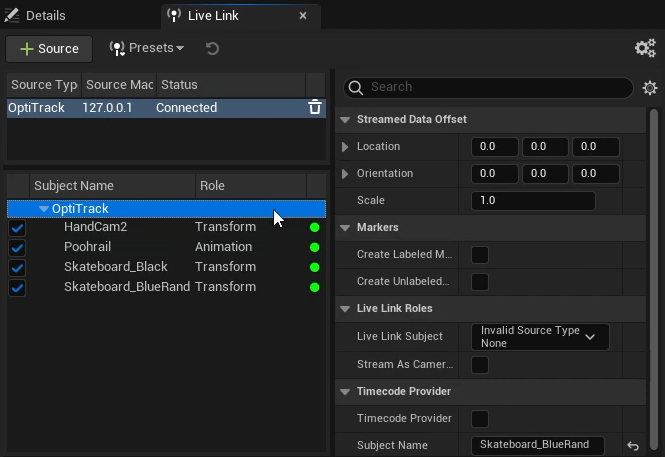
* This will display a list of assets streaming from Motive. Note that the rigid body camera, named *HandCam2*, is currently in the Transform role.
* Click *OptiTrack* in the Subject list to display the OptiTrack Live Link Properties.&#x20;

<figure><img src="https://2867085706-files.gitbook.io/~/files/v0/b/gitbook-x-prod.appspot.com/o/spaces%2FuHClgoIWDmmoXSr2eD9q%2Fuploads%2FFyiucn8sQoR5sEzEyOsW%2FLive%20Link%20Select%20OptiTrack.png?alt=media&#x26;token=4f4db4b5-38e7-4cce-bb94-a97b86434fc0" alt=""><figcaption><p>Unreal Engine Properties for the OptiTrack Live Link plug-in.</p></figcaption></figure>

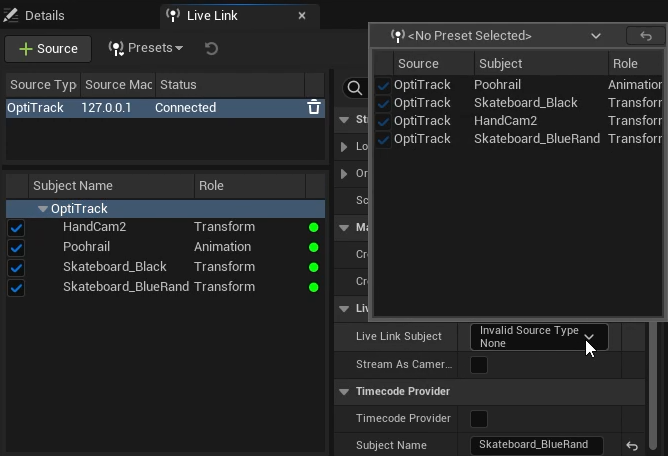
* In the *Live Link Roles* section, click the *Live Link Subject* dropdown. This will open the list of Assets streaming from Motive.&#x20;
* Select the camera asset, *HandCam2* in this example.

<figure><img src="https://2867085706-files.gitbook.io/~/files/v0/b/gitbook-x-prod.appspot.com/o/spaces%2FuHClgoIWDmmoXSr2eD9q%2Fuploads%2FfYueYjnHrRAC4B30T1rE%2FLive%20Link%20Select%20LL%20Subject.png?alt=media&#x26;token=9fe6d94e-a9be-4a61-8ad6-45c32a8778ee" alt=""><figcaption><p>Select a Live Link Subject in Unreal Engine.</p></figcaption></figure>

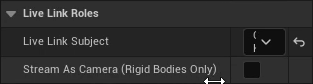
* Directly below the Live Link Subject field is a check box to *Stream as Camera (Rigid Bodies Only)*. Check this box to apply the Camera Role to the camera rigid body (HandCam2).&#x20;

<figure><img src="https://2867085706-files.gitbook.io/~/files/v0/b/gitbook-x-prod.appspot.com/o/spaces%2FuHClgoIWDmmoXSr2eD9q%2Fuploads%2FNui3jhtBXFnogKEnIpgZ%2FLive%20Link%20Stream%20as%20Camera%20setting.png?alt=media&#x26;token=d821aa81-ec7a-4f47-af78-d1cdd687c0b1" alt=""><figcaption><p>Stream as Camera setting in Unreal Engine.</p></figcaption></figure>

## Configure Camera for Streaming

### Add OptiTrack LiveLinkDisplay

Click the <img src="https://2867085706-files.gitbook.io/~/files/v0/b/gitbook-x-prod.appspot.com/o/spaces%2FuHClgoIWDmmoXSr2eD9q%2Fuploads%2F8e6zSr3l7GUtC9dafhNm%2FUnreal%20Engine%20Quick%20Add%20button.png?alt=media&#x26;token=cbdfcef2-3a54-4920-b4cd-24a2aede1e04" alt="" data-size="line"> Quick Add button and start typing *OptiTrack* over the menu to activate the search function.  Select the OptiTrack Live Link Display from the list of available options.

<figure><img src="https://2867085706-files.gitbook.io/~/files/v0/b/gitbook-x-prod.appspot.com/o/spaces%2FuHClgoIWDmmoXSr2eD9q%2Fuploads%2F4777hUc2uDRIBT25Yne1%2FLive%20Link%20Add%20OptiTrackNDisplay.png?alt=media&#x26;token=a9426659-81b9-4910-b17a-d4ba5e3110ff" alt=""><figcaption><p>Searching from the UE Quick Add button.</p></figcaption></figure>

Move all the NDisplay assets to nest under *OptitrackLiveLinkDisplay i*n the Outliner pane.

### Add the LiveLinkController

* Select the video camera, now nested under *OptitrackLiveLinkDisplay i*n the Outliner pane..&#x20;
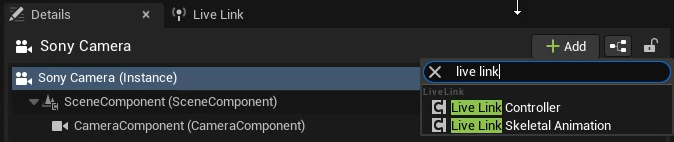
* In the Details pane, click the <img src="https://2867085706-files.gitbook.io/~/files/v0/b/gitbook-x-prod.appspot.com/o/spaces%2FuHClgoIWDmmoXSr2eD9q%2Fuploads%2FUBig8L7JcObv7iIcHe98%2FLive%20Link%20Add%20Component%20button.png?alt=media&#x26;token=6db61c6f-3e4d-4ab8-ad5a-624c23dad02b" alt="" data-size="line"> Add button to add a new component to the camera.
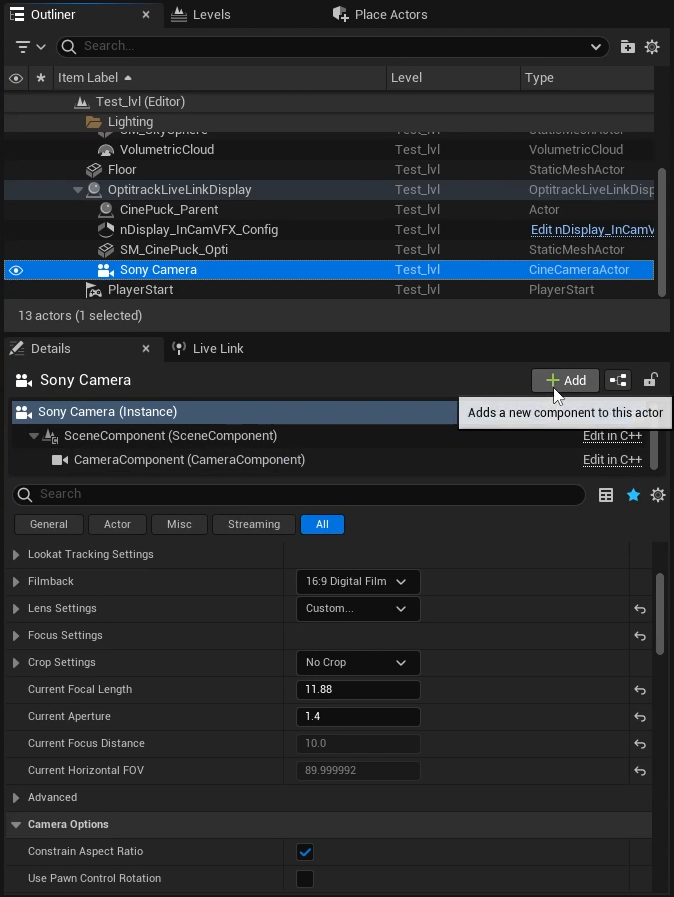
<figure><img src="https://2867085706-files.gitbook.io/~/files/v0/b/gitbook-x-prod.appspot.com/o/spaces%2FuHClgoIWDmmoXSr2eD9q%2Fuploads%2FRAxE0ARAhjoW0YMXnrkv%2FLive%20Link%20Camera%20Add%20Component.png?alt=media&#x26;token=3fa90037-5004-480b-8db6-83e676d2a1b1" alt=""><figcaption><p>Camera Details in Unreal Engine: Add a new component.</p></figcaption></figure>

* Search for and select the *Live Link Controller* component.&#x20;

<figure><img src="https://2867085706-files.gitbook.io/~/files/v0/b/gitbook-x-prod.appspot.com/o/spaces%2FuHClgoIWDmmoXSr2eD9q%2Fuploads%2FPipOWZbwIieFBOpL26Gy%2FLive%20Link%20-%20Add%20component%20search%20results.png?alt=media&#x26;token=2d7b3a34-bb44-4b48-b701-0172f4e05b30" alt=""><figcaption></figcaption></figure>

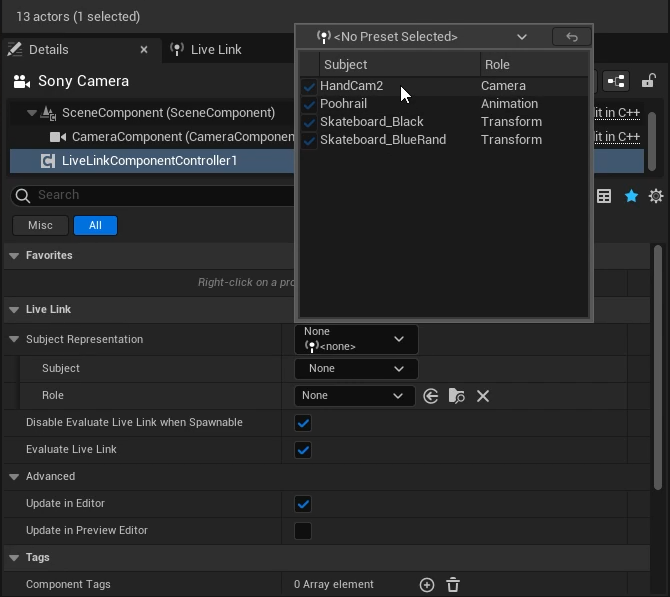
* Properties for the new Controller will display in the Camera details pane.&#x20;
* Click the dropdown next to *Subject Representation* and select the camera Rigid Body.&#x20;
* The *Subject* and *Role* fields will both update to display the name of the Rigid Body name.&#x20;

{% hint style="info" %}
The *LiveLinkController* label can only be applied to Rigid Body assets.&#x20;
{% endhint %}

<figure><img src="https://2867085706-files.gitbook.io/~/files/v0/b/gitbook-x-prod.appspot.com/o/spaces%2FuHClgoIWDmmoXSr2eD9q%2Fuploads%2FtHdzQ6mQFoPPMtxfvYHg%2FLive%20Link%20Select%20Subject%20Representation.png?alt=media&#x26;token=00f38237-134f-4f8d-87a1-d1965e40b041" alt=""><figcaption><p>Properties for a new Live Link Controller component in Unreal Engine.</p></figcaption></figure>

## Camera Calibration

As noted above, Unreal Engine includes properties that allow you to calibrate a video camera streaming into Unreal Engine. This includes the ability to use a lens encoder with the camera.

#### Lens Encoder

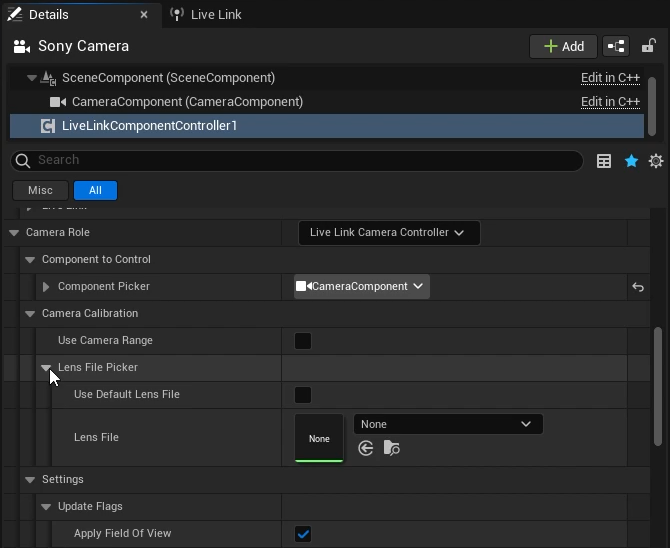
When using a Lens Encoder or a calibrated Lens in Unreal Engine, use the Lens File Picker settings to select the appropriate Lens File.

<figure><img src="https://2867085706-files.gitbook.io/~/files/v0/b/gitbook-x-prod.appspot.com/o/spaces%2FuHClgoIWDmmoXSr2eD9q%2Fuploads%2F2XqO0Qmir2J5I38qFnua%2FLive%20Link%20Camera%20Lens%20File%20Picker.png?alt=media&#x26;token=37f89f64-b412-4c87-af0a-5d04e4cc3209" alt=""><figcaption><p>Live Link Component Camera Role properties in Ureal Engine.</p></figcaption></figure>

{% hint style="info" %}
Please see [Camera Lens Calibration Overview in Unreal Engine](https://docs.unrealengine.com/4.27/en-US/WorkingWithMedia/IntegratingMedia/CameraCalibration/Overview/) for more information on calibrating cameras and working with lens files in Unreal Engine.&#x20;
{% endhint %}