# Live Link Content:  Active Puck Static Meshes

## Overview

OptiTrack's plugin for Unreal Engine includes an array of content options. the 5.3 plugin includes the following new content:

* ActivePuckMesh
* CinePuckMesh
* MotiveAvatarMesh
* MotiveSkeletalMesh
* MotiveSkeleton

This page covers the Active Puck and CinePuck static meshes, using the Active Puck as the example.&#x20;

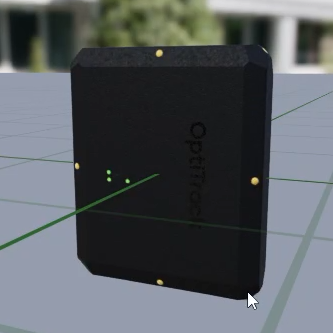
<div><figure><img src="https://2867085706-files.gitbook.io/~/files/v0/b/gitbook-x-prod.appspot.com/o/spaces%2FuHClgoIWDmmoXSr2eD9q%2Fuploads%2Fxc82LxVYwAXgz72LuKsD%2FActive%20Puck%20Mesh%20CROPPED.png?alt=media&#x26;token=a1f15b32-abe1-4955-bf13-0c92e6b2f964" alt=""><figcaption><p>Scaled-to-fit Active Puck.</p></figcaption></figure> <figure><img src="https://2867085706-files.gitbook.io/~/files/v0/b/gitbook-x-prod.appspot.com/o/spaces%2FuHClgoIWDmmoXSr2eD9q%2Fuploads%2FSOnOjmFqcm8KFnEgD9Ns%2FCinePuck%20mesh%20CROPPED.png?alt=media&#x26;token=f575f934-ad9b-45ca-9bf9-166db61d76ac" alt=""><figcaption><p>Scaled-to-fit CinePuck.</p></figcaption></figure></div>

The Active Puck Mesh provides a couple of different use cases:

1. Data validation. Tracking an active puck in the physical volume using the OptiTrack Live Link display provides a point of reference that allows you to validate rotation, placements, and even the scale of your volume.
2. Lens calibration device. Because the static mesh is the same scale as a real puck, its markers can be used for calibration purposes. Please see the section [Create a Lens Calibration Device](#create-a-lens-calibration-device), below, for more details.&#x20;

{% hint style="info" %}
We used the standard *InCameraVFX* template in Unreal Engine for our sample project. The template includes all the necessary macros and assets needed for virtual production.&#x20;

This template is located under *Film / Video & Live Events* in the Unreal Project Browser. &#x20;
{% endhint %}

## Add a Puck to an Unreal Engine Project

This section walks the user through adding the puck static mesh to a project and aligning it with the puck streaming from Motive.&#x20;

### Show Plugin Content

* From the Content Browser window, click the <img src="https://2867085706-files.gitbook.io/~/files/v0/b/gitbook-x-prod.appspot.com/o/spaces%2FuHClgoIWDmmoXSr2eD9q%2Fuploads%2FYkYFf09wp96IvJbdCmEH%2FUE%20Content%20Browser%20Settings.png?alt=media&#x26;token=b2738d6e-a794-439e-9da5-39a92896e3a3" alt="" data-size="original"> button.
* Check the boxes for *Show Engine Content* and *Show Plugin Content*.
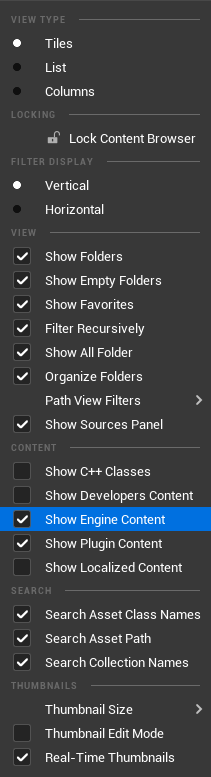
<figure><img src="https://2867085706-files.gitbook.io/~/files/v0/b/gitbook-x-prod.appspot.com/o/spaces%2FuHClgoIWDmmoXSr2eD9q%2Fuploads%2FaQV1yGx0Yaj9VwFLrffv%2FUE%20Content%20Browser%20Settings%20Menu.png?alt=media&#x26;token=40a97d14-a79a-4267-9180-2e107eeec577" alt="" width="158"><figcaption><p>Content Browser Settings in UE.</p></figcaption></figure>

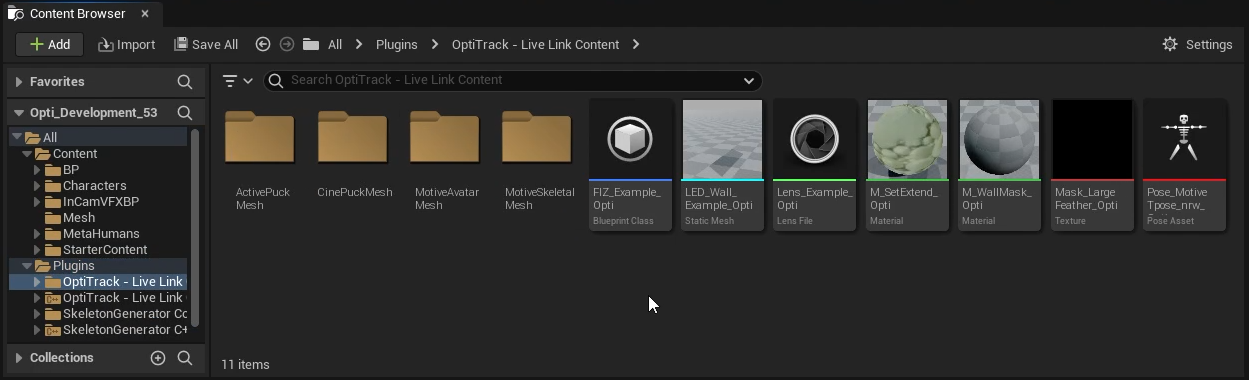
* The Content Browser’s Navigation pane will now show the Engine Content, where the Plugins folder resides.
* Open the OptiTrack—Live Link Content folder.

<figure><img src="https://2867085706-files.gitbook.io/~/files/v0/b/gitbook-x-prod.appspot.com/o/spaces%2FuHClgoIWDmmoXSr2eD9q%2Fuploads%2FmL6LG4PJLmMCPOYDv1hU%2FLive%20Link%20Content%20folder.png?alt=media&#x26;token=6b6e7b8f-988e-4bf6-a8fe-5f40d8bbade6" alt="" width="563"><figcaption><p>OptiTrack's Live Link Content for Unreal Engine.</p></figcaption></figure>

* Open the *ActivePuckMesh* folder. If using a CinePuck, open the *CinePuckMesh* folder .

### Create Labeled Markers

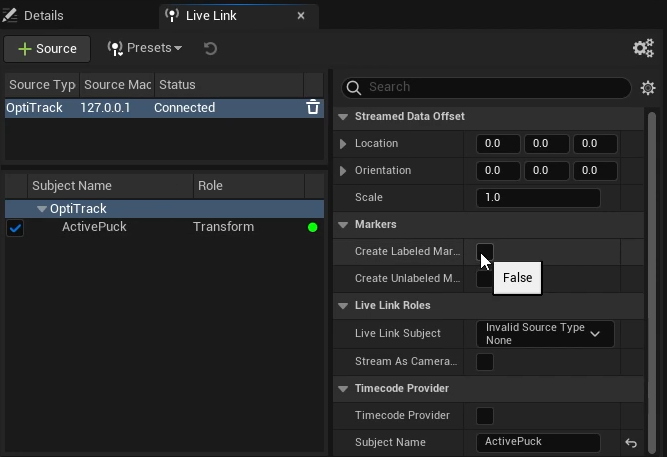
The Live Link asset automatically aligns with its source in Motive. The *Markers* settings display a visual map of the marker locations. This map is helpful for confirming the alignment of a static mesh to a streamed asset.&#x20;

* In the Live Link pane, select *OptiTrack*.
* In the *Markers* section of the OptiTrack Properties pane, set *Create Labeled Markers* to true.

{% hint style="info" %}
To open the Live Link pane, select *Virtual Production → Live Link* from the *Window* menu.
{% endhint %}

<figure><img src="https://2867085706-files.gitbook.io/~/files/v0/b/gitbook-x-prod.appspot.com/o/spaces%2FuHClgoIWDmmoXSr2eD9q%2Fuploads%2FE8UpOBBoSr38oQZYvhXD%2FLive%20Link%20Create%20Labeled%20Markers.png?alt=media&#x26;token=a6186d52-db7b-44f3-8f98-8d331fc99592" alt="" width="500"><figcaption><p>Live Link Pane in Unreal Engine: Create Labeled Markers. </p></figcaption></figure>
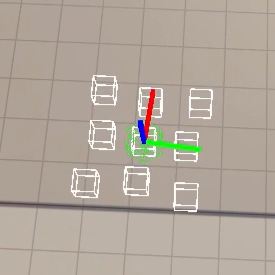
<figure><img src="https://2867085706-files.gitbook.io/~/files/v0/b/gitbook-x-prod.appspot.com/o/spaces%2FuHClgoIWDmmoXSr2eD9q%2Fuploads%2FmrwzVyaHFh9mQy4unKkl%2FActive%20Puck%20Markers%20aligned.png?alt=media&#x26;token=eb01a955-ee9c-408a-8445-246c44d29c25" alt="" width="206"><figcaption><p>Labeled Live Link Markers in UE.</p></figcaption></figure>

### Create Blueprint Class

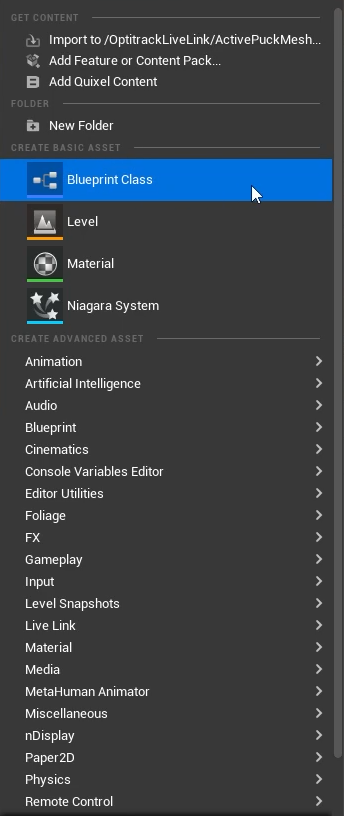
* Right click in the Content Browser to open the menu.
* Under *Create Basic Asset*, select *Blueprint Class*.

<figure><img src="https://2867085706-files.gitbook.io/~/files/v0/b/gitbook-x-prod.appspot.com/o/spaces%2FuHClgoIWDmmoXSr2eD9q%2Fuploads%2FuaEkmkZsq1d9EGz9aBCk%2FLive%20Link%20Create%20Blueprint%20Class.png?alt=media&#x26;token=b13f1b92-1ff0-4b0e-9c58-76fc808de81e" alt="" width="258"><figcaption><p>Create Blueprint Class from Content Browser menu in UE.</p></figcaption></figure>

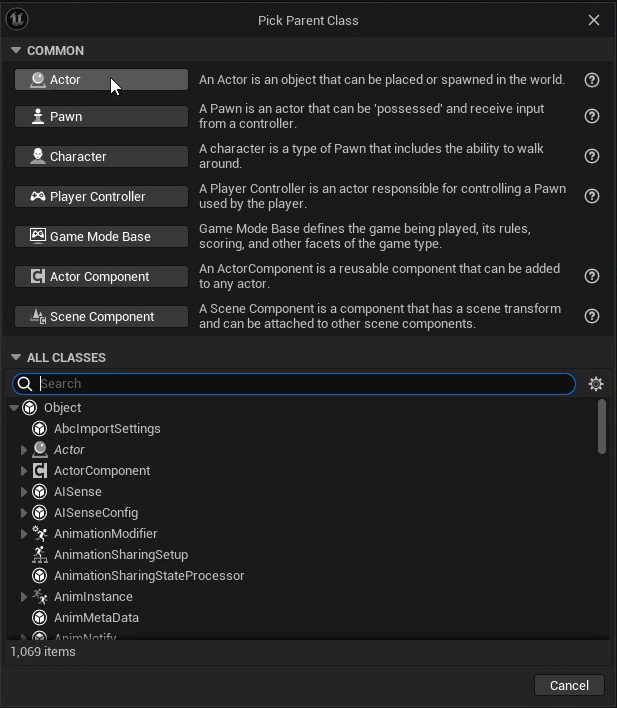
* Select Actor as the Parent Class.
* Double-click the name to give it a more meaningful name. In our example, we renamed the component *BP\_CalibratorPuck.* We will use this puck later to create a [Lens Calibration Device](#create-a-lens-calibration-device).&#x20;

<figure><img src="https://2867085706-files.gitbook.io/~/files/v0/b/gitbook-x-prod.appspot.com/o/spaces%2FuHClgoIWDmmoXSr2eD9q%2Fuploads%2Fs7UVg5nZnwKLkuRSTe91%2FCreate%20Blueprint%20-%20Pick%20parent%20class.png?alt=media&#x26;token=3bcf1623-800c-4458-9a9e-92c7e27f0977" alt="" width="463"><figcaption><p>Unreal Engine: Pick Parent Class for a new blueprint.</p></figcaption></figure>

### Add the Static Mesh

* Open the newly created Blueprint linked to the puck streaming from Motive. &#x20;
* This will open a new tab. Click the <img src="https://2867085706-files.gitbook.io/~/files/v0/b/gitbook-x-prod.appspot.com/o/spaces%2FuHClgoIWDmmoXSr2eD9q%2Fuploads%2FG4yWgPjMQOoVqmaLK0rz%2FLive%20Link%20Add%20Component%20button.png?alt=media&#x26;token=a6420241-dd05-44c8-9f6f-b0f1078f88e9" alt="" data-size="line"> *Add* button in the top left of the Component pane and select *Static Mesh* from the list of options.
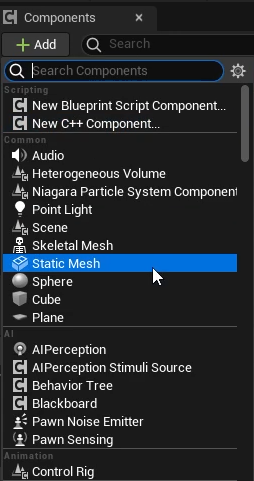
<figure><img src="https://2867085706-files.gitbook.io/~/files/v0/b/gitbook-x-prod.appspot.com/o/spaces%2FuHClgoIWDmmoXSr2eD9q%2Fuploads%2FOjZNqjxeHwEjdTfgrMN2%2FUE%20-%20Component%20add%20static%20mesh.png?alt=media&#x26;token=6292a6ee-71b1-4afe-96cd-d178f737e6db" alt="" width="191"><figcaption><p>Add components menu in UE.</p></figcaption></figure>

* Double-click the newly created static mesh in the list of components to rename it. In our example, we called it *ActivePuck*.
* Select the static mesh in the Components pane to display its properties in the Details pane.&#x20;
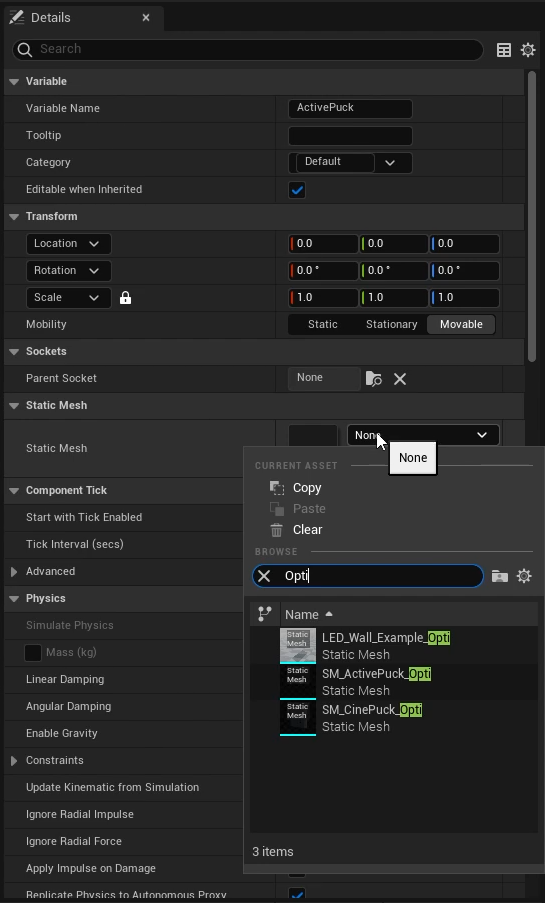
* Click the Static Mesh property (set to None by default) to select the asset to use.&#x20;
* Select *SM\_ActivePuck\_Opti* for the Active Puck, or *SM\_CinePuck\_Opti* if using a CinePuck.

<figure><img src="https://2867085706-files.gitbook.io/~/files/v0/b/gitbook-x-prod.appspot.com/o/spaces%2FuHClgoIWDmmoXSr2eD9q%2Fuploads%2FRfThKdZvRR62Gj5PQxsX%2FUE%20Static%20Mesh%20-%20link%20to%20puck.png?alt=media&#x26;token=bb76629c-57a5-4935-bebc-17b11f4ad042" alt="" width="409"><figcaption><p>Details for a Static Mesh component in UE.</p></figcaption></figure>

The Active Puck static mesh will now appear in the scene.&#x20;

## Create a Lens Calibration Device&#x20;

An Active Puck can serve as a lens calibration device in Unreal Engine by aligning calibration points to the markers at each of the four corners. &#x20;

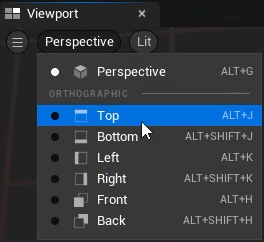
For accuracy and precision, use the *Top* view in the UE Viewport.&#x20;

<figure><img src="https://2867085706-files.gitbook.io/~/files/v0/b/gitbook-x-prod.appspot.com/o/spaces%2FuHClgoIWDmmoXSr2eD9q%2Fuploads%2Fmf0dlIXinTOqO1N40A5t%2FUE%20Change%20Viewport%20perspective.png?alt=media&#x26;token=62ce52e3-b0c9-46f6-8eaf-97a89623a954" alt=""><figcaption><p>Change the Viewport angle in UE.</p></figcaption></figure>

### Add Calibration Points

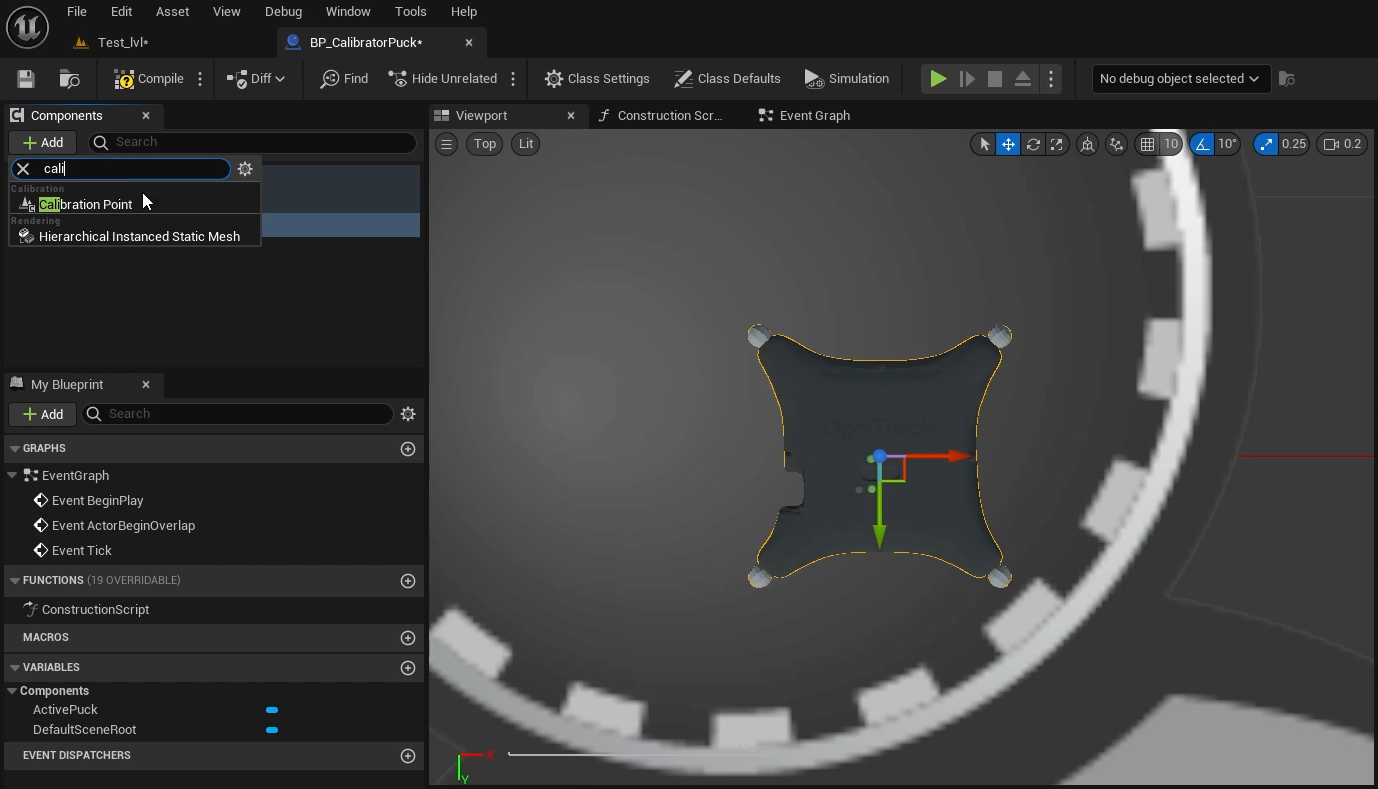
* Select the Active Puck in the Viewport and click the <img src="https://2867085706-files.gitbook.io/~/files/v0/b/gitbook-x-prod.appspot.com/o/spaces%2FuHClgoIWDmmoXSr2eD9q%2Fuploads%2FcoFpz6UaSpaZ7GYyy08k%2FLive%20Link%20Add%20Component%20button.png?alt=media&#x26;token=31836d27-9649-4f54-82dd-5b97917c0b7b" alt="" data-size="line"> Add button on the Components tab.&#x20;
* Search for and select *Calibration Point* from the list of options.&#x20;

<figure><img src="https://2867085706-files.gitbook.io/~/files/v0/b/gitbook-x-prod.appspot.com/o/spaces%2FuHClgoIWDmmoXSr2eD9q%2Fuploads%2F4yTnOzgic1xDdnoOQdjm%2FUE%20Add%20Calibration%20Point.png?alt=media&#x26;token=d55f50ab-46f2-4805-928a-2cde017f7c26" alt=""><figcaption><p>Top down view of the Active Puck Static Mesh in Unreal Engine. </p></figcaption></figure>
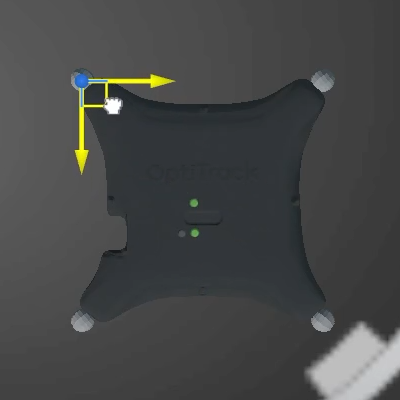
* Click to rename the Calibration point. We recommend using names that match the point's location, such as top left, bottom right, etc.&#x20;
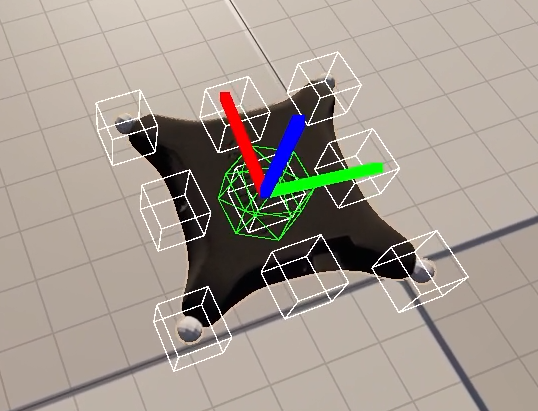
* Drag the newly created point to align it with the center of the corner marker.

<figure><img src="https://2867085706-files.gitbook.io/~/files/v0/b/gitbook-x-prod.appspot.com/o/spaces%2FuHClgoIWDmmoXSr2eD9q%2Fuploads%2FsGlgIDUTxF6RaC9bkRri%2FUE%20Place%20Calibration%20Pt%201.png?alt=media&#x26;token=b9c154b7-7b9b-4486-bb01-f3ddee6f2ed4" alt="" width="300"><figcaption><p>Adding a Calibration Point to the Active Puck Static Mesh in UE.</p></figcaption></figure>

* Use **Ctrl + D** to *Duplicate* the point to make the next one.&#x20;
* Rename the second point and drag it to the appropriate location, aligning it with the previously placed point on either the X or Y axis.&#x20;
* Repeat these last two steps until each of the four corners has a Calibration Point at its center.
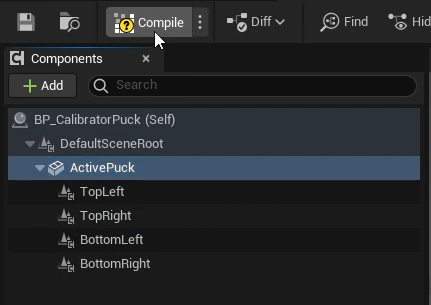
* Select the ActivePuck in the list of components. The four calibration points should be nested underneath.&#x20;
* Click the *Compile* button on the main toolbar, then *Save* and Close the tab for the Blueprint.

<figure><img src="https://2867085706-files.gitbook.io/~/files/v0/b/gitbook-x-prod.appspot.com/o/spaces%2FuHClgoIWDmmoXSr2eD9q%2Fuploads%2Fwdk447HaboRhpcLz1z4z%2FUE%20Compile%20Components.png?alt=media&#x26;token=c29fe84a-43f6-4df5-93cd-1df8f9f00b5c" alt="" width="323"><figcaption><p>Compile changes to the Static Mesh in UE.</p></figcaption></figure>

### Link the Static Mesh to the Live Link Asset

* In the project, click and drag the Blueprint created in the prior steps into the project.&#x20;
* In the Outliner pane, drag the Blueprint under *OptiTrackLiveLinkDisplay.*
* &#x20;In the Transform Section of the Details pane, click the <img src="https://2867085706-files.gitbook.io/~/files/v0/b/gitbook-x-prod.appspot.com/o/spaces%2FuHClgoIWDmmoXSr2eD9q%2Fuploads%2Fy2UElpC11QohPuGd7JiB%2FUE%20Reset%20values%20button.png?alt=media&#x26;token=284411b2-c6d0-46b9-8ea9-9457865cdc19" alt="" data-size="line"> button to the right of the Location settings to reset all location values to zero.&#x20;

<figure><img src="https://2867085706-files.gitbook.io/~/files/v0/b/gitbook-x-prod.appspot.com/o/spaces%2FuHClgoIWDmmoXSr2eD9q%2Fuploads%2FhpYMhmhFMryX7FhtPSCS%2FUE%20Puck%20Reset%20location%20Before%202.png?alt=media&#x26;token=24f26595-a1c0-4da7-888a-5e6fd6198375" alt=""><figcaption></figcaption></figure>

* Click the <img src="https://2867085706-files.gitbook.io/~/files/v0/b/gitbook-x-prod.appspot.com/o/spaces%2FuHClgoIWDmmoXSr2eD9q%2Fuploads%2FS09EmKqHEsnLnoFVlPe5%2FLive%20Link%20Add%20Component%20button.png?alt=media&#x26;token=aa90d3e1-bbb4-4268-a9be-241a5bf2f4db" alt="" data-size="line"> Add button in the Details pane. Search for and select *Live Link Controller*.&#x20;
* Under Subject Representation, click and select *ActivePuck* from the list of available assets (below, left).
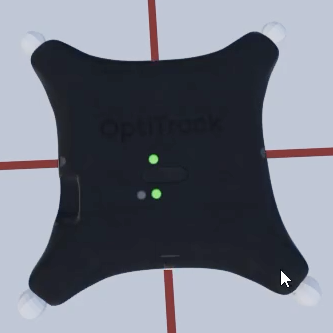
* This will link the static mesh to the puck. The Labeled Markers setting shows the device properly aligned (below, right).

{% hint style="info" %}
Use the translate tool to reorient the static mesh if the OptiTrack brand and the status lights on the mesh do not align with those on the physical puck.&#x20;
{% endhint %}

* Having confirmed the alignment is correct, you can turn off the [Labeled Marker](#create-labeled-markers) display. The Live Link display settings can also be closed.&#x20;
* The puck is now available as a tracked calibrator tool that can be used in conjunction with a lens file in Unreal Engine for lens calibration.
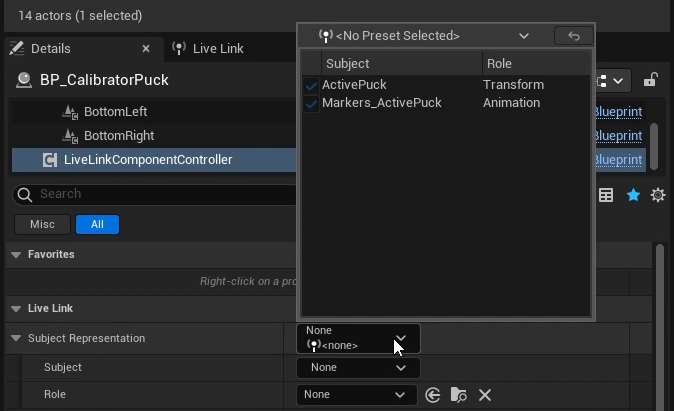
<div><figure><img src="https://2867085706-files.gitbook.io/~/files/v0/b/gitbook-x-prod.appspot.com/o/spaces%2FuHClgoIWDmmoXSr2eD9q%2Fuploads%2F4eibh74y8ZybPyWp38Wi%2FUE%20Puck%20LL%20Add%20Subject.png?alt=media&#x26;token=90e05060-be2d-4258-94fd-be73d28d08c1" alt="" width="506"><figcaption><p>Select a Subject Representation for the <br><em>LiveLinkComponentController</em> in UE.</p></figcaption></figure> <figure><img src="https://2867085706-files.gitbook.io/~/files/v0/b/gitbook-x-prod.appspot.com/o/spaces%2FuHClgoIWDmmoXSr2eD9q%2Fuploads%2FaWd8gWsiWeesjfhUNjq3%2FUE%20Puck%20aligned%20with%20Mesh.png?alt=media&#x26;token=91ac25c6-8299-40f7-b7cf-6bf4ea4b2f40" alt="" width="404"><figcaption><p>A fully aligned Active Puck Static Mesh in UE.</p></figcaption></figure></div>

### Create a Lens File

* Right click in the  Content Browser in the folder where you'd like to save the lens file.
* Search for and select Lens File from the list of Content types and give the file an appropriate name, such as *35mm\_Lens*.&#x20;
* Open the Lens File.

<figure><img src="https://2867085706-files.gitbook.io/~/files/v0/b/gitbook-x-prod.appspot.com/o/spaces%2FuHClgoIWDmmoXSr2eD9q%2Fuploads%2FmUTtmr0XCM8qgMswHRfu%2FUE%20Lens%20File%20Add%20Lens%20Distortion.png?alt=media&#x26;token=2609e83e-88b5-445c-a0f1-bf42a0003a6a" alt=""><figcaption><p>Lens File settings in Unreal Engine.</p></figcaption></figure>

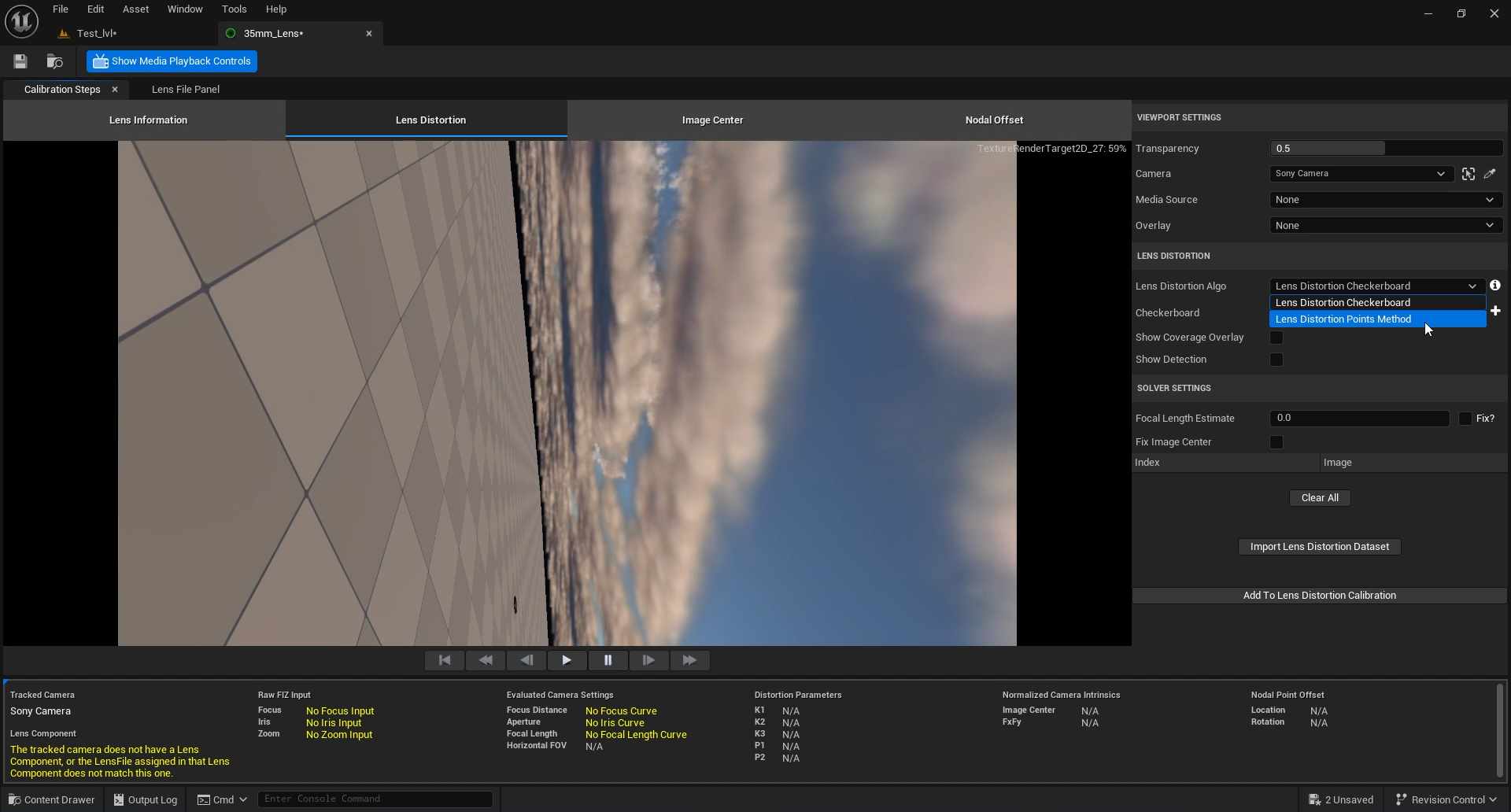
* Click *Lens Distortion* on the *Calibration Steps* tab.
* In the *Lens Distortion Algo* setting on the right, select *Lens Distortion Points Method*.&#x20;
* The *Calibrator* setting will default to the calibrator puck.&#x20;
* Select the current calibrator point in the camera viewport to complete the alignment.