OptiTrack OpenXR Plugin

A Quick Start Guide for using OptiTrack's OpenXR Plugin.

Overview

The OptiTrack OpenXR plugin allows Motive to connect to a Head-Mounted Display (HMD) in order to provide movement tracking to the device. This guide details the required software that must be installed to stream to a game engine or other platforms.

HMD Software Platform

Download and install the software platform the supports your HMD from the manufacturer.

All HMDs require their own software to connect the headset to the computer. This typically includes a user interface with systems that allow the HMD to be recognized by programs such as SteamVR, games and other VR/XR applications.

Follow the HMD manufacturer's instructions to download and setup the applicable software for the HMD device.

Connect the HMD to the Motive Computer

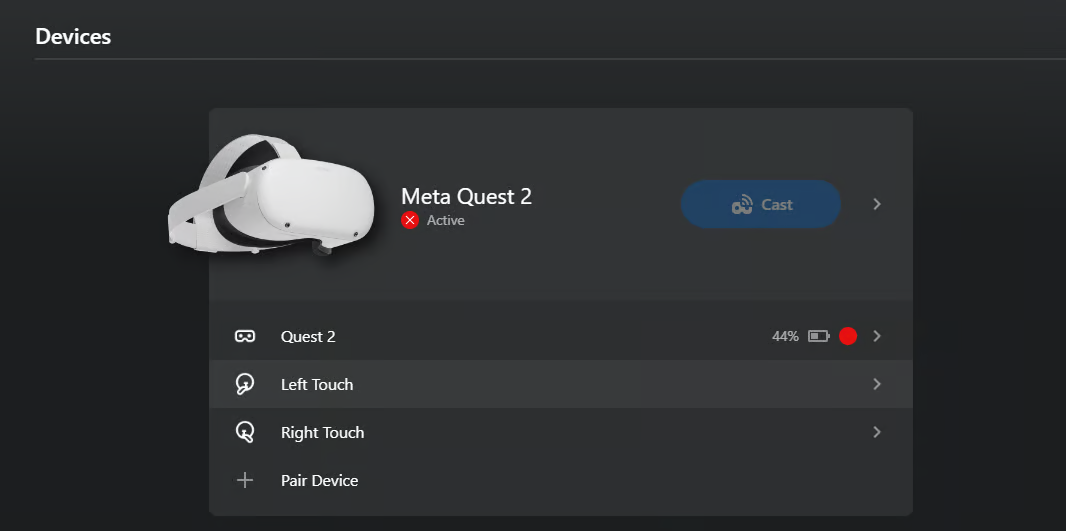
Connect the HMD to the Motive computer via the HMD's software platform. In this example, we will use the Meta Quest 2 and the Meta Quest Link App.

A screenshot of the Meta Quest 2 HMD configuration settings. The red-circled X in the status indicates that audio is disabled, while the HMD is active.
The Meta Quest 2 HMD. The red-circled X in the status indicates that audio is disabled, while the HMD is active.
Set the Framerate for Tracking

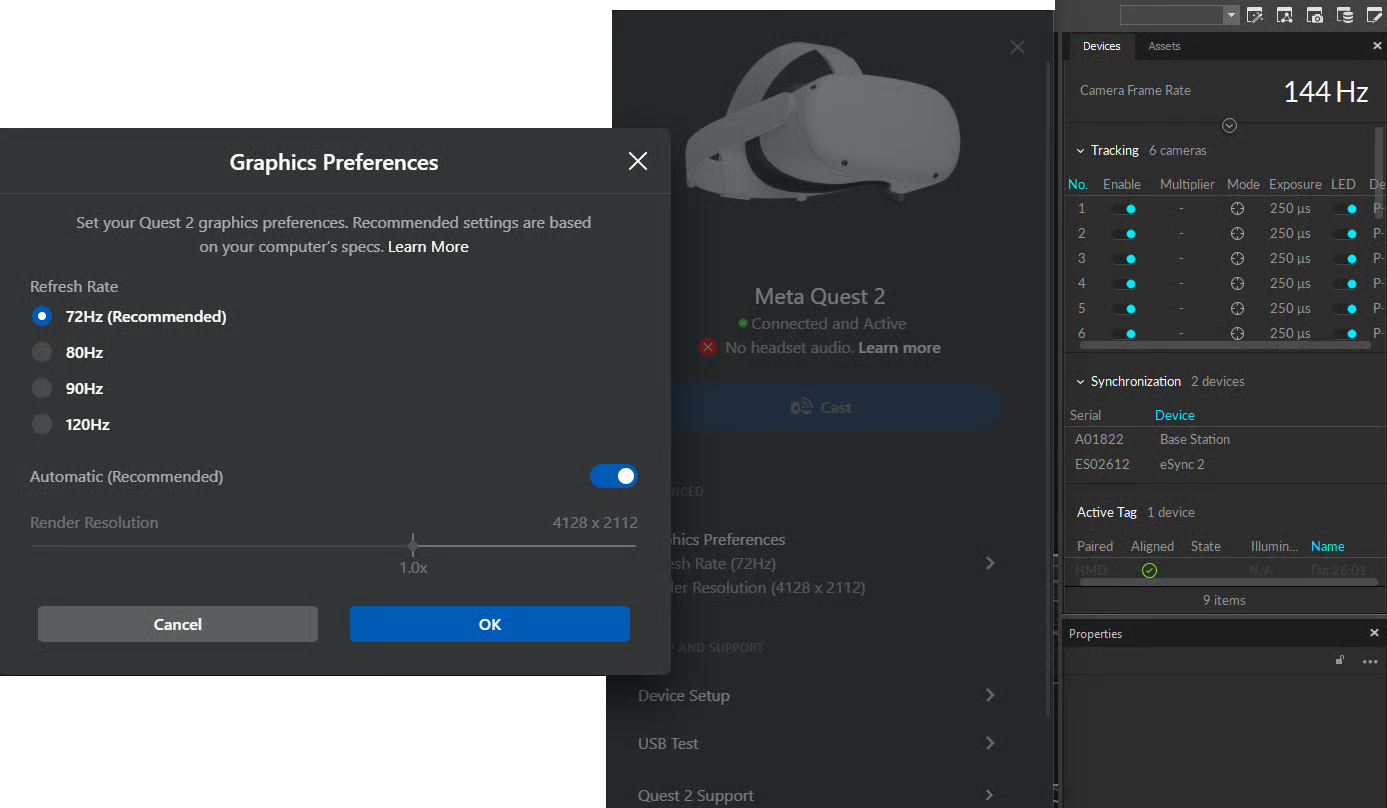
Every HMD has a refresh rate for its display. Some HMDs will run at a lower refresh rate to address issues such as battery life, resolution and overall performance, but they will also include the option to increase their refresh rate.

In the example below, the Quest 2 is running at a refresh rate of 72Hz, which is the recommended rate for the device. In Motive, the camera frame rate is set at twice that rate, 144Hz, for better tracking and a smoother experience.

Screenshots showing, from left to right, the Meta Quest 2 framerate options, with 72Hz as the recommended rate, 2. The Meta Quest application, 3. the Devices pane in Motive, showing the camera frame rate of 144 Hz.

SteamVR

To use the plugin, create a Steam account and download SteamVR from the Steam Store here.

The OptiTrack OpenXR Plugin injects code into the OpenXR runtime, to use tracking data from Motive for the HMD and controllers, overriding the position and rotation values for each.

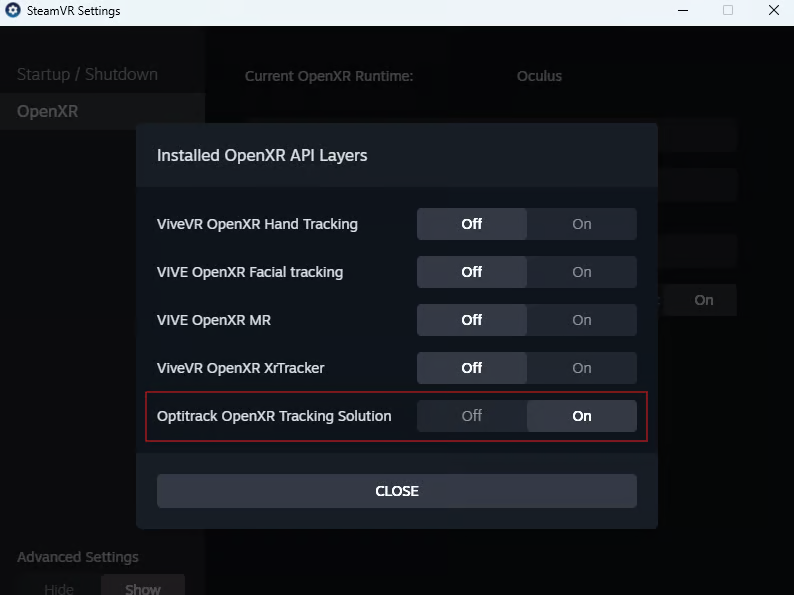
The SteamVR interface includes options to select the OpenXR API layers, which includes Motive Tracking.

A screenshot of the SteamVR OpenXR Settings, showing the OptiTrack OpenXR Tracking Solution highlighted.
Activating the OpitTrack OpenXR plugin from the SteamVR settings.
Install the OptiTrack OpenXR Plugin

Setting Up the OpenXR Plugin Config App

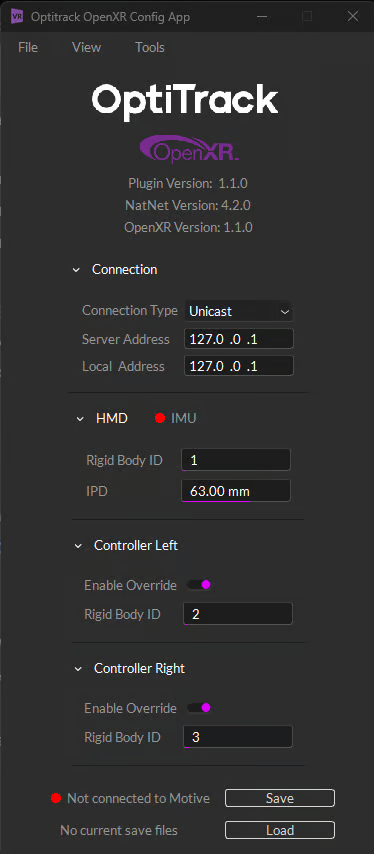
The OpenXR Config App is the interface to control settings for the OpenXR Plugin.

A screenshot of the OptiTrack OpenXR Configuration app.

We strongly recommend using IMU Sensor Fusion for this workflow.

Tracking the HMD using an IMU sensor fused device in Motive provides the smoothest results. Without IMU sensor fusion, performance in XR experiences may be unstable or uncomfortable.

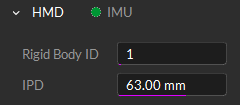
When the Rigid Body is Sensor Fused in Motive and connected to the config app, an indicator will appear green indicating complete tracking.

A screenshot from the OptiTrack OpenXR Plugin, showing the HMD successfully sensor-fused with the IMU.

To configure:

  1. Launch the OptiTrack OpenXR Config App.

  2. Set the connection type to the preferred connection type. We recommend Unicast when streaming with multiple devices in the same Motive server. For more information on streaming in Motive, please see the Settings: Streaming page.

  3. Rigid Body ID: Verify that the Streaming ID matches the ID of the Rigid Body HMD you are tracking in Motive. This value is shown in the Rigid Body Properties or the Assets pane.

  4. IPD: The HMD device has an Interpupillary Distance value, commonly known as IPD. Set this value in the Config app to match The IPD value shown on the HMD display when adjusting this distance in the lenses.

  5. Controller Left/Right: Click the Enable Override toggle to track controllers using the Rigid Bodies in Motive. Verify and input the corresponding Rigid body ID with the associated controller in Motive.

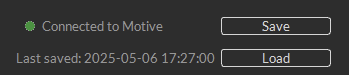
  6. Status: When the two values match, the status indicator at the bottom will turn green and display the text Connected to Motive. If the rigid bodies are enabled but not detected, the status indicator will be yellow, with the message Rigid Body IDs not found.

  7. Click Save to save the profile for use within the API Layer for OpenXR.

A screenshot of the bottom of the OpenXR Configuration panel, showing the device connected to Motive and the last saved date for the Configuration file.

Steam VR Setup

  1. Launch Steam VR.

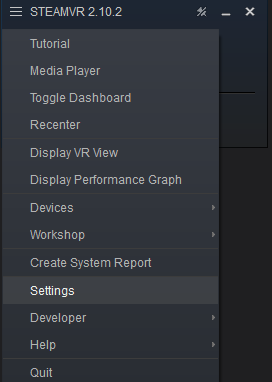
  2. Go to Settings.

Screenshot of the SteamVR menu, with the Settings option selected.
The SteamVR menu.
  1. Click OpenXR on the left tab and select Manage OpenXR API Layers.

  2. Set the Optitrack OpenXR Tracking Solution to On.

When using a Meta HMD, we recommend setting SteamVR as the OpenXR runtime source instead of Meta to avoid any graphical or tracking issues.

Connect to Game Engine

You can now launch your VR Apps and platforms such as Unity or Unreal Engine with HMD tracking coming from Motive. To troubleshoot if tracking is working, open the app and disable and re-enable the rigid body tracking in Motive.

Special Note for Quest HMD Users

In our testing, we found that the OpenXR Runtime needs to be set to Quest to use in Unity and SteamVR to use in Unreal Engine, when using a Quest HMD.

Troubleshooting

Sample App

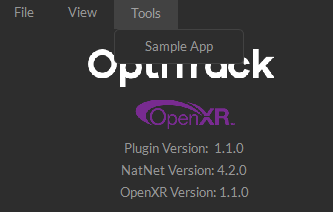
The Configuration app includes a Sample app on the Tools menu to test and verify tracking results from Motive.

A screenshot of the OptiTrack OpenXR plugin with the Tools menu open, showing where the Sample App is located.

The Sample app will launch a 3D scene of a 2x2m space in the HMD. The plugin version is displayed on the wall and the floor grid shows the axis conventions. Use both the text on the wall and the grid to orient yourself, compare origin positions, and validate tracking framerate consistency.

Log

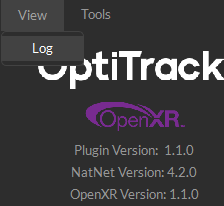
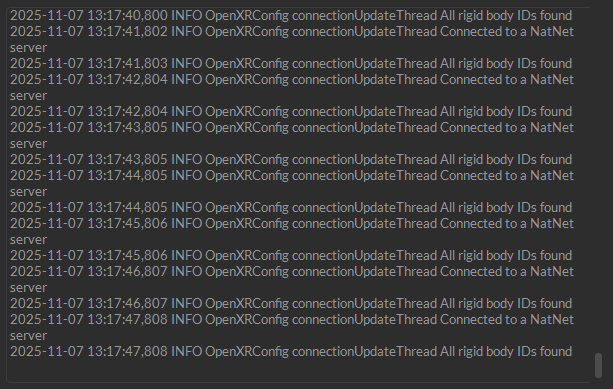
The Log window is a helpful debugging tool that shows what actions and functions are happening through the OptiTrack OpenXR Plugin. You can access it from the View menu.

A screenshot of the OptiTrack OpenXR plugin with the View menu open, showing where the Log file is located.
A screenshot of the Log file in the OptiTrack OpenXR plugin.

Last updated

Was this helpful?