> For the complete documentation index, see [llms.txt](https://docs.optitrack.com/llms.txt). Markdown versions of documentation pages are available by appending `.md` to page URLs; this page is available as [Markdown](https://docs.optitrack.com/v3.4/motive-ui-panes/settings/settings-streaming.md).

# Settings: Streaming

Use the Application Settings panel to customize Motive and set default values. This page will cover the items available on the Streaming tab. Properties are Standard unless noted otherwise.&#x20;

Please see the following pages for descriptions of the settings on other tabs:

* [Settings: General](/v3.4/motive-ui-panes/settings/settings-general.md)
* [Settings: Assets](/v3.4/motive-ui-panes/settings/settings-assets.md)
* [Settings: Live Pipeline](/v3.4/motive-ui-panes/settings/settings-live-pipeline.md)
* [Settings: Views](/v3.4/motive-ui-panes/settings/settings-views.md)
* [Settings: Mouse and Keyboard](/v3.4/motive-ui-panes/settings/settings-mouse-and-keyboard.md)
* [Settings: Audio](/v3.4/motive-ui-panes/settings/settings-audio.md)

Application Settings can be accessed from the [View menu](/v3.4/motive-ui-panes/toolbar-command-bar.md#view) or by clicking the <img src="/files/SBRZMHIDt1huxnq4CGIs" alt="The Settings button from the Motive toolbar." data-size="line"> icon on the main toolbar.&#x20;

<figure><img src="/files/Cd9sOHtyUF91SszRw5w9" alt="The Application Settings panel in Motive, with the Streaming tab selected and Standard settings shown. " width="563"><figcaption><p>Standard settings on the Streaming tab of the Settings panel in Motive. </p></figcaption></figure>

{% hint style="info" %}
**Advanced Settings**

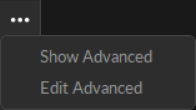
The Settings panel contains advanced settings that are hidden by default. To access these settings, click the <img src="/files/ErrQkjYBX9V1ZM8bcJLu" alt="The Advanced button from the Motive Applications settings panel." data-size="line"> button in the top right corner.&#x20;

Use the *Edit Advanced* option to customize which settings are in the *Advanced Settings* category and which appear in the standard view, to show only the settings that are needed specifically for your capture application.&#x20;
{% endhint %}

<figure><img src="/files/gpEzkeIY8leTJvI195cR" alt="The Advanced menu options from the Motive Applications settings panel: Show Advanced and Edit Advanced"><figcaption><p>Show or Edit Advanced Settings.</p></figcaption></figure>

{% hint style="info" %}
To restore all settings to their default values, select *Reset Settings* from the Edit menu.
{% endhint %}

## NatNet Settings

The NatNet settings allow streaming of tracking data via Motive's free streaming plugins or any custom-built NatNet interfaces.&#x20;

{% hint style="info" %}
Some third-party applications accept only certain types of streamed data. Please refer to the pages in the [Plugins section](/v3.4/plugins.md) of our documentation for more information on OptiTrack-supported integrations.&#x20;
{% endhint %}

<figure><img src="/files/1hCY8k0ggMd2ya9L42Wj" alt="The Motive Settings panel, with the Streaming tab selected and advanced properties displayed."><figcaption><p>Streaming Advanced settings (partial list) in Motive.</p></figcaption></figure>

With Advanced settings displayed, scroll to see additional options:

<figure><img src="/files/W8oo1dkO4arX0mDtlsKz" alt=""><figcaption><p>Additional Advanced Streaming settings in Motive. </p></figcaption></figure>

<details>

<summary><strong>Enable</strong></summary>

Enables or disables broadcasting, or live-streaming, of the frame data.&#x20;

</details>

<details>

<summary><strong>Local Interface</strong></summary>

Sets the network address where the captured frame data will be streamed. &#x20;

* Loopback (127.0.0.1) streams the data locally within the same same computer. Select this if the application you are streaming to is on the same computer as Motive.
* When streaming to another computer, select the IP address for the network where the other computer is located.&#x20;

</details>

<details>

<summary><strong>Transmission Type</strong></summary>

Selects the mode of broadcast for NatNet.&#x20;

NatNet uses the **UDP protocol** in conjunction with either **Point-To-Point Unicast** or **IP Multicasting** for sending and receiving data.&#x20;

Unicast NatNet clients can subscribe to just the data types they need, reducing the size of the data packets streamed. This feature helps to reduce the streaming latency. This is especially beneficial for wireless unicast clients, where streaming is more vulnerable to packet loss.

For more information on NatNet data subscription, please read the [NatNet: Unicast Data Subscription Commands](/v3.4/developer-tools/natnet-sdk/natnet-unicast-data-subscription-commands.md) page.&#x20;

</details>

<details>

<summary><strong>Labeled Markers</strong></summary>

Enables or disables streaming of *labeled* Marker data. Labeled markers are point cloud solved markers.

</details>

<details>

<summary><strong>Unlabeled Markers</strong></summary>

Enables or disables streaming of the *unlabeled* Marker data in the frame.

</details>

<details>

<summary><strong>Asset Markers</strong></summary>

Enables or disables streaming of the asset markers, which are named collections of all of the labeled markers and their positions (X, Y, Z). This includes all markers associated with any of the assets (Trained Markerset, Rigid Body, Skeleton).&#x20;

The streamed data also contains a special marker set named *all,* which is a list of labeled markers in all of the assets in a *Take*. In this data, Skeleton and Rigid Body markers are point cloud solved and model-filled on occluded frames.

</details>

<details>

<summary><strong>Rigid Bodies</strong></summary>

Enables or disables streaming of Rigid Body data, which includes the name of the Rigid Body assets as well as positions and orientations of their [pivot points](/v3.4/motive/rigid-body-tracking.md).

</details>

<details>

<summary><strong>Skeletons</strong></summary>

Enables or disables streaming of Skeleton tracking data from active Skeleton assets. This includes the total number of bones and their positions and orientations in respect to global, or local, coordinate system, as selected in the Skeleton Coordinates setting.&#x20;

</details>

<details>

<summary><strong>Cameras</strong></summary>

Enables or disables the inclusion of Camera information in the Data Description packet.&#x20;

</details>

<details>

<summary><strong>Trained Markerset Markers</strong> </summary>

Enables or disables streaming of asset marker tracking data from active Trained Markerset assets.

</details>

<details>

<summary><strong>Trained Markerset Bones</strong></summary>

Enables or disables streaming of bone information from Trained Markerset assets. This includes the total number of bones and their positions and orientations in respect to global, or local, coordinate system.&#x20;

</details>

<details>

<summary><strong>Devices</strong></summary>

Enables or disables streaming of active peripheral devices (ie. force plates, Delsys Trigno EMG devices, etc.)

</details>

<details>

<summary><strong>Skeleton Coordinates</strong></summary>

Sets the coordinate system to use for skeleton tracking.

* **Global:** The tracking data will be represented according to the global coordinate system.&#x20;
* **Local:** the streamed tracking data (position and rotation) of each skeletal bone will be relative to its parent bones.

</details>

<details>

<summary><strong>Skeleton as Rigid Bodies (Advanced)</strong></summary>

When enabled, Skeleton assets are streamed as a series of Rigid Bodies that represent respective Skeleton segments.

</details>

<details>

<summary><strong>Bone Naming Convention</strong></summary>

Sets the bone naming convention of the streamed data. Available conventions include Motive (the default), FBX, and BVH. The naming convention must match the format used in the streaming destination.

</details>

<details>

<summary><strong>Up Axis</strong></summary>

Sets the upward axis of the right-hand coordinate system in the streamed data. When streaming onto an external platform with a Z-up right-handed coordinate system (e.g. biomechanics applications) change this to Z Up.

</details>

<details>

<summary><strong>Remote Trigger</strong></summary>

Allows using the remote trigger for recording using XML commands. See the [Remote Triggering](/v3.4/motive/data-streaming.md#remote-triggering) section of the Data Streaming page for more detail on this feature.

</details>

<details>

<summary><strong>Subject Prefix (Advanced)</strong></summary>

When enabled, the associated asset name is added as a subject prefix to each marker label in the streamed data.

</details>

<details>

<summary><strong>Visual 3D Compatible (Advanced)</strong></summary>

Enables streaming to Visual3D. Normal streaming configurations may be not compatible with Visual3D, and this feature must be enabled for streaming tracking data to Visual3D.

</details>

<details>

<summary><strong>Scale (Advanced)</strong></summary>

Applies scaling to all of the streamed position data.

</details>

<details>

<summary><strong>Command Port (Advanced)</strong></summary>

Specifies the port to use for negotiating the connection between the NatNet server and client. The default value is 1510.&#x20;

</details>

<details>

<summary><strong>Data Port (Advanced)</strong></summary>

Specifies the port to use for streaming data from the NatNet server to the client(s). The default value is 1511.&#x20;

</details>

<details>

<summary><strong>XML Broadcast Port (Advanced)</strong></summary>

Specifies the port to use to stream XML capture start/stop data. The default value is 1512.

This port is always the Command Port + 2.

</details>

<details>

<summary><strong>Multicast interface (Advanced)</strong></summary>

Specifies the multicast broadcast address. The default address is 239.255.42.99.&#x20;

</details>

<details>

<summary><strong>Multicast as Broadcast (Advanced)</strong></summary>

{% hint style="danger" %}
**Warning: This mode is for testing purposes only and it can overflood the network with the streamed data.**
{% endhint %}

When enabled, Motive streams the mocap data via *broadcasting* instead of sending to Unicast or Multicast IP addresses. This should be used only when the use of Multicast or Unicast is not applicable.&#x20;

This streaming method will flood the network that Motive is streaming to with streamed mocap data, which may interfere with the transmission of other data on the network, so a dedicated NatNet streaming network may need to be set up between the server and the client(s).

**To use the broadcast:**&#x20;

1. set the streaming option to Multicast and have this setting enabled on the server.&#x20;
2. Once it starts streaming, set the NatNet client to connect as Multicast, and then set the multicast address to *255.255.255.255*.&#x20;
3. Once Motive starts broadcasting the data, the client will receive broadcast packets from the server.

</details>

<details>

<summary><strong>Socket Size</strong> (Advanced)</summary>

{% hint style="danger" %}
**Warning: Do not modify unless instructed.**
{% endhint %}

This controls the socket size while streaming via Unicast. This property can be used to make extremely large data rates work properly. The default value is 1000000.

</details>

<details>

<summary><strong>Filter Data Description Types (Advanced)</strong></summary>

When enabled, Motive sends data descriptions only for the asset types selected for streaming and filters out the rest. When the setting is not enabled (the default), Motive sends data descriptions for all assets in the scene, regardless of their streaming status.&#x20;

{% hint style="danger" %}
Enable this setting only if you are experiencing description packet errors. &#x20;
{% endhint %}

</details>

## VRPN Settings

For information on streaming data via the VRPN Streaming Engine, please visit the [VRPN knowledge base](https://github.com/vrpn/vrpn). Note that only 6 DOF Rigid Body data can be streamed via VRPN.

<figure><img src="/files/mJI8VaXzVeVBKB1Gupqc" alt="Motive VRPN standard and advanced Settings, from the Application Settings > Streaming tab."><figcaption><p>VRPN Standard and Advanced Settings in Motive.</p></figcaption></figure>

<details>

<summary><strong>Enabled</strong></summary>

Enables or disables streaming of Rigid Body data via the VRPN protocol.

</details>

<details>

<summary><strong>Zero When Untracked (Advanced)</strong></summary>

When enabled, this setting zeros out the data for untracked assets.&#x20;

</details>

<details>

<summary><strong>Broadcast Port</strong></summary>

Specifies the broadcast port for VRPN streaming. The Default port is 3883.

</details>


---

# Agent Instructions
This documentation is published with GitBook. GitBook is the documentation platform designed so that both humans and AI agents can read, navigate, and reason over technical content effectively. Learn more at gitbook.com.

## Querying This Documentation
If you need additional information that is not directly available in this page, you can query the documentation dynamically by asking a question.

Perform an HTTP GET request on the current page URL with the `ask` query parameter:

```
GET https://docs.optitrack.com/v3.4/motive-ui-panes/settings/settings-streaming.md?ask=<question>
```

The question should be specific, self-contained, and written in natural language.
The response will contain a direct answer to the question and relevant excerpts and sources from the documentation.

Use this mechanism when the answer is not explicitly present in the current page, you need clarification or additional context, or you want to retrieve related documentation sections.