> For the complete documentation index, see [llms.txt](https://docs.optitrack.com/llms.txt). Markdown versions of documentation pages are available by appending `.md` to page URLs; this page is available as [Markdown](https://docs.optitrack.com/v3.3/active-components/active-components-hardware/cinepuck.md).
# CinePuck
This page provides specifications and additional information for the CinePuck.
The CinePuck is designed specifically for Virtual Production or Broadcast studios. For more information on how to use the CinePuck for Virtual Production, please visit the [Virtual Production](/v3.3/virtual-production.md) section of this documentation.

## Active Markers
### LED Specifications
The following specifications apply for active IR LEDs on the CinePuck:
* 850 nm IR spectrum
* 8 LEDs
* Illuminations synchronized with camera exposures
* Illumination angle: ±60°
## Basic Specs
| Spec | Description |
| ------------------------ | ------------------------------------------------------------------------------------------------------------------------------------------------------------------------------------------------------------------------------------------------------------------------- |
| CinePuck Body Dimensions |
Dimensions
Width: 153.30mm (\~6.04”)
Length: 127.68mm(\~5.03”)
Height: 25.70(\~1.01”)
|
| Weight |
11.58 oz (\~328.29g)
|
| Attachment |
x1 ARRI-Style Anti-Twist Mount w/ 3/8"-16 threads
x6 Standard Tripod Mounts w/ 1/4"-20 threads
|
| Battery |
2200mAh Lithium polymer battery
Charging
5V micro USB Type C
\~7.5 hours\* of battery life (\*Battery life varies depending on frame rate and exposure settings)
5hrs zero to full charge
|
| IMU |
Dimensions
Width: 15mm
Length: 15mm
Height: 5.720mm
Weight
< 1.75g
|
| Gyroscope |
Dynamic Range
500 +/- °/sec
|
## BaseStation Load Capacity
The number of devices with IMUs (such as CinePucks) that can attach to a BaseStation is determined by the system frame rate and the divisor applied to the BaseStation. The table below shows the IMU maximum for common frame rates with a divisor rate of 1, 2, and in some cases 3.
| FrameRate | Divisor Rate 1 | Divisor Rate 2 | Divisor Rate 3 |
| :-------: | :------------: | :------------: | :------------: |
| 60 | 26 | 54 | 83 |
| 70 | 22 | 47 | 71 |
| 80 | 19 | 39 | 62 |
| 90 | 16 | 36 | 54 |
| 100 | 14 | 32 | 49 |
| 110 | 13 | 29 | 44 |
| 120 | 11 | 26 | 40 |
| 130 | 10 | 24 | |
| 140 | 9 | 22 | 34 |
| 150 | 9 | 20 | |
| 160 | 8 | 19 | 30 |
| 170 | 7 | 17 | |
| 180 | 7 | 16 | 26 |
| 190 | 6 | 15 | |
| 200 | 6 | 14 | 23 |
| 210 | 5 | 14 | |
| 220 | 5 | 13 | 21 |
| 230 | 5 | 12 | |
| 240 | 4 | 11 | 18 |
| 250 | 4 | 11 | |
As noted, the table does not include all possible frame rate and divisor combinations. If you are familiar with using Tera Term or [PuTTy](/v3.3/active-components/configuration/active-hardware-configuration-putty.md), you can determine the maximum number of IMUs for any specific frame rate and divisor combination not shown on the table.
1. Use PuTTy to change the divisor rate on the BaseStation.
2. Connect an IMU puck to PuTTy.
3. Attempt to set the ID of the puck to an unrealistically high value. This triggers a warning that includes the current number of slots available for the given frame rate.
4. Set the IMU puck ID to the highest available slot for the frame rate and confirm that it appears in Motive.
{% hint style="info" %}
BaseStations have 16 radio frequency (RF) channels available for use (11-26). When adding more than one BaseStation to a system, the IMU count is simply the maximum number of IMUs multiplied by the number of BaseStations (up to 16). For example, in a system with 4 BaseStations running at 90Hz and a divisor rate of 3, the number of allowable IMUs would be 216 (54\*4=216).
{% endhint %}
## CinePuck in Motive
To use a CinePuck in Motive, it must first be an asset. Please see the [Builder pane](/v3.3/motive-ui-panes/builder-pane.md) page for instructions on creating a [rigid body asset](/v3.3/motive-ui-panes/builder-pane.md#rigid-body-create), and the page [IMU Sensor Fusion](/v3.3/motive/imu-sensor-fusion.md) for instruction on pairing the IMU.
{% hint style="info" %}
Use the [Auto-Configure](/v3.3/motive/imu-sensor-fusion.md#auto-configure-active-tag) feature to automatically pair and align a CinePuck to its associated IMU. When auto-configured, Motive changes the name of the Rigid Body and its associated marker constraints to *CinePuck\_G###*.
To use a different naming convention, use the [Manual Pair](/v3.3/motive/imu-sensor-fusion.md#manual-pair) option instead.
{% endhint %}
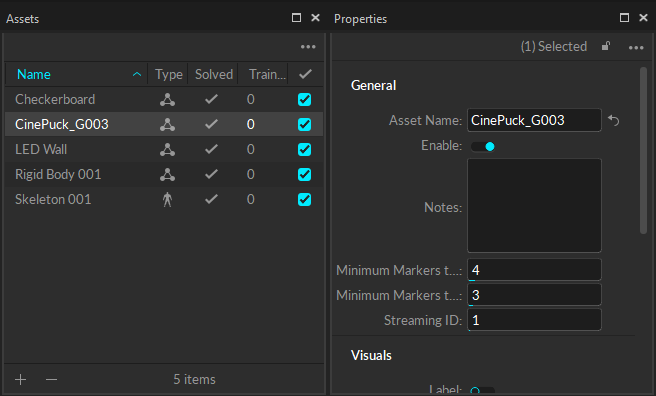
Once the CinePuck rigid body is created, it will be available in the [Assets pane](/v3.3/motive-ui-panes/assets-pane.md). Select the CinePuck either in the Assets pane or the [3D Viewport](/v3.3/motive-ui-panes/viewport.md#perspective-view) to display its properties in the [Properties pane](/v3.3/motive-ui-panes/properties-pane/properties-pane-rigid-body.md).
CinePuck in the Assets pane (left) and the Properties pane (right).
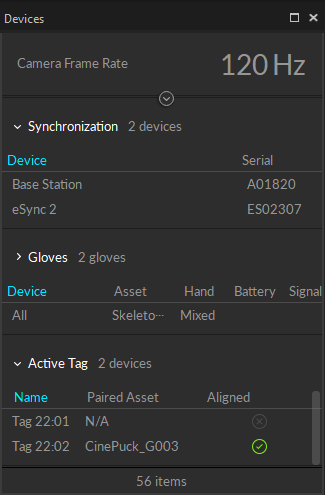
When connected to the OptiTrack system, the properties for the CinePuck IMU and its associated BaseStation are shown in the Devices Pane. Please see the [Devices Pane](/v3.3/motive-ui-panes/devices-pane.md) page for more details.
Devices Pane with a CinePuck and Base Station.
Watch the video below to see a demonstration of a CinePuck setup and calibration at the 4:20 mark. Please also see our [InCamera VFX page](/v3.3/virtual-production/unreal-engine-optitrack-incamera-vfx.md) for more details.
{% embed url="" %}
---
# Agent Instructions
This documentation is published with GitBook. GitBook is the documentation platform designed so that both humans and AI agents can read, navigate, and reason over technical content effectively. Learn more at gitbook.com.
## Querying This Documentation
If you need additional information that is not directly available in this page, you can query the documentation by asking a question.
Perform an HTTP GET request on the following URL with the `ask` and `goal` query parameters:
```
GET https://docs.optitrack.com/v3.3/active-components/active-components-hardware/cinepuck.md?ask=&goal=
```
`ask` is the immediate question: it should be specific, self-contained, and written in natural language.
`goal` is what the user is ultimately trying to achieve, the reason they need the answer. Sharing it helps GitBook give you a better, more relevant answer. A goal is most helpful when it describes the outcome the user wants rather than restating the question. For example, with `ask=how do I create an API token`, a goal like `automate deployments from our CI pipeline` lets GitBook tailor the answer to that use case.
The response will contain a direct answer to the question and relevant excerpts and sources from the documentation.
Use this mechanism when the answer is not explicitly present in the current page, you need clarification or additional context, or you want to retrieve related documentation sections.