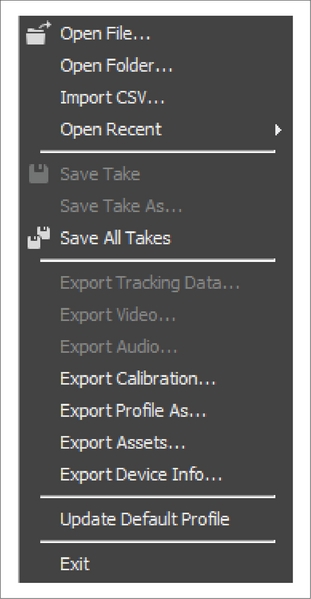
This page lists out the options that are available on the toolbar and the command bar of Motive.
Prompts user to select a file to open. Applicable files include Take files (.tak), Camera Calibration files (.cal), Motive user profile (.motive), Rigid Body definitions (.tra deprecated), Skeleton defintions (.skl deprecated).
Imports a session folder into Motive. All of the TAK files within the session folder will be loaded in the .
Import a list of Take names to record from a CSV file that contains Take names on each row. This allows users to plan which motions to capture ahead of the time (See: page). Import CSV can also be used to load a that has been exported to CSV format from the .
Shows a list of Motive compatible files that were recently loaded into Motive.
Saves currently opened Take.
Prompts the user to select a filename and a directory to save the current Take.
Save all Takes from all of the sessions loaded in the .
Exports tracking data from a selected Take into the desired output format. See: .
Exports reference video to an AVI file. To play this file in Windows Media Player, a codec needs to be installed.
Exports audio to into a WAV file. See: .
Exports the current system calibration file(.cal) to a desired location.
Exports the current software configurations into an application profile (MOTIVE).
Export just the (Rigid Bodies, Skeletons, Marker Sets) to a MOTIVE file.
Exports the devices currently connected to Motive into a CSV file (ie. Cameras and their serial numbers).
Manually update the current software configurations onto the . Which loads up at first when launching Motive and located under C:\ProgramData\OptiTrack\MotiveProfile.motive.
Closes the Motive application.
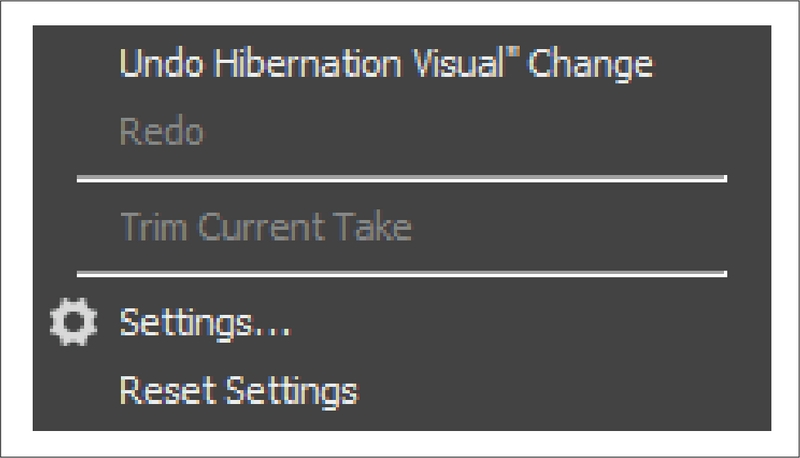
Reverts data processing actions (i.e. deleting data, merging markers, filling gaps).
Reverts an Undo.
Archives the original take file and crops out the working range selected in the . For more information, read through the .
Opens the Application Settings pane.
Sets all application settings to the default setting.
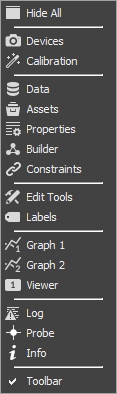
This closes all of Motive's panes except the main viewport.
Opens the for controlling cameras and other devices in the system
Opens the for calibrating the camera system.
Opens the for managing the recorded captures.
Opens the for managing the list of tracked assets as well as integrated devices such as force plates and data acquisition devices.
Opens the for managing the properties of selected items in Motive.
Opens the for monitoring real-time tracking data of a Rigid Body.
Opens the for creating trackable models or assets. Specifically, this pane is used for creating models and models in Motive.
Opens the for managing selected Marker Sets assets.
Opens the . For post-processing recorded marker data.
Opens the . For monitoring, assigning, and/or modifying marker labels.
Opens for monitoring the channel data.
Opens an additional for additional viewports for monitoring 3D tracking and camera views.
Opens the Data Streaming pane. See:
Opens the for status messages.
Opens the for using the .
Toggles display of the Toolbar on/off.
Note: Layouts created versions prior to 2.0 are not compatible. Please re-create and update the layouts for use.
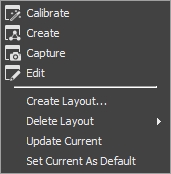
Displays panes applicable to system calibration. (Cameras, Perspective View, Camera Preview, Camera Calibration, Reconstruction)
Displays panes applicable to asset creation and modification. (Project, Perspective View, Timeline, Skeleton, Rigid Bodies)
Displays panes applicable to capturing a take. (Project, Perspective View, Timeline)
Displays panes applicable to editing a take. (Project, Perspective View, Timeline, Edit Tools).
Saves the current layout. Saved custom layouts can be accessed from the drop-down menu located at the top-right corner of Motive.
Deletes the saved custom layout.
Updates the selected custom layout from the drop-down menu located at the top-right corner of Motive.
Sets the current layout as a default layout setup for starting Motive.
List of custom layouts that are created by the user. In the screenshot, Label Fix and Skeleton Label layouts are added as an example
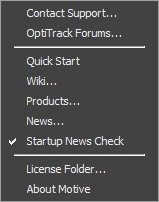
Opens the OptiTrack support site.
Opens the OptiTrack community forum
Links you to our Quick Start Guide.
Links you to the online documentation.
Links you to our Quick Start Guide.
Opens NaturalPoint's news feed.
This is a toggle for receiving notifications for Motive updates.
Opens the folder location of your license files.
Displays information about the version of Motive currently running.
Open File
Open Motive files: Project (TTP), Calibration (CAL), Takes (TAK), Rigid bodies (TRA), Skeletons (SKL).
Save Current Take
Save currently opened Take.
Save All Takes
Save all of the Takes that are loaded in the Data pane.
Opens Application Setting pane for software preferences. Reconstruction settings will also be modified in this pane.
Hide all panes
Closes all the panes in the layout, leaving only the main viewport.
Opens the Devices (Cameras) Pane.
Opens Calibration Pane.
Opens the Data pane for managing takes.
Opens the Assets pane for managing the list of tracked assets as well as integrated devices such as force plates and data acquisition devices.
Opens the Properties pane for managing the properties of selected items in Motive.
Opens the Builder pane for defining or modifying Rigid Body or Skeleton assets in Motive.
Opens the Marker Sets pane for creating and configuring constraints for markers labels associated each assets.
Opens Edit Tools for post-processing pipelines.
Opens the Labeling pane for labeling the markers.
Opens Graph View pane for monitoring the channel data.
Opens the Status Log for monitoring the activity.
Adds extra Viewports.
Opens the Probe pane for collecting sample points using the Probe.
Opens the Info pane for monitoring real-time tracking data of a selected Rigid Body in Motive.