This page lists the NatNet sample applications provided with the SDK and provides instructions for some of the samples.
Our code samples are the quickest path to get NatNet data into your application. We recommend the following steps:
Identify your application’s development/interface requirements (managed, native, etc.).
Adapt the NatNet sample code from the corresponding NatNet sample application in the samples folder into your application.
Use the API reference in the next page for additional information.
The Visual Studio solution file \Samples\NatNetSamples.sln will open and build all of the NatNet sample projects. If you are creating an application from scratch, please refer to the following sections for application specific requirements.
The following projects are located in the NatNet SDK\Samples folder.
The following sample projects utilizes NatNet SDK library for obtaining tracking data from a connected server application.
The following sample projects do not use the NatNet SDK library. Client/Server connection is established at a low-level by creating sockets and threads within the program, and the streamed data are depacketized directly from the bit-stream syntax. The following sample approaches should be used only when the use of NatNet SDK library is not applicable (e.g., streaming into UNIX clients).
The following samples demonstrate how to use remote triggering in Motive using the .
Start the OptiTrack Server (e.g. Motive) and begin streaming data via the Streaming Panel.
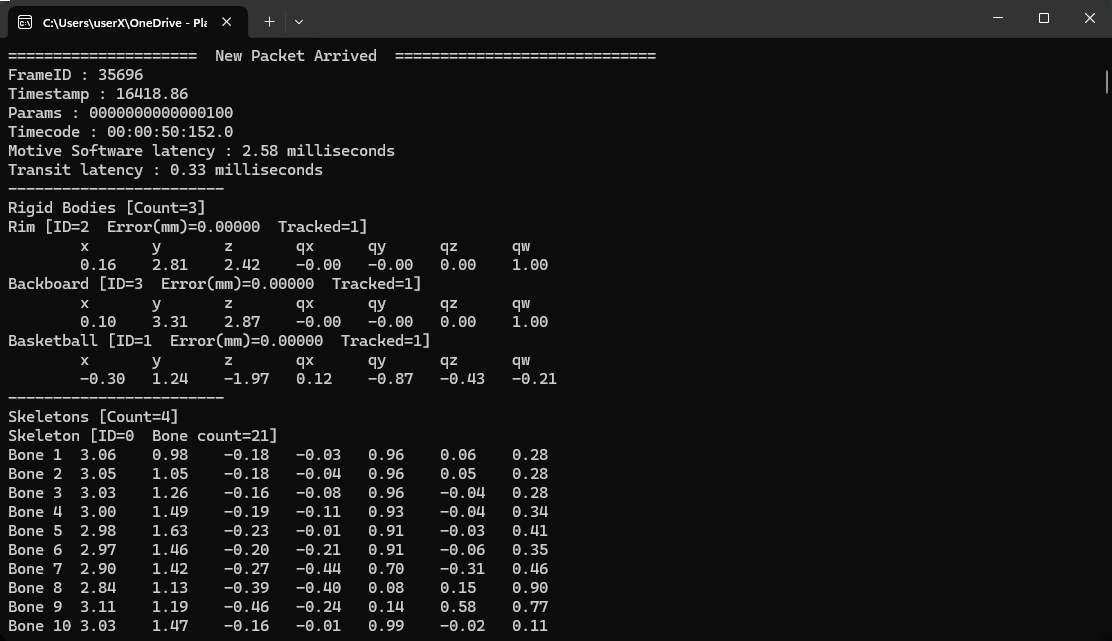
Start the SampleClient application from the command prompt or directly from the NatNet SDK/Samples/bin folder.
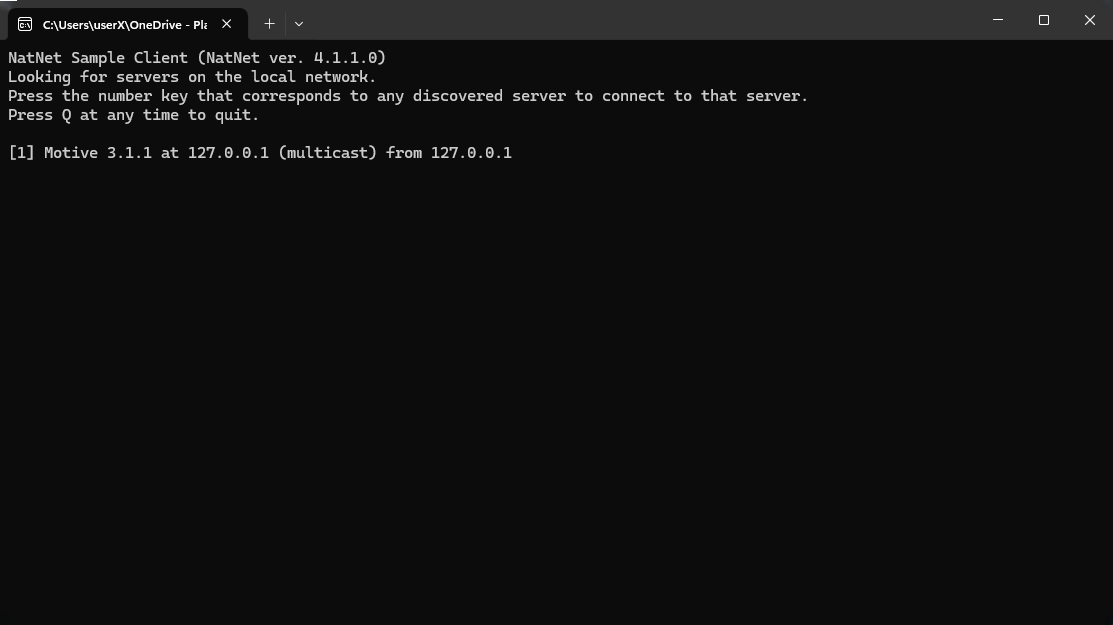
At startup, the SampleClient application searches the local network and lists the IP addresses of available tracking servers that are streaming tracking data.
Select a server address by pressing the corresponding number key. The SampleClient application will begin receiving tracking data.
Press Q at any time to quit the SampleClient application.
Start the OptiTrack Server (e.g. Motive) and begin streaming data via the Streaming Panel.
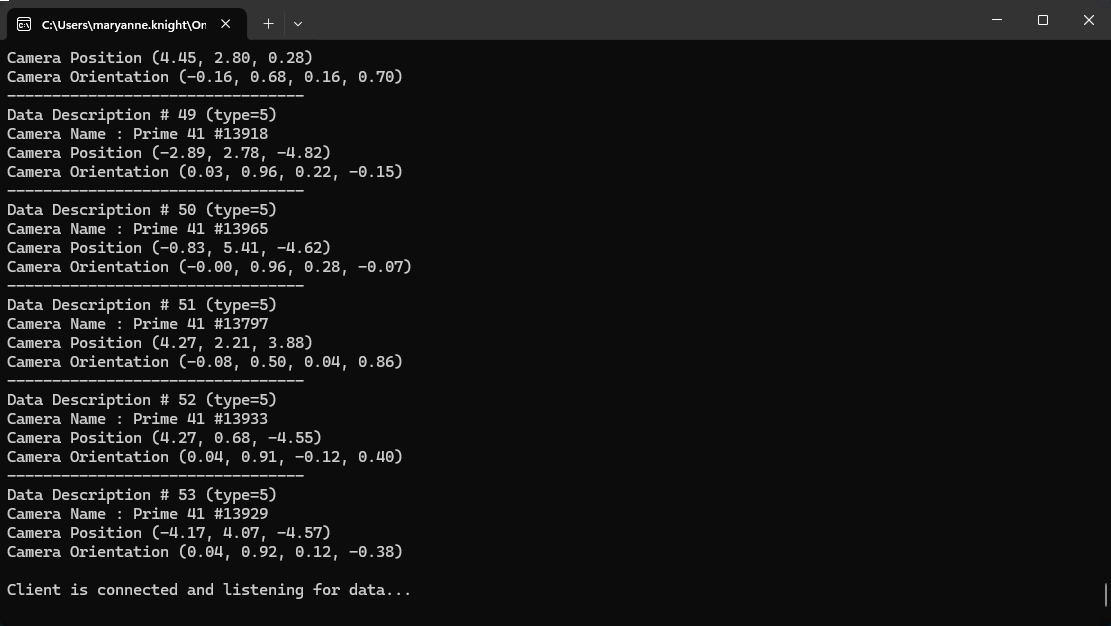
Start the MinimalClient application from the command prompt or directly from the NatNet SDK/Samples/bin folder.
Data will begin streaming once the connection is established, beginning with a list all the data descriptions in the Take, followed by individual frames of MoCap data.
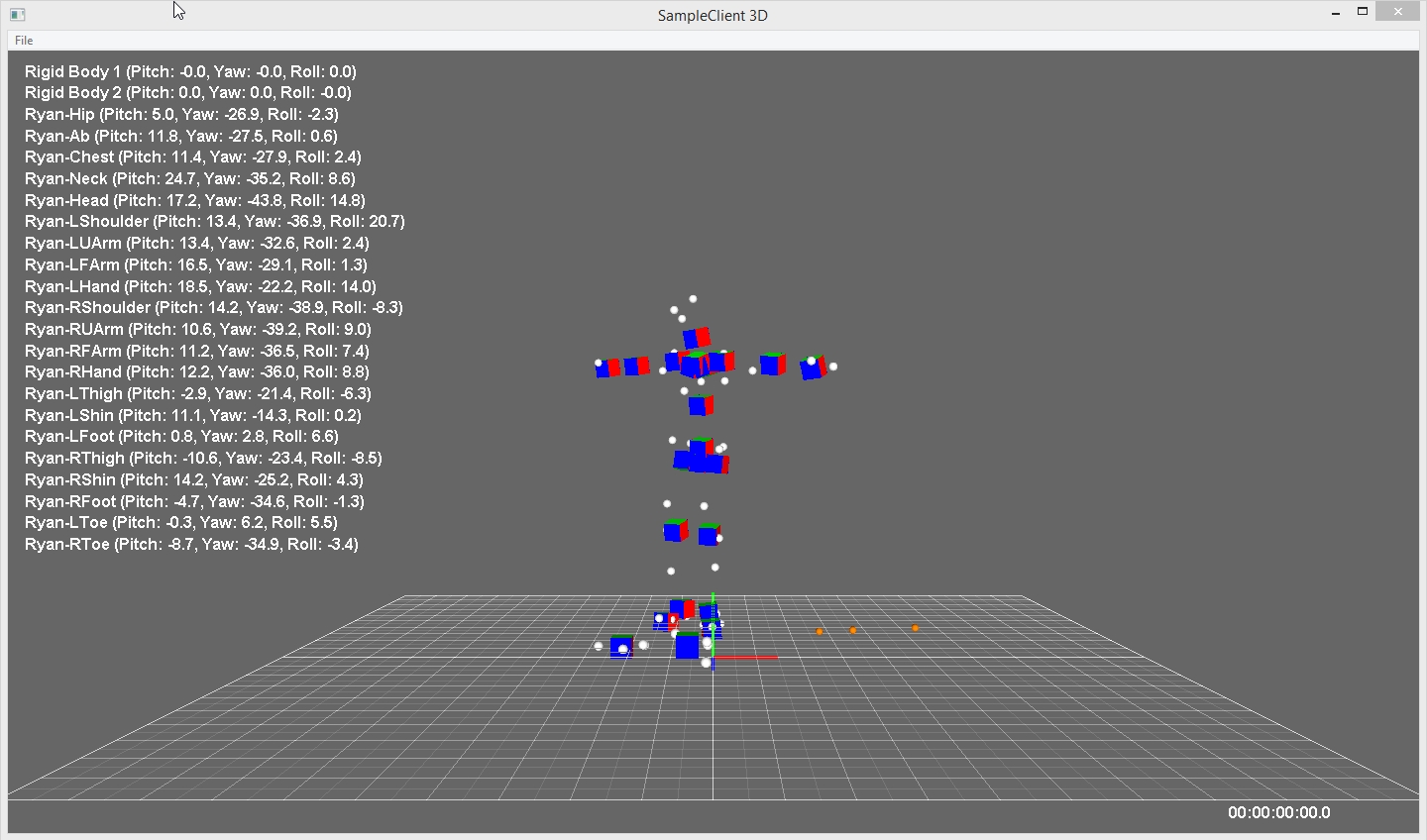
The Rigid Body sample (SampleClient3D) illustrates how to decode NatNet 6DOF Rigid Body and Skeleton Segment data from OptiTrack quaternion format to euler angles and display them in a simple OpenGL 3D viewer. This sample also illustrates how to associate RigidBody/Skeleton Segment names and IDs from the data descriptions with the IDs streamed in the FrameOfMocapData packet.
In Motive, load a dataset with Rigid Body or Skeleton definitions.
Enable network streaming (Data Streaming Pane -> Check Broadcast Frame Data).
Enable streaming Rigid Body data (check Stream Options -> Stream Rigid Bodies = True)
Open the Sample3D project, go to File -> Connect.
In Motive, Load a dataset with Rigid Body or Skeleton definitions.
Set the IP address to stream from (Network Interface Selection -> Local Interface).
Enable network streaming ( Data Streaming Pane -> Check Broadcast Frame Data ).
Enable streaming Rigid Body data (check Stream Options -> Stream Rigid Bodies = True).
Edit the sample with the following properties:
IP Address: Use the IP address of the client NIC card you wish to use.
Server IP Address: IP Address of the server entered in step 2 above.
Start a NatNet server application, such as Motive (as used in our example).
Enable NatNet streaming from the Server application.
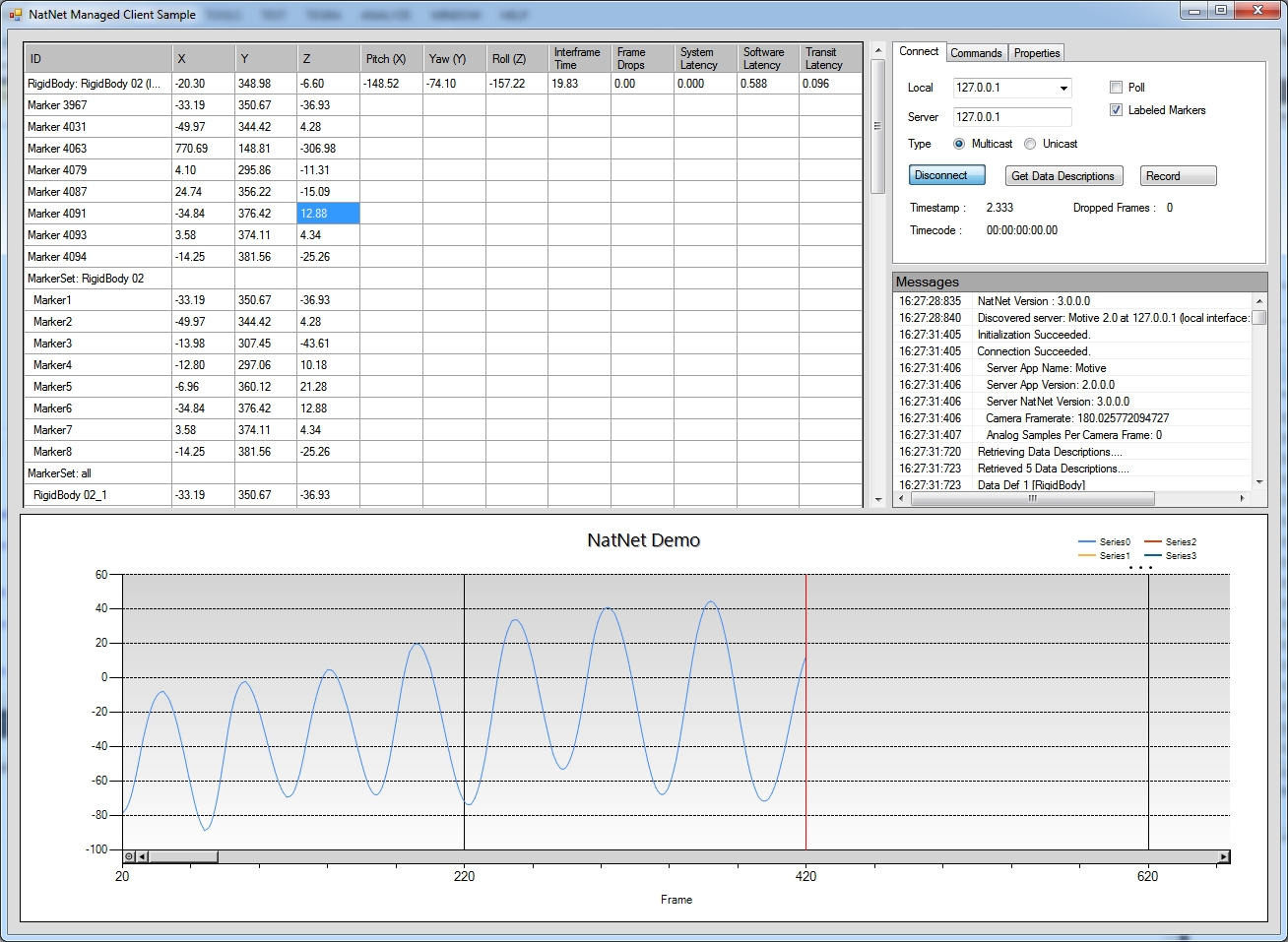
Start the WinForms sample application from the NatNet Samples folder.
Update the Local and Server IP Addresses as necessary.
Start a NatNet server application (e.g. Motive).
Enable NatNet streaming from the Server application.
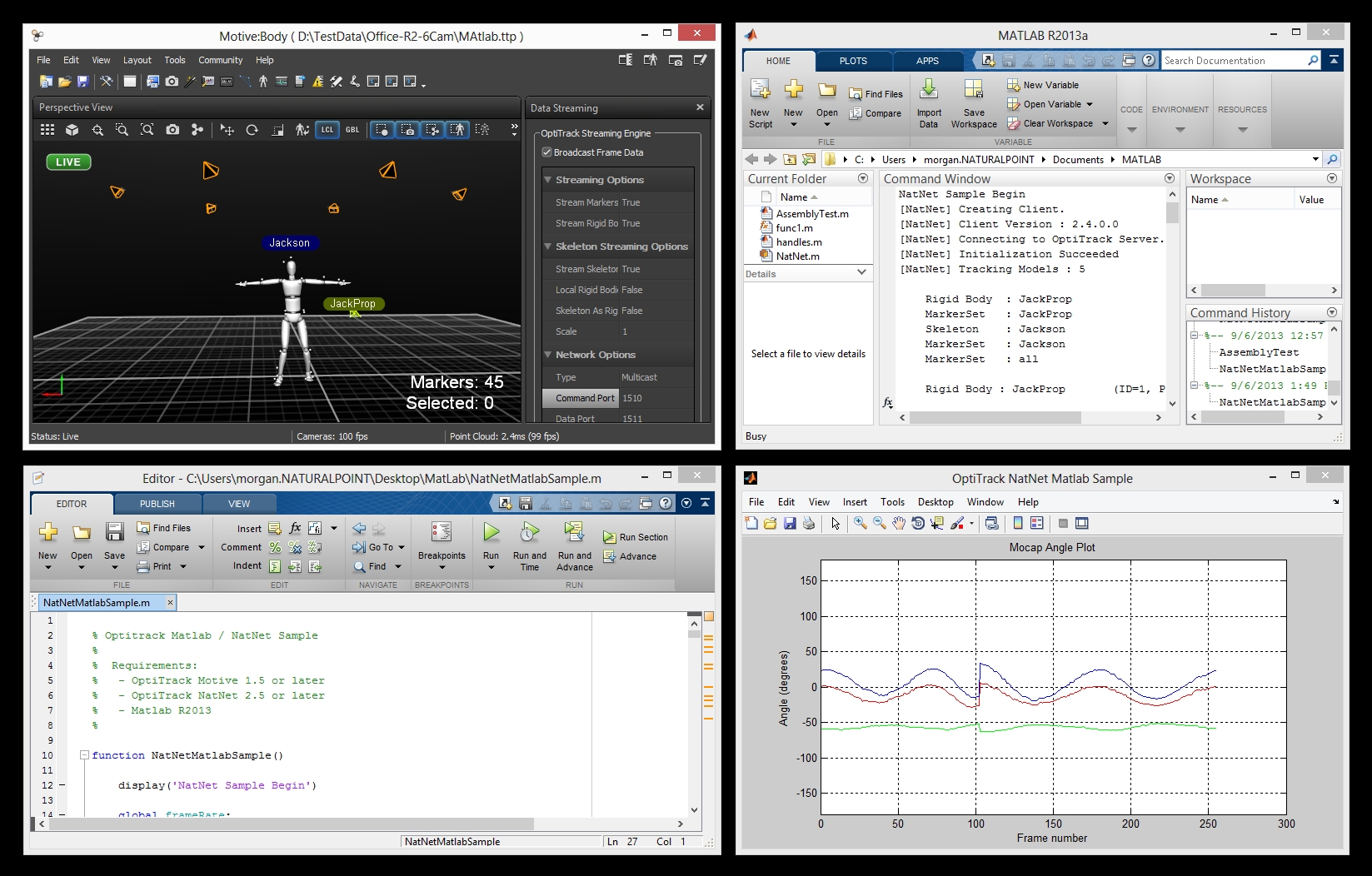
Start Matlab.
Open the NatNetPollingSample.m file.
Native: C++
Sample NatNet application that connects to a NatNet server, receives a data stream, and displays that data in an OpenGL 3D window.
SampleClientML
Managed: .NET (C#)
Sample NatNet C# console application that connects to a NatNet server on the local IP address, receives data stream, and outputs the received data. Note: must be set to false.
Managed: C# .NET
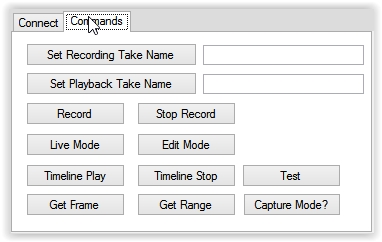
Simple C# .NET sample showing how to use the NatNet managed assembly (NatNetML.dll). This sample also demonstrates how to send and receive the NatNet commands.
If the MinimalClient cannot make a connection, the application will terminate.
Open the Sample3D project. Set the Client and Server IP addresses.
File -> Connect.
Press the Connect button to connect to the server.
Select Get Data Descriptions to request and display a detailed description of the Server’s currently streamed objects.
Select a Row in the DataGrid to display that value in the graph.
From the editor window, press Run.
Managed: Matlab
Sample MATLAB code file (.m) for using MATLAB with the NatNet managed assembly (NatNetML.dll) using the provided natnet.p wrapper class. Works in Matlab version 2014 or above.
MinimalClient
Native: C++
Sample NatNet console app that connects to a NatNet server to receive a data stream.
Contains the bare minimum code to make the NatNet connection. Good for testing connectivity.
Native: C++
Sample NatNet console app that connects to a NatNet server, receives a data stream, and writes that data stream to an ASCII file.
More robust than the MinimalClient, SampleClient provides a feature-rich template that includes everything necessary to build your own application.
PacketClient
C++
Simple example showing how to connect to a NatNet multicast stream and decode NatNet packets directly without using the NatNet SDK.
PythonSample
Python
Sample Python code file (.py) for using Python with NatNet streaming. This sample depacketizes data directly from the bit-stream without using the library.
BroadcastSample
C++
XML broadcast. Sample application illustrating how to use remote record trigger in Motive using XML formatted UDP broadcast packets.