# Quick Start Guide: Real-Time Retargeting in Unreal Engine with Live Link Content

## Requirements

* Motive 3.1 or higher
* Unreal Engine 5.5
* OptiTrack Live Link Plugin 5.5

## Setup

### Install Live Link Plugin

This step is completed once per computer.&#x20;

* Download and unzip the latest version of the OptiTrack Live Link Plugin from the OptiTrack [Download ](https://www.optitrack.com/support/downloads/plugins.html)site.&#x20;
* Place the plugin files into one of the following directories:
  * A global engine plugin can be placed in `C:\Program Files\Epic Games\ [Engine Version]\ Engine\ Plugins`
  * A project-specific plugin can be placed in `[Project Directory]\Plugins`

### Enable Plugin in Unreal Engine

This step is completed with each new project.&#x20;

Go to *Edit → Plugins* and enable the two required plugins:

* **OptiTrack - Live Link** plugin, located under the *Installed* group. This is the plugin downloaded in the previous step.
* Unreal Engine's built-in **Live Link** plugin.

{% hint style="info" %}
Search for *Live Link* on the plugins window to find these and other Live Link related plugins.&#x20;
{% endhint %}

Allow Unreal Engine to restart, then close the plugin window when the project reloads.

{% hint style="info" %}
**Show Content**&#x20;

To show the OptiTrack plugins folder in the Content Browser, click the Settings button in the Browser's top right corner and check the boxes to *Show Engine Content* and *Show Plugin Content*.&#x20;
{% endhint %}

### Motive Streaming Settings

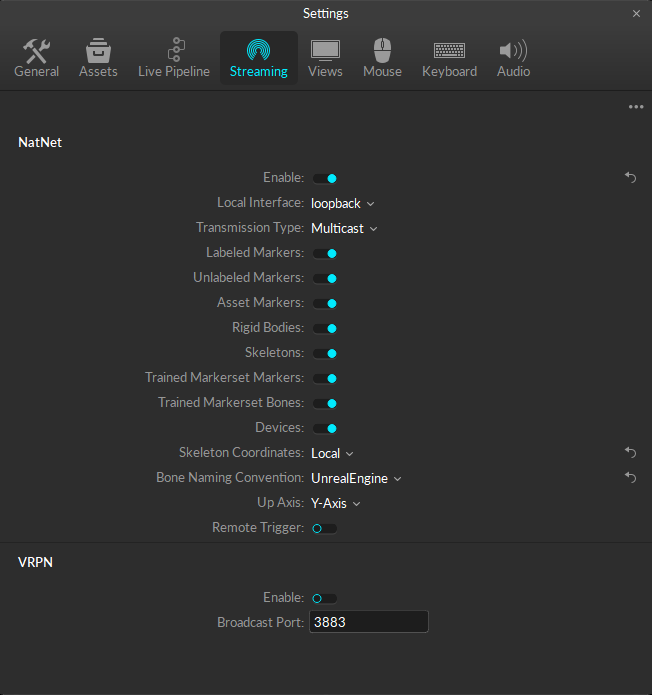
To enable streaming in Motive, click the <img src="https://content.gitbook.com/content/4ne9bLcvxMzpZqIc5yuj/blobs/ei75AmDLIOPMS3a1TSAM/Settings%20button.png" alt="" data-size="line"> button to open the [*Applications Settings*](https://docs.optitrack.com/v3.2/motive-ui-panes/settings) panel, then select the [*Streaming* ](https://docs.optitrack.com/v3.2/motive-ui-panes/settings/settings-streaming)tab, or use the <img src="https://content.gitbook.com/content/4ne9bLcvxMzpZqIc5yuj/blobs/265iWnZbrnVuwKdrTKcV/Control%20Deck%20-%20Streaming%20Off%20SMALL.png" alt="" data-size="line"> button in the right corner of the [Control Deck](https://docs.optitrack.com/v3.2/motive-ui-panes/control-deck) to open the *Streaming* tab directly.&#x20;

* In the *NatNet* section, select ***Enable*** to begin streaming.&#x20;
* Select the **Local Interface**. Use Loopback if streaming to the same computer, otherwise select the IP address for the network where the client application resides.
* Set the **Bone Naming Convention** to *UnrealEngine*.&#x20;
* Set the **Up Axis** to Y-Axis. The plugin will bring the data in with a Y-Forward orientation.&#x20;

Please see the [Data Streaming](https://docs.optitrack.com/v3.2/motive/data-streaming) page for more details on all settings available for streaming.&#x20;

<figure><img src="https://content.gitbook.com/content/4ne9bLcvxMzpZqIc5yuj/blobs/a68RgTx272f8Y1nb8mK2/Settings%20-%20Streaming%20Standard%20settings%20only.png" alt="" width="489"><figcaption><p>Application Settings Panel: Streaming Tab, Streaming enabled. </p></figcaption></figure>

## Connect Motive to Unreal Engine

* In Unreal Engine, open Live Link Hub from the *Tools* menu *o*n the toolbar, if it's not open already. Under *Virtual Production,* select *Live Link Hub.*&#x20;
* Click the <img src="https://content.gitbook.com/content/4ne9bLcvxMzpZqIc5yuj/blobs/OJuED3ywRNjOQAcaZyHB/UE%20Add%20Source%20Button.png" alt="" data-size="line"> button in Live Link Hub to add a new Live Link source.
* Select *OptiTrack Source*, check *Connect Automatically,* or enter the IP address for the Motive PC in the *Server Address* field, the IP address for the Unreal PC in the *Client Address* field. Enter 127.0.0.1 in both fields if running both on the same PC. Click create.

<figure><img src="https://2559979491-files.gitbook.io/~/files/v0/b/gitbook-x-prod.appspot.com/o/spaces%2F4ne9bLcvxMzpZqIc5yuj%2Fuploads%2FSeyy3kHYKgCrORALWx8M%2FLLHub%20-%20Add%20Source.png?alt=media&#x26;token=15b32f14-6a70-4372-bec9-d26292f04119" alt=""><figcaption><p>Add a Live Link source in Unreal Engine.</p></figcaption></figure>

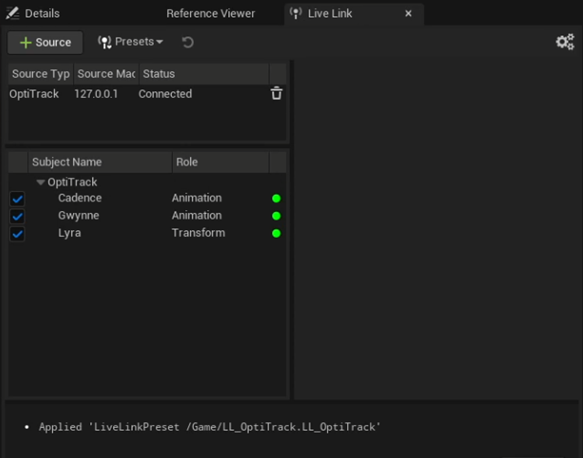
Live Link will display information about the connection, including a list of assets streaming from Motive:&#x20;

<figure><img src="https://content.gitbook.com/content/4ne9bLcvxMzpZqIc5yuj/blobs/BNBzx96MpZfsBfcW6Su8/image.png" alt=""><figcaption><p>OptiTrack Live Link Connection in Unreal Engine. </p></figcaption></figure>

### OptiTrack Live Link Display

The OptiTrack Live Link Display provides validation that the data is streaming in correctly from Motive. In the Unreal Engine Outliner pane, all assets in the Motive volume should nest under the OptiTrack Live Link Display.&#x20;

#### Add OptiTrack Live Link Display

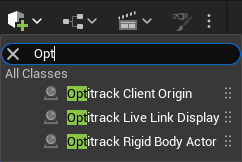
Click the <img src="https://content.gitbook.com/content/4ne9bLcvxMzpZqIc5yuj/blobs/IWbCljse2GVc5hEgrLH7/Unreal%20Engine%20Quick%20Add%20button.png" alt="" data-size="line"> Quick Add button and start typing *OptiTrack* over the menu to activate the search function.  Select the OptiTrack Live Link Display from the list of available options and drop it into the scene in the desired location.&#x20;

<figure><img src="https://content.gitbook.com/content/4ne9bLcvxMzpZqIc5yuj/blobs/yqE41QAm4lStv8ptX4Vb/Live%20Link%20Add%20OptiTrackNDisplay.png" alt=""><figcaption><p>Searching from the UE Quick Add button.</p></figcaption></figure>

Play the *Take* file when working with recorded data to see the Live Link assets in the Viewport. Once the assets are available, you can pause playback and the assets will still be displayed.&#x20;

Once you have validated the Live Link connection, we recommend turning off Live Link asset visibility to improve performance as you work through the rest of the pipeline.

* Select *OptitrackLiveLinkDisplay* in the Outliner panel.&#x20;
* The properties for the *OptitrackLiveLinkDisplay* will populate in the Details pane.&#x20;
* In the *Assets* section, uncheck *Display Assets*.&#x20;

<figure><img src="https://content.gitbook.com/content/4ne9bLcvxMzpZqIc5yuj/blobs/xI34Pz3Cyk8qlQ7TOnEe/Display%20Assets%20Off%20in%20OLLD%20Details%20CROPPED.png" alt=""><figcaption><p>Assets section of the Details pane for the OptitrackLiveLinkDisplay: Display Assets highlighted. </p></figcaption></figure>

{% hint style="info" %}
Turn the *Display Assets* setting on or off as needed throughout the workflow.&#x20;
{% endhint %}

## Retargeting to MetaHumans

Retargeting is the process of applying an existing animation model to a character, at the correct scale.&#x20;

In this section, we'll demonstrate the retargeting workflow using skeleton data streaming from Motive and retarget it to a MetaHuman in Unreal Engine in real-time. For each MetaHuman, we'll create the following in Unreal Engine:

* A Retargeter to map the Motive Animation data to the correct Skeletal Meshes in Unreal.
* An Animation Blueprint for the Motive Avatar.
* An Animation Blueprint for the MetaHuman.
* &#x20;A Blueprint for a MetaHuman character.&#x20;

For more information and tutorials about working with MetaHumans in Unreal Engine, please visit [Epic Games' MetaHuman community](https://dev.epicgames.com/community/metahuman).&#x20;

{% hint style="info" %}
This workflow is fine-tuned specifically for MetaHumans, but it can be used for characters with unique custom skeletons as well.&#x20;
{% endhint %}

#### Y-Forward vs. X-Forward Axis

MetaHuman joints use a Y-Forward axis, and the plugin brings the data in using this orientation.&#x20;

Prior versions of the plugin used an X-Forward axis for the skeletal mesh, with adjustments made to the linked asset in Unreal Engine. To work with legacy assets configured for an X-Forward axis:

* From the LiveLink tab, select OptiTrack to display the LiveLink properties.
* In the *Coordinates* section, uncheck *Animate Y-Forward*.&#x20;

<figure><img src="https://2559979491-files.gitbook.io/~/files/v0/b/gitbook-x-prod.appspot.com/o/spaces%2F4ne9bLcvxMzpZqIc5yuj%2Fuploads%2FByuCiDJlePznaK78oTwc%2FAnimate%20Y-Forward%20ANNOTATED.png?alt=media&#x26;token=e99e4410-953b-4cc6-8d09-21f463e8c739" alt="" width="563"><figcaption><p>Live Link settings: Animate Y-Forward property. </p></figcaption></figure>

### Add MetaHuman

We'll start the workflow by adding the MetaHuman to the project. This will create a folder structure in the project to consolidate the content related to each individual MetaHuman. We'll use these folders to save the Retargeter and the two Animation Blueprints we need to complete the retarget.&#x20;

#### Add the MetaHuman to the Project

To add a new MetaHuman to your project:

* Click the Quick Add button <img src="https://content.gitbook.com/content/4ne9bLcvxMzpZqIc5yuj/blobs/ZVoB7Br0rrtZ7qHFHAhA/Unreal%20Engine%20Quick%20Add%20button.png" alt="" data-size="line"> and select *Quixel Bridge.*&#x20;
* Select either a new MetaHuman from a preset to download or browse the local collection for any previously downloaded MetaHumans.&#x20;
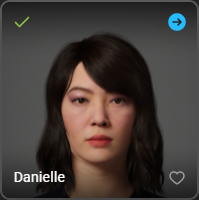
* Once the MetaHuman is downloaded, a green arrow will appear in the upper left corner of the profile picture. Click the blue arrow in the upper right corner to add the MetaHuman to your project.&#x20;

<figure><img src="https://content.gitbook.com/content/4ne9bLcvxMzpZqIc5yuj/blobs/ApjFW3kHhGGie84fu1ky/MetaHuman%20-%20Add%20to%20Project.png" alt=""><figcaption><p>A downloaded MetaHuman in UE.</p></figcaption></figure>

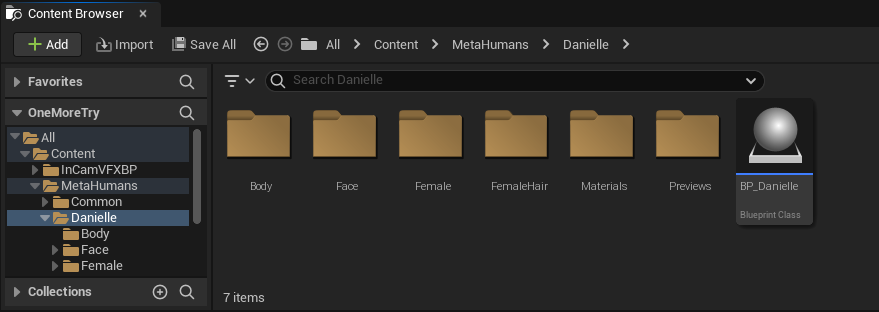
* The Content Browser will have a new *MetaHumans* folder within the *Content* folder. Each MetaHuman has their own folder, which contains their Blueprint and all the content needed to render them.&#x20;

<figure><img src="https://content.gitbook.com/content/4ne9bLcvxMzpZqIc5yuj/blobs/T3C2IMicLIxaR84KhmiA/MetaHuman%20in%20Content%20Browser.png" alt="" width="563"><figcaption><p>MetaHuman content in the Content Browser in UE.</p></figcaption></figure>

#### Copy the MetaHuman Blueprint

We recommend using a copy of the MetaHuman when setting up the retarget. This allows you to take the data that comes from the MetaHuman in the retarget during production and add it to the original MetaHuman later in post-production.

To create a copy, right-click the Blueprint and select *Duplicate*, or use the keyboard shortcut *Ctrl + D*.&#x20;

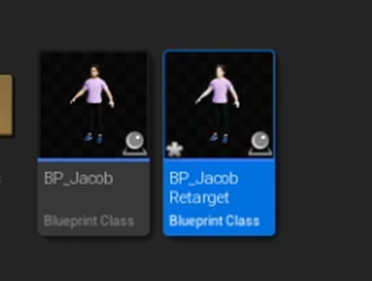
We suggest using a simple convention such as *BP\_<*&#x4D;etaHumanNam*e>\_Retarget* for all copies.&#x20;

<figure><img src="https://content.gitbook.com/content/4ne9bLcvxMzpZqIc5yuj/blobs/Ltczhf461tU8t5jj3JCp/image.png" alt=""><figcaption><p>MetaHuman Blueprints: Original and Copy.</p></figcaption></figure>

Now that the file structure for the MetaHumans is setup, we can create the Retargeter and the two Animation Blueprints. We'll update the MetaHuman Blueprint once these are done. &#x20;

### Create Retargeter

* In the Content Browser, browse to and open the folder for the MetaHuman. &#x20;
* Right-click the Content Browser and select *Animation -> Retargeting -> IK retargeter*.&#x20;
* Name the retargeter. We recommend a name such as *IKR\_Motive\_to\_Meta*.&#x20;

#### Set Retargeter Source and Target&#x20;

Open the newly created retargeter. In the Details pane, update the Source and Target values as follows:

* **Source IKRig Asset:** IK\_MotiveAvatar\_Opti
* **Source PreviewMesh:**
  * Female avatars:  SKM\_F\_MotiveAvatar\_Opti
  * Male avatars:  SKM\_M\_MotiveAvatar\_Opti
* **Target IKRig Asset:**  IK\_metahuman
* **Target Preview Mesh:**&#x20;
  * Female avatars:  f\_med\_nrw\_body
  * Male avatars:  m\_med\_nrw\_body

{% hint style="success" %}
The *Preview Mesh* fields will auto-complete once the *IKRig Asset* is selected.&#x20;
{% endhint %}

#### Align Skeletons

The Viewport will show that the two skeletons are not properly aligned. This occurs because the skeletons are in different poses.&#x20;

<figure><img src="https://2559979491-files.gitbook.io/~/files/v0/b/gitbook-x-prod.appspot.com/o/spaces%2F4ne9bLcvxMzpZqIc5yuj%2Fuploads%2FTQMesHQXkmruacORNZjx%2FMetahuman%20Skeleton%20pre-alignment.png?alt=media&#x26;token=437f80ae-95e3-4232-aa94-1be732f30f4f" alt="" width="563"><figcaption><p>Prior to alignment.</p></figcaption></figure>

Click the Running Retargeter button in the upper left corner to stop the retargeter and switch to edit mode. The button will update to *Editing Retarget Pose.*

<div><figure><img src="https://2559979491-files.gitbook.io/~/files/v0/b/gitbook-x-prod.appspot.com/o/spaces%2F4ne9bLcvxMzpZqIc5yuj%2Fuploads%2FknKDi3yD02fwTvPqmNjN%2FUE%20Running%20Retarget.png?alt=media&#x26;token=1f5ef4c0-4879-4868-a534-a8ec82e59770" alt=""><figcaption><p>The Retargeter in Run Mode. </p></figcaption></figure> <figure><img src="https://2559979491-files.gitbook.io/~/files/v0/b/gitbook-x-prod.appspot.com/o/spaces%2F4ne9bLcvxMzpZqIc5yuj%2Fuploads%2Fj9ne5UDMx7RRXgbZxcdV%2FUE%20Editing%20Retarget%20Pose.png?alt=media&#x26;token=8e218f07-107e-492b-9238-8d48e4f2f613" alt=""><figcaption><p>The Retargeter in Edit Mode.</p></figcaption></figure></div>

Click the Auto Align button <img src="https://2559979491-files.gitbook.io/~/files/v0/b/gitbook-x-prod.appspot.com/o/spaces%2F4ne9bLcvxMzpZqIc5yuj%2Fuploads%2FpuRS6zJVqOagiq2s1B3L%2FUE%20Auto%20Align%20button%20CROPPED.png?alt=media&#x26;token=9823ab85-1a55-4104-88fd-fcc97030e568" alt="" data-size="original"> and select *Align all Bones t*o complete the alignment.

The retarget will now display correctly in the Viewport.

<figure><img src="https://2559979491-files.gitbook.io/~/files/v0/b/gitbook-x-prod.appspot.com/o/spaces%2F4ne9bLcvxMzpZqIc5yuj%2Fuploads%2FaLdOo2XW0Rkwiv0CGUat%2FMetahuman%20Skeleton%20post-alignment.png?alt=media&#x26;token=9380cd09-f477-4e01-b493-bf76fa527188" alt=""><figcaption><p>After alignment.</p></figcaption></figure>

### Motive Avatar Animation Blueprint

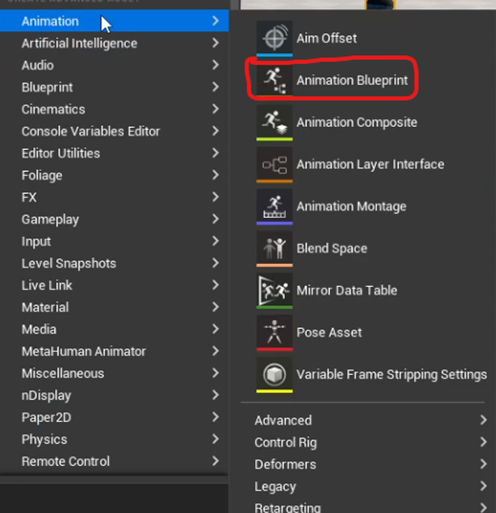
* Right-click the Content Browser and select *Animation -> Animation Blueprint*.

<figure><img src="https://content.gitbook.com/content/4ne9bLcvxMzpZqIc5yuj/blobs/YKd2HjJhf8cmr1dOdbtG/image.png" alt=""><figcaption><p>Add Animation Blueprint in Unreal Engine.</p></figcaption></figure>

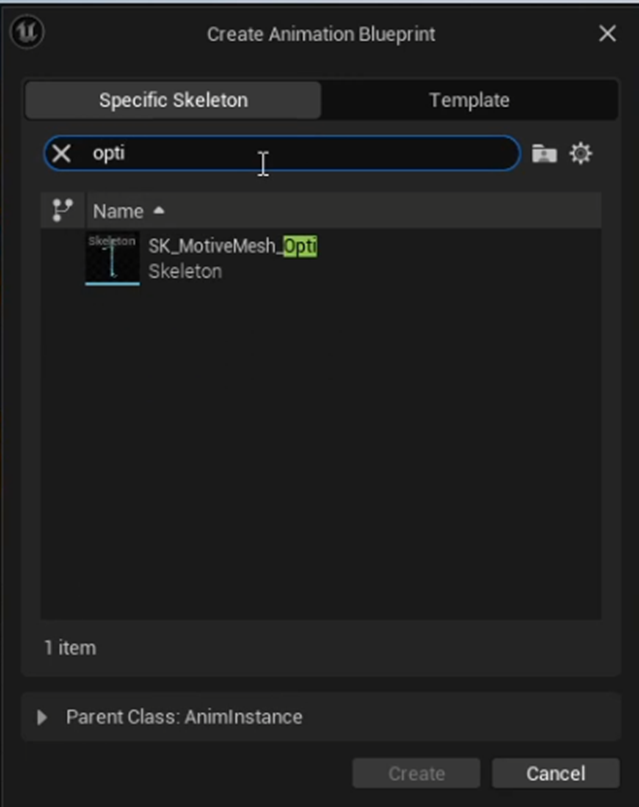
In the *Create Animation Blueprint* Search bar, type *Opti*, then select the *SK\_MotiveAvatar\_Opti* skeleton. Give the newly created Animation Blueprint a name, such as *ABP\_MotiveAvatar*.&#x20;

<figure><img src="https://content.gitbook.com/content/4ne9bLcvxMzpZqIc5yuj/blobs/U0nIKmoUYtGK22hK7oHu/image.png" alt="" width="479"><figcaption><p>Create Animation Blueprint: Select template.</p></figcaption></figure>

* Double-click the new Animation Blueprint to open the AnimGraph window.&#x20;
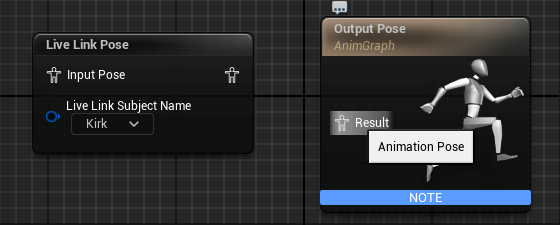
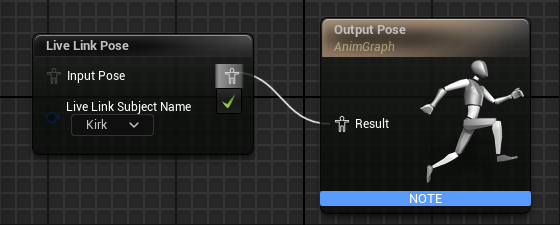
* Right-click in the graph area and type *Live Link Pose* in the Search field, then select the node that appears.&#x20;
* In the Live Link Pose node, use the dropdown list under *Live Link Subject Name* to select the actor whose skeleton will be used for the Motive avatar.&#x20;
* To connect the two nodes, click the *Result* icon in the Output Pose and drag it to the corresponding icon on the Live Link Pose.&#x20;

<div><figure><img src="https://content.gitbook.com/content/4ne9bLcvxMzpZqIc5yuj/blobs/9qhWrYnv2Vdz2ApgNkWP/Link%20Output%20Pose%20to%20Live%20Link%20Pose%201.png" alt=""><figcaption><p>Click the Result icon to connect the Output Pose...</p></figcaption></figure> <figure><img src="https://content.gitbook.com/content/4ne9bLcvxMzpZqIc5yuj/blobs/PsbvbdRjsjGyj0ZGED2h/Link%20Output%20Pose%20to%20Live%20Link%20Pose%202.png" alt=""><figcaption><p>...to the Live Link input pose. </p></figcaption></figure></div>

* Click the Compile button, then Save. The Compile button will update as all changes are incorporated:

<div><figure><img src="https://content.gitbook.com/content/4ne9bLcvxMzpZqIc5yuj/blobs/9IukkMuc1DIEhxQlfYYD/Compile%20-%20Dirty.png" alt=""><figcaption><p>Pre-Compilation.</p></figcaption></figure> <figure><img src="https://content.gitbook.com/content/4ne9bLcvxMzpZqIc5yuj/blobs/89hW4TBrE0F4J7UvUuyL/Compile%20-%20Clean.png" alt=""><figcaption><p>Post-Compilation.</p></figcaption></figure></div>

### &#x20;MetaHuman Animation Blueprint

* Right-click the Content Browser and select *Animation -> Animation Blueprint*.
* On the Create Animation Blueprint window, select the *metahuman\_base\_skel* skeleton.&#x20;
* We suggest a naming convention such as *ABP\_*\<MetaHumanName>*\_Meta.* Name, then open the newly created animation blueprint.&#x20;
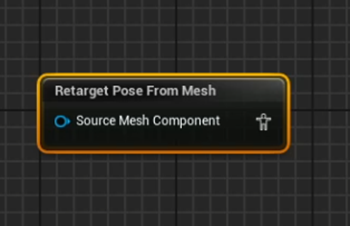
* Right click the AnimGraph. From the list of *All Actions*, search for and select *Retarget Pose From Mesh*.

<figure><img src="https://content.gitbook.com/content/4ne9bLcvxMzpZqIc5yuj/blobs/laAddd4xmuzqktUjJ1Ma/image.png" alt=""><figcaption><p>Unconfigured Retarget Pose from Mesh in UE.</p></figcaption></figure>

* Select *Retarget Pose from Mesh* in the AnimGraph to display its properties in the Details pane.
* Find *IKRetargeter Asset* in the Settings section.&#x20;
* Click the <img src="https://content.gitbook.com/content/4ne9bLcvxMzpZqIc5yuj/blobs/J5mMrCkGUvQ09p826fZC/UE%20Selector%20Button.png" alt="" data-size="line"> button and select the IK retargeter created in the [prior step](#create-retargeter-asset).

<div><figure><img src="https://content.gitbook.com/content/4ne9bLcvxMzpZqIc5yuj/blobs/yRTGBwuuC4m5xIj2USt1/IKRetaregeter%20Asset%20Property%20-%20nothing%20selected.png" alt=""><figcaption><p>IKRetargeter Asset - None selected. </p></figcaption></figure> <figure><img src="https://content.gitbook.com/content/4ne9bLcvxMzpZqIc5yuj/blobs/wA4cOzzDyKmFRgj2lMac/IKRetaregeter%20Asset%20Property%20-%20Asset%20selected.png" alt=""><figcaption><p>IKRetargeter Asset - with Retargeter Asset selected. </p></figcaption></figure></div>
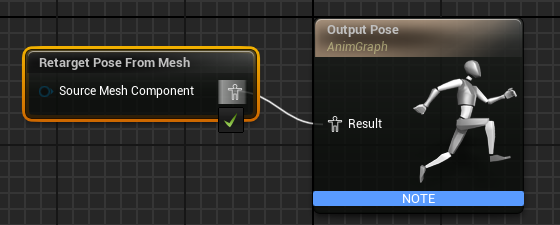
* Drag the *Output Pose* Result icon to the corresponding icon on the *Retarget Pose From Mesh* node to link the two. &#x20;

<figure><img src="https://content.gitbook.com/content/4ne9bLcvxMzpZqIc5yuj/blobs/JiMauO9jvpLLZVdBemF6/Link%20Output%20Pose%20to%20Retarget%20Pose.png" alt=""><figcaption></figcaption></figure>

* Click the Compile button, then save.

### Update MetaHuman Blueprint

#### Add Skeletal Mesh and Skeletal Animation

* Open the [MetaHuman Blueprint](#copy-the-metahuman-blueprint) created in a prior step.&#x20;
* Click the *Viewport* tab to see the MetaHuman character.
* In the Components panel, Click the <img src="https://content.gitbook.com/content/4ne9bLcvxMzpZqIc5yuj/blobs/IHwcp32PGLf5xxpWedJd/Live%20Link%20Add%20Component%20button.png" alt="" data-size="line"> Add button and select *Skeletal Mesh*.&#x20;
* Name the new mesh something distinct, such as *OptiTrackSkeletalMesh*.&#x20;
* Drag the body component of the MetaHuman under the new skeletal mesh.
* The Components should now look like this:
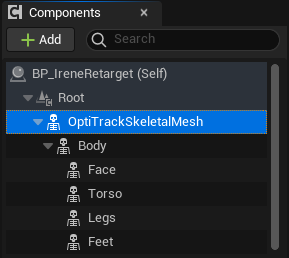
<figure><img src="https://content.gitbook.com/content/4ne9bLcvxMzpZqIc5yuj/blobs/GxeCLpGl01f1fxn5WroP/Metahuman%20-%20Components%20with%20Opti%20SM.png" alt=""><figcaption><p>Skeletal Mesh added to a MetaHuman in UE.</p></figcaption></figure>

* Next, add the *Live Link Skeletal Animation* component. This will allow playback to start once the animation blueprint is attached. &#x20;
* To improve performance while streaming to MetaHumans, click the *LODSync* component. In the Details pane, go to *LOD -> Forced LOD* and change the setting to 1.
* Click Compile to update the Blueprint, then save.&#x20;

#### Apply Animation Blueprints to Skeletal Meshes

* In the *Components pane*, select the OptiTrack [skeletal mesh](#link-metahuman) created previously.&#x20;
* In the Details pane, go to *Animation -> Anim Class*.&#x20;
* Use the drop-down to search for and select the [Motive Avatar Animation Blueprint](#motive-avatar-animation-blueprint) created earlier.&#x20;

<figure><img src="https://content.gitbook.com/content/4ne9bLcvxMzpZqIc5yuj/blobs/E16OREmhpWtYa6CHaMUP/image.png" alt=""><figcaption><p>Animation Details for the OptiTrack Skeletal Mesh Component in UE.</p></figcaption></figure>

* With the OptiTrack skeletal mesh still selected, go to *Mesh -> Skeletal Mesh Asset*.
* Type *Opti* in the dropdown's search bar to quickly find the applicable Motive Avatar. This should match the the Source Preview Mesh used in the [IK Retargeter](#set-retargeter-source-and-target) created earlier:
  * Female avatar:  SKM\_F\_MotiveAvatar\_Opti
  * Male avatar:  SKM\_M\_MotiveAvatar\_Opti

<figure><img src="https://content.gitbook.com/content/4ne9bLcvxMzpZqIc5yuj/blobs/0xgSA20PF85EtixiVpjc/Skeletal%20Mesh%20for%20OptiTrack%20SM.png" alt=""><figcaption><p>Skeletal Mesh Asset for the OptiTrack Skeletal Mesh component in UE.</p></figcaption></figure>

* In the *Components pane,* select the skeletal mesh for the MetaHuman. This is the *Body* previously moved to nest directly below the OptiTrack Skeletal mesh.&#x20;
* In the Details pane, go to *Animation -> Anim Class*.&#x20;
* Use the drop-down to search for and select the [MetaHuman Animation Blueprint ](#metahuman-animation-blueprint)created earlier. &#x20;

<figure><img src="https://content.gitbook.com/content/4ne9bLcvxMzpZqIc5yuj/blobs/SfQabgS2pQexUnHYncOc/image.png" alt=""><figcaption><p>Animation Details for the MetaHuman Skeletal Mesh.</p></figcaption></figure>

* With the MetaHuman (body) skeletal mesh still selected, go to *Mesh -> Skeletal Mesh Asset*.
* Select the same mesh used in the Target Preview Mesh in the IK Retargeter created earlier:&#x20;
  * Female avatar:  f\_med\_nrw\_body
  * Male avatar:  m\_med\_nrw\_body

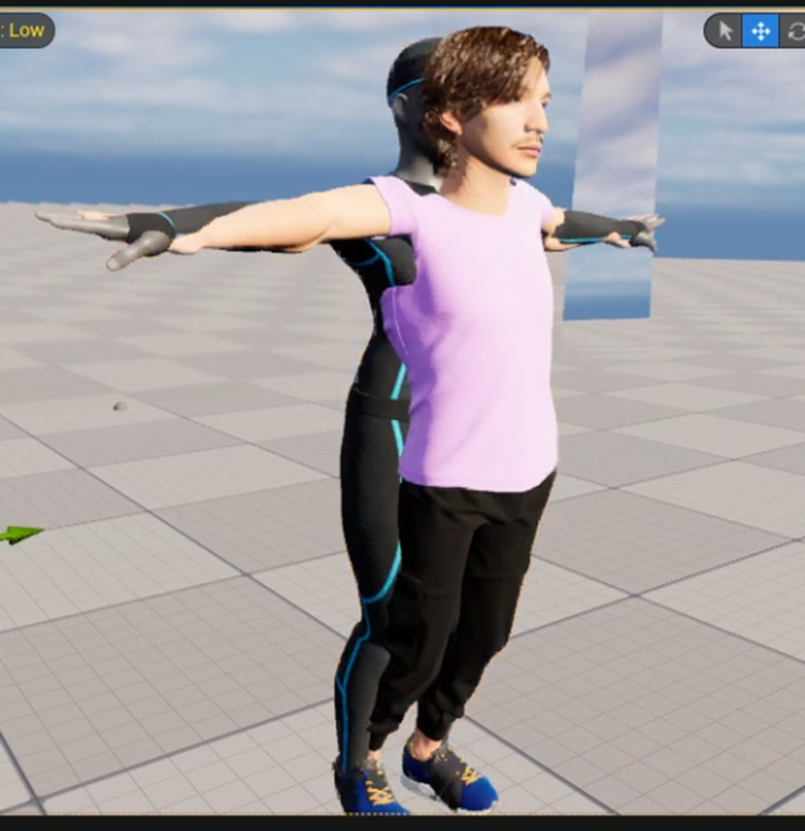
Animation should now be playing in the viewport of the MetaHuman blueprint.&#x20;

{% hint style="warning" %}
Disregard any visual issues with the animation in this view. They will not appear in the environment when you add the MetaHuman to your scene.
{% endhint %}

### Add MetaHuman to Scene

* Now that the MetaHuman blueprint is configured correctly, drag it from the Content Browser into the scene.&#x20;
* In the Outliner pane, drag the newly added blueprint to the *OptiTrackLiveLinkDisplay* component created earlier.  The mouse tip will display the drop location with a green checkmark as you drag the component, to show exactly where it will nest when the mouse is released.&#x20;

<figure><img src="https://content.gitbook.com/content/4ne9bLcvxMzpZqIc5yuj/blobs/w6lg9Ijm5Ig3uoIUVyqb/UE_Move_MetaHuman_1.gif" alt="" width="563"><figcaption><p>Move the MetaHuman under the <em>OptiTrackLiveLinkDisplay</em> in the Outliner. </p></figcaption></figure>

* Once the MetaHuman is nested under the *OptiTrackLiveLinkDisplay*, its location coordinates will update to reflect the OptiTrack global origin.&#x20;
* To align the MetaHuman with the subject configured in the Motive Avatar Animation Blueprint, go to *Details -> Transform* and zero out the coordinates by clicking the <img src="https://content.gitbook.com/content/4ne9bLcvxMzpZqIc5yuj/blobs/6TRcoXcVwGYkIrh3yB5V/UE%20Reset%20values%20button.png" alt="" data-size="line"> button to the right of the values.

<figure><img src="https://content.gitbook.com/content/4ne9bLcvxMzpZqIc5yuj/blobs/Vq1XbcxhLQCD3HT6UMMO/Transform%20coordinates.png" alt=""><figcaption><p>Transform values for the MetaHuman prior to reset. </p></figcaption></figure>
{% hint style="info" %}
If you previously disabled the display of assets after setting up the [OptiTrack Live Link Display](#add-optitrack-live-link-display), re-enable the display now to validate that the retarget is running correctly.&#x20;
{% endhint %}

### MetaHuman Animation Tips

The MetaHuman may not be animating exactly as intended. At this point, the rest of retargeting is much more of a trial-by-error artistic process.

We achieved the best standard results using the following settings for all the Hand and Foot Goals, however, we recommend testing other values and changing other fields to get the best results for your project:

* FK
  * Rotation Mode: One to One
  * Translation Mode: Absolute
* IK
  * Blend to Source: 1

<figure><img src="https://content.gitbook.com/content/4ne9bLcvxMzpZqIc5yuj/blobs/woHupJK5lFtMfWv2v8F7/image.png" alt="" width="563"><figcaption><p>Properly aligned MetaHuman in Unreal Engine. </p></figcaption></figure>