# Live Link Content:  Active Puck Static Meshes

## Overview

OptiTrack's plugin for Unreal Engine includes an array of content options. the 5.3 plugin includes the following new content:

* ActivePuckMesh
* CinePuckMesh
* MotiveAvatarMesh
* MotiveSkeletalMesh
* MotiveSkeleton

This page covers the Active Puck and CinePuck static meshes, using the Active Puck as the example.&#x20;

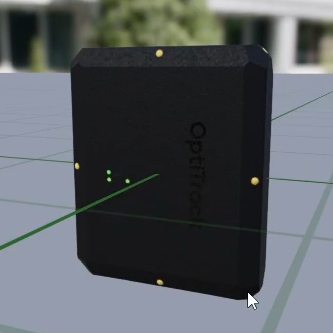
<div><figure><img src="https://content.gitbook.com/content/4ne9bLcvxMzpZqIc5yuj/blobs/ymtXu9UGO28dHT2cBKH2/Active%20Puck%20Mesh%20CROPPED.png" alt=""><figcaption><p>Scaled-to-fit Active Puck.</p></figcaption></figure> <figure><img src="https://content.gitbook.com/content/4ne9bLcvxMzpZqIc5yuj/blobs/GLsQ2thG8XURvCtCpg0s/CinePuck%20mesh%20CROPPED.png" alt=""><figcaption><p>Scaled-to-fit CinePuck.</p></figcaption></figure></div>

The Active Puck Mesh provides a couple of different use cases:

1. Data validation. Tracking an active puck in the physical volume using the OptiTrack Live Link display provides a point of reference that allows you to validate rotation, placements, and even the scale of your volume.
2. Lens calibration device. Because the static mesh is the same scale as a real puck, its markers can be used for calibration purposes. Please see the section [Create a Lens Calibration Device](#create-a-lens-calibration-device), below, for more details.&#x20;

{% hint style="info" %}
We used the standard *InCameraVFX* template in Unreal Engine for our sample project. The template includes all the necessary macros and assets needed for virtual production.&#x20;

This template is located under *Film / Video & Live Events* in the Unreal Project Browser. &#x20;
{% endhint %}

## Add a Puck to an Unreal Engine Project

This section walks the user through adding the puck static mesh to a project and aligning it with the puck streaming from Motive.&#x20;

### Show Plugin Content

* From the Content Browser window, click the <img src="https://content.gitbook.com/content/4ne9bLcvxMzpZqIc5yuj/blobs/jay0rkV70mwyW2ceHdU9/UE%20Content%20Browser%20Settings.png" alt="" data-size="original"> button.
* Check the boxes for *Show Engine Content* and *Show Plugin Content*.
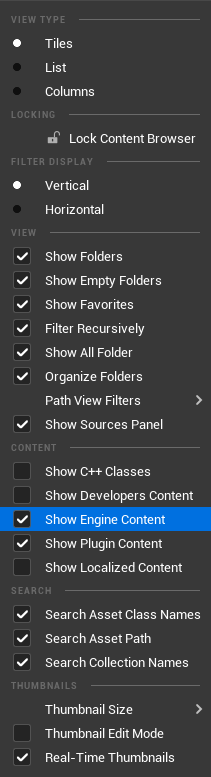
<figure><img src="https://content.gitbook.com/content/4ne9bLcvxMzpZqIc5yuj/blobs/DbIhW1fIwrzbSKQA1ZjF/UE%20Content%20Browser%20Settings%20Menu.png" alt="" width="158"><figcaption><p>Content Browser Settings in UE.</p></figcaption></figure>

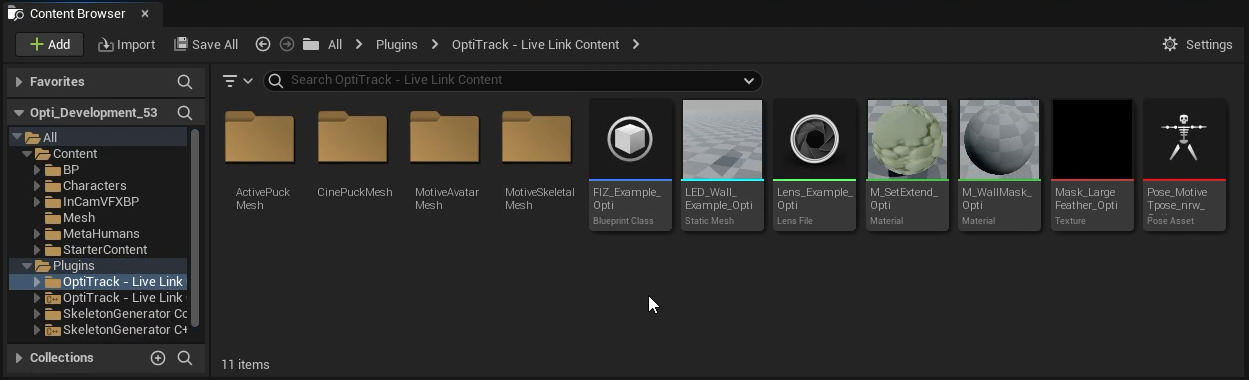
* The Content Browser’s Navigation pane will now show the Engine Content, where the Plugins folder resides.
* Open the OptiTrack—Live Link Content folder.

<figure><img src="https://content.gitbook.com/content/4ne9bLcvxMzpZqIc5yuj/blobs/1ZXm2mupKhkfM4WdAP3V/Live%20Link%20Content%20folder.png" alt="" width="563"><figcaption><p>OptiTrack's Live Link Content for Unreal Engine.</p></figcaption></figure>

* Open the *ActivePuckMesh* folder. If using a CinePuck, open the *CinePuckMesh* folder .

### Create Labeled Markers

The Live Link asset automatically aligns with its source in Motive. The *Markers* settings display a visual map of the marker locations. This map is helpful for confirming the alignment of a static mesh to a streamed asset.&#x20;

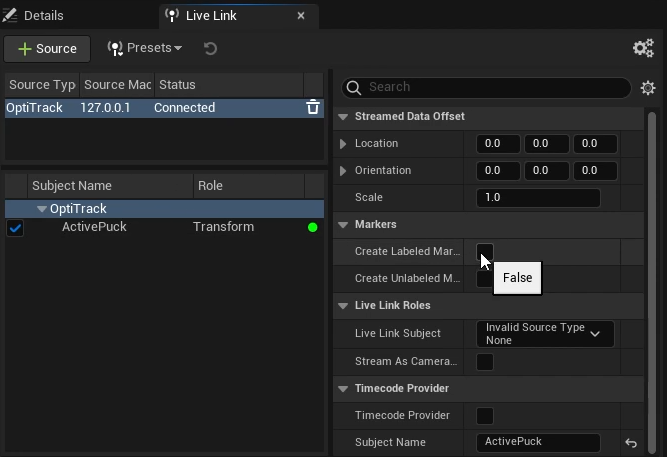
* In the Live Link pane, select *OptiTrack*.
* In the *Markers* section of the OptiTrack Properties pane, set *Create Labeled Markers* to true.

{% hint style="info" %}
To open the Live Link pane, select *Virtual Production → Live Link* from the *Window* menu.
{% endhint %}

<figure><img src="https://content.gitbook.com/content/4ne9bLcvxMzpZqIc5yuj/blobs/AZPYDIiu0zNYoLcUSqrC/Live%20Link%20Create%20Labeled%20Markers.png" alt="" width="500"><figcaption><p>Live Link Pane in Unreal Engine: Create Labeled Markers. </p></figcaption></figure>
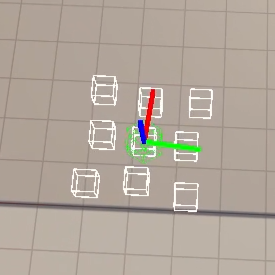
<figure><img src="https://content.gitbook.com/content/4ne9bLcvxMzpZqIc5yuj/blobs/f2ut3wQqt6Bw6JMhvP2r/Active%20Puck%20Markers%20aligned.png" alt="" width="206"><figcaption><p>Labeled Live Link Markers in UE.</p></figcaption></figure>

### Create Blueprint Class

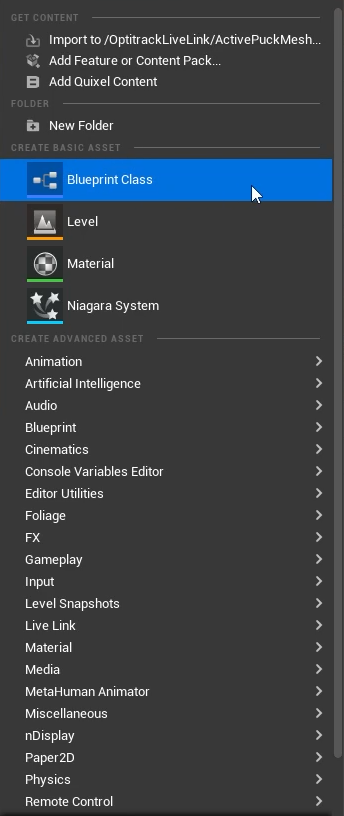
* Right click in the Content Browser to open the menu.
* Under *Create Basic Asset*, select *Blueprint Class*.

<figure><img src="https://content.gitbook.com/content/4ne9bLcvxMzpZqIc5yuj/blobs/cVaMh24svrfrzV43zUr2/Live%20Link%20Create%20Blueprint%20Class.png" alt="" width="258"><figcaption><p>Create Blueprint Class from Content Browser menu in UE.</p></figcaption></figure>

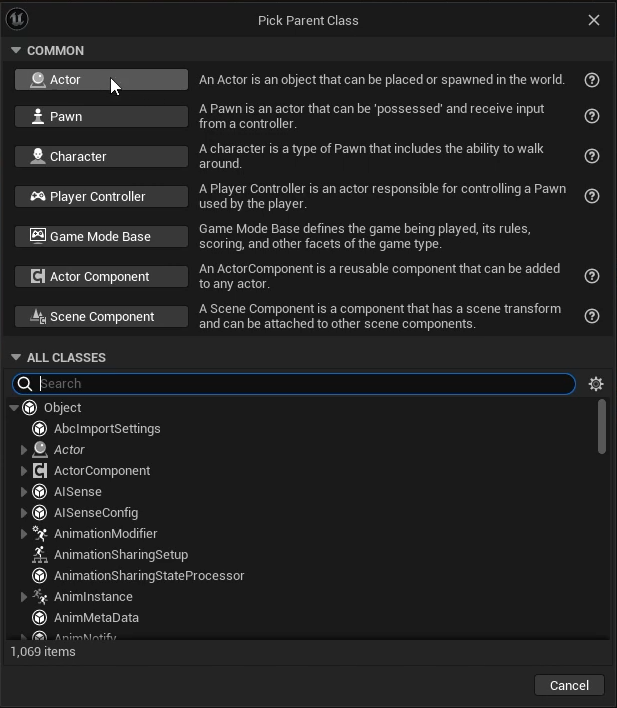
* Select Actor as the Parent Class.
* Double-click the name to give it a more meaningful name. In our example, we renamed the component *BP\_CalibratorPuck.* We will use this puck later to create a [Lens Calibration Device](#create-a-lens-calibration-device).&#x20;

<figure><img src="https://content.gitbook.com/content/4ne9bLcvxMzpZqIc5yuj/blobs/zlTwtNxuwE4gPWnvC73p/Create%20Blueprint%20-%20Pick%20parent%20class.png" alt="" width="463"><figcaption><p>Unreal Engine: Pick Parent Class for a new blueprint.</p></figcaption></figure>

### Add the Static Mesh

* Open the newly created Blueprint linked to the puck streaming from Motive. &#x20;
* This will open a new tab. Click the <img src="https://content.gitbook.com/content/4ne9bLcvxMzpZqIc5yuj/blobs/XTRyZn143OcNHBukkbc9/Live%20Link%20Add%20Component%20button.png" alt="" data-size="line"> *Add* button in the top left of the Component pane and select *Static Mesh* from the list of options.
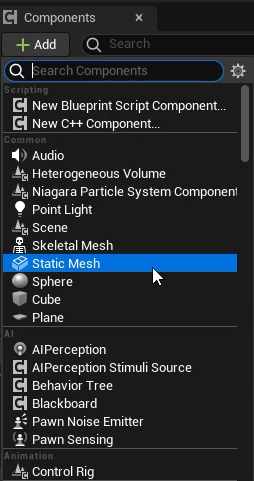
<figure><img src="https://content.gitbook.com/content/4ne9bLcvxMzpZqIc5yuj/blobs/FYJte7yapXR2FCPVNoFU/UE%20-%20Component%20add%20static%20mesh.png" alt="" width="191"><figcaption><p>Add components menu in UE.</p></figcaption></figure>

* Double-click the newly created static mesh in the list of components to rename it. In our example, we called it *ActivePuck*.
* Select the static mesh in the Components pane to display its properties in the Details pane.&#x20;
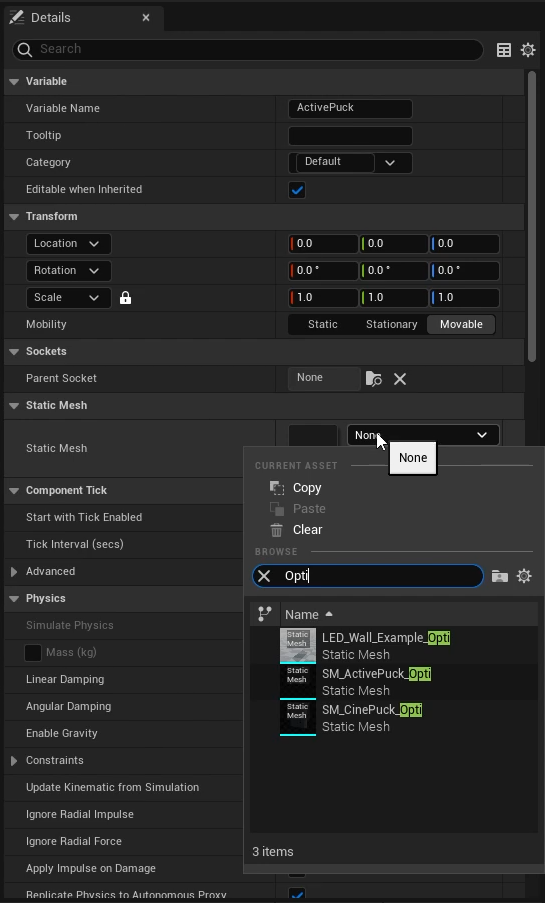
* Click the Static Mesh property (set to None by default) to select the asset to use.&#x20;
* Select *SM\_ActivePuck\_Opti* for the Active Puck, or *SM\_CinePuck\_Opti* if using a CinePuck.

<figure><img src="https://content.gitbook.com/content/4ne9bLcvxMzpZqIc5yuj/blobs/tpzdX0cNjntVyKnDIei9/UE%20Static%20Mesh%20-%20link%20to%20puck.png" alt="" width="409"><figcaption><p>Details for a Static Mesh component in UE.</p></figcaption></figure>

The Active Puck static mesh will now appear in the scene.&#x20;

## Create a Lens Calibration Device&#x20;

An Active Puck can serve as a lens calibration device in Unreal Engine by aligning calibration points to the markers at each of the four corners. &#x20;

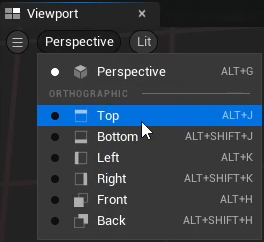
For accuracy and precision, use the *Top* view in the UE Viewport.&#x20;

<figure><img src="https://content.gitbook.com/content/4ne9bLcvxMzpZqIc5yuj/blobs/HFxTog2mOsnGu71Vo7Rp/UE%20Change%20Viewport%20perspective.png" alt=""><figcaption><p>Change the Viewport angle in UE.</p></figcaption></figure>

### Add Calibration Points

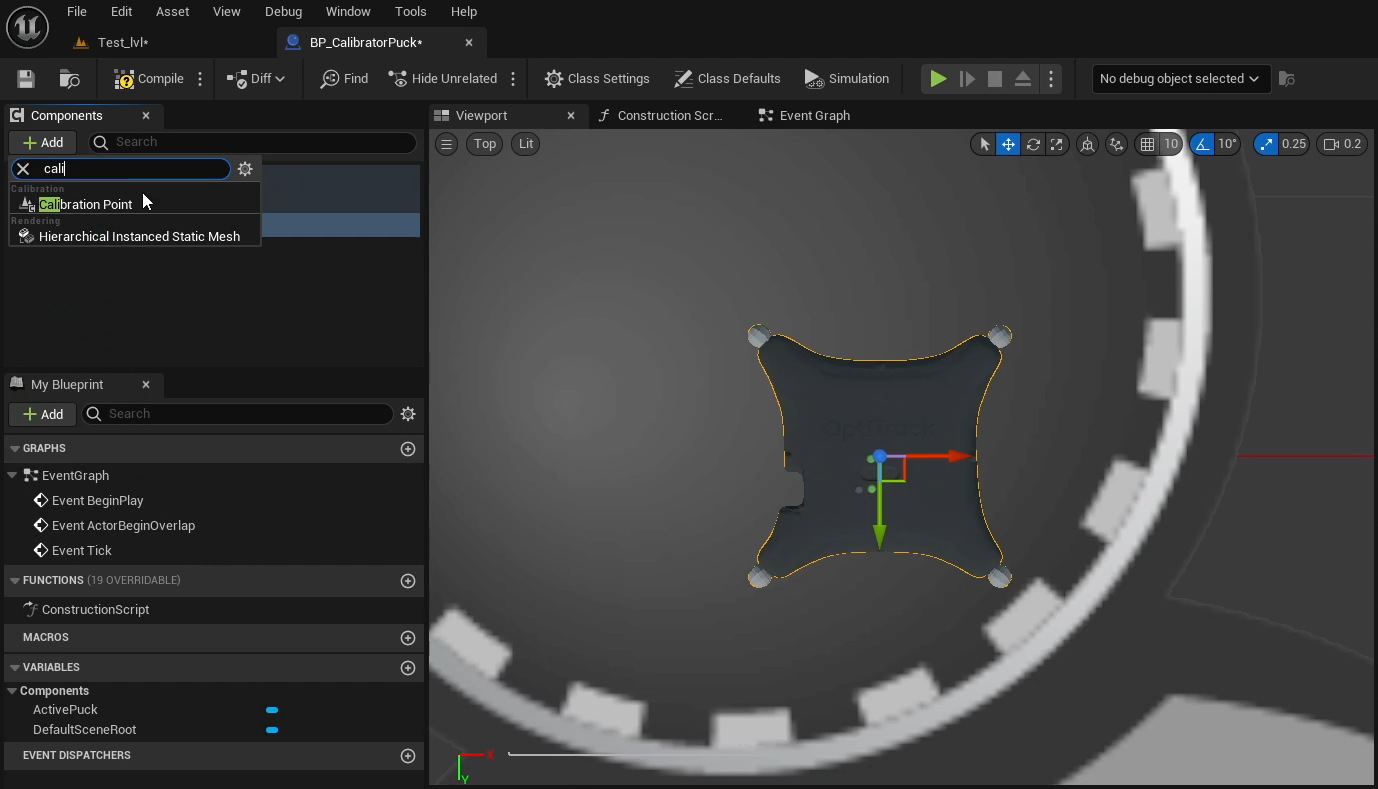
* Select the Active Puck in the Viewport and click the <img src="https://content.gitbook.com/content/4ne9bLcvxMzpZqIc5yuj/blobs/dZ3A86lLEUl3Z8k2VzfS/Live%20Link%20Add%20Component%20button.png" alt="" data-size="line"> Add button on the Components tab.&#x20;
* Search for and select *Calibration Point* from the list of options.&#x20;

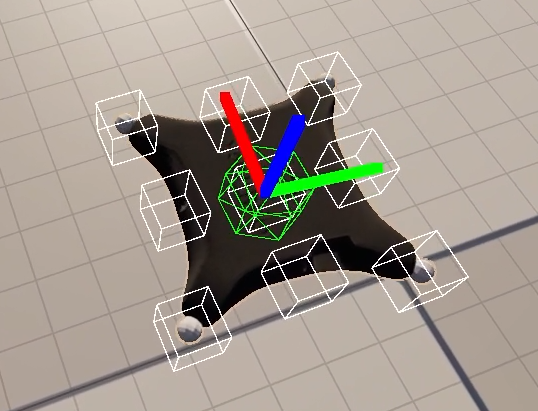
<figure><img src="https://content.gitbook.com/content/4ne9bLcvxMzpZqIc5yuj/blobs/FdZXGz9EAX7wgGQEH9E6/UE%20Add%20Calibration%20Point.png" alt=""><figcaption><p>Top down view of the Active Puck Static Mesh in Unreal Engine. </p></figcaption></figure>
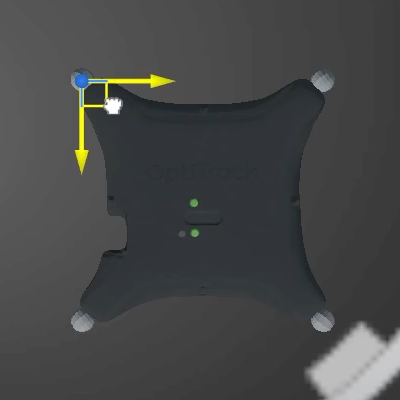
* Click to rename the Calibration point. We recommend using names that match the point's location, such as top left, bottom right, etc.&#x20;
* Drag the newly created point to align it with the center of the corner marker.

<figure><img src="https://content.gitbook.com/content/4ne9bLcvxMzpZqIc5yuj/blobs/gelC7VMtCU9ryXqSX3UV/UE%20Place%20Calibration%20Pt%201.png" alt="" width="300"><figcaption><p>Adding a Calibration Point to the Active Puck Static Mesh in UE.</p></figcaption></figure>

* Use **Ctrl + D** to *Duplicate* the point to make the next one.&#x20;
* Rename the second point and drag it to the appropriate location, aligning it with the previously placed point on either the X or Y axis.&#x20;
* Repeat these last two steps until each of the four corners has a Calibration Point at its center.
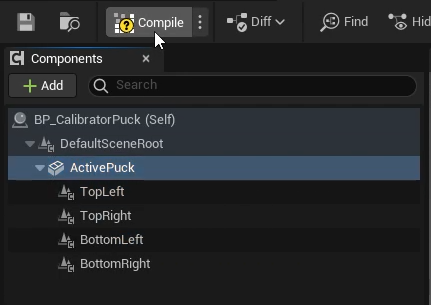
* Select the ActivePuck in the list of components. The four calibration points should be nested underneath.&#x20;
* Click the *Compile* button on the main toolbar, then *Save* and Close the tab for the Blueprint.

<figure><img src="https://content.gitbook.com/content/4ne9bLcvxMzpZqIc5yuj/blobs/KWxXnRmYpW8FWtuwci6Q/UE%20Compile%20Components.png" alt="" width="323"><figcaption><p>Compile changes to the Static Mesh in UE.</p></figcaption></figure>

### Link the Static Mesh to the Live Link Asset

* In the project, click and drag the Blueprint created in the prior steps into the project.&#x20;
* In the Outliner pane, drag the Blueprint under *OptiTrackLiveLinkDisplay.*
* &#x20;In the Transform Section of the Details pane, click the <img src="https://content.gitbook.com/content/4ne9bLcvxMzpZqIc5yuj/blobs/GG6RzplEOBGfK4lmBlwq/UE%20Reset%20values%20button.png" alt="" data-size="line"> button to the right of the Location settings to reset all location values to zero.&#x20;

<figure><img src="https://content.gitbook.com/content/4ne9bLcvxMzpZqIc5yuj/blobs/fycdKeK3AwNnALq66nrl/UE%20Puck%20Reset%20location%20Before%202.png" alt=""><figcaption></figcaption></figure>

* Click the <img src="https://content.gitbook.com/content/4ne9bLcvxMzpZqIc5yuj/blobs/hiLXR38aXFONys6AkJTx/Live%20Link%20Add%20Component%20button.png" alt="" data-size="line"> Add button in the Details pane. Search for and select *Live Link Controller*.&#x20;
* Under Subject Representation, click and select *ActivePuck* from the list of available assets (below, left).
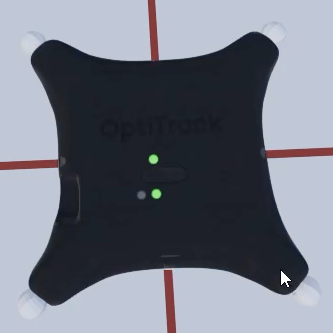
* This will link the static mesh to the puck. The Labeled Markers setting shows the device properly aligned (below, right).

{% hint style="info" %}
Use the translate tool to reorient the static mesh if the OptiTrack brand and the status lights on the mesh do not align with those on the physical puck.&#x20;
{% endhint %}

* Having confirmed the alignment is correct, you can turn off the [Labeled Marker](#create-labeled-markers) display. The Live Link display settings can also be closed.&#x20;
* The puck is now available as a tracked calibrator tool that can be used in conjunction with a lens file in Unreal Engine for lens calibration.
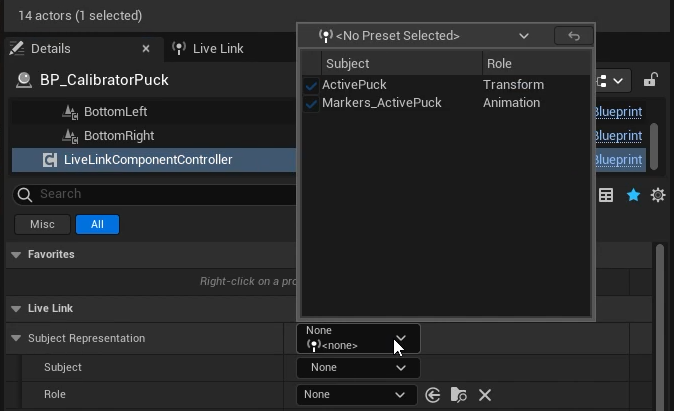
<div><figure><img src="https://content.gitbook.com/content/4ne9bLcvxMzpZqIc5yuj/blobs/oaLnvZmQWDVLQgM6giHj/UE%20Puck%20LL%20Add%20Subject.png" alt="" width="506"><figcaption><p>Select a Subject Representation for the <br><em>LiveLinkComponentController</em> in UE.</p></figcaption></figure> <figure><img src="https://content.gitbook.com/content/4ne9bLcvxMzpZqIc5yuj/blobs/y5xltOxDJa47dgwTHtjc/UE%20Puck%20aligned%20with%20Mesh.png" alt="" width="404"><figcaption><p>A fully aligned Active Puck Static Mesh in UE.</p></figcaption></figure></div>

### Create a Lens File

* Right click in the  Content Browser in the folder where you'd like to save the lens file.
* Search for and select Lens File from the list of Content types and give the file an appropriate name, such as *35mm\_Lens*.&#x20;
* Open the Lens File.

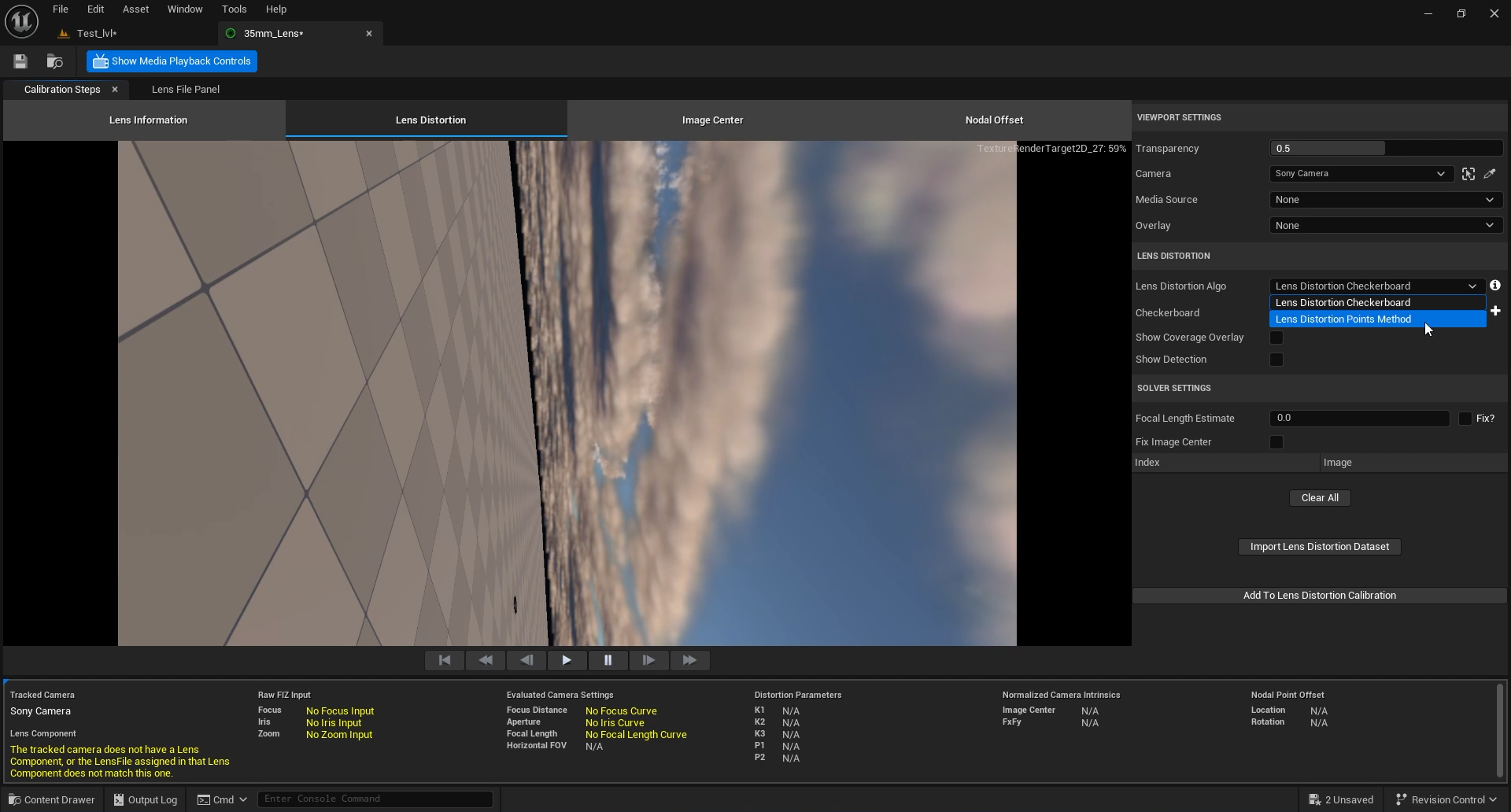
<figure><img src="https://content.gitbook.com/content/4ne9bLcvxMzpZqIc5yuj/blobs/wOx32mZ0YmgfM1b4MEnf/UE%20Lens%20File%20Add%20Lens%20Distortion.png" alt=""><figcaption><p>Lens File settings in Unreal Engine.</p></figcaption></figure>

* Click *Lens Distortion* on the *Calibration Steps* tab.
* In the *Lens Distortion Algo* setting on the right, select *Lens Distortion Points Method*.&#x20;
* The *Calibrator* setting will default to the calibrator puck.&#x20;
* Select the current calibrator point in the camera viewport to complete the alignment.