> For the complete documentation index, see [llms.txt](https://docs.optitrack.com/llms.txt). Markdown versions of documentation pages are available by appending `.md` to page URLs; this page is available as [Markdown](https://docs.optitrack.com/v3.2/movement-sciences/prime-color-camera-setup/windows-10-network-settings.md).
# Prime Color Camera Setup: Windows Network Settings
Recommended network settings for Prime Color Camera systems.
These settings can be used with any OptiTrack camera system, but are generally not required. For systems that include Prime Color cameras, these changes can resolve dropped frames and other similar network issues.
## Disable Windows Firewall
Firewalls can cause connection issues and frame drops. We recommend disabling the Windows firewall on the camera network.
{% hint style="warning" %}
If the Motive PC is connected to multiple networks, leave the firewalls enabled for all the other networks, especially the network used to connect to the internet.
{% endhint %}
### Windows 10
1. Navigate to *Control Panel -> System and Security -> Windows Defender Firewall*
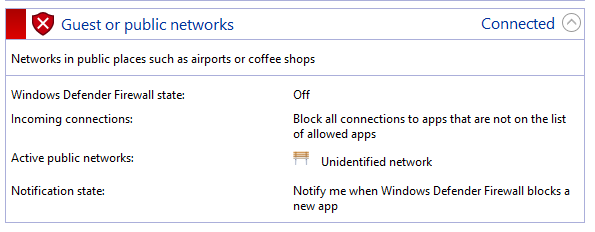
2. The camera network is typically labeled "Unidentified Network" under the *Guest or public networks* group.
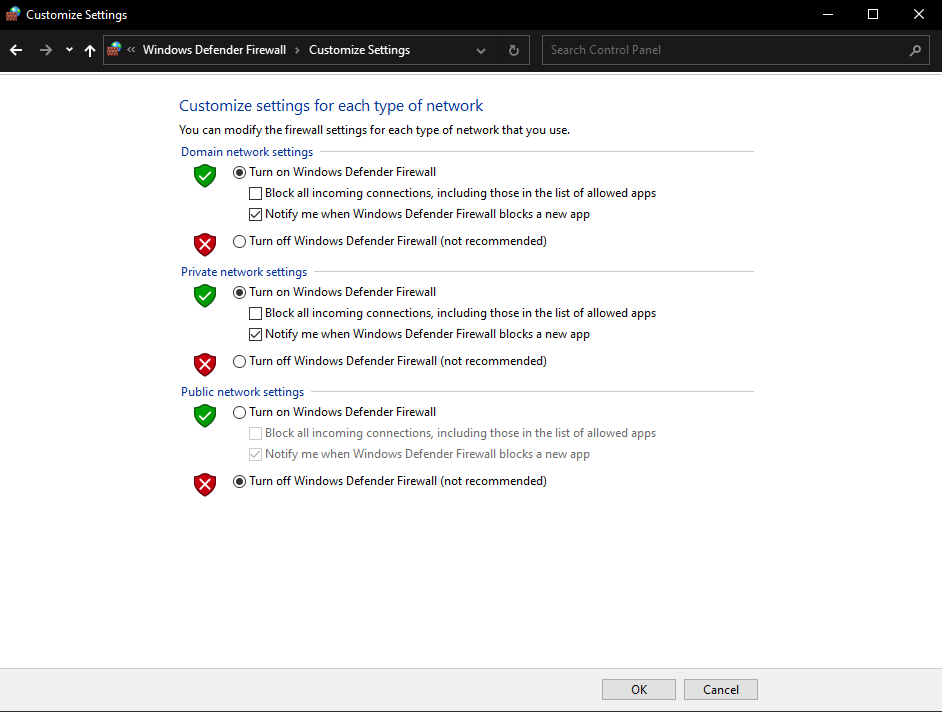
3. Select *Turn Windows Defender Firewall on or off* in the sidebar.
4. From this window, select *Turn off Windows Defender Firewall* for the network group that the camera network is on.
5. Click *OK* to return to the main firewall page.
Windows 10: Customize Windows Firewall Settings
The network group will be tagged with a red 'x' shield:
Windows 10: A Network group with Windows Firewall Disabled
### Windows 11
#### Windows 11 Local Group Policy Editor
Many of the recommended optimizations are completed using Window’s *Local Group Policy Editor*. To open this program:
1. From the Windows search bar, type *CMD*.
2. Run *Command Prompt* as administrator.
3. At the command line, type *gpedit.msc* and press enter.
4. This will open the *Local Group Policy Editor* window.
{% hint style="warning" %}
Once these policies are implemented, the firewall cannot be re-enabled by any other means.
{% endhint %}
#### Disable Firewall
1. Open Window’s [Local Group Policy Editor](#local-group-policy-editor).
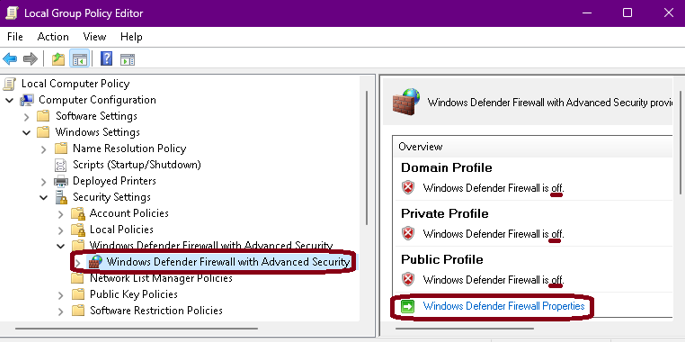
2. Navigate to *Computer Configuration -> Windows Settings -> Security Settings -> Windows Defender Firewall with Advanced Security.*
3. The Overview panel shows the current status of the firewall. Click *Windows Defender Firewall Properties* to change the state of the *Private* and *Public* profiles to *Off* then click OK.
{% hint style="danger" %}
#### Advanced Firewall Settings
Only change Advanced Firewall settings under the guidance of a Support Engineer or your organization's IT department. Changes can cause breaches in security if done incorrectly.
Please contact our [Support team](https://optitrack.com/support/) if you are having connectivity issues.
{% endhint %}
## Ethernet Settings
{% hint style="info" %}
Please see our [Quick Start Guide: Prime Color Camera Setup](/v3.2/quick-start-guides/quick-start-guide-prime-color-camera-setup.md) page for more information regarding Ethernet Settings within Windows.
{% endhint %}
###
---
# Agent Instructions
This documentation is published with GitBook. GitBook is the documentation platform designed so that both humans and AI agents can read, navigate, and reason over technical content effectively. Learn more at gitbook.com.
## Querying This Documentation
If you need additional information that is not directly available in this page, you can query the documentation by asking a question.
Perform an HTTP GET request on the following URL with the `ask` and `goal` query parameters:
```
GET https://docs.optitrack.com/v3.2/movement-sciences/prime-color-camera-setup/windows-10-network-settings.md?ask=&goal=
```
`ask` is the immediate question: it should be specific, self-contained, and written in natural language.
`goal` is what the user is ultimately trying to achieve, the reason they need the answer. Sharing it helps GitBook give you a better, more relevant answer. A goal is most helpful when it describes the outcome the user wants rather than restating the question. For example, with `ask=how do I create an API token`, a goal like `automate deployments from our CI pipeline` lets GitBook tailor the answer to that use case.
The response will contain a direct answer to the question and relevant excerpts and sources from the documentation.
Use this mechanism when the answer is not explicitly present in the current page, you need clarification or additional context, or you want to retrieve related documentation sections.