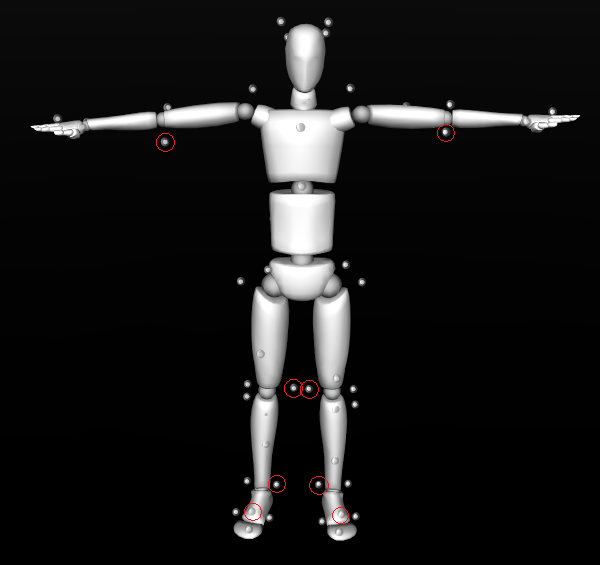
A Skeleton asset with calibration markers.
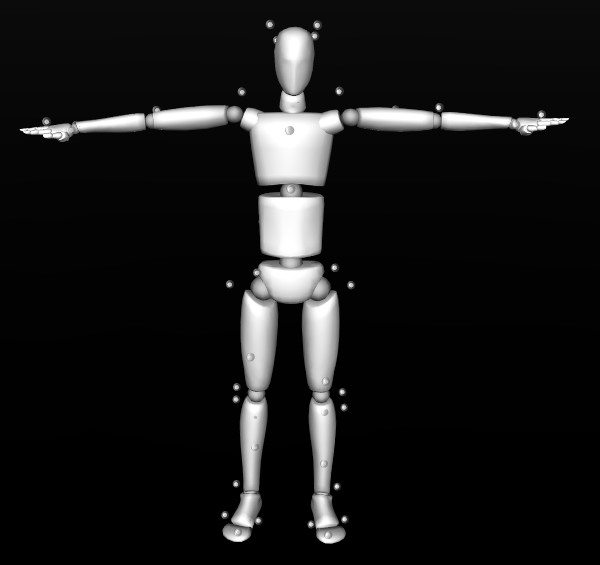
A Skeleton asset with the calibration markers removed.
A Skeleton asset with calibration markers.
A Skeleton asset with the calibration markers removed.
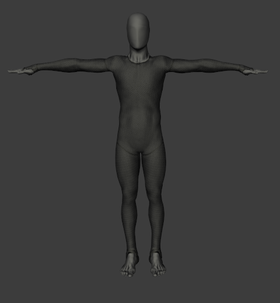
Front View of a T-Pose.
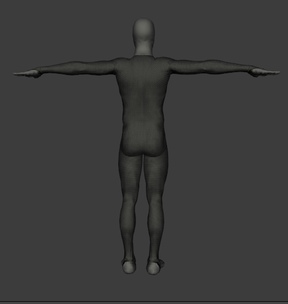
Back View of a T-Pose.
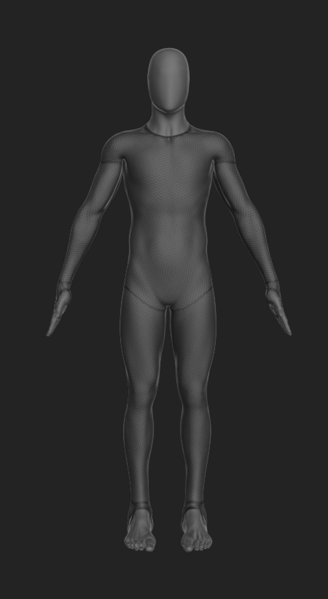
Front view of the A-Pose.
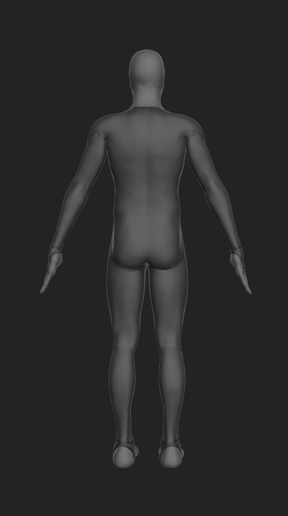
Back view of the A-Pose.
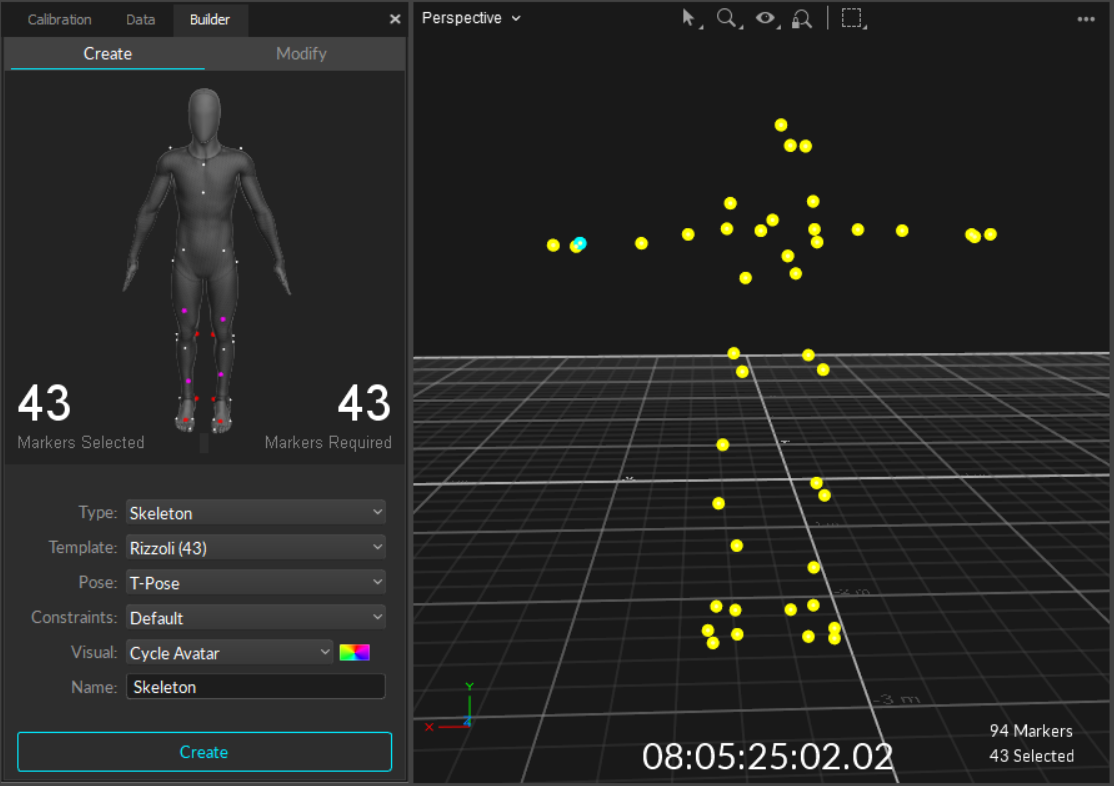 ### Skeleton Creation Steps
Once the skeleton markers are [correctly placed](#placing-the-markers) for the selected template, it's time to finish creating the skeleton.
1. Select the calibration *Pose* you plan to use to define the Skeleton from the drop-down menu. This is set to the T-pose by default.
2. The *Constraints* drop-down allows you to assign labels that are defined by the Marker Set template (Default) or to assign custom labels by l[oading a previously prepared XML](/v3.2/motive-ui-panes/constraints-pane/constraints-xml-files.md) file of constraint names.
3. Select the *Visual* template to apply to the skeleton. Options are: Segment; Avatar - male; Avatar - female; None; or Cycle Avatar, which cycles between the male and female avatars. This value can be changed later in the [Skeleton Properties](/v3.2/motive-ui-panes/properties-pane/properties-pane-skeleton.md).
4. Enter a unique name for the skeleton. The skeleton name is included as a prefix in the label for each of the skeleton markers.
5. Ask the subject to stand in the selected [calibration pose](#calibration-pose), feet shoulder-width apart. The T-pose should be done with palms downward.
6. Click *Create*. Once the Skeleton model has been defined, confirm all Skeleton segments and assigned markers are located at the expected locations. If any of the Skeleton segments seem to be misaligned, delete and create the Skeleton again after adjusting the marker placements and the calibration pose.
{% hint style="info" %}
**In Edit Mode**
If you are creating a Skeleton in the post-processing of captured data, you will have to [auto-label](/v3.2/motive/labeling.md#auto-label) the Take to see the Skeleton modeled and tracked in Motive.
{% endhint %}
{% hint style="info" %}
**Reset Skeleton Tracking**
When Skeleton tracking is not acquired successfully during the capture for some reason, you can use the CTRL + R hotkey to trigger the solver to re-boot the Skeleton asset.
{% endhint %}
## Modifying Skeletons
Several changes can be made to Skeleton assets from the Modify tab of the Builder pane, or through the context menus available in the 3D Viewport or the Assets Pane.
Skeleton marker colors and marker sticks can be viewed in the 3D Viewport. They provide color schemes for clearer identification of Skeleton segments and individual marker labels. To make them visible, enable *Marker Sticks* and *Marker Colors* under the visual aids
### Skeleton Creation Steps
Once the skeleton markers are [correctly placed](#placing-the-markers) for the selected template, it's time to finish creating the skeleton.
1. Select the calibration *Pose* you plan to use to define the Skeleton from the drop-down menu. This is set to the T-pose by default.
2. The *Constraints* drop-down allows you to assign labels that are defined by the Marker Set template (Default) or to assign custom labels by l[oading a previously prepared XML](/v3.2/motive-ui-panes/constraints-pane/constraints-xml-files.md) file of constraint names.
3. Select the *Visual* template to apply to the skeleton. Options are: Segment; Avatar - male; Avatar - female; None; or Cycle Avatar, which cycles between the male and female avatars. This value can be changed later in the [Skeleton Properties](/v3.2/motive-ui-panes/properties-pane/properties-pane-skeleton.md).
4. Enter a unique name for the skeleton. The skeleton name is included as a prefix in the label for each of the skeleton markers.
5. Ask the subject to stand in the selected [calibration pose](#calibration-pose), feet shoulder-width apart. The T-pose should be done with palms downward.
6. Click *Create*. Once the Skeleton model has been defined, confirm all Skeleton segments and assigned markers are located at the expected locations. If any of the Skeleton segments seem to be misaligned, delete and create the Skeleton again after adjusting the marker placements and the calibration pose.
{% hint style="info" %}
**In Edit Mode**
If you are creating a Skeleton in the post-processing of captured data, you will have to [auto-label](/v3.2/motive/labeling.md#auto-label) the Take to see the Skeleton modeled and tracked in Motive.
{% endhint %}
{% hint style="info" %}
**Reset Skeleton Tracking**
When Skeleton tracking is not acquired successfully during the capture for some reason, you can use the CTRL + R hotkey to trigger the solver to re-boot the Skeleton asset.
{% endhint %}
## Modifying Skeletons
Several changes can be made to Skeleton assets from the Modify tab of the Builder pane, or through the context menus available in the 3D Viewport or the Assets Pane.
Skeleton marker colors and marker sticks can be viewed in the 3D Viewport. They provide color schemes for clearer identification of Skeleton segments and individual marker labels. To make them visible, enable *Marker Sticks* and *Marker Colors* under the visual aids  in the [perspective view](/v3.2/motive-ui-panes/viewport.md#perspective-view) pane.
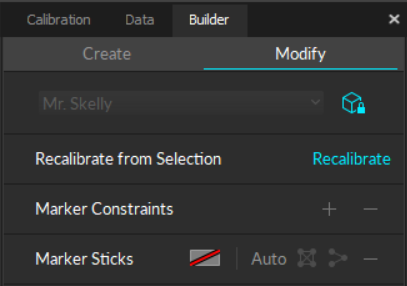
Builder Pane: Modify Skeleton.
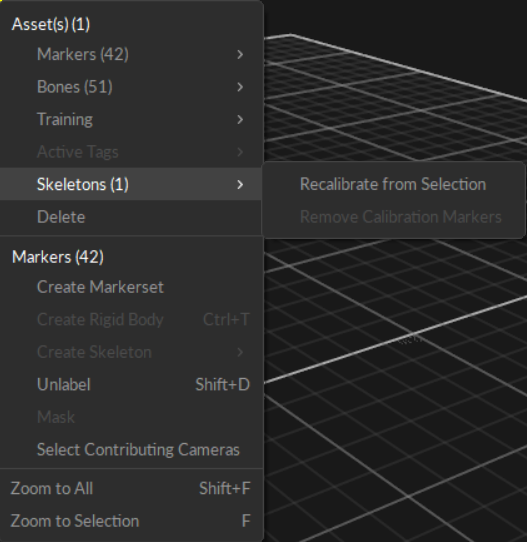
Assets Context menu from the Viewport
Recalibrate Skeleton from Selection.
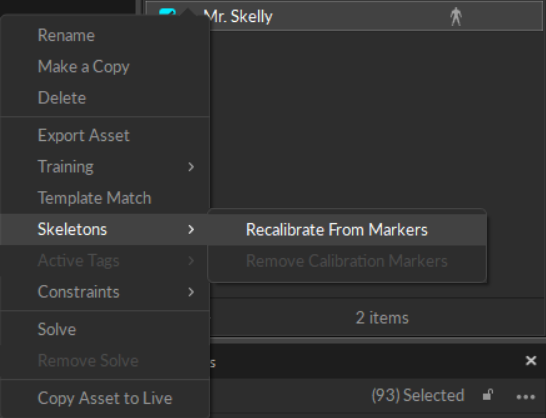
Assets Context menu from the Assets pane.
Recalibrate Skeleton from Markers.
 to add and associate the selected marker to the selected segment.
5. You can also add Constraints from the Constraints pane.
6. Reconstruct and Auto-label the Take.
7. Extra markers added to Skeletons will be labeled as *Skeleton\_CustomMarker#*. Use the [Constraints pane](/v3.2/motive-ui-panes/constraints-pane.md) to change the label as needed.
**To Remove**
1. Enable selection of Marker Constraints from the visual aids option in [perspective view](/v3.2/motive-ui-panes/viewport.md#perspective-view).
2. \[Optional] Under the advanced properties of the target Skeleton, enable the *Marker to Constraint Lines* property to view which markers are associated with different Skeleton bones.
3. Open the Modify tab on the [Builder pane](/v3.2/motive-ui-panes/builder-pane.md).
4. Select the Skeleton segment to modify and the Marker Constraints you wish to dissociate.
5. Delete the association by clicking on the
to add and associate the selected marker to the selected segment.
5. You can also add Constraints from the Constraints pane.
6. Reconstruct and Auto-label the Take.
7. Extra markers added to Skeletons will be labeled as *Skeleton\_CustomMarker#*. Use the [Constraints pane](/v3.2/motive-ui-panes/constraints-pane.md) to change the label as needed.
**To Remove**
1. Enable selection of Marker Constraints from the visual aids option in [perspective view](/v3.2/motive-ui-panes/viewport.md#perspective-view).
2. \[Optional] Under the advanced properties of the target Skeleton, enable the *Marker to Constraint Lines* property to view which markers are associated with different Skeleton bones.
3. Open the Modify tab on the [Builder pane](/v3.2/motive-ui-panes/builder-pane.md).
4. Select the Skeleton segment to modify and the Marker Constraints you wish to dissociate.
5. Delete the association by clicking on the  in the *Constraints* section.
6. Alternately, you can click
in the *Constraints* section.
6. Alternately, you can click  to remove selected markers from the Constraints pane.
7. From the [Data pane](/v3.2/motive-ui-panes/data-pane.md), right click the *Take* and select *Reconstruct and Auto-label*.
 
### Marker Sticks
A Marker stick connects two markers to create a visible line. Marker sticks define the shape of an asset, showing which markers connect to each other, such as knee to hip, and which don't, such as hand to foot. Skeleton Marker Sets include the placement of marker sticks.
to remove selected markers from the Constraints pane.
7. From the [Data pane](/v3.2/motive-ui-panes/data-pane.md), right click the *Take* and select *Reconstruct and Auto-label*.
 
### Marker Sticks
A Marker stick connects two markers to create a visible line. Marker sticks define the shape of an asset, showing which markers connect to each other, such as knee to hip, and which don't, such as hand to foot. Skeleton Marker Sets include the placement of marker sticks.

Modify Marker Sticks from the Builder Pane.
| Button | Function |
|---|---|
 | Changes the color of the selected Marker Stick(s). |
 | Autogenerates Marker Sticks for the selected Trained Markerset asset. Does not apply to skeleton assets. |
 | Connects all of the selected Markers to each other. Not recommended for skeleton assets. |
 | Creates Marker Sticks based on the order in which the markers were selected. |
 | Removes the selected Marker Stick(s). |
 button and select *Assets*.
Properties of existing, or recorded, Skeleton assets are configured under the [Properties pane](/v3.2/motive-ui-panes/properties-pane/properties-pane-skeleton.md) while the respective Skeletons are selected.
To configure Advanced properties, click the
button and select *Assets*.
Properties of existing, or recorded, Skeleton assets are configured under the [Properties pane](/v3.2/motive-ui-panes/properties-pane/properties-pane-skeleton.md) while the respective Skeletons are selected.
To configure Advanced properties, click the  button in the top right corner of the pane.
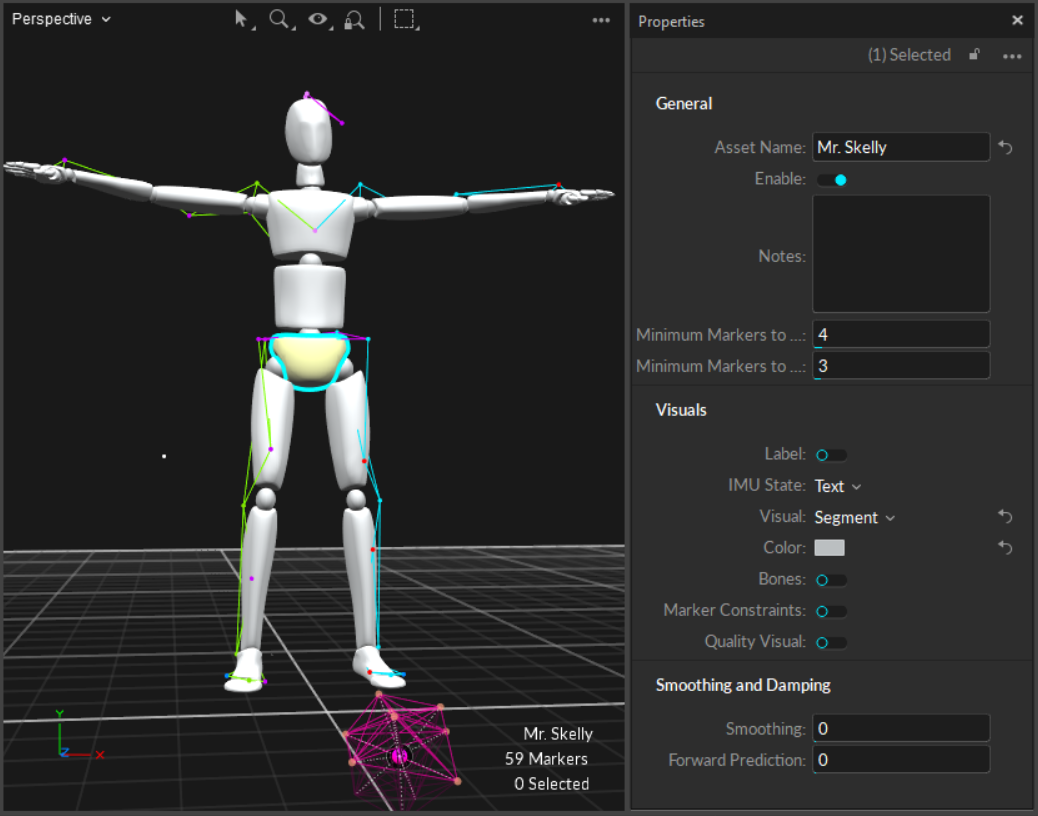
Selected Skeleton with Properties Pane.
 ## Relative Skeleton Joint Angles
There are two ways of obtaining Skeleton joint angles. Rough representations of joint angles can be obtained directly from Motive, but the most accurate representations of joint angles can be obtained by pipelining the tracking data into a third-party biomechanics analysis and visualization software (e.g. [Visual3D](https://www.c-motion.com/) or [The MotionMonitor](http://www.innsport.com/)).
For biomechanics applications, joint angles must be computed accurately using the respective Skeleton model solve, which can be accomplished by using biomechanical analysis software. [Export C3D files ](/v3.2/motive/data-export/data-export-c3d.md)or stream tracking data from Motive and import into an analysis software for further calculation. From the analysis, various biomechanics metrics, including the joint angles, can be obtained.
**Joint angles generated and exported from Motive are intended for basic visualization purposes only and should not be used for any type of biomechanical or clinical analysis.** A rough representation of joint angles can be obtained by either exporting or streaming the Skeleton Rigid Body tracking data. When exporting the tracking data into CSV, set the [Use World Coordinates](/v3.2/motive/data-export/data-export-csv.md) export setting to *Local* to obtain bone segment position and orientation values in respect to its parental segment, roughly representing the joint angles by comparing two hierarchical coordinate systems. When streaming the data, set [Local Rigid Bodies](/v3.2/motive/data-streaming.md) to true in the streaming settings to get relative joint angles.
## Constraints XML: Customize Marker Labels, Colors, and Sticks
Each Skeleton asset has its marker templates stored in a Constraints XML file. A Skeleton Marker Set can be modified by exporting, customizing, and importing the Constraints XML files. Specifically, customizing the XML files will allow you to modify Skeleton marker labels, marker colors, and marker sticks within a Skeleton asset. For detailed instructions on modifying Skeleton XML files, read the [Constraints XML Files](/v3.2/motive-ui-panes/constraints-pane/constraints-xml-files.md) page.
**To export Skeleton constraints XML file**
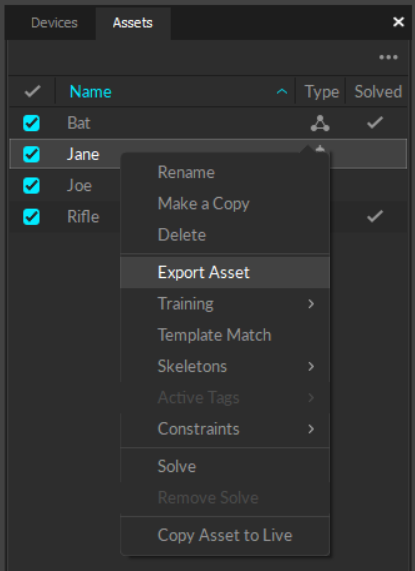
To export a Skeleton XML file, right-click on a Skeleton asset under the Assets pane and select *Constraints -->* [*Export Constraints*](/v3.2/motive-ui-panes/assets-pane.md#for-Skeleton-assets) to export corresponding Skeleton marker XML file.
**To import Skeleton constraints XML file**
When creating a new Skeleton, you can import a constraints XML file under the *Labels* section of the [Builder pane.](/v3.2/motive-ui-panes/builder-pane.md) To import a constraints XML file to an existing Skeleton, right-click on a Skeleton asset under the Assets pane and select *Constraints -->* *Import Constraints*.
---
# Agent Instructions
This documentation is published with GitBook. GitBook is the documentation platform designed so that both humans and AI agents can read, navigate, and reason over technical content effectively. Learn more at gitbook.com.
## Querying This Documentation
If you need additional information that is not directly available in this page, you can query the documentation by asking a question.
Perform an HTTP GET request on the following URL with the `ask` and `goal` query parameters:
```
GET https://docs.optitrack.com/v3.2/motive/skeleton-tracking.md?ask=
## Relative Skeleton Joint Angles
There are two ways of obtaining Skeleton joint angles. Rough representations of joint angles can be obtained directly from Motive, but the most accurate representations of joint angles can be obtained by pipelining the tracking data into a third-party biomechanics analysis and visualization software (e.g. [Visual3D](https://www.c-motion.com/) or [The MotionMonitor](http://www.innsport.com/)).
For biomechanics applications, joint angles must be computed accurately using the respective Skeleton model solve, which can be accomplished by using biomechanical analysis software. [Export C3D files ](/v3.2/motive/data-export/data-export-c3d.md)or stream tracking data from Motive and import into an analysis software for further calculation. From the analysis, various biomechanics metrics, including the joint angles, can be obtained.
**Joint angles generated and exported from Motive are intended for basic visualization purposes only and should not be used for any type of biomechanical or clinical analysis.** A rough representation of joint angles can be obtained by either exporting or streaming the Skeleton Rigid Body tracking data. When exporting the tracking data into CSV, set the [Use World Coordinates](/v3.2/motive/data-export/data-export-csv.md) export setting to *Local* to obtain bone segment position and orientation values in respect to its parental segment, roughly representing the joint angles by comparing two hierarchical coordinate systems. When streaming the data, set [Local Rigid Bodies](/v3.2/motive/data-streaming.md) to true in the streaming settings to get relative joint angles.
## Constraints XML: Customize Marker Labels, Colors, and Sticks
Each Skeleton asset has its marker templates stored in a Constraints XML file. A Skeleton Marker Set can be modified by exporting, customizing, and importing the Constraints XML files. Specifically, customizing the XML files will allow you to modify Skeleton marker labels, marker colors, and marker sticks within a Skeleton asset. For detailed instructions on modifying Skeleton XML files, read the [Constraints XML Files](/v3.2/motive-ui-panes/constraints-pane/constraints-xml-files.md) page.
**To export Skeleton constraints XML file**
To export a Skeleton XML file, right-click on a Skeleton asset under the Assets pane and select *Constraints -->* [*Export Constraints*](/v3.2/motive-ui-panes/assets-pane.md#for-Skeleton-assets) to export corresponding Skeleton marker XML file.
**To import Skeleton constraints XML file**
When creating a new Skeleton, you can import a constraints XML file under the *Labels* section of the [Builder pane.](/v3.2/motive-ui-panes/builder-pane.md) To import a constraints XML file to an existing Skeleton, right-click on a Skeleton asset under the Assets pane and select *Constraints -->* *Import Constraints*.
---
# Agent Instructions
This documentation is published with GitBook. GitBook is the documentation platform designed so that both humans and AI agents can read, navigate, and reason over technical content effectively. Learn more at gitbook.com.
## Querying This Documentation
If you need additional information that is not directly available in this page, you can query the documentation by asking a question.
Perform an HTTP GET request on the following URL with the `ask` and `goal` query parameters:
```
GET https://docs.optitrack.com/v3.2/motive/skeleton-tracking.md?ask=