For the complete documentation index, see llms.txt. This page is also available as Markdown.

Camera Status Indicators

An overview of the status indicator lights on the OptiTrack Ethernet cameras.

Overview

PrimeX, SlimX, and VersaX series cameras have status lights on the front and back of the cameras.

PrimeX Status Ring Light / SlimX Status Light Colors

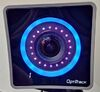
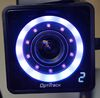
The PrimeX series cameras and the VersaX model N or W cameras have a front mounted status ring light to indicate the state of the Motive software and firmware updates on the cameras. On the SlimX and VersaX series cameras, the status indicator is a single LED on the front of the camera in the bottom right corner.

VersaX Cameras Optional Ring Light

The VersaX series of cameras uses the same status lights as a SlimX camera. When the optional ring light is attached (VersaX N or W series), the camera will use the ring light to indicate status.

Please see the page VersaX Camera Ring Light Installation for instructions on adding or removing the optional ring light.

The following table lists the default ring light or status light color associated with the state of Motive.

Off

Status: Powered & Awaiting Connection

Can Modify Color: No

When a camera is first plugged in, the LED ring light on a PrimeX camera and the status light on a SlimX camera will be off until it receives commands from Motive and has successfully authenticated via the security key. If it is not successful in connecting to the network, but receiving power, it will remain off with a small flashing white dot light in the bottom left corner.

A PrimeX camera with the ring light off.
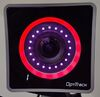
A PrimeX camera powered and awaiting connection
A SlimX Camera that is connected to Motive.
A SlimX camera powered and awaiting connection
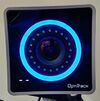
Slow Flashing Cyan, no IR

Status: Idle

Can Modify Color: No

The camera is powered and connected to the network, but Motive is not running. Two dashes in the bottom left corner will display in lieu of ID number.

A PrimeX camera with the ringlight displaying a flashing cyan color, with no ringlight.
A PrimeX camera with a flashing cyan ring light, and no camera number.
A SlimX camera with a flashing cyan light, and no camera number.
Cyan

Status: Live

Can Change Color: Yes

The camera is actively sending data and receiving commands when loaded into Motive.

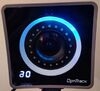
A PrimeX camera with the ringlight displaying a cyan color.
PrimeX Camera with a Cyan Ring light
SlimX camera with a Cyan indicator light.
SlimX Camera with a Cyan indicator light.
White / Off

Status: Masking or Playback mode

Can Change Color: No

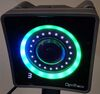
When a marker, or what a camera perceives as a marker, is visible to a camera when masking in the Calibration pane, the PrimeX ring light and the SlimX status light will turn white, and the SlimX light will blink. When masks are applied and no erroneous marker data is seen, the LEDs turn off and the volume is ready to wand.

On a SlimX Camera, a steady white light indicates the camera is in playback mode.

A PrimeX camera with the ringlight displaying a white color.
PrimeX Camera with a White Ring Light.
SimX Camera with a White Status Light.
Solid Green

Status: Recording

Can Change Color: Yes

The Camera is sending data to be written to memory or disk.

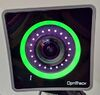
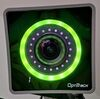
A PrimeX camera with the ringlight displaying a solid green color.
PrimeX Camera with a green Ring Light
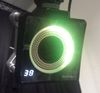
A SlimX camera with the green status light on.
SlimX Camera with a green status light
Variable Green / Blinking Green

Status: Sampling During Calibration

Can Change Color: No

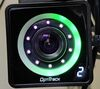
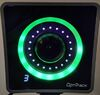
A PrimeX camera starts out black, then the ring light will turn green depending on where you have wanded relative to that camera.

A PrimeX camera with the ringlight displaying a partial green color.

When the camera starts to take samples, there will be a white light that follows the wand movement rotating around the LED.

A PrimeX camera with the ringlight displaying the white color rotating around the LED.

This will fill in dark green and then light green when enough samples are taken.

A PrimeX camera with the ringlight displaying the light green color.

On a SlimX camera, the status light will blink green during calibration.

A SlimX Camera with a green status indicator. This light will blink green during calibration.
Flashing White

Status: Calibration

Can Change Color: No

During calibration, when cameras have collected sufficient data the ring light on a PrimeX and the status light on a SlimX will turn green. Once enough cameras have collected enough samples the remaining cameras will flash white to indicate they still need to collect more samples for a successful calibration.

A PrimeX camera with the ringlight displaying the flashing white color.
A PrimeX camera with a white ring light
A SlimX camera with a white indicator light.
A SlimX camera with a white status light
None

Status: Playback

Can Change Color: Yes

Camera is operating but Motive is in Edit Mode.

A PrimeX camera with the ringlight displaying no color.
A PrimeX camera with the ring light displaying no color.
A SlimX camera with the status light displaying no color.
Yellow

Status: Selected

Can Change Color: Yes

The camera is selected in Motive.

A PrimeX camera with the ringlight displaying the Yellow color.
A PrimeX camera with a yellow Ring Light
A SlimX camera with the status light displaying the Yellow color.
A SlimX camera with a yellow status light
Red

Status: Reference

Can Change Color: Yes

The camera is in reference mode. Instead of capturing the marker data, the camera is recording reference video, Grayscale and MJPEG.

A PrimeX camera with the ringlight displaying the Red color.
Cycle Cyan / Blinking Cyan

Status: Firmware Update

Can Change Color: No

PrimeX cameras will cycle in cyan and SlimX cameras will flash in cyan when firmware is being written to flash.

The bottom left display will show the percentage of the firmware update that has occurred. Once the update reaches 100%, the color turns off and the camera reboots.

A PrimeX camera with the ringlight displaying the Cycle Cyan color.
A PrimeX camera with the ring light cycling in cyan
A SlimX camera with the indicator light blinking the Cycle Cyan color.
A SlimX camera with the status light blinking in cyan
aperture

Prime Series Cameras

Bottom Left Display Values

On every PrimeX, SlimX, and VersaX camera, there is an additional display in the bottom left corner of the camera.

How to Troubleshoot E Codes

Codes with the E prefix are error codes that are typically caused by network issues, such as a bad Ethernet cable or a bad port on the switch. These issues can often be resolved by unplugging the camera from the switch and plugging it back in or restarting the switch to reset the entire network. Replace the Ethernet cable or plug the camera into a different port or into a different switch, if the reset doesn't work.

If the error code persists after changing the cable and the port, contact OptiTrack Support.

Cycling Numbers

Camera is in the process of updating the firmware. The numbers will start at 0 and increase to 100 indicating that the firmware has completed 100% of the update.

Constant Number

This is the camera number as assigned by Motive. Every time Motive is closed and reopened or a camera is removed from the system, the number will update accordingly.

E1

The Camera has failed to auto negotiate a link speed with the switch it is plugged into.

E2

The firmware received from motive is corrupt or invalid.

E3

The bitstream received from motive is corrupt or invalid.

E4

The bitstream received from Motive was unable to be loaded.

E5

The camera was unable to write the firmware provided by Motive to internal flash.

contact OptiTrack Support if this error displays.

Changing Status Ring Light

Some of the colors of the Status Ring can be customized. To do so, go to Settings > General. Click the color box next to the status you would like to change. This will open a color picker window where you can choose a solid color or choose multi-color to oscillate between colors. You also have the ability to save a color to your color library to apply it to other statuses.

Turning off Aim Assist Button LED

The Aim Assist button on the back of the camera is illuminated with a built-in LED. Once the system is setup and all the cameras are focused and aimed correctly, you may prefer to turn this off.

Back Ring Light Colors

The PrimeX, SlimX, and VersaX Series of cameras also have a status light on the back panel to indicate the state of the camera.

aperture

A Note about Firmware

Green - Initialize Phase 1

Camera is powered and boot loader is running. Preparing to run main firmware.

Yellow - Initialize Phase 2

Firmware is running and switch communication in progress.

Blinking Green (Slow) - Initialize Phase 3

Switch communication established and awaiting an IP address.

Cyan - Firmware Loading

Host has initiated firmware upload process.

Blinking Yellow - Initialize Phase 4

Camera has fully initialized. In process of synchronizing with camera group or eSync.

Blinking Green (Fast) - Running

Camera is fully operational and synchronized to the camera group. Ready for data capture.

Blue - Hibernating

Camera is in a low power state and not sending data. Occurs after closing Motive but leaving the cameras connected to the switch.

Alternating Red - Firmware Reset

On board flash memory is being reset.

Alternating Yellow - Firmware Update

Firmware is being written to flash. Numeric display in front will show progress. On completion, the light turns green and camera reboots.

Firmware Updates

The camera should not be unplugged during a firmware reset or firmware update. Give the camera time to finish this process before closing Motive.

If a camera doesn't update its firmware with the rest of the cameras, it will not get loaded into Motive. This could be caused by miscommunication between the camera and the switch when loading in numerous cameras. If this occurs, wait for all cameras that are updating to finish, then restart Motive. The cameras that failed to update will now update.

Last updated

Was this helpful?