> For the complete documentation index, see [llms.txt](https://docs.optitrack.com/llms.txt). Markdown versions of documentation pages are available by appending `.md` to page URLs; this page is available as [Markdown](https://docs.optitrack.com/v3.2/hardware/cabling-and-wiring/netgear-prosafe-gsm7228s-disabling-the-broadcast-storm-control.md).
# NETGEAR ProSafe GSM7228S: Disabling the Broadcast Storm Control
## Overview
When enabled, the Broadcast Storm Control feature on the NETGEAR ProSafe GSM7228S may interfere with the transmission of data from OptiTrack Ethernet cameras. While this feature is critical to a corporate LAN or other network with internet access, it can cause dropped frames, loss of frame data, camera disconnection, and other issues on a camera system.
For proper system operations, the Storm Control feature must be disabled for all ports used in this aggregator switch. OptiTrack switches ship with these management features disabled.
## Temporarily change the IP Address to Access the Uplink Switch
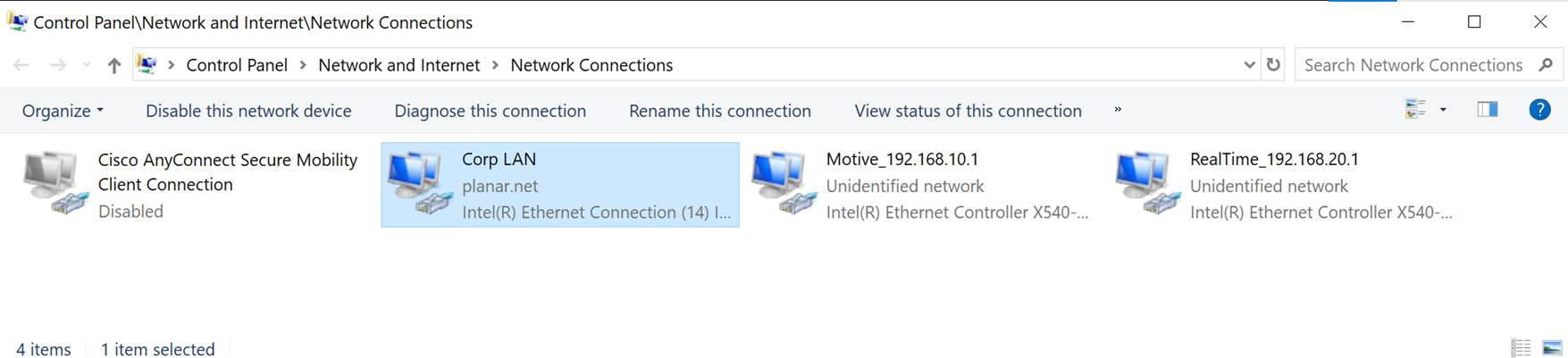
Type *Network* in the Windows search bar to find and open the Control Panel to *View Network Connections.* The image below shows the three NICs specified above.
Isolated network connections for a Motive workstation.
* Double-click or right-click the NIC used to connect to the camera network and select *Properties*.
* With IPv4 selected, click the *Properties* button.
Windows Networking Properties for a selected NIC.
* **Write down the IP address currently assigned to the Motive PC.** You will need to change the address back to this once the switch configuration is updated.
* Change the IP address to **169.254.100.200.**
* Enter 255.255.255.0 for the Subnet mask.
* Click *OK* to save and return to the Properties window.
IP address to connect to the Uplink switch.
## Configure the Switch
* Open a browser window, enter **169.254.100.100,** and press enter.
* This will open the Admin Console for the switch.
* Login to the switch with Username 'admin', and leave Password blank.
* On the *Security* tab, click the *Traffic Control* subtab.
* Select *Storm Control -> Storm Control Global Configuration* from the menu on the left.
* Disable everything in the *Port Settings* options.
* Click the *Maintenance* tab and select the *Save Config* subtab.
* Select Save Configuration from the menu on the left.
* Check the 'Save Configuration' check box. This will update the configuration and retain the new settings the next time the system is restarted.
* Log out of the switch by closing the browser window.
## Restore the IP Address
Repeat [the steps above](#temporarily-change-the-ip-address-to-access-the-uplink-switch) to access and change the network settings for the NIC used to access the switch. Set the IP address back to the address it was originally.
---
# Agent Instructions
This documentation is published with GitBook. GitBook is the documentation platform designed so that both humans and AI agents can read, navigate, and reason over technical content effectively. Learn more at gitbook.com.
## Querying This Documentation
If you need additional information that is not directly available in this page, you can query the documentation by asking a question.
Perform an HTTP GET request on the following URL with the `ask` and `goal` query parameters:
```
GET https://docs.optitrack.com/v3.2/hardware/cabling-and-wiring/netgear-prosafe-gsm7228s-disabling-the-broadcast-storm-control.md?ask=&goal=
```
`ask` is the immediate question: it should be specific, self-contained, and written in natural language.
`goal` is what the user is ultimately trying to achieve, the reason they need the answer. Sharing it helps GitBook give you a better, more relevant answer. A goal is most helpful when it describes the outcome the user wants rather than restating the question. For example, with `ask=how do I create an API token`, a goal like `automate deployments from our CI pipeline` lets GitBook tailor the answer to that use case.
The response will contain a direct answer to the question and relevant excerpts and sources from the documentation.
Use this mechanism when the answer is not explicitly present in the current page, you need clarification or additional context, or you want to retrieve related documentation sections.