
Loading...
Loading...
Loading...
Loading...
Loading...
Loading...
Loading...
Loading...
Loading...
Loading...
Loading...
Loading...
Loading...
Loading...
Loading...
Loading...
Loading...
Loading...
Loading...
Loading...
Loading...
Loading...
Loading...
Loading...
Loading...
Loading...
Loading...
Loading...
Loading...
Loading...
Loading...
Loading...
Loading...
Loading...
Loading...
Loading...
Loading...
Loading...
Loading...
Loading...
Loading...
Loading...
Loading...
Loading...
Loading...
Loading...
Loading...
Loading...
Loading...
Loading...
Loading...
Loading...
Loading...
Loading...
Loading...
Loading...
Loading...
Loading...
Loading...
Loading...
Loading...
Loading...
Loading...
Loading...
Loading...
Loading...
Loading...
Loading...
Loading...
Loading...
Loading...
Loading...
Loading...
Loading...
Loading...
Loading...
Loading...
Loading...
Loading...
Loading...
Loading...
Loading...
Loading...
Loading...
Loading...
Loading...
Loading...
Loading...
Loading...
Loading...
Loading...
Loading...
Loading...
Loading...
Loading...
Loading...
Loading...
Loading...
Loading...
Loading...
Captured tracking data can be exported into a Track Row Column (TRC) file, which is a format used in various mocap applications. Exported TRC files can also be accessed from spreadsheet software (e.g. Excel). These files contain raw output data from capture, which include positional data of each labeled and unlabeled marker from a selected Take. Expected marker locations and segment orientation data are not included in the exported files. The header contains basic information such as file name, frame rate, time, number of frames, and corresponding marker labels. Corresponding XYZ data is displayed in the remaining rows of the file.


In the Mobile view, click the Menu icon in the header to display the Table of Contents.
Click any Chapter heading to go to that section, or use the button to display the chapter's contents.
Quick Links and the Search Bar are always available in the desktop view's page header:
Navigate within a page using the page's Table of Contents on the right. If the page Table of Contents isn't visible, try increasing the size of the browser window.
Click the version number next to the OptiTrack logo in the header to access documentation for earlier versions of Motive.
Can't find the information you're looking for, or need additional help? Quick links on the page banner take you directly to:
Resources on the OptiTrack website http://www.optitrack.com
NaturalPoint Forums: https://forums.naturalpoint.com
OptiTrack Support:
Link directly to our most popular pages from the tabs below.
(with information)
The API reports "world-space" values for markers and rigid body objects at each frame. It is often desirable to convert the coordinates of points reported by the API from the world-space (or global) coordinates into the local space of the rigid body. This is useful, for example, if you have a rigid body that defines the world space that you want to track markers within.
Rotation values are reported as both quaternions, and as roll, pitch, and yaw angles (in degrees). Quaternions are a four-dimensional rotation representation that provide greater mathematical robustness by avoiding "gimbal" points that may be encountered when using roll, pitch, and yaw (also known as Euler angles). However, quaternions are also more mathematically complex and are more difficult to visualize, which is why many still prefer to use Euler angles.
There are many potential combinations of Euler angles so it is important to understand the order in which rotations are applied, the handedness of the coordinate system, and the axis (positive or negative) that each rotation is applied about.
These are the conventions used in the API for Euler angles:
Before setting up a motion capture system, choose a suitable setup area and prepare it in order to achieve the best tracking performance. This page highlights some of the considerations to make when preparing the setup area for general tracking applications. Note that this page provides just general recommendations and these could vary depending on the size of a system or purpose of the capture.
An introduction to the Applications Settings panel.


All coordinates are *right-handed*
To create a transform matrix that converts from world coordinates into the local coordinate system of your chosen rigid body, you will first want to compose the local-to-world transform matrix of the rigid body, then invert it to create a world-to-local transform matrix.
To compose the rigid body local-to-world transform matrix from values reported by the API, you can first compose a rotation matrix from the quaternion rotation value or from the yaw, pitch, and roll angles, then inject the rigid body translation values. Transform matrices can be defined as either "column-major" or "row-major". In a column-major transform matrix, the translation values appear in the right-most column of the 4x4 transform matrix. For purposes of this article, column-major transform matrices will be used. It is beyond the scope of this article, but it is just as feasible to use row-major matrices by transposing matrices.
In general, given a world transform matrix of the form: M = [ [ ] Tx ] [ [ R ] Ty ] [ [ ] Tz ] [ 0 0 0 1 ]
where Tx, Tz, Tz are the world-space position of the origin (of the rigid body, as reported from the API), and R is a 3x3 rotation matrix composed as: R = [ Rx (Pitch) ] * [ Ry (Yaw) ] * [ Rz (Roll) ]
where Rx, Ry, and Rz are 3x3 rotation matrices composed according to:
A handy trick to know about local-to-world transform matrices is that once the matrix is composed, it can be validated by examining each column in the matrix. The first three rows of Column 1 are the (normalized) XYZ direction vector of the world-space X axis, column 2 holds the Y axis, and column 3 is the Z axis. Column 4, as noted previously, is the location of the world-space origin. To convert a point from world coordinates (coordinates reported by the API for a 3D point anywhere in space), you need a matrix that converts from world space to local space. We have a local-to-world matrix (where the local coordinates are defined as the coordinate system of the rigid body used to compose the transform matrix), so inverting that matrix will yield a world-to-local transformation matrix. Inversion of a general 4x4 matrix can be slightly complex and may result in singularities, however we are dealing with a special transform matrix that only contains rotations and a translation. Because of that, we can take advantage of the method shown here to easily invert the matrix:
Once the world matrix is converted, multiplying it by the coordinates of a world-space point will yield a point in the local space of the rigid body. Any number of points can be multiplied by this inverted matrix to transform them from world (API) coordinates to local (rigid body) coordinates.
The API includes a sample (markers.sln/markers.cpp) that demonstrates this exact usage.
First of all, pick a place to set up the capture volume.
Setup Area Size
System setup area depends on the size of the mocap system and how the cameras are positioned. To get a general idea, check out the Build Your Own feature on our website.
Make sure there is plenty of room for setting up the cameras. It is usually beneficial to have extra space in case the system setup needs to be altered. Also, pick an area where there is enough vertical spacing as well. Setting up the cameras at a high elevation is beneficial because it gives wider lines of sight for the cameras, providing a better coverage of the capture volume.
Minimal Foot Traffic
After camera system calibration, the system should remain unaltered in order to maintain the calibration quality. Physical contacts on cameras could change the setup, requiring it to be re-calibrated. To prevent such cases, pick a space where there is only minimal foot traffic.
Flooring
Avoid reflective flooring. The IR lights from the cameras could be reflected by it and interfere with tracking. If this is inevitable, consider covering the floor with surface mats to prevent the reflections.
Avoid flexible or deformable flooring; such flooring can negatively impact your system's calibration.
For the best tracking performance, minimize ambient light interference within the setup area. The motion capture cameras track the markers by detecting reflected infrared light and any extraneous IR lights that exist within the capture volume could interfere with the tracking.
Sunlight: Block any open windows that might let sunlight in. Sunlight contains wavelength within the IR spectrum and could interfere with the cameras.
IR Light sources: Remove any unnecessary lights in IR wavelength range from the capture volume. IR lights could be emitted from sources such as incandescent, halogen, and high-pressure sodium lights or any other IR based devices.
All cameras are equipped with IR filters, so extraneous lights outside of the infrared spectrum (e.g. fluorescent lights) will not interfere with the cameras. IR lights that cannot be removed or blocked from the setup area can be masked in Motive using the Masking Tools during the system calibration. However, this feature completely discards image data within the masked regions and an overuse of it could negatively impact tracking. Thus, it is best to physically remove the object whenever possible.
Dark-colored objects absorb most of the visible light, however, it does not mean that they absorb the IR lights as well. Therefore, the color of the material is not a good way of determining whether an object will be visible within the IR spectrum. Some materials will look dark to human eyes but appear bright white on the IR cameras. If these items are placed within the tracking volume, they could introduce extraneous reconstructions.
Since you already have the IR cameras in hand, use one of the cameras to check whether there are IR white materials within the volume. If there are, move them out of the volume or cover them up.
Remove any unnecessary obstacles out of the capture volume since they could block cameras' view and prevent them from tracking the markers. Leave only the items that are necessary for the capture.
Remove reflective objects nearby or within the setup area since IR illumination from the cameras could be reflected by them. You can also use non-reflective tapes to cover the reflective parts.
Prime 41 and Prime 17W cameras are equipped with powerful IR LED rings which enables tracking outdoors, even under the presence of some extraneous IR lights. The strong illumination from the Prime 41 cameras allows a mocap system to better distinguish marker reflections from extraneous illuminations. System settings and camera placements may need to be adjusted for outdoor tracking applications.
Please read through the Outdoor Tracking Setup page for more information.
The Settings panel can be opened from the View tab or by clicking the icon on the main toolbar.
Advanced settings are hidden by default. To access, click the button in the top-right corner of the panel and select Show Advanced.
Customize the Standard view to show the settings that you frequently adjust during your capture applications. Click the button on the top-right corner of the pane and select Edit Advanced.
Checked items will appear in the Standard view while unchecked items will only be visible when Show Advanced is selected. Click Done Editing to exit and save your changes when you've made your selections.
To restore all settings to their default values, select Reset Settings from the Edit menu.
A USB camera system provides high-quality motion capture for small to medium size volumes at an affordable price range. USB camera models include the Flex series (Flex 3 and Flex 13) and Slim 3U models. USB cameras are powered by the OptiHub, which is designed to maximize the capacity of Flex series cameras by providing sufficient power to each camera, allowing tracking at long ranges.
For each USB system, up to four OptiHubs can be used. When incorporating multiple OptiHubs in the system, use RCA synchronization cables to interconnect each hub. A USB system is not suitable for a large volume setup because the USB 2.0 cables used to wire the cameras have a 5-meter length limitation.
If needed, up to two active USB extensions can be used when connecting the OptiHub to the host PC. However, the extensions should not be used between the OptiHub and the cameras. We do not support using more than 2 USB extensions anywhere on a USB 2.0 system running Motive.
Main Components
Host PC
USB Cameras
OptiHub(s) and a power supply for each hub.
USB 2.0 cables:
OptiHub
The OptiHub is a custom-engineered USB hub that is designed to be incorporated in a USB camera system. It provides both power and external synchronization options. Standard USB ports do not provide enough power for the IR illumination within Flex 13 cameras and they need to be routed through an OptiHub in order to activate the LED array.
USB Load Balancing
When connecting hubs to the computer, load balancing becomes important. Most computers have several USB ports on the front and back, all of which go through two USB controllers. Especially for a large camera count systems (18+ cameras), it is recommended that you evenly split the cameras between the USB controllers to make the best use of the available bandwidth.
OptiSync
OptiSync is a custom synchronization protocol which sends the synchronization signals through the USB cable. It allows each camera to have one USB cable for both data transfer and synchronization instead of having separate USB and daisy-chained RCA synchronization cables as in the older models.
At this point, all of the connected cameras will be listed on the and the when you start up Motive. Check to make sure all of the connected cameras are properly listed in Motive.
Then, open up the Status Log panel and check there are no 2D frame drops. You may see a few frame drops when booting up the system or when switching between Live and Edit modes; however, this should only occur just momentarily. If the system continues to drop 2D frames, it indicates there is a problem with how the system is delivering the camera data. Please refer to the troubleshooting section for more details.
Some of the new features in Motive 3.1
New Camera features, including:
for all cameras with a single click.
View camera locations in the pane.
Set .
Use .
As part of the Continuous Calibration settings, the Bumped Camera feature corrects a camera's position in Motive if it is physically bumped in the real 3D space.
See for more information.
BaseStations and active pucks are now listed in the . Select a BaseStation to display its properties. Select an Active Tag device to view and change its properties. See for more details.
New tools on the Builder Pane allow you to align the pivot of a rigid body with a geometry offset, a second rigid body, or the location of a camera. Check out the page to learn how.
Motive 3.1 provides an array of improvements across the board. Additional, a redesigned , and enhancements to the are just a few of the many changes you'll find in this latest release.
Motive can export tracking data in BioVision Hierarchy (BVH) file format. Exported BVH files do not include individual marker data. Instead, a selected skeleton is exported using hierarchical segment relationships. In a BVH file, the 3D location of a primary skeleton segment (Hips) is exported, and data on subsequent segments are recorded by using joint angles and segment parameters. Only one skeleton is exported for each BVH file, and it contains the fundamental skeleton definition that is required for characterizing the skeleton in other pipelines.
Notes on relative joint angles generated in Motive: Joint angles generated and exported from Motive are intended for basic visualization purposes only and should not be used for any type of biomechanical or clinical analysis.
General Export Options
BVH Specific Export Options
When enabled, the Broadcast Storm Control feature on the NETGEAR ProSafe GSM7228S may interfere with the transmission of data from OptiTrack Ethernet cameras. While this feature is critical to a corporate LAN or other network with internet access, it can cause dropped frames, loss of frame data, camera disconnection, and other issues on a camera system.
For proper system operations, the Storm Control feature must be disabled for all ports used in this aggregator switch. OptiTrack switches ship with these management features disabled.
Type Network in the Windows search bar to find and open the Control Panel to View Network Connections. The image below shows the three NICs specified above.
Double-click or right-click the NIC used to connect to the camera network and select Properties.
With IPv4 selected, click the Properties button.
Write down the IP address currently assigned to the Motive PC. You will need to change the address back to this once the switch configuration is updated.
Change the IP address to 169.254.100.200.
Enter 255.255.255.0 for the Subnet mask.
Click OK to save and return to the Properties window.
Open a browser window, enter 169.254.100.100, and press enter.
This will open the Admin Console for the switch.
Login to the switch with Username 'admin', and leave Password blank.
On the Security tab, click the Traffic Control subtab.
Select Storm Control -> Storm Control Global Configuration from the menu on the left.
Disable everything in the Port Settings options.
Click the Maintenance tab and select the Save Config subtab.
Select Save Configuration from the menu on the left.
Check the 'Save Configuration' check box. This will update the configuration and retain the new settings the next time the system is restarted.
Log out of the switch by closing the browser window.
Repeat to access and change the network settings for the NIC used to access the switch. Set the IP address back to the address it was originally.
If you wish to change the location and orientation of the global axis, you can use the ground plane tools from the and use a Rigid Body or a calibration square to set the global origin.
When using the Duo/Trio tracking bars, you can set the coordinate origin at the desired location and orientation using either a Rigid Body or a as a reference point. Using a calibration square will allow you to set the origin more accurately. You can also use a custom calibration square to set this.
Adjustig the Coordinate System Steps
First set place the calibration square at the desired origin. If you are using a Rigid Body, its position and orientation will be used as the reference.
[Motive] Open the .
[Motive] Open the Ground Planes page.
Configure a Netgear PoE++ switch to connect a PrimeX 120 camera.
The Link Layer Discovery Protocol (IEEE 802.1AB) advertises the major capabilities and physical descriptions of components on an 802 Local Area Network. This protocol provides network components from different vendors the ability to communicate with each other.
LLDP also controls the Power over Ethernet (PoE) power allocation. In the case of the PrimeX 120 cameras, LLDP prevents the switch from providing sufficient power to the port where the camera is connected. For this reason, the LLDP protocol must be disabled on any port used to connect a PrimeX 120 to the camera network.
From the Motive PC, launch any web browser and type http://169.254.100.100 to open the Management Console for the switch.
This will open the login console.
Login using the Admin account.
If the switch has already been configured, the password is OptiPOE++. Otherwise, leave the password blank.
Set the values necessary to ensure the PrimeX 120 receives sufficient power once the LLDP settings are turned off.
On the System tab, select the PoE settings from the toolbar.
Click Advanced in the navigation bar, on the left.
Click PoE Port Configuration.
Select the port(s) to update.
Changes that are Applied but not Saved will remain in effect until the Switch is restarted, when the previous settings are restored. Configuration changes that are Saved will remain in effect after a restart.
Update settings to prevent LLDP from interfering with traffic from the PrimeX 120.
On the System tab, select the LLDP settings from the toolbar.
From the Navigation bar, select LLDP -> Interface Configuration.
Disable Transmit, Receive, and Notify for all required ports.
Click the Apply button in the upper right corner to commit the changes in the current session.
Storm control security features may throttle traffic from the PrimeX 120 cameras, affecting system performance.
On the Security tab, select the Traffic Control settings from the toolbar.
From the Navigation bar, select Storm Control -> Storm Control Global Configuration.
Disable all Port Settings shown.
Click the Apply button in the upper right corner to commit the changes in the current session.
The OptiTrack Duo/Trio tracking bars are factory calibrated and there is no need to calibrate the cameras to use the system. By default, the tracking volume is set at the center origin of the cameras and the axis are oriented so that Z-axis is forward, Y-axis is up, X-axis is left.
If you wish to change the location and orientation of the global axis, you can use the Coordinate Systems Tool which can be found under the Tools tab.
When using the Duo/Trio tracking bars, you can set the coordinate origin at a desired location and orientation using a . Make sure the calibration square is oriented properly.
Adjusting the Coordinate System Steps
Place the calibration square at the desired origin.
[Motive] Open the Coordinate System Tools pane under the Tools tab.
[Motive] Select the Calibration square markers from the
This page provides information on the Probe pane, which can be accessed under the Tools tab or by clicking on the icon from the toolbar.
This section highlights what's in the Probe pane. For detailed instructions on how to use the Probe pane to collect measurement samples, read through Measurement Probe Kit Guide.
The Probe Calibration feature under the Rigid Body edit options can be used to re-calibrate a pivot point of a measurement probe or a custom Rigid Body. This step is also completed as one of the calibration steps when first creating a measurement probe, but you can re-calibrate it under the Modify tab.
In Motive, select the Rigid Body or a measurement probe.
Bring out the probe into the tracking volume where all of its markers are well-tracked.
Place and fit the tip of the probe in one of the slots on the provided calibration block.
Click Start
The Digitized Points section is used for collecting sample coordinates using the probe. You can select which Rigid Body to use from the drop-down menu and set the number of frames used to collect the sample. Clicking on the Sample button will trigger Motive to collect a sample point and save it into the C:\Users\[Current User]\Documents\OptiTrack\measurements.csv file.
When needed, export the measurements of the accumulated digitized points into a separate CSV file, and/or clear the existing samples to start a new set of measurements
Shows the live X/Y/Z position of the calibrated probe tip.
Shows the live X/Y/Z position of the last sampled point.
Shows the distance between the last point and the live position of the probe tip.
Shows the distance between the last two collected samples.
Shows the angle between the last three collected samples
The Assets pane in Motive lists out all of the assets involved in the Live, or recorded, capture and allows users to manage them. This pane can be accessed under the View tab in Motive or by clicking icon on the main toolbar.
A list of all assets associated with the take is displayed in the Assets pane. Here, view the assets and you can right click on an asset to export, remove, or rename selected asset from the current take.
You can also enable or disable assets by checking or unchecking, the box next to each asset. Only enabled assets will be visible in the 3D viewport and used by the to label the markers associated with respective assets.
In the Assets pane, the context menu for involved assets can be accessed by clicking on the or by right-clicking on a selected Take(s). The context menu lists out available actions for the corresponding assets.
Exports selected Rigid Bodies into either a Motive file (.motive) or CSV. Exports selected Skeletons into either Motive file (.motive) or an FBX file.
Exports Skeleton marker template constraint XML file. The exported constraints files contain marker can be modified and imported again.
Imports Skeleton marker template constraint XML file onto the selected asset. If you wish to apply the imported XML for labeling, all of the Skeleton markers need to be unlabeled and auto-labeled again.
Imports the default Skeleton marker template constraint XML files. This basically colors the labeled markers and creates marker sticks that inter-connects between each of consecutive labels.
This is only possible when post-processing a recorded TAK. Solving an Asset bakes its 6 DoF data into the recording. Once the asset is solved, Motive plays back the recording from the recorded Solved data.
Re-calibrates an existing Skeleton. This feature is essentially same as re-creating a Skeleton using the same Skeleton Marker Set. See page for more information on using the Skeleton template XML files.
It is heavily recommended that you use another audio capture software with timecode to capture and synchronize audio data. Audio capture in Motive is for reference only and is not intended to perfectly align to video or motion capture data.
USB 2.0 Type A/B per OptiHub.
USB 2.0 Type B/mini-b per camera.
The Wired Sync is a camera-to-camera synchronization protocol using RCA cables in a daisy chain arrangement. With a master RCA sync cable connecting the master camera to the OptiHub, each camera in the system is connected in series via RCA sync cables and splitters. The V100:R1 (Legacy) and the Slim 3U cameras utilize Wired Sync only, and therefore any OptiTrack system containing these cameras need to be synchronized through the Wired Sync. Wired Sync is optionally available for Flex 3 cameras.


Sets the axis convention on exported data. This can be set to a custom convention or select preset conventions for Entertainment or Measurement.
X Axis Y Axis Z Axis
Allows customization of the axis convention in the exported file by determining which positional data to be included in the corresponding data set.
Skeleton Names
Select which skeletons will be exported: All skeletons, selected skeletons, or custom. The custom option will populate the selection field with the names of all the skeletons in the Take. Remove the names of the skeletons you do not wish to include in your export. Names must match the names of actual skeletons in the Take to export.
Frame Rate
Number of samples included per every second of exported data.
Start Frame
Start frame of the exported data. You can set it to the recorded first frame of the exported Take (the default option), to the start of the working range (or scope range), as configured under the Control Deck or in the Graph View pane, or select Custom to enter a specific frame number.
End Frame
End frame of the exported data. You can set it to the recorded end frame of the exported Take (the default option), to the end of the working range (or scope range), as configured under the Control Deck of in the Graph View pane, or select Custom to enter a specific frame number.
Scale
Apply scaling to the exported tracking data.
Units
Sets the length units to use for exported data.
Single Bone Torso
When this is set to true, there will be only one skeleton segment for the torso. When set to false, there will be extra joints on the torso, above the hip segment.
Exclude Fingers
When set to true, exported skeletons will not include the fingers, if they are tracked in the Take file.
Hands Downward
Sets the exported skeleton base pose to use hands facing downward.
Bone Naming Convention
Sets the name of each skeletal segment according to the bone naming convention used in the selected application: Motive, FBX or 3dsMax.
Bone Name Syntax
Sets the convention for bone names in the exported data.
Axis Convention
[Motive] Select the Calibration square markers or the Rigid Body markers from the Perspective View pane
[Motive] Click Set Set Ground Plane button, and the global origin will be adjusted.
Click Main UI Login.
Set the Max Power (W) value to 99.9.
Set the Power Limit Type to User.
Click the Apply button in the upper right corner to commit the changes in the current session.
Click the Save button to save the changes to the startup configuration.
Click the Save button to save the changes to the startup configuration.
Click the Save button to save the changes to the startup configuration.


Once it starts collecting the samples, slowly move the probe in a circular pattern while keeping the tip fitted in the slot; making a cone shape overall. Gently rotate the probe to collect additional samples.
When sufficient samples are collected, the mean error of the calibrated pivot point will be displayed.
Click Apply to use the calibrated definition or click Cancel to calibrate again.
In Motive, open the Audio tab of the Settings window, then enable the “Capture” property.
Select the audio input device that you would like to use.
Make noise to confirm the microphone is working with the level visual.
Make sure the “Device Format” of the recording device matches the “Device Format” that will be used for playback (speakers and headsets).
Start capturing data.
In Motive, open a Take that includes audio data.
Open the Audio tab of the Settings window, then enable the “Playback” property.
Select the audio output device that you will be using.
Make sure the configurations in Device Format closely matches the Take Format.
Play the Take.
In order to playback audio recordings in Motive, the audio format of recorded data MUST closely match the audio format used by the output device. Specifically, the number of channels and frequency (Hz) of the audio must match. Otherwise, recorded sound will not be played back.
The recorded audio format is determined when a take is first recorded. The recorded data format and the playback format may not always agree by default. In this case, the windows audio settings will need to be adjusted to match the take.
Audio capture within Motive, does not natively synchronize to video or motion capture data and is intended for reference audio only. If you require synchronization, please use an external device and software with timecode. See below for suggestions for External Audio Capture.
A device's audio format can be configured under the Sound settings found in the Control Panel. To do this select the recording device, click on Properties, then the default format can be changed under the Advanced Tab as shown in the image below.
Recorded audio files can be exported into WAV format. To export, right-click on a Take from the Data pane and select Export Audio option in the context menu.
There are a variety of different programs and hardware that specialize in audio capture. A not very exhaustive list of examples can be seen below.
Tentacle Sync TRACK E
Adobe Premiere
Avid Media Composer
Etc...
In order to capture audio using a different program, you will need to connect both the motion capture system (through the eSync) and the audio capture device to timecode data (and possibly genlock data). You can then use the timecode information to synchronize the two sources of data for your end product.
For more information on synchronizing external devices, read through the Synchronization page.
The following devices are internally tested and should work for most use cases for reference audio only:
AT2020 USB
MixPre-3 II Digital USB Preamp

0 to 50 degrees Celsius
20% to 80% relative humidity (non-condensing)
Download the Motive 3.1 software installer from the to each host PC.
Run the installer and follow its prompts.
Each Duo 3 and Trio 3 includes a free license to Motive:Tracker for one device. No software license activation or security key is required.
Please see the section of the page for computer specifications.
Duo 3 or Trio 3 device
I/O-X (breakout box)
Power adapter and cord
Camera bar cable (attached to I/O-X)
Mount the camera bar in the designated location.
Connect the Camera Bar Cable to the back of the camera and to the I/O-X device, as shown in the diagram above.
Connect the I/O-X device to the PC using the USB uplink cable.
Connect the power cable to the I/O-X device and plug it into a power source.
Make sure the power is disconnected from the I/O-X (breakout box) before plugging or unplugging the Camera Bar Cable. Hot-plugging this cable may damage the device.
The Duo 3 or Trio 3 cameras use a preset frequency for timing and can run at 25 Hz, 50 Hz or 100 Hz. To synchronize other devices with the Duo or Trio, use a BNC cable to connect an input port on the receiving device to the Sync Out port on the I/O-X device.
Output options are set in the Properties pane. Select T-Bar Sync in the Devices pane to change output options:
Exposure Time: Sends a high signal based on when the camera exposes.
Passthrough: Sync In signal is passed through to the output port.
Recording Gate: Low electrical signal (0V) when not recording and a high (3.3V) signal when recording is in progress.
Gated Exposure Time: ends a high signal based on when the camera exposes, only while recording is in progress.
Timing signals from other devices can be attached to the Duo 3 or Trio 3 using the I/O-X device's Sync In port and a BNC cable. However, this port does not allow you to change the rate of the device reliably. The only functionality that may work is passing the data through to the output port.
The Sync In port cannot be used to change the camera's frequency reliably.
The Duo 3 and Trio 3 ship with a free license for Motive:Tracker installed.
The camera is pre-calibrated and no wanding is required. The user can .
The Duo 3 and Trio 3 run in Precision, Grayscale, and MJPEG modes. Object mode is not available.
LED lights on the back of the Duo 3 or Trio 3 indicate the device's status.
This page provides instructions for aligning a Rigid Body pivot point with a real object replicated 3D model.
When using streamed Rigid Body data to animate a real-life replicated 3D model, it's critical that the Rigid Body's pivot point aligns with the location of the pivot point in the corresponding 3D model. If they are not aligned, the animated motion will not be in a 1:1 ratio to the actual motion.
This alignment is critical for real-time VR applications where real-life objects are 3D modeled and animated in the scene.
These steps can be completed in Live or Edit mode.
There are two modes for editing:
Edit: Playback in standard Edit mode displays and streams the processed 3D data saved in the recorded Take. Changes made to settings and assets are not reflected in the Viewport until the Take is .
Edit 2D: Playback in Edit 2D mode performs a live reconstruction of the 3D data, immediately reflecting changes made to settings or assets. These changes are displayed in real-time but are not saved into the recording until the Take is and saved. To playback in 2D mode, click the Edit button and select Edit 2D.
There are two methods to align the pivot point of a rigid body. We recommend using the measurement probe method as it is the most accurate.
from the markers on the target object. By default, Motive will position the pivot point of the Rigid Body at the geometric center of the marker placements. Once the Rigid Body has been created, place the object in a stable location where it will remain stationary.
Please refer to page for instructions to create a measurement probe asset in Motive.
You can purchase an OptiTrack probe or create your own.
Use the created measurement probe to collect that outline the silhouette of the object. Mark all corners and other key features on the object.
After generating 3D data points using the probe, attach the game geometry (obj file) to the Rigid Body.
Select the Rigid Body in either the Devices pane or the 3D Viewport to show its properties in the Properties pane.
In the Visuals section, select Custom Model under the Geometry property. (Note: this is an Advanced setting.)
This will open the Attached Geometry field. Click the folder to the right of the field to browse to the location of your 3D model.
Next, use the to translate the 3D model to align with the silhouette sample collected in Step 3. Move, rotate, and scale the model until it is perfectly aligned with the silhouette.
With both the Rigid Body and the 3D model selected, open the Modify tab in the Builder pane.
In the Align to... section, select Geometry.
The pivot point for the Rigid Body will snap to align with the pivot point for the 3D model.
Use a reference camera when the option to use the probe method is not available.
Change the Video Type for one of the cameras to grayscale mode.
Right-click the camera and select Make Reference.
This will create a Rigid Body overlay in the . Follow steps , , and above using the reference video to align the Rigid Body pivot.
In optical motion capture systems, proper camera placement is very important in order to efficiently utilize the captured images from each camera. Before setting up the cameras, it is good idea to plan ahead and create a blueprint of the camera placement layout. This page highlights the key aspects and tips for efficient camera placements.
A well-arranged camera placement can significantly improve the tracking quality. When tracking markers, 3D coordinates are reconstructed from the 2D views seen by each camera in the system. More specifically, correlated 2D marker positions are triangulated to compute the 3D position of each marker. Thus, having multiple distinct vantages on the target volume is beneficial because it allows wider angles for the triangulation algorithm, which in turn improves the tracking quality. Accordingly, an efficient camera arrangement should have cameras distributed appropriately around the capture volume. By doing so, not only the tracking accuracy will be improved, but uncorrelated rays and marker occlusions will also be prevented. Depending on the type of tracking application, capture volume environment, and the size of a mocap system, proper camera placement layouts may vary.
An ideal camera placement varies depending on the capture application. In order to figure out the best placements for a specific application, a clear understanding of the fundamentals of optical motion capture is necessary.
To calculate 3D marker locations, tracked markers must be simultaneously captured by at least two synchronized cameras in the system. When not enough cameras are capturing the 2D positions, the 3D marker will not be present in the captured data. As a result, the collected marker trajectory will have gaps, and the accuracy of the capture will be reduced. Furthermore, extra effort and time will be required for the data. Thus, marker visibility throughout the capture is very important for tracking quality, and cameras need to be capturing at diverse vantages so that marker occlusions are minimized.
Depending on captured motion types and volume settings, the instructions for ideal camera arrangement vary. For applications that require tracking markers at low heights, it would be beneficial to have some cameras placed and aimed at low elevations. For applications tracking markers placed strictly on the front of the subject, cameras on the rear won't see those and as a result, become unnecessary. For large volume setups, installing cameras circumnavigating the volume at the highest elevation will maximize camera coverage and the capture volume size. For captures valuing extreme accuracy, it is better to place cameras close to the object so that cameras capture more pixels per marker and more accurately track small changes in their position.
For common applications of tracking 3D position and orientation of Skeletons and Rigid Bodies, place the cameras on the periphery of the capture volume. This setup typically maximizes the camera overlap and minimizes wasted camera coverage. General tips include the following:
Mount cameras at the desired maximum height of the capture volume.
Distribute the cameras equidistantly around the setup area.
Adjust angles of cameras and aim them towards the target volume.
For cameras with rectangular FOVs, mount the cameras in landscape orientation. In very small setup areas, cameras can be aimed in portrait orientation to increase vertical coverage, but this typically reduces camera overlap, which can reduce marker continuity and data quality.
Around the volume
For common applications tracking a Skeleton or a Rigid Body to obtain the 6 Degrees of Freedom (x,y,z-position and orientation) data, it is beneficial to arrange the cameras around the periphery of the capture volume for tracking markers both in front and back of the subject.
Camera Elevations
For typical motion capture setup, placing cameras at high elevations is recommended. Doing so maximizes the capture coverage in the volume, and also minimizes the chance of subjects bumping into the truss structure which can degrade calibration. Furthermore, when cameras are placed at low elevations and aimed across from one another, the synchronized IR illuminations from each camera will be detected, and will need to be from the 2D view.
However, it can be beneficial to place cameras at varying elevations. Doing so will provide more diverse viewing angles from both high and low elevations and can significantly increase the coverage of the volume. The frequency of marker occlusions will be reduced, and the accuracy of detecting the marker elevations will be improved.
Camera to Camera Distance
Separating every camera by a consistent distance is recommended. When cameras are placed in close vicinity, they capture similar images on the tracked subject, and the extra image will not contribute to preventing occlusions or the reconstruction calculations. This overlap detracts from the benefit of a higher camera count and also doubles the computational load for the calibration process. Moreover, this also increases the chance of marker occlusions because markers will be blocked from multiple views simultaneously whenever obstacles are introduced.
Camera to Object Distance
An ideal distance between a camera and the captured subject also depends on the purpose of the capture. A long distance between the camera and the object gives more camera coverage for larger volume setups. On the other hand, capturing at a short distance will have less camera coverage but the tracking measurements will be more accurate. The cameras lens focus ring may need to be adjusted for close-up tracking applications.
OptiTrack motion capture systems can use both passive and active markers as indicators for 3D position and orientation. An appropriate marker setup is essential for both tracking the quality and reliability of captured data. All markers must be properly placed and must remain securely attached to surfaces throughout the capture. If any markers are taken off or moved, they will become unlabeled from the Marker Set and will stop contributing to the tracking of the attached object. In addition to marker placements, marker counts and specifications (sizes, circularity, and reflectivity) also influence the tracking quality. Passive (retroreflective) markers need to have well-maintained retroreflective surfaces in order to fully reflect the IR light back to the camera. Active (LED) markers must be properly configured and synchronized with the system.
OptiTrack cameras track any surfaces covered with retroreflective material, which is designed to reflect incoming light back to its source. IR light emitted from the camera is reflected by passive markers and detected by the camera’s sensor. Then, the captured reflections are used to calculate the 2D marker position, which is used by Motive to compute 3D position through reconstruction. Depending on which markers are used (size, shape, etc.) you may want to adjust the camera filter parameters from the Live Pipeline settings in .
The size of markers affects visibility. Larger markers stand out in the camera view and can be tracked at longer distances, but they are less suitable for tracking fine movements or small objects. In contrast, smaller markers are beneficial for precise tracking (e.g. facial tracking and microvolume tracking), but have difficulty being tracked at long distances or in restricted settings and are more likely to be occluded during capture. Choose appropriate marker sizes to optimize the tracking for different applications.
If you wish to track non-spherical retroreflective surfaces, lower the Circularity value in in the application settings. This adjusts the circle filter threshold and non-circular reflections can also be considered as markers. However, keep in mind that this will lower the filtering threshold for extraneous reflections as well. If you wish to track non-spherical retroreflective surfaces, lower the Circularity value from the in the application settings.
All markers need to have a well-maintained retroreflective surface. Every marker must satisfy the brightness Threshold defined from the to be recognized in Motive. Worn markers with damaged retroreflective surfaces will appear to a dimmer image in the camera view, and the tracking may be limited.
OptiTrack cameras can track any surface covered with retro-reflective material. For best results, markers should be completely spherical with a smooth and clean surface. Hemispherical or flat markers (e.g. retro-reflective tape on a flat surface) can be tracked effectively from straight on, but when viewed from an angle, they will produce a less accurate centroid calculation. Hence, non-spherical markers will have a less trackable range of motion when compared to tracking fully spherical markers.
OptiTrack's active solution provides advanced tracking of IR LED markers to accomplish the best tracking results. This allows each marker to be labeled individually. Please refer to the page for more information.
Active (LED) markers can also be tracked with OptiTrack cameras when properly configured. We recommend using OptiTrack’s Ultra Wide Angle 850nm LEDs for active LED tracking applications. If third-party LEDs are used, their illumination wavelength should be at 850nm for best results. Otherwise, light from the LED will be filtered by the band-pass filter.
If your application requires tracking LEDs outside of the 850nm wavelength, the OptiTrack camera should not be equipped with the 850nm band-pass filter, as it will cut off any illumination above or below the 850nm wavelength. An alternative solution is to use the 700nm short-pass filter (for passing illumination in the visible spectrum) and the 800nm long-pass filter (for passing illumination in the IR spectrum). If the camera is not equipped with the filter, the Filter Switcher add-on is available for purchase at our . There are also other important considerations when incorporating active markers in Motive:
Place a spherical diffuser around each LED marker to increase the illumination angle. This will improve the tracking since bare LED bulbs have limited illumination angles due to their narrow beamwidth. Even with wide-angle LEDs, the lighting coverage of bare LED bulbs will be insufficient for the cameras to track the markers at an angle.
If an LED-based marker system will be strobed (to increase range, offset groups of LEDs, etc.), it is important to synchronize their strobes with the camera system. If you require a LED synchronization solution, please contact one of our to learn more about OptiTrack’s RF-based LED synchronizer.
Many applications that require active LEDs for tracking (e.g. very large setups with long distances from a camera to a marker) will also require active LEDs during calibration to ensure sufficient overlap in-camera samples during the wanding process. We recommend using OptiTrack’s Wireless Active LED Calibration Wand for best results in these types of applications. Please contact one of our Sales Engineers to order this calibration accessory.
Proper marker placement is vital for quality of motion capture data because each marker on a tracked subject is used as indicators for both position and orientation. When an asset (a Rigid Body or Skeleton) is created in Motive, its unique spatial relationships of the markers are calibrated and recorded. Then, the recorded information is used to recognize the markers in the corresponding asset during the process. For best tracking results, when multiple subjects with a similar shape are involved in the capture, it is necessary to offset their marker placements to introduce the asymmetry and avoid the congruency.
Read more about marker placements from the page and the page.
Prepare the markers and attach them on the subject, a Rigid Body or a person. Minimize extraneous reflections by covering shiny surfaces with non-reflective tapes. Then, securely attach the markers to the subject using enough adhesives suitable for the surface. There are various types of adhesives and marker bases available on our for attaching the marker: Acrylic, Rubber, Skin adhesive, and Velcro. Multiple types of marker bases are also available: carbon fiber filled bases, Velcro bases, and snap-on plastic bases.
This page provides information and instructions on how to utilize the Probe Measurement Kit.
Measurement probe tool utilizes the precise tracking of OptiTrack mocap systems and allows you to measure 3D locations within a capture volume. A probe with an attached Rigid Body is included with the purchased measurement kit. By looking at the markers on the Rigid Body, Motive calculates a precise x-y-z location of the probe tip, and it allows you to collect 3D samples in real-time with sub-millimeter accuracy. For the most precise calculation, a probe calibration process is required. Once the probe is calibrated, it can be used to sample single points or multiple samples to compute distance or the angle between sampled 3D coordinates.
Measurement kit includes:
Measurement probe
Calibration block with 4 slots, with approximately 100 mm spacing between each point.
This section provides detailed steps on how to create and use the measurement probe. Please make sure the camera volume has been successfully before creating the probe. System calibration is important on the accuracy of marker tracking, and it will directly affect the probe measurements.
Creating a probe using the Builder pane
Open the under and click Rigid Bodies.
Bring the probe out into the tracking volume and create a from the markers.
Under the Type drop-down menu, select Probe. This will bring up the options for defining a Rigid Body for the measurement probe.
Caution
The probe tip MUST remain fitted securely in the slot on the calibration block during the calibration process.
Also, do not press in with the probe since the deformation from compressing could affect the result.
Using the Probe pane for sample collection
Under the Tools tab, open the .
Place the probe tip on the point that you wish to collect.
Click Take Sample on the Measurement pane.
A Virtual Reference point is constructed at the location and the coordinates of the point are displayed in the
As the samples are collected, their coordinate data will be written out into the CSV files automatically into the OptiTrack documents folder which is located in the following directory: C:\Users\[Current User]\Documents\OptiTrack. 3D positions for all of the collected measurements and their respective RMSE error values along with distances between each consecutive sample point will be saved in this file.
Also, If needed, you can trigger Motive to export the collected sample coordinate data into a designated directory. To do this, simply click on the export option on the Probe pane.
The location of the probe tip can also be streamed into another application in real-time. You can do this by the probe Rigid Body position via . Once calibrated, the pivot point of the Rigid Body gets positioned precisely at the tip of the probe. The location of a pivot point is represented by the corresponding Rigid Body x-y-z position, and it can be referenced to find out where the probe tip is located.
In Motive, the Application Settings can be accessed under the View tab or by clicking icon on the main toolbar. Default Application Settings can be recovered by Reset Application Settings under the Edit Tools tab from the main Toolbar.
If you have an audio input device, you can record synchronized audio along with motion capture data in Motive. Recorded audio files can be played back from a captured Take or be exported into a WAV audio files. This page details how to record and playback audio in Motive. Before using an audio input device (microphone) in Motive, first make sure that the device is properly connected and configured in Windows.
In Motive, audio recording and playback settings can be accessed from .
In Motive, open the Audio Settings, and check the box next to Enable Capture.
Select the audio input device that you want to use.
Press the Test button to confirm that the input device is properly working.
Make sure the device format of the recording device matches the device format that will be used in the playback devices (speakers and headsets).
Enable the Audio device before loading the TAK file with audio recordings. Enabling after is currently not supported, as the audio engine gets initialized on TAK load
Open a Take that includes audio recordings.
To playback recorded audio from a Take, check the box next to Enable Playback.
In order to playback audio recordings in Motive, audio format of recorded sounds MUST match closely with the audio format used in the output device. Specifically, communication channels and frequency of the audio must match. Otherwise, recorded sound will not be played back.
The recorded audio format is determined by the format of a recording device that was used when capturing Takes. However, audio formats in the input and output devices may not always agree. In this case, you will need to adjust the input device properties to match them. Device's audio format can be configured under the Sound settings in Windows. In Sound settings (accessed from Control Panel), select the recording device, click on Properties, and the default format can be changed under the Advanced Tab, as shown in the image below.
Recorded audio files can be exported into WAV format. To export, right-click on a Take from the and select Export Audio option in the context menu.
If you want to use an external audio input system to record synchronized audio, you will need to connect the motion capture system into a Genlock signal or a Timecode device. This will allow you to precisely synchronize the recorded audio along with the capture data.
For more information on synchronizing external devices, read through the page.
PrimeX 41, PrimeX 22, Prime 41*, and Prime 17W* camera models have powerful tracking capability that allows tracking outdoors. With strong infrared (IR) LED illuminations and some adjustments to its settings, a Prime system can overcome sunlight interference and perform 3D capture. This page provides general hardware and software system setup recommendations for outdoor captures.
Please note that when capturing outdoors, the cameras will have shorter tracking ranges compared to when tracking indoors. Also, the system calibration will be more susceptible to change in outdoor applications because there are environmental variables (e.g. sunlight, wind, etc.) that could alter the system setup. To ensure tracking accuracy, routinely re-calibrate the cameras throughout the capture session.
Even though it is possible to capture under the influence of the sun, it is best to pick cloudy days for captures in order to obtain the best tracking results. The reasons include the following:
Bright illumination from the daylight will introduce extraneous reconstructions, requiring additional effort in the post-processing on cleaning up the captured data.
Throughout the day, the position of the sun will continuously change as will the reflections and shadows of the nearby objects. For this reason, the camera system needs to be routinely re-masked or re-calibrated.
The surroundings can also work to your advantage or disadvantage depending on the situation. Different outdoor objects reflect 850 nm Infrared (IR) light in different ways that can be unpredictable without testing. Lining your background with objects that are black in Infrared (IR) will help distinguish your markers from the background better which will help with tracking. Some examples of outdoor objects and their relative brightness is as follows:
Grass typically appears as bright white in IR.
Asphalt typically appears dark black in IR.
Concrete depends, but it's usually a gray in IR.
1. [Camera Setup]
In general, setting up a truss system for mounting the cameras is recommended for stability, but for outdoor captures, it could be too much effort to do so. For this reason, most outdoor capture applications use tripods for mounting the cameras.
2. [Camera Setup]
Do not aim the cameras directly towards the sun. If possible, place and aim the cameras so that they are capturing the target volume at a downward angle from above.
3. [Camera Setup]
Increase the f-stop setting in the Prime cameras to decrease the aperture size of the lenses. The f-stop setting determines the amount of light that is let through the lenses, and increasing the f-stop value will decrease the overall brightness of the captured image allowing the system to better accommodate for sunlight interference. Furthermore, changing this allows camera exposures to be set to a higher value, which will be discussed in the later section. Note that f-stop can be adjusted only in PrimeX 41, PrimeX 22, Prime 41*, and Prime 17W* camera models.
4. [Camera Setup] Utilize shadows
Even though it is possible to capture under sunlight, the best tracking result is achieved when the capture environment is best optimized for tracking. Whenever applicable, utilize shaded areas in order to minimize the interference by sunlight.
1. [Camera Settings]
Increase the LED setting on the camera system to its maximum so that IR LED illuminates at its maximum strength. Strong IR illumination will allow the cameras to better differentiate the emitted IR reflections from ambient sunlight.
2. [Camera Settings]
In general, increasing camera exposure makes the overall image brighter, but it also allows the IR LEDs to light up and remain at its maximum brightness for a longer period of time on each frame. This way, the IR illumination is stronger on the cameras, and the imager can more easily detect the marker reflections in the IR spectrum.
When used in combination with the increased f-stop on the lens, this adjustment will give a better distinction of IR reflections. Note that this setup applies only for outdoor applications, for indoor applications, the exposure setting is generally used to control overall brightness of the image.
*Legacy camera models
\
This page provides instructions on how to configure the CameraNicFilter.xml file to whitelist or blacklist specific cameras from the connected camera network.
Starting with Motive 2.1, you can specify which cameras to utilize among the connected Ethernet cameras in a system. This can be done by setting up an XML file (CameraNicFilter.xml) and placing it in Motive's ProgramData directory: C:\ProgramData\OptiTrack\Motive\CameraNicFilter.xml. Once this is set, Motive will initialize only the specified cameras within the respective network interface. This allows users to distribute the cameras to specific network interfaces on a computer or on multiple computers.
General specifications to setup an OptiTrack camera system on an Ethernet network.
Please see our and pages for detailed setup instructions for an Ethernet camera system.
An Ethernet camera system uses Ethernet switches and cables to connect to the Motive PC. Ethernet-based camera models include PrimeX series (PrimeX 13, 13W, 22, 41, 120), SlimX series (SlimX 13, 120), and Prime Color models.
Ethernet cables not only offer faster data transfer rates, but they also provide power over Ethernet to each camera while transferring the data to the host PC. This reduces the number of cables required and simplifies the overall setup. With a maximum length of 100m, Ethernet cables allow coverage over large volumes.
Learn how to work with different types of trackable assets in Motive.
In Motive, an Asset is a set of markers that define a specific object to be tracked in the capture. Asset tracking data can be sent to other pipelines (e.g., animations and biomechanics) for extended applications.
When an asset is created, Motive automatically applies a set of predefined labels to the reconstructed trajectories (markers) using Motive's tracking and labeling algorithms. Motive calculates the position and orientation of the asset using the labeled markers.
There are three types of assets, covering a full range of tracking needs:
This page provides instructions on how to utilize the Gizmo tool for modifying asset definitions (Rigid Bodies and Skeletons) on the of Motive
Edit Mode: As of Motive 3.0, asset editing can only be performed in
You'll want to remove as much bloatware from your PC in order to optimize your system and make sure minimal unnecessary background processes are running. Background process can take up valuable CPU resources from Motive and cause frame drops while running your camera system.
During process, a calibration square is used to define global coordinate axes as well as the ground plane for the capture volume. Each calibration square has different vertical offset value. When defining the ground plane, Motive will recognize the square and ask user whether to change the value to the matching offset.
In Motive, the Edit Tools pane can be accessed under the or by clicking icon on the main toolbar.
The Edit Tools pane contains the functionality to modify 3D data. Four main functions exist: trimming trials, filling gaps, smoothing trajectories and swapping data points. Trimming trials refers to the clearing of data points before and after a gap. Filling gaps is the process of filling in a markers trajectory for each frame that has no data. Smoothing trajectories filters out unwanted noise in the signal. Swapping allows two markers to swap their trajectories.
Read through the page to learn about utilizing the edit tools.
In order to ensure that every camera in a mocap system takes full advantage of its capability, they need to be focused and aimed at the target tracking volume. This page includes detailed instructions on how to adjust the focus and aim of each camera for an optimal motion capture. OptiTrack cameras are focused at infinity by default, which is generally sufficient for common tracking applications. However, we recommend users always double-check the camera view and make sure the captured images are focused when first setting up the system. Obtaining best quality image is very important as 3D data is derived from the captured images.


USB Uplink cable
None
Device is off.
Red
Device is on.
Amber
Device is recognized by Motive.
None
Tracking/video is not enabled.
Solid Red
Configured for External-Sync: Sync Not Detected
Flashing Red
Configured for Default, Free Run Mode,
or External-Sync: Sync Detected
Solid Green
Configured for Internal-Sync: Sync Missing
Flashing Green
Configured for Internal-Sync: Sync Present


Select the Rigid Body created in step 2.
Place and fit the tip of the probe in one of the slots on the provided calibration block.
Note that there will be two steps in the calibration process: refining Rigid Body definition and calibration of the pivot point. Click Create button to initiate the probe refinement process.
Slowly move the probe in a circular pattern while keeping the tip fitted in the slot; making a cone shape overall. Gently rotate the probe to collect additional samples.
After the refinement, it will automatically proceed to the next step; the pivot point calibration.
Repeat the same movement to collect additional sample data for precisely calculating the location of the pivot or the probe tip.
When sufficient samples are collected, the pivot point will be positioned at the tip of the probe and the Mean Tip Error will be displayed. If the probe calibration was unsuccessful, just repeat the calibration again from step 4.
Once the probe is calibrated successfully, a probe asset will be displayed over the Rigid Body in Motive, and live x/y/z position data will be displayed under the Probe pane.
Collecting additional samples will provide distance and angles between collected samples.
Capture the Take.
Make sure the configurations in Device Format closely match the Take Format. This is elaborated further in the section below.
Play the Take.
Additional Note:
This filter works with Ethernet camera systems only. USB camera systems are not supported.
At the time of writing, the eSync is NOT supported. In other words, the eSync cannot be present in the system in order for the filter to work properly.
For common applications, there is usually no need to separate the cameras to different network interfaces. However, there are few situations where you may want to use this filter to segregate the cameras. Below are some of the sample applications of the filters:
Multiple Prime Color cameras
When there are multiple Prime Color cameras in a setup, you can configure the filter to spread out the data load. In other words, you can uplink color camera data through a separate network interface (NIC) and distribute the data traffic to prevent any bandwidth bottleneck. To accomplish this, multiple NICs must be present on the host computer, and you can distribute the data and uplink them onto different interfaces.
Active marker tracking on multiple capture volumes
For active marker tracking, this filter can be used to distribute the cameras to different host computers. By doing so, you can segregate the cameras into multiple capture volumes and have them share the same connected BaseStation. This could be beneficial for VR applications especially if you plan on having multiple volumes to calibrate because you can use the same active components between different volumes.
To separate the cameras, you will need to use a text editor to create an XML file named CameraNicfilter.xml. In this XML file, you will specify which cameras to whitelist or blacklist within the connected network interface. Please note that it is very important for the XML file to match the expected format; for this reason, we strongly recommend to first copy-and-paste the template and start from there.
Attached below is a basic template of the CameraNicFilter.xml file. On each NIC element, you can specify each network interface using the IPAddress attribute, and then in its child elements, you can specifically set which cameras to whitelist or blacklist using their serial numbers.
For each network interface that you will be using to communicate with the cameras, you will need to create a <NIC> element and assign a network IP address (IPv4) to its IPAddress attribute. Then, under each NIC element, you can specify which cameras to use or not to use.
Please make sure correct IP addresses are assigned when configuring the NIC element. Run the ipconfig command on the windows command prompt to list out the assigned IP addresses of the available networks on the computer and then use the IPv4 address of the network that you wish to use. When necessary, you can also set a static IP address for the network interface and use a known address value for easier setup.
Under the NIC element, define two child elements: <Whitelist> and <Blacklist>. In each element, you will be specifying the cameras using their serial numbers. Within each network interface, only the cameras listed under the <Whitelist> element will be used and all of the cameras under <Blacklist> will be ignored.
As shown in the above template, you can specify which cameras to whitelist or blacklist using the corresponding camera serial numbers. For example, you can use the following to specify the camera (M18883) <Serial>M18883</Serial>. You can also use a partial serial number as a wildcard to specify all cameras with the matching serial number. For example, if you wish to blacklist all Color cameras in a network (192.168.1.3), you can use C as the wildcard serial number since the serial number of all color cameras start with C.
Once the XMl file is configured, please save the file in the ProgramData directory: C:\ProgramData\OptiTrack\Motive\CameraNicFilter.xml. If everything is set up properly, only the whitelisted cameras under each network interface will get initialized in Motive, and the data from only the specified cameras will be uplinked through the respective network interface.
Host PC with an isolated network card for the camera system (PCI/e NIC)
Ethernet Cameras
Ethernet cables
Ethernet PoE/PoE+/PoE++ Switch(es)
Uplink switch (for a large camera count setup)
The eSync2 (optional for synchronizations)
Cable Type
There are multiple categories of Ethernet cables, and each has different specifications for maximum data transmission rate and cable length. For an Ethernet based system, Cat6 or above Gigabit Ethernet cables should be used. 10 Gigabit Ethernet cables – Cat6a or above — are recommended in conjunction with a 10 Gigabit uplink switch for the connection between the uplink switch and the host PC in order to accommodate for high data traffic.
Electromagnetic Shielding
We recommend using only cables that have electromagnetic interference shielding. If unshielded cables are used, cables in close proximity to each other have the potential to create data transfer interference and cause cameras to stall in Motive.
Unshielded cables do not protect the cameras from Electrostatic Discharge (ESD), which can damage the camera. Do not use unshielded cables in environments where ESD exposure is a risk.
Our current general standard for network switches are:
PoE ports with at least 1 Gigabit of data transfer for each port.
A power budget that is able to support the desired number of cameras. If the number of cameras exceeds the power budget of a single switch, additional switches may be used, with an uplink switch to connect the switches. Please see the Cabling and Load Balancing page for more information.
For specific brands/models of switches, please contact us.
We thoroughly test and validate the switches we offer for quality and load balancing, and ship all products pre-configured for easy installation right out of the box.
For product specifications, please visit the Sync and Networking Accessories section of our website. Contact Sales for additional information.
For issues connecting the cameras to the switches provided by OptiTrack, please see the Cabling and Load Balancing page or contact our support team.
Rigid Bodies: used to track rigid, unmalleable, objects.
Skeletons: used to track human motions.
Trained Markersets: used to track any object that is not a Rigid Body or a pre-defined Skeleton.
This article provides an introduction to working with existing assets. For information specific to each asset type, click the links in the list above. Visit the Builder pane page for detailed instructions to create and modify each asset type.
The following video demonstrates the asset creation workflow.
Assets used in the current TAKE are displayed in and managed from the Assets pane. To open the Assets pane, click the icon.
When an asset is selected, either from the Assets pane or from the 3D Perspective view, its related properties are displayed in the Properties pane.
Follow these steps to copy an asset to other recorded TAKES or to the Live capture.
Right-click the desired Take to open the context menu.
Select Copy Assets to Takes.
This will bring up a dialog window to select the assets to move.
Select the assets to copy and click Done.
Use shift-click or ctrl-click to select Takes from the Data pane until all the desired Takes are selected.
Right-click any of the selected Takes. This should copy the assets you selected to all the selected Takes in the Data pane to open the context menu.
Select Copy Assets to Takes.
This will bring up a dialog window to select the assets to move.
Select the assets to copy and click Done.
To copy multiple assets, use shift-click or ctrl-click to select all of them in the Assets pane.
Right-click (one of) the asset(s).
Select Copy Assets to Live.
The asset(s) will now appear in the Assets pane in Live mode. Motive will recognize the asset when it enters the volume, based on its unique marker placement.
Assets can be exported into the Motive user profile file (.MOTIVE), where they can then be imported into different takes without creating a new asset.
The user profile is a text-readable file that contains various configuration settings, including the asset definitions. With regard to assets, profiles specifically store the spatial relationship of each marker in the asset, ensuring that only the identical marker arrangement will be recognized and defined with the imported asset.
From the File menu, select Export Assets...
This will copy all the asset definitions in either Live-mode or in the current Take file into the user profile.
The option to export the user profile allows Motive users to save custom profiles as part of their project folders.
To export a user profile:
From the File menu, select Export Profile As...
The Export Profile window will open.
Navigate to the folder where you want the exported profile stored, or use the Motive default folder.
Select the profile elements to export. Options are: Properties, Hotkeys/Mouse Controls, Sessions, and Assets.
Name the file, using the File Type: Motive User Profile (*.motive).
Click Export.
The gizmo tools allow users to make modifications on reconstructed 3D markers, Rigid Bodies, or Skeletons for both real-time and post-processing of tracking data. This page provides instructions on how to utilize the gizmo tools.
Using the gizmo tools from the perspective view options to easily modify the position and orientation of Rigid Body pivot points. You can translate and rotate Rigid Body pivot, assign pivot to a specific marker, and/or assign pivot to a mid-point among selected markers.
Select Tool (Hotkey: Q): Select tool for normal operations.
Translate Tool (Hotkey: W): Translate tool for moving the Rigid Body pivot point.
Rotate Tool (Hotkey: E): Rotate tool for reorienting the Rigid Body coordinate axis.
Scale Tool (Hotkey: R): Scale tool for resizing the Rigid Body pivot point.
Please note that the following tutorial videos were created in an older version of Motive. The workflow in 3.0 is slightly different and only requires you to select Translate, Rotate, or Scale from the 3D Viewport Toolbar selection dropdown to begin manipulating your Asset.
You can utilize the gizmo tools to modify skeleton bone lengths, joint orientations, or scale the spacing of the markers. Translating and rotating the skeleton assets will change how skeleton bone is positioned and oriented with respect to the tracked markers, and thus, any changes in the skeleton definition will affect the realistic representation of the human movement.
The scale tool modifies the size of selected skeleton segments.
The gizmo tools can also be used to edit positions of reconstructed markers.In order to do this, you must be working reconstructed 3D data in post-processing. In live-tracking or 2D mode doing live-reconstruction, marker positions are reconstructed frame-by-frame and it cannot be modified. The Edit Assets must be disabled to do this (Hotkey: T).
Translate
Using the translate tool, 3D positions of reconstructed markers can be modified. Simply click on the markers, turn on the translate tool (Hotkey: W), and move the markers.
Rotate
Using the rotate tool, 3D positions of a group of markers can be rotated at its center. Simply select a group of markers, turn on the rotate tool (Hotkey: E), and rotate them.\
Scale
Using the scale tool, 3D spacing of a group of makers can be scaled. Simply select a group of markers, turn on the scale tool (Hotkey: R) and scale their spacing.
Cameras can be modified using the gizmo tool if the Settings Window > General > Calibration > "Editable in 3D View" property is enabled. Without this property turned on the gizmo tool will not activate when a camera is selected to avoid accidentally changing a calibration. The process for using the gizmo tool to fix a misaligned camera is as follows:
Select the camera you wish to fix, then view from that camera (Hotkey: 3).
Select either the Translate or Rotate gizmo tool (Hotkey: W or E).
Use the red diamond visual to align the unlabeled rays roughly onto their associated markers.
Right lock then choose "Correct Camera Position/Orientation". This will perform a calculation to place the camera more accurately.
Turn on Continuous Calibration if not already done. Continuous calibration should finish aligning the camera into the correct location.
There are many external resources in order to remove unused apps and halt unnecessary background processes, so they will not be covered within the scope of this page.
As a general rule for all OptiTrack camera systems, you'll want to disable all Windows firewalls and either disable or remove any Antivirus software. If firewalls and Antivirus software is enabled, this will cause frame drops while running your camera system.
In order for Motive to run above other processes, you'll need to change the Priority of Motive.exe to High.
Right Click on the Motive shortcut from your Desktop
In the Target: text field enter the below path, this will allow Motive to run at High Priority that will persist from closing and reopening Motive.
C:\Windows\System32\cmd.exe /C start "" /high "C:\Program Files\OptiTrack\Motive\Motive.exe"
Please refrain from setting the priority to Realtime. If Realtime is selected, this can cause loss of input control (mouse, keyboard, etc.) since Windows can prioritize Motive above input processes.
If you're running a system with a CPU with a lower core count, you may need to disable Motive from running on a couple of cores. This will help stabilize the overall system and free up some cores for other Windows required processes.
From the Task Manager, navigate to the Details tab and right click on Motive.exe
Select Set Affinity
From this window, uncheck the cores you wish to disallow Motive.exe to run on.
Click OK
Please note that you should only ever disable 2 cores or less to insure Motive still runs smoothly.
The settings below are generally for larger camera setups and Prime Color camera setups. Typically, smaller systems will not need to use the settings below. When in doubt, please reach out to our Support team.
Your Network Interface Card has a few settings that can change in order to optimize your system.
To navigate to the camera network's NIC:
Open Windows Settings
Select Ethernet from the navigation sidebar
Under Related settings select Change adapter options
From the Network Connections pop up window, right click on your NIC and select Properites
Select the Configure... button and navigate to the Advanced tab
For the Speed and Duplex property, you'll want to change this to the highest throughput of your NIC. If you have a 10Gbps NIC, you'll want to make sure that 10Gbps Full Duplex is selected. This property allows the NIC to operate at it's full range. If this setting is not altered to Full, Windows has the tendency to throttle the NIC throughput causing a 10Gbps NIC to only be sending data at 2Gbps.
Interrupt Moderation allows the NIC to moderate interrupts. When there is a significant amount of data being uplinked to Motive, this can cause more interrupts to occur thus hindering the system performance. You'll want to Disable this property.
After the above properties have been applied, the NIC will need to go through a reboot process. This process is automatic, however, it will make it appear that your camera network is down for a few minutes. This is normal and once the NIC is rebooted, should begin to work as expected.
Although not recommended, you may use a laptop PC to run a larger or Prime Color Camera system. When using a laptop PC, you'll need to use an external network adapter for. The above settings will typically not apply to these types of adapters, so no properties will need to changed.
A list of the default Rigid Body creation properties is listed under the Rigid Bodies tab. These properties are applied to only Rigid Bodies that are newly created after the properties have been modified. For descriptions of the Rigid Body properties, please read through the Properties: Rigid Body page.
You can change the naming convention of Rigid Bodies when they are first created. For instance, if it is set to RigidBody, the first Rigid Body will be named RigidBody when first created. Any subsequent Rigid Bodies will be named RigidBody 001, RigidBody 002, and so on.
User definable ID. When streaming tracking data, this ID can be used as a reference to specific Rigid Body assets.
The minimum number of markers that must be labeled in order for the respective asset to be booted.
The minimum number of markers that must be labeled in order for the respective asset to be tracked.
Applies double exponential smoothing to translation and rotation. Disabled at 0.
Compensate for system latency by predicting movement into the future.
Toggle 'On' to enable. Displays asset's name over the corresponding skeleton in the 3D viewport.
Select the default color a Rigid Body will have upon creation. Select 'Rainbow' to cycle through a different color each time a new Rigid Body is created.
When enabled this shows a visual trail behind a Rigid Body's pivot point. You can change the History Length, which will determine how long the trail persists before retracting.
Shows a Rigid Body's visual overlay. This is by default Enabled. If disabled, the Rigid Body will only appear as individual markers with the Rigid Body's color and pivot marker.
When enabled for Rigid Bodies, this will display the Rigid Body's pivot point.
Shows the transparent sphere that represents where an asset first searches for markers, i.e. the Marker Constraints.
When enabled and a valid geometric model is loaded, the model will draw instead of the Rigid Body.
Allows the asset to deform more or less to accommodate markers that don't fix the model. High values will allow assets to fit onto markers that don't match the model as well.
A list of the default Skeleton display properties for newly created Skeletons is listed under the Skeletons tab. These properties are applied to only Skeleton assets that are newly created after the properties have been modified. For descriptions of the Skeleton properties, please read through the Properties: Skeleton page.
Straightens each arm along the line from shoulder to wrist, regardless of the position of the elbow markers.
Straightens each leg along the line from hip to ankle, regardless of the position of the knee markers.
Scales the shin bone length to align the bottom of foot with the floor, regardless of the ankle marker height.
Creates the skeleton with the head upright, removing tilt or bend, regardless of the head marker positions.
Scales the skeleton model so that the top of the head aligns with the top head marker.
Height offset applied to hands to account for markers placed above the write and knuckle joints.
Same as the Rigid Body visuals above:
Label
Creation Color
Bones
Marker Constraints
Changes the color of the skeleton visual to red when there are no markers contributing to a joint.
Display Coordinate axes of each joint.
Displays the lines between labeled skeleton markers and corresponding expected marker locations.
Displays lines between skeleton markers and their joint locations.
Legacy L-frame square: Legacy calibration square designed before changing to the Right-hand coordinate system.
Long arm: Positive z
Short arm: Negative x
Custom Calibration square: Position three markers in your volume in the shape of a typical calibration square (creating a ~90 degree angle with one arm longer than the other). Then select the markers to set the ground plane.
Long arm: Positive z
Short arm: Negative x
The Vertical Offset is the distance between the center of the markers on the calibration square and the actual ground and is a required value in setting the global origin.
Motive accounts for the vertical offset when using a standard OptiTrack calibration square, setting the origin at the bottom corner of the calibration square rather than the center of the marker.
When using a custom calibration square, measure the distance between the center of the marker and the lowest tip at the vertex of the calibration square. Enter this value in the Vertical Offset field in the Calibration pane.
For Motive 1.7 or higher, Right-Handed Coordinate System is used as the standard, across internal and exported formats and data streams. As a result, Motive 1.7 now interprets the L-Frame differently than previous releases:
CS-100: Used to define a ground plane in a small, precise motion capture volumes.
Long arm: Positive z
Short arm: Positive x
Vertical offset: 11.5 mm
CS-200:
Long arm: Positive z
Short arm: Positive x
Vertical offset: 19 mm
Marker size: 14 mm (diameter)
CS-400: Used for general for common mocap applications. Contains knobs for adjusting the balance as well as slots for aligning with a force plate.
Long arm: Positive z
Short arm: Positive x
Vertical offset: 45 mm
Marker size: 19 mm (diameter)
Default: 3 frames. The Trim Size Leading/Trailing defines how many data points will be deleted before and after a gap.
Default: OFF. The Smart Trim feature automatically sets the trimming size based on trajectory spikes near the existing gap. It is often not needed to delete numerous data points before or after a gap, but there are some cases where it's useful to delete more data points in case jitters are introduced from the occlusion. When enabled, this feature will determine whether each end of the gap is suspicious with errors, and delete an appropriate number of frames accordingly. Smart Trim feature will not trim more frames than the defined Leading and Trailing value.
Default: 5 frames. The Minimum Segment Size determines the minimum number of frames required by a trajectory to be modified by the trimming feature. For instance, if a trajectory is continuous only for a number of frames less than the defined minimum segment size, this segment will not be trimmed. Use this setting to define the smallest trajectory that gets.
Default: 2 frames. The Gap Size Threshold defines the minimum size of a gap that is affected by trimming. Any gaps that are smaller than this value are untouched by the trim feature. Use this to limit trimming to only the larger gaps. In general it is best to keep this at or above the default, as trimming is only effective on larger trajectories.
Automatically search through the selected trajectory and highlights the range and moves the cursor to the center of a gap before the current frame.
Automatically search through the selected trajectory and highlights the range and moves the cursor to the center of a gap after the current frame.
Fills all gaps in the current TAK. If you have a specific frame range selected in the timeline, only the gaps within the selected frame range will be filled.
Sets which interpolation method to be used. Available patterns are constant, linear, cubic, pattern-based, and model-based. For more information, read Data Editing page
The maximum size, in frames, that a gap can be for Motive to fill. Raising this will allow larger gaps to be filled. However, larger gaps may be more prone to incorrect interpolation.
When using the pattern-base interpolation to fill gaps on a marker's the trajectory, Other reference markers are selected alongside the target marker to interpolate. This Fill Target drop-down menu specifies which marker among the selected markers to set as the target marker to perform the pattern-base interpolation.
Applies smoothing to all frames on all tracks of the current selection in the timeline.
Determines how strongly your data will be smoothed. The lower the setting, the more smoothed the data will be. High frequencies are present during sharp transitions in the data, such as footplants, but can also be introduced by noise in the data. Commonly used ranges for Filter Cutoff Frequency are 6-12 Hz, but you may want to adjust that up for fast, sharp motions to avoid softening transitions in the motion that need to stay sharp.
Delete all trajectories within the selected frame range that have frames less then the percentage defined in the settings.
For all trajectories that have frames shorter than the percentage defined in this setting will be deleted.
Jumps to the most recent detected marker swap.
Jumps to the next detected marker swap.
Select the markers to be swapped.
Choose the direction, from the current frame, to apply the swap
Swaps the two markers selected in the Markers to Swap
Pick a camera to adjust the aim and focus.
Set the camera to the raw grayscale video mode (in Motive) and increase the camera exposure to capture the brightest image (These steps are accomplished by the Aim Assist Button on featured cameras).
Place one or more reflective markers in the tracking volume.
Carefully adjust the camera angle while monitoring the Camera Preview so that the desired capture volume is included within the camera coverage.
Within the Camera Preview in Motive, zoom in on one of the markers so that it fills the frame.
Adjust the focus (detailed instruction given below) so that the captured image is resolved as clearly as possible.
Repeat above steps for other cameras in the system.
Adjusting aim with a single person can be difficult because the user will have to run back and forth from the camera and the host PC in order to adjust the camera angle and monitor the 2D view at the same time. OptiTrack cameras featuring the Aim Assist button (Prime series and Flex 13) make this aiming process easier. With just one button-click, the user can set the camera to the grayscale mode and the exposure value to its optimal setting for adjusting both aim and focus. Fit the capture volume within the vertical and horizontal range shown by the virtual crosshairs that appear when Aim Assist mode is on. With this feature, the single-user no longer needs to go back to the host PC to choose cameras and change their settings. Settings for Aim Assist buttons are available from Application Settings pane.
After all the cameras are placed at correct locations, they need to be properly aimed in order to fully utilize their capture coverage. In general, all cameras need to be aimed at the target capture volume where markers will be tracked. While cameras are still attached to the mounting structure, carefully adjust the camera clamp so that the camera field of view (FOV) is directed at the capture region. Refer to 2D camera views from the Camera Preview pane to ensure that each camera view covers the desired capture region.
All OptiTrack cameras (except the Duo 3 and Trio 3 tracking bars) can be re-focused to optimize image clarity at any distance within the tracking range. Change the camera mode to raw grayscale mode and adjust the camera setting, increase exposure and LED setting, to capture the brightest image. Zoom onto one of the reflective markers in the capture volume and check clarity of the image. Then, adjust the camera focus and find the point where the marker image is best resolved. The following images show some examples.
PrimeX 41 and PrimeX 22
For PrimeX 41 and 22 models, camera focus can be adjusted by rotating the focus ring on the lens body, which can be accessed at the center of the camera. The front ring on the lens changes the focus of the camera, and the rear ring adjusts the F-stop of the lens. In most cases, it is beneficial to set the f-stop low to have the aperture at its maximum size for capturing the brightest image. Carefully rotate the focus ring while monitoring the 2D grayscale camera view for image clarity. Once the focus and f-stop have been optimized on the lens, it should be locked down by tightening the set screw. In default configuration, PrimeX 41 cameras are equipped with 12mm F#1.8 lens, and the PrimeX 22 cameras are equipped with 6.8mm F#1.6 lens.
Prime 17W and 41*
For Prime 17W and 41 models, camera focus can be adjusted by rotating the focus ring on the lens body, which can be accessed at the center of the camera. The front ring on the Prime 41 lens changes the focus of the camera, while the rear ring on the Prime 17W adjusts its focus. Set the aperture at its maximum size in order to capture the brightest image. For the Prime 41, the aperture ring is located at the rear of the lens body, where the Prime 17W aperture ring is located at the front. Carefully rotate the focus ring while monitoring the 2D grayscale camera view for image clarity. Align the mark with the infinity symbol when setting the focus back to infinity. Once the focus has been optimized, it should be locked down by tightening the set screw.
*Legacy camera models
PrimeX 13 and 13W, and Prime 13* and 13W*
PrimeX 13 and PrimeX 13W use M12 lenses and cameras can be focused using custom focus tools to rotate the lens body. Focusing tools can be purchased on , and they clip onto the camera lens and rotates it without opening the camera housing. It could be beneficial to lower the LED illumination to minimize reflections from the adjusting hand.
*Legacy camera models
Slim Series
SlimX 13 cameras also feature M12 lenses. The camera focus can be easily adjusted by rotating the lens without the need to remove the housing. Slim cameras support multiple lens types, including third-party lenses so focus techniques will vary. Refer to the lens type to determine how to proceed. (In general, M12 lenses will be focused by rotating the lens body, while C and CS lenses will be focused by rotating the focus ring).


This page provides detailed information on the continuous calibration feature, which can be enabled from the Calibration pane. For additional Continuous Calibration features, please see the Continuous Calibration (Info Pane) page.
The Continuous Calibration feature ensures your system always remains optimally calibrated, requiring no user intervention to maintain the tracking quality. It uses highly sophisticated algorithms to evaluate the quality of the calibration and the triangulated marker positions. Whenever the tracking accuracy degrades, Motive will automatically detect and update the calibration to provide the most globally optimized tracking system.
Ease of use. This feature provides much easier user experience because the capture volume will not have to be re-calibrated as often, which will save a lot of time. You can simply enable this feature and have Motive maintain the calibration quality.
Optimal tracking quality. Always maintains the best tracking solution for live camera systems. This ensures that your captured sessions retain the highest quality calibration. If the system receives inadequate information from the environment, the calibration with not update and your system never degrades based on sporadic or spurious data. A moderate increase in the number of real optical tracking markers in the volume and an increase in camera overlap improves the likelihood of a higher quality update.
Works with all camera types. Continuous calibration works with all OptiTrack camera models.
For continuous calibration to work as expected, the following criteria must be met:
Live Mode Only. Continuous calibration only works in .
Markers Must Be Tracked. Continuous calibration looks at tracked reconstructions to assess and update the calibration. Therefore, at least some number of markers must be tracked within the volume.
Majority of Cameras Must See Markers. A majority of cameras in a volume needs to receive some tracking data within a portion of their field of view in order to initiate the calibration process. Because of this, traditional perimeter camera systems typically work the best. Each camera should additionally see at least 4 markers for optimal calibration. If not all the cameras see the markers at the same time, anchor markers will need to be set up to improve the calibration updates.
To enable Continuous Calibration, calibrate the camera system first and enable the Continuous Calibration setting at the bottom of the . Once enabled, Motive continuously monitors the residual values in captured marker reconstructions, and when the updated calibration is better than the existing one, it will get updated automatically. Please note that at least four (default) marker samples must be being tracked in the volume for the continuous calibration to work. You will also be able to monitor the sampling progress and when the calibration has been last updated.
Please see the page for additional features.
Anchor markers further improve the continuous calibration. When properly configured, anchor markers establish a known point-of-reference for continuous calibration updates, especially on systems that consists of multiple sets of cameras that are separated into different tracking areas, by obstructions or walls, without camera view overlap. Anchor markers provide extra assurance that the global origin will not shift during each update, which the continuous calibration feature checks for as well.
Active markers are best to use for anchors due to their unique active IDs, which improve accuracy, remove ambiguity, and enhance continuous calibration all around.
Cameras will always correctly identify an active marker even when no other markers are visible or after an occlusion. This helps the system calibrate more frequently, and to quickly adjust after more significant disturbances.
Anchor markers are critical to maintaining a single calibration throughout a partitioned volume. Active markers ensure that the cameras can correctly identify each anchor marker location.
Active markers allow bumped cameras to update faster and more accurately, and to recover from larger disturbances than passive markers.
Follow the steps below for setting up the anchor marker in Motive:
Adding Anchor Markers in Motive
First, make sure the entire camera volume is fully and prepared for marker tracking.
Place any number of markers in the volume to assign them as the anchor markers.
Make sure these markers are securely fixed in place within the volume. It's important that the distances between these markers do not change throughout the continuous calibration updates.
For multi-room setups, it is useful to group cameras into partitions. This allows for Continuous Calibration to run in each individual room without the need for camera view overlap.
From the Properties pane of a camera you can assign a Partition ID from the advanced settings.
You'll want to assign all the cameras in the same room the same Partition ID. Once assigned these cameras will all contribute to Continuous Calibration for their particular space. This will help ensure the accuracy of Continuous Calibration for each individual space that is a part of the whole system.
In the event that you need to manually adjust cameras in the 3D view, you can enable Editable in 3D View in . To access this setting, you'll need to select Show Advanced from the 3-dot more options dropdown at the top. This will populate a Calibration section on this window.
This allows you to use the to Translate, Rotate, and Scale cameras to their desired locations.
In Motive, the Application Settings can be accessed under the View tab or by clicking icon on the main toolbar. Default Application Settings can be recovered by Reset Application Settings under the Edit Tools tab from the main Toolbar.
The Mouse tab under the application settings is where you can check and customize the mouse actions to navigate and control in Motive.
The following table shows the most basic mouse actions:
You can also pick a preset mouse action profiles to use. The presets can be accessed from the below drop-down menu. You can choose from the provided presets, or save out your current configuration into a new profile to use it later.
The Keyboard tab under the application settings allows you to assign specific hotkey actions to make Motive easier to use. List of default key actions can be found in the following page also:
Configured hotkeys can be saved into preset profiles to be used on a different computer or to be imported later when needed. Hotkey presets can be imported or loaded from the drop-down menu:
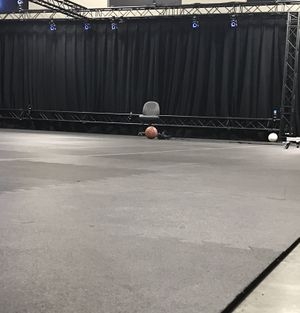
Choosing an appropriate camera mounting solution is very important when setting up a capture volume. A stable setup not only prevents camera damage from unexpected collisions, but it also maintains calibration quality throughout capture. All OptiTrack cameras have ¼-20 UNC Threaded holes – ¼ inch diameter, 20 threads/inch – which is the industry standard for mounting cameras. Before planning the mount structures, make sure that you have optimized your plans.
Due to thermal expansion issues when mounted to walls, we recommend using Trusses or Tripods as primary mounting structures.
This page covers different video modes that are available on the OptiTrack cameras. Depending on the video mode that a camera is configured to, captured frames are processed differently, and only the configured video mode will be recorded and saved in Take files.
Video types, or image-processing modes, available in OptiTrack Cameras
There are different video types, or image-processing modes, which could be used when capturing with OptiTrack cameras. Dending on the camera model, the available modes vary slightly. Each video mode processes captured frames differently at both camera hardware and software level. Furthermore, precision of the capture and required amount of CPU resources will vary depending on the configured video type.
Tracking data can be exported into the C3D file format. C3D (Coordinate 3D) is a binary file format that is widely used especially in biomechanics and motion study applications. Recorded data from external devices, such as force plates and NI-DAQ devices, will be recorded within exported C3D files. Note that common biomechanics applications use a Z-up right-hand coordinate system, whereas Motive uses a Y-up right-hand coordinate system. More details on coordinate systems are described in the later section. Find more about C3D files from .
In Motive, the Application Settings can be accessed under the or by clicking icon on the main toolbar. Default Application Settings can be recovered by Reset Application Settings under the Edit Tools tab from the main .
In Motive, the Data Streaming pane can be accessed under the or by clicking icon on the main toolbar. For explanations on the streaming workflow, read through the page.
This section allows you to stream tracking data via Motive's free streaming plugins or any custom-built NatNet interfaces. To begin streaming, select Broadcast Frame Data
This page includes detailed step-by-step instructions on customizing constraint XML files for assets. In order to customize the marker labels, marker colors, marker sticks, and weights for an asset, a constraint XML file may be exported, customized, and loaded back into Motive. Alternately, the can be used to modify the marker names, color, and weight and the can be used to customize marker sticks directly in Motive. This process has been standardized between asset types with the only exception being that marker sticks for Rigid Bodies does not work in Motive 3.0.
<?xml version="1.0" ?>
<MotiveNicFilter>
<NIC IPAddress="192.168.1.3">
<Whitelist>
<Serial>M#####</Serial>
<Serial>M#####</Serial>
</Whitelist>
<Blacklist>
<Serial>M#####</Serial>
<Serial>M#####</Serial>
</Blacklist>
</NIC>
<NIC IPAddress="192.168.1.5">
<Whitelist>
<Serial>M#####</Serial>
<Serial>M#####</Serial>
</Whitelist>
<Blacklist>
<Serial>M#####</Serial>
<Serial>M#####</Serial>
</Blacklist>
</NIC>
</MotiveNicFilter><?xml version="1.0" ?>
<MotiveNicFilter>
<NIC IPAddress="192.168.1.3">
<Whitelist>
<Serial>M18883</Serial>
<Serial>M18885</Serial>
</Whitelist>
<Blacklist>
<Serial>C</Serial>
</Blacklist>
</NIC>
</MotiveNicFilter>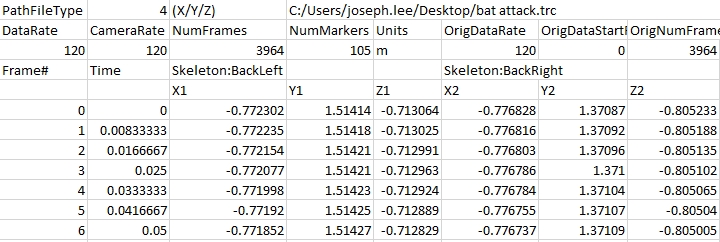
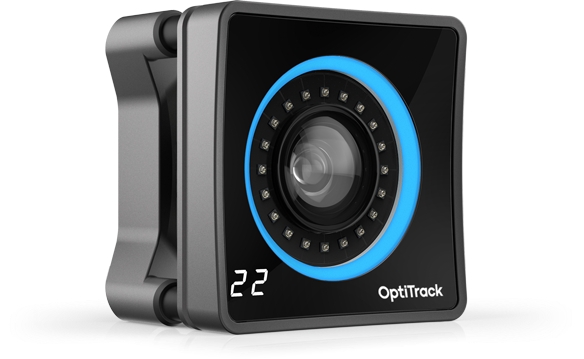
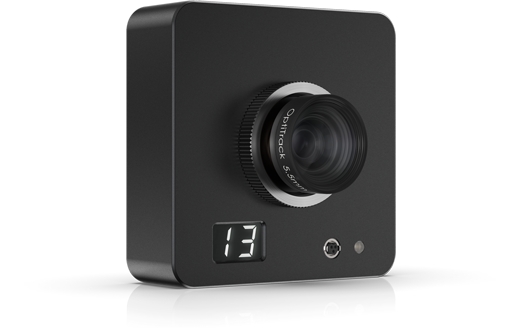
In the 3D viewport, select the markers that are going to be assigned as anchors.
Click on Add to add the selected markers as anchor markers.
Once markers are added as anchor markers, magenta spheres will appear around the markers indicating the anchors have been set.
Add more anchors as needed, again, it's important that these anchor markers do not move throughout the tracking. Also when the anchor markers need to be reset, whether if the marker was displaced, you can clear the anchor markers and reassign them.


Trusses will offer the most stability and are less prone to unwanted camera movement for more accurate tracking.
Tripods alternatively, offer more mobility to change the capture volume.
Wall Mounts and Speed Rails offer the ability to maximize space, but are the most susceptible to vibration from HVAC systems, thermal expansion, earthquake resistant buildings, etc. This vibration can cause inaccurate calibration and tracking.
Camera clamps are used to fasten cameras onto stable mounting structures, such as a truss system, wall mounts, speed rails, or large tripods. There are some considerations when choosing a clamp for each camera. Most importantly, the clamps need to be able to bear the camera weight. Also, we recommend using clamps that offer adjustment of all 3 degrees of orientation: pitch, yaw, and roll. The stability of your mounting structure and the placement of each camera is very important for the quality of the mocap data, and as such we recommend using one of the mounting structures suggested in this page.
Here at OptiTrack, we recommend and provide Manfrotto clamps that have been tested and verified to ensure a solid hold on cameras and mounting structures. If you would like more information regarding Manfrotto clamps, please visit our Mounts and Tripods page on our website or reach out to our Sales team.
Manfrotto clamps come in three parts:
Manfrotto 035 Super Clamp
Manfrotto 056 3-Way, Pan-and-Tilt Head with 1/4"-20 Mount
Reversible Short Brass Stud
For proper assembly, please follow the steps below:
Place the brass stud into the 16mm hexagon socket in the Manfrotto Super Clamp.
Depress the spring-loaded button so the brass stud will lock into place.
Tighten the safety pin mechanism to secure the brass stud within the hexagon socket. Be sure that the 3/8″ screw (larger) end of the stud is facing out.
From here, attach the Super Clamp to the 3-Way, Pan-and-Tilt Head by screwing in the brass stud into the screw hole of the 3-Way, Pan-and-Tilt Head.
Be sure to tighten these two components fairly tight as you don't want them to swivel when installing cameras. It helps to first tighten the 360° swivel on the 3-Way, Pan-and-Tilt Head as this will ensure that any unwanted swivel will not occur when tightening the two components together.
Once, these two components are attached you should have a fully functioning clamp to attach your cameras to.
Large scale mounting structures, such as trusses and wall mounts, are the most stable and can be used to reliably cover larger volumes. Cameras are well-fixed and the need for recalibration is reduced. However, they are not easily portable and cannot be easily adjusted. On the other hand, smaller mounting structures, such as tripods and C-clamps, are more portable, simple to setup, and can be easily adjusted if needed. However, they are less stable and more vulnerable to external impacts, which can distort the camera position and the calibration. Choosing your mounting structure depends on the capture environment, the size of the volume, and the purpose of capture. You can use a combination of both methods as needed for unique applications.
Choosing an appropriate structure is critical in preparing the capture volume, and we recommend our customers consult our Sales Engineers for planning a layout for the camera mount setup.
A truss system provides a sturdy structure and a customizable layout that can cover diverse capture volume sizes, ranging from a small volume to a very large volume. Cameras are mounted on the truss beam using the camera clamps.
Consult with the truss system provider or our Sales Engineers for setting up the truss system.
Follow the truss installation instruction and assemble the trusses on-site, and use the fastening pins to secure each truss segment.
Fasten the base truss to the ground.
Connect each of the segments and fix them by inserting a fastening pin.
Attach clamps to the cameras.
Mount the clamps to the truss beam.
each camera.
Tripods are portable and simple to install, and they are not restricted to the environment constraints. There are various sizes and types of tripods for different applications. In order to ensure its stability, each tripod needs to be installed on a hard surface (e.g. concrete). Usually, one camera is attached per tripod, but camera clamps can be used in combination to fasten multiple cameras along the leg as long as the tripod is stable enough to bear the weight. Note that tripod setups are less stable and vulnerable to physical impacts. Any camera movements after calibration will distort the calibration quality, and the volume will need to be re-calibrated.
Wall mounts and speed rails are used with camera clamps to mount the cameras along the wall of the capture volume. This setup is very stable, and it has a low chance of getting interfered with by way of physical contact. The capture volume size and layout will depend on the size of the room. However, note that the wall, or the building itself, may slightly fluctuate due to the changing ambient temperature throughout the day. Therefore, you may need to routinely re-calibrate the volume if you are looking for precise measurements.
Although we have instructions below for installing speed rails, we highly recommend leaving the installation to qualified contractors.
General Tools
Cordless drill
Socket driver bits for drill
Various drill bits
Hex head Allen wrench set
Laser level
Speed Rail Parts
Pre-cut rails
Internal locking splice
5" offset wall mount bracket
End caps (should already be pre-installed onto pipes)
Elbow speed rail bracket (optional)
Tee speed rail bracket (optional)
Wood Stud Setup
Wood frame studs behind drywall requires:
Pre-drilled holes.
2 1/2" long x 5/16" hex head wood lag screws.
Metal Stud Framing Setup
Metal stud framing behind drywall requires:
Undersized pre-drilled holes as a marker in the drywall.
2"long x 5/16" self tapping metal screws with hex head.
Concrete Block/Wall Setup
Requires:
Pre-drilled holes.
Concrete anchors inserted into pre-drilled hole.
2 1/2" concrete lags.
Pre-drill bracket locations.
If working in a smaller space, slip speed rails into brackets prior to installing.
Install all brackets by the top lag first.
Check to see if all are correctly spaced and level.
Install bottom lags.
Slip speed rails into brackets.
Set screw and internal locking splice of speed rail.
Attach clamps to the cameras.
Attach the clamps to the rail.
each camera.
The video types are categorized into either tracking modes (object mode and precision mode) and reference modes (MJPEG and raw grayscale). Only the cameras in the tracking modes will contribute to the reconstruction of 3D data.
To switch between video types, simply right-click on one of the cameras from the 2D camera preview pane and select the desired image processing mode under the video types.
(Tracking Mode) Object mode performs on-camera detection of centroid location, size, and roundness of the markers, and then, respective 2D object metrics are sent to the host PC. In general, this mode is best recommended for obtaining the 3D data. Compared to other processing modes, the Object mode provides smallest CPU footprint and, as a result, lowest processing latency can be achieved while maintaining the high accuracy. However, be aware that the 2D reflections are truncated into object metrics in this mode. The Object mode is beneficial for Prime Series and Flex 13 cameras when lowest latency is necessary or when the CPU performance is taxed by Precision Grayscale mode (e.g. high camera counts using a less powerful CPU).
Supported Camera Models: Prime/PrimeX series, Flex 13, and S250e camera models.
(Tracking Mode) Precision Mode performs on-camera calculations of what pixels are over the threshold value plus a two pixel halo around the above-threshold pixels. These pixels are sent to the PC for additional processing and determination of the precise centroid location.
Precision mode provides quality centroid locations but is very computationally expensive and network bandwidth intensive. It is only recommended for low to moderate camera count systems for 3D tracking when the Object Mode is unavailable or when using the 0.3 MegaPixel USB cameras.
Supported Camera Models: Flex series, Tracking Bars, S250e, Slim13e, and Prime 13 series camera models.
(Reference Mode) The MJPEG -compressed grayscale mode captures grayscale frames, compressed on-camera for scalable reference video capabilities. Grayscale images are used only for reference purpose, and processed frames will not contribute to the reconstruction of 3D data. The MJPEG mode can run at full frame rate and be synchronized with tracking cameras.
Supported Camera Models: All camera models
(Reference Mode) Processes full resolution, uncompressed, grayscale images. The grayscale mode is designed to be used only for reference purposes, and processed frames will not contribute to the reconstruction of 3D data. Because of the high bandwidth associated with sending raw grayscale frames, this mode is not fully synchronized with other tracking cameras and they will run at lower frame rate. Also, raw grayscale videos cannot be exported out from a recording. Use this video mode only for aiming and monitoring the camera views for diagnosing tracking problems.
Supported Camera Models: All camera models.
You can check and/or change the video type of the selected camera from either the Devices pane, the camera properties, or the Cameras view in the Viewport. Hotkeys can also be used to change the video type.
You can select a camera or cameras and use the associated hotkey to change the video mode.
Object: O
Grayscale: U
MJPEG: I
From the Device pane, click the Mode icon for the selected camera to toggle between frequently used modes for each camera.
Open the Devices pane and Properties pane and select one or more cameras listed. Once the selection is made, respective camera properties will be shown on the properties pane. Current video type will be shown in the Video Mode section and you can change it using the drop-down menu.
From Perspective View
In the perspective view, right-click on a camera from the viewport and set the camera to the desired video mode.
From Cameras View
In the cameras view, right-click on a camera view and change the video type for the selected camera.
Cameras can also be set to record reference videos during capture. When using MJPEG mode, these videos are synchronized with other captured frames, and they are used to observe what goes on during recorded capture. To record the reference video, switch the camera into a MJPEG mode by toggling on the camera mode in the Devices pane.
Compared to object images that are taken by non-reference cameras in the system, MJPEG videos are larger in data size, and recording reference video consumes more network bandwidth. High amount data traffic can increase the system latency or cause reductions in the system frame rate. For this reason, we recommend setting no more than one or two cameras to Reference mode. Reference views can be observed from either the Camera Preview pane or by selecting Video and selecting the camera that is in MJPEG mode from the Viewport dropdown.
If Greyscale mode is selected during a recording instead of MJPEG, no reference video will be recorded and the data from that camera will display a black screen. Full greyscale is strictly used for aiming and focusing cameras.
The video captured by reference cameras can be monitored from the viewport. To view the reference video, select the camera that you wish to monitor, and use the Num 3 hotkey to switch to the reference view. If the camera was calibrated and capturing reference videos, 3D assets will be overlaid on top of the reference image.
Force plate data is displayed in Newtons (N).
Force plate moments are measured in Newton Meters (N m)
General Export Options
Frame Rate
Number of samples included per every second of exported data.
Start Frame
Start frame of the exported data. You can set it to the recorded first frame of the exported Take (the default option), to the start of the working range (or scope range), as configured under the or in the , or select Custom to enter a specific frame number.
End Frame
End frame of the exported data. You can set it to the recorded end frame of the exported Take (the default option), to the end of the working range (or scope range), as configured under the of in the , or select Custom to enter a specific frame number.
Scale
Apply scaling to the exported tracking data.
Units
Sets the length units to use for exported data.
C3D Specific Export Options
Use Zero Based Frame Index
C3D specification defines first frame as index 1. Some applications import C3D files with first frame starting at index 0. Setting this option to true will add a start frame parameter with value zero in the data header.
Unlabeled Markers
Includes unlabeled marker data in the exported C3D file. When set to False, the file will contain data for only labeled markers.
Calculated Marker Positions
Exports the asset's constraints as the marker data.
Interpolated Fingertip Markers
Includes virtual reconstructions at the fingertips. Available only with Skeletons that support finger tracking (e.g., Baseline + 11 Additional Markers + Fingers (54))
Use Timecode
Includes timecode.
Common Conventions
Since Motive uses a different coordinate system than the system used in common biomechanics applications, it is necessary to modify the coordinate axis to a compatible convention in the C3D exporter settings. For biomechanics applications using z-up right-handed convention (e.g., Visual3D), the following changes must be made under the custom axis.
X axis in Motive should be configured to positive X
Y axis in Motive should be configured to negative Z
Z axis in Motive should be configured to positive Y.
This will convert the coordinate axis of the exported data so that the x-axis represents the anteroposterior axis (left/right), the y-axis represents the mediolateral axis (front/back), and the z-axis represents the longitudinal axis (up/down).
MotionBuilder Compatible Axis Convention
This is a preset convention for exporting C3D files for use in Autodesk MotionBuilder. Even though Motive and MotionBuilder both use the same coordinate system, MotionBuilder assumes biomechanics standards when importing C3D files (negative X axis to positive X axis; positive Z to positive Y; positive Z to positive Y). Accordingly, when exporting C3D files for MotionBuilder use, set the Axis setting to MotionBuilder Compatible, and the axes will be exported using the following convention:
Motive: X axis → Set to negative X → Mobu: X axis
Motive: Y axis → Set to positive Z → Mobu: Y axis
Motive: Z axis → Set to positive Y → Mobu: Z axis
There is an known behavior where importing C3D data with timecode doesn't accurately show up in MotionBuilder. This happens because MotionBuilder sets the subframe counts in the timecode using the playback rate inside MotionBuilder instead of using the rate of the timecode. When this happens you can set the playback rate in MotionBuilder to be the same as the rate of the timecode generator (e.g. 30 Hz) to get correct timecode. This happens only with C3D import in MotionBuilder, FBX import will work fine without the change to the playback rate.
Mouse Actions
Switch between Select mode (Hotkey: Q) for normal operations, and mode (Hotkey: D), to manually assign labels with just one-click. These options are also available from the Mouse Actions button in the .
Increment Options
Determines how the Quick Label mode should behave after a label is assigned:
Do Not Increment keeps the same label attached to the cursor.
Go To Next Label automatically advances to the next label in the list, even if it is already assigned to a marker in the current frame. This is the default option.
Go To Next Unlabeled Marker advances to the next label in the list that is not assigned to a marker in the current frame.
Unlabel Selected
Removes the label from the selected trajectories.
Auto-Label
Options to Reconstruct, Auto-label or Reconstruct and Auto-label. Use caution as these processes overwrite the 3D data, discarding any post-processing edits on trajectories and marker labels.
Pane View Options
Labels shown in white are tracked in the current frame. Labels shown in magenta are not.
The Gaps column shows the percentage of occluded gaps values. If the trajectory has no gaps (100% complete), no number is shown.
Assign labels to a selected marker for all, or selected, frames in a capture.
Apply labels to a marker within the frame range bounded by trajectory gaps and spikes (erratic change). The Max Spike value sets the threshold for spikes which will be used to set the labeling boundary. The Max Gap size determines the tolerable gap size in a fragment, and trajectory gaps larger than this value will set the labeling boundary.
Apply labels only to spikes created by labeling swaps. This setting is efficient when correcting labeling swaps.
This sets the tolerable gap sizes for both gap ends of the fragment labeling.
Sets the max allowable velocity of a marker (mm/frame) for it to be considered as a spike.
When using the Spike or Fragment range setting, the label will be applied until the marker trajectory is discontinued with a gap that is larger than the maximum gap defined above. When using the All or Selected range setting, the label will be applied to the entire trajectory or just the selected ranges.
Assigns the selected label onto a marker for current frame and frames forward.
Assigns selected label onto a marker for current frame and frames backward.
Assigns selected label onto the marker for current frame, frames forward, and frames backward.


(Default: False) Enables/disables broadcasting, or live-streaming, of the frame data. This must be set to true in order to start the streaming.
(Default: loopback) Sets the network address which the captured frame data is streamed to. When set to local loopback (127.0.0.1) address, the data is streamed locally within the computer. When set to a specific network IP address under the dropdown menu, the data is streamed over the network and other computers that are on the same network can receive the data.
(Default: Multicast) Selects the mode of broadcast for NatNet. Valid options are: Multicast, Unicast.
(Default: True) Enables, or disables, streaming of labeled Marker data. These markers are point cloud solved markers.
(Default: True) Enables/disables streaming of all of the unlabeled Marker data in the frame.
(Default: True) Enables/disables streaming of the Marker Set markers, which are named collections of all of the labeled markers and their positions (X, Y, Z). In other words, this includes markers that are associated with any of the assets (Marker Set, Rigid Body, Skeleton). The streamed list also contains a special marker set named all which is a list of labeled markers in all of the assets in a_Take_. In this data, Skeleton and Rigid Body markers are point cloud solved and model-filled on occluded frames.
(Default: True) Enables/disables streaming of Rigid Body data, which includes the name of Rigid Body assets as well as positions and orientations of their pivot points.
(Default: Skeletons) Enables/disables streaming of Skeleton tracking data from active Skeleton assets. This includes the total number of bones and their positions and orientations in respect to global, or local, coordinate system.
When enabled, this streams active peripheral devices (ie. force plates, Delsys Trigno EMG devices, etc.)
(Default: Global) When set to Global, the tracking data will be represented according to the global coordinate system. When this is set to Local, the streamed tracking data (position and rotation) of each skeletal bone will be relative to its parent bones.
(Default: Motive) Sets the bone naming convention of the streamed data. Available conventions include Motive, FBX, and BVH. The naming convention must match the format used in the streaming destination.
(Default: Y Axis) Selects the upward axis of the right-hand coordinate system in the streamed data. When streaming onto an external platform with a Z-up right-handed coordinate system (e.g. biomechanics applications) change this to Z Up.
(Default: False) Allows using the remote trigger for recording using XML commands. See more: Remote Triggering
(Default: False) When set to true, Skeleton assets are streamed as a series of Rigid Bodies that represent respective Skeleton segments.
(Default: True) When set to true, associated asset name is added as a subject prefix to each marker label in the streamed data.
Enables streaming to Visual3D. Normal streaming configurations may be not compatible with Visual3D, and this feature must be enabled for streaming tracking data to Visual3D.
Applies scaling to all of the streamed position data.
(Default: 1510) Specifies the port to be used for negotiating the connection between the NatNet server and client.
(Default: 1511) Specifies the port to be used for streaming data from the NatNet server to the client(s).
Specifies the multicast broadcast address. (Default: 239.255.42.99). Note: When streaming to clients based on NatNet 2.0 or below, the default multicast address should be changed to 224.0.0.1 and the data port should be changed to 1001.
Warning: This mode is for testing purposes only and it can overflood the network with the streamed data.
When enabled, Motive streams out the mocap data via broadcasting instead of sending to Unicast or Multicast IP addresses. This should be used only when the use of Multicast or Unicast is not applicable. This will basically spam the network that Motive is streaming to with streamed mocap data which may interfere with other data on the network, so a dedicated NatNet streaming network may need to be set up between the server and the client(s).To use the broadcast set the streaming option to Multicast and have this setting enabled on the server. Once it starts streaming, set the NatNet client to connect as Multicast, and then set the multicast address to 255.255.255.255. Once Motive starts broadcasting the data, the client will receive broadcast packets from the server.
Warning: Do not modify unless instructed.
(Default: 1000000)
This controls the socket size while streaming via Unicast. This property can be used to make extremely large data rates work properly.
For information on streaming data via the VRPN Streaming Engine, please visit the VRPN knowledge base. Note that only 6 DOF Rigid Body data can be streamed via VRPN.
(Default: False) When enabled, Motive streams Rigid Body data via the VRPN protocol.
[Advanced] (Default: 3883) Specifies the broadcast port for VRPN streaming. (Default: 3883).
a) First, create an asset using the Builder pane or the 3D context menu.
b) Right-click on the asset in the Assets pane and select Export Markers. Alternately, you can click the "..." menu at the top of the Constraints pane.
c) In the export dialog window, select a directory to save the constraints XML file. Click Save to export.
a) Open the exported XML file using a text editor. It will contain corresponding marker label information under the <marker_names> section.
b) Customize the marker labels from the XML file. Under the <marker_names> section of the XML, modify labels for the name variables with the desired name, but do not change labels for old_name variables. The order of the markers should remain the same unless you would like to change the labeling order.
c) If you changed marker labels, the corresponding marker names must also be renamed within the <marker_colors> and <marker_sticks> sections as well. Otherwise, the marker colors and marker sticks will not be defined properly.
a) To customize the marker colors, sticks, or weight, open the exported XML file using a text editor and scroll down to the <marker_colors> and/or <marker_sticks> sections. If the <marker_colors> and/or <marker_sticks> sections do not exist in the exported XML file, then you could be using an old Skeleton created before Motive 1.10. Updating and exporting the old Skeleton will provide these sections in the XML.
b) You can customize the marker colors and the marker sticks in these sections. For each marker name, you must use exactly same marker labels that were defined by the <marker_names> section of the same XML file. If any marker label was changed in the <marker_names> section, the changed name must be reflected in the respective colors and sticks definitions as well. In other words, if a Custom_Name was assigned under name for a label in the <marker_names> section <marker name="Custom_Name" old_name="Name" />, the same Custom_Name must be used to rename all the respective marker names within <marker_colors> and/or <marker_sticks> sections of the XML.
Marker Colors: For each marker in a Skeleton, there will be a respective name and color definitions under the <marker_colors> section of the XML. To change corresponding marker colors for the template, edit the RGB parameter and save the XML file.
Marker Sticks: A marker stick is simply a line interconnecting two labeled markers within the Skeleton. Each marker stick definition consists of two marker labels for creating a marker stick and a RGB value for its color. To modify the marker sticks, edit the marker names and the color values. You can also define additional marker sticks by copying the format from the other marker stick definitions.
Now that you have customized the XML file, it can be loaded each time when creating new Skeletons. In the Builder pane under Skeleton creation options, select the corresponding Marker Set. Next, under the Constraints drop down menu, select "Choose File..." to find and import the XML file. When you Create the Skeleton, the custom marker labels, marker colors, and marker sticks will be applied.
If you manually added extra markers to a Skeleton, then you must import the constraint XML file after adding the extra markers or just modify the extra markers using the Constraints pane and Builder pane.
You can also apply a customized constraint XML file to an existing asset using the import constraints feature. Right-click on an asset in the Assets pane (or click the "..." menu in the Constraints pane) and select Import Constraints from the menu. This will bring up a dialog window for importing a constraint XML file. Import the customized XML template and the modifications will be applied to the asset. This feature must be used if extra markers were added to the default XML template.
Rotate view
Right + Drag
Pan view
Middle (wheel) click + drag
Zoom in/out
Mouse Wheel
Select in View
Left mouse click
Toggle Selection in View
CTRL + left mouse click


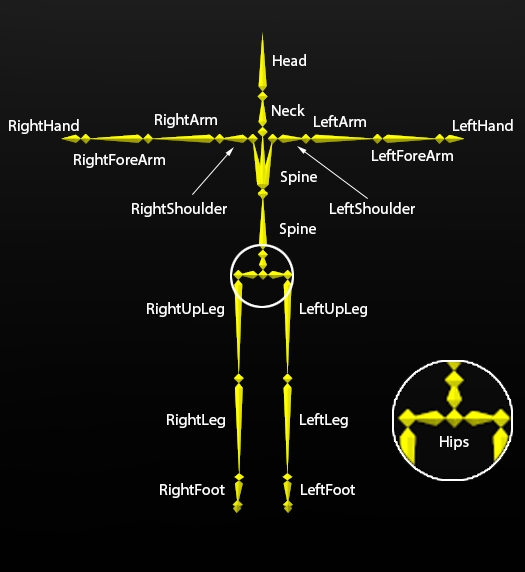
Trained Markersets allow you to create Assets from any object that is not a Rigid Body or a pre-defined Skeleton. This allows you to track anything from a jump rope, to a dog, to a flag, to anything in between.
Please follow the steps below to get started.
In order to get the best training data, it is imperative to record markers with little to no occlusion and arrange markers asymmetrically. If you do have occlusions, it is important to fill in gaps using the Edit Tool in Edit mode.
Attach an adequate number of markers to your flexible object. This is highly dependent on the object but should cover at least the outline and any internal flex points. e.g., if it's a mat, the mat should have markers along the edges as well as dispersed markers in the middle in an asymmetrical pattern. If it's an animal or something that has real-life bones, try to add markers on either side of any joints just like you see on the Skeleton marker sets.
Record the movements you want of the object, trying to get as much of the full range of motion as possible.
In Edit mode, select the markers attached to the object.
To add Bones from the 3D viewport:
First make sure the Markerset is selected in the Assets pane, then hold down CTRL while selecting the markers from which you wish to make a bone.
Right click on one of the markers and select Bone(s) -> Add From Marker(s).
Once you are finished adding the necessary bones you can create Bone Chains to connect bones:
Select at least 1 bone (if you have multiple selected make sure the one you select first is the one you wish to make the first 'parent' bone then any subsequent children/parent bones should follow).
Right click in 3D viewport and select Bone(s) -> Add Bone Chain.
Solve your Markerset: right click on asset in asset pane and select Solve. You can now export, or stream, or do whatever else you'd like in Edit.
This adds marker training and Auto-Generates Marker Sticks. This function only needs to be performed once after a Markerset has been created.
Add Marker Training goes through and adds a learned model of the Markerset. It's best to train the Markerset based on a full Range of Motion of the object you would like to track. This means moving the object to the limits of how it can move for one take, then labeling that take as well as you can, then running this training method on it.
This removes any marker training that was added either by Auto-Generate Asset or Add Marker Training. This is useful if you changed labels and wanted to reapply new marker training based on the new labels.
This automatically generates bones at flex points. This is why recording a full range of motion of your object is important so these bones can be added correctly.
This applies another round of Marker Training and refines Bone positions based on new training information.
This applies another round of Marker Training and refines Constraint positions based on new training information.
This is how you can create Bones manually from selected markers.
This removes the Bone from the Markerset and 3D viewport.
This adds a parent/child relationship to bones.
This removes the Bone Chain between bones.
When a child bone is selected, you can select Reroot Bones to make a child bone the parent. i.e. Bone 002 is a child of Bone 001 and Bone 001 (the root bone) is a child to Markerset 001. After selecting Bone 002 and Reroot bones, Bone 002 is now the parent to Bone 001 and the child to Markerset 001.
This will align the selected Bone to a selected camera.
This will align the selected Bone to another selected Bone.
If the Bone position was altered by either the Gizmo Tool or by Align to Camera/Other Bone, you can reset its default position with Reset Location.
This page provides information on the Info pane, which can be accessed from the View tab or by clicking on the icon in the toolbar.
The Info pane can be used to check tracking in Motive. There are four different tools available from this pane: measurement tools, Rigid Body information, continuous calibration, and active debugging. You can switch between different types from the context menu. The measurement tool allows you to use a calibration wand to check detected wand length and the error when compared to the expected wand length.
The Measurement Tool is used to check calibration quality and tracking accuracy of a given volume. There are two tools in this: the Wand Validation tool and the Marker Movement tool.
This tool works only with a fully calibrated capture volume and requires the calibration wand that was used during the process. It compares the length of the captured calibration wand to its known theoretical length and computes the percent error of the tracking volume. You can analyze the tracking accuracy from this.
In Live mode, open the Measurements pane under the Tools tab.
Access the Accuracy tools tab.
Under the Wand Measurement section, it will indicate the wand that was used for the volume calibration and its expected length (theoretical value) depending on the type of wand that was used during the system .
This tool calculates the measured displacement of a selected marker. You can use this tool to compare the calculated displacement in Motive against how much the marker has actually moved to check the tracking accuracy of the system.
Place a marker inside the capture volume.
Select the marker in Motive.
Under the Marker Measurement section, press Reset. This zeroes the position of the marker.
Slowly translate the marker, and the absolute displacement will be displayed in mm.
The Rigid Bodies tool under Info pane in Motive displays real-time tracking information of a Rigid Body selected in Motive. Reported data includes a total number of tracked Rigid Body markers, mean errors for each of them, and the 6 Degree of Freedom (position and orientation) tracking data for the Rigid Body.
Continuous Calibration allows for the update of Calibrations in real-time. See the article for details on using this tool.
is a troubleshooting tool that shows the number of IMU data packets dropped along with the largest gap between IMU data packets being sent.
When either column exceeds the Maximum settings, the text will turn magenta depending on the logic setup in the Maximum settings at the bottom of the pane.
This column denotes the number of IMU packet drops that an IMU Tag is encountering over 60 frames.
Max Gap Size denotes the number of frames between IMU data packets sent where the IMU packets were dropped. i.e. in the image above on the left, the maximum gap is a 1 frame gap where IMU packets were either not sent or received. The image on the right has a gap of 288 frames where the IMU packets were either not sent or received.
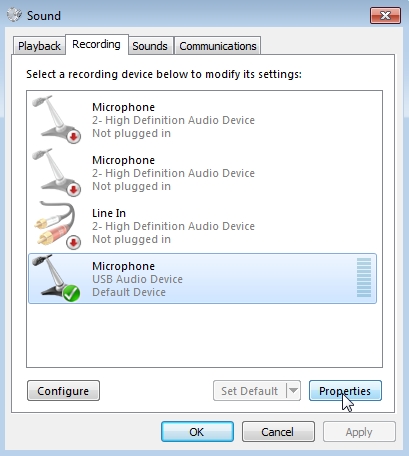
Labeling Pane in Motive The in Motive enables users to post-process tracking errors from recorded capture data. There are multiple editing methods available, and you need to clearly understand them in order to properly fix errors in captured trajectories. Tracking errors are sometimes inevitable due to the nature of marker-based motion capture systems. Thus, understanding the functionality of the editing tools is essential. Before getting into details, note that the post-editing of the motion capture data often takes a lot of time and effort. All captured frames must be examined precisely and corrections must be made for each error discovered. Furthermore, some of the editing tools implement mathematical modifications to marker trajectories, and these tools may introduce discrepancies if misused. For these reasons, we recommend so that tracking errors are prevented in the first place.
Common tracking errors include marker occlusions and labeling errors. Labeling errors include unlabeled markers, mislabeled markers, and label swaps. Fortunately, label errors can be corrected simply by reassigning proper labels to markers. Markers may be hindered from camera views during capture. In this case, the markers will not be reconstructed into 3D space and introduce a gap in the trajectory, which are referred to as marker occlusions. Marker occlusions are critical because the trajectory data is not collected at all, and retaking the capture could be necessary if the missing marker is significant to the application. For these occluded markers, Edit Tools also provide interpolation pipelines to model the occluded trajectory using other captured data points. Read through this page to understand each of data editing methods in detail.
Steps in Editing
This page explains different types of captured data in Motive. Understanding these types is essential in order to fully utilize the data-processing pipelines in Motive.
There are three different types of data: 2D data, 3D data, and Solved data. Each type of data will be covered in detail throughout this page, but basically, 2D Data is the captured camera frame data, 3D Data is the reconstructed 3-dimensional marker data, and Solved data is the calculated positions and orientations of and segments.
Motive saves tracking data into a Take file (TAK extension), and when a capture is initially recorded, all of the 2D data, real-time reconstructed 3D data, and solved data are saved onto a
Right-click the newly created asset and select Training -> Auto-Generate Asset.
A bone made from 3+ markers will track with 6 Degrees of Freedom (DoF). Use this type of bone for end effectors and generally whenever possible.
A bone made from 2 markers will track with 5 Degrees of Freedom and a bone made from 1 marker will track with 3 Degrees of Freedom (only positional data). This means that rotational values may turn out strange if it is not connected to a 6 DoF bone on either end. This type is well-suited for under-constrained segments like an elbow with only one or two markers on it.
If you would like your Asset to be available in Live, simply right click on the Markerset in the Assets pane and select Copy Asset to Live.
And voilà, you have a Markerset you can track and record in Live.


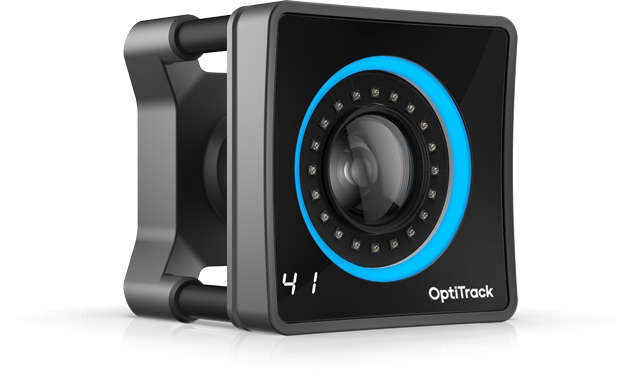
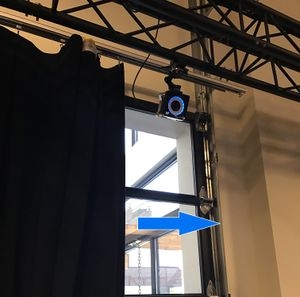

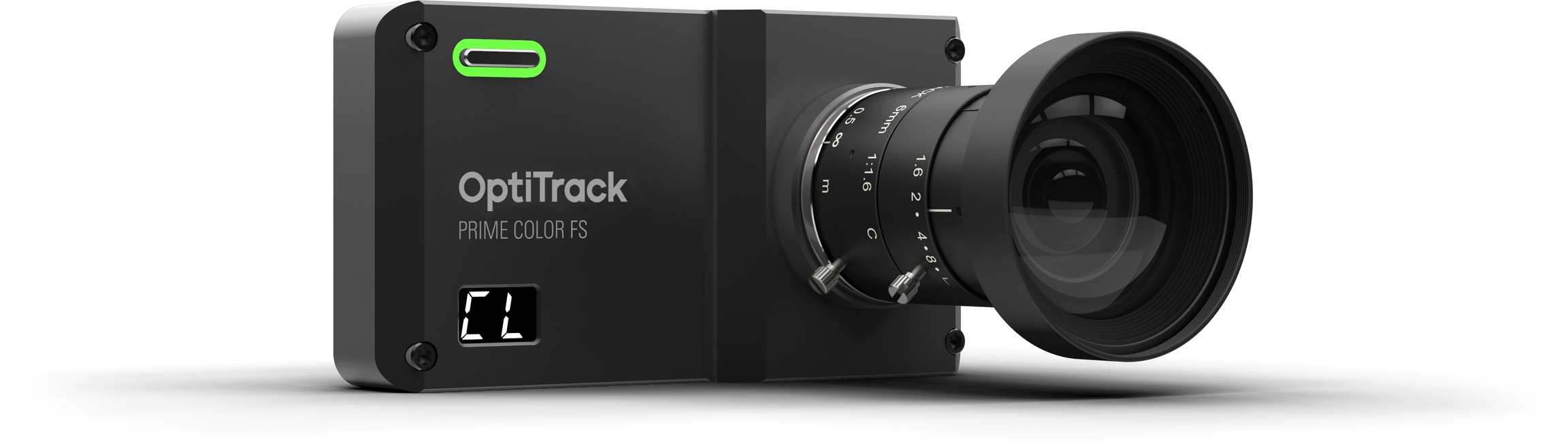
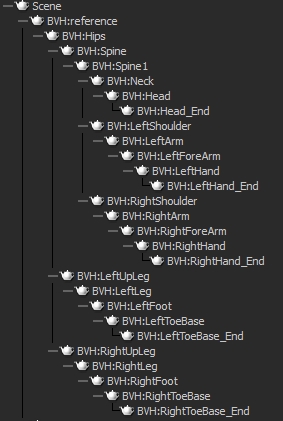

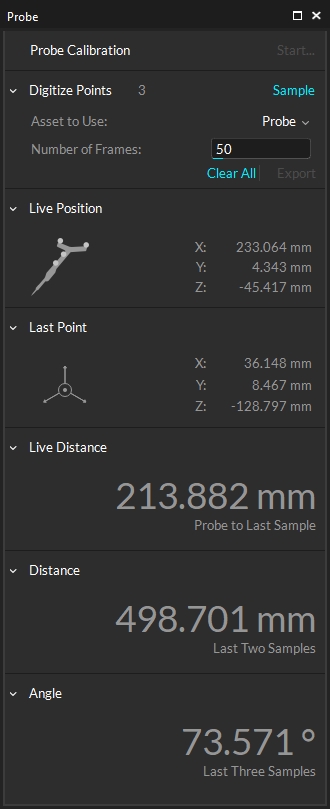
Once the wand is in the volume, detected wand length (observed value) and the calculated wand error will be displayed accordingly.
Pitch is degrees about the X axis
Yaw is degrees about the Y axis
Roll is degrees about the Z axis
Position values are in millimeters


General Steps
Skim through the overall frames in a Take to get an idea of which frames and markers need to be cleaned up.
Refer to the Labels pane and inspect gap percentages in each marker.
Select a marker that is often occluded or misplaced.
Look through the frames in the Graph pane, and inspect the gaps in the trajectory.
For each gap in frames, look for an unlabeled marker at the expected location near the solved marker position. Re-assign the proper marker label if the unlabeled marker exists.
Use Trim Tails feature to trim both ends of the trajectory in each gap. It trims off a few frames adjacent to the gap where tracking errors might exist. This prepares occluded trajectories for Gap Filling.
Find the gaps to be filled, and use the Fill Gaps feature to model the estimated trajectories for occluded markers.
Re-Solve assets to update the solve from the edited marker data
In some cases, you may wish to delete 3D data for certain markers in a Take file. For example, you may wish to delete corrupt 3D reconstructions or trim out erroneous movements from the 3D data to improve the data quality. In the Edit mode, reconstructed 3D markers can be deleted for selected range of frames. To delete a 3D marker, first select 3D markers that you wish to delete, and press the Delete key, and they will be completely erased from the 3D data. If you wish to delete 3D markers for a specific frame range, open the Graph Pane and select the frame ranges that you wish to delete the markers from, and press the Delete key. The 3D trajectory for the selected markers will be erased for the highlighted frame range.
Note: Deleted 3D data can be recovered by reconstructing and auto-labeling new 3D data from recorded 2D data.
The trimming feature can be used to crop a specific frame range from a Take. For each round of trim, a copied version of the Take will be automatically achieved and backed up into a separate session folder.
Steps for trimming a Take
1) Determine a frame range that you wish to extract.
2) Set the working range (also called as the view range) on the Graph View pane. All other frames outside of this range will be trimmed out. You can set the working range through the following approaches:
Specify the starting frame and ending frame from the navigation bar on the Graph Pane.
Highlight, or select, the desired frame range in the Graph pane, and zoom into it using the zoom-to-fit hotkey (F) or the icon.
Set the working range from the Control Deck by inputting start and end frames on the field.
3) After zooming into the desired frame range, click Edit > Trim Current Range to trim out the unnecessary frames.
4) A dialog box will pop up asking to confirm the data removal. If you wish to reset the frame numbers upon trimming the take, select the corresponding check box on the pop-up dialog.
The first step in the post-processing is to check for labeling errors. Labels can be lost or mislabeled to irrelevant markers either momentarily or entirely during capture. Especially when the marker placement is not optimized or when there are extraneous reflections, labeling errors may occur. As mentioned in other pages, marker labels are vital when tracking a set of markers, because each label affects how the overall set is represented. Examine through the recorded capture and spot the labeling errors from the perspective view, or by checking the trajectories on the Graph pane for suspicious markers. Use the Labels pane or the Tracks View mode from the Graph pane to monitor unlabeled markers in the Take.
When a marker is unlabeled momentarily, the color of tracked marker switches between white (labeled) and orange (unlabeled) by the default color setting. Mislabeled markers may have large gaps and result in a crooked model and trajectory spikes. First, explore captured frames and find where the label has been misplaced. As long as the target markers are visible, this error can easily be fixed by reassigning the correct labels. Note that this method is preferred over editing tools because it conserves the actual data and avoids approximation.
Read more about labeling markers from the Labeling page.
The Edit Tools provide functionality to modify and clean-up 3D trajectory data after a capture has been taken. multiple post-processing methods are featured in the Edit Tools for different purposes: Trim Tails, Fill Gaps, Smooth, and Swap Fix. The Trim Tails method is used to remove data points in few frames before and after a gap. The Fill Gaps method calculates the missing marker trajectory using interpolation methods. The Smoothing method filters out unwanted noise in the trajectory signal. Finally, the Swapping method switches marker labels for two selected markers. Remember that modifying data using Edit Tools changes the raw trajectories, and an overuse of Edit Tools is not recommended. Read through each method and familiarize yourself with the Editing Tools. Note that you can undo and redo all changes made using Edit Tools.
The Tails method trims, or removes, a few data points before and after a gap. Whenever there is a gap in a marker trajectory, slight tracking distortions may be present on each end. For this reason, it is usually beneficial to trim off a small segment (~3 frames) of data. Also, if these distortions are ignored, they may interfere with other editing tools which rely on existing data points. Before trimming trajectory tails, check all gaps to see if the tracking data is distorted. After all, it is better to preserve the raw tracking data as long as they are relevant. Set the appropriate trim settings, and trim out the trajectory on selected or all frame. Each gap must satisfy the gap size threshold value for it to be considered for trimming. Each trajectory segment also needs to satisfy the minimum segment size, otherwise, it will be considered as a gap. Finally, the Trim Size value will determine how many leading and trailing trajectory frames are removed from a gap.
Smart Trim
The Smart Trim feature automatically sets the trimming size based on trajectory spikes near the existing gap. It is often not needed to delete numerous data points before or after a gap, but there are some cases where it's useful to delete more data points than others. This feature determines whether each end of the gap is suspicious with errors, and deletes an appropriate number of frames accordingly. Smart Trim feature will not trim more frames than the defined Leading and Trailing value.
Gap filling is the primary method in the data editing pipeline, and this feature is used to remodel the trajectory gaps with interpolated marker positions. This is used to accommodate the occluded markers in the capture. This function runs mathematical modeling to interpolate the occluded marker positions from either the existing trajectories or other markers in the asset. Note that interpolating a large gap is not recommended because approximating too many data points may lead to data inaccuracy.
New to Motive 3.0; For Skeletons and Rigid Bodies only Model Asset Markers can be used to fill individual frames where the marker has been occluded. Model Asset markers must be first enabled on the Properties Pane when the desired asset is selected and then they must be enabled for selection in the Viewport. Now when frames are encountered where the marker is lost from camera view, select the associated Model Asset Marker in the 3D view; right click for the context menu and select 'Set Key'.
First of all, set the Max. Gap Size value and define the maximum frame length for an occlusion to be considered as a gap. If a gap size has a longer frame length, it will not be affected by the filling mechanism. Set a reasonable maximum gap size for the capture after looking through the occluded trajectories. In order to quickly navigate through the trajectory graphs on the Graph Pane for missing data, use the Find Gap features (Find Previous and Find Next) and automatically select a gap frame region so the data could be interpolated. Then, apply the Fill Gaps feature while the gap region is selected. Various interpolation options are available in the setting including Constant, Linear, Cubic, Pattern-based, and Model-based.
There are four different interpolation options offered in Edit Tools: constant, linear, cubic and pattern-based. First three interpolation methods (constant, linear, and cubic) look at the single marker trajectory and attempt to estimate the marker position using the data points before and after the gap. In other words, they attempt to model the gap via applying different degrees of polynomial interpolations. The other two interpolation options (pattern-based and model-based) reference visible markers and models to the estimate occluded marker position.
Constant
Applies zero-degree approximation, assumes that the marker position is stationary and remains the same until the next corresponding label is found.
Linear
Applies first-degree approximation, assuming that the motion is linear, to fill the missing data. Only use this when you are sure that the marker is moving at linear motion.
Cubic
Applies third-degree polynomial interpolation, cubic spline, to fill the missing data in the trajectory.
Pattern based
This refers to trajectories of selected reference markers and assumes the target marker moves along in a similar pattern. The Fill Target marker is specified from the drop-down menu under the Fill Gaps tool. When multiple markers are selected, a Rigid Body relationship is established among them, and the relationship is used to fill the trajectory gaps of the selected Fill Target marker as if they were all attached to a same Rigid Body. The following list is the general workflow for using the Pattern Based interpolation:
Select both reference markers and the target marker to fill.
Examine the trajectory of the target marker from the Graph Pane: Size, range, and a number of gaps.
Set an appropriate Max. Gap Size limit.
Select the Pattern Based interpolation option.
Specify the Fill Target marker in the drop-down menu.
When interpolating for only a specific section of the capture, select the range of frames from .
Click the Fill Selected/Fill All/Fill Everything.
The curves tool applies a noise filter (low-pass Butterworth, 4th degree) to trajectory data, and this modifies the marker trajectory smoother. This is a bi-directional filter that does not introduce phase shifts. Using this tool, any vibrating or fluttering movements are filtered out. First, set the cutoff frequency for the filter and define how strongly your data will be smoothed. When the cutoff frequency is set high, only high-frequency signals are filtered. When the cutoff frequency is low, trajectory signals at a lower frequency range will also be filtered. In other words, a low cutoff frequency setting will smooth most of the transitioning trajectories, whereas high cutoff frequency setting will smooth only the fluttering trajectories. High-frequency data are present during sharp transitions, and this can also be introduced by signal noise. Commonly used ranges for Filter Cutoff Frequency are between 7 Hz to 12 Hz, but you may want to adjust the value higher for fast and sharp motions to avoid softening motion transitions need to stay sharp.\
This tool is used for quickly deleting any marker trajectories that exist only for a few frames. Markers that appear only momentarily are likely happening due to noise in the data. If you wish to clean up these short-lived trajectories to further clean up the data, the fragments tool can be used. You will just need to set the minimum frame percentage under the settings. Then, when you click delete, individual marker trajectories that are shorter than the percentage defined will be deleted.
In some cases, marker labels may be swapped during capture. Swapped labels can result in erratic orientation changes, or crooked Skeletons, but they can be corrected by re-labeling the markers. The Swap Fix feature in the Edit Tools can be used to correct obvious swaps that persist through the capture. Select two markers that have their labels swapped, and select the frame range that you wish to edit. Find Previous and Find Next buttons allow you to navigate to the frame where their position have been changed. If a frame range is not specified, the change will be applied from current frame forward. Finally, switch the marker labels by clicking on the Apply Swap button. As long as both labels are present in the frame and only correction needed is to change the labels, the Swap Fix tool could be utilized to make corrections.
Solved Data: After editing marker data in a recorded Take, corresponding Solved Data must be updated.
Camera Samples is a visual aid that shows which cameras may need more marker samples or a better distribution of marker samples.
If a camera appears under More Markers:
Select the camera under More Markers.
Navigate to the 2D Viewport and from the top left dropdown select "From Camera 'x'".
This will show the camera's field of view and any markers that it can see within the cyan box.
Add additional markers within the camera's view until the camera button is removed from More Markers.
You may have enough markers so that there are no cameras listed under More Markers, but still see cameras under Better Distribution.
Select a camera listed under Better Distribution.
Navigate to the 2D Viewport and from the top left dropdown select "From Camera 'x'".
This will show the camera's field of view and any markers that it can see within the cyan box.
Add additional markers that are more evenly distributed within the camera's view.
Anchor markers can be set up in Motive to further improve continuous calibration. When properly configured, anchor markers improve continuous calibration updates, especially on systems that consists of multiple sets of cameras that are separated into different tracking areas, by obstructions or walls, without camera view overlap. It also provides extra assurance that the global origin will not shift during each update, although the continuous calibration feature itself already checks for this.
The Anchor Markers section allows you to add/remove and import/export Anchor markers. It also shows the mean error under the Distance column for each individual Anchor marker and the overall in the top right in millimeters.
For multi-room setups, it is useful to group cameras into partitions. This allows for Continuous Calibration to run in each individual room without the need for camera view overlap.
The Partitions section directly corresponds with Partitions created in the Properties pane for each individual camera. This section displays the status of Continuous Calibration for each partition.
If a Partition or Partitions are not receiving enough marker data to validate or update, they will appear magenta in the table and a red circle with an x icon will appear in the top right of the section.
This is the Partition ID assigned via the camera's Properties pane. By default this value is 1.
Idle - Continuous Calibration is either turned off or there are not enough markers for Continuous Calibration to begin sampling.
Sampling - Continuous Calibration is collecting marker samples.
Evaluating - Continuous Calibration is determining if the latest samples are better than the previous and will update if necessary.
Processing - Processing will occur when an update is processing.
Last Validated will update its timestamp to 0h 0m 0s when the samples have been collected and the calibration solution was not deemed to be better than the solution already in place.
Last Updated will update its timestamp to 0h 0m 0s when good samples were collected and the calibration solution was deemed better than the solution in place.
This is the mean ray error for each partition in millimeters. The overall mean ray error will be displayed in the top right corner of the section.
This column denotes the number of Anchor markers that are visible within a partition.
The Partitions settings can be updated to custom values based on an individual user's needs. This ensures that the user is alerted when Continuous Calibration is not validating or updated. When these values are changed the Partitions section rows will turn magenta if they do not meet the standards of Maximum Error and/or Maximum Last Updated.
This setting can be changed to any positive decimal. If the ray error for a Partition exceeds this value, the text in the Partition's row will change to magenta and the icon on the top right of the Partition section will display a red circle with an 'x'.
Maximum Last Updated dictates how long Continuous Calibration can go without an update before the user is alerted (by a magenta text and a red circle with an 'x' icon) that Continuous Calibration has not been updated.
The Bumped Cameras features corrects a camera's position in Motive if it is physically bumped in the real 3D space.
Bumped Cameras needs to be enabled in the Info pane when initializing Continuous Calibration for any fixes to be applied. If it is NOT enabled and a camera is physically displaced, you will need to run a full Calibration to ensure accurate tracking.
Create Anchor markers from the Anchor Markers section or add Active markers.
Enable Bumped Cameras from the Bumped Cameras Settings:
Select Camera Samples for Mode.
Select either Anchor Markers, Active Markers, or Both from Marker Type.
Bumped Cameras is now able to correct physical camera movement without needing a full Calibration.
To see the results of Bumped Cameras steps above you can do the following:
Select the camera's view you intend to physically move in the 2D Camera Viewport.
Make sure Tracked and Untracked Rays are visible from the 'eye' icon in the 2D Camera Viewport.
Physically move the camera so that the markers appear with a red diamond around them (untracked).
Wait a few seconds and notice the camera's view shift to correct in the 2D Camera Viewport.
The red diamonds should now be green.
Disabled - When Mode is set to Disabled, Bumped Camera correction will not apply.
Camera Samples - When Mode is set to Camera Samples, Bumped Camera correction will correct based on the Camera Samples data. If Camera Samples is populated with cameras this will trigger Bumped Cameras to correct any cameras that may have moved. If a camera has NOT moved, this camera will remain idle in the Bumped Camera section until Camera Samples is clear of needed samples or distribution.
Selected Cameras - When Mode is set to Selected Cameras, this will ONLY correct the camera that is selected by the user from either the Devices, 3D or 2D viewport, or Camera Samples.
A camera MUST be selected during a bump for Selected Cameras mode to correct the camera's position.
It must also be de-selected after the camera posistion has been corrected, else the feature will continue to consume high CPU resources and left long term could have a negative effect in quality tracking.
Anchor Markers - ONLY Anchor Markers will be used to collect data for Bumped Cameras to correct a camera's position.
Active Markers - ONLY Active Markers will be used to collect data for Bumped Cameras to correct a camera's position.
Anchor and Active - BOTH Anchor and Active Markers will be used to collect data for Bumped Cameras to correct a camera's position.
If you only wish to have a few cameras corrected you can lower the count of the Max Camera Count. By default this is set to 20.

Available data types are listed on the Data pane. When you open up a Take in Edit mode, the loaded data type will be highlighted at the top-left corner of the 3D viewport. If available, 3D Data will be loaded first by default, and the 2D data can be accessed by entering the 2D Mode from the Data pane.
2D data is the foundation of motion capture data. It mainly includes the 2D frames captured by each camera in a system.
Images in recorded 2D data depend on the image processing mode, also called the video type, of each camera that was selected at the time of the capture. Cameras that were set to reference modes (MJPEG grayscale images) record reference videos, and cameras that were set to tracking modes (object, precision, segment) record 2D object images which can be used in the reconstruction process. The latter 2D object data contains information on x and y centroid positions of the captured reflections as well as their corresponding sizes (in pixels) and roundness, as shown in the below images.
Using the 2D object data along with the camera calibration information, 3D data is computed. Extraneous reflections that fail to satisfy the 2D object filter parameters (defined under application settings) get filtered out, and only the remaining reflections are processed. The process of converting 2D centroid locations into 3D coordinates is called Reconstruction, which will be covered in the later section of this page.
3D data can be reconstructed either in real-time or in post-capture. For real-time capture, Motive processes captured 2D images on a per-frame basis and streams the 3D data into external pipelines with extremely low processing latency. For recorded captures, the saved 2D data can be used to create a fresh set of 3D data through post-processing reconstruction, and any existing 3D data will be overwritten with the newly reconstructed data.
Contains 2D frames, or 2D object information captured by each camera in a system. 2D data can be monitored from the Camera Preview pane.
Recorded 2D data can be reconstructed and auto-labeled to derive the 3D data.
3D tracking data is not computed yet. The tracking data can be exported only after reconstructing the 3D data.
In playback of recorded 2D data, 3D data will be Live-reconstructed into 3D data and reported in the 3D viewport.
3D data contains 3D coordinates of reconstructed markers. 3D markers get reconstructed from 2D data and shows up the perspective view. Each of their trajectories can be monitored in the Graph pane. In recorded 3D data, marker labels can be assigned to reconstructed markers either through the auto-labeling process using asset definitions or by manually assigning it. From these labeled markers, Motive solves the position and orientation of Rigid Bodies and Skeletons.
Recorded 3D data is editable. Each frame of the trajectory can be deleted or modified. The post-processing edit tools can be used to interpolate the missing trajectory gaps or apply the smoothing, and the labeling tools can be used to assign or reassign the marker labels.
Lastly, from a recorded 3D data, its tracking data can be exported into various file formats — CSV, C3D, FBX, and more.
Reconstructed 3D marker positions.
Marker labels can be assigned.
Assets are modeled and the tracking information is available.
Edit tools can be used to fill the trajectory gaps.
Solved data is positional and rotational, 6 degrees of freedom (DoF), tracking data of Rigid Bodies and Skeletons. After a take has been recorded, you will need either select Solve all Assets by right clicking on a Take in the Data pane, or right click on the asset in the Assets pane and select Solve while in Edit mode. Takes that contain solved data will be indicated under the solved column.
Recorded 2D data, audio data, and reference videos can be deleted from a Take file. To do this, open the Data pane, right-click on a recorded Take(s), and click the Delete 2D Data from the context menu. Then, a dialogue window will pop-up, asking which types of data to delete. After removing the data, a backup file will be archived into a separate folder.
Deleting 2D data will significantly reduce the size of the Take file. You may want to delete recorded 2D data when there is already a final version of reconstructed 3D data recorded in a Take and the 2D data is no longer needed. However, be aware that deleting 2D data removes the most fundamental data from the Take file. After 2D data has been deleted, the action cannot be reverted, and without 2D data, 3D data cannot be reconstructed again.
Recorded 3D data can be deleted from the context menu in the Data pane. To delete 3D data, right-click on selected Takes and click Delete 3D data, and all reconstructed 3D information will be removed from the Take. When you delete the 3D data, all edits and labeling will be deleted as well. Again, a new 3D data can always be reacquired by reconstructing and auto-labeling the Take from 2D data.
Deleting 3D data for a single _Take_
When frame range is not selected, it will delete 3D data from the entire frame. When a frame range is selected from the Timeline Editor, this will delete 3D data in the selected ranges only.
Deleting 3D data for multiple _Takes_
When multiple Takes are selected from the Data pane, deleting 3D data will remove 3D data from all of the selected Takes. This will remove 3D data from the entire frame ranges.
When a Rigid Body or Skeleton exists in a Take, Solved data can be recorded. From the Assets pane, right-click one or more asset and select Solve from the context menu to calculate the solved data. To delete, simply click Remove Solve.
Assigned marker labels can be deleted from the context menu in the Data pane. The Delete Marker Labels feature removes all marker labels from the 3D data of selected Takes. All markers will become unlabeled.
Deleting labels for a single _Take_
When no frame range is selected, it will unlabel all markers from all Takes. When a frame range is selected from the Timeline Editor, this will unlabel markers in the selected ranges only.
Deleting labels for multiple _Takes_
Even when a frame range is selected from the timeline, it will unlabel all markers from all frame ranges of the selected Takes.
Axis Convention
Sets the axis convention on exported data. This can be set to a custom convention, or preset conventions for exporting to Visual3D/Motion Monitor (default) or MotionBuilder.
X Axis Y Axis Z Axis
Allows customization of the axis convention in the exported file by determining which positional data to be included in the corresponding data set.
Disable Timecode Subframe
Export the timecode without using subframes.
Rename Unlabeled As _000X
Unlabeled markers will have incrementing labels with numbers _000#.
Marker Name Syntax
Choose whether the marker naming syntax uses ":" or "_" as the name separator. The name separator will be used to separate the asset name and the corresponding marker name in the exported data (e.g. AssetName:MarkerLabel or AssetName_MarkerLabel or MarkerLabel).
Provides different layout options:
Labeled Only: Displays only markers with labels; unlabeled markers are not shown. This is the default view.
Split: Displays labeled markers on the left and unlabeled markers on the right.
Split (Left/Right): Sorts skeleton labels into columns based on marker location. Unspecified markers (e.g., head, chest, etc.) are listed in the left column.
Stacked: Displays labeled markers on the top and unlabeled markers on the bottom.
Combo: Displays the labeled markers in the Split (Left/Right) view with unlabeled markers stacked below.
Link to 3D Selection
When this button is enabled, asset selection is locked to the selection from the Perspective viewport. When toggled off, the Asset Selection drop-down menu in the Labels pane becomes active.
Show Range Settings
The Range Settings determine which frames of the recorded data the label will be applied to.

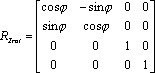
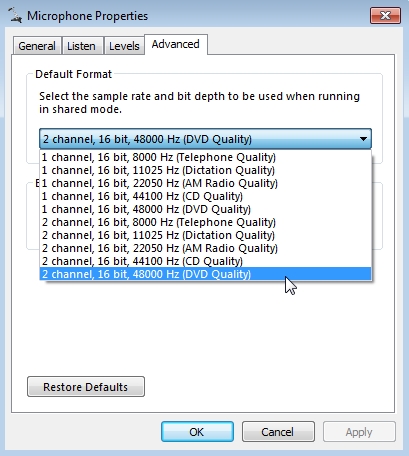
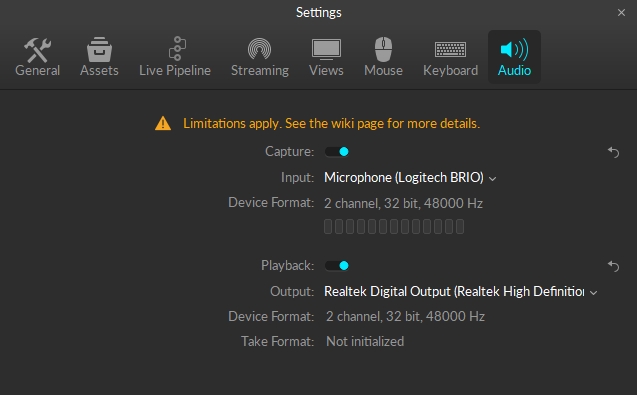
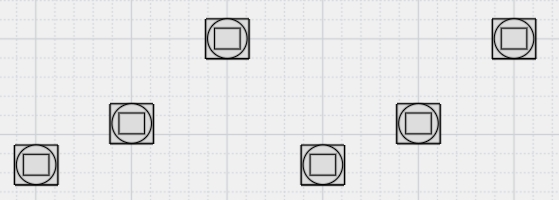
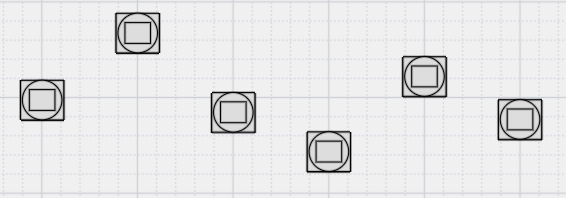
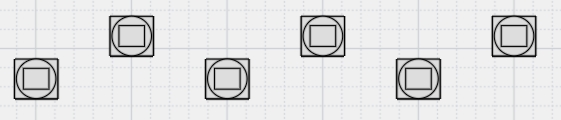
This page provides instructions for using the Constraints pane in Motive.
The reconstructed 3D markers that comprise an asset are known as constraints in Motive. The Constraints pane provides information and tools for working with solver constraints for all asset types: Rigid Bodies, Skeletons, and Trained Markersets.
To open, click the button on the Motive toolbar.
By default, the Constraints pane will display the constraints for the asset(s) selected in either the or the . If none is selected, the pane will display the constraints for -All- the assets in the Live volume or in the TAKE, when in edit mode.
The pane is locked to the selection whenever the button is active. Click the button to open the menu to select a different asset.
The default view of the Constraints pane includes the Constraint (or label), Type, and Color. Right click the column header to add or remove columns from the view.
The Constraint column displays the marker labels associated with an asset. When the Asset selection is set to -All-, the asset name is included as a prefix to the marker label.
The MemberID column displays the unique ID value assigned to each constraint. Typically, this is the original order of the constraints.
There are four types of constraints:
Marker: The constraint is associated with either a passive or active marker. Designated with the icon in the Type column.
Calibration Marker: Some biomechanical skeleton templates use calibration markers during asset creation that are subsequently removed prior to motion capture. In the 3D viewport, the constraints for these markers appear in red. Designated with the icon in the Type column.
6 DoF: The constraint formed by a Rigid Body on a skeleton created using a Rigid Body Skeleton template. Designated with the icon in the Type
The color column displays the color assigned to the constraint. The option with a rainbow effect links the constraint to the color defined by the asset.
The ActiveID column allows you to view and modify Active Marker ID values. Active ID values are automatically assigned during asset creation or when adding a marker, but this gives you a higher level of insight and control over the process.
Weight is the degree to which an individual constraint influences the 3D solve of an asset. Specifically, adjusting the weight tells the solver to prefer that marker when solving the asset data with less than an optimal amount of marker information. For example, the hands are weighted slightly higher for the baseline and core skeleton Marker Sets to preference the end effectors.
Editing this property is not typically recommended.
Select the marker(s) to add to or remove from the asset definition in the 3D Viewport then click either the Add button or the Remove button at the bottom of the pane.
To give a marker constraint a more meaningful name than the one auto-assigned when the asset is created, right-click the constraint name and select Rename from the context menu. Alternately, click twice on the constraint name to open the field for editing.
You can also import a list of constraint properties, including names, for all asset types. See the section , below and the page for more details.
Import label names for Trained Markerset assets with a quick copy and paste of text. This is useful if you've already mapped out the asset, either during the design phase or while placing the markers.
Copy the desired labels to the clipboard.
Select the Markerset so the Constraints pane displays only its marker constraints. Alternately, click the button to deselect Lock Selection to Asset, and select the Markerset from the dropdown list.
Left click the Constraints Pane.
Use Ctrl + V to paste the label names to the pane.
The pasted labels will display at the bottom of the list. Click the Mouse Control button in the 3D Viewport or use the D hotkey to open the tool to quickly assign the copied labels to the correct markers.
Please see the page for more information on using the Quick Labels tool.
By default, the Constraints column sorts by the asset definition, or the order in which the markers were selected when the asset was created. Click the column header to sort the column alphabetically in ascending or descending order, then click again to return to the default.
There are two methods to change the order of the constraints in the internal asset definition:
Right-click a constraint label and select an option to move up or down from its present location.
Drag and drop labels into the desired order.
Reordering constraints helps to define custom marker sequences for manual labeling. Changes made to the order will also be reflected in the .
By default, constraints use the color selected in the asset properties, as indicated by the rainbow color icon.
You can modify the following additional constraint settings from the when a constraint is selected in the Constraints pane.
Position and Rotation: adjust the x/y/z coordinates of the constraint, in respect to the local coordinate system of the corresponding asset or bone.
Before making any changes to the x/y/z coordinates, save the current values by clicking the button to the right of the fields. Select Set as default. This will change the reset value from the Motive global default to the specific coordinates for the constraints.
Marker Diameter: view or change the diameter of an individual marker.
Constraint Type: Motive assigns the constraint type during the auto-label process. The user should not need to adjust this property.
You can also export configured constraints, or import them, using the Constraints pane. To do this, simply click on the context menu. There are options to export, import, and generate constraints.
Exporting constraints makes an XML file containing the names, colors, marker stick definitions, and weights for manual editing. Importing reads the (.xml) files made when exporting. Generating constraints resets the asset back to the default state, if applicable.
Please see the page for more information on working with these files.
An overview of the Log pane in Motive, including troubleshooting steps for common error messages.
The status Log pane displays important events or statuses of the camera system operation. Events that are actively occurring are shown under the Current section, with all of the logged events saved in the History section for the record.
Open the status Log pane from the View menu or by clicking the icon on the main toolbar.
In general, when there are no errors in the system operation, the Current section of the log will remain free of warning, error, or critical messages. Occasionally during system operations, the error/warning messages (e.g., Dropped Frame, Discontinuous Frame ID) may pop-up momentarily and disappear afterward. This could occur when Motive is changing its configuration, for example, when switching between Live and Edit modes or when re-configuring the synchronization settings. This is a common behavior and does not necessarily indicate system errors as long as the messages do not persist in the Current section. If the error message persists under the Current section or there is an excessive number of events, there may be an issue with the system operation.
To export the log history to a text file, click the button at the top left of the log pane. Open the file in Notepad or the text editor of your choice. The file can also be opened in Excel.
To reset the log history, click the button in the upper left corner of the log pane.
Status messages are categorized into five categories: Informational, Warning, Error, Critical, and Debugging. Logged status messages in the history list display in chronological order by default. The log history can be sorted by any field by clicking the column header. The sorted column is indicated with a cyan header.
: Informational
: Warning
: Error
: Critical
Informational messages are noted with the icon.
Peripheral Devices: Attempting to add a device with an already existing serial number.
Troubleshooting steps: Check hardware configuration and make sure all is setup correctly.
Peripheral Devices: Device reported a different number of attached devices than were created.
Troubleshooting steps:
Check hardware configuration and make sure all is setup correctly.
Contact support for the affected peripheral device (e.g., AMTI force plate).
Peripheral Devices: Plugin does not contain the required creation functions.
Troubleshooting steps: Try reinstalling peripheral DLLs and plugins.
Peripheral Devices: Unable to start plugin device because there are no active channels enabled on the device.
Troubleshooting steps: Contact support for the affected peripheral device (e.g., AMTI force plate).
Peripheral Devices: Unable to start collecting from plugin devices. Devices are present but not enabled.
Troubleshooting steps: Check hardware configuration and make sure all is setup correctly.
Peripheral Devices: Motive attempted to start device collecting but the previously available device(s) are no longer present.
Troubleshooting steps: Check hardware configuration and make sure all is setup correctly.
Peripheral Devices: A plugin device with the specified serial number was removed or is no longer responding.
Troubleshooting steps: Check hardware configuration and make sure all is setup correctly.
Peripheral Devices: Plugin DLL {File Name} has been loaded.
Troubleshooting steps: Informational only. No troubleshooting required.
Peripheral Devices: No plugin devices were loaded.
Troubleshooting steps: Check hardware configuration and make sure all is setup correctly.
The plugin device object for an external device (e.g., force plate or NIDAQ) has been successfully created.
Troubleshooting steps: Informational only. No troubleshooting required.
The plugin device has been registered in Motive.
Troubleshooting steps: Informational only. No troubleshooting required.
Peripheral Devices: The specific device was removed.
Troubleshooting steps: Informational only. No troubleshooting required.
Peripheral Devices: The peripheral device requires manual channel enabling before recording.
Troubleshooting steps:
Check Ni-DAQ channels and make sure they are enabled.
Make sure connections to the NI-DAQ are correct.
Peripheral Devices: A Plugin device was detected, but Motive was unable to add it.
Troubleshooting steps: Check hardware configuration and make sure all is setup correctly.
Error messages are noted with the icon.
Peripheral Devices: The peripheral device manager was unable to find a required function in the device plugin dll.
Troubleshooting steps:
Check that the plugin was installed correctly.
Test on another machine.
Peripheral Devices: The peripheral device manager was unable to find a required function in the device plugin dll.
Troubleshooting steps: Make sure the device plugin peripheral DLL was installed during Motive installation.
Peripheral Devices: The peripheral device manager encountered an error when unloading a the device plugin dll.
Troubleshooting steps: Contact Support for further troubleshooting.
Peripheral Devices: The peripheral device manager was unable to find the unload function from the plugin device dll.
Troubleshooting steps: Contact Support for further troubleshooting.
Peripheral Devices: The peripheral device manager was unable to unload the plugin device dll.
Troubleshooting steps: Contact Support for further troubleshooting.
Camera System: A mocap camera or other OptiTrack device (e.g., an eSync) was disconnected from the system.
Troubleshooting steps:
Try replacing the cable or device if possible;
Connect to another port on switch or PC;
Try connecting the device (e.g., an eSync) directly to the aggregator switch and auxiliary power;
Make sure the correct power adapter is being used.
Camera System: A mocap camera dropped a frame of data, either because of incomplete packet delivery, buffer overflow, or it was not able to provide the frame in the time required to be part of the current frame group.
Troubleshooting steps:
General networking troubleshooting;
Check if PC specs are sufficient for system;
Check if Windows background processes are causing any interruption;
Monitor system performance using the Windows Task Manager;
Peripheral Devices: The peripheral device manager encountered an error while attempting to stop a peripheral device.
Troubleshooting steps: Check hardware configuration and make sure all is setup correctly.
Camera System: the delivered frame group is missing a frame from one or more cameras.
Troubleshooting steps:
General network troubleshooting;
Identify if there is a faulty camera;
Disable any managed features on the switch.
Peripheral Devices: Devices was set to hardware sync, but no eSync was present.
Troubleshooting steps: Check hardware configuration and make sure all is setup correctly.
Peripheral Devices : Device did not restart after configuration.
Troubleshooting steps: Check hardware configuration and make sure all is setup correctly.
Peripheral Devices : Unable to start peripheral device collecting.
Troubleshooting steps: Check hardware configuration and make sure all is setup correctly.
Critical messages are noted with either the or the icon.
Camera System: A specified camera's current frame ID is more than the default buffer size's (100 by default) frames difference from the group.
Troubleshooting steps: General networking troubleshooting.
Camera System: The camera frame group synchronizer's queue is full and is unable to add a new frame group to the queue, so it is delivering a partial frame group instead.
Troubleshooting steps: General networking troubleshooting.
Camera System: The eSync dropped a frame of telemetry data.
Troubleshooting steps:
Check that eSync settings are correct for the setup;
Confirm that the eSync is plugged in correctly;
Verify sync source signal is strong and the volume is up.
Camera System: The current camera frame group is older than the previous camera frame group (out of order).
Troubleshooting steps: Contact Support for further troubleshooting.
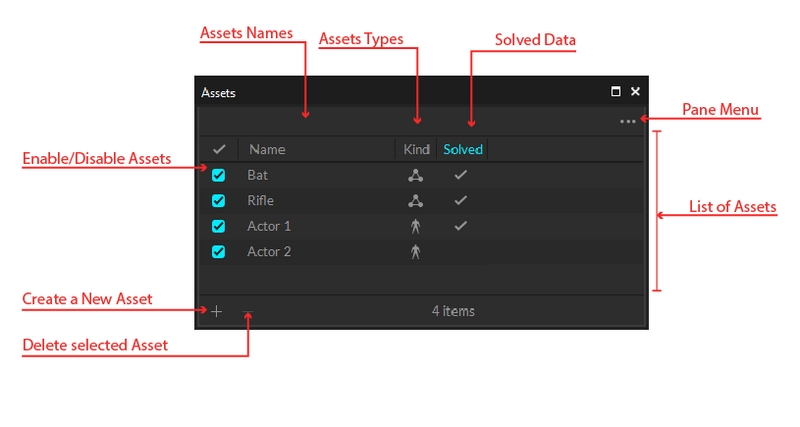
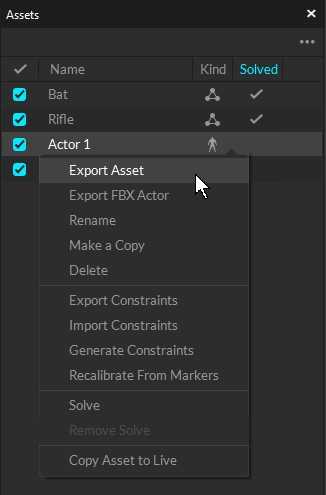


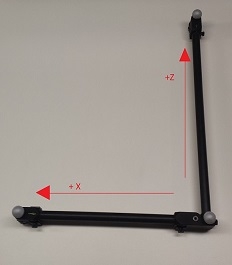
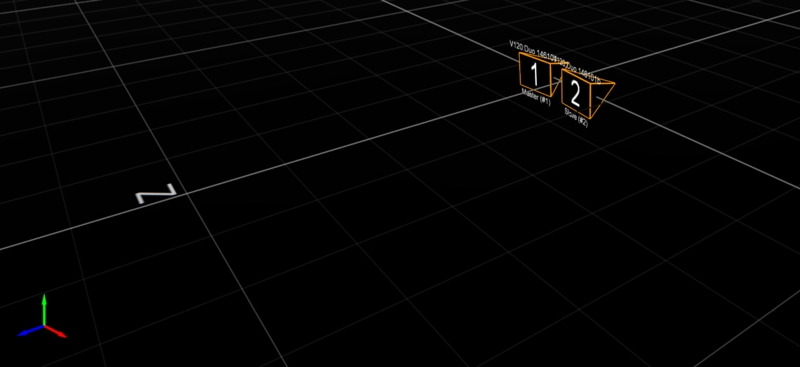
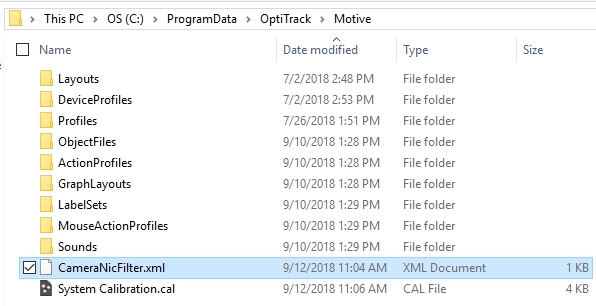
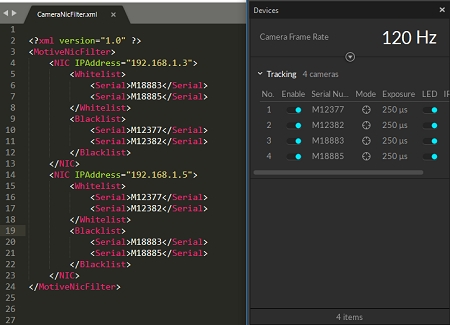
An overview of common features available in the Calibration Pane.
The Calibration pane is used to calibrate the capture volume for accurate tracking. This pane is typically open by default when Motive starts. It can also be opened by selecting Calibration from the View menu, or by clicking the icon.
Calibration is essential for high quality optical motion capture systems. During calibration, the system computes the position and orientation of each camera and number of distortions in captured images to construct a 3D capture volume in Motive. This is done by observing 2D images from multiple synchronized cameras and associating the position of known calibration markers from each camera through triangulation.
If there are any changes in a camera setup the system must be recalibrated to accommodate those changes. Additionally, calibration accuracy may naturally deteriorate over time due to ambient factors such as fluctuations in temperature. For this reason, we recommend recalibrating the system periodically.
Motive's General Settings defined.
Use the Application Settings panel to customize Motive and set default values. This page will cover the items available on the General tab. Properties are Standard unless noted otherwise.
Please see the following pages for descriptions of the settings on other tabs:


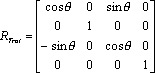
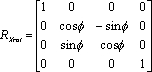


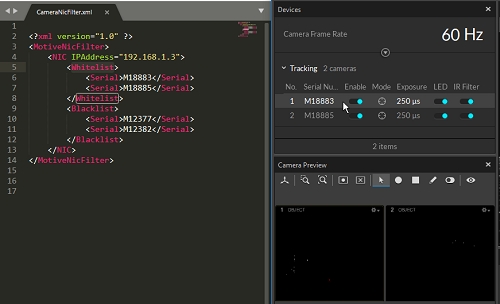
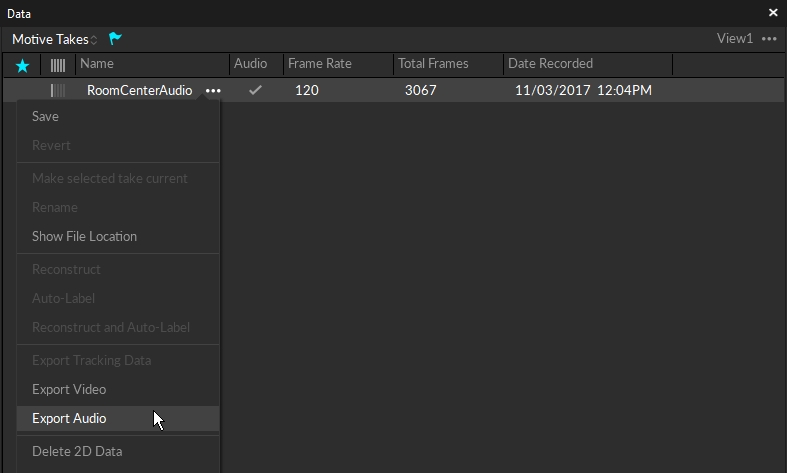
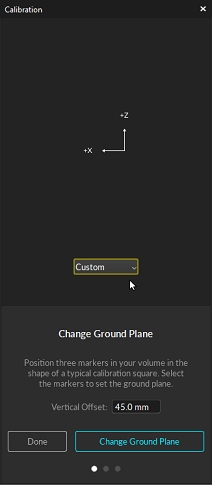
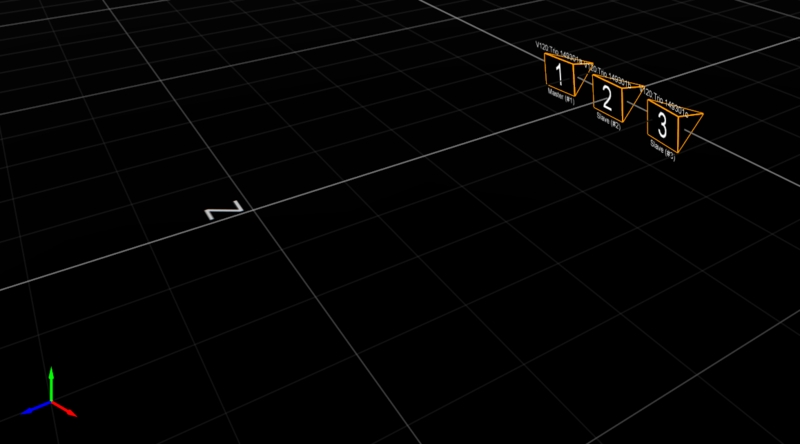
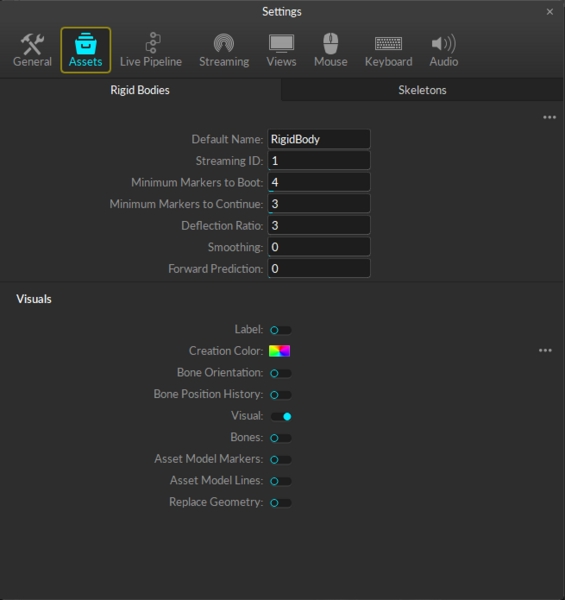
IMU: The constraint associated with a sensor-fused IMU in a rigid body. Designated with the icon in the Type column.


: Debugging
Validate if the dropped frame was in 2D or 3D. Data can be reconstructed in Edit mode unless 2D data is missing.


This page will provide a brief overview of the options available on the Calibration Pane. For more detail on these functions and to learn more about calibration outside of the functionality of the Calibration pane, please read the Calibration page.
Before you begin the calibration process, ensure the volume is properly setup for the capture.
Place the cameras. Read more on the Camera Placement page.
Aim and focus the cameras. Read more on the Aiming and Focusing page.
Remove all extraneous reflections or markers in the volume. Cover any that cannot be removed.
When you are ready to begin calibrating, click the New Calibration button.
The first step in the system calibration process is to mask any reflections that cannot be removed from the volume or covered during calibration, such as the light from another camera.
During masking, the calibration pane will display the cameras in a grid. When a camera detects reflections in its view, a warning icon will display for that camera in the Calibration pane.
Prime series camera indicator LED rings will light up in white if reflections are detected.
Check the corresponding camera view to identify where the reflection is coming from, and if possible, remove it from the capture volume or cover it for the calibration.
In the Calibration pane, click Mask to apply masks over all reflections in the view that cannot be removed or covered, such as other cameras.
If masks were previously applied during another calibration or manually via the 2D viewport and they are no longer needed, click Clear Masks to remove them.
Cancels the calibration process and returns to the Calibration pane's initial window.
Applies masks to all detected objects in the capture volume.
This button bypasses the masking process and is not recommended.
This button will move to the next phase of the Calibration process with the masks applied.
Full: Calibrate all the cameras in the volume from scratch, discarding any prior known position of the camera group or lens distortion information. A full calibration will also take the longest time to run.
Refine: Adjusts slight changes in the calibration of the cameras based on prior calibrations. This will solve faster than a full calibration. Use this only if the cameras have not moved significantly since they were last calibrated. A refine calibration will allow minor modifications in camera position and orientation, which can occur naturally from the environment, such as due to mount expansion.
Refinement cannot run if a full calibration has not been completed previously on the selected cameras.
Select the wand to use to calibrate the volume. Please refer to the Wand Types section on the Calibration page for more detail.
This button moves back one step to the masking window.
The Start Wanding button begins the calibration process. Please see Wanding Steps in the Calibration page for more information on wanding.
The Calibration pane will display a table of the wanding status to monitor the progress. For best results, wand evenly and comprehensively throughout the volume, covering both low and high elevations.
Continue wanding until the camera squares in the Calibration pane turn from dark green (insufficient number of samples) to light green (sufficient number of samples). Once all the squares have turned light green the Start Calculating button will become active.
Press Start Calculating. Generally, 1,000-4,000 samples per camera are enough. Samples above this threshold are unnecessary and can be detrimental to a calibration's accuracy.
Displays the number of samples each camera has captured. Between 1,000-4,000 samples is ideal.
The Start Calculating button stops the collection of samples and begins calculating the calibration based on the samples taken during the wanding stage.
Camera squares will start out red, and change color based on the calibration results:
Red: Calibration samples are Poor and have a high Mean Ray Error.
Light Red: Calibration samples are fair.
Gray: Calibration samples are Good.
Dark Cyan: Calibration samples are Excellent.
Light Cyan: Calibration samples are Exceptional.
If the results are acceptable, press Continue to apply the calibration. If not, press Cancel and repeat the wanding process.
In general, if the results are anything less than Excellent, we recommend you adjust the camera settings and/or wanding techniques and try again.
The final step in the calibration process is to set the ground plane.
Auto (default setting): Automatically detect the ground plane once it's in the volume.
Custom: Create your own custom ground plane by positioning three markers that form a right-angle with one arm longer than the other, like the shape of the calibration square. Measure the distance from the midpoint of the marker to the ground and enter that value in the vertical offset field.
Rigid Body: Select a rigid body and set the ground plane to the rigid body's pivot point.
Once you have selected the appropriate ground plane, click Set Ground Plane to complete the calibration process.
On the main Calibration pane, Click Change Ground Plane... for additional tools to further refine your calibration. Use the page selector at the bottom of the pane to access the various pages.
The Ground Plane Refinement feature improves the leveling of the coordinate plane. This is useful when establishing a ground plane for a large volume, because the surface may not be perfectly uniform throughout the plane.
To use this feature, place several markers with a known radius on the ground, and adjust the vertical offset value to the corresponding radius. Select these markers in Motive and press Refine Ground Plane. This will adjust the leveling of the plane using the position data from each marker.
To adjust the position and orientation of the global origin after the capture has been taken, use the capture volume translation and rotation tool.
To apply these changes to recorded Takes, you will need to reconstruct the 3D data from the recorded 2D data after the modification has been applied.
To rescale the volume, place two markers a known distance apart. Enter the distance, select the two markers in the 3D Viewport, and click Scale Volume.
To load a previously completed calibration, click Load Calibration, which will open to the Calibrations folder. Select the Calibration (*.cal) file you wish to load and click OK.
Calibration files are automatically saved in the default Calibrations folder every time a calibration is completed. Click Open Calibration Folder to manage calibration files using Windows File Explorer. Calibration files cannot be opened or loaded into Motive from this window.
The continuous calibration feature continuously monitors and refines the camera calibration to its best quality. When enabled, minor distortions to the camera system setup can be adjusted automatically without wanding the volume again. For detailed information, read the Continuous Calibration page.
Enabled: Turns on Continuous Calibration.
Status: Displays the current status of Continuous Calibration:
Sampling: Motive is sampling the position of at least four markers.
Evaluating: Motive is calculating the newly acquired samples.
Anchor markers can be used to further improve continuous calibration updates, especially on systems that consists of multiple sets of cameras that are separated into different tracking areas, by obstructions or walls, with limited or no camera view overlap.
Click the right dot at the bottom of the Calibration pane to view the anchor marker window.
For more information regarding anchor markers, visit the Anchor Marker Setup section of the Continuous Calibration page.
Application Settings can be accessed from the View menu or by clicking the icon on the main toolbar.
The following items are available in the top section of the General section. Settings are Standard unless noted otherwise.
Set the separator (_) and string format specifiers (%03d) for the suffix added after existing file names.
Enable auto-archiving of Takes when trimming Takes.
Set the default device profile, in XML format, to load into Motive. The device profile determines and configures the settings for peripheral devices such as force plates, NI-DAQ, or navigation controllers.
When enabled, all of the session folders loaded in the Data pane when exiting will be available again when launching Motive the next time.
Enter the IP address of the glove server, if one is used. Leave blank to use the Local Host IP.
Click the folder icon to the right of the field to select a text file to write the Motive event log to. This allows you to maintain a continuous log that persists between sessions, which can be helpful for troubleshooting.
The following items are available in the Camera Displays section. Settings are Standard unless noted otherwise.
Display the assigned camera number on the front of each camera.
Set how Camera IDs are assigned for each camera in a setup. Available options are:
By Location: Follows the positional order in a clockwise direction, starting from the -X and -Z quadrant with respect to the origin.
By Serial Number: Numbers the cameras in numerical order by serial number.
Custom: Opens the Number property field for editing in the Camera Properties pane.
Set the color of the RGB Status Indicator Ring LEDs (Prime Series cameras only) to indicate various camera statuses in Motive.
Live
(Default: Blue) Camera is in Live mode.
(Default: Green) Camera is recording a capture.
(Default: Black) Camera is idle while Motive is in playback mode.
(Default: Yellow) Camera is selected.
(Default: Orange) Camera is in video (reference) mode.
(Default: Enabled) Enable the hibernation light for all cameras when Motive is closed.
(Default: Enabled) Display visuals of wanding coverage in the Camera Viewport during calibration.
(Default: Off) Turn off all numeric LEDs and ring lights on all cameras in the system.
All of the Aim Assist settings are standard settings.
(Default: On) Set the Aim Assist button on the back of the camera to toggle the camera between MJPEG mode and back to the default camera group record mode.
(Default: Grayscale Only) Display aiming crosshairs on the the camera in the Camera Viewport. Options are None, Grayscale Only, All Modes.
(Default: On) Enable the LED light on the Aim Assist button on the back of the Prime Series cameras.
All calibration settings are part of the General tab's Advanced Settings.
(Default: On) Automatically load the previous, or last saved, calibration file when starting Motive.
(Default: 1 s) The duration, in seconds, that the camera system will auto-detect extraneous reflections for masking during Calibration process.
(Default: 1,000) Number of samples suggested for calibration. During the wanding process, the camera status in the Calibration pane will turn bright green as cameras reach this target.
(Default: On) Save two TAKE files in the current data folder every time a calibration is performed: one for the calibration wanding and one for the ground plane.
(Default: On) Display visuals of wanding coverage in the Camera Viewport during calibration.
(Default: Off) Allows editing of the camera calibration position with the 3D Gizmo tool.
(Default: Disabled) Select the default mode for Bumped Camera correction. Options are Disabled, Camera Samples, and Selected Camera. Please see the page Continuous Calibration (Info Pane) for more information on these settings and the Bumped Camera tool.
(Default: 100 mm) The maximum distance cameras can be translated by the position correction tool, in mm.
(Default: 120) The maximum length, in seconds, that samples are collected during continuous calibration.
(Default: Off) Allows Continuous Calibration to continue running while recording is in progress.
The Network setting is part of the General tab's Advanced Settings.
(Default: Override) Enable detection of PoE+ switches by High Power cameras (Prime 17W, PrimeX 22, Prime 41, and PrimeX41). LLDP allows the cameras to communicate directly with the switch and determine power availability to increase output to the IR LED rings.
When using Ethernet switches that are not PoE+ enabled or switches that are not LLDP enabled, cameras will not go into high power mode even with this setting on.
All of the Editing settings are standard settings.
(Default: Always Ask) Set Motive's default behavior when changes are made to a TAKE file. Options are:
Do Not Auto-Save: Changes made to TAKE files must be manually saved.
Auto-Save: Updates the TAKE file as changes are made.
Always Ask: Prompts the user to save TAKE files upon exit.
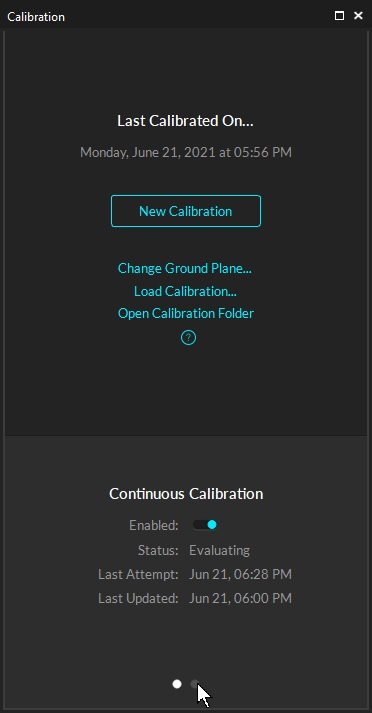
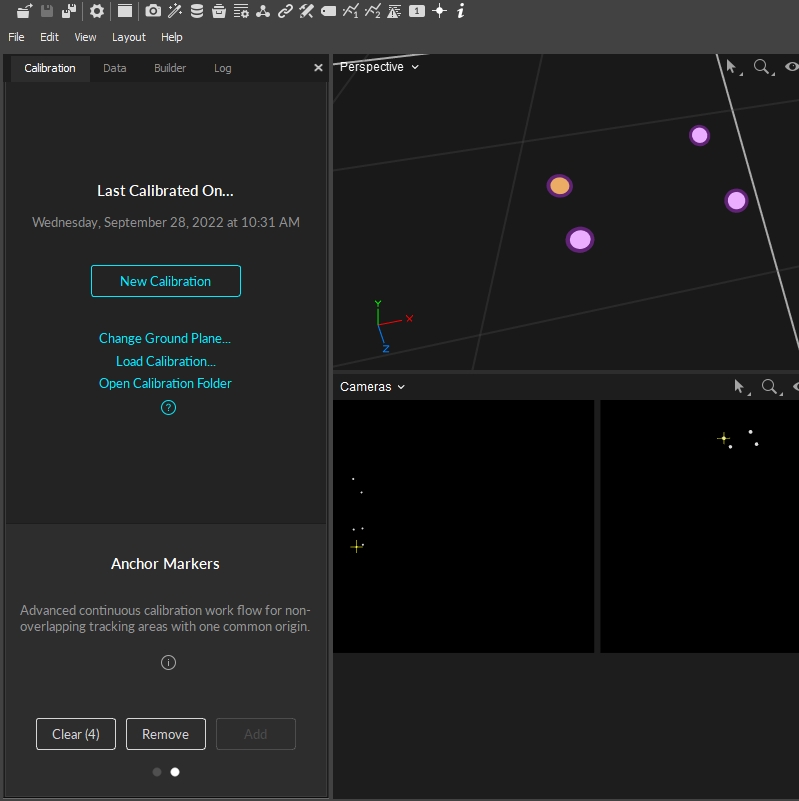
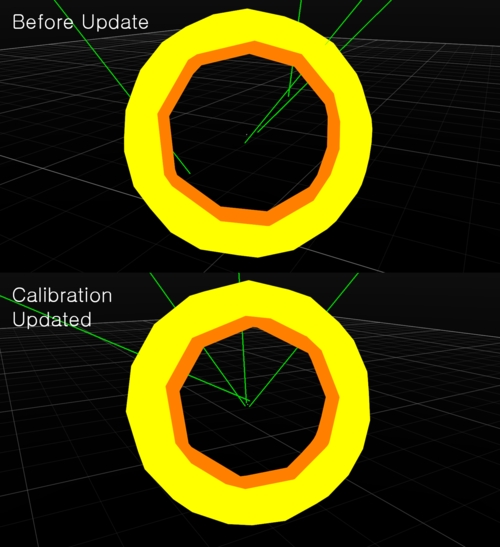
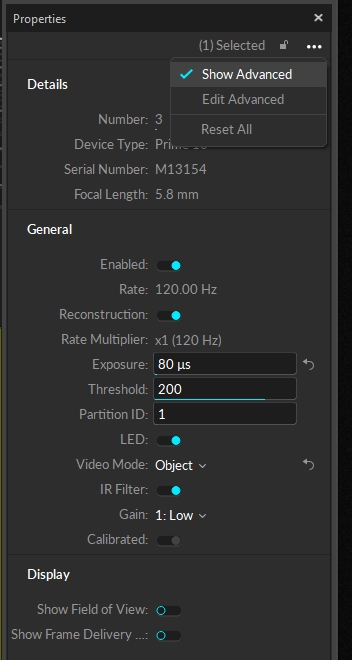
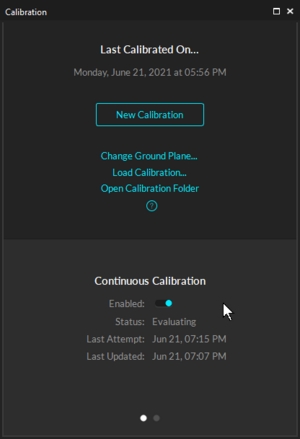
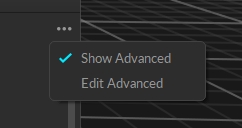
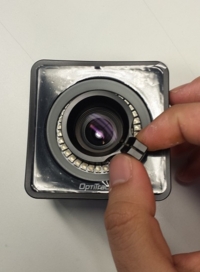
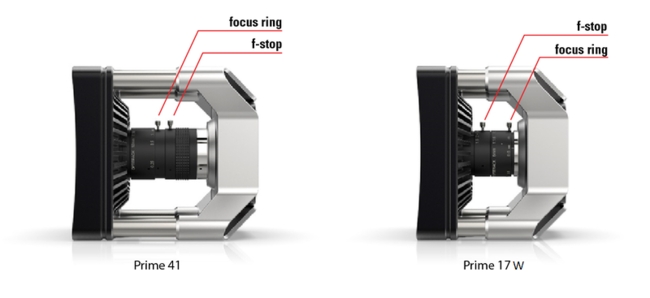
A Motive Body license can export tracking data into FBX files for use in other 3D pipelines. There are two types of FBX files: Binary FBX and ASCII FBX.
For more information, please visit site.
Autodesk has discontinued support for FBX ASCII import in MotionBuilder 2018 and above. For alternatives when working in MotionBuilder, please see the page.
Exported FBX files in ASCII format can contain reconstructed marker coordinate data as well as 6 Degree of Freedom data for each involved asset depending on the export setting configurations. ASCII files can also be opened and edited using text editor applications.
FBX ASCII Export Options
Binary FBX files are more compact than ASCII FBX files. Reconstructed 3D marker data is not included within this file type, but selected Skeletons are exported by saving corresponding joint angles and segment lengths. For Rigid Bodies, positions and orientations at the defined Rigid Body origin are exported.
Make sure Individual Assets is selected when using the Remove Bone Name Prefixes option to export multiple skeletons, otherwise only one skeleton will be exported.
To include fingertips as nulls (Locators) in the export, the skeleton must contain hand bones. Select the following export options to export this data:
Marker Nulls
Unlabeled Markers
Interpolated Finger Tips
This page provides instructions on how to set up and use the OptiTrack active marker solution.
The OptiTrack Active Tracking solution allows synchronized tracking of active LED markers using an OptiTrack camera system. Consisting of the Base Station and the users choice Active Tags that can be integrated in to any object and/or the "Active Puck" which can act as its own single Rigid Body.
Connected to the camera system the Base Station emits RF signals to the active markers, allowing precise synchronization between camera exposure and illumination of the LEDs. Each active marker is now uniquely labeled in Motive software, allowing more stable Rigid Body tracking since active markers will never be mislabeled and unique marker placements are no longer be required for distinguishing multiple Rigid Bodies.
Sends out radio frequency signals for synchronizing the active markers.
Powered by PoE, connected via Ethernet cable.
Must be connected to one of the switches in the camera network.
Connects to a USB power source and illuminates the active LEDs.
Receives RF signals from the Base Station and correspondingly synchronizes illumination of the connected active LED markers.
Emits 850 nm IR light.
4 active LEDs in each bundle and up to two bundles can be connected to each Tag.
An active tag self-contained into a trackable object, providing information with 6 DoF for any arbitrary object that it's attached to. Carries a factory installed Active Tag with 8 LEDs and a rechargeable battery with up to 10-hours of run time on a single charge.
Active tracking is supported only with the Ethernet camera system (Prime series or Slime 13E cameras). For instructions on how to set up a camera system see: .
Connects to one of the PoE switches within the camera network.
For best performance, place the base station near the center of your tracking space, with unobstructed lines of sight to the areas where your Active Tags will be located during use. Although the wireless signal is capable of traveling through many types of obstructions, there still exists the possibility of reduced range as a result of interference, particularly from metal and other dense materials.
Do not place external electromagnetic or radiofrequency devices near the Base Station.
Connect two sets of active markers (4 LEDs in each set) into a Tag.
Connect the battery and/or a micro USB cable to power the Tag. The Tag takes 3.3V ~ 5.0V of inputs from the micro USB cable. For powering through the battery, use only the batteries that are supplied by us. To recharge the battery, have the battery connected to the Tag and then connect the micro USB cable.
To initialize the Tag, press on the power switch once. Be careful not to hold down on the power switch for more than a second, because it will trigger to start the device in the firmware update (DFU) mode. If it initializes in the DFU mode, which is indicated by two orange LEDs, just power off and restart the Tag. To power off the Tag, hold down on the power switch until the status LEDs go dark.
Puck Setup
Press the power button for 1~2 seconds and release. The top-left LED will illuminate in orange while it initializes. Once it initializes the bottom LED will light up green if it has made a successful connection with the base station. Then the top-left LED will start blinking in green indicating that the sync packets are being received.
For more information, please read through the page.
Active Patten Depth
Settings → Live Pipeline → Solver Tab with Default value = 12
This adjusts the complexity of the illumination patterns produced by active markers. In most applications, the default value can be used for quality tracking results. If a high number of Rigid Bodies are tracked simultaneously, this value can be increased allowing for more combinations of the illumination patterns on each marker. If this value is set too low, duplicate active IDs can be produced, should this error appear increase the value of this setting.
Minimum Active Count
Settings → Live Pipeline → Solver Tab with Default value = 3
Setting the number of rays required to establish the active ID for each on frame of an active marker cycle. If this value is increased, and active makers become occluded it may take longer for active markers to be reestablished in the Motive view. The majority of applications will not need to alter this setting
Active Marker Color
Settings → Views → 3D Tab with Default color = blue
The color assigned to this setting will be used to indicate and distinguish active and passive markers seen in the viewer pane of Motive.
For tracking of the active LED markers, the following camera settings may need to be adjusted for best tracking results:
For tracking the active markers, set the camera exposures a bit higher compared to when tracking passive markers. This allows the cameras to better detect the active markers. The optimal value will vary depending on the camera system setups, but in general, you would want to set the camera exposure between 400 ~ 750, microseconds.
When tracking only active markers, the cameras do not need to emit IR lights. In this case, you can disable the IR settings in the .
With a BaseStation and Active Markers communicating on the same RF, active markers will be reconstructed and tracked in Motive automatically. From the unique illumination patterns, each active marker gets labeled individually, and a unique marker ID gets assigned to the corresponding reconstruction in Motive. These IDs can be monitored in the . To check the marker IDs of respective reconstructions, enable the Marker Labels option under the visual aids (), and the IDs of selected markers will be displayed. The marker IDs assigned to active marker reconstructions are unique, and it can be used to point to a specific marker within many reconstructions in the scene.
Duplicate active frame IDs
For the active label to properly work, it is important that each marker has a unique active IDs. When there are more than one markers sharing the same ID, there may be problems when reconstructing those active markers. In this case, the following notification message will show up. If you see this notification, please contact support to change the active IDs on the active markers.
In recorded 3D data, the labels of the unlabeled active markers will still indicate that it is an active marker. As shown in the image below, there will be Active prefix assigned in addition to the active ID to indicate that it is an active marker. This applies only to individual active markers that are not auto-labeled. Markers that are auto-labeled using a trackable model will be assigned with a respective label.
When a trackable asset (e.g. Rigid Body) is defined using active markers, it's active ID information gets stored in the asset along with marker positions. When auto-labeling the markers in the space, the trackable asset will additionally search for reconstructions with matching active ID, in addition to the marker arrangements, to auto-label a set of markers. This can add additional guard to the auto-labeler and prevents and mis-labeling errors.
Rigid Body definitions created from actively labeled reconstructions will search for respective marker IDs in order to solve the Rigid Body. This gives a huge benefit because the active markers can be placed in perfectly symmetrical marker arrangements among multiple Rigid Bodies and not run into labeling swaps. With active markers, only the 3D reconstructions with active IDs stored under the corresponding Rigid Body definition will contribute to the solve.
If a Rigid Body was created from actively labeled reconstructions, the corresponding Active ID gets saved under the corresponding Rigid Body properties. In order for the Rigid Body to be tracked, the reconstructions with matching marker IDs in addition to matching marker placements must be tracked in the volume. If the active ID is set to 0, it means no particular marker ID is given to the Rigid Body definition and any reconstructions can contribute to the solve.

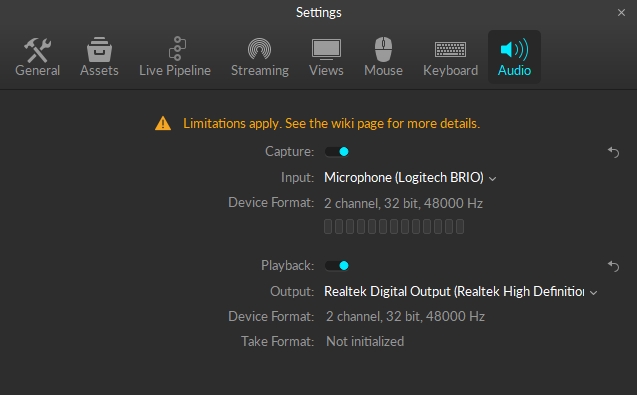
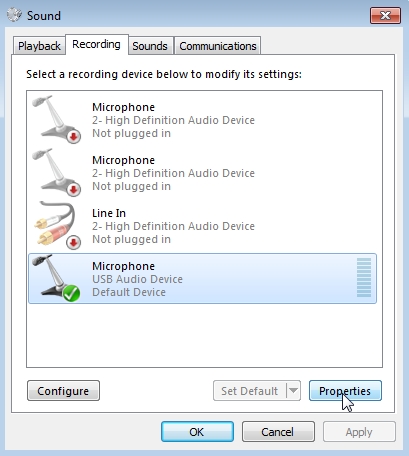
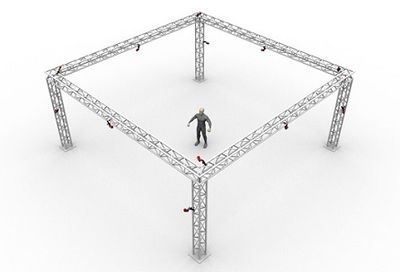
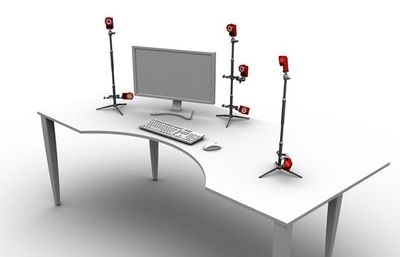
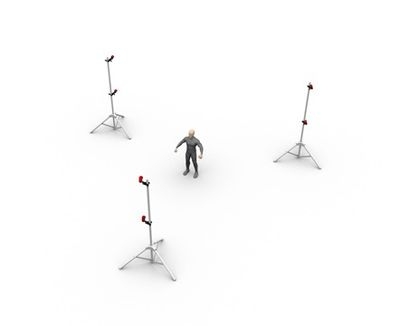
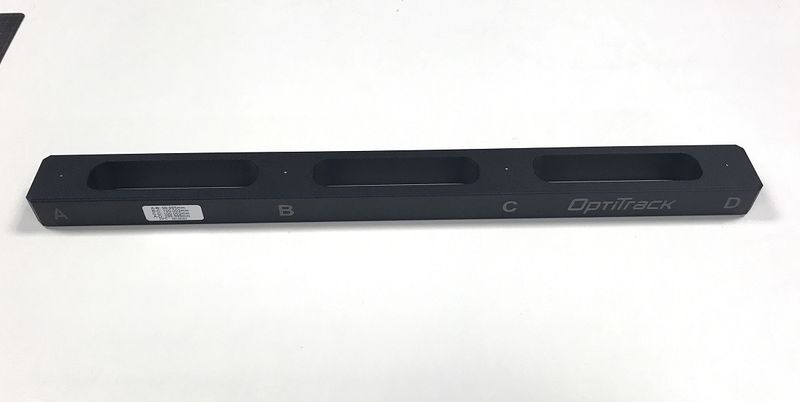
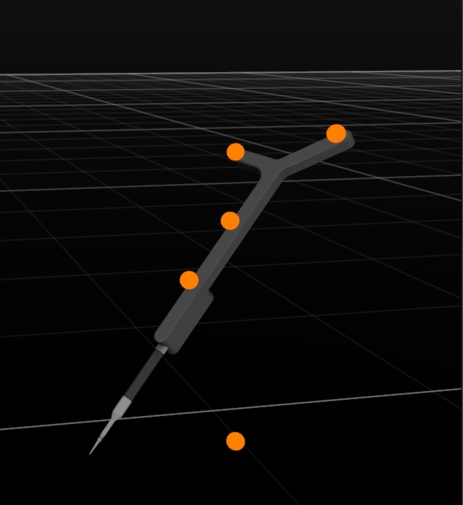
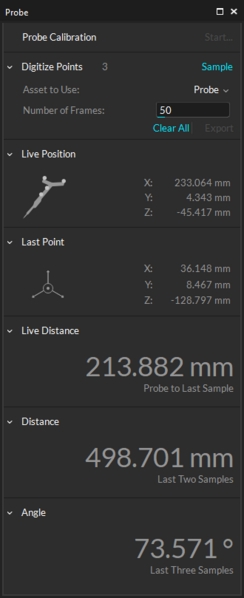
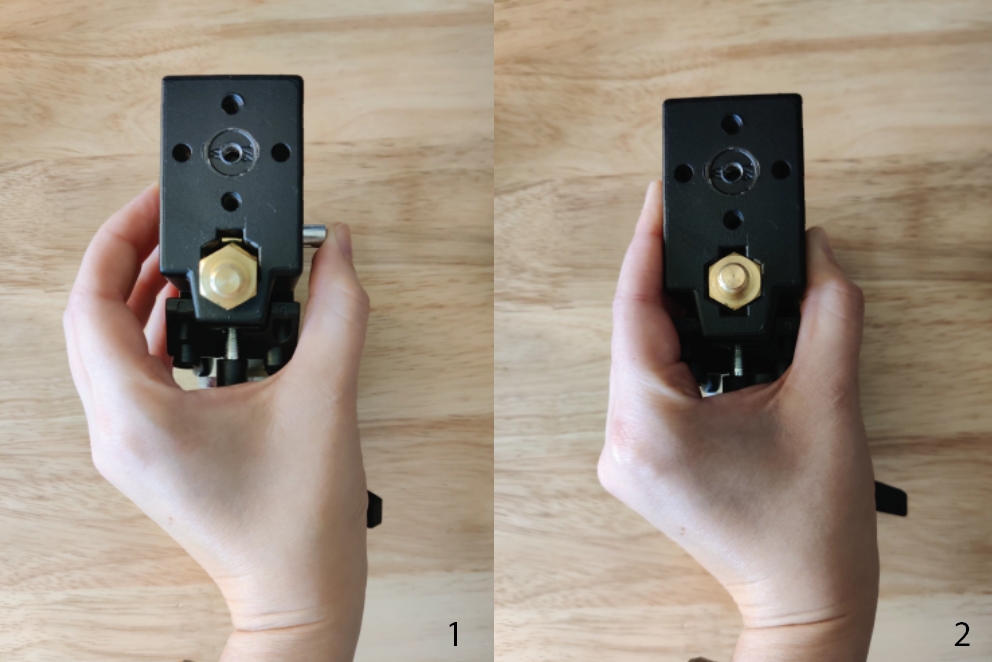
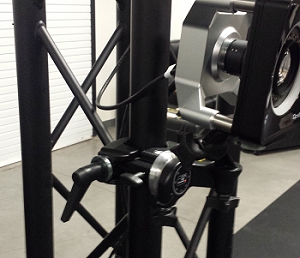
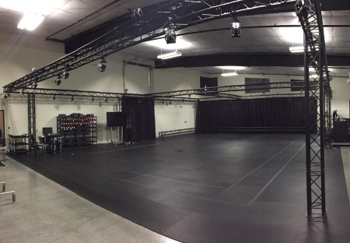
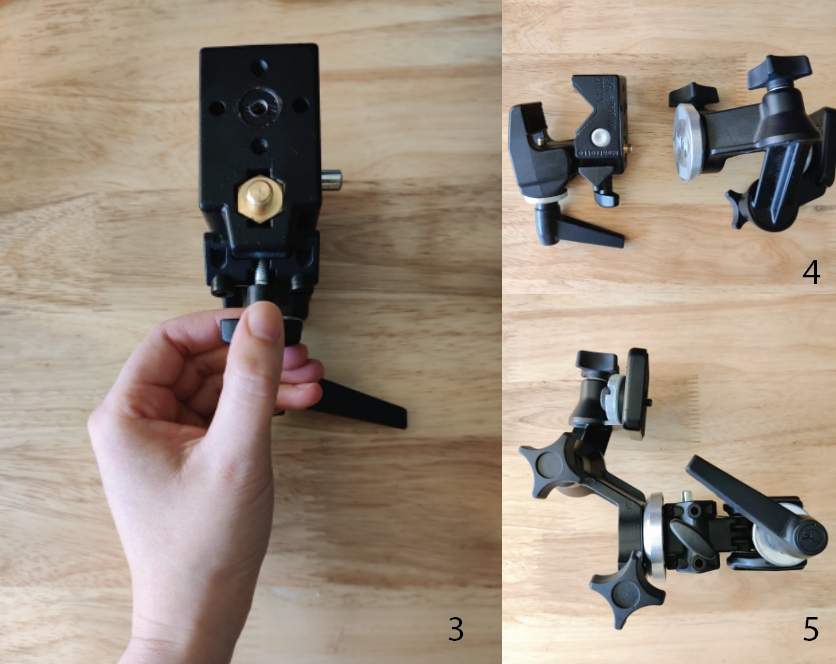
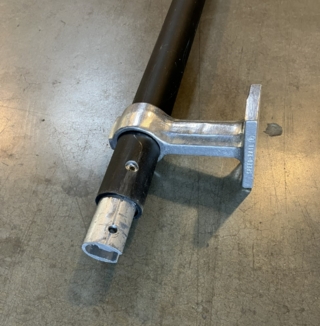
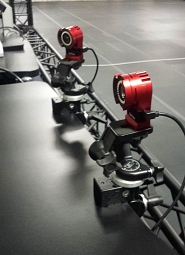
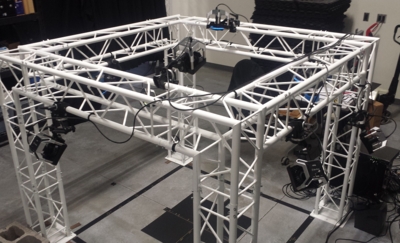
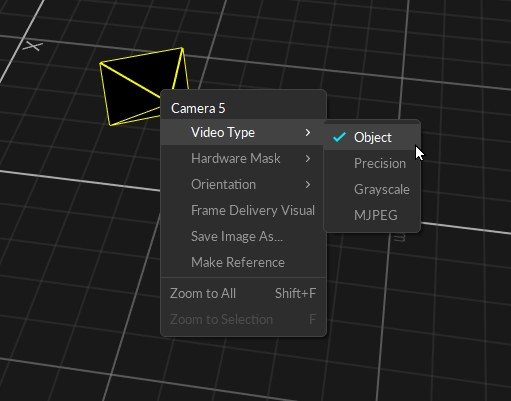
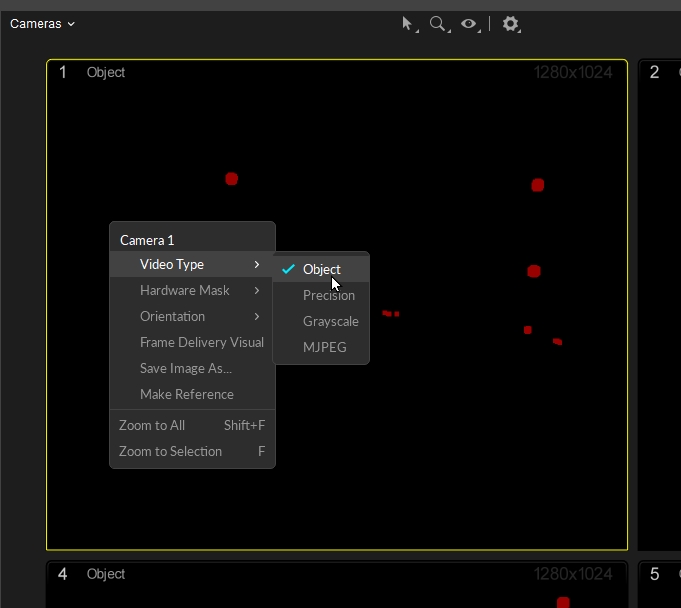
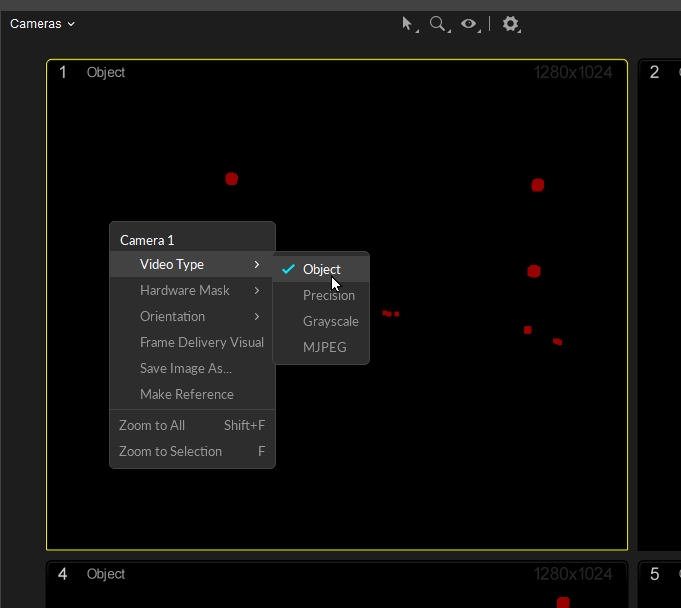
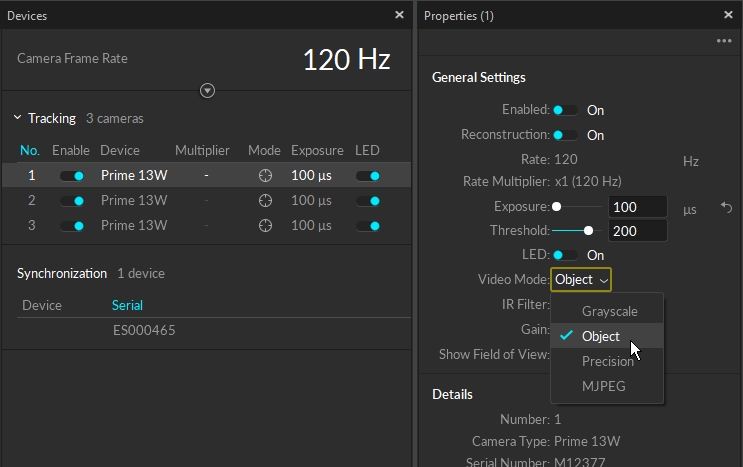
Captured tracking data can be exported in Comma Separated Values (CSV) format. This file format uses comma delimiters to separate multiple values in each row, which can be imported by spreadsheet software or a programming script. Depending on which data export options are enabled, exported CSV files can contain marker data, and data for Rigid Bodies, Trained Markersets, and/or Skeletons. Data for force plate, NI-DAQs, and other devices will export to separate files if these devices are included in the Take.
CSV export options are listed in the following charts:
General Export Options


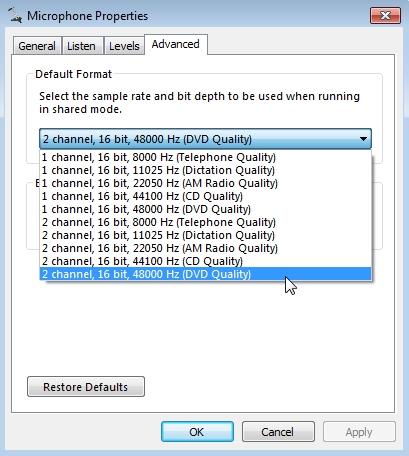
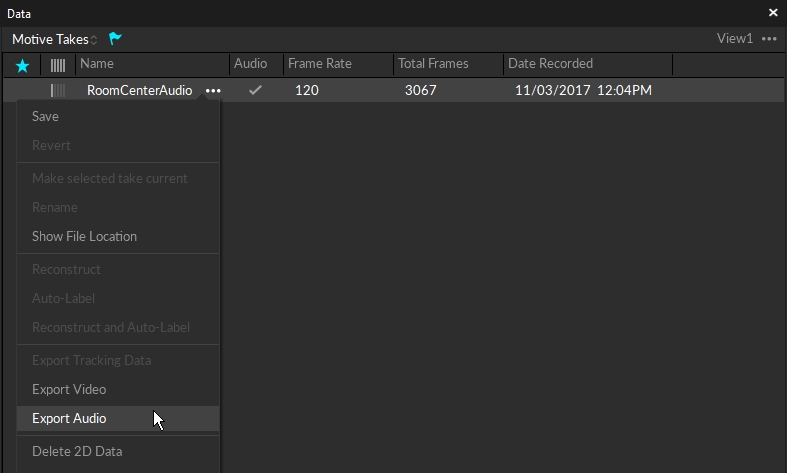
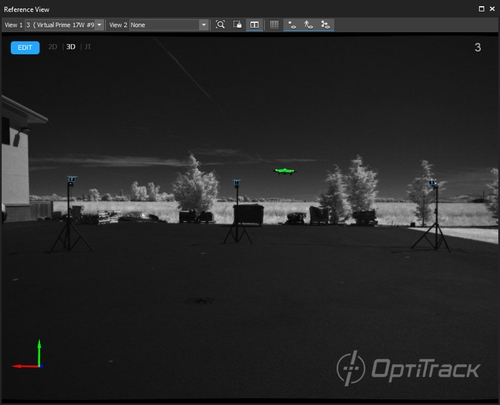
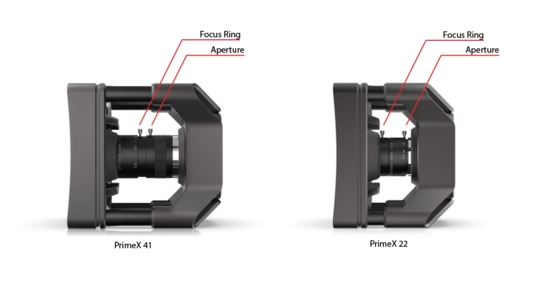
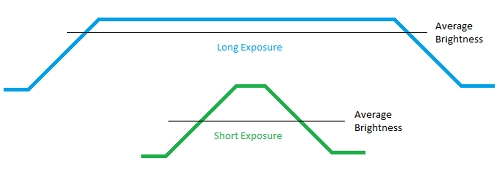

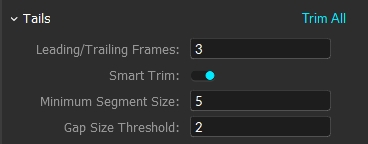
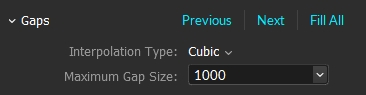

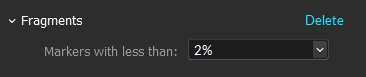
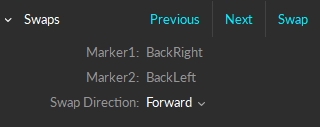
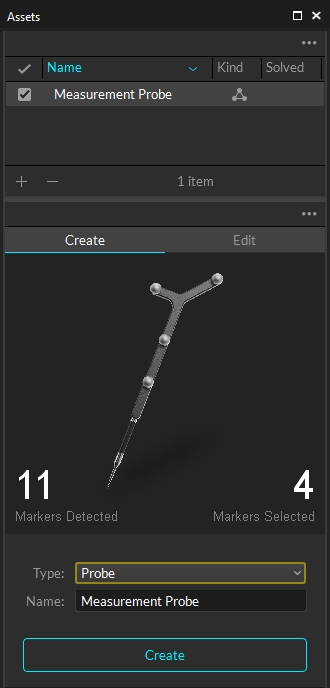
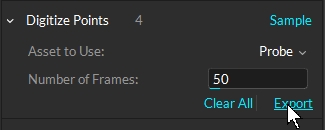
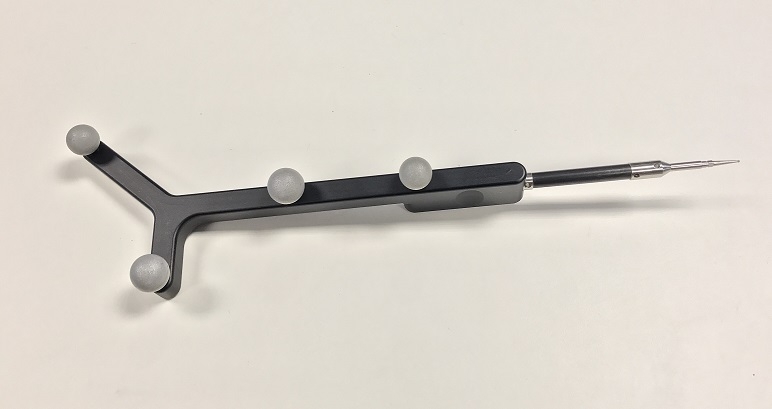
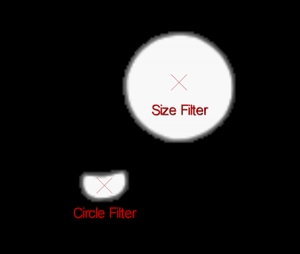
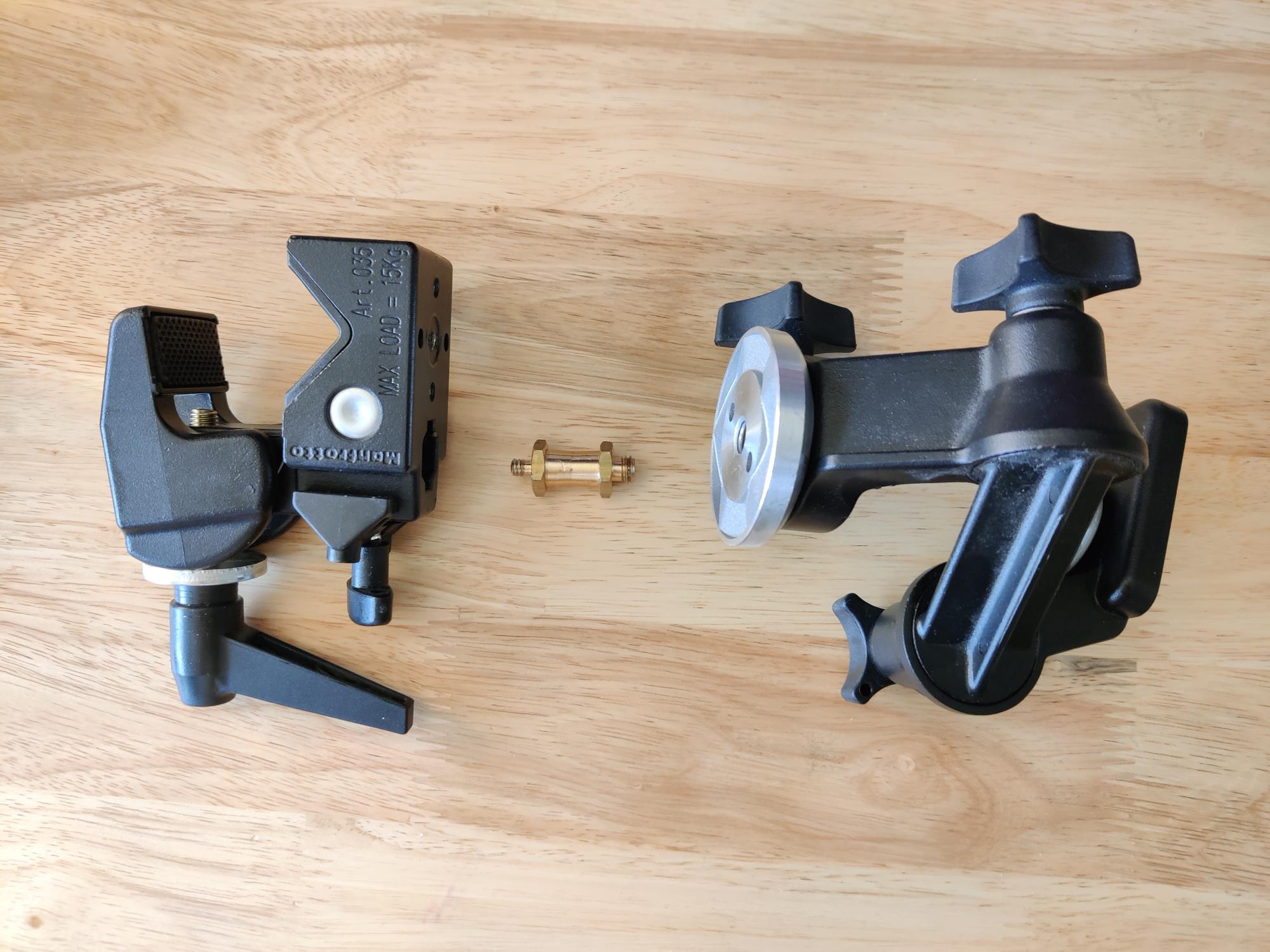
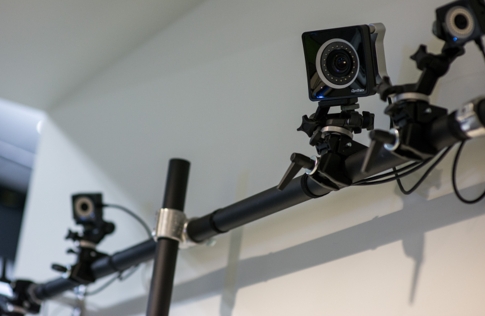
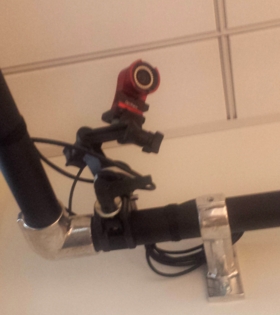
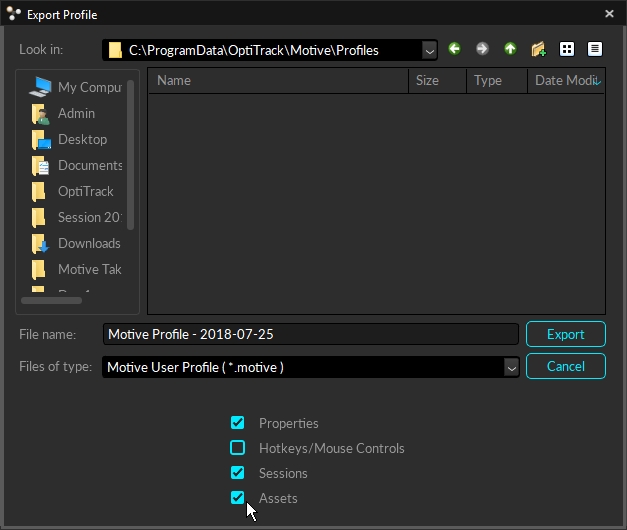
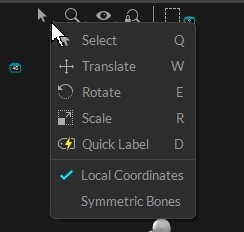
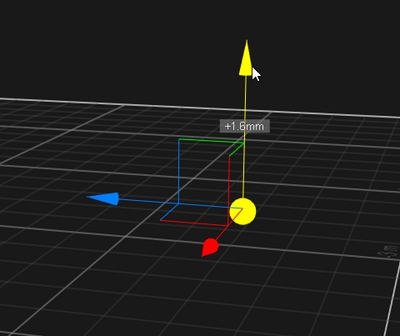
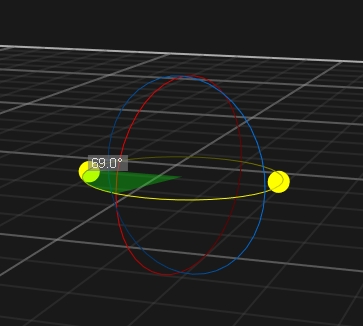
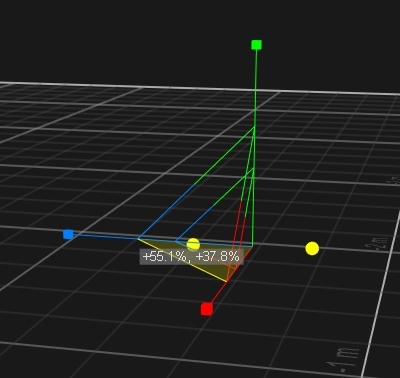
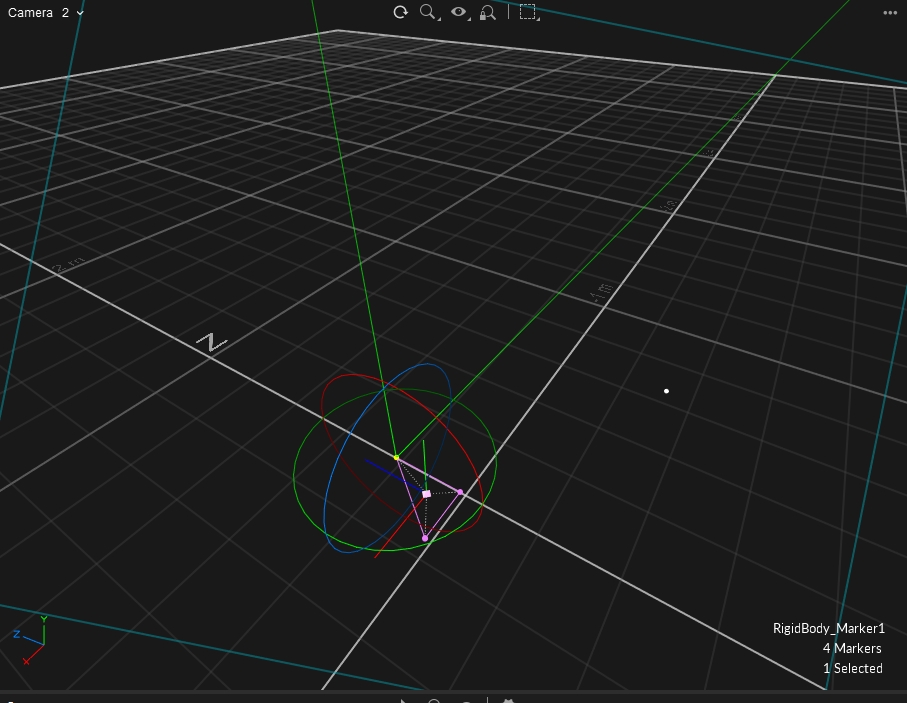
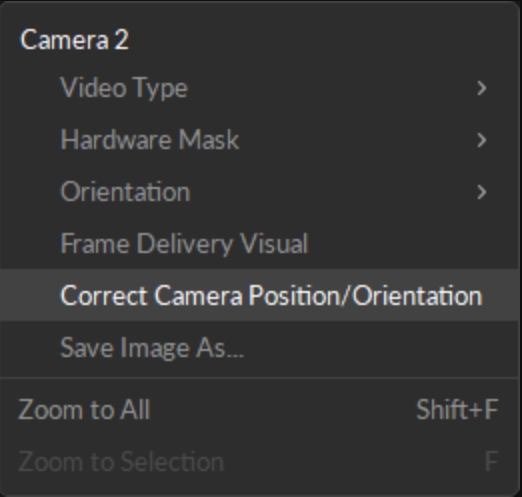
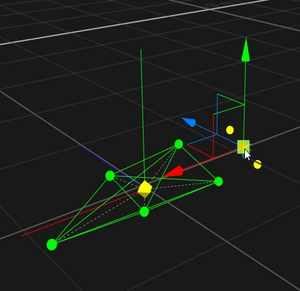
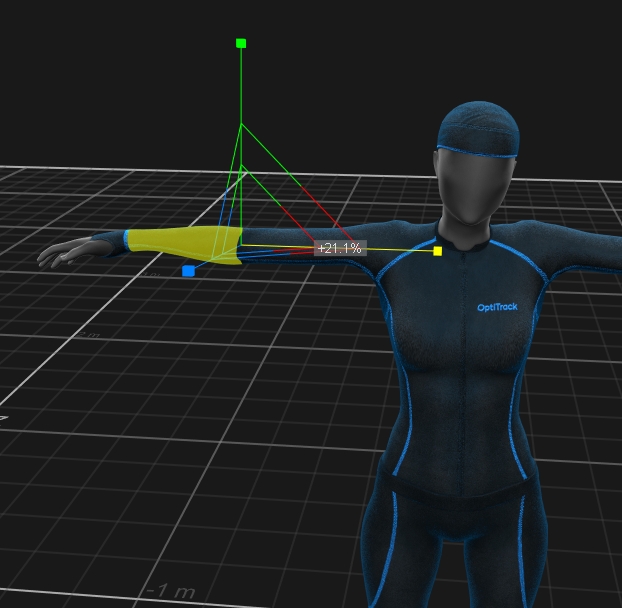
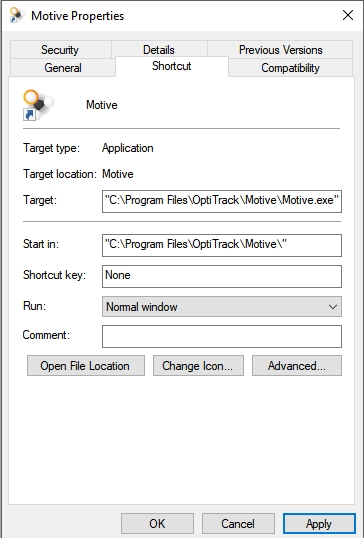
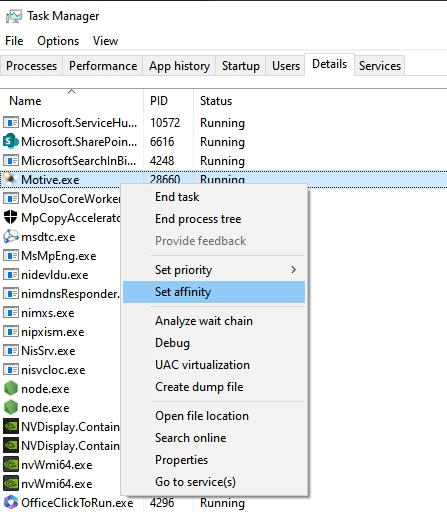
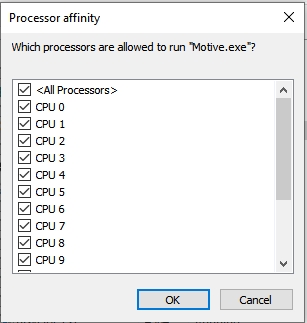
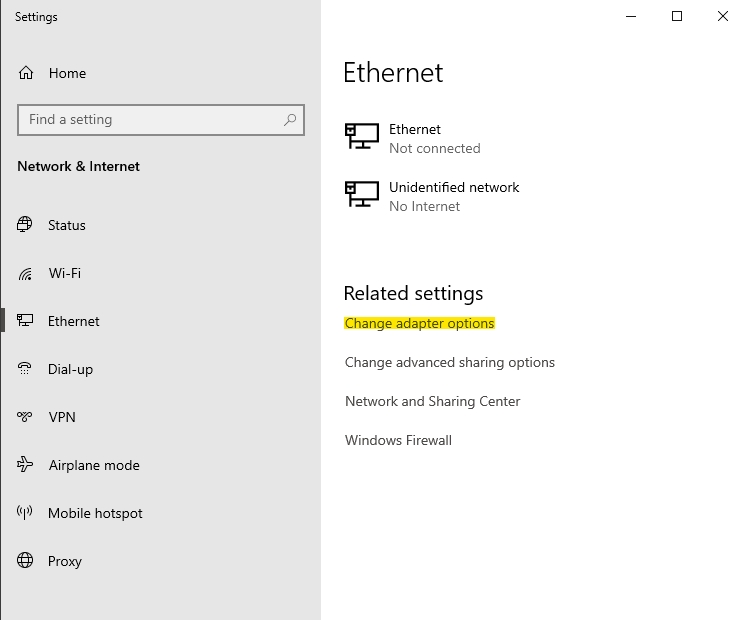
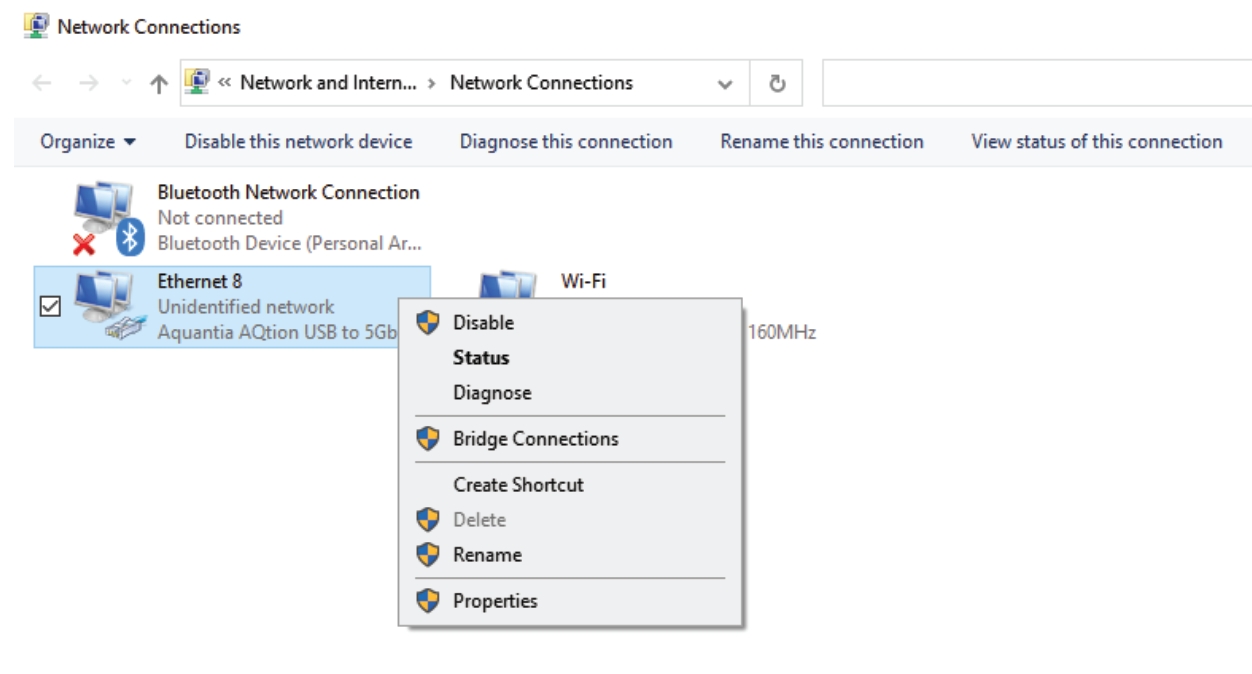
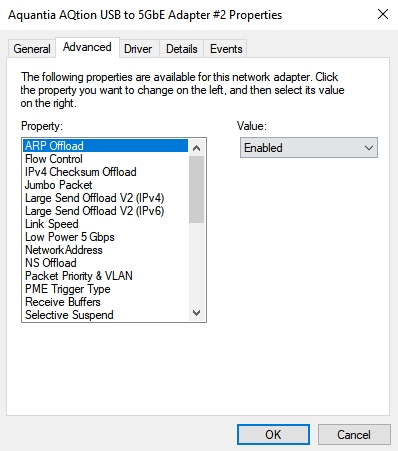
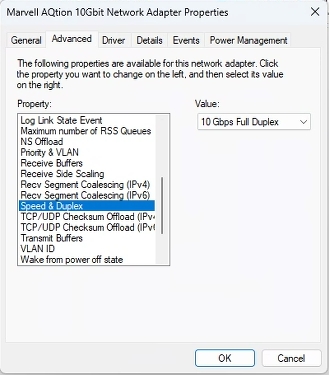
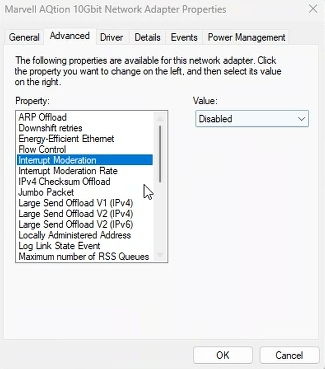
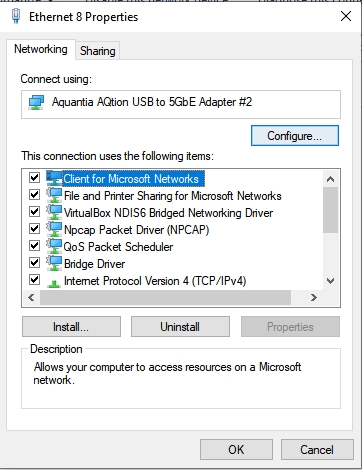
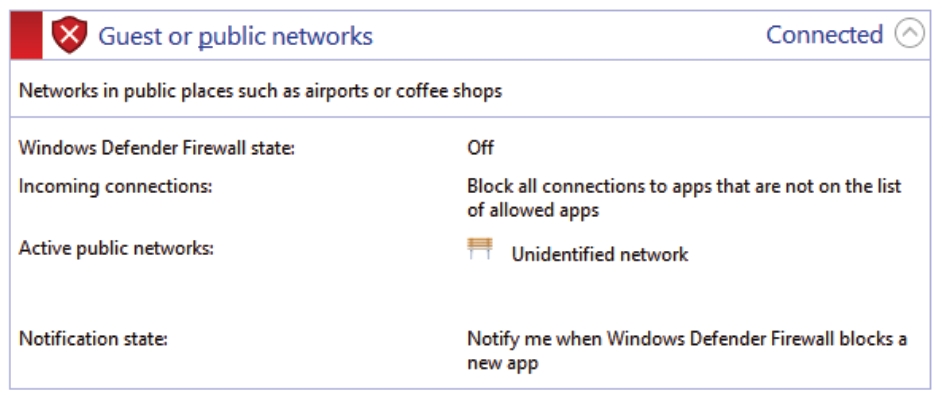
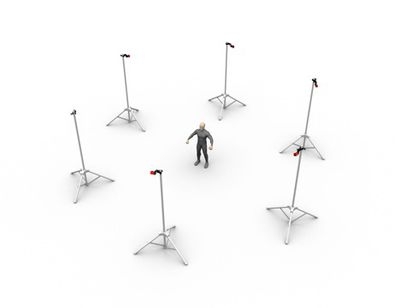
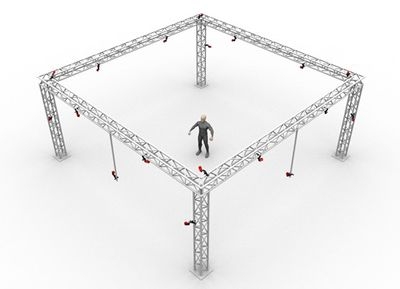
Use Timecode
Includes timecode.
Export FBX Actors
Includes FBX Actors in the exported file. Actor is a type of asset used in animation applications (e.g. MotionBuilder) to display imported motions and connect to a character. In order to animate exported actors, associated markers will need to be exported as well.
Skeleton Names
Select which skeletons will be exported: All skeletons, selected skeletons, or custom. The custom option will populate the selection field with the names of all the skeletons in the Take. Remove the names of the skeletons you do not wish to include in your export. Names must match the names of actual skeletons in the Take to export. Note: This field is only visible if Export FBX Actors is selected.
Optical Marker Name Space
Overrides the default name spaces for the optical markers.
Marker Name Separator
Choose ":" or "_" for marker name separator. The name separator will be used to separate the asset name and the corresponding marker name when exporting the data (e.g. AssetName:MarkerLabel or AssetName_MarkerLabel). When exporting to Autodesk MotionBuilder, use "_" as the separator.
Markers
Exports each marker's coordinates.
Unlabeled Markers
Includes unlabeled markers.
Calculated Marker Positions
Export asset's constraint marker positions as the optical marker data.
Interpolated Fingertips
Includes virtual reconstructions at the fingertips. Available only with Skeletons that support finger tracking.
Marker Nulls
Exports the location of each marker.
Export Skeleton Nulls
Can only be exported when is recorded for exported Skeleton assets. Exports 6 Degree of Freedom data for every bone segment in selected Skeletons.
Rigid Body Nulls
Can only be exported when is recorded for exported Rigid Body assets. Exports 6 Degree of Freedom data for selected Rigid Bodies. Orientation axes are displayed on the geometrical center of each Rigid Body.
Use Timecode
Includes timecode.
Export Skeletons
Export Skeleton nulls. Please note that the must be recorded for Skeleton bone tracking data to be exported. It exports 6 Degree of Freedom data for every bone segment in exported Skeletons.
Skeleton Names
Select which skeletons will be exported: All skeletons, selected skeletons, or custom. The custom option will populate the selection field with the names of all the skeletons in the Take. Remove the names of the skeletons you do not wish to include in your export. Names must match the names of actual skeletons in the Take to export.
Name Separator
Choose ":" or "_" for marker name separator. The name separator will be used to separate the asset name and the corresponding marker name when exporting the data (e.g. AssetName:MarkerLabel or AssetName_MarkerLabel). When exporting to Autodesk Motion Builder, use "_" as the separator.
Bone Naming Convention
Select Motive, FBX, or UnrealEngine.
Rigid Body Nulls
Can only be exported when is recorded for exported Rigid Body assets. Exports 6 Degree of Freedom data for selected Rigid Bodies. Orientation axes are displayed on the geometrical center of each Rigid Body.
Rigid Body Names
Names of the Rigid Bodies to export into the FBX binary file as 6 DoF nulls.
Markerset Nulls
Can only be exported when is recorded for exported trained markerset assets. Exports 6 Degree of Freedom data for selected assets. Orientation axes are displayed on the geometrical center of each markerset.
Markerset Names
Select which markersets will be exported: All markersets, selected markersets, or custom. The custom option will populate the selection field with the names of all the markersets in the Take. Remove the names of the markersets you do not wish to include in your export. Names must match the names of actual markersets in the Take to export.
Marker Nulls
Exports the location of each marker. This setting must be enabled to export interpolated finger tip data.
Unlabeled Markers
Includes unlabeled markers. This setting must be enabled to export interpolated finger tip data.
Interpolated Fingertips
Includes virtual reconstructions at the fingertips. Available only with Skeletons that support finger tracking. Both Marker Nulls and Unlabeled Markers must be enabled also.
Exclude Fingers
When set to true, exported skeletons will not include the fingers, if they are tracked in the Take file.
Cameras
Select the cameras to include in your export. Options are All Color Cameras, All Cameras, or none (default).
Skeleton Stick Mesh
Select this option if exporting to a game engine that requires an FBX mesh asset to apply tracked skeletons to other characters for retargeting purposes.
Individual Assets
Exports the data for each asset into a separate file.
Remove Bone Name Prefixes
Removes the skeleton name prefix from the bones to create skeletons that are easily retargetable and interchangeable. Use when exporting into Unreal Engine.
Frame Rate
Number of samples included per every second of exported data.
Start Frame
Start frame of the exported data. You can set it to the recorded first frame of the exported Take (the default option), to the start of the working range (or scope range), as configured under the Control Deck or in the Graph View pane, or select Custom to enter a specific frame number.
End Frame
End frame of the exported data. You can set it to the recorded end frame of the exported Take (the default option), to the end of the working range (or scope range), as configured under the Control Deck of in the Graph View pane, or select Custom to enter a specific frame number.
Scale
Apply scaling to the exported tracking data.
Units
Set the unit in exported files.
Frame Rate
Number of samples included per every second of exported data.
Start Frame
Start frame of the exported data. You can set it to the recorded first frame of the exported Take (the default option), to the start of the working range (or scope range), as configured under the Control Deck or in the Graph View pane, or select Custom to enter a specific frame number.
End Frame
End frame of the exported data. You can set it to the recorded end frame of the exported Take (the default option), to the end of the working range (or scope range), as configured under the Control Deck of in the Graph View pane, or select Custom to enter a specific frame number.
Scale
Apply scaling to the exported tracking data.
Units
Sets the unit for exported segment lengths.

(8 Active LEDs (4(LEDs/set) x 2 set) per Tag)
Size: 5 mm (T1 ¾) Plastic Package, half angle ±65°, typ. 12 mW/sr at 100mA
Interference Indicator LED: The middle LED is an indicator for determining whether if there are other signal-traffics on the respective radio channel and PAN ID that might be interfering with the active components. This LED should stay dark in order for the active marker system to work properly. If it flashes red, consider switching both the channel and PAN ID on all of the active components.
Power Indicator LED: The LED located at the corner, furthest from the antenna, indicates power for the BaseStation.
Once powered, you should be able to see the illumination of IR LEDs from the 2D reference camera view.
Frame Rate
Number of samples included per second of exported data.
Start Frame
Start frame of the exported data. Set to one of the following:
The recorded first frame of the exported Take (the default option).
The start of the working range (or scope range) as configured under the in the .
Custom to enter a specific frame number.
End Frame
End frame of the exported data. Set to one of the following:
The recorded end frame of the exported Take (the default option).
The end of the working range (or scope range) as configured under the in the .
Custom to enter a specific frame number.
Scale
Apply scaling to the exported tracking data.
Units
Set the measurement units to use for exported data.
Axis Convention
Sets the axis convention on exported data. This can be set to a custom convention or select preset conventions for Entertainment or Measurement.
X Axis Y Axis Z Axis
CSV Export Options
Header information
Detailed information about capture data is included as a header in exported CSV files. See for specifics.
Markers
X/Y/Z reconstructed 3D positions for each marker in exported CSV files.
Unlabeled Markers
Includes tracking data of all of the unlabeled makers to the exported CSV file along with other labeled markers. To view only the labeled marker data, turn off this export setting.
Rigid Body Bones
The exported CSV file will contain 6 Degrees of Freedom (6 DoF) data for each rigid body from the Take. This includes orientations (pitch, roll, and yaw) in the chosen rotation type as well as 3D positions (x,y,z) of the rigid body center.
Rigid Body Constraints
3D position data for the location of each Marker Constraint of rigid body assets. This is distinct from the actual marker location. Compared to the positions of the raw marker positions included within the Markers columns, the Rigid Body Constraints show the solved positions of the markers as affected by the rigid body tracking but not affected by occlusions.
Coordinates for exported data are either global to the volume or local to the asset.
Defines the position and orientation in respect to the global coordinate system of the calibrated capture volume. The global coordinate system is the origin of the ground plane, set with a calibration square during the Calibration process.
Defines the bone position and orientation in respect to the coordinate system of the parent bone.
Local coordinate axes can be set to visible from Application Settings or in the skeleton properties. The Bone rotation values in the Local coordinate space can be used to roughly represent the joint angles, however, for precise analysis, joint angles should be computed through a biomechanical analysis software using the exported capture data (C3D).
Rigid Body markers, trained markerset markers and Skeleton bone markers are referred to as Marker Constraints. They appear as transparent spheres within a Rigid Body, or a Skeleton, and each sphere reflect the position that a Rigid Body, or a Skeleton, expects to find a 3D marker. When the asset definitions are created, it is assumed that the markers are in fixed positions relative to one another and that these relative positions do not shift over the course of capture.
In the CSV file, Rigid Body markers have a physical marker column and a Marker Constraints column.
When a marker is occluded in Motive, the Marker Constraints will display the solved position for where the marker should be in the CSV file. The actual physical marker will display a blank cell or null value since Motive cannot account for its actual location due to its occlusion.
When the header is disabled, this information is excluded from the CSV files. Instead, the file will have frame IDs in the first column, time data on the second column, and the corresponding mocap data in the remaining columns.
CSV Headers
1st row
General information about the Take and export settings: Format version of the CSV export, name of the TAK file, the captured frame rate, the export frame rate, capture start time, capture start frame, number of total frames, total exported frames, rotation type, length units, and coordinate space type.
2nd row
Empty
3rd row
Displays which data type is listed in each corresponding column. Data types include raw marker, Rigid Body, Rigid Body marker, bone, bone marker, or unlabeled marker. Read more about .
4th row
Includes marker or asset labels for each corresponding data set.
5th row
Displays marker or asset ID.
For Takes containing force plates (AMTI or Bertec) or data acquisition (NI-DAQ) devices, additional CSV files are exported for each connected device. For example, if you have two force plates and a NI-DAQ device in the setup, a total 4 CSV files will be created when you export the tracking data from Motive. Each of the exported CSV files will contain basic properties and settings at its header, including device information and sample counts. Also, mocap frame rate to device sampling rate ratio is included since force plate and analog data are sampled at higher sampling rates.
Force Plate Data: Each of the force plate CSV files will contain basic properties such as platform dimensions and mechanical-to-electrical center offset values. The mocap frame number, force plate sample number, forces (Fx/Fy/Fz), moments (Mx, My, Mz), and location of the center of pressure (Cx, Cy, Cz) will be listed below the header.
Analog Data: Each of the analog data CSV files contains analog voltages from each configured channel.


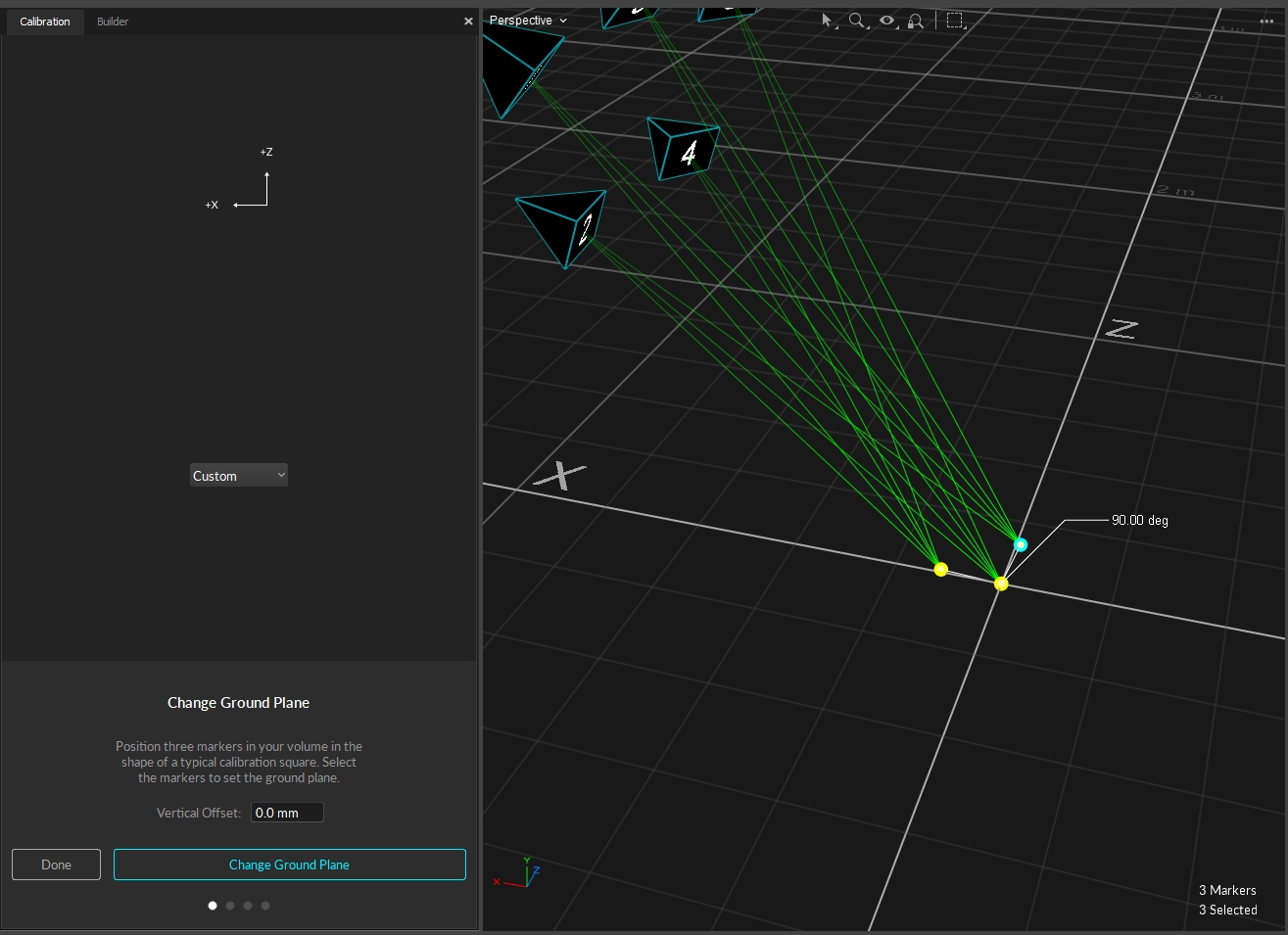
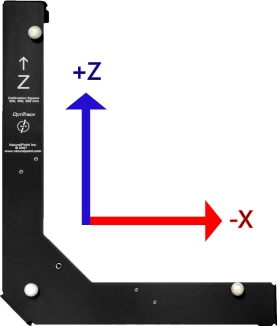
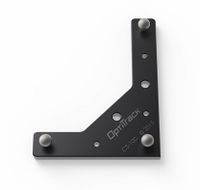
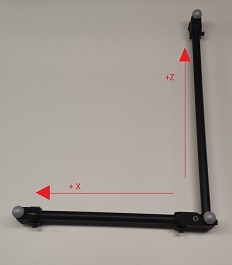
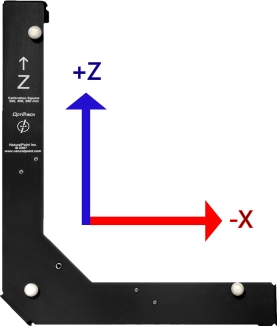
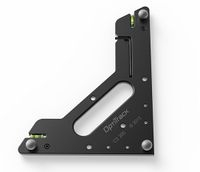
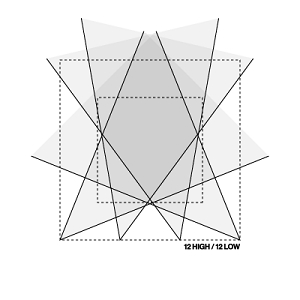
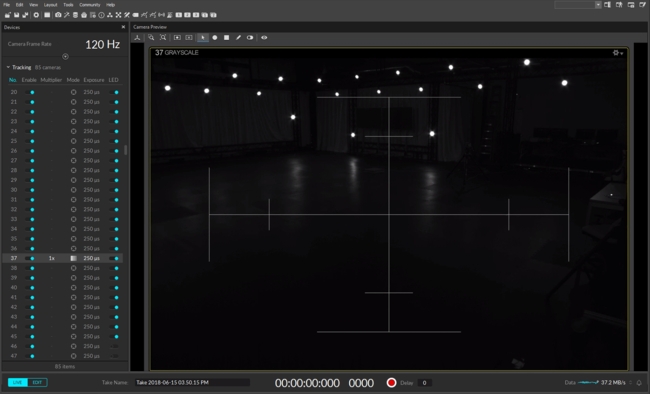
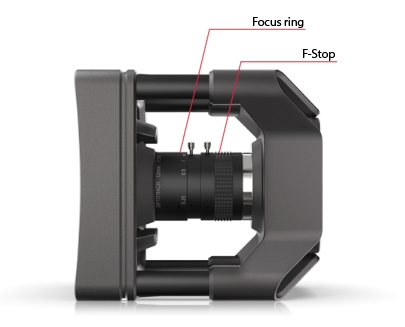
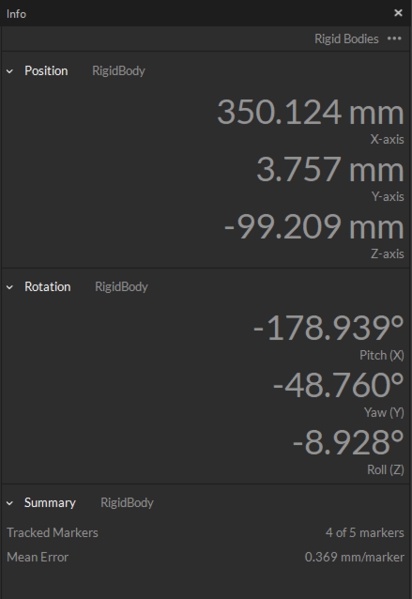
A guide to cabling and connecting your OptiTrack camera system.
PrimeX and SlimX cameras use Ethernet cables for power and to connect to the camera network. To handle the camera data throughput, cables and networking hardware (switches, NIC) must be able to transmit at 1 Gigabit to avoid data loss. For networks with color cameras or a large camera count, we recommend using a 10 Gigabit network.
For best performance, we recommend that all OptiTrack camera systems run on an independent, isolated network.
This page covers the following topics:
Switches and power load balancing.
Ethernet cable types and which cables to use in an OptiTrack system.
Recommended network configurations for small and large camera systems.
Adding an eSync2 for synchronization.
Checking for system errors in Motive.
Network switches form the backbone of an Ethernet-based OptiTrack camera system, providing the most reliable and direct communication between cameras and the Motive PC.
We thoroughly test and validate the switches we offer for quality and load balancing, and ship all products pre-configured for easy installation right out of the box.
For product specifications, please visit the section of our website. for additional information.
Switches also power the cameras. The total Watts a switch can provide is known as its Power (or PoE) Budget. The Watts needed to power all of the attached powered devices must be within the Power Budget for best performance.
The number of cameras any one switch can support varies based on the total amount of power drawn by the cameras. For example, a 65 W switch can run 4 PrimeX 13 PoE cameras, which require 15.4 W each to power:
4 x 15.4 W = 61.6 W
61.6 W < 65 W
If the total Watts required exceeds the Power Budget, cameras may experience power failures, causing random disconnects and reconnects, or they may fail to appear in Motive.
Network switches provided by OptiTrack include a label to specify the number of cameras supported:
Depending on which OptiTrack cameras are used, a switch may not have a large enough power budget to use every one of its ports. In a larger camera setup, this can result in multiple switches with unused ports. In this case, we recommend connecting each switch to a Redundant Power Supply (RPS) to extend its power budget.
For example, a 24-port switch may have a 370W power budget, supporting 12 PoE+ cameras that require 30W to power. If the same 24-port switch is connected to an RPS, it can now power all 24 PoE+ cameras (each with a 30W power requirement) utilizing all 24 of the ports on the switch.
PoE switches are categorized based on the maximum power level that individual ports can supply. The table below shows the power output of the various types of PoE switches and lists the current camera models that require each power level.
When calculating the number of switches needed, include the eSync2 (if used) and all BaseStations needed for the capture:
eSync2: 4.4W
BaseStation: 2.2W
A Small Form-Factor Pluggable Module (SFP Module) is a transceiver that inserts into an SFP port on the switch to allow the switch to accommodate different connection types than just the standard RJ45 Ethernet ports. This can include higher speed copper or fiber optic connections.
SFP modules work with specific brands and models of switches. Always confirm that the module is compatible with the switch before you purchase the SFP module.
Smaller systems may not need an SFP port to uplink camera data to Motive. OptiTrack offers an SFP module with switches intended for heavily loaded systems (i.e., those with larger camera counts or Prime Color Camera systems).
When SFP ports are not required, use any standard Ethernet port on the switch to uplink data to Motive.
If you're unsure if you need an switch with an SFP port and an SFP module, please reach out to either our or teams.
Switches often include functions for managing network traffic that can interfere with the camera data and should be turned off. While these features are critical to a corporate LAN or other network with internet access, they can cause dropped frames, loss of frame data, camera disconnection, and other issues on a camera system.
For example, features such as Broadcast Storm Control may identify large data transmissions from the cameras as an attack on the network and potentially shut down the associated ports on the switch, disconnecting the camera(s) in the process.
OptiTrack switches ship with these management features disabled.
Ports on a switch can be partitioned into separate network segments known as Virtual Local Area Networks, or VLANs. Your IT department may use these to allow one switch to provide a virtually isolated network for the camera system and access to the corporate LAN and internet. This is not a supported configuration for an OptiTrack camera system.
OptiTrack does not support the use of VLANs for camera systems. If you are connected to a VLAN and are experiencing issues, we recommend truly isolating the camera system on its own switch.
There are multiple categories of Ethernet cables, each with different specifications for maximum data transmission rate and cable length.
*In general, the maximum cable length for an Ethernet cable is 100 m. While Cat7 and Cat8 cables can transmit data at higher rates, it reduces the maximum distance the data can travel before signal loss occurs.
Cat6a cables are recommended.
Cat5 or Cat5e cables run at lower speeds and are not supported.
Cat7 and Cat8 cables will work, but do not offer any added benefits to offset the increased cost.
Round cables are better for long distances and high data transmission speeds. They are more insulated, easier to install without issues, and more durable, making them our recommended choice.
Flat cables should not be used on an OptiTrack network as they are highly susceptible to cross talk and EMI.
Electromagnetic shielding protects cables from cross talk, electromagnetic interference (EMI), and radio frequency interference (RFI), all of which can result in loss of data or stalled cameras.
Shielding also protects the cameras from electrostatic discharge (ESD), which can damage them.
Ethernet cables are categorized based on the type of shielding they have overall and whether individual twisted pairs are also shielded.
Overall shielding wraps around all of the twisted pairs, directly below the PVC jacket. This shield can be a braided screen (S), foil (F), or both (SF). Cables without an overall shield are designated with a (U).
Individual Twisted pairs can be shielded with foil (FTP), or left unshielded (UTP).
Examples of cable shielding types:
S/UTP: The cable has a braided screen overall, with no shielding on the individual twisted pairs.
SF/FTP: The cable has two overall shields: a braided screen over a foil shield. The individual twisted pairs are shielded with foil.
U/UTP: The cable has no overall shield or shields on the individual twisted pairs. We do not recommend using these type of cables in an OptiTrack camera system.
Unshielded cables (U/UTP) do not protect the cameras from Electrostatic Discharge (ESD), which can damage the camera. Do not use unshielded cables in environments where ESD exposure is a risk.
Gaffers Tape: This offers a good solution for covering a small run of wires on the floor.
Labels: Label both ends of each cable before connecting the PC and cameras to the switch(es). This will allow you to easily identify the port where the camera is connected.
Velcro Strips: These work best for cable bundling in flexible setups. While Velcro may take more effort to remove then plastic zip ties, they can be reused multiple times and create less clutter when changes are made to the setup.
The number of cameras in the system determine how the network is configured. The show the recommended wiring setup for either a small or large camera system.
In addition to camera count, the type of video being captured can affect the system's bandwidth needs. Reference video modes (Grayscale and MJPEG) and color video require significantly more bandwidth than object mode.
As noted above, always use 10 Gigabit shielded Ethernet cables (Cat6a or above) and a 10 Gigabit uplink switch to connect to the Motive PC, to accommodate the high data traffic. Make sure the NIC installed in the host PC can accommodate 10Gbps.
Start by connecting the Motive (host) PC to the camera network's PoE switch via a Cat6a Ethernet cable. When the network includes multiple switches, connect the host to the aggregator switch.
If the computer used for capture is also connected to an existing network, such as a Corporate LAN, use a second Ethernet port or add-on NIC to connect the computer to the camera network.
When the Motive PC is connected to multiple networks, disable all Windows Firewall settings while using the mocap system.
DO NOT connect any third-party devices to the camera network.
Using Cat6a or above cables, connect the individual cameras to the Ethernet switch based on the scheme established when designing the camera network.
Connect any BaseStation(s) needed for the active devices directly to the aggregator switch, if used.
Use an synchronization hub to connect external devices such as force plates or Video Genlock to the camera network. The eSync connects to the PoE switch using an Ethernet cable.
When the network includes multiple switches, connect the eSync2 to the aggregator switch. See the section below for more details on connecting the eSync2.
The switch(es) must be powered on to power the cameras. To completely shut down the camera system, power off the network switch(es).
For best performance, do not connect devices other than the computer to the camera network. Add-on network cards should be installed if additional Ethernet ports are required for the Motive PC.
These configurations have been tested for optimal use and safety. Deviating from them may negatively impact system performance.
A second switch can be connected to the primary switch via an uplink port, with the primary serving as the aggregation switch for the camera network. This is the only configuration where two camera switches can be daisy-chained together.
If additional switches are needed, a separate aggregation switch is required, so each switch has a direct connection to the aggregator. Please see the Multiple PoE Switches (High Camera Counts) tab for more details.
The is a synchronization hub used to integrate external devices to an Ethernet-based mocap system. The set the timecode, input trigger, and other settings to ensure all devices on the camera network are in sync.
External devices can include timecode inputs such as Video Genlock or Precision Time Protocol, or output devices such as force plates or NI-DAQ devices.
Only one eSync2 is needed per system. When one is used, it is the master in the synchronization chain.
All of the connected cameras should now be listed in the and display in the when you start Motive. Make sure all of the connected cameras are properly listed in Motive.
Open the status and verify there are no current errors. The example below shows the sequence of errors that occur when a camera is disconnected. Look also for dropped frames, which may indicate a problem with how the system is delivering the camera data. Please refer to the for more details.
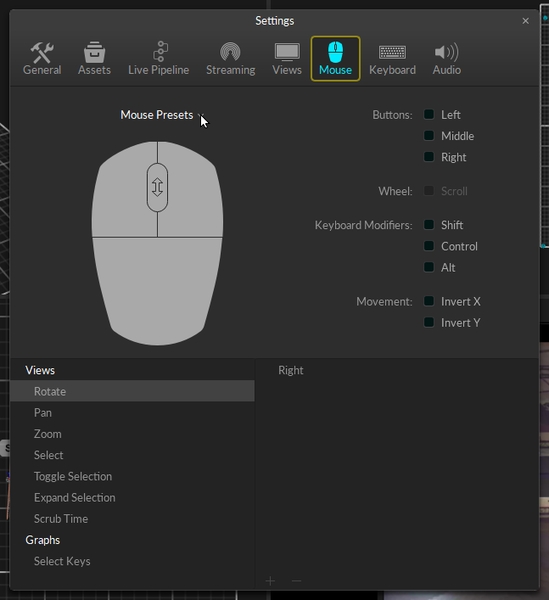
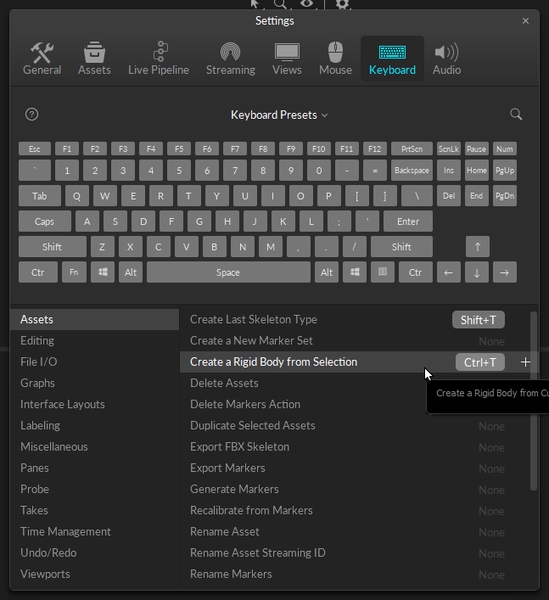
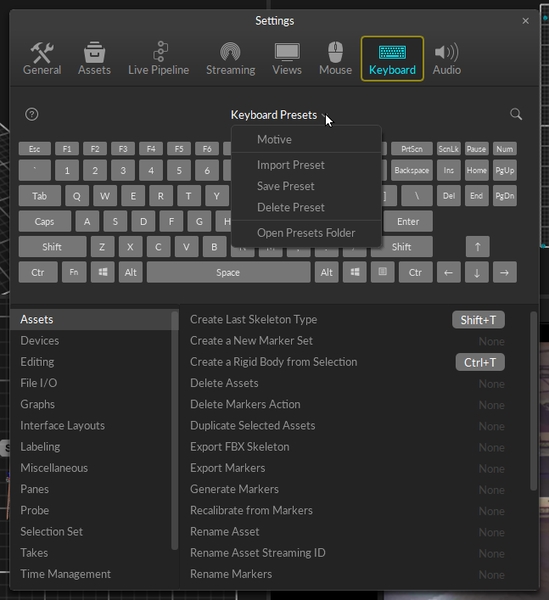

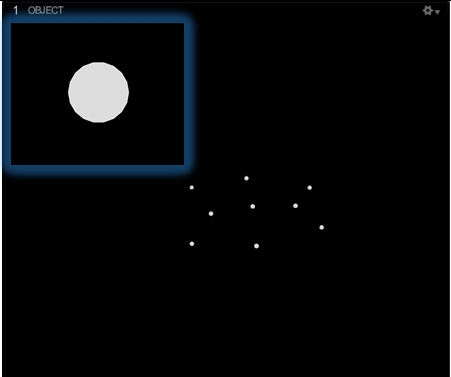
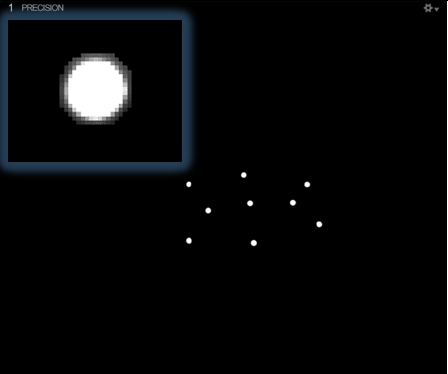
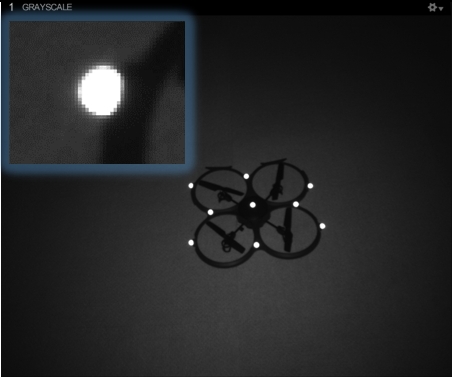
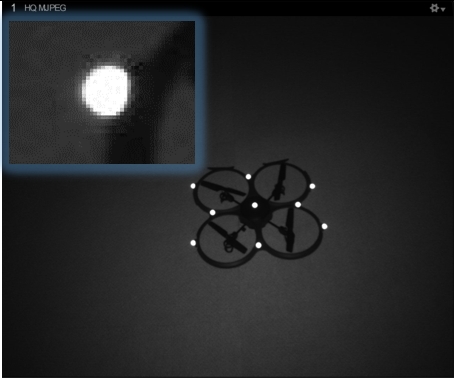
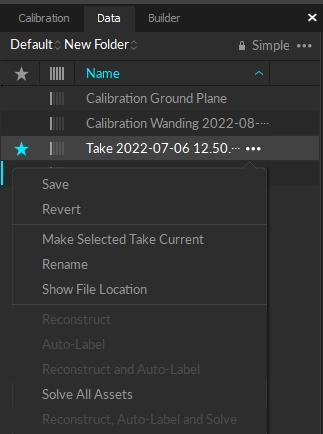
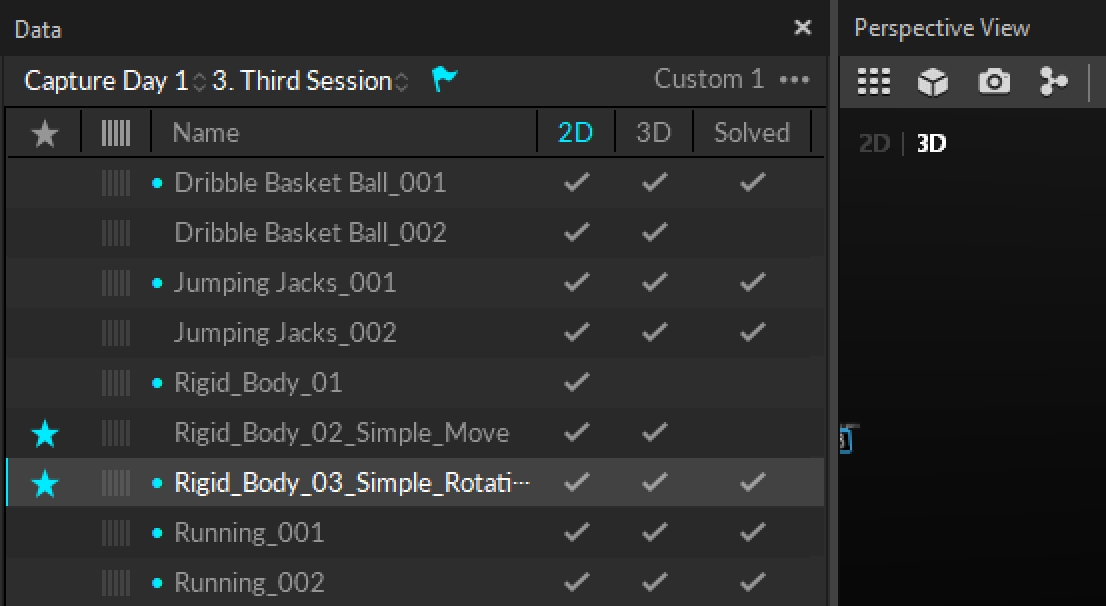
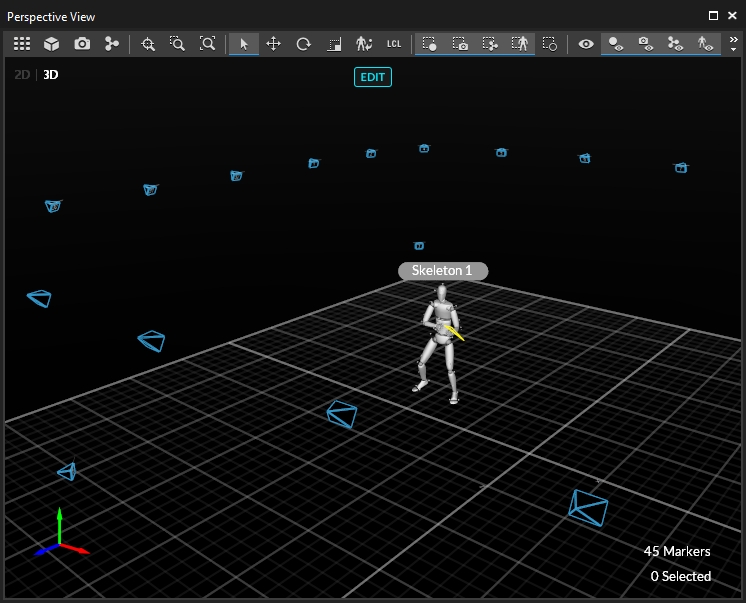
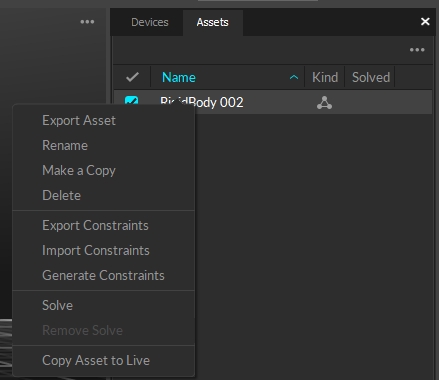
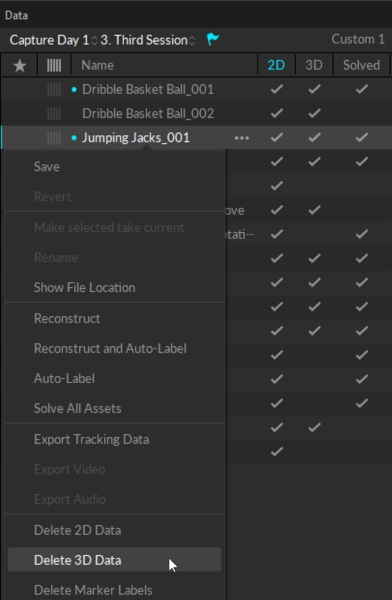
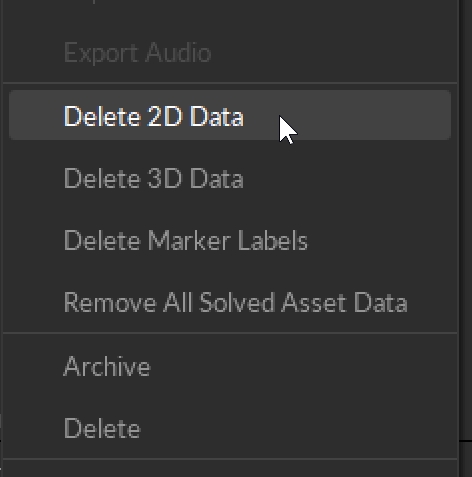
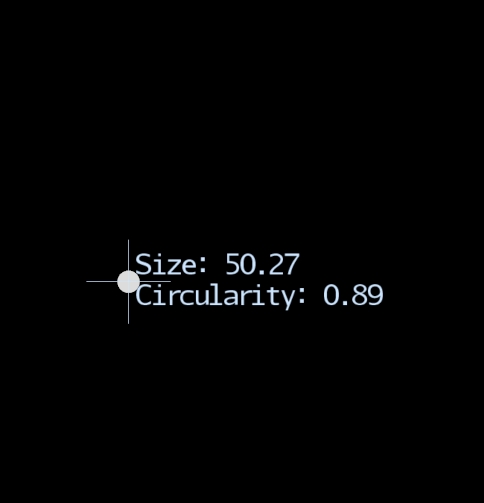
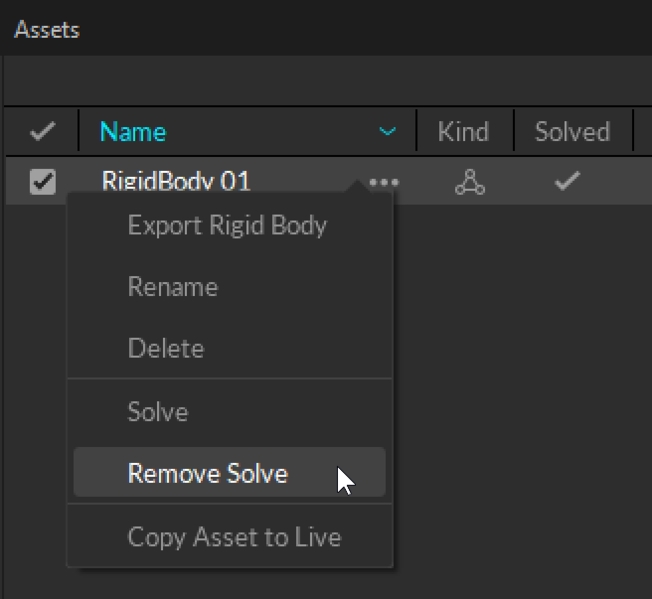
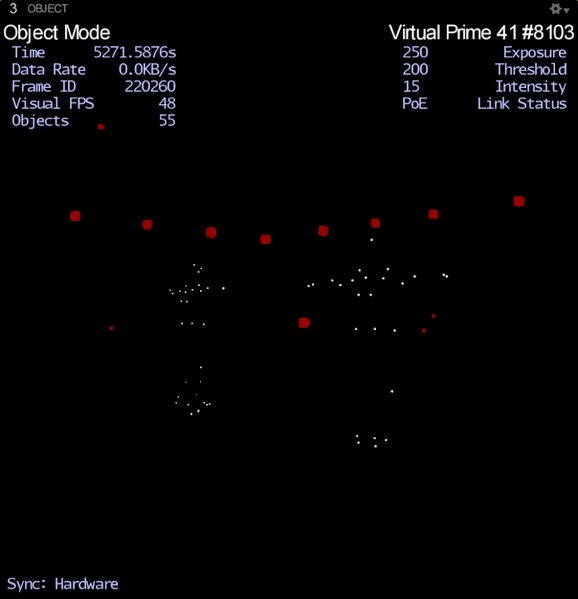
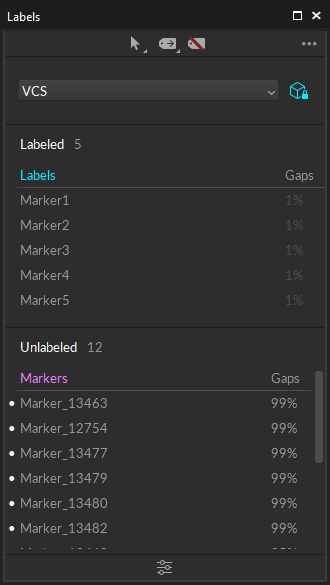
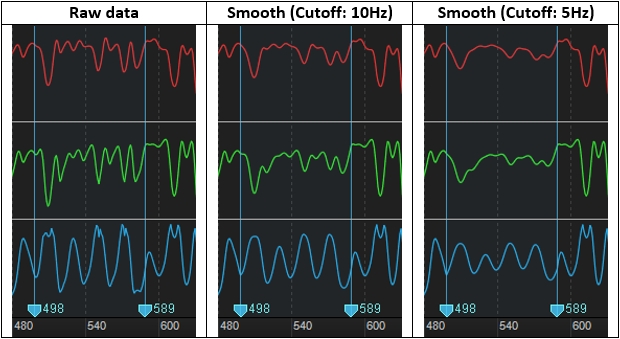
A comprehensive guide to installing and licensing Motive.
An in-depth explanation of the reconstruction process and settings that affect how 3D tracking data is obtained in Motive.
Reconstruction is the process of deriving 3D points from 2D coordinates obtained by captured camera images. When multiple synchronized images are captured, the 2D centroid locations of detected marker reflections are triangulated on each captured frame and processed through the solver pipeline to be tracked. This involves the trajectorization of detected 3D markers within the calibrated capture volume and the booting process for the tracking of defined assets.
Motive's Views Settings defined.
Use the Application Settings panel to customize Motive and set default values. This page will cover the items available on the View tab. Properties are Standard unless noted otherwise.
Please see the following pages for descriptions of the settings on other tabs:
This page provides an overview of the recording process in Motive.
The Motive Batch Processor is a separate stand-alone Windows application, built on the new NMotive scripting and programming API, that can be utilized to process a set of Motive Take files via IronPython or C# scripts. While the Batch Processor includes some example script files, it is primarily designed to utilize user-authored scripts.
Initial functionality includes scripting access to file I/O, reconstructions, high-level Take processing using many of Motive's existing editing tools, and data export. Upcoming versions will provide access to track, channel, and frame-level information, for creating cleanup and labeling tools based on individual marker reconstruction data.
Motive Batch Processor Scripts make use of the NMotive .NET class library, and you can also utilize the NMotive classes to write .NET programs and IronPython scripts that run outside of this application. The NMotive assembly is installed in the Global Assembly Cache and also located in the assemblies sub-directory of the Motive install directory. For example, the default location for the assembly included in the 64-bit Motive installer is:
C:\Program Files\OptiTrack\Motive\assemblies\x64
The full source code for the Motive Batch Processor is also installed with Motive, at:
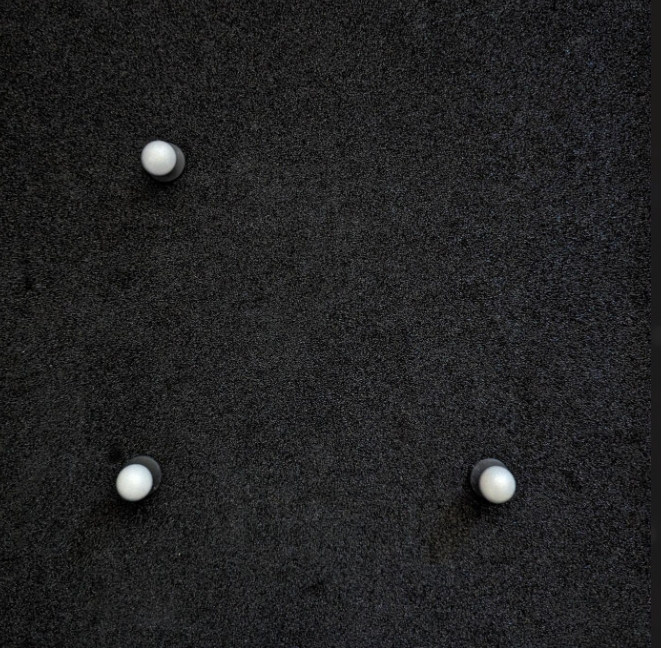
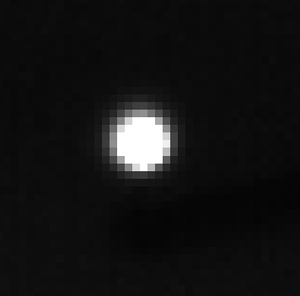
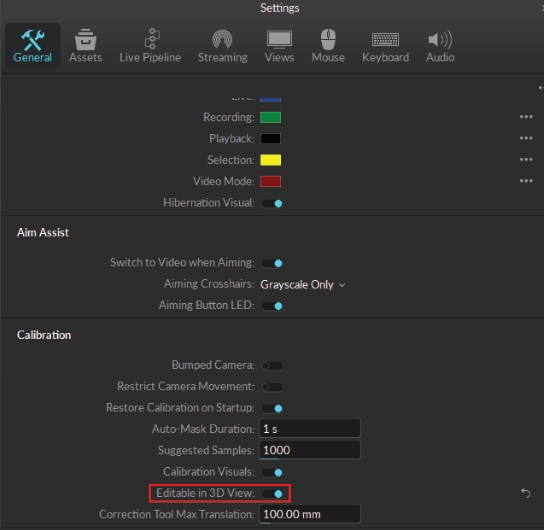
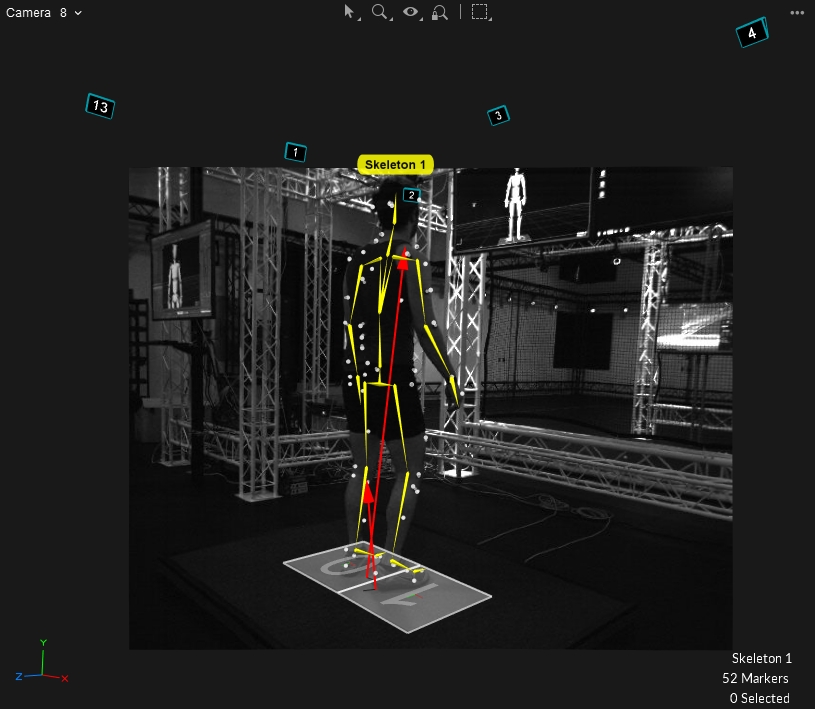
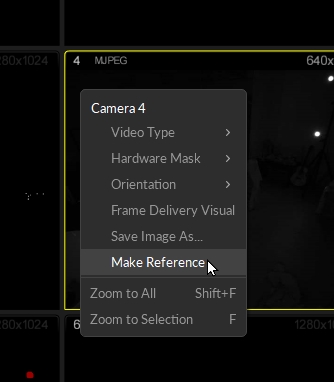
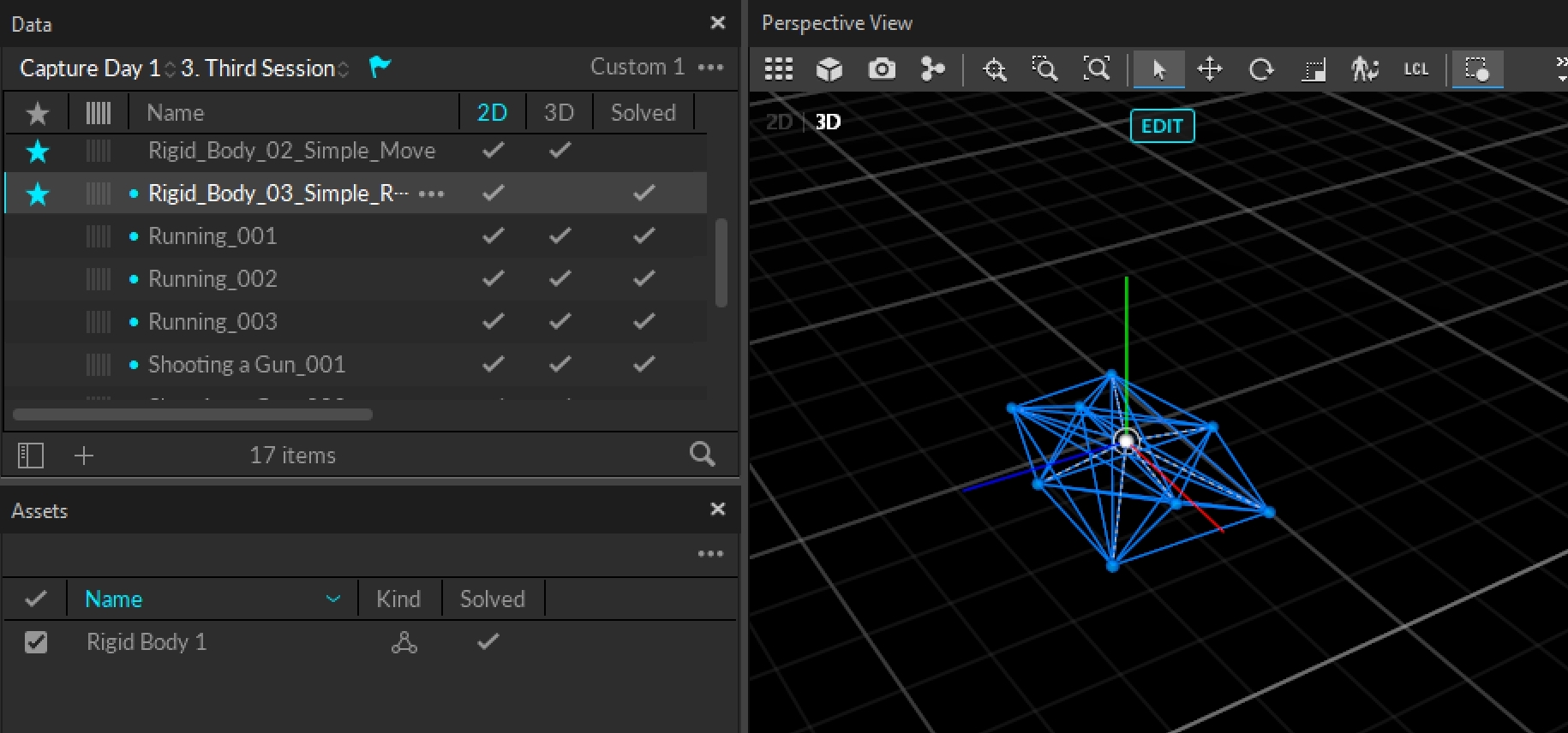
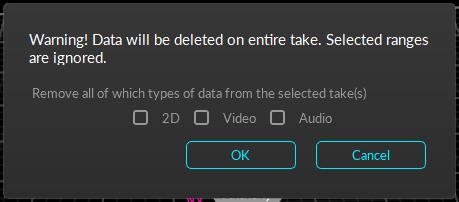
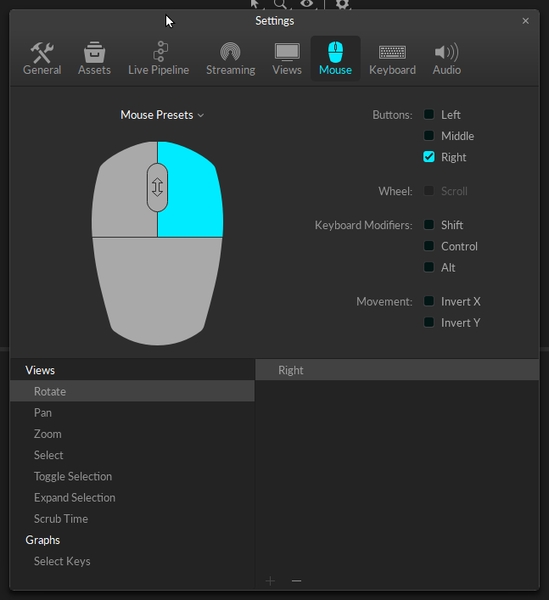

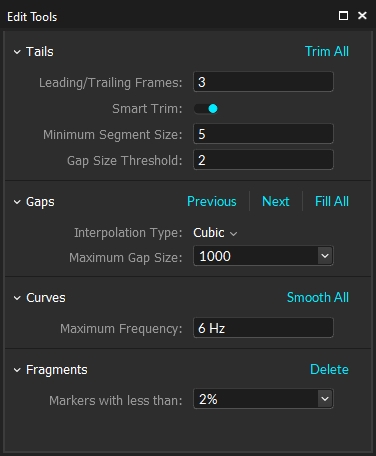
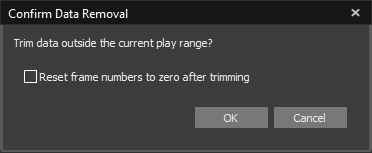
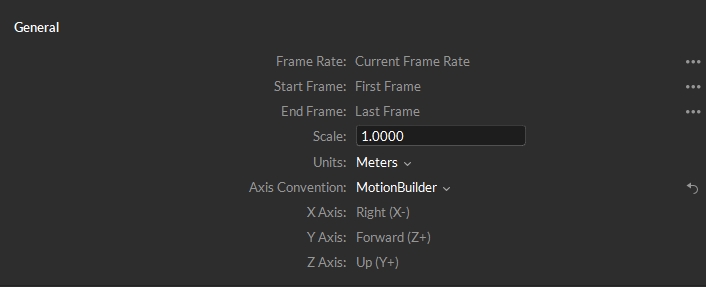
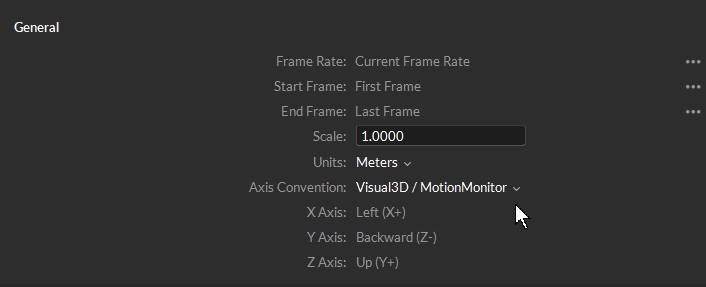


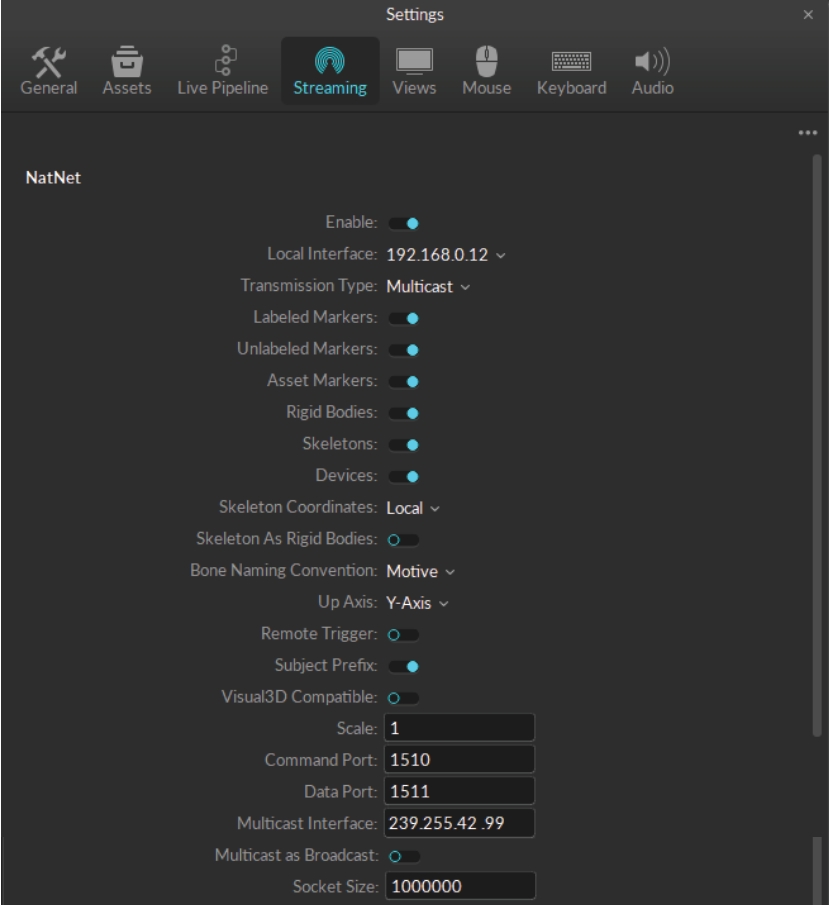
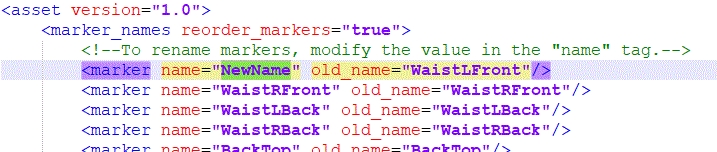
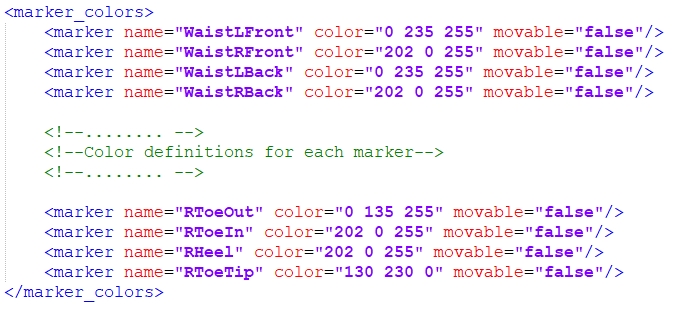
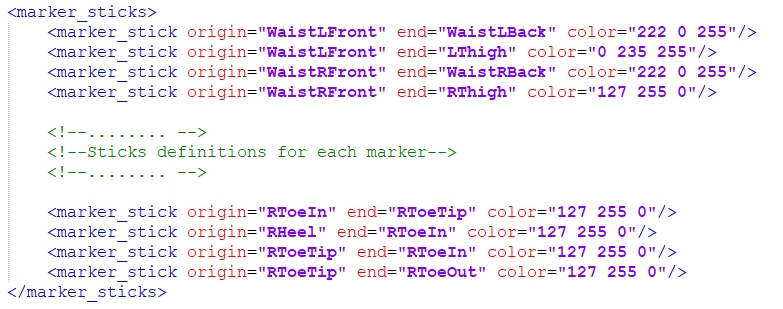
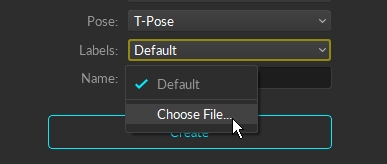
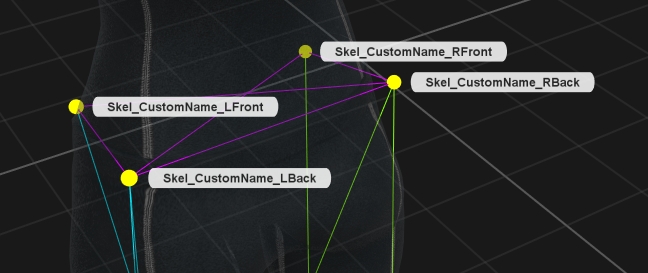
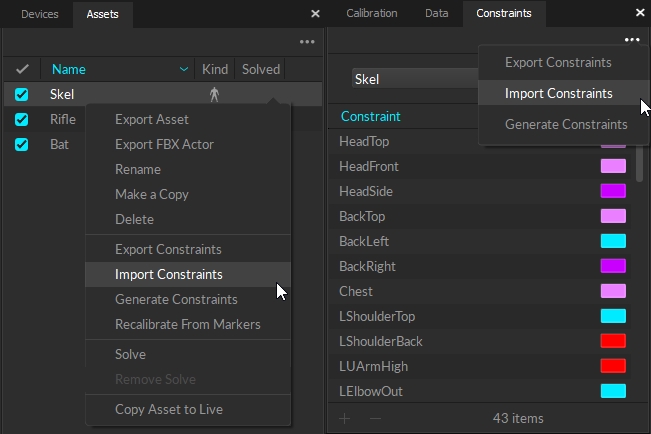
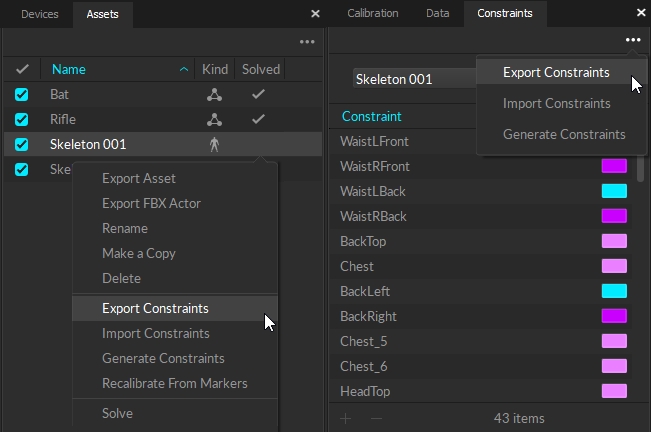
Cat8
40 Gb/s (30 m*)
2000 MHz
8.66 mm
Wire Conduit: These products cover the entire cable bundle. They are size-restrictive and can be difficult to put on or take off.
Floor Cable Covers: This product offers the best solution for covering floor cables, however they can be quite bulky.
Uplink Switch: For systems that require multiple PoE switches, connect all of the switches to an uplink aggregation switch to link to the host PC. Ethernet ports on the aggregation switch can be used to connect cameras.
The switches must be connected in a star topology with the uplink switch at the central node, connecting to the Motive PC.
NEVER daisy chain multiple PoE switches in series; doing so can introduce latency to the system.
Cat6
10 Gb/s (55 m)
250 MHz
6.1 mm
Cat6a
10 Gb/s (100 m)
500 MHz
8.38 mm
Cat7/a
100 Gb/s (15 m*)
600 or 1000 MHz


8.51 mm
OS: Windows 10, 11 (64-bit)
CPU: Intel i7 or better, running at 3 GHz or greater
RAM: 16GB of memory
GPU: GTX 1050 or better with the latest drivers and support for OpenGL 3.2+
OS: Windows 10, 11 (64-bit)
CPU: Intel i7, 3 GHz
RAM: 4GB of memory
GPU that supports OpenGL 3.2+
Download the Motive installer from the OptiTrack Support website. Click Downloads > Motive to find the latest version of Motive, or previous releases, if needed.
Both Motive: Body and Motive: Tracker use the same software installer.
When the download is complete, run the installer to begin the installation.
When installing Motive for the first time, the installer will prompt you to install the OptiTrack USB Driver. This driver is required for all OptiTrack USB devices, including the Security or Hardware Key. You may also be prompted to install other dependencies such as the C++ redistributable, which is included in the Motive installer. After all dependencies have been installed, Motive will resume its installation.
Follow the installation prompts and install Motive in your desired file directory. We recommend installing the software in the default directory, C:\Program File\OptiTrack\Motive.
At the Custom Setup section of the installation process, you will be prompted to choose whether to install the Peripheral Devices along with Motive. If you plan to use force plate, NI-DAQ, or EMG devices along with the motion capture system, the Peripheral Devices must be installed.
If you are not going to use these devices, you may skip to the next step.
Once all the steps above are completed, Motive is installed. If you want to use additional plugins, visit the downloads page.
The following settings are sufficient for most mocap applications. The page Windows 11 Optimization for Realtime Applications has our recommended configuration for more demanding uses.
We recommend isolating the camera network and the host PC so that firewall and antivirus protection are not required. That will not be possible in situations where the host PC is connected to a corporate or institutional network. If so:
Make sure all antivirus software installed on the Host PC allows Motive traffic.
For Ethernet cameras, make sure the windows firewall is configured so the camera network is recognized.
Potential issues that can occur if antivirus software is installed:
Some programs (i.e., BitDefender, McAfee, etc.) may block Motive from downloading. The Motive software downloaded directly from OptiTrack.com/downloads is safe for use and will not harm your computer.
If you're unable to view cameras in the Devices pane, or you are seeing frame/data drops, verify that the antivirus or firewall settings allow all traffic from your camera network to Motive and vice versa.
Antivirus software may need to be completely uninstalled if it continues to interfere with camera communication.
Windows power saving mode limits CPU usage, which can impact Motive performance.
To best utilize Motive, set the Power Plan to High Performance. Go to Control Panel → Hardware and Sound → Power Options as shown in the image below.
Required only for computers with integrated graphics.
Computers that have integrated graphics on the motherboard in addition to a dedicated graphics card may switch to the integrated graphics when the computer goes to sleep mode. This may cause the Viewport to become unresponsive when the PC exits sleep mode.
To prevent this, set Motive to use high performance graphics only.
Type Graphics in the Windows Search bar to find and open the Graphics settings, located at System > Display > Graphics.
In the Add an app field, select Desktop app, then browse to the Motive executable: C:\Program Files\OptiTrack\Motive\Motive.exe.
Motive will now appear in the list of customizable applications.
Click Motive to display, then click, the Options button.
Set the Graphics preference to High performance and click Save.
Once Motive is installed, the next step is to activate the software using the Motive 3.x license information provided at the time of purchase, and attach either the USB Security or Hardware Key. The Security Key attaches to the Host PC either through a USB C port or using an adapter for USB A to USB C. The Hardware Key attaches to the Host PC through a USB A port.
OptiTrack introduced a new licensing option with Motive 3.
Security Key (Motive 3.x and above): Beginning with version 3.0, a USB C Security Key is now available.
Hardware Key (Motive 2.x or below): The USB A Hardware Key works with all versions of Motive. Motive 2.x versions and earlier require the USB A Hardware Key.
Only one key should be connected at a time.
Security Keys are purchased separately. For more information, please see the following page: https://optitrack.com/accessories/license-keys/
To replace your Hardware Key with a Security Key, please contact our Technical Sales group.
There are five types of Motive licenses:
Motive:Body-Unlimited
Motive:Body
Motive:Tracker
Motive:Edit-Unlimited
Motive:Edit
Each license unlocks different features in the software depending on the use case that the license is intended to facilitate.
The Motive:Body and Motive:Body-Unlimited licenses are intended for either small (up to 3) or large-scale Skeleton tracking applications.
The Motive:Tracker license is intended for real-time Rigid Body tracking applications.
The Motive:Edit and Motive:Edit Unlimited licenses are intended for users modifying data after it has been captured (post production work).
For more information on different Motive licenses, check the software comparison table on our website. An abbreviated version is available in the table below.
Quantum Solver
No
Yes
Yes
Yes
Yes
Live Rigid Bodies
Unlimited
Unlimited
Motive licenses are activated using the License Activation tool. This tool can be found:
On the OptiTrack Support page.
On the Host PC at C:\Program Files\OptiTrack\Motive\LicenseTool.
On the Motive splash screen, when an active license is not installed.
Launch Motive. If the license has been activated, the splash screen will appear momentarily before Motive loads. If not, the splash screen will display the License not found error and a menu.
Click License Tool to open the License Activation Tool.
The License Serial Number and License Hash were provided on a printed card (enclosed in an envelope) when the license was purchased. If the card is missing, this information is also located on the order invoice.
The Security Key Serial Number is printed on the USB security or hardware key, whichever is attached.
If you have already activated the license on another machine, make sure to enter the same name when activating it on the new PC.
Once you have entered all the information, click Activate. The license files will be copied into the license folder: C:\ProgramData\OptiTrack\License.
Click Retry to finish loading Motive.
Only one license (initial or maintenance) can be activated at a time. If you purchased one or more years of maintenance licensing, wait until the initial license expires before activating the first maintenance license. Let the first maintenance license expire before activating the next, and so on.
The Online License Activation tool allows you to activate licenses from the OptiTrack Support page. This option requires more steps but is helpful if you are activating licenses for multiple systems or do not have access to the host PC to use the license tool from the splash screen.
Enter the email address to send the license file(s) to in the E-mail Address field.
The License Serial Number and License Hash are located on the order invoice.
The Device Serial Number is printed on the USB security key.
If you have already activated the license on another machine, make sure to enter the same name when activating it on the new PC.
Once you have entered all the information, click Activate.
The license file(s) will arrive via email. Check your spam filter and junk mail if you don't see it in your inbox.
Download the license file(s) to the License Folder on the hard drive of the host PC: C:\ProgramData\OptiTrack\License.
Insert the USB security key, then launch Motive.
The Check My License tool allows you to lookup license information to obtain the expiration date.
About Motive Screen
About Motive includes information about the active license, which can be exported to a text file by clicking the Export... link at the bottom.
If Motive does not detect an active license, you can still open About Motive from the splash screen, however the only information available is the Machine ID.
You can install Motive on more than one computer with the same license and security key, but you will not be able to use it on multiple PCs simultaneously. Only the PC with the security key connected will be able to run Motive.
You can use the License Activation Tool to acquire the license files for the new host PC. This includes the initial license and any maintenance licenses that were purchased.
When run from the Motive splash screen, the tool will download the license files directly
When run from the OptiTrack Support website, the license files will be sent via emailed.
When using this method to transfer the license, enter the same contact information that was entered the first time the license was activated. We recommend exporting the license data to a text file from the original installation to use as a reference.
If the original information is lost, please contact OptiTrack Support for assistance.
The license file(s) can also be copied from one computer to another. License files are located at c:\ProgramData\OptiTrack\License. Open the license folder from the Motive Help menu.
If the files are copied from one PC to another, there is no need to re-run the License Activation Tool to begin using the currently active license. Simply install the version of Motive supported by the license and connect the security key.
For more information on licensing of Motive, refer to the Licensing FAQs from the OptiTrack website:
For common licensing issues and troubleshooting recommendations, please see the Licensing Troubleshooting page.
For more questions, contact OptiTrack Support:
Please attach the LicenseData.txt file exported from the About Motive panel as a reference.
When post-processing recorded Takes in Edit mode, the solver settings are found under the corresponding Take properties.
The optimal configuration may vary depending on the capture application and environmental conditions. For most common applications, the default settings should work well.
In this page, we will focus on:
Key system-wide settings that directly impact the reconstruction outcome under the Live Pipeline settings;
Camera Settings that apply to individual cameras;
Visual Aids related to reconstruction and tracking;
the Real-Time Solve process; and
Post-production Reconstruction.
When a camera system captures multiple synchronized 2D frames, the images are processed through two filters before they are reconstructed into 3D tracking: first through the camera hardware then through a software filter. Both filters are important in determining which 2D reflections are identified as marker reflections and reconstructed into 3D data.
The Live Pipeline settings control tracking quality in Motive. Adjust these settings to optimize the 3D data acquisition in both live-reconstruction and post-processing reconstruction of capture data.
To open the Applications Settings panel, click the button on the main toolbar to open. Click the Live Pipeline settings, which contains two tabs: Solver and Cameras.
Motive processes markers rays based on the camera system calibration to reconstruct the respective markers. The solver settings determine how 2D data is trajectorized and solved into 3D data for tracking Rigid Bodies, Trained Markersets, and/or Skeletons. The solver combines marker ray tracking with pre-defined asset definitions to provide high-quality tracking.
The default solver settings work for most tracking applications. Users should not need to modify these settings.
These settings establish the minimum number of tracked marker rays required for a 3D point to be reconstructed (to Start) or to continue being tracked (to Continue) in the Take. In other words, this is the minimum number of calibrated cameras that need to see the marker for it to be tracked.
Increasing the Minimum Rays value may prevent extraneous reconstructions. Decreasing it may prevent marker occlusions from occurring in areas with limited camera coverage.
In general, we recommend modifying these settings only for systems with either a high or very low camera count.
Additional Settings
There are other reconstruction settings on the Solver tab that affect the acquisition of 3D data. For a detailed description of each setting, please see the Application Settings: Live Pipeline page.
The 2D camera filter is applied by the camera each time it captures a frame of an image. This filter examines the sizes and shapes of the detected reflections (IR illuminations) to determine which reflections are markers.
Minimum / Maximum Pixel Threshold
The Minimum and Maximum Pixel Threshold settings determines the lower and upper boundaries of the size filter. Only reflections with pixel counts within the range of these thresholds are recognized as marker reflections, and reflections outside the range are filtered out.
For common applications, the default range should suffice. In a close-up capture application, marker reflections appear bigger on the camera's view. In this case, you may need to adjust the maximum threshold value to allow reflections with more thresholded pixels to be considered as marker reflections.
The camera looks for circles when determining if a given reflection is a marker, as markers are generally spheres attached to an object. When captured at an angle, a circular object may appear distorted and less round than it actually is.
The Circularity value establishes the degree (as a percentage) to which a reflection can vary from circular for the camera to recognize it as a marker. Only reflections with circularity values greater than the defined threshold will be identified as marker reflections.
The valid range is between 0 and 1, with 0 being completely flat and 1 being perfectly round. The default value of .60 requires a reflection to be at least 60% circular to identify it as a marker.
The default value is sufficient for most capture applications. This setting may require adjustment when tracking assets with alternative markers (such as reflective tape) or whose shape and/or movement creates distortion in the capture.
In general, the overall quality of 3D reconstructions is determined by the quality of the captured camera images.
Camera settings are configured under the Devices pane or under the Properties pane when one or more camera is selected. The following section highlights settings directly related to 3D reconstruction.
Tracking mode vs. Reference mode: Only cameras recording in tracking mode (Object or Precision) contribute to reconstructions; Cameras in reference mode (MJPEG or Grayscale) do NOT contribute. For more information, please see the Camera Video Types page.
There are three methods to switch between camera video types:
Click the icon under Mode for the desired camera in the Devices pane until the desired mode is selected.
Right-click the camera in the Cameras view of the viewport and select Video Type, then select the desired mode from the list.
Select the camera and use the O, U, or I hotkeys to switch to Object, Grayscale, or MJPEG modes, respectively.
Object mode vs. Precision Mode
Object Mode and Precision Mode deliver slightly different data to the host PC:
In object mode, cameras capture 2D centroid location, size, and roundness of markers and transmit that data to the host PC.
In precision mode, cameras send the pixel data from the capture region to the host PC where additional processing to determine the centroid location, size, and roundness of the reflections takes place .
The Threshold value determines the minimum brightness level required for a pixel to be tracked in Motive, when the camera is in tracking mode.
Pixels with a brightness value that exceeds the configured threshold are referred to as thresholded pixels and only they are captured and processed in Motive. All other pixels that do not meet the brightness threshold are filtered out. Additionally, clusters of thresholded pixels are filtered through the 2D Object Filter to determine if any are possible marker reflections.
The Threshold setting is located in the camera properties.
We do not recommend lowering the threshold below the default value of 200 as this can introduce noise and false reconstructions in the data.
The Viewport has an array of Visual Aids for both the 3D Perspective and Cameras Views. This next section focuses on Visual Aids that display data relevant to reconstruction.
To select a Visual Aid from either view, click the button on the pane's toolbar.
After the 2D camera filter has been applied, each 2D centroid captured by a camera forms a 3D vector ray, known as a Marker Ray in Motive. The Marker Ray connects the centroid to the 3D coordinates of the camera. Marker rays are critical to reconstruction and trajectorization.
Trajectorization is the process of using 2D data to calculate 3D marker trajectories in Motive. When the minimum required number of rays (as defined in the Minimum Rays setting) converge and intersect within the allowable maximum offset distance, trajectorization of the 3D marker occurs. The maximum offset distance is defined by the 3D Marker Threshold setting on the Solver tab of the Live Pipeline settings.
Monitoring marker rays using the Visual Aids in the 3D Viewport is an efficient way of inspecting reconstruction outcomes by showing which cameras are contributing to the reconstruction of a selected marker.
There are two different types of marker rays in Motive: tracked rays and untracked rays.
Tracked rays are marker rays that contribute to 3D reconstructions within the volume.
There are three Visual options for tracked rays:
Show Selected: Only the rays that contribute to the reconstruction of the selected marker(s) are visible, all others are hidden. If nothing is selected, no rays are shown.
Show All: All tracked rays are displayed, regardless of the selection.
Hide All: No rays are visible.
Untracked Ray (Red)
An untracked ray does not contribute to the reconstruction of a 3D point. Untracked rays occurs when reconstruction requirements, such as the minimum ray count or the max residuals, are not met.
Untracked rays can occur from errant reflections in the volume or from areas with insufficient camera coverage.
Click the Visual Aids button in the Cameras View to select the Marker Size visual. This will add a label to each centroid that shows the size, in pixels, and indicates whether it falls inside or outside the boundaries of the size filter (too small or too large).
Markers that are within the minimum and maximum pixel threshold are marked with a yellow crosshair at the center. The size label is shown in White.
Markers that are outside the boundaries of the size filter are shown with a small red X and the text Size Filter. The label is red.
Only markers that are close to the size boundaries but not within them will display in the Camera view in red. Markers with a significant size variance from the limits will be filtered out of the Camera view.
Circularity
As noted above, the Camera Software Filter also identifies marker reflections based on their shape, specifically, the roundness. The filter assumes all marker reflections have circular shapes and filters out all non-circular reflections detected.
The allowable circularity value is defined under the Circularity setting on the Cameras tab of the Live Pipeline settings in the Applications Setting panel.
Click the Visual Aids button in the Cameras View to select the Circularity visual.
Markers that exceed the Circularity threshold are marked with a yellow crosshair at the center. The Circularity label is shown in White.
Markers that are below the Circularity threshold are shown with a small red X and the text Circle Filter. The label is red.
Technically a mouse tool rather than a visual aid, the Pixel Inspector displays the x, y coordinates and, when in reference mode, the brightness value for individual pixels in the 2D camera view.
To enable, click the button in the Cameras View to open the Mouse Actions menu and select Pixel Inspector.
Drag the mouse to select a region in the 2D view for the selected camera, zooming in until the data is visible. Move the mouse over the region to display the values for the pixel directly below the cursor and the eight pixels surrounding it. Average values for each column and row are displayed at the top and bottom of the selected range.
Motive performs real-time reconstruction of 3D coordinates from 2D data in:
Live mode (using live 2D data capture)
2D Edit mode (using recorded 2D data)
When Motive is processing in real-time, you can examine the marker rays and other visuals from the viewport, review and modify the Live-Pipeline settings, and otherwise optimize the 3D data acquisition.
In Live mode, Any changes to the Live Pipeline settings (on either Solver or Camera tabs) are reflected immediately in the Live capture.
When a capture is recorded in Motive, both 2D camera data and reconstructed 3D data are saved into the Take file. By default, the 3D data is loaded when the recorded Take file is opened.
Recorded 3D data contains the 3D coordinates that were live-reconstructed at the moment of capture and is independent of the 2D data once it's recorded. However, You can still view and edit the recorded 2D data to optimize the solver parameters and reconstruct a fresh set of 3D data from it.
2D Edit Mode is used in the post-processing of a captured Take. Playback in Edit 2D performs a live reconstruction of the 3D data, immediately reflecting changes made to settings or assets. These changes are not applied to the recording until the Take is reprocessed and saved.
Click the Edit button in the Control Deck and select EDIT 2D from the list.
Alternately, you can click the button in the top right corner of the Data pane to select 2D Mode.
Changes made to the Solver or Camera filter configurations in the Live Pipeline settings do not affect the recorded data. Instead, these values are adjusted in a recorded Take from the Take Properties.
Select the Take in the Data pane to display the Camera Filter values and Solver properties that were in effect when the recording was made. These values can be adjusted and the 3D data reconstructed as part of the post-processing workflow.
To see additional settings not shown here, click the button in the top right corner of the pane and select Show Advanced.
Once the reconstruction/solver settings are optimized for the recorded data, it's time to perform the post-processing reconstruction pipeline on the Take to reconstruct a new set of 3D data.
This step overwrites the existing 3D data and discards all of the post-processing edits completed on that data, including edits to the marker labels and trajectories.
Additionally, recorded Skeleton marker labels, which were intact during the live capture, may be discarded, and the reconstructed markers may not be auto-labeled correctly again if the Skeletons are never in well-trackable poses during the captured Take. This is another reason to always start a capture with a good calibration pose (e.g., a T-pose).
Right-click the take in the Data Pane to open the menu. post-processing options are in the third section from the top.
There are three options to Reconstruct 3D data:
Reconstruct: Creates a new 3D data set.
Reconstruct and Auto-Label: Creates a new 3D data set and auto-labels markers in the Take based on existing asset definitions. To learn more about the auto-labeling process, please see the Labeling page.
Reconstruct, Auto-Label and Solve: Creates a new 3D data set, auto-labels and solves all assets in the Take. When an asset is solved, Motive stores the tracking data for the asset in the Take then reads from that Solved data to recreate and track the asset in the scene.
Post-processing reconstruction can be performed on the entire frame range in a Take or applied to a specified frame range by selecting the range under the Control Deck or in the Graph pane. When nothing is selected, reconstruction is applied to all frames.
Multiple Takes can be selected and processed together by holding the shift key while clicking the Takes in the Data pane. When multiple takes are selected, the reconstruction will apply to the entire frame range of every Takes in the selection .
Application Settings can be accessed from the View menu or by clicking the icon on the main toolbar.
The 2D tab of the Views settings contains display settings for the Cameras View in Motive. These are all standard settings.
(Default: Black) Set the background color of the Camera View.
(Default: On) Display yellow crosshairs in the 2D camera view based on the calculated position of the markers selected in the 3D Perspective View.
Crosshairs that are not directly over the marker may indicate occlusion or poor camera calibration.
(Default: On) When enabled, the Cameras View displays a red graphic over markers filtered out by the camera's circularity and size filters. This is useful for determining why certain cameras are not tracking specific markers in the view.
The 3D tab contains display settings for the Perspective View in Motive. Settings are Standard unless noted otherwise.
This section contains settings that control the look of the 3D Perspective View. All are standard settings.
(Default: black) Set the background color of the Perspective View.
(Default: off) Turn on a gradient “fog” effect.
(Default: white) Set the color of the ground plane grid.
(Default: 6 meters) Set the width, in meters, of the ground plane grid.
(Default: 6 meters) Set the length, in meters, of the ground plane grid.
(Default: off) Display the floor plane in the Perspective View. When disabled, only the floor grid is visible.
(Default: gray) Set the color for the floor plane. This option is only available when the Floor Plane setting is enabled.
(Default: yellow) Set the color of selected objects in the 3D Viewport. This color is applied to secondary items when multiple items are selected.
(Default: cyan) Set the color of the primary selected object in the 3D Viewport. When multiple objects are selected, the primary selection is the object that was selected last.
Settings in this section determine which informational overlays to include in the 3D Viewport. All settings are standard unless noted otherwise.
(Default: on) Display the coordinate axis in the lower left corner. This overlay can also be toggled on or off from the Visuals menu in the 3D Viewport.
When using an external timecode signal through an eSync device, this setting determines where to display the timecode:
Show in 3D View: Display the timecode at the bottom of the 3D Viewport. This is the default setting.
Show in Control Deck: Display the timecode in the control deck below the 3D Viewport.
Do not Show: Hide the timecode.
Determine where to display the timecode for Precision Time Protocol (PTP) devices, if in use:
Show in 3D View: Display the PTP timecode at the bottom of the 3D Viewport.
Show in Control Deck: Display the PTP timecode in the control deck below the 3D Viewport.
Do not Show: Hide the PTP timecode. This is the default setting.
(Default: on) Show marker count details in the bottom-right corner:
Total markers tracked
Total markers selected
This overlay can also be toggled on or off from the Visuals menu in the 3D Viewport.
(Default: off) Display the OptiTrack logo in the top right corner.
(Default: off) Display the refresh rate in the top left corner.
Settings in this section determine how markers are displayed in the 3D Viewport. All settings are standard unless noted otherwise.
(Default: custom) Determine whether markers are represented by the calculated size or overwritten with a set diameter (custom).
(Default: 14mm) Determines the fixed diameter of all 3D markers when the marker Size is set to Custom.
(Default: white) Set the color for labeled markers. Markers labeled using either a Rigid Body or Skeleton solve are colored according to their asset properties.
(Default: white) Set the color for passive markers. Retro-reflective markers or continuously illuminating IR LEDs are recognized as passive markers in Motive.
(Default: cyan) Set the color for active markers.
(Default: white) Set the color for active markers that have yet to be identified in Motive. The marker color will change to the Active color once the marker is identified.
(Default: white) Set the color for measurement points created using the Measurement Probe.
(Default: 70) Set the opacity level for markers in a solved asset. Lower values reduce the brightness and color of the markers in the 3D Viewport.
Determine whether marker labels displayed in the 3D Viewport will include the Asset name (the default setting) or just the marker label name.
(Default: off) Display the 3D positions and estimated diameter of selected markers. If the marker label visual is also enabled, the marker info will display at the end of the label.
(Default: on) Display a trail to show the history of marker positions over time. When the marker is selected, the trail will use the color chosen in the Selection Color setting (yellow by default). The trail for unselected markers will follow the color of the marker itself.
(Default: on) When marker history is selected, this setting restricts the marker history trails to only the markers selected in the 3D Viewport.
(Default: 250) Set the number of past frames to include in the marker history.
(Default: 50) Set the opacity level for marker sticks when their markers are not being tracked. Lower values reduce the brightness and color of the sticks in the 3D Viewport.
Settings in this section determine how cameras are displayed in the 3D Viewport. All settings are standard.
(Default: teal) Set the color of tracking cameras in the 3D Perspective View. Tracking cameras are set to Object mode or Precision mode.
(Default: magenta) Set the color of reference cameras in the 3D Perspective View. Reference cameras are set to capture MJPEG grayscale videos or color videos (Prime Color series).
(Default: off) Use color to distinguish cameras by partitions rather than function.
Cameras detect reflected rays of infrared light to track objects in the capture volume. Settings in this section determine how camera rays are displayed in the 3D Viewport. All settings are standard unless noted otherwise.
(Default: green) Set the color for Tracked Rays, which are rays that connect a camera to a marker.
(Default: green) Set the color for rays that are tracked but connect to unlabeled markers.
(Default: red) Set the color for untracked rays, which are rays that do not connect to a marker.
(Default: off) Display all tracked rays. Additional options to display tracked rays are available from the Visual Aids Menu in the 3D Viewport. Click the button and select Tracked Rays to see more.
The 3D Viewport Visual Aids includes an option to view the Capture Volume. Settings in this section determine how the Capture Volume visual displays. All settings are standard.
(Default: checkered blue) Set the color used to visualize the capture volume.
(Default: 3) Set the minimum number of cameras required to form a field of view (FOV) overlap when visualizing the parameters of the capture volume.
The Graphs tab under the Views settings contains display settings for the Graph Pane. These are all standard settings.
(Default: dark) Set the color to use for the plot guidelines.
(Default: black) Set the background color to use for the plots.
(Default: on) When enabled, the y-axis of each plot will autoscale to fit all the data in the view, and zoom automatically for best visualization. For fixed y-plot ranges, this setting can be disabled. See the Graph View pane page for more information.
(Default: none) Preferred graph layout used for Live mode. Enter the name of the layout you wish to use exactly as it appears on the layout menu. Both System layouts and User layouts can be used.
(Default: none) Preferred graph layout used for Edit mode. Enter the name of the layout you wish to use exactly as it appears on the layout menu. Both System layouts and User layouts can be used.
(Default: 1000) The scope, in frames, of the domain range used for plotting graphs.
3D Solved data.
Reference video, if included during the capture.
Before you begin recording, make sure the following items are completed:
Once these items are completed, you are ready to capture Takes.
For real-time tracking applications, please see the Data Streaming page.
Motive has two modes: Live and Edit. The Control Deck contains the operations for recording or playback, depending on which mode is active. Toggle between the two by selecting one from the button on the Control Deck or by using the Shift + ~ hotkey.
Live mode is used when recording new Takes or when streaming a live capture. In this mode, all enabled cameras continuously capture 2D images and reconstruct the detected reflections into 3D data in real-time.
Edit Mode
Edit Mode is used for playback of captured Take files. In this mode, you can playback or stream recorded data and complete post-processing tasks.
Recording (Live) and playback (Edit) functions are located on the Control Deck at the bottom of the Motive screen. Toggle between the two by selecting one from the button on the Control Deck or by using the Shift + ~ hotkey.
When in Live mode, the Control Deck provides controls to:
Change the Take name from the default.
Start or stop recording.
Record for a preset duration of time, or until manually stopped.
Edit Mode is used for playback of captured Take files. In this mode, you can playback and stream recorded data and complete post-processing tasks. The Cameras View displays the recorded 2D data while the 3D Viewport represents either recorded or real-time processed data as described below.
There are two modes for editing:
Edit: Playback in standard Edit mode displays and streams the processed 3D data saved in the recorded Take. Changes made to settings and assets are not reflected in the Viewport until the Take is reprocessed.
Edit 2D: Playback in Edit 2D mode performs a live reconstruction of the 3D data, immediately reflecting changes made to settings or assets. These changes are not applied to the recording until the Take is reprocessed. To playback in 2D mode, click the Edit button and select Edit 2D.
Please see the Data Editing page for more information about editing Takes.
In Live mode, click the Record Button on the Control Deck to begin recording. Motive will display a red border around the Viewport and the Cameras View while recording is in progress.
When using a preset duration timer, Motive will stop recording once the timer runs out. When the duration is set to Manual, click the Stop button to end the recording.
The Recording Delay feature adds a countdown before the start of the capture, allowing time to set the scene and ensure all actors are in place.
In Motive, Take file are stored in folders known as session folders.
The Data pane is the primary interface for managing capture files. It displays a list of session folders and the corresponding Take files that are recorded or loaded in Motive.
Open the Data pane by clicking the icon on the main Toolbar.
Always start by creating session folders for organizing related Takes (e.g., name of the tracked subject). Click the button at the bottom of the pane to create a new folder.
Plan ahead for the capture day by creating a list of captures in a text file or a spreadsheet. Copy and paste (Ctrl + V) the list into the Data Management pane to create empty Takes as placeholders for the shoot. (e.g. walk, jog, run, jump).
Start the capture day with a training Take for each Trained Markerset. Once the Markerset assets are created, they can be imported into Live and included in the remaining captures.
Select one of the empty Takes and start recording. Motive will save the capture using the same name as the selected Take.
If the capture was unsuccessful, simply record it again. Motive will record additional Takes with an incremented suffix added to the given Take name (e.g. walk_001, walk_002, walk_003). The suffix format is defined on the panel.
When the capture is successful, select another empty Take in the list to begin the next capture.
To close an individual session folder, right-click on the folder and select Remove.
To close all the open session folders at once, right-click in the empty space in the session folder list and select Remove all Folders.
When a capture is recorded, both 2D data and real-time reconstructed 3D data are saved in the Take. For more details on each data type, refer to the Data Types page.
2D data: Consists of the 2D object images captured by each camera.
3D data: Reconstructed 3D marker data, solved from the 2D data.
In the 3D perspective view, marker data displays the 3D positions of the actual markers, as calculated from the camera data. This is distinct from the position of marker constraints in the solver calculation for any assets that include the selected markers.
Markers can be Passive or Active, Labeled or Unlabeled.
To customize the color associated with a specific marker type, click to open the Applications Setting panel. Marker settings are located on the Views tab. Asset markers will display in the color set in the asset properties.
Markers associated with Rigid Bodies, Skeletons, or Trained Markersets will use the color properties of the asset rather than the application defaults.
For more detail on markers, please see the Markers page.
Passive Markers have a retroreflective covering that reflects incoming light back to its source. IR light emitted from the camera is reflected by passive markers, detected by the camera’s sensor, and captured as 2D marker data.
Passive markers that are not part of an asset are white by default.
Active Markers emit a unique LED pulse in sync with a BaseStation for optimal tracking. Active markers are reconstructed and tracked in Motive automatically. The unique illumination pattern ensures each active marker is individually labeled, with an Active ID assigned to the corresponding reconstruction. This applies whether or not the Active Marker is part of an asset.
Active markers that are not part of an asset are cyan by default.
Marker labels are software tags assigned to identify trajectories of reconstructed 3D markers so they can be referenced for tracking individual markers, Rigid Bodies, Skeletons, or Trained Markersets. When an asset is created, the markers used to define it are automatically labeled as part of the asset definition.
To display Marker Labels in the 3D Viewport, click the Visual Aids button and select Labels from the Marker section of the menu. Alternately, use the hotkey L to toggle labels on or off.
Select Simplify Labels (or use hotkey Ctrl + L) to display the marker label without the asset name prefix.
Markers that are not part of an asset remain unlabeled and are displayed in the 3D Viewport using the selected color values in Applications Settings.
Unlabeled Markers can also result from tracking errors that occur during the capture, such as marker occlusions. You can do another Take, or address labeling errors in post-processing. Please see the Data Editing and Labeling pages for more detail on this process.
The reconstructed 3D markers that comprise an asset are known as Constraints in Motive. They appear as transparent spheres that reflect the expected position of a 3D marker in the solved data, based on the asset definition.
To view Marker Constraints, select Marker Constraints from the Visual Aids menu in the viewport and select Show All.
For more information about working with Constraints, please see the Constraints Pane page.
You are welcome to use the source code as a starting point to build your own applications on the NMotive framework.
Requirements
A batch processor script using the NMotive API. (C# or IronPython)
Take files that will be processed.
Steps
Launch the Motive Batch Processor. It can be launched from either the start menu, Motive install directory, or from the Data pane in Motive.
First, select and load a Batch Processor Script. Sample scripts for various pipelines can be found in the [Motive Directory]\MotiveBatchProcessor\ExampleScripts\ folder.
Load the captured Takes (TAK) that will be processed using the imported scripts.
Click Process Takes to batch process the Take files.
Reconstruction Pipeline
When running the reconstruction pipeline in the batch processor, the reconstruction settings must be loaded using the ImportMotiveProfile method. From Motive, export out the user profile and make sure it includes the reconstruction settings. Then, import this user profile file into the Batch Processor script before running the reconstruction, or trajectorizer, pipeline so that proper settings can be used for reconstructing the 3D data. For more information, refer to the sample scripts located in the TakeManipulation folder.
A class reference in Microsoft compiled HTML (.chm) format can be found in the Help sub-directory of the Motive install directory. The default location for the help file (in the 64-bit Motive installer) is:
C:\Program Files\OptiTrack\Motive\Help\NMotiveAPI.chm
The Motive Batch Processor can run C# and IronPython scripts. Below is an overview of the C# script format, as well as an example script.
A valid Batch Processor C# script file must contain a single class implementing the ItakeProcessingScript interface. This interface defines a single function:
Result ProcessTake( Take t, ProgressIndicator progress ).
Result, Take, and ProgressIndicator are all classes defined in the NMotive namespace. The Take object t is an instance of the NMotive Take class. It is the take being processed. The progress object is an instance of the NMotive ProgressIndicator and allows the script to update the Batch Processor UI with progress and messages. The general format of a Batch Processor C# script is:
In the [Motive Directory]\MotiveBatchProcessor\ExampleScripts\ folder, there are multiple C# (.cs) sample scripts that demonstrate the use of the NMotive for processing various different pipelines including tracking data export and other post-processing tools. Note that your C# script file must have a '.cs' extension.
Included sample script pipelines:
ExporterScript - BVH, C3D, CSV, FBXAscii, FBXBinary, TRC
TakeManipulation - AddMarker, DisableAssets, GapFill, MarkerFilterSCript, ReconstructAutoLabel, RemoveUnlabeledMarkers, RenameAsset
IronPython is an implementation of the Python programming language that can use the .NET libraries and Python libraries. The batch processor can execute valid IronPython scripts in addition to C# scripts.
Your IronPython script file must import the clr module and reference the NMotive assembly. In addition, it must contain the following function:
def ProcessTake(Take t, ProgressIndicator progress)
The following illustrates a typical IronPython script format.
In the [Motive Directory]\MotiveBatchProcessor\ExampleScripts\ folder, there are sample scripts that demonstrate the use of the NMotive for processing various different pipelines including tracking data export and other post-processing tools. Note that your IronPython script file must have a '.cs' extension.
Allows customization of the axis convention in the exported file by determining which positional data to be included in the corresponding data set.
Skeleton and Markerset Bones
The exported CSV files will include 6 DoF data for each bone segment of skeletons and trained markersets in exported Takes. 6 DoF data contain orientations (pitch, roll, and yaw) in the chosen rotation type, and also 3D positions (x,y,z) for the center of the bone. All skeleton and markerset assets must be solved to export this data.
Bone Constraints
3D position data for the location of each Marker Constraint of bone segments in skeleton and trained markerset assets. Compared to the real marker positions included within the Markers columns, the Bone Markers show the solved positions of the markers as affected by the skeleton tracking but not affected by occlusions.
Exclude Fingers
Exported skeletons will not include the fingers, if they are tracked in the Take file.
Asset Hip Name
When selected, the hip bone data is labeled as Asset_Name:Asset_Name (e.g., Skeleton:Skeleton). When unselected, the exported data will use the classic Motive naming convention of Asset_Name:Hip (e.g., Skeleton:Hip).
Rotation Type
Rotation type determines whether Quaternion or Euler Angles are used for orientation convention in exported CSV files. For Euler rotation, right-handed coordinate system is used and all different orders (XYZ, XZY, YXZ, YZX, ZXY, ZYX) of elemental rotation are available. More specifically, the XYZ order indicates pitch is degree about the X axis, yaw is degree about the Y axis, and roll is degree about the Z axis.
Use World
This option determines whether exported data will be based on world (global) or local coordinate systems.
Device Data
Exports separate CSV files for recorded device data. This includes force plate data and analog data from NI-DAQ devices. A CSV file is exported for each device included in the Take.
6th and 7th rows
Shows which data is included in the column: rotation or position and orientation on X/Y/Z.


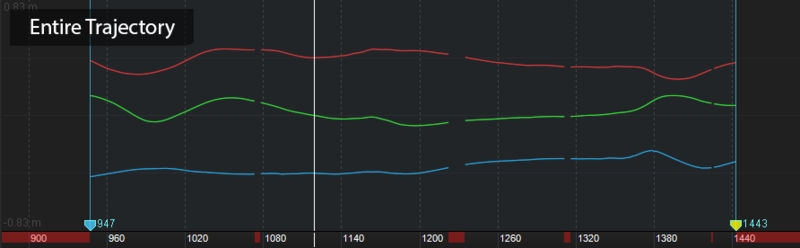
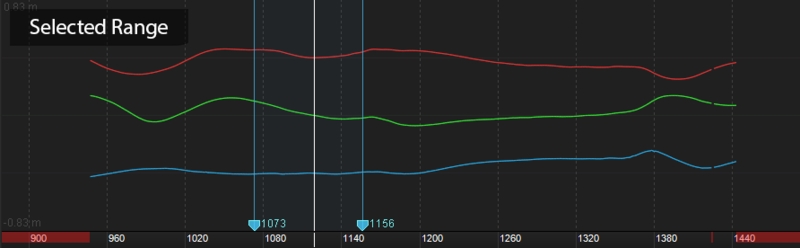
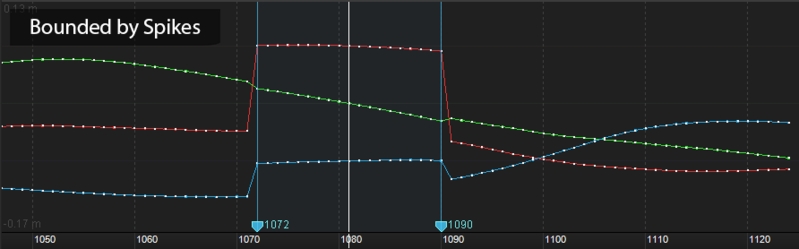

Optimize a Prime Color Camera system with recommended settings for best performance.
This quick start guide applies to Prime Color and Prime Color FS setups.
Please see our full Prime Color Camera chapter for more in-depth information on each topic.
Each Prime Color camera must be uplinked and powered through a standard PoE connection that can provide at least 15.4 watts to each port simultaneously.
Please note that if your aggregation switch is PoE, you can plug your Prime Color Cameras directly into the aggregation switch. PoE injectors are optional and are only required if your aggregation switch is not PoE.
Prime Color cameras connect to the camera system just like other Prime series camera models. Simply plug the camera onto a PoE switch that has enough available bandwidth and it will be powered and synchronized along with other tracking cameras. When you have two color cameras, they will need to be distributed evenly onto different PoE switches so that the data load is balanced.
There are multiple categories for Ethernet cables, and each has different specifications for maximum data transmission rate and cable length. For an Ethernet based system, Cat6 or above Gigabit Ethernet cables should be used. 10 Gigabit Ethernet cables – Cat6a or above — are recommended in conjunction with a 10 Gigabit uplink switch for the connection between the uplink switch and the host PC in order to accommodate for high data traffic.
We recommend using only cables that have electromagnetic interference shielding. If unshielded cables are used, cables in close proximity to each other have the potential to create data transfer interference and cause cameras to stall in Motive.
Unshielded cables do not protect the cameras from Electrostatic Discharge (ESD), which can damage the camera. Do not use unshielded cables in environments where ESD exposure is a risk.
Remove all "bloatware" from the Motive PC to optimize the system and to ensure unnecessary background processes are not running. Background processes take valuable CPU resources from Motive and can cause frame drops while the camera system is running.
There are many external resources to guide you in removing unused apps and halting unnecessary background processes. Those steps will not be covered within the scope of this page.
As a general rule for all OptiTrack camera systems, best practice is to disable Windows firewalls and disable or remove any Antivirus software. Both can cause frame drops while running your camera system.
These optimizations involve disabling various Windows security features. It is crucial that the PC is isolated from the internet or other potential sources of malware.
Many of the recommended optimizations are completed using Window’s Local Group Policy Editor. To open this program:
From the Windows search bar, type CMD.
Run Command Prompt as administrator.
At the command line, type gpedit.msc and press enter.
This will open the Local Group Policy Editor window.
Set a Local Group Policy to disable Private, Public, and Domain firewalls.
Once these policies are implemented, the firewall cannot be re-enabled by any other means.
Open Window’s .
Navigate to Computer Configuration -> Windows Settings -> Security Settings -> Windows Defender Firewall with Advanced Security.
The Overview panel shows the current status of the firewall. Click Windows Defender Firewall Properties to change the state of the Domain, Private, and Public profiles to Off then click OK.
Set a Local Group Policy to disable Microsoft Defender Antivirus.
Once this policy is implemented, the Windows Defender Antivirus cannot be re-enabled in Virus & Threat Protection.
Open Window’s .
Navigate to Computer Configuration -> Administrative Templates -> Windows Components -> Microsoft Defender Antivirus.
Double-click Turn Off Microsoft Defender Antivirus.
Select Enabled and click OK.
Open Window’s .
Navigate to: Computer Configuration -> Administrative Templates -> Windows Components -> Microsoft Defender Antivirus -> Real-time Protection.
Double-click Turn off real-time Protection.
Set the policy to Enabled and click OK.
Customize the Motive desktop shortcut to launch the program with high priority.
On the desktop, right-click the Motive shortcut and select Properties.
Select the Shortcut tab.
Copy and paste the text below into the Target field:
C:\Windows\System32\cmd.exe /C start "" /high "C:\Program Files\OptiTrack\Motive\Motive.exe"
Set the Run property to Maximized.
Click OK to save your changes and close the window.
Do not set the priority to Realtime. This can cause Windows to prioritize Motive above input processes such as mouse and keyboard, resulting in a loss of input control.
If the system has a CPU with a lower core count, you may need to disable Motive from running on one or two cores. This will help stabilize the overall system and free those cores for other Windows-required processes.
From the Task Manager, navigate to the Details tab and right click on Motive.exe.
Select Set Affinity.
From this window, uncheck the cores you wish to disable for Motive.exe to run on.
Click OK.
Do not disable more than 2 cores to insure Motive still runs smoothly. We recommend starting with one core and disabling a second only if frame drop issues continue.
Do not disable more cores than cameras. Motive requires at least one core for each PrimeX Color Camera on the system.
Switches purchased as a component of the OptiTrack system will ship with the proper configuration. If using a switch purchased elsewhere, ensure that any built-in features are disabled.
The Network Interface Card (NIC) has two settings to optimize your system and reduce issues when capturing Prime Color Camera video.
To configure the NIC, type Network in the Windows search bar to find and open the Control Panel to View Network Connections.
Double-click or right-click the NIC for the camera system and select Properties.
On the Properties window, click the Configure... button.
Click the Advanced tab to access the NIC Properties.
This setting determines the rate of data transmission (speed) and whether the NIC can operate at its full range (full duplex) or if throttling will occur (half duplex).
The property should be set to the highest throughput of the NIC. For example, if you have a 10Gbps NIC, select 10Gbps Full Duplex.
This setting allows the NIC to moderate interrupts. When there is a significant amount of data being transmitted to Motive, Interrupt Moderation can increase the number of interrupts, impacting system performance.
This property should be disabled.
To apply changes made to the NIC properties, the NIC must be restarted.
Click the Driver tab.
Click Disable, then Enable to restart the NIC with the new settings.
Rebooting the NIC will take the camera system down for a few minutes. This is normal and once the NIC is rebooted the system should work as expected.
Although not recommended, you can use a laptop PC to run a Prime Color Camera system. The laptop will require an external network adapter to connect to the camera network. The settings noted above typically do not apply to these types of adapters.
Prime color cameras are displayed as a separate category under the Devices pane. You can customize the column view and configure select camera settings directly from this pane. Please see the page for more information.
Select the camera to display its properties in the . The following settings are unique to Color Cameras.
This property sets the resolution of the images captured by the selected camera.
You may need to reduce the maximum frame rate to accommodate the additional data produced by recording at higher resolutions. The table below shows the maximum allowed frame rates for each respective resolution setting.
This setting determines the selected color camera's output transmission rate, and is only applicable when the for the camera is set to (the default value) in the Camera properties.
The maximum data transmission speed that a Prime color camera can output is 100 megabytes per second (MB/s). At this setting, the camera will capture the best quality image, however, it could overload the network if there isn't enough bandwidth to handle the transmitted data.
Read more about compression mode and bit rate settings on the page .
Gamma correction is a non-linear amplification of the output image. The gamma setting adjusts the brightness of dark pixels, mid-tone pixels, and bright pixels differently, affecting both brightness and contrast of the image. Depending on the capture environment, especially with a dark background, you may need to adjust the gamma setting to get best quality images.
Presets for Color Cameras use standard settings to optimize for different outcomes based on file size and image quality. Calibration mode sets the appropriate video mode for the camera type in addition to other setting changes.
Small Size - Lower Rate
Video Mode: Color Video
Rate Multiplier: 1/4 (or closest possible)
Exposure: 20000 (or max)
Hotkeys can be viewed and customized from the Application Settings panel. The below chart lists only the commonly used hotkeys. There are also other hotkeys and unassigned hotkeys, which are not included in the chart below. For a complete list of hotkey assignments, please check the Application Settings in Motive.
File
Open File (TTP, CAL, TAK, TRA, SKL)
CTRL + O
Save Current Take
CTRL + S
An overview of common features available in the Properties Pane.
The Properties pane can be accessed by clicking on the icon on the toolbar.
The Properties pane is used to view and modify properties associated with Takes, assets, and devices that determine how the corresponding items are displayed and tracked. Properties can be modified both in Live and Edit mode. Default creation properties are listed under the Application Settings.
This page covers features and functions common to the Property pane regardless of what is selected. For a detailed description of each property, please see the following pages:
The Properties pane is accessed by clicking the icon on the toolbar. The pane is blank if nothing is selected, or when items that do not have any common properties are selected.
When a single Take, asset, or device is selected, the Properties pane displays properties specific to the selection. See image at left, below.
When multiple items are selected, only common properties are displayed; properties that are not shared are not included. Where the selected assets have different values, Motive displays the text Mixed or places the toggle button in the middle position .
Changes made in the Properties pane are applied to all selected objects.
Buttons at the top of the Properties pane control what is displayed. Click the button in the top right corner to see all options.
Click the lock icon to lock the display to the currently selected item. The pane will continue to display those properties until the lock is removed, regardless of what is selected in the or the . When unlocked (the default position), the pane updates to reflect the current active selection.
The Properties pane contains advanced settings that are hidden by default. To access these settings, click the button on the top-right corner of the pane and select Show Advanced.
Customize the Standard view to show only the settings that are needed specifically for your capture application. Click the button on the top-right corner of the pane and select Edit Advanced.
Checked items will appear in the Standard view while unchecked items will only be visible when Show Advanced is selected.
This option removes all customizations made to the properties of the selected asset. Use with caution.
An in-depth look at the properties available for Cameras.
Camera properties determine how and what a camera captures when recording. These settings can be configured to optimize your capture application.
This page covers the properties specific to cameras. For general information on using and customizing the Properties pane, see the page. For detailed descriptions of properties for various asset types or other devices, please see the following pages:
using System;
using System.IO;
using NMotive;
/// <summary>
/// Motive Batch Processor script for exporting a take file to C3D format.
/// </summary>
public class C3DExportScript : ITakeProcessingScript
{
/// <summary>
/// The <c>ProcessTake</c> function is from the <c>ITakeProcessingScript</c> interface.
/// Exports the given take to C3D format. The exported file is in the same
/// directory as the take file, and has the same name, but with a '.c3d' file extension.
/// </summary>
/// <param name="take">The take to export.</param>
/// <param name="progress">Progress indicator object.</param>
/// <returns>The result of the export process.</returns>
public Result ProcessTake(Take take, ProgressIndicator progress)
{
// Construct an NMotive C3D exporter object with the desired
// options. We will write C3D data for markers and assets.
C3DExporter exporter = new C3DExporter
{
//-== C3DExporter Class ==-
ColonNameSeparator = false,
RenameUnlabeledMarkers = false,
Units = LengthUnits.Units_Centimeters,
UseTimeCode = true,
UseZeroBasedFrameIndex = true,
WriteFingerTipMarkers = false,
WriteUnlabeledMarkers = false,
XAxis = Axis.Axis_NegativeX, // Axis_PositiveX, Axis_NegativeX
YAxis = Axis.Axis_PositiveZ, // Axis_PositiveY, Axis_NegativeY
ZAxis = Axis.Axis_PositiveY // Axis_PositiveZ, Axis_NegativeZ
};
// Construct the output C3D file. The output file will be co-located with the
// take file and have the same name as the take file, but with a '.c3d' extension.
string outputFileName = Path.GetFileNameWithoutExtension(take.FileName) + ".c3d";
string outputDirectory = Path.GetDirectoryName(take.FileName);
string outputFile = Path.Combine(outputDirectory, outputFileName);
// Do the export and return the Export functions result object.
progress.SetMessage("Writing to File");
progress.SetProgress( (float)0.1 );
return exporter.Export(take, outputFile, true);
}
} import sys
import clr
# Add a reference to the NMotive assembly
clr.AddReference("NMotive")
from System import *
# Import everything from NMotive.
from NMotive import *
def ProcessTake(take, progress):
# Set the message to be displayed next to to the progress bar in the
# Motive Batch Processor UI.
progress.SetMessage('Triming tails...')
# Create an NMotive TrimTails object to perform the tail trimming operation.
tailTrimming = TrimTails()
# pass the progress object to the trim tails object. It will update
# progress that will be rendered in the UI.
tailTrimming.Progress = progress
# Set trail trimming options.
tailTrimming.Automatic = True
tailTrimming.LeadingTrimSize = 4
tailTrimming.TrailingTrimSize = 4
# And execute the trimming process.
trimResult = tailTrimming.Process(take)
# If trimming failed for some reason the Success field of the returned
# NMotive Result object will be false and the Message field will contain
# information about the failure. The Message field of the returned Result
# object will be displayed in the UI.
if not trimResult.Success: # If trimming failed, return without saving the take.
return trimResult
# Starting the filtering process...
progress.SetMessage('Filtering...')
# Create the NMotive filter object.
filtering = Filter()
# We are going to use the progress bar to display the progress of each
# individual operation, so reset the progress bar to zero and pass the
# the progress object to the filtering object.
progress.SetProgress(0)
filtering.Progress = progress
# Set the cutoff frequency and filter.
filtering.CutOffFrequency = 8 # Hz
filteringResult = filtering.Process(take)
if not filteringResult.Success: # If filtering failed, return without saving the take.
return filteringResult
# If we get here trimming and filtering succeeded. Save the take file.
progress.SetMessage('Saving take...')
fileSaveResult = take.Save()
if fileSaveResult != FileResult.ResultOK:
return Result(False, 'File save failed')
return Result(True, '') using NMotive;
// any other using statements
public class MyCSharpScript : ITakeProcessingScript
{
public Result ProcessTake(Take t, ProgressIndicator progress)
{
Result scriptResult;
// Script processing code here
progress.SetMessage(“Done processing take “ + t.Name);
progress.SetProgress( 100 );
return scriptResult;
}
} #import sys and clr modules
import sys
import clr
# Add a reference to the NMotive assembly
clr.AddReference("NMotive")
# Import everything from sys and NMotive.
from System import *
from NMotive import *
# Define the ProcessTake function.
def ProcessTake(take, progress):
# Take processing code here
.
.
.
# return result objectSave Current Take As
CTRL + Shift + S
Export Tracking Data from current (or selected) TAKs
CTRL + Shift + Alt + S
Basic
Toggle Between Live/Edit Mode
Shift + ~
Record Start / Playback start
Space Bar
Select All
CTRL + A
Undo
Ctrl + Z
Redo
Ctrl + Y
Cut
Ctrl + X
Paste
Ctrl + V
Layout
Calibrate Layout
Ctrl+1
Create Layout
Ctrl+2
Capture Layout
Ctrl+3
Edit Layout
Ctrl+4
Custom Layout [1...]
Ctrl+[5...9], Shift[1...9]
Perspective View Pane (3D)
Switch selected viewport to 3D perspective view.
1
Switch selected viewport to 2D camera view.
2
Show view angle from a selected camera or a Rigid Body
3
Open single viewport
Shift + 1
Open two viewports; splited horizontally.
Shift + 2
Open two viewports; splited vertically.
Shift + 3
Open four viewports.
Shift + 4
Perspective View Pane (3D)
Follow Selected
G
Zoom to Fit Selection
F
Zoom to Fit All
Shift + F
Reset Tracking
Crtl+R
View/hide Tracked Rays
"
View/hide Untracked Rays
Shift + "
Jog Timeline
Alt + Left Click
Create Rigid Body From Selected
Ctrl+T
Refresh Skeleton Asset
Ctrl + R with a Skeleton asset selected
Enable/Disable Asset Editing
T
Toggle Labeling Mode
D
Select Mode
Q
Translation Mode
W
Rotation Mode
E
Scale Mode
R
Camera Preview (2D)
Video Modes
U: Grayscale Mode
I: MJPEG Mode
O: Object Mode
Data Management Pane
Remove or Delete Session Folders
Delete
Remove Selected Take
Delete
paste shots as empty take from clipboard
Ctrl+V
Timeline / Graph View
Toggle Live/Edit Mode
~
Again+
+
Live Mode: Record
Space
Edit Mode: Start/stop playback
Space
Rewind (Jump to the first frame)
Ctrl + Shift + Left Arrow
PageTimeBackward (Ten Frames)
Down Arrow
StepTimeBackward (One Frame)
Left Arrow
StepTimeForward (One Frame)
Right Arrow
PageTimeForward (Ten Frames)
Up Arrow
FastForward (Jump to the last frame)
Ctrl + Shift + Right Arrow
To next gapped frames
Z
To previous gapped frames
Shift + Z
Graph View - Delete Selected Keys in 3D data
Delete when frame range is selected
Show All
Shift + F
Frame To Selected
F
Zoom to Fit All
Shift + F
Editing / Labeling Workflow
Apply smoothing to selected trajectory
X
Apply cubic fit to the gapped trajectory
C
Toggle Labeling Mode
D
To next gapped frame
Z
To previous gapped frame
Shift + Z
Enable/Disable Asset Editing
T
Select Mode
Q
Translation Mode
W
Rotation Mode
E
Scale Mode
R
Delete selected keys
DELETE
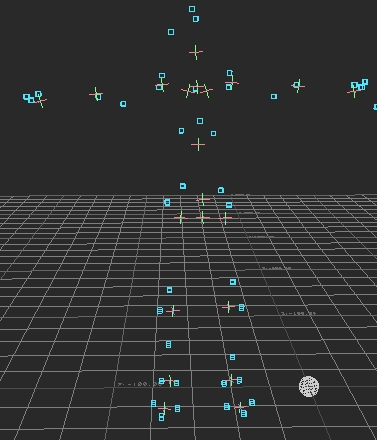
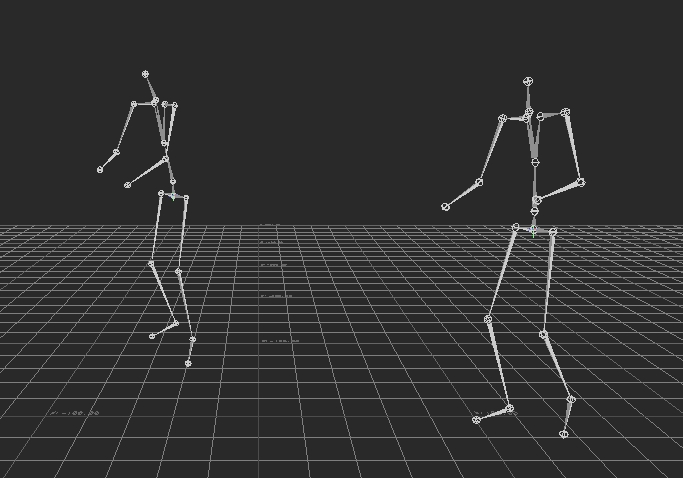
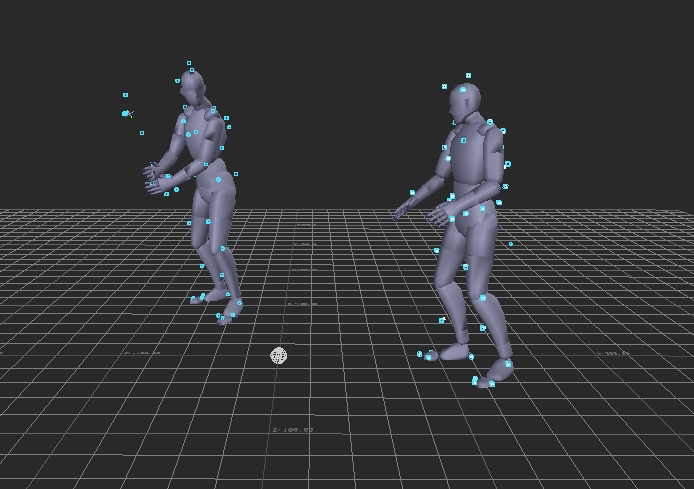
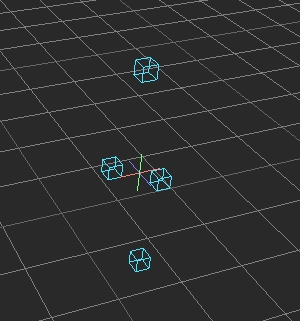
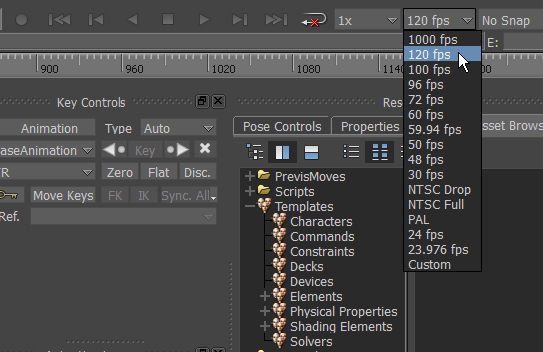


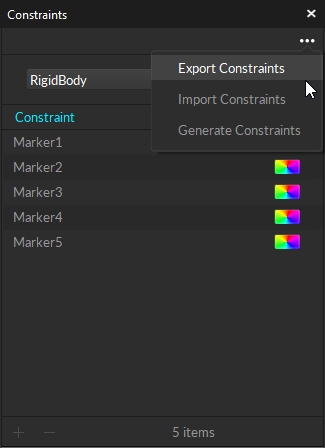
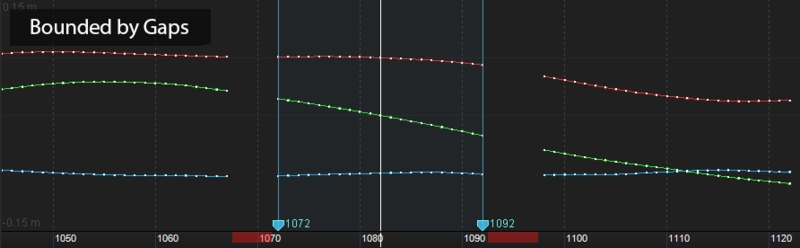
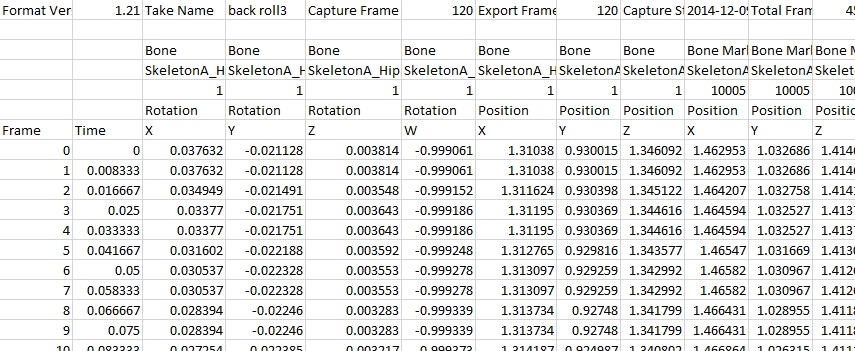
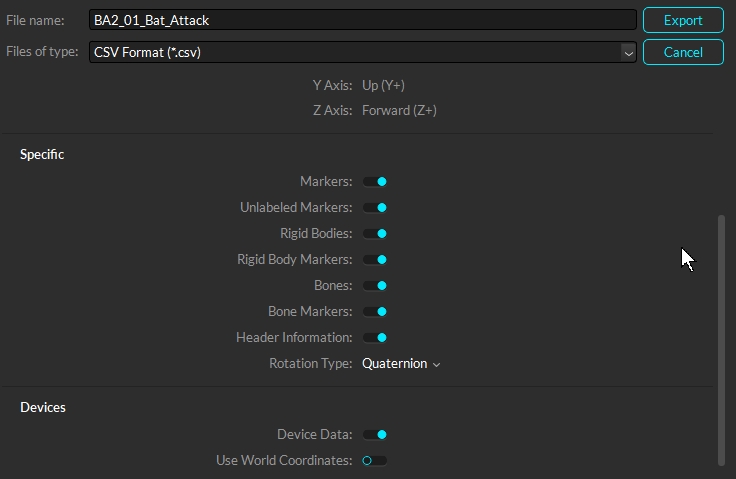
When using multiple Prime Color cameras, we recommend connecting the color cameras directly into the 10-gigabit aggregation (uplink) switch. This configuration allows the data to travel directly through the uplink switch to the host computer through the 10-gigabit network interface. This also separates the color cameras from the tracking cameras.
To connect all the PrimeX Color cameras to the same switch, the switch must be able to uplink 10Gb/s with at least 1Gb/s of bandwidth per access port.
A PoE injector is required if the uplink switch does not provide PoE.
To connect all the PrimeX Color cameras to the same switch, the switch must be able to uplink 10Gb/s with at least 1Gb/s of bandwidth per access port.
Insufficient number of available or utilized CPU cores
RAM/disk memory
Decreasing the bit-rate in such cases may slow the data transmission speed of the color camera enough to resolve the problem.
Bit Rate: [calculated]
Small Size - Full Rate
Video Mode: Color Video
Rate Multiplier: x1
Exposure: 20000 (or max)
Bit Rate: [calculated]
Great Image
Video Mode: Color Video
Rate Multiplier: x1
Exposure: 20000 (or max)
Bit Rate: [calculated]
Calibration Mode
Video Mode:
FS Series: Object Mode
Non-FS Series: Color Object Mode
Rate Multiplier: x1
Exposure: 250
Bit Rate: N/A
Windows 10 or 11 Professional (64 Bit)
Designated 1Gbps NIC w/drivers
CPU: Intel i9 or better 3.5GHz+
Network switch with 1Gbps uplink port
RAM: 16GB+ of memory
GPU: GTX 1050 or better with latest drivers and supports OpenGL version 4.0 or higher.
M.2 SSD
Windows 10 or 11 Professional (64 Bit)
Designated 10Gbps+ NIC w/drivers
CPU: Intel i9 or better 3.5GHz+
Network switch with 10Gbps+ uplink port
RAM: 32GB+ of memory
GPU: RTX 2070 or better with latest drivers and supports OpenGL version 4.0 or higher.
M.2 SSD
960 x 540 (540p)
500 FPS
1280 x 720 (720p)
360 FPS
1920 x 1080 (1080p) Default
250 FPS


USB C port to connect the Security Key or USB A port to connect the Hardware Key
USB C port or an adapter for USB A to USB C to connect the Security Key, or a USB A port to connect the Hardware Key
Unlimited
No
No
Live Markersets & Skeletons
No
Up to 3
Unlimited
No
No
Edit Markersets & Skeletons
No
Up to 3
Unlimited
Up to 3
Unlimited
Track 6RB Skeletons
No
Yes
Yes
No
No


Select one or more cameras in either the Devices pane, the Cameras View, or the 3D Viewport to view Camera properties. When a single camera is selected, the Properties pane displays properties specific to the selection. When multiple cameras are selected, only shared values are displayed. Where the selected cameras have different values, Motive displays the text Mixed or places the toggle button in the middle position .
Changes made to camera settings through the Properties Pane apply to all selected cameras.
This section provides basic information about the selected camera(s). Properties are Standard unless noted otherwise. Most are read-only.
Displays the name of the selected camera type, e.g., Prime 13, Slim 3U, etc.
Displays the model number of the selected camera, where applicable.
Sub-Model (Advanced)
Displays the sub-model number of the selected camera, where applicable..
Displays the camera serial number.
Displays the camera number assigned by Motive.
Displays the focal length of the camera's lens.
Displays the x/y/z coordinates of the camera in relation to the global origin.
Displays the orientation (pitch/yaw/roll) of the camera in relation to the global origin.
Displays the resolution of the camera's image sensor, in pixels.
The following items are available in the General Properties section. Properties are Standard unless noted otherwise.
A camera must be enabled to record data and contribute to the reconstruction of 3D data, if recording in object mode. Disable a camera if you do not want it included in the data capture.
This setting determines whether the selected camera contributes to the real-time reconstruction of the 3D data.
When this setting is disabled, Motive continues to record the camera's 2D frames into the capture file, they are just not processed in the real-time reconstruction. A post-processing reconstruction pipeline allows you to obtain fully contributed 3D data in Edit mode.
Shows the frame rate of the camera. The camera frame rate can be changed from the Devices pane.
Shows the rate multiplier or divider applied to the master frame rate. The master frame rate depends on the sync configuration.
Sets the amount of time that the camera exposes per frame. Exposure value is measured in scanlines for tracking bars and Flex3 series cameras, and in microseconds for Flex13, S250e, Slim13E, and Prime Series cameras. The minimum and maximum values allowed depend on both the type of camera and the frame rate.
Higher exposure allows more light in, creating a brighter image that can increase visibility for small and dim markers. However, setting the exposure too high can introduce false markers, larger marker blooms, and marker blurring, all of which can negatively impact marker data quality.
Defines the minimum brightness for a pixel to be recognized by a camera, with all pixels below the threshold ignored.
Increasing the threshold can help filter interference by non-markers (e.g. reflections and external light sources), while lowering the threshold can allow dimmer markers to be seen by the system (e.g. smaller markers at longer distances from the camera).
Camera partitions create the ability to have several capture volumes (multi-room) tied to a single system. Continuous Calibration collects samples from each partition and calibrates the entire system even when there is no camera overlap between spaces.
This setting enables the IR LED ring on the selected camera. This setting must be enabled to illuminate the IR LED rings to track passive retro-reflective markers.
If the IR illumination is too bright for the capture, decrease the camera exposure setting to decrease the amount of light received by the imager, dimming the captured frames.
Select from 4 video types:
Tracking: Tracking modes capture the 2D marker data used in the reconstruction of 3D data.
Object mode: Performs on-camera detection of centroid location, size, and roundness of the markers, and sends respective 2D object metrics to Motive to calculate the 3D data. Recommended as the default mode for recording.
Precision mode: Performs on-camera detection of marker reflections and their centroids and sends the respective data to Motive to determine the precise centroid location. Precision mode is more processing intensive than Object mode.
Reference Modes: Reference modes capture grayscale video as a visual aid during the take. Cameras in these modes do not contribute to the reconstruction of 3D data.
Grayscale: Raw grayscale is intended for aiming and monitoring the camera views and diagnosing tracking problems and includes aiming crosshairs by default. Grayscale video cannot be exported.
MJPEG: A reference mode that captures grayscale frames, compressed on-camera for scalable reference videos. MJPEG videos can be along with overlay information such as markers, rigid bodies, and skeleton data.
Sets the camera to view either visible or IR spectrum light on cameras equipped with a Filter Switcher. When enabled, the camera captures in IR spectrum, and when disabled, the camera captures in the visible spectrum.
Infrared Spectrum should be selected when the camera is being used for marker tracking applications. Visible Spectrum can optionally be selected for full frame video applications, where external, visible spectrum lighting will be used to illuminate the environment instead of the camera’s IR LEDs. Common applications include reference video and external calibration methods that use images projected in the visible spectrum.
Sets the imager gain level for the selected camera. Gain settings can be adjusted to amplify or diminish the brightness of the image.
This setting can be beneficial when tracking at long ranges. However, note that increasing the gain level will also increase the noise in the image data and may introduce false reconstructions.
Before changing the gain level, we recommend adjusting other camera settings first to optimize image clarity, such as increasing exposure and decreasing the lens f-stop.
Shows whether the selected camera has been calibrated. This property does not indicate the quality of the calibration.
When enabled, the estimated field of view (FOV) of the selected camera is shown in the perspective viewport. When the camera is selected, the lines display in yellow. When the camera is not selected, the lines display in cyan.
Frame delivery information is used to determine how fast a camera is delivering its frame packets. When enabled, the frame delivery information is shown in the Camera views.
This setting can also be enabled by right-clicking a camera in the Cameras view or in the 3D Viewport and selecting Frame Delivery Visual.
Prime color cameras also have the following additional properties that can be configured:
Default: 1920 x 1080
This property sets the resolution of the images captured by the selected camera.
You may need to reduce the maximum frame rate to accommodate the additional data produced by recording at higher resolutions. The table below shows the maximum allowed frame rates for each respective resolution setting.
960 x 540 (540p)
500 FPS
1280 x 720 (720p)
360 FPS
1920 x 1080 (1080p)
250 FPS
Default: Constant Bit Rate.
This property determines how much the captured images will be compressed.
Constant Bit-Rate
In the Constant Bit-Rate mode, Prime Color cameras vary the degree of image compression to match the data transmission rate given under the Bit Rate settings. At a higher bit-rate setting, the captured image will be compressed less. At a lower bit-rate setting, the captured image will be compressed more to meet the given data transfer rate. Compression artifacts may be introduced if it is set too low.
The Constant Bit-Rate mode is used by default and recommended because it is easier to control the data transfer rate and efficiently utilizes the available network bandwidth.
Variable Bit-Rate
The Variable Bit-Rate setting keeps the amount of the compression constant and allows the data transfer rate to vary. This mode is beneficial when capturing images with objects that have detailed textures because it keeps the amount of compression consistent on all frames. However, this mode may also cause dropped frames if the camera needs to compress highly detailed images, spiking the data transfer rate, which may overflow the network bandwidth as a result. For this reason, we recommend using the Constant Bit-Rate setting in most applications.
The compression property sets the percentage (100%) of the maximum data transmission speed to allocate for the camera.
Default: 100 MB/s
Available only while using Constant Bit-rate Mode
The bit-rate setting determines the selected color camera's output transmission rate.
The maximum data transmission speed that a Prime color camera can output is 100 megabytes per second (MB/s). At this setting, the camera will capture the best quality image, however, it could overload the network if there isn't enough bandwidth to handle the transmitted data.
While the image quality increases at a higher bit-rate setting, this also results in larger file sizes and possible frame drops due to data bandwidth bottlenecks. The desired result may differ depending on the capture application and its intended use. The below graph illustrates how the image quality varies depending on the camera frame rate and bit-rate settings.
Default : 24
Gamma correction is a non-linear amplification of the output image. The gamma setting will adjust the brightness of dark pixels, mid-tone pixels, and bright pixels differently, affecting both brightness and contrast of the image. Depending on the capture environment, especially with a dark background, you may need to adjust the gamma setting to get best quality images.
Live Pipeline settings contain camera filter and solver settings for obtaining 3D data in Motive. These settings are optimized by default to provide high-quality tracking for most applications.
Please see the following pages for descriptions of the settings on other tabs:
Application Settings can be accessed from the View menu or by clicking the icon on the main toolbar.
Solver settings control how each marker's trajectory is reconstructed into the 3D space and how Rigid Bodies, Skeletons, and Trained Markersets track. The solver is designed to work for most applications using the default settings. However, in some instances, changing settings will lead to better tracking results.
The standard settings are those most likely to be customized by the user. We recommend exercising caution before making adjustments to any Solver advanced settings.
These properties are only available when Advanced settings are displayed.
The Trajectorizer settings control how the 2D marker data is converted into 3D points in the calibrated volume. The Trajectorizer performs reconstruction of 2D data into 3D data, and these settings control how markers are created in the 3D scene over time.
The Booter settings control when the assets start tracking, or boot, on the trajectorized 3D markers in the scene, which determine when Rigid Bodies and/or Skeletons track on a set of markers.
This Cameras tab of the Live Pipeline settings is used to configure the filter properties for all the cameras in the system.
The Camera Filters - Hardware section is shown only when the advanced settings are displayed.


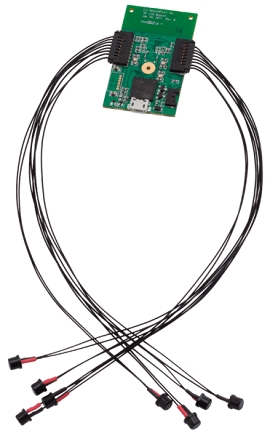
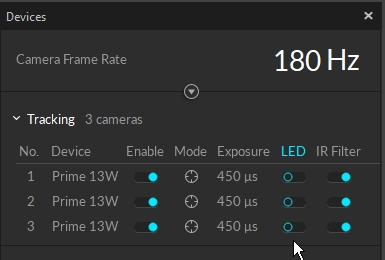
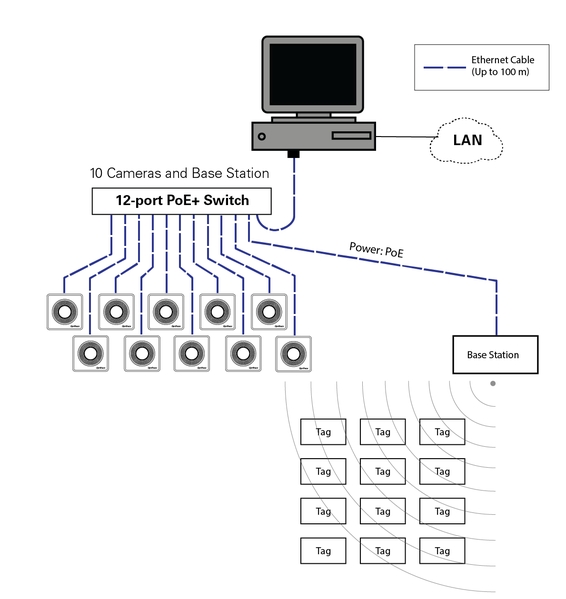
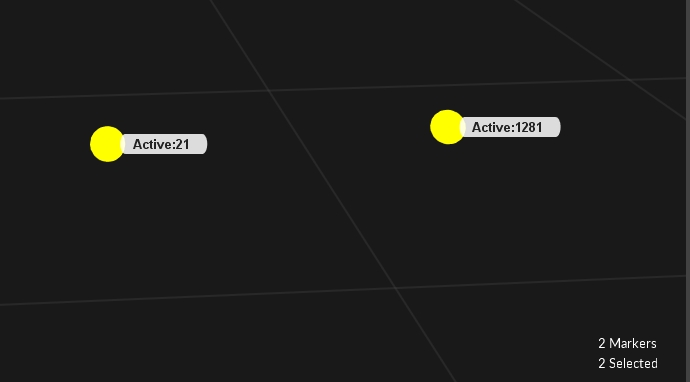
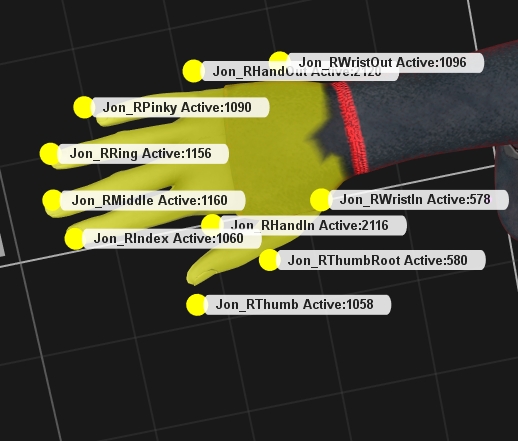
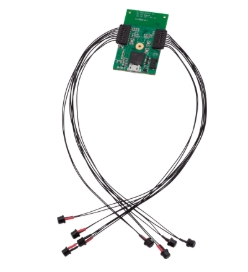
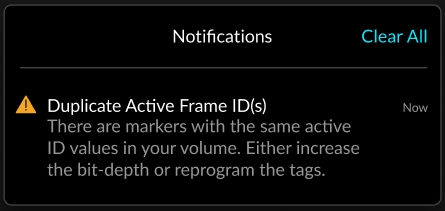
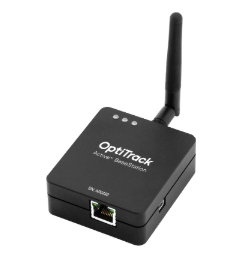
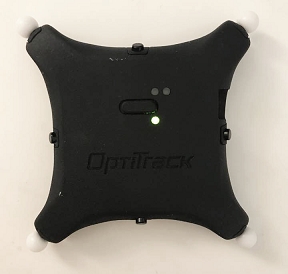
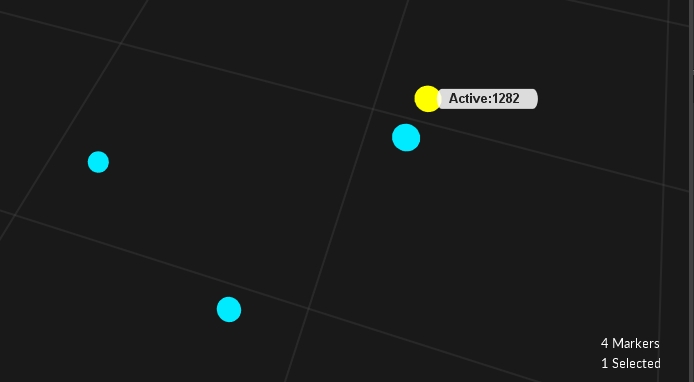
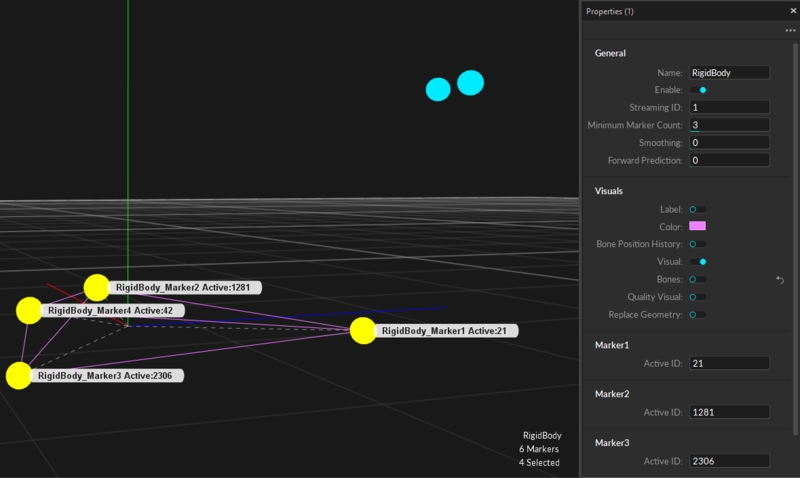
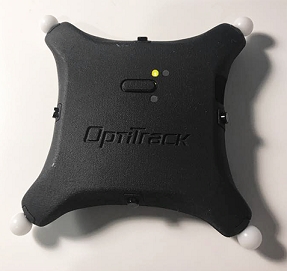
Learn how to configure Motive to broadcast frame data over a selected server network.
Common motion capture applications rely on real-time tracking. The OptiTrack system is designed to deliver data at an extremely low latency even when streaming to third-party pipelines.
Motive offers multiple options to stream tracking data to external applications in real-time. Streaming plugins are available on the OptiTrack download site for the following applications:
Autodesk Motion Builder
Unreal Engine
Unity
Maya (VCS)
Motive can stream to the following applications or protocols as well:
Visual3D
VRPN
In addition to these plugins, the enables users to build custom clients to receive capture data.
NatNet is a client/server networking protocol for sending and receiving data across a network in real-time. It utilizes UDP along with either Unicast or Multicast communication to integrate and stream reconstructed 3D data, Rigid Body data, Trained Markerset data, and Skeleton data from OptiTrack systems to client applications.
The API includes a class for communicating with OptiTrack server applications for building client protocols. Using the tools provided in the NatNet API, capture data can be used in various application platforms. Please refer to the of the user guide for more information on using NatNet and its API references.
To quickly access streaming settings, click the streaming icon from the control deck. This will open the in the panel. Alternately, you can open the Settings panel by clicking the button, then selecting the Streaming tab.
Check Enable to start streaming. This will change the color of the streaming icon in the Control Deck:
Once enabled, Motive will display a warning if you attempt to exit without turning it back off first:
Default: Loopback
This setting determines which network Motive will use to stream data.
Use the Loopback option when Motive and the client application are both running on the same computer. Otherwise, select the IP address for the network where the client application is installed.
Motive Host PCs often have multiple network adapters, one for the camera network and one or more for the local area network (LAN). When streaming over a LAN, select the IP address of the network adapter connected to the LAN where the client application resides.
Firewall or anti-virus software can block network traffic. It's important to either disable these applications or configure them to allow access to both server (Motive) and Client applications.
Default: Multicast
NatNet uses the UDP protocol in conjunction with either Point-To-Point Unicast or IP Multicasting for sending and receiving data.
Unicast NatNet clients can subscribe to just the data types they need, reducing the size of the data packets streamed. This feature helps to reduce the streaming latency. This is especially beneficial for wireless unicast clients, where streaming is more vulnerable to packet loss.
For more information on NatNet data subscription, please read the page.
Default: Enabled
Enables streaming of labeled Marker data. These markers are point cloud solved markers.
Default: Enabled
Enables streaming of all of the unlabeled Marker data in the frame.
Default: Enabled
Enables streaming of asset markers associated with all of the assets (Rigid Body, Trained Markerset, Skeleton) in the Take. The streamed list will contain a special marker set named all, which is a list of labeled markers in all of the Take's assets. In this data, Skeleton, Rigid Body, and Trained Markerset markers are point cloud solved and model-filled on occluded frames.
Default: Enabled
Enables streaming of Rigid Body data, which includes the names of Rigid Body assets as well as positions and orientations of their .
Default: Enabled
Enables streaming of Skeleton tracking data from active Skeleton assets. This includes the total number of bones and their positions and orientations in respect to global, or local, coordinate system.
Default: Enabled
Enables streaming of solved marker data for active Trained Markerset assets. This includes the total number of bones and their positions and orientations in respect to the global coordinate system.
Default: Enabled
Enables streaming of bone data for active Trained Markerset assets. This includes the total number of bones, their positions and orientations in respect to the global coordinate system, and the structure of any bone chains the asset may have.
Default: Enabled
Enables the streaming active peripheral devices (ie. force plates, Delsys Trigno EMG devices, etc.).
Default: Global
Global: Tracking data is represented according to the global coordinate system.
Local: The streamed tracking data (position and rotation) of each skeletal bone is relative to its parent bones.
Default: Motive
The Bone Naming Convention determines the format to use for streaming Skeleton data so each segment can be properly recognized by the client application.
Motive: Uses the standard Motive bone naming convention.
FBX: Used for streaming to Autodesk pipelines, such as MotionBuilder or Maya.
BVH: Used for streaming biomechanical data using the BioVision Hierarchy (BVH) naming convention.
UnrealEngine: Used for streaming to UnrealEngine.
Default: Y Axis
Selects the upward axis of the right-hand coordinate system in the streamed data. Change this setting to Z Up when streaming to an external platform using a Z-up right-handed coordinate system (e.g., biomechanics applications).
For compatibility with left-handed coordinate systems, the simplest method is to rotate the capture volume 180 degrees on the Y axis when defining the ground plane during .
Default: Disabled
Enables the use of a remote trigger for recording using XML commands. Read more in the section, below.
The Settings panel contains advanced settings that are hidden by default. To access these settings, click the button in the top right corner and select Show Advanced.
Default: Enabled
Includes the associated asset name as a subject prefix to each marker label in the streamed data.
Default: Disabled
Enables streaming to Visual3D. Normal streaming configurations may be not compatible with Visual3D. This feature ensures that the tracking data to be streamed to Visual3D is compatible.
We recommend leaving this setting disabled when streaming to other applications.
Default: 1
Applies scaling to all of the streamed position data.
Default: 1510
Specifies the port to use to negotiate the connection between the NatNet server and client.
Default: 1511
Specifies the port to use to stream data from the NatNet server to the client(s).
Default: 1512
Specifies the port to use to to stream XML data for remote trigger commands.
Default: 239.255.42.99
Defines the multicast broadcast address.
Default: Disabled
When enabled, Motive streams data via broadcasting instead of sending to Unicast or Multicast IP addresses. This should be used only when the use of Multicast or Unicast is not applicable.
To use the broadcast, enable this setting and set the streaming option to Multicast. Set the NatNet client to connect as Multicast, and then set the multicast address to 255.255.255.255. Once Motive starts broadcasting data, the client will receive broadcast packets from the server.
Broadcasting may interfere with other network traffic. A dedicated NatNet streaming network may be required between the server and the client(s).
Default: 1000000
This controls the socket size while streaming via Unicast. This property can be used to make extremely large data rates work properly.
DO NOT modify this setting unless instructed to do so by OptiTrack Support.
For information on streaming data via the VRPN Streaming Engine, please visit the . Note that only 6 DOF Rigid Body data can be streamed via VRPN.
Default: Disabled
When enabled, Motive streams Rigid Body data via the VRPN protocol.
Default: 3883
Specifies the broadcast port for VRPN streaming.
Recording in Motive can control or be controlled by other remote applications through sending or receiving either or XML broadcast messages to or from a client application using the UDP communication protocol. This enables client applications to trigger Motive and vice versa. We recommend using commands because they are more robust and offer additional control features.
Recording start and stop commands can also be transmitted via XML packets. To trigger via XML messages, the under the Advanced Streaming Settings must be enabled. For Motive, or clients, to receive the packets, the XML messages must be sent via the
Tip: Within the NatNet SDK sample package, there is are simple applications (BroadcastSample.cpp (C++) and NatCap (C#)) that demonstrates a sample use of XML remote trigger in Motive.
The XML messages must follow the appropriate syntax. The samples below show the correct XML syntax for the start / stop trigger packet:
Runs locally or over a network. The NatNet SDK includes multiple sample applications for C/C++, OpenGL, WinForms/.NET/C#, MATLAB, and Unity. It also includes a C/C++ sample showing how to decode Motive UDP packets directly without the use of client libraries (for cross platform clients such as Linux). For more information regarding NatNet SDK visit our page .
C/C++ or VB/C#/.NET or MATLAB
Markers: Y Rigid Bodies: Y Skeletons: Y Trained Markersets: Y
Runs locally or over a network. Allows streaming of both recorded data and real-time capture data for markers, Rigid Bodies, and Skeletons.
Comes with Motion Builder Resources: OptiTrack Optical Device OptiTrack Skeleton Device OptiTrack Insight VCS
Markers: Y Rigid Bodies: Y Skeletons: Y
Streams capture data into Autodesk Maya for using the Virtual Camera System.
Works with Maya 2011 (x86 and x64), 2014, 2015, 2016, 2017 and 2018
Markers: Y Rigid Bodies: Y Skeletons: Y
With a Visual3D license, you can download the Visual3D server application which is used to connect an OptiTrack server to a Visual3D application. Using the plugin, Visual 3D receives streamed marker data to solve precise Skeleton models for biomechanics applications.
Markers: Y Rigid Bodies: N Skeletons: N C-Motion wiki:
Runs locally or over a network. Supports Unreal Engine version 5.3. This plugin allows streaming of Rigid Bodies, markers, Skeletons, trained markersets, and integration of HMD tracking within Unreal Engine projects. Please see the section of our documentation for more information.
Markers: Y Rigid Bodies: Y Skeletons: Y Trained Markersets: Y
Runs locally or over a network. This plugin allows streaming of tracking data and integration of HMD tracking within Unity projects. Please see the section of our documentation for more information.
Markers: Y Rigid Bodies: Y Skeletons: Y
Runs Motive headlessly and provides the best Motive command/control. Also provides access to camera imagery and other data elements not available in the other streams.
C/C++
Markers: Y Rigid Bodies: Y Skeletons: N
Within Motive
Runs locally or over a network.
The Virtual-Reality Peripheral Network (VRPN) is an open source project containing a library and a set of servers that are designed for implementing a network interface between application programs and tracking devices used in a virtual-reality system.
Motive 3.1 uses VRPN version 7.33.1.
For more information:


The file directory where the recorded captures will be saved.
Start Timecode
Timecode values (SMTPE) for frame alignments, or reserving future record trigger events for timecode supported systems. Camera systems usually have higher framerates compared to the SMPTE Timecode. In the triggering packets, the always equal to 0 at the trigger.
PacketID
(Reserved)
HostName
(Reserved)
ProcessID
(Reserved)
(Reserved)
Name
Name of the Take that will be recorded.
SessionName
Name of the session folder.
Notes
Informational note for describing the recorded Take.
Description
(Reserved)
Assets
List of assets involved in the Take.
Name
Name of the recorded Take.
Notes
Informational notes for describing recorded a Take.
Assets
List of assets involved in the Take
Timecode
Timecode values (SMPTE) for frame alignments. The subframe value is zero.
HostName
(Reserved)


DatabasePath
ProcessID
Set the puck on a level surface and wait until the puck is finished calculating its bias. See below for a description of each indicator light.
Select the markers from the active device and create a Rigid Body Asset.
It is highly recommended to make sure all 8 markers can be tracked with minimal occlusions for the best results when pairing and aligning the Rigid Body to the IMU.
Right click on the Rigid Body in the Assets pane and select Active Tags -> Auto-Configure Active Tag.
Move the CinePuck or IMU Active Puck slowly around at least 3 axes until you see 'IMU Working [Good Optical] %'. You have now successfully paired and aligned your CinePuck with your Rigid Body.
Attach your CinePuck to your cinema camera or your regular IMU Active Puck to an object of your choosing.
Enjoy your sensor fused Puck for seamless and robust tracking.
The options below can be found both by right clicking a Rigid Body in the Assets pane or by selecting the Rigid Body in the 3D Viewport and right clicking to open the context menu.
This option will pair and align the Rigid Body to the IMU Tag all in one go. This is the quickest and most preferable option when first getting started.
This will set the Puck to search for an IMU pair. Once paired, this will be indicated in the 3D Viewport IMU visual as 'IMU Paired', the Devices pane Active Tag 'Paired Asset' column, and in the Assets pane's 'Active Tag' column.
This will remove a paired Tag from the Rigid Body.
If manually pairing from the Devices pane:
Choose the Rigid Body you would like to pair to the selected Tag in the Devices pane.
If manually pairing from the Assets pane:
Choose the Active Tag you would like to pair to the selected Rigid Body in the Assets pane.
This allows you to manually align your Tag to your Rigid Body after you have paired.
This allows you to remove alignment from your Rigid Body while still paired to the IMU.
If you would like your Pivot orientation to reflect the orientation of your IMU (internal), you can select Orient Pivot to IMU. Motive will recognize the physical orientation of the IMU within the Puck and adjust the Rigid Body pivot bone appropriately.
From the existing Assets pane, you can right click to add columns. For this IMU workflow, you can select Active Tag. The Active Tag column will display either the Paired or fully Paired and Aligned IMU Tag to the Rigid Body Asset. If the Rigid Body is non IMU or is not yet Paired or Aligned, this column will display 'None'.
In the 3D viewport, just like Labels, you can view the status of the Rigid Body.
After either Auto or Manually pairing, the status above your Rigid Body will report 'Searching for IMU Pair'. After moving and rotating your Puck around this should change to 'IMU Paired'.
If it does not, this could mean that an IMU device is not present or is not being recognized. Please check the Devices pane to see if the IMU Device is populated in the table with its Uplink ID. If you are unable to find the Device, please check your RF Channel and Uplink ID using the Active Batch Programmer.
After your Rigid Body has successfully paired with the IMU Tag, the status will change to IMU Paired [Optical] %.
Once you have either Auto-Configured or Manually Paired and Aligned an Asset, you should see 'IMU Working' appear over your Asset in the 3D viewport.
If you're having issues seeing 'IMU Working,' you may need to rotate the Puck in more axes or try Pairing again and Re-align.
Tags that have come into Motive can be viewed in the Devices pane under the Active Tag section. Please see above for context menu options for this pane.
By default the Name is set to 'Tag XX:XX'. The XX:XX format denotes the RF Channel and Uplink ID respectively. i.e. Tag 20:00 is on RF Channel 20 and has an Uplink ID of 0.
When an Asset is paired, this will show the Rigid Body name that will be the same as shown in the Assets pane.
The Aligned column will show the Aligned status of the Active Tag.
If the tag is unpaired, the circle x icon will appear.
If the tag is pairing, the circle with the wave icon will appear.
If the tag is paired, the green circle with green check icon will appear.
Properties for both the IMU tag by itself (when selected from Devices pane) and for the sensor fused Rigid Body (when selecting the Rigid Body from either the Assets pane or 3D Viewport) can be found in the Properties pane.
The Active Tag does not have any editable properties but does display a few Details and General properties.
Rigid Body properties that pertain to IMU specific workflows can be found under the General and Visuals sections.
The minimum number of measurements required for the IMU to auto-align. A higher number may result in a better outcome in a suboptimal environment. For example, if the CinePuck isn't being detected as expected, adjusting this value may obtain better results.
This setting is in the General section as an Advanced property.
The rate of drift correction.
This changes how heavily the optical data is weighted or trusted in calculating the drift correction. A drift correction of 1 will look much like the optical data, whereas a drift correction close to 0 will more closely match the IMU data.
This setting is in the General section as an Advanced property.
This dropdown in the Visuals section allows you to choose how you would like the IMU State to appear in the 3D viewport.
None - No visual in the viewport
Text - Text visual in viewport
Icon - Icon only visual in viewport
After pairing a Rigid Body to an IMU Puck, an IMU Constraint with IMU information will be created for the Rigid Body. This along with an update to the names of Constraints based on what Puck type is identified by Motive.
As stated above, the IMU Constraint is created when the IMU Tag is paired to a Rigid Body. This not only stores the information after pairing, but also alignment information when the Align action is performed by either Auto-Configure Active Tag or by Manually Aligning.
If this Constraint is removed, this will remove the pair and/or align information from the Rigid Body. You will need to perform another pair and align to re-adhere the sensor fusion data to the Rigid Body once more.
The Info pane Active Debugging is used as a troubleshooting tool to see the amount of IMU data packets dropped along with the largest gap between IMU data packets being sent.
When either column exceeds the Maximum settings, the text will turn magenta depending on the logic setup in the Maximum settings at the bottom of the pane.
This column denotes the number of IMU packet drops that an IMU Tag is encountering over 60 frames.
Max Gap Size denotes the number of frames between IMU data packets sent where the IMU packets were dropped. i.e. in the image above on the left, the maximum gap is a 1 frame gap where IMU packets were either not sent or received. The image on the right has a gap of 288 frames where the IMU packets were either not sent or received.
The number of IMUs that can attach to a BaseStation is determined by the system frame rate and the divisor applied to the BaseStation. The table below shows the IMU maximum for common frame rates with a divisor rate of 1, 2, and in some cases 3.
60
26
54
83
70
22
47
71
80
19
39
As noted, the table does not include all possible frame rate and divisor combinations. If you are familiar with using Tera Term or PuTTy, you can determine the maximum number of IMUs for any specific frame rate and divisor combination not shown on the table.
Use PuTTy to change the divisor rate on the BaseStation.
Connect an IMU puck to PuTTy.
Attempt to set the ID of the puck to an unrealistically high value. This triggers a warning that includes the current number of slots available for the given frame rate.
Set the IMU puck ID to the highest available slot for the frame rate and confirm that it appears in Motive.
Bottom Right:
Orange
Powered ON and Booting
N/A
Top: Flashing Red/Green
Calculating bias. Please set on level surface.
N/A
Top: Fast flashing Green Bottom Right: Slow flashing Green
Bias has been successfully calculated and Puck is connected to BaseStation
N/A

Solved Data: After editing marker data in a recorded Take, corresponding Solved Data must be updated.
Labeled or unlabeled trajectories can be identified and resolved from the following places in Motive:
3D Perspective Viewport: From the 3D viewport, select Marker Labels in the visual aids menu to show marker labels for selected markers.
Labels pane: The Labels pane lists all the marker labels and corresponding percentage gap for each label. The label will turn magenta in the list if it is missing at the current frame.
Graph View pane: The timeline scrubber highlights in red any frames where the selected label is not assigned to a marker. The Tracks view provides a list of labels and their continuity in a captured Take.
There are two approaches to labeling markers in Motive:
Auto-label pipeline: Automatically label sets of Rigid Body, Skeleton, or Trained Markerset markers using calibrated asset definitions. Motive uses the unique marker placement stored in the Asset definition to identify an asset and applies its associated marker labels automatically. This occurs both in real-time and post-processing.
Manual Label: Manually label individual markers using the Labels pane. Use this workflow to give Rigid Bodies and Trained Markersets more meaningful labels.
As noted above, Motive stores information about Rigid Bodies, Skeletons, and Trained Markersets in asset definitions, which are recorded when the assets are created. Motive's auto-labeler uses asset definitions to label a set of reconstructed 3D trajectories that resemble the marker arrangements of active assets.
Once all of the markers on active assets are successfully labeled, corresponding Rigid Bodies and Skeletons get tracked in the 3D viewport.
The auto-labeler runs in real-time during Live mode and the marker labels are saved in the recorded TAKES. Running the auto-labeler again in post-processing will label the Rigid Body and Skeleton markers again from the 3D data.
Select the Take(s) from the Data pane.
Right-click to open the context menu.
Click reconstruct and auto-label to process the selected Takes. This pipeline creates a new set of 3D data and auto-labels the markers that match the corresponding asset definitions.
Be careful when reconstructing a Take again either by Reconstruct or Reconstruct and Auto-label. These processes overwrite the 3D data, discarding any post-processing edits on trajectories and marker labels.
Recorded Skeleton marker labels, which were intact during the live capture, may be discarded, and the reconstructed markers may not be auto-labeled correctly again if the Skeletons are never in well-trackable poses during the captured Take. This is another reason to always start a capture with a good calibration pose (e.g., a T-pose).
Label names can be changed through the Constraints Pane or the Labels Pane.
The Constraints pane displays marker labels for either the selected asset or all assets in the Take. Markers that are not part of an asset are not included.
The Labels pane displays marker labels for either the selected asset or all markers in the Take.
To change a marker label:
Right-click the label and select Rename, or
Click twice on the label name to open the field for editing.
To switch assets:
Use the Assets pane or the 3D Viewport to select a different asset or click the button in the Constraints pane to unlock the asset selection drop-down.
When -All- is selected in the Constraints pane, the marker labels include the asset name as a prefix, e.g., Bat_marker1. Delete the prefix if updating labels from this view.
The Labels pane does not include the asset name prefix when -All- is selected.
There are times when it is necessary to manually label a section or all of a trajectory, either because the markers of a Rigid Body, Skeleton, or Trained Markerset were misidentified (or unidentified) during capture or because individual markers need to be labeled without using any tracking assets. In these cases, the Labels pane in Motive is used to perform manual labeling of individual trajectories.
The manual labeling workflow is supported only in post-processing of the capture when a Take file (.TAK) has been loaded with 3D data as its playback type. In case of 2D data only capture, the Take must be Reconstructed first in order to assign, or edit, the marker labels in 3D data.
This manual labeling process, along with 3D data editing, is typically referred to as post processing of mocap data.
The Labels pane is used to assign, remove, and edit marker labels in the 3D data and is used along with the Editing Tools for complete post-processing.
Shows the labels involved in the Take and their corresponding percentage of occluded gaps values. If the trajectory has no gaps (100% complete), no number is shown.
By default, only labeled markers are shown. To see unlabeled markers, click the button in the upper right corner of the pane and select any layout option other than Labeled only.
Labels are color-coded to note the label's status in the current frame of 3D data. Assigned marker labels are shown in white, while labels without reconstructions and unlabeled reconstructions that are not in the current frame are shown in magenta.
Please see the Labels pane page for a detailed explanation of each option.
The Quick Label mode allows you to tag labels with single-clicks in the 3D Viewport and is a handy way to reassign or modify marker labels throughout the capture.
Select the asset to label, either from the Assets Pane, the 3D Viewport, or from the asset selection drop-down list in the Labels pane.
This will display all of the asset's markers and their corresponding percentage gap.
Click the button and select any option other than Labeled Only to see unlabeled markers.
Select the Label Range:
All or Selected: Assign labels to a selected marker for all, or selected, frames in a capture.
Spike or Fragment: Apply labels to a marker within the frame range bounded by trajectory gaps and spikes (erratic change).
Swap Spike or Fragment: Apply labels only to spikes created by labeling swaps.
Inspect the behavior of the selected trajectory then use the Apply Labels drop-down list in the Labels pane Settings to apply the selected label to frames forward or frames backward or both. Click to display settings, if necessary.
Click the Mouse Actions button to switch to Quick Label Mode (Or use Hotkey: D). The cursor will change to a finger icon.
Select a label from the Labels pane. The label name will display next to the pointed finger until a marker is selected in the 3D Viewport, assigning the label to that marker.
The Increment Options setting determines how the Quick Label mode should behave after a label is assigned.
Do Not Increment keeps the same label attached to the cursor.
Go To Next Label automatically advances to the next label in the list, even if it is already assigned to a marker in the current frame. This is the default option.
When you are done, toggle back to normal Select Mode using either Hotkey: D or the Mouse Actions menu.
The hip bone is the main parent bone, top of the hierarchy, where all other child bones link to. Always label the hip segment first when working with skeletons. Manually assigning hip markers sometimes helps the auto-labeler to label the entire asset.
Show/Hide Skeleton visibility under the Visual Aids options in the perspective view to have a better view on the markers when assigning marker labels.
Toggle Skeleton selectability under the Selection Options in the perspective view to use the Skeleton as a visual aid without it getting in the way of marker data.
Show/Hide Skeleton sticks and marker colors under the Visual Aids in the options for intuitive identification of labeled markers as you tag through Skeleton markers.
Enable the Quality Visual setting in the skeleton properties to graphically see:
When there are no markers contributing to a bone. The bone will appear red.
When a Degree of Freedom limit is reached. The bone will appear blue.
The labeling workflow is flexible and alternative approaches to the steps in this section can also be used.
Step 1. In the Data pane, Reconstruct and auto-label the take with all of the desired assets enabled.
Step 2. In the Graph View pane, examine the trajectories and navigate to the frame where labeling errors are frequent.
Step 3. Open the Labels pane.
Step 4. Select an asset that you wish to label.
Step 5. From the label columns, click on the marker label that you wish to re-assign.
Step 6. Inspect behavior of a selected trajectory and its labeling errors and set the appropriate labeling settings (allowable gap size, maximum spike and applied frame ranges).
Step 7. Switch to the QuickLabel mode (Hotkey: D).
Step 8. In the Perspective View, assign the labels to the corresponding marker reconstructions by clicking on them.
Step 9. When all markers have been labeled, switch back to the Select Mode.
Step 1. Start with 2D data of a captured Take with model assets (Skeletons, Rigid Bodies, or Trained Markersets).
Step 2. Reconstruct and Auto-Label, or just Reconstruct, the Take with all of the desired assets enabled under the Assets pane. If you use reconstruct only, you can skip step 3 and 5 for the first iteration.
Step 3. Examine the reconstructed 3D data and inspect the frame range where markers are mislabeled.
Step 4. Using the Labels pane, manually fix/assign marker labels, paying attention to the label settings (direction, max gap, max spike, selected duration).
Step 5. Unlabel all trajectories you want to re-auto-label.
Step 6. Auto-Label the Take again. Only the unlabeled markers will get re-labeled, and all existing labels will be kept the same.
Step 7. Re-examine the marker labels. If some of the labels are still not assigned correctly from any of the frames, repeat steps 3-6 until complete.
The general process for resolving labeling error is:
Identify the trajectory with the labeling error.
Determine if the error is a swap, an occlusion, or unlabeled.
Resolve the error with the correct tool.
Swap: Use the Swap Fix tool (Edit Tools) or just re-assign each label (Labels pane).
When manually labeling markers to fix swaps, set appropriate settings for the labeling direction, max spike, and selected range settings.
Occlusion: Use the Gap Fill tool (Edit Tools).
Unlabeled: Manually label an unlabeled trajectory with the correct label (Labels panel).
For more data editing options, read through the Data Editing page.
Status Ring Light Colors
Off
Powered & Awaiting Connection
When camera is first plugged in the LED ring light will be off until it receives commands from Motive and has successfully authenticated via the security key. If it is not successful in connecting to the network, but receiving power it will remain off with a small flashing white dot light in the bottom left corner.
No
Slow Flashing Cyan, no IR
Idle
Powered and connected to network, but Motive is not running. Two dashes in the bottom left corner will be present in lieu of ID number.
On every PrimeX camera there is an additional display in the bottom left corner of the face of the camera.
Bottom Left Display Values
Cycling Numbers
Camera is in the process of updating the firmware. The numbers will start at 0 and increase to 100 indicating that the firmware has completed 100% of the update.
Constant Number
This is the number of the camera as assigned by Motive. Every time Motive is closed and reopened or a camera is removed from the system, the number will update accordingly.
'E'
If an 'E' error code appears in the display this means that the camera has lost connection to the network. To troubleshoot this, start by unplugging the camera and plugging it back into the camera switch. Alternatively, you may also try restarting the entire switch to reset the entire network.
If for any reason you need to change the status ring light you can do so by going into Settings and under General click on the color box next to the status you would like to change. This will bring up a color picker window where you can choose a solid color or choose mutli-color to oscillate between colors. You also have the ability to save a color to your color library to apply it to other statuses.
In order to disable the aim assist button LED on the back of PrimeX cameras, you simply toggle them off in the General settings. You can find this under Aim Assist > Aiming Button LED.
The PrimeX Series cameras also have a status indicator on the back panel and indicate the state of the camera only. When changing to a new version of Motive, the camera will need a firmware update in order to communicate to the new version. Firmware updates are automatic when starting Motives. If the camera's firmware updates to a new version of Motive, running an older version of Motive will cause the firmware to necessarily revert back to an older version of firmware. This process is automatic as well.
Back Ring Light Colors
Green
Initialize Phase 1
Camera is powered and boot loader is running. Preparing to run main firmware.
Yellow
Initialize Phase 2
Firmware is running and switch communication in progress.
Blinking Green (Slow)
Initialize Phase 3
Switch communication established and awaiting an IP address.
When changing versions of Motive, a firmware update is needed. This process is automatic when opening the software and the status ring light and back ring light show the state, as described in the table above, of the camera during this process. The camera should not be unplugged during a firmware reset or firmware update. Give the camera time to finish this process before turning off the software.
If a camera doesn't update its firmware with the rest of the cameras, it will not get loaded into Motive. Wait for all cameras that are updating to finish, then restart Motive. The cameras that failed to update will now update. This could be caused by miscommunication between the switch when loading in numerous cameras.
Blue
Actively sending data and receiving commands when loaded into Motive.
Green
Camera is sending data to be written to memory or disk.
None
Camera is operating but Motive is in Edit Mode.
Yellow
Camera is selected in Motive.
Orange
Camera is in reference mode. Instead of capturing the marker data, the camera is recording reference video, MJPEG
Like PrimeX series cameras, SlimX 13 cameras also have a status indicator on the back panel and indicate the state of the camera.
Back Ring Light Colors
Green
Initialize Phase 1
Camera is powered and boot loader is running. Preparing to run main firmware.
Yellow
Initialize Phase 2
Firmware is running and switch communication in progress.
Blinking Green (Slow)
Initialize Phase 3
Switch communication established and awaiting an IP address.
PoE
15.4W
PrimeX 13 or 13W, SlimX 13, SlimX 41
PoE+
30W
PrimeX 22, PrimeX 41 or 41W, Prime Color, SlimX 120
PoE++
90W
PrimeX 120
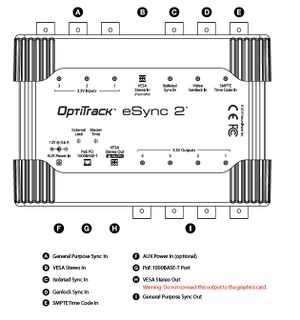
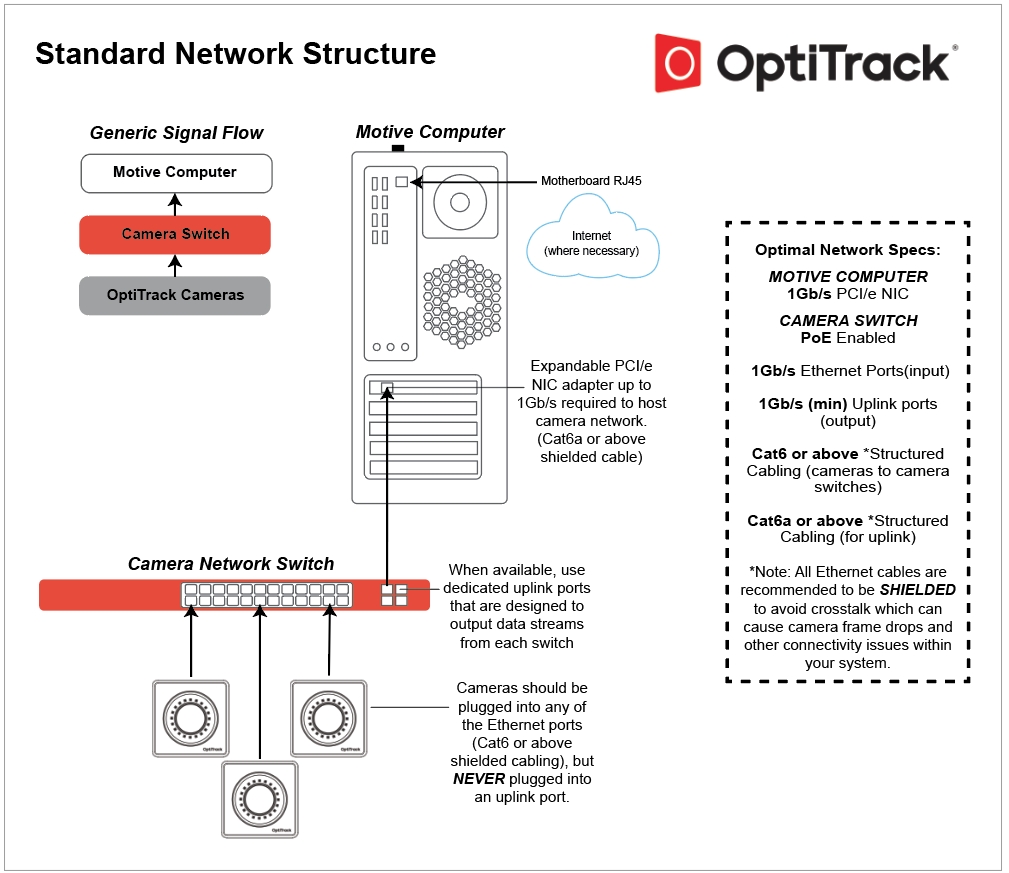


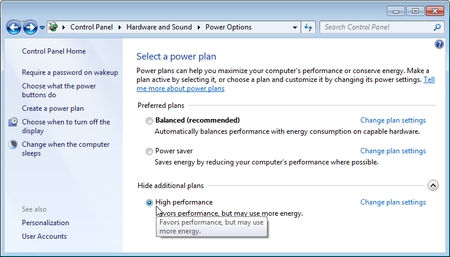
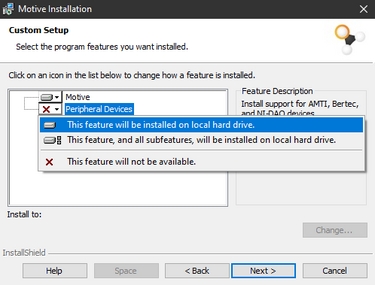
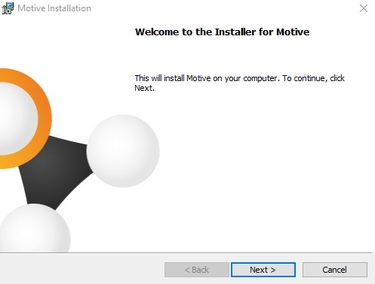
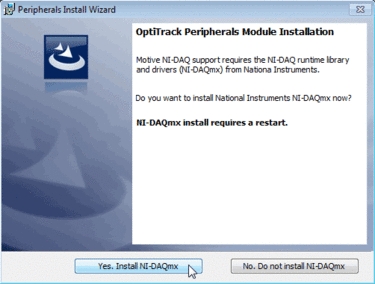
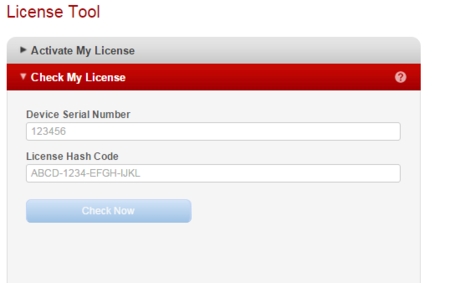
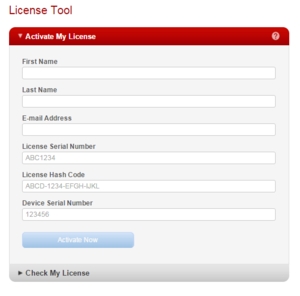
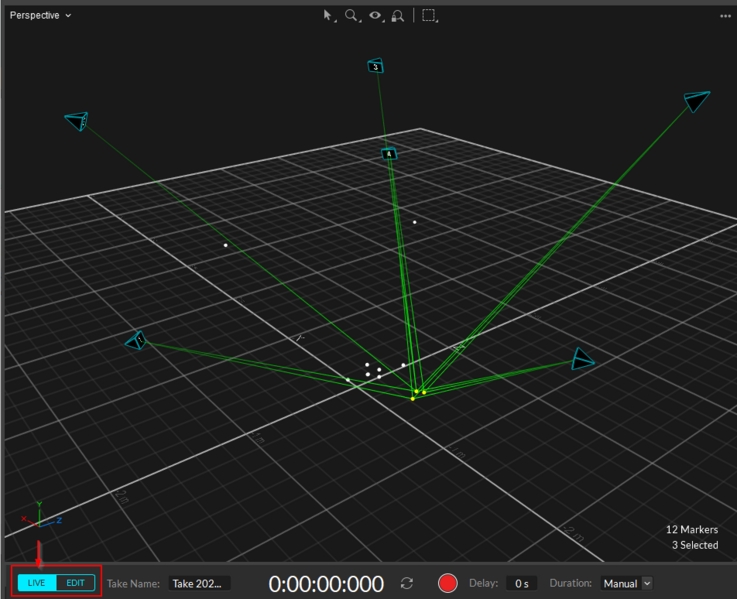
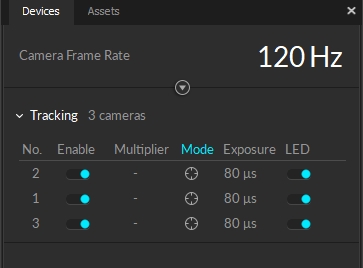
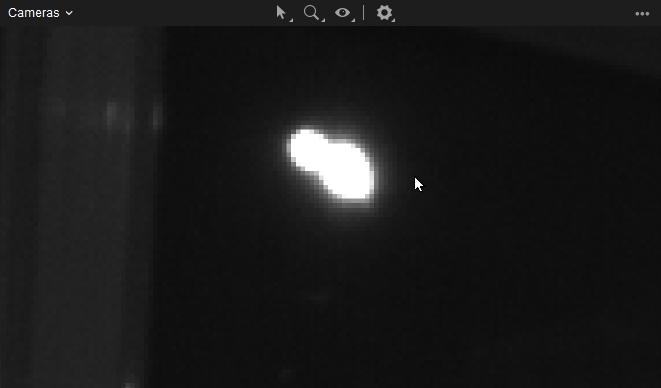
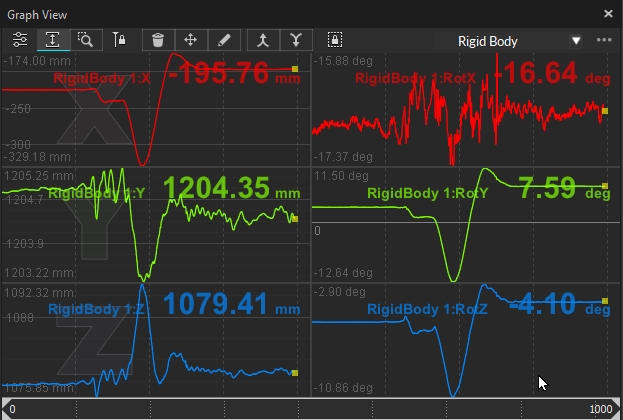
With an optimized system setup, motion capture systems are capable of obtaining extremely accurate tracking data from a small to medium sized capture volume. This quick start guide includes general tips and suggestions on precision capture system setups and important cautions to keep in mind. This page also covers some of the precision verification methods in Motive. For more general instructions, please refer to the or corresponding workflow pages.
Before going into details on precision tracking with an OptiTrack system, let's start with a brief explanation of the residual value, which is the key output for monitoring the system precision. The value is an average offset distance, in mm, between the converging rays when reconstructing a marker; hence indicating preciseness of the reconstruction. A smaller residual value means that the tracked rays converge more precisely and achieve more accurate 3D reconstruction. A well-tracked marker will have a sub-millimeter average residual value. In Motive, the tolerable residual distance is defined from the
Various types of files, including the tracking data, can be exported out from Motive. This page provides information on what file formats can be exported from Motive and instructions on how to export them.
Once captures have been recorded into Take files and the corresponding 3D data have been reconstructed, tracking data can be exported from Motive in various file formats.
Exporting Tracking Data
<?xml version="1.0" encoding="UTF-8" standalone="no" ?>
<CaptureStart>
<Name VALUE="RemoteTriggerTest_take01"/>
<SessionName VALUE="SessionName" />
<Notes VALUE="Take notes goes here if any"/>
<Assets VALUE="skel1, skel2, sword" />
<Description VALUE="" />
<DatabasePath VALUE="S:/shared/testfolder/"/>
<TimeCode VALUE="00:00:00:00"/>
<PacketID VALUE="0"/>
<HostName VALUE="optional host name" />
<ProcessID VALUE="optional process id" />
</CaptureStart><?xml version="1.0" encoding="utf-8"?>
<CaptureStop>
<Name VALUE="TakeName" />
<Notes VALUE="Take notes go here if any." />
<Assets VALUE="skel1, skel2, sword" />
<TimeCode VALUE="00:00:00:00" />
<HostName VALUE="optional host name" />
<ProcessID VALUE="optional process id" />
</CaptureStop>62
90
16
36
54
100
14
32
49
110
13
29
44
120
11
26
40
130
10
24
140
9
22
34
150
9
20
160
8
19
30
170
7
17
180
7
16
26
190
6
15
200
6
14
23
210
5
14
220
5
13
21
230
5
12
240
4
11
18
250
4
11
Top: Solid Red then no light Bottom Right: Slow flashing Green
After powering on, the top light turns a solid red then turns off. This means that it is not paired to a BaseStation. The slow flashing Green indicates that it is still ON.
Please check your RF Channel on both devices to ensure they match.
Top: Solid Green then no light Bottom Right: Slow flashing Green
The puck is disconnected from the BaseStation WHILE powered ON.
Please check your BaseStation and ensure it is powered ON and receiving a signal from the network cable/switch.
Top: Fast Flashing Green Bottom Right: Orange
Battery power is below half.
Please connect device to power or let charge before continuing.
Bottom Right: Flashing Red
Battery is nearly depleted.
Please connect device to power or let charge before continuing.
Bottom Left: Red
Plugged in and charging.
N/A


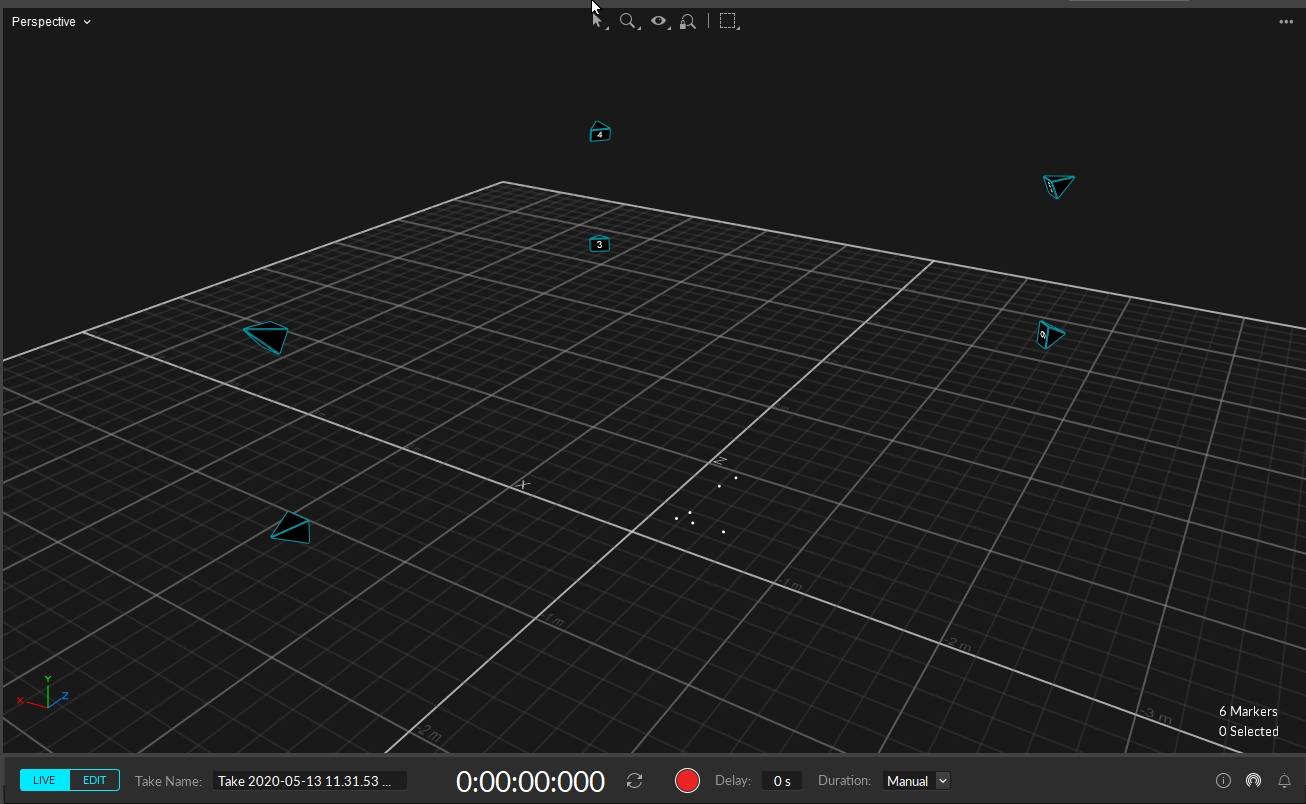
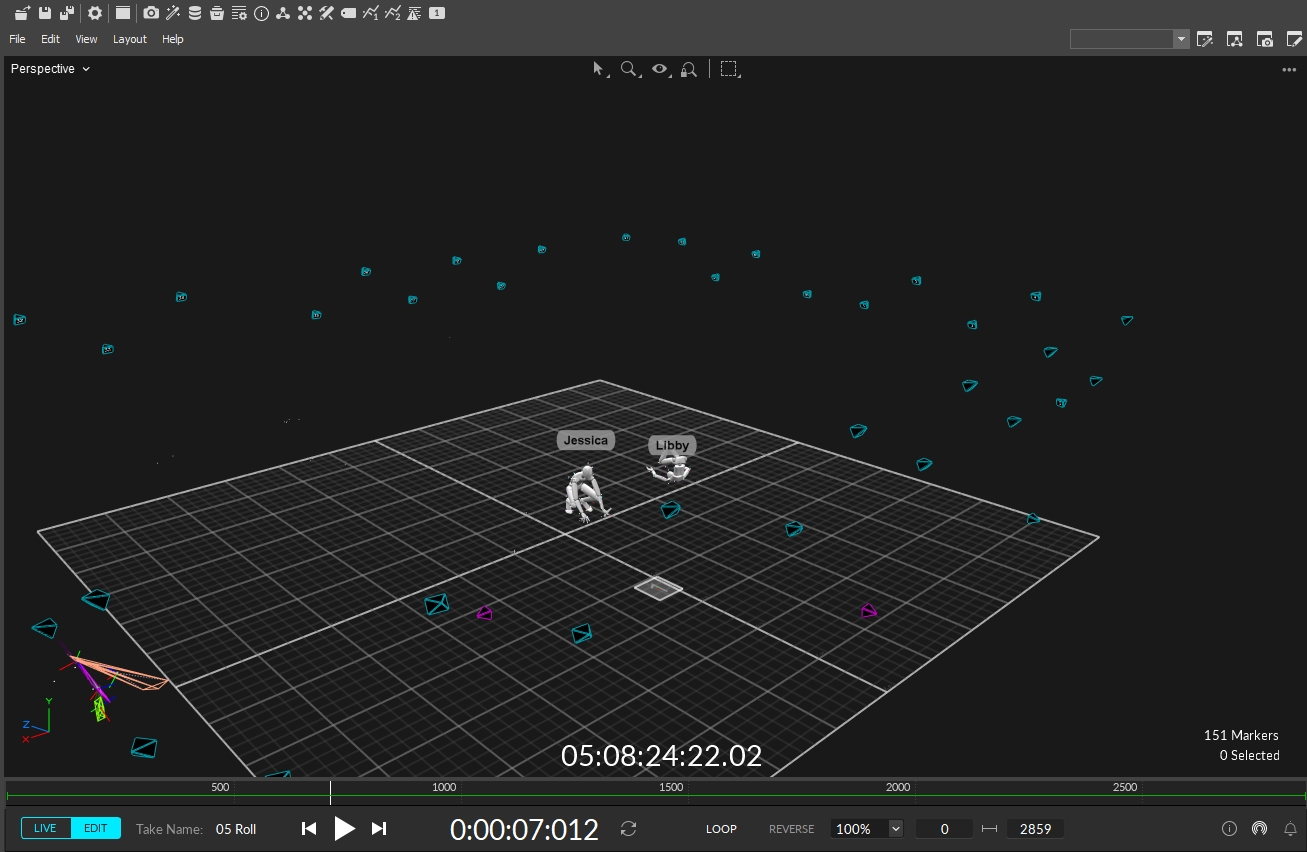
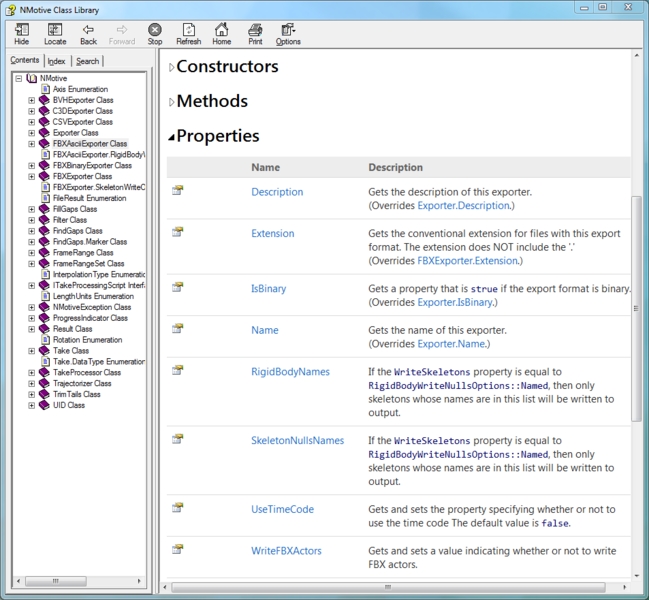
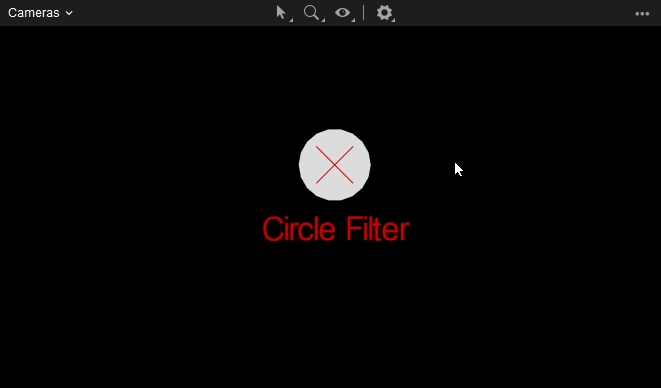
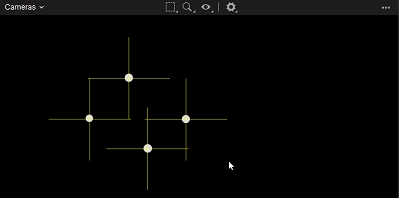
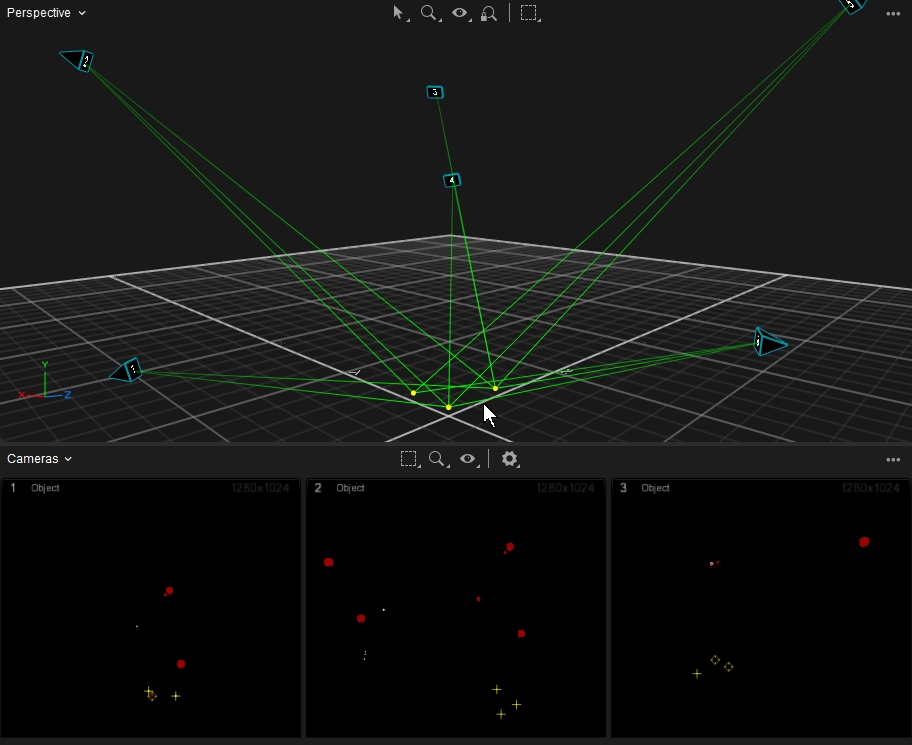
Go To Next Unlabeled Marker advances to the next label in the list that is not assigned to a marker in the current frame.


When one or more markers are selected in the Live mode or from the 2D Mode of capture data, the corresponding mean residual value is displayed over the Status Panel located at the bottom-right corner of Motive.
First of all, optimize the capture volume for the most precise and accurate tracking results. Avoid a populated area when setting up the system and recording a capture. Clear any obstacles or trip hazards around the capture volume. Physical impacts on the setup will distort the calibration quality, and it could be critical especially when tracking at a sub-millimeter accuracy. Lastly, for best results, routinely recalibrate the capture volume.
Motion capture cameras detect reflected infrared light. Thus, having other reflective objects in the volume will alter the results negatively, which could be critical especially for precise tracking applications. If possible, have background objects that are IR black and non-reflective. Capturing in a dark background provides clear contrast between bright and dark pixels, which could be less distinguishable in a white background.
Optimized camera placement techniques will greatly improve the tracking result and the measurement accuracy. The following guide highlights important setup instructions for the small volume tracking. For more details on general system setup, read through the Hardware Setup pages.
Mounting Locations
For precise tracking, better results will be obtained by placing cameras closer to the target object (adjusting focus will be required) in a sphere or dome-shaped camera arrangement, as shown in the images on the right. Good positional data in all dimensions (X, Y, and Z axis) will be attained only if there are cameras contributing to the calculation from a variety of different locations; each unique vantage adds additional data.
Mount Securely
For most accurate results, cameras should be perfectly stationary, securely fastened onto a truss system or an extremely rigid object. Any slight deformation or fluctuation to the mount structures may affect the result in sub-millimeter tracking applications. A small-sized truss system is ideal for the setup. Take extreme caution when mounting onto speed rails attached to a wall, because the building may fluctuate on hot days.
Increase the f-stop higher (smaller aperture) to gain a larger depth of field. Increased depth of field will make the greater portion of the capture volume in-focus and will make measurements more consistent throughout the volume.
Especially for close-up captures, camera aim and focus should be adjusted precisely. Aim the cameras towards the center of the capture volume. Optimize the camera focus by zooming into a marker in Motive, and rotating the focus knob on the camera until the smallest marker is captured with clearest image contrast. To zoom in and out from the camera view, place the mouse cursor over the 2D camera preview window in Motive and use the mouse-scroll.
For more information, please read through the Aiming and Focusing workflow page.
The following sections cover key configuration settings which need to be optimized for the precision tracking.
Camera settings are configured using the Devices pane and the Properties pane both of which can be opened under the view tab in Motive.
Details
Number
Varies
Denotes the number that Motive has assigned to that particular camera.
Device Type
Varies
Denotes which type of camera Motive has detected (PrimeX 41, PrimeX 13W, etc.)
Live-reconstruction settings can be configured under the application settings panel. These settings determine which data gets reconstructed into the 3D data, and when needed, you can adjust the filter thresholds to prevent any inaccurate data from reconstructing. Read through the Application Settings page for more details on each setting. For the precision tracking applications, the key settings and the suggested values are listed below:
Solver Tab: [] Residual (mm)
< 2.00
Set the allowable value smaller for the precision volume tracking. Any offset above 2.00 mm will be considered as inaccurate, and the corresponding 2D data will be excluded from reconstruction contribution.
Solver Tab: Minimum Rays to Start
≥ 3
Set the minimum required number of rays higher. More accurate reconstruction will be achieved when more rays converge within the allowable residual offset.
Camera Tab: Minimum Pixel Threshold
≥ 3
Since cameras are placed more close to the tracked markers, each marker will appear bigger in camera views. The minimum number of threshold pixels can be increased to filter out small extraneous reflections if needed.
The following calibration instructions are specific to precision tracking. For more general information, refer to the Calibration page.
For calibrating small capture volumes for precision tracking, we recommend using a Micron Series wand, either the CWM-250 or CWM-125. These wands are made of invar alloy, very rigid and insensitive to temperature, and they are designed to provide a precise and constant reference dimension during calibration. At the bottom of the wand head, there is a label which shows a factory-calibrated wand length with a sub-millimeter accuracy. In the Calibration pane, select Micron Series under the OptiWand dropdown menu, and define the exact length under the Wand Length.
The CW-500 wand is designed for capturing medium to large volumes, and it is not suited for calibrating small volumes. Not only it does not have the indication on the factory-calibrated length, but it is also made of aluminum, which makes it more vulnerable to thermal expansions. During the wanding process, Motive references the wand length for calibrating the capture volume, and any distortions in the wand length would cause the calibrated capture volume to be scaled slightly differently, which can be significant when capturing precise measurements. For this reason, a micron series wand is suitable for precision tracking applications.
Note: Never touch the marker on the CWM-250 or CWM-125 since any changes can affect the calibration and overall data.
Calibration reports and analyzing the reported error is a complicated subject because the calibration process uses its own samples for validation. For example, sampling near the edge of the volume may improve the accuracy of the system but provide slightly worse calibration results. This is because the samples near the edge will have more errors to be corrected. Acceptable mean error varies based on the size of your volume, the number of cameras, and desired accuracy. The key metrics to keep an eye on are the Mean 3D Error for the Overall Reprojection and the Wand Error. Generally, use calibrations with the Mean 3D Error less than 0.80 mm and the Wand Error less than 0.030 mm. These numbers may be hard to reproduce in regular volumes. Again, the acceptable numbers are subjective, but lower numbers are better in general.
In general, passive retro-reflective markers will provide better tracking accuracy. The boundary of the spherical marker can be more clearly distinguished on passive markers, and the system can identify an accurate position of the marker centroids. The active markers, on the other hand, emit light and the illumination may not appear as spherical on the camera view. Even if a spherical diffuser is used, there can be situations where the light is not evenly distributed. This could provide inaccurate centroid data. For this reason, passive markers are preferred for precision tracking applications.
For close-up capture, it could be inevitable to place markers close to one another, and when markers are placed in close vicinity, their reflections may be merged as seen by the camera’s imager. Merged reflections will have an inaccurate centroid location, or they may even be completely discarded by the circularity filter or the intrusion detection feature. For best results, keep the circularity filter at a higher setting (>0.6) and decrease the intrusion band in the camera group 2D filter settings to make sure only relevant reflections are reconstructed. The optimal balance will depend on the number and arrangement of the cameras in the setup.
There are editing methods to discard or modify the missing data. However, for most reliable results, such marker intrusions should be prevented before the capture by separating the marker placements or by optimizing the camera placements.
Once a Rigid Body is defined from a set of reconstructed points, utilize the Rigid Body Refinement feature to further refine the Rigid Body definition for precision tracking. The tool allows Motive to collect additional samples in the live mode for achieving more accurate tracking results.
In a mocap system, camera mount structures and other hardware components may be affected by temperature fluctuations. Refer to linear thermal expansion coefficient tables to examine which materials are susceptible to temperature changes. Avoid using a temperature sensitive material for mounting the cameras. For example, aluminum has relatively high thermal expansion coefficient, and therefore, mounting cameras onto aluminum mounting structures may distort the calibration quality. For best accuracy, routinely recalibrate the capture volume, and take the temperature fluctuation into an account both when selecting the mount structures and before collecting data.
An ideal method of avoiding influence from environmental temperature is to install the system in a temperature controlled volume. If such option is unavailable, routinely calibrate the volume before capture, and recalibrate the volume in between sessions when capturing for a long period. The effects are especially noticeable on hot days and will significantly affect your results. Thus, consistently monitor the average residual value and how well your rays converge to individual markers.
The cameras will heat up with extended use, and change in internal hardware temperature may also affect the capture data. For this reason, avoid capturing or calibrating right after powering the system. Tests have found that the cameras need to be warmed up in Live mode for about an hour until it reaches a stable temperature. Typical stable temperatures are between 40-50 degrees Celsius or 25 degree Celsius above the ambient temperature. For Ethernet camera models, camera temperatures can be monitored from the Cameras View in Motive (Cameras View > Eye Icon > Camera Info).
If a camera exceeds 80 degrees Celsius, this can be a cause for concern. It can cause frame drops and potential harm to the camera. If possible, keep the ambient temperature as low, dry, and consistent as possible.
Especially for measuring at sub-millimeters, even a minimal shift of the setup can affect the recordings. Re-calibrate the capture volume if your average residual values start to deviate. In particular, watch out for the following:
Avoid touching the cameras and the camera mounts.
Keep the capture area away from heavy foot traffic. People shouldn't be walking around the volume while the capture is taking place.
Closing doors, even from the outside, may be noticeable during recording.
The following methods can be used to check the tracking accuracy and to better optimize the reconstructions settings in Motive.
First, go into the perspective view pane > select a marker, then go to the Camera Preview pane > Eye Button > Set Marker Centroids: True. Make sure the cameras are in the object mode, then zoom into the selected marker in the 2D view. The marker will have two crosshairs on it; one white and one yellow. The amount of offset between the crosshairs will give you an idea of how closely the calculated 2D centroid location (thicker white line) aligns with the reconstructed position (thinner yellow line). Switching between the grayscale mode and the object mode will make the errors more distinguishable. The below image is an example of a poor calibration. A good calibration should have the yellow and white lines closely aligning with each other.
The calibration quality can also be analyzed by checking the convergence of the tracked rays into a marker. This is not as precise as the first method, but the tracked rays can be used to check the calibration quality of multiple cameras at once. First of all, make sure tracked rays are visible; Perspective View pane > Eye button > Tracked Rays. Then, select a marker in the perspective view pane. Zoom all the way into the marker (you may need to zoom into the sphere), and you will be able to see the tracking rays (green) converging into the center of the marker. A good calibration should have all the rays converging into approximately one point, as shown in the following image. Essentially, this is a visual way of examining the average residual offset of the converging rays.
In Motive 3.0, a new feature was introduced called Continuous Calibration. This can aid in keeping your precision for longer in between calibrations. For more information regarding continuous calibration please refer to our Wiki page Continuous Calibration.
If the recorded Take includes Rigid Body or Skeleton trackable assets, make sure all of the Rigid Bodies and Skeletons are Solved prior to exporting. The solved data will contain positions and orientations of each Rigid Body and Skeleton. If changes have been made to either the Rigid Body or Skeleton, you will need to solve the assets again prior to exporting.
In the export dialog window, the frame rate, the measurement scale and type (meters, centimeters or millimeters), the Axis convention, and the frame range of exported data can be configured. Additional export settings are available for each export file formats. Read through below pages for details on export options for each file format:
Exporting a Single Take
Step 1. Open and select a Take to export from the Data pane. The selected Take must contain reconstructed 3D data.
Step 2. Under the File tab on the command bar, click File → Export Tracking Data. This can also be done by right-clicking on a selected Take from the Data pane and clicking Export Tracking Data from the context menu.
Step 3. On the export dialogue window, select a file format and configure the corresponding export settings.
To export the entire frame range, set Start Frame and End Frame to Take First Frame and Take Last Frame.
To export a specific frame range, set Start Frame and End Frame to Start of Working Range and End of Working Range.
Step 4. Click Save.
Exporting Multiple Takes
Step 1. Under the Data pane, shift + select all the Takes that you wish to export.
Step 2. Right-click on the selected Takes and click Export Tracking Data from the context menu.
Step 3. An export dialogue window will display to batch export tracking data.
Step 4. Select the desired output format and configure the corresponding export settings.
Step 5. Select frame ranges to export under the Start Frame and the End Frame settings. You can either export entire frame ranges or specified frame ranges on all of the Takes. When exporting specific ranges, desired working ranges must be set for each respective Takes.
To export entire frame ranges, set Start Frame and End Frame to Take First Frame and Take Last Frame.
To export specific frame ranges, set Start Frame and End Frame to Start of Working Range and End of Working Range.
Step 6. Click Save.
Motive exports reconstructed 3D tracking data in various file formats and exported files can be imported into other pipelines to further utilize capture data. Available export formats include CSV, C3D, FBX, BVH, and TRC. Depending on which options are enabled, exported data may include reconstructed marker data, 6 Degrees of Freedom (6 DoF) Rigid Body data, or Skeleton data. The following chart shows what data types are available in different export formats:
Reconstructed 3D Marker Data
•
•
•
•
6 Degrees of Freedom Rigid Body Data
A calibration definition of a selected take can be exported from the Export Camera Calibration under the File tab. Exported calibration (CAL) files contain camera positions and orientations in 3D space, and they can be imported in different sessions to quickly load the calibration as long as the camera setup is maintained.
Read more about calibration files under the Calibration page.
Assets can be exported into the Motive user profile (.MOTIVE) file if it needs to be re-imported. The user profile is a text-readable file that contains various configuration settings in Motive, including the asset definitions.
When an asset definition is exported to a MOTIVE user profile, it stores marker arrangements calibrated in each asset, and they can be imported into different takes without creating a new one in Motive. Note that these files specifically store the spatial relationship of each marker, and therefore, only the identical marker arrangements will be recognized and defined with the imported asset.
To export the assets, go to the File menu and select Export Assets to export all of the assets in the Live-mode or in the current TAK file(s). You can also use File → Export Profile to export other software settings including the assets.
Recorded NI-DAQ analog channel data can be exported into C3D and CSV files along with the mocap tracking data. Follow the tracking data export steps outlined above and any analog data that exists in the TAK will also be exported.
C3D Export: Both mocap data and the analog data will be exported onto a same C3D file. Please note that all of the analog data within the exported C3D files will be logged at the same sampling frequency. If any of the devices are captured at different rates, Motive will automatically resample all of the analog devices to match the sampling rate of the fastest device. More on C3D files: https://www.c3d.org/
CSV Export: When exporting tracking data into CSV, additional CSV files will be exported for each of the NI-DAQ devices in a Take. Each of the exported CSV files will contain basic properties and settings at its header, including device information and sample counts. The voltage amplitude of each analog channel will be listed. Also, mocap frame rate to device sampling ratio is included since analog data is usually sampled at higher sampling rates.
Motive uses a different coordinate system than the system used in common biomechanics applications. To update the coordinate system to match your 3D analysis software during export, select the appropriate Axis Convention from the Export window.
For CSV, BVH, TRC formats, select Entertainment, Measurement, or Custom
For C3D format, select Visual 3D/Motion Monitor, MotionBuilder, or Custom
Select the Custom axis convention to open up the X/Y/Z axis for editing. This creates a drop-down menu next to each axis that allows you to change it.
Click the curved arrow to the right of the field to reset the axis to its previous value, or to make your selection the default option.
When there is an MJPEG reference camera or a color camera in a Take, its recorded video can be exported into an AVI file or into a sequence of JPEG files. The Export Video option is located under the File menu, or you can also right-click on a TAK file from the Data pane and export from there. Read more about recording reference videos on the Data Recording page.
Reference Video Type: Only compressed MJPEG reference videos or color camera videos can be recorded and exported from Motive. Export for raw grayscale videos is not supported.
Media Player: The exported videos may not be playable on Windows Media Player, please use a more robust media player (e.g. VLC) to play the exported video files.
Frame Resampling
Adjusts the frame rate of the exported video from full (every frame) to half, quarter, 1/8 or 1/16 of the original.
Start Frame
Start frame of the exported data. You can set it to the recorded first frame of the exported Take (the default option), to the start of the working range (or scope range), as configured under the or in the , or select Custom to enter a specific frame number.
End Frame
End frame of the exported data. You can set it to the recorded end frame of the exported Take (the default option), to the end of the working range (or scope range), as configured under the of in the , or select Custom to enter a specific frame number.
Playback Rate
Sets the playback speed for the exported video. Options are Full Speed (default), half speed, quarter speed, and 1/8 speed.
Video Format
Reference videos can be exported into AVI files using either H.264 or MJPEG compression formats, or as individual JPEG files (JPEG sequence). The H.264 format will allow faster export of the recorded videos and is recommended.
Time Data
Includes the frame reference number in the bottom left corner.
Cameras
Labels all cameras visible in the reference video with the Motive-assigned number.
Markers
Displays markers using the color scheme assigned in Motive.
Rigid Bodies
Shows the Rigid Body bone and constraints for all solved Rigid Bodies in the take.
Skeletons
Displays bones for all solved skeletons.
When a recorded capture contains audio data, an audio file can be exported through the Export Audio option on the File menu or by right-clicking on a Take from the Data pane.
Skeletal marker labels for Skeleton assets can be exported as XML files (example shown below) from the Data pane. The XML files can be imported again to use the stored marker labels when creating new Skeletons.
For more information on Skeleton XML files, read through the Skeleton Tracking page.
Sample Skeleton Label XML File
Cameras and other devices can now be exported to a CSV file. From the File menu, select Export Device Info...
The CSV file includes the device serial number and name.
For Cameras, the name is pre-defined and includes the camera model and serial number.
For all other devices, Motive will export the product serial number along with the name assigned in the device's properties. If no name is entered, the field will be left blank.
Simple
Use the simplest data management layout.
Advanced
Additional column headers are added to the layout.
New...
Create a new customizable layout.
Rename
Rename a custom layout.
Delete
Delete a custom layout.
The leftmost section of the Data pane is used to list out the sessions that are loaded in Motive. Session folders group multiple associated Take files in Motive, and they can be imported simply by dragging-and-dropping or importing a folder into the data management pane. When a session folder is loaded, all of the Take files within the folder are loaded altogether.
In the list of session folders, the currently loaded session folder will be denoted with a flag symbol , and the selected session folder will be highlighted in white.
Action Items
Add a new session folder.
Collapse the session folder sidebar.
Right-click on any session folder to see the following options:
Create Sub-Folder
This creates a new folder under the selected directory.
Opens the session folder from Windows File Explorer.
Removes the selected session folder from the list without deleting them.
Deletes the session folder. All of its contents will be deleted as well.
When a session folder is selected, associated Take files and their descriptions are listed in a table format on the right side of the Data pane. For each Take, general descriptions and basic information are shown in the columns of the respective row. To view additional fields, click on the pane menu, select new to create a custom view, and all of the possible fields will be available to add to the new view. Right-click on the column header to select the columns to display. For each of the enabled columns, you can click on the arrow next to it to sort up/down the list of Takes depending on the category.
Best
The star mark allows users to mark the best Takes. Simply click on the star icon and mark the successful Takes.
Health
The health status column of the Takes indicates the user-selected status of each take:
: Excellent capture
: Okay capture
: Poor capture
Progress
The progress indicator can be used to track processing of the Takes. Use the indicators to track down the workflow specific progress of theTakes. Right-click to select:
Ready
Recorded
Reviewed
Name
Shows the name of the Take.
2D
Indicates whether exists on the corresponding Take.
A search bar is located at the bottom of the Data pane, and you can search a selected session folder using any number of keywords and search filters. Motive will use the text in the input field to list out the matching Takes from the selected session folder. Unless otherwise specified, the search filter will scope to all of the columns.
Search for exact phrase
Wrap your search text in quotation marks.
e.g., Search "shooting a gun" for searching a file named Shooting a Gun.tak.
Search specific fields
To limit the search to specific columns, type field:, plus the name of a column enclosed with quotation marks, and then the value or term you're searching for.
Multiple fields and/or values may be specified in any order.
e.g. field:"name" Lizzy, field:"notes" Static capture.
Search for true/false values
To search specific binary states from the Take list, type the name of the field followed by a colon (:), and then enter either true ([t], [true], [yes], [y]) or false ([f], [false], [no], [n]).
e.g. Best:[true], Solved:[false], Video:[T], Analog:[yes]
The table layout can also be customized. To do so, go to the pane menu and select New or any of the previously customized layouts. Once you are in a customizable layout, right-click on the top header bar and add or remove categories from the table.
A list of take names can be imported from either a CSV file or carriage return texts that contain a take name on each line. Using this feature, you can plan, organize, and create a list of capture names ahead of actual recording. Once take names have been imported, a list of empty takes with the corresponding names will be listed for the selected session folder.
From a Text
Take lists can be imported by copying a list of take names and pasting them onto the Data pane. Take names must be separated by carriage returns; in other words, each take name must be in a new line.
From a CSV File
Take lists can be imported from a CSV file that contains take names on each row. To import, click on the top-right menu icon and select Import CSV...
Excel has several CSV file formats to choose from. Make sure to select CSV (Comma Delimited) when saving your file for import.
In the Data pane, context menu for captured Takes can be brought up by clicking on the icon to the right of the Take name or by right-clicking on the selected Take(s). The context menu lists the options which can be used to perform corresponding pipelines on the selected Take(s). The menu contains a lot of essential pipelines such as reconstruction, auto-label, data export and many others. Available options are listed below.
Saves the selected take.
Reverts any changes that were made. This does not work on the currently opened Take.
Selects the current take and loads it for playback or editing.
Allows the current take to be renamed.
Opens an Explorer window to the current asset path. This can be helpful when backing up, transferring, or exporting data.
Separate reconstruction pipeline without the auto-labeling process. Reconstructs 3D data using the 2D data. Reconstruction is required to export Marker data.
Separate auto-labeling pipeline that labels markers using the existing tracking asset definitions. Available only when 3D data is reconstructed for the Take. Auto-label is required to export Markers labeled from Assets.
Combines 2D data from each camera in the system to create a usable 3D take. It also incorporates assets in the Take to auto-label and create rigid bodies and skeletons in the Take. Reconstruction is required to export Marker data and Auto-label is required when exporting Markers labeled from Assets.
Solves 6 DoF tracking data of skeletons and rigid bodies and bakes them into the TAK recording. When the assets are solved, Motive reads from recorded Solve instead of processing the tracking data in real-time. Solving is required prior to exporting Assets.
Performs all three reconstruct, auto-label, and solve pipelines in consecutive order. This basically recreates 3D data from recorded 2D camera data.
Opens the Export dialog window to select and initiate file export. Valid formats for export are CSV, C3D, FBX, BVH.
Reconstruction is required to export Marker data, Auto-label is required when exporting Markers labeled from Assets, and Solving is required prior to exporting Assets.
Opens the export dialog window to initiate scene video export to AVI.
Exports an audio file when selected Take contains audio data.
Opens the Delete 2D Data pop-up where you can select to delete the 2D data, Audio data, or reference video data. Read more in Deleting 2D data.
Permanently deletes the 3D data from the take. This option is useful in the event reconstruction or editing causes damage to the data.
Unlabels all existing marker labels in 3D data. If you wish to re-auto-label markers using modified asset definitions, you will need to first unlabel markers for respective assets.
Deletes 6 DoF tracking data that was solved for skeleton and rigid bodies. If Solved data doesn't exist, Motive instead calculates tracking of the objects from recorded 3D data in real-time.
Archives the original take file and creates a duplicate version. Recommended prior to completing any post-production work on the take file.
Opens a dialog box to confirm permanent deletion of the take and all associated 2D, 3D, and Joint Angle Data from the computer. This option cannot be undone.
Deletes all assets that were recorded in the take.
Enables all assets within the selected Take.
Copies the assets from the current capture to the selected Takes.


No
Cyan
Live
Actively sending data and receiving commands when loaded into Motive.
Yes
White/Off
Masking
When a marker, or what a camera perceives as a marker, is visible to a camera when masking in the Calibration pane, the status light will turn white. When masks are applied and no erroneous marker data is seen, the LEDs turn off and the volume is ready to wand.
No
Solid Green
Recording
Camera is sending data to be written to memory or disk.
Yes
Variable Green
Sampling During Calibration
Camera starts out black, then green will appear on the ring light depending on where you have wanded relative to that camera.
When the camera starts to take samples, there will be a white light that follows the wand movement rotating around the LED.
This will fill in dark green and then light green when enough samples are taken.
No
Flashing White
Calibration
During calibration when cameras have collected sufficient data they will turn green. Once enough cameras have collected enough samples the left over cameras will flash white indicating they still need to collect more samples for a successful calibration.
No
None
Playback
Camera is operating but Motive is in Edit Mode.
Yes
Yellow
Selected
Camera is selected in Motive.
Yes
Red
Reference
Camera is in reference mode. Instead of capturing the marker data, the camera is recording reference video, Greyscale and MJPEG
Yes
Cycle Red
Firmware Reset
On board flash memory is being reset.
No
Cycle Cyan
Firmware Update
For PrimeX cameras. Firmware is being written to flash. On completion, color turns off and camera reboots.
No
Cycle Yellow
Firmware Update
For Prime cameras. Firmware is being written to flash. On completion, color turns off and camera reboots.
No
Cyan
Firmware Loading
Host has initiated firmware upload process.
Blinking Yellow
Initialize Phase 4
Camera has fully initialized. In process of synchronizing with camera group or eSync.
Blinking Green (Fast)
Running
Camera is fully operational and synchronized to the camera group. Ready for data capture.
Blue
Hibernating
Camera is in a low power state and not sending data. Occurs after closing Motive but leaving the cameras connected to the switch.
Alternating Red
Firmware Reset
On board flash memory is being reset.
Alternating Yellow
Firmware Update
Firmware is being written to flash. Numeric display in front will show progress. On completion, the light turns green and camera reboots.
Blinking red on start up
Firmware update is in progress, which is normal. Firmware will be updated when a new version of Motive is installed on the computer.
If the LED blinks in red a few times about 15 seconds after the camera start-up, it means that the camera has failed to establish a connection with the PoE switch. When this happens, error sign, E or E1, will be shown on the numeric display.
Yellow on start up
The camera is attempting to establish a link with the PoE switch.
Cyan
Firmware Loading
Host has initiated firmware upload process.
Blinking Yellow
Initialize Phase 4
Camera has fully initialized. In process of synchronizing with camera group or eSync2.
Blinking Green (Fast)
Running
Camera is fully operational and synchronized to the camera group. Ready for data capture.
Blue
Hibernating
Camera is in a low power state and not sending data. Occurs after closing Motive but leaving the cameras connected to the switch.
Alternating Red
Firmware Reset
On board flash memory is being reset.
Alternating Yellow
Firmware Update
Firmware is being written to flash. Numeric display in front will show progress. On completion, the light turns green and camera reboots.
This page provides detailed instructions to create rigid bodies in Motive, and covers other useful features associated with rigid body assets.
In Motive, Rigid Body assets are used for tracking rigid, unmalleable, objects. A set of markers is securely attached to tracked objects, and respective placement information is used to identify the object and report 6 Degree of Freedom (6DoF) data. Thus, it's important that the distances between placed markers stay the same throughout the range of motion. Either passive retro-reflective markers or active LED markers can be used to define and track a Rigid Body.
A Rigid Body in Motive is a collection of three or more markers on an object that are interconnected to each other with an assumption that the tracked object is unmalleable. More specifically, Motive assumes the spatial relationship among the attached markers remains unchanged and the marker-to-marker distance does not deviate beyond the allowable deflection tolerance defined under the corresponding Rigid Body properties. Otherwise, involved markers may become . Cover any reflective surfaces on the Rigid Body with non-reflective materials and attach the markers on the exterior of the Rigid Body where cameras can easily capture them.
In a 3D space, a minimum of three coordinates are required for defining a plane using vector relationships. Likewise, at least three markers are required to define a Rigid Body in Motive. Whenever possible, it is best to use 4 or more markers to create a Rigid Body. Additional markers provide more 3D coordinates for computing positions and orientations of a rigid body, making overall tracking more stable and less vulnerable to marker occlusions. When any of markers are occluded, Motive can reference other visible markers to solve for the missing data and compute the position and orientation of the rigid body.
However, placing too many markers on one Rigid Body is not recommended. When too many markers are placed in close vicinity, markers may overlap on the camera view, and Motive may not resolve individual reflections. This can increase the likelihood of label-swaps during capture. Securely place a sufficient number of markers (usually less than 10), just enough to cover the main frame of the Rigid Body.
Tip: The recommended number of markers per Rigid Body is 4 ~ 12 markers.
You may encounter limits if using an excessive number of markers, or experience system performance issues when using the refine tool on such an asset.
Within a Rigid Body asset, the markers should be placed asymmetrically because this provides a clear distinction of orientations. Avoid placing the markers in symmetrical shapes such as squares, isosceles, or equilateral triangles. Symmetrical arrangements make asset identification difficult and may cause the Rigid Body assets to flip during capture.
When tracking multiple objects using passive markers, it is beneficial to create unique Rigid Body assets in Motive. Specifically, you need to place retroreflective markers in a distinctive arrangement between each object, which will allow Motive to more clearly identify the markers on each Rigid Body throughout capture. In other words, their unique, non-congruent, arrangements work as distinctive identification flags among multiple assets in Motive. This not only reduces processing loads for the Rigid Body solver, but it also improves the tracking stability. Not having unique Rigid Bodies could lead to labeling errors especially when tracking several assets with similar size and shape.
The key idea of creating unique Rigid Body is to avoid geometrical congruency within multiple Rigid Bodies in Motive.
Unique Marker Arrangement. Each Rigid Body must have a unique, non-congruent, marker placement creating a unique shape when the markers are interconnected.
Unique Marker-to-Marker Distances. When tracking several objects, introducing unique shapes could be difficult. Another solution is to vary Marker-to-marker distances. This will create similar shapes with varying sizes and make them distinctive from the others.
Unique Marker Counts Adding extra markers is another method of introducing uniqueness. Extra markers will not only make the Rigid Bodies more distinctive, but they will also provide more options for varying the arrangements to avoid the congruency.
Having multiple non-unique Rigid Bodies may lead to mislabeling errors. However, in Motive, non-unique Rigid Bodies can also be tracked fairly well as long as the non-unique Rigid Bodies are continuously tracked throughout capture. Motive can refer to the trajectory history to identify and associate corresponding Rigid Bodies within different frames.
Even though it is possible to track non-unique Rigid Bodies, we strongly recommend making each asset unique. Tracking of multiple congruent Rigid Bodies could be lost during capture either by occlusion or by stepping outside of the capture volume. Also, when two non-unique Rigid Bodies are positioned in vicinity and overlap in the scene, their marker labels may get swapped. If this happens, additional efforts are required to in post-processing of the data.
Depending on the object, there could be limitations on marker placements and number of variations of unique placements that could be achieved. The following list provides sample methods for varying unique arrangements when tracking multiple Rigid Bodies.
Create Distinctive 2D Arrangements. Use distinctive, non-congruent, marker arrangements as the starting point for producing multiple variations, as shown in the examples above.
Vary marker height. Use marker bases or posts of different heights to introduce variations in elevation to create additional unique arrangements.
Vary Maximum Marker to Marker Distance. Increase or decrease the overall size of the marker arrangements.
In creating a Rigid Body asset, a set of markers attached to a rigid object are grouped and auto-labeled as a Rigid Body. This Rigid Body definition can be used in multiple takes to continuously auto-label the same asset markers. Motive recognizes the unique spatial relationship in the marker arrangement and automatically labels each marker to track the Rigid Body.
Step 1: Select all associated Rigid Body markers in the .
Step 2: On the , confirm that the selected markers match those on the object you want to define as the Rigid Body.
Step 3: Click Create to define a Rigid Body asset from the selected markers.
You can also create a Rigid Body by doing the following actions while the markers are selected:
Perspective View (3D viewport): Right-click the selection in the perspective view to access the context menu. Under the Markers section, click Create Rigid Body.
Assets pane: Click the add button at the bottom of the .
Hotkey: While the markers are selected, use the create Rigid Body hotkey (Default: Ctrl +T).
Step 4: Once the Rigid Body asset is created, the markers will be colored (labeled) and interconnected to each other. The newly created Rigid Body will be listed under the .
Rigid Body properties define the specific configurations of Rigid Body assets and how they are tracked and displayed in Motive. For more information on each property, read the page.
Default properties are applied to any newly created asset, such as minimum markers to boot or continue, asset scale, and asset name and color. Default properties are configured under the Assets section in the panel. Click the button to open.
Properties for existing Rigid Body assets can be changed from the .
There are multiple ways to add or remove markers on a Rigid Body.
From the , select the Rigid Body that needs markers added or removed.
In the 3D , select the marker(s) to be added or removed.
From the :
The pivot point or bone of a Rigid Body is used to define both its position and orientation. The default position of the bone for a newly created rigid body is at its geometric center and its orientation axis will align with the global coordinate axis. To view the pivot point in the 3D viewport, enable the Bone setting in the Visuals section of the selected Rigid Body in the .
Position and orientation of a tracked Rigid Body can be monitored in real-time from the . Select a Rigid Body in Motive, open the Info pane by clicking the button on the toolbar. Click the button in the top right corner and select Rigid Bodies from the menu to view respective real-time tracking data of the selected Rigid Body.
The location of a pivot point can be adjusted by assigning it to a marker or by translating along the Rigid Body axis (x, y, z). For the most accurate pivot point location, attach a marker at the desired pivot location, set the pivot point to the marker, and apply the translation for precise adjustments.
Edit Mode is used for playback of captured Take files. In this mode, you can playback and stream recorded data and complete post-processing tasks. The Cameras View displays the recorded 2D data while the 3D Viewport represents either recorded or real-time processed data, as described below.
There are two modes for editing:
Edit: Playback in standard Edit mode displays and streams the processed 3D data saved in the recorded Take. Changes made to settings and assets are not reflected in the Viewport until the Take is .
Edit 2D: Playback in Edit 2D mode performs a live reconstruction of the 3D data, immediately reflecting changes made to settings or assets. These changes are displayed in real-time but are not saved into the recording until the Take is and saved. To playback in 2D mode, click the Edit button and select Edit 2D.
By default, the orientation axis of a Rigid Body is aligned with the global axis when the Rigid Body is first created. Once it's created, its orientation can be adjusted, either by editing the Rigid Body orientation through the or by using the GIZMO tools.
Several tools are available on the Builder pane to align Rigid Bodies. Click to open the builder pane then click on the Modify tab. Select a Rigid Body in the 3D Viewport to see the Rigid Body tools.
Use the Location tool to enter the amount of translation (in mm) to apply along the (x, y, z) coordinates then click Apply. Clicking Apply again will add to the existing translation and can be used to fine-tune the adjustment of the bone.
Click Clear to reset the fields to 0mm.
Reset will position the pivot point at the geometric center of the Rigid Body according to its marker positions.
Use this tool to apply rotation to the local coordinate system of a selected Rigid Body. You can also reset the orientation to re-align the Rigid Body coordinate axis and the global axis. When resetting the orientation, the Rigid Body must be tracked in the scene.
In addition to the Reset buttons on the Builder pane, you can right-click a selected rigid body to open the Asset(s) context menu. Select Bones (#) --> Reset Location.
The Align to Geometry feature provides an option to align the pivot of a rigid body to a geometry offset. Motive includes several standard geometric objects that can be used, as well as the ability to import custom objects created in other applications. This allows for consistency between Motive and external rendering programs such as Unreal Engine and Unity.
To use this feature, select the rigid body from the Assets pane. In the Properties pane, click the button and select Show Advanced if it is not already selected.
Scroll to the Visuals section of the asset's properties. Under Geometry, select the object type from the list.
To import your own object, select Custom Model. This will open the Attached Geometry field. Click on the file folder icon to select the .obj or .fbx file to import into Motive.
To align an asset to a specific camera, select both the asset and the camera in the 3D ViewPort. Click Camera in the Align to... field in the Modify tab.
To align an asset to an existing Rigid Body, you must be in 2D edit mode. Click the Edit button at the bottom left and select EDIT 2D from the menu.
This feature is useful when tracking a spherical object (e.g., a ball). Motive will assume all of the markers on the selected Rigid Body are placed on the surface of a spherical object and will calculate and re-position the pivot point accordingly. Simply select a Rigid Body in Motive, open the Builder pane to edit Rigid Body definitions, and then click Apply to place the pivot point at the center of the spherical object.
The Rigid Body refinement tool improves the accuracy of the Rigid Body calculation in Motive. When a Rigid Body asset is initially created, Motive references only a single frame to define it. The Rigid Body refinement tool allows Motive to collect additional samples, achieving more accurate tracking results by improving the calculation of expected marker locations of the Rigid Body as well as the position and orientation of the Rigid Body itself.
From the menu, open the , or click the button on the toolbar.
Click the Modify tab.
Select the Rigid Body to be refined in the Asset pane.
The under the mouse options button in the perspective view of the 3D Viewport are another option to easily modify the position and orientation of Rigid Body pivot points.
Select Tool (Hotkey: Q): The Default option. Used for selecting objects in the Viewport. Return to this mode when you are done using the Gizmo tools.
Translate Tool (Hotkey: W): Translate tool for moving the Rigid Body pivot point.
Rotate Tool (Hotkey: E): Rotate tool for reorienting the Rigid Body coordinate axis.
Please see the page for detailed information.
Rigid Body tracking data can be exported or streamed to client applications in real-time:
Captured 6 DoF Rigid Body data can be exported into CSV, or FBX files. Please read the page for more details.
You can also use one of the streaming plugins or use NatNet client applications to receive tracking data in real-time. See: .
You can disable assets and hide their associated markers once you are finished labeling and editing them to better focus on the remaining unedited assets.
To disable an asset, uncheck the box to the left of the asset name in the Asset pane.
To Hide Markers:
Click the button in the 3D Viewport.
Select Markers > Hide for Disabled Assets.
Assets can be exported into the Motive user profile (.MOTIVE) file if they need to be re-imported. The is a text-readable file that contains various configuration settings in Motive. This can include asset definitions.
When an asset definition is exported to a user profile, Motive stores marker arrangements calibrated to the asset, which allows the asset to be imported into different takes without being rebuilt each time in Motive.
Profile files specifically store the spatial relationship of each marker. Only the identical marker arrangements will be recognized and defined with the imported asset.
To export all of the assets in Live or in the current TAKE file, go to the File menu → Export Assets.
You can also select Export Profile from the File menu to export other software settings, in addition to the assets.
An overview of features available in the Devices Pane.
The Devices Pane lists all of the devices connected to the OptiTrack system and displays related properties that can be viewed and updated directly from the pane. Items are grouped by type:
Tracking cameras
Color reference cameras
Synchronization hubs
Base Stations
Active Tags
Force plates
Data acquisition devices (DAQ)
When a single device is selected, the displays properties specific to the selection. When multiple devices are selected, only common properties are displayed; properties that are not shared are not included. Where the selected assets have different values, Motive displays the text Mixed or places the toggle button in the middle position .
Open the Devices pane from the View menu or by clicking the icon on the main toolbar.
The master Camera Frame Rate is shown at the top of the pane. This is the frame rate for all the tracking cameras. Other synchronized devices, such as reference cameras, can be set to run at a fraction or a multiple of this rate.
To change the rate, click on the rate to open the drop-down menu and select the desired rate.
Reference cameras in MJPEG or grayscale video mode and cameras can capture either at the master frame rate or at a fraction of that rate. Capturing reference video at a lower frame rate reduces the amount of data recorded, decreasing the size of the TAKE files.
To set a new rate, click in the field and select a fractional rate from the drop-down list. Note that this field does not open for cameras in object mode.
Device Groups are shortcuts that make it easier to select and manage multiple devices in the system. Groups are different from as they can comprise any device type and individual devices can be members of more than one group.
There are a couple of ways to create, view, and update Device groups.
Select one or more devices of the same type from the list.
Right-click and select Add to Group -> New Group or select an existing group from the list.
Presets are sets of properties you can apply to a camera rather than a collection of devices. When you assign a preset, the camera's properties are updated to the preset's defined values.
Tracking camera options are Aiming, Tracking, or Reference.
are Small Size - Lower Rate, Small Size - Full Rate, Great Image, or Calibration Mode.
The Device Groups panel is the only place to access existing Device Groups. You can also use this panel to create new groups or to delete existing groups.
Select one or more devices of the same type from the list.
Click the down button under the camera frame rate to expand the list of Device groups.
To create a new group, click New Group from Selection...
To select all the devices in a group, select the group in the panel.
The Tracking cameras category includes all the motion capture cameras connected to the system, even those running in reference video mode (MJPEG).
Select one or more cameras to change settings for all the selected devices either directly from the Devices pane or through the Properties pane.
Right-click the header to show or hide specific camera settings and drag the columns to change the order. Some items are displayed for reference only and cannot be changed from the Devices pane. Others, such as the camera serial number, cannot be changed at all.
All of these settings (and more) are also available on the .
Displays the camera number assigned by Motive.
A camera must be enabled to record data and contribute to the reconstruction of 3D data, if recording in object mode. Disable a camera if you do not want it included in the data capture.
This property is also known as the Frame Rate Multiplier. As noted , a reference camera can be set to run at a reduced rate (half, quarter, etc.) to reduce the data output and size of the Take file. Tracking camera are reference cameras if they are running in MJPEG mode.
The icon indicates the for each camera. Click the icons to toggle between frequently used modes for each camera.
Tracking: Tracking modes capture the 2D marker data used in the reconstruction of 3D data.
Object mode: Performs on-camera detection of centroid location, size, and roundness of the markers, and sends respective 2D object metrics to Motive to calculate the 3D data. Recommended as the default mode for recording.
Precision mode: Performs on-camera detection of marker reflections and their centroids and sends the respective data to Motive to determine the precise centroid location. Precision mode is more processing intensive than Object mode.
Available video modes may vary for different camera types, and not all modes may be available by clicking the Mode icon in the Devices pane. Find all available modes for the camera model by right-clicking the camera in the window and selecting Video Type.
Sets the length of time that the camera exposes per frame. Exposure value is measured in scanlines for tracking bars and Flex3 series cameras, and in microseconds for Flex13, S250e, Slim13E, and Prime Series cameras. The minimum and maximum values allowed depend on both the type of camera and the frame rate.
Higher exposure allows more light in, creating a brighter image that can increase visibility for small and dim markers. However, setting the exposure too high can introduce false markers, larger marker blooms, and marker blurring, all of which can negatively impact marker data quality.
This setting enables the IR LED ring on the selected camera. This setting must be enabled to illuminate the IR LED rings to track passive retro-reflective markers.
If the IR illumination is too bright for the capture, decrease the camera exposure setting to decrease the amount of light received by the imager, dimming the captured frames.
This setting determines whether the selected camera contributes to the of the 3D data.
When this setting is disabled, Motive continues to record the camera's 2D frames into the capture file, they are just not processed in the real-time reconstruction. A allows you to obtain fully contributed 3D data in Edit mode.
Displays the name of the selected camera type, e.g., Prime 13, Slim 3U, etc.
Displays the camera's serial number.
Sets the imager gain level for the selected camera. Gain settings can be adjusted to amplify or diminish the brightness of the image.
This setting can be beneficial when tracking at long ranges. However, note that increasing the gain level will also increase the noise in the image data and may introduce false reconstructions.
Before changing the gain level, we recommend adjusting other camera settings first to optimize image clarity, such as increasing exposure and decreasing the lens f-stop.
Displays the focal length of the camera's lens.
Sets the camera to view either visible or IR spectrum light on cameras equipped with a Filter Switcher. When enabled, the camera captures in IR spectrum, and when disabled, the camera captures in the visible spectrum.
Infrared Spectrum should be selected when the camera is being used for marker tracking applications. Visible Spectrum can optionally be selected for full frame video applications, where external, visible spectrum lighting will be used to illuminate the environment instead of the camera’s IR LEDs. Common applications include reference video and external calibration methods that use images projected in the visible spectrum.
Shows the frame rate of the camera, calculated by applying the the rate multiplier (if applicable) to the master frame rate.
Camera partitions create the ability to have several capture volumes (multi-room) tied to a single system. collects samples from each partition and calibrates the entire system even when there is no camera overlap between spaces.
The Partition ID can only be changed from the Camera Properties pane.
reference cameras are a separate category under the devices pane. Just like cameras in the Tracking group, you can customize the column view and configure camera settings directly from this pane.
Color Video: This is the standard mode for capturing color video data.
Object: Use this mode during calibration.
On the Devices pane, color cameras have all of the settings available for tracking cameras, with three additional settings, summarized below.
This property sets the resolution of the images captured by the selected camera.
You may need to reduce the maximum frame rate to accommodate the additional data produced by recording at higher resolutions. The table below shows the maximum allowed frame rates for each respective resolution setting.
This setting determines the selected color camera's output transmission rate, and is only applicable when the for the camera is set to (the default value) in the Camera properties.
The maximum data transmission speed that a Prime color camera can output is 100 megabytes per second (MB/s). At this setting, the camera will capture the best quality image, however, it could overload the network if there isn't enough bandwidth to handle the transmitted data.
Read more about compression mode and bit rate settings on the page .
Gamma correction is a non-linear amplification of the output image. The gamma setting adjusts the brightness of dark pixels, mid-tone pixels, and bright pixels differently, affecting both brightness and contrast of the image. Depending on the capture environment, especially with a dark background, you may need to adjust the gamma setting to get best quality images.
Presets for Color Cameras use standard settings to optimize for different outcomes based on file size and image quality. Calibration mode sets the appropriate video mode for the camera type in addition to other setting changes.
Small Size - Lower Rate
Video Mode: Color Video
Rate Multiplier: 1/4 (or closest possible)
Exposure: 20000 (or max)
The Synchronization category includes synchronization devices such as the eSync and OptiHub2 as well as Base Stations used to connect Active devices to the system.
values are read-only, in both the Devices pane and the Properties pane. Available display options are the Device (device type) and the Serial number.
Values displayed for and devices are read-only, but there are configurable settings available for these devices on the Properties pane. Available display options for the Devices pane are the Device (device type) and the Serial number.
For more information on configuring a sync hub, please read the page.
Active devices that connect to the camera system via Base Stations are listed in the Active Tag section.
Name: the tag name consists of two numbers, the the RF channel used to communicate with the Base Station followed by the unique Uplink ID assigned to the device.
Paired Asset: If the tag is paired to an asset, the asset's name will appear here. Otherwise, the field will display N/A.
Aligned: shows the status of the Active tag.
Detected force plates and NI-DAQ devices are also listed under the Devices pane. You can apply multipliers to the sampling rate if the they are synchronized through trigger. If they are synchronized via a reference clock signal (e.g. Internal Clock), their sampling rate will be fixed to the rate of that signal.
For more information, please read the force plate setup pages: , , , or the setup page.
Everything you need to know to move around the Motive interface.
This page provides an overview of Motive's tools, configurations, navigation controls, and instructions on managing capture files. Links to more detailed instructions are included.
In Motive, motion capture recordings are stored in the Take (.TAK) file format in folders known as session folders.
The is the primary interface for managing capture files. Open the Data pane by clicking the icon on the main to see a list of session folders and the corresponding Take files that are recorded or loaded in Motive.
<Asset version="1.0">
<MarkerNames ReorderMarkers="true">
<Marker name="NewHeadTop" oldName="HeadTop" />
<Marker name="NewHeadFront" oldName="HeadFront" />
<Marker name="NewHeadSide" oldName="HeadSide" />
...
<Marker name="RToeIn" oldName="RToeIn" />
<Marker name="RToeTip" oldName="RToeTip" />
<Marker name="RToeOut" oldName="RToeOut" />
</MarkerNames>
<MarkerColors>
<Marker name="WaistLFront" color="75 225 255" movable="false" />
<Marker name="WaistRFront" color="225 75 255" movable="false" />
<Marker name="WaistLBack" color="75 225 255" movable="false" />
...
<Marker name="RToeIn" color="225 75 255" movable="false" />
<Marker name="RToeOut" color="75 75 255" movable="false" />
<Marker name="RHeel" color="225 75 255" movable="false" />
<Marker name="RToeTip" color="0 150 0" movable="false" />
</MarkerColors>
<MarkerSticks>
<MarkerStick origin="WaistLFront" end="WaistLBack" color="140 45 225" />
<MarkerStick origin="WaistLFront" end="LThigh" color="110 210 240" />
<MarkerStick origin="WaistRFront" end="WaistRBack" color="140 45 225" />
...
<MarkerStick origin="RToeTip" end="RToeIn" color="60 210 60" />
<MarkerStick origin="LToeTip" end="LToeOut" color="110 210 240" />
<MarkerStick origin="RToeTip" end="RToeOut" color="60 210 60" />
</MarkerSticks>
</Asset>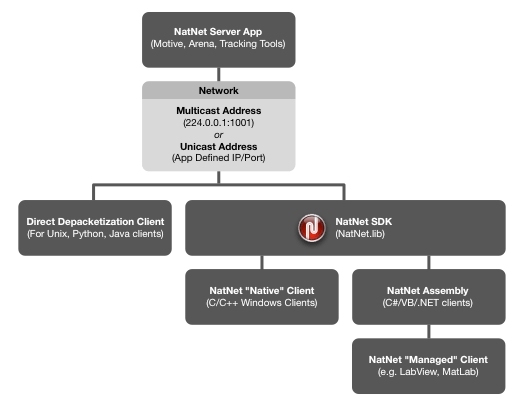
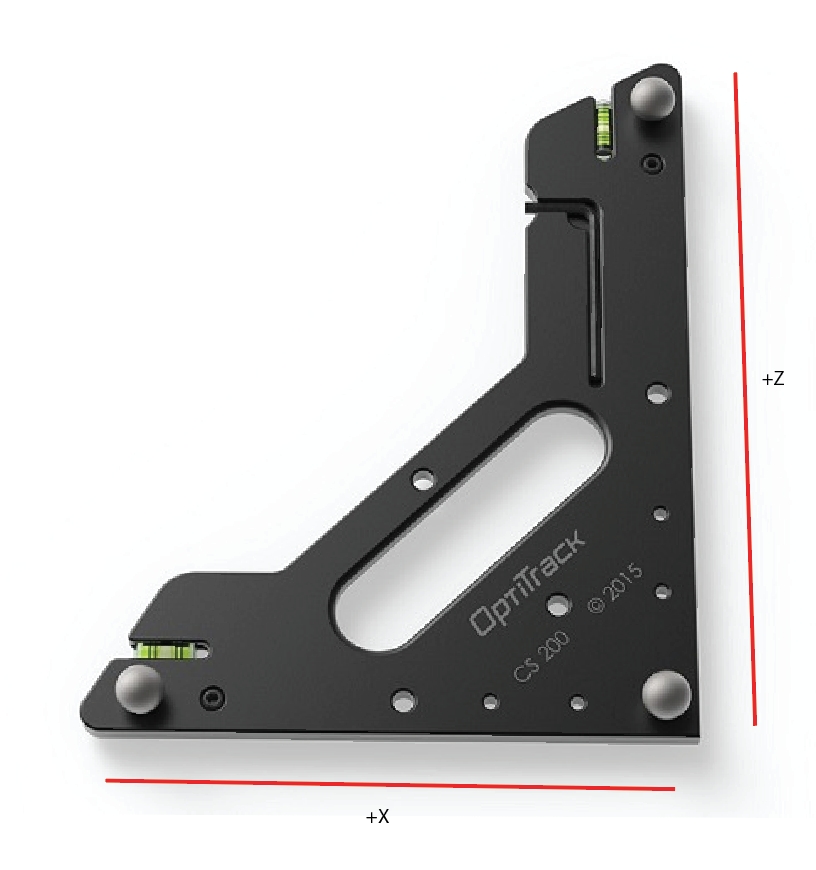
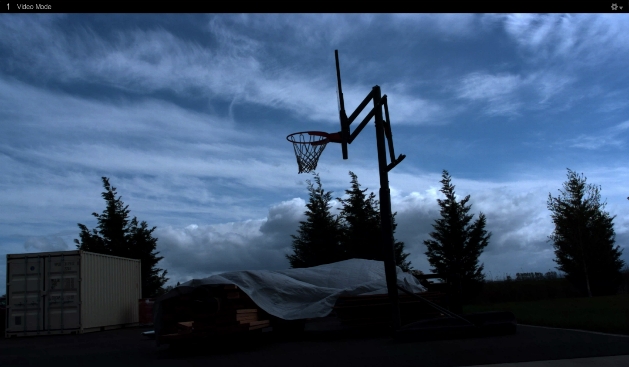
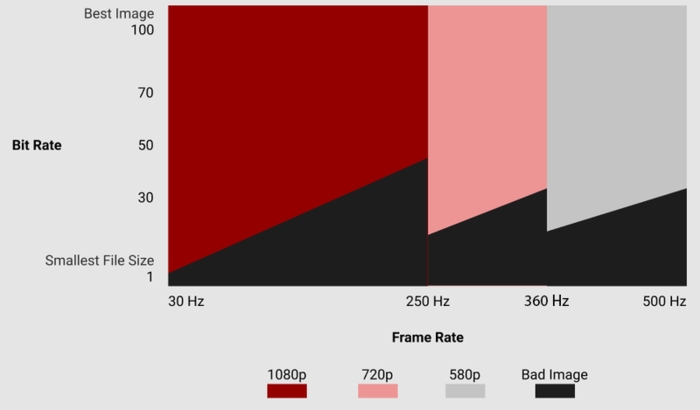
Add Two (or more) Markers Lastly, if an additional variation is needed, add extra markers. We recommended adding at least two extra markers in case any become occluded.
From the Builder pane:
Select the Modify tab.
In the Marker Constraints section, click to add or to remove the selected marker(s).
In the Refine section of the Modify tab of the Builder pane, click Start...
Slowly rotate the Rigid Body to collect samples at different orientations until the progress bar is full.
You can also refine the asset in Edit mode. Motive will automatically replay the current take file to complete the refinement process.


To delete a group, click the that appears to the right of the group name when the mouse hovers over it.
Reference Modes: Reference modes capture grayscale video as a visual aid during the take. Cameras in these modes do not contribute to the reconstruction of 3D data.
Grayscale: Raw grayscale is intended for aiming and monitoring the camera views and diagnosing tracking problems and includes aiming crosshairs by default. Grayscale video cannot be exported.
MJPEG: A reference mode that captures grayscale frames, compressed on-camera for scalable reference videos. MJPEG videos can be exported along with overlay information such as markers, rigid bodies, and skeleton data.
RAM/disk memory
Decreasing the bit-rate in such cases may slow the data transmission speed of the color camera enough to resolve the problem.
Bit Rate: [calculated]
Small Size - Full Rate
Video Mode: Color Video
Rate Multiplier: x1
Exposure: 20000 (or max)
Bit Rate: [calculated]
Great Image
Video Mode: Color Video
Rate Multiplier: x1
Exposure: 20000 (or max)
Bit Rate: [calculated]
Calibration Mode
Video Mode: Object Mode
Rate Multiplier: x1
Exposure: 250
Bit Rate: N/A
If the tag is unpaired, the circle x icon will appear.
If the tag is pairing, the circle with the wave icon will appear.
If the tag is paired, the green circle with green check icon will appear.
BaseStation: displays the serial number of the connected Base Station. This column is not displayed by default; right-click the header to add it.
960 x 540 (540p)
500 FPS
1280 x 720 (720p)
360 FPS
1920 x 1080 (1080p) Default
250 FPS


Labeled
Cleaned
Exported
2D Mode
In the Edit mode, when this option is enabled, Motive will access the recorded 2D data of a current Take. In this mode, Motive will live-reconstruct from recorded 2D data and you will be able to inspect the reconstructions and marker rays from the view ports. For more information: Reconstruction and 2D Mode.
Import CSV...
Import a list of empty Take names from a CSV file. This is helpful when you plan a list of shots in advance to the capture.
Export Take Info...
Exports a list of Take information into an XML file. Included elements are name of the session, name of the take, file directory, involved assets, notes, time range, duration, and number of frames included.
3D
Indicates whether the reconstructed 3D data exists on the corresponding Take.
If 3D data does not exist on a Take, it can be derived from 2D data by performing the reconstruction pipeline. See Reconstruction page for more details.
Video
Indicates whether reference videos exist in the Take. Reference videos are recorded from cameras that are set to either MJPEG grayscale or raw grayscale modes.
Solved
Indicates whether any of the assets have solved data baked into them.
Audio
Indicates whether synchronized audio data have been recorded with the Take. See: Audio Recording in Motive
Analog
Indicates whether analog data recorded using a data acquisition device exists in the Take. See: NI-DAQ Setup page.
Date Recorded
Shows the time and the date when the Take was recorded.
Frame Rate
Shows the camera system frame rate which the Take was recorded in.
Duration
Time length of the Take.
Total Frames
Total number of captured frames in the Take.
Notes
Section for adding commenting on each Take.
Start Timecode
Timecode stamped to the starting frame of the Take. This is available only if there was timecode signal integrated to the system.
Captured in Version
Motive version used to record the Take.
Last Saved in Version
Motive version used to edit or save the Take.


A .TAK file is a single motion capture recording (aka 'take' or 'trial'), which contains all the information necessary to recreate the entire capture, including camera calibration, camera 2D data, reconstructed and labeled 3D data, data edits, solved joint angle data, tracking models (Skeletons, Rigid Bodies, Trained Markersets), and any additional device data (audio, force plate, etc.). A Motive take (.TAK) file is a completely self-contained motion capture recording, that can be opened by another copy of Motive on another system.
Take files are forward compatible, but not backwards compatible, meaning you can play a take recorded in an older version of Motive in a newer version but not the other way around.
For example, if you try to play a take in Motive 2.x that was record in Motive 3.x, Motive will return an error. You can, however, record a Motive 2.x take and play it back in Motive 3.x.
The folder where take files are stored is known as a session folder in Motive. Session folders allow you to plan shoots, organize multiple similar takes (e.g. Monday, Tuesday, Wednesday, or Static Trials, Walking Trials, Running Trials, etc.) and manage complex sets of data within Motive or Windows.
For a most efficient workflow, plan the mocap session before the capture and organize a list of captures (shots) to be completed. Type the take names in a spreadsheet or a text file, then copy and paste the list into the data pane. This will create empty takes (a shot list) with corresponding names from the pasted list.
Click the button on the toolbar at the bottom of the Data pane to hide or expand the list of open Session Folders.
Alternately, with the session folder list closed, click the name of the current session folder in the top left corner for a quick selection.
The active Session Folder is noted with a flag icon. To switch to a different folder, left-click the folder name in the Session list.
Please refer to the Session Folders section of the Data pane page for more information on working with these folders.
Software configuration settings are saved in the motive profile (*.motive) file, located by default at:
C:\ProgramData\OptiTrack\MotiveProfile.motive
The profile includes application-related settings, asset definitions, and the open session folders. The file is updated as needed during a Motive session and at exit, and loads again the next time Motive is launched.
The profile includes:
Application Settings
Live Pipeline Settings
Streaming Settings
Synchronization Settings
Export Settings
Rigid Body & Skeleton assets
Rigid Body & Skeleton settings
Labeling settings
Hotkey configuration
To revert all settings to Motive factory defaults, select Reset Application Settings from the Edit menu.
A calibration file is a standalone file that contains all the required information to restore a calibrated camera volume, including the position and orientation of each camera, lens distortion parameters, and camera settings. After a camera system is calibrated, the .CAL file can be exported and imported back into Motive again when needed. For this reason, we recommend saving the camera calibration file after each round of calibration.
Reconstruction settings are also stored in the calibration file, in addition to the .MOTIVE profile. If the calibration file is imported after the profile file is loaded, the calibration may overwrite the previous reconstruction settings during import.
Note that an imported .CAL file is reliable only if the camera setup has remained unchanged since the calibration. Read more from the Calibration page.
The calibration file includes:
Reconstruction settings
Camera settings
Position and orientation of the cameras
Location of the global origin
Lens distortion of each camera
In Motive, the main viewport is fixed at the center of the UI and is used to monitor the 2D or 3D capture data in both live capture and playback of recorded data. The viewports can be set to either Perspective View, which shows the reconstructed 3D data within the calibrated 3D space, or Cameras View, which shows 2D images from each camera in the system. These views can be selected from the drop-down menu at the top-right corner. By default, the Perspective View opens in the top pane and the Cameras view opens in the bottom pane. Both views are essential for assessing and monitoring the tracking data.
Click on any viewport window and use the hotkey 1 to quickly switch to the Perspective view.
Displays the reconstructed 3D representation of the capture.
Used to analyze marker positions, view rays used in reconstruction, create assets, etc.
The Visual Aids menu allows you to select which data to display.
Click on any viewport window and use the hotkey 2 to quickly switch to the Cameras View.
This view displays the images transmitted from each camera, with a header that shows the camera's Video Mode (Object, Precision, Grayscale, or MJPEG) and resolution.
Detected IR lights and reflections also show in this pane. Only IR lights that satisfy the object filters are identified as markers. See Cameras Basic Settings in the Settings: Live Pipeline page for more detail on object filters.
Includes tools to report camera information, inspect pixels, troubleshoot markers, and mask pixel regions to exclude them from processing. See in the page for more details.
When needed, the Viewport can be split into 3 or 4 smaller views. Click the in the top-right corner of the viewport to open the Viewport context menu to select additional panes or different layouts. You can also use the hotkey Shift + 4 to open the four pane layout.
When needed, additional Viewer panes can be opened from the View menu or by clicking the icon on the main toolbar.
Mouse controls in Motive can be customized from the Mouse tab in application settings panel to match your preference. Motive also includes common mouse control presets for Motive (the default), Blade, Maya, MotionBuilder and Visual3D applications. Click the button to open the Settings panel.
The table below lists basic actions that are commonly used for navigating the viewports in Motive:
Rotate view
Right + Drag
Pan view
Middle (wheel) click + drag
Zoom in/out
Mouse Wheel
Select in View
Left mouse click
Toggle Selection in View
CTRL + left mouse click
Hotkeys speed up workflows. See all the defaults on the Motive Hotkeys page. To create custom hotkeys, save or import a keyboard preset, click the button to open the Settings panel.
The Control Deck is always docked at the bottom of Motive, providing both recording and navigation controls over Motive's two operating modes: Live and Edit.
The button at the far left of the Control Deck switches between Live and Edit mode, with the active mode shown in cyan. Hotkey Shift + ~ toggles between Live and Edit modes.
All cameras are active and the system is processing camera data.
If the system is calibrated, Motive live-reconstructs 2D camera data into labeled and unlabeled 3D trajectories (markers) in real-time.
Live tracking data can stream to other applications using the data streaming tools or the NatNet SDK.
The system is ready for recording. Capture controls are available in the .
Used for processing a loaded Take file (pre-recorded data). Cameras are not active.
Playback controls are available in the Control Deck, including a timeline (in green) at the top of the control deck for scrubbing through the recorded frames.
When needed, you can switch from editing in 3D to , to view the real-time unreconstructed 3D data. Use this to perform a post-processing reconstruction pipeline to re-obtain a new set of 3D data.
The Graph View pane is used to plot live or recorded channel data. There are many uses cases for plotting data in Motive; examples include tracking 3D coordinates of the reconstructed markers, 3D positions and orientations of Rigid Body assets, force plate data, analog data from data acquisition devices, and many more.
You can switch between existing layouts or create a custom layout for plotting specific channel data.
Basic navigation controls are highlighted below. For more information on graphing data in Motive, please read the Graph View pane page.
Hold the Alt key while left-clicking and dragging the mouse left or right over the graph to navigate through the recorded frames. You can use the mouse scroll also.
Scroll-click and drag to pan the view vertically and horizontally throughout plotted graphs. Dragging the cursor left and right pans the view along the horizontal axis for all of the graphs. When navigating vertically, scroll-click on a graph and drag up and down to also pan vertically.
Right-click and drag on a graph to zoom in and out on both vertical and horizontal axis. If Autoscale Graph is enabled, the vertical axis range will be fixed according to the max and min values of the plotted data.
Frame range selection is used when making post-processing edits on specific ranges of the recorded frames. Select a specific range by left-clicking and dragging the mouse left and right, and the selected frame ranges will be highlighted in yellow. You can also select more than one frame ranges by holding the shift key while selecting multiple ranges.
The Navigation Bar at the bottom of the Graph View pane can also be used to
Left-click and drag on the navigation bar to scrub through the recorded frames. You can use the mouse scroll also.
Scroll-click and drag to pan the view range.
Zoom to a frame range by re-sizing the scope range using the navigation bar handles. As noted above, you can also do this by pressing Alt + right-clicking on the graph to select the range to zoom to.
The working range (also called the playback range) is both the view range and the playback range of a corresponding Take in Edit mode. In playback, only the working range will play, and in the Graph View pane, only the data for the working range will display.
The working range can be set from different places:
In the navigation bar of the Graph View pane, drag the handles on the scrubber.
Use the navigation controls on the Graph View pane to zoom in or zoom out on the desired range.
Enter the start and end frames of the working range in the fields in the Control Deck.
The selection range is used to apply post-processing edits only to a specific frame range of a Take. The selected frame range is highlighted in yellow on both Graph View pane and the Control Deck Timeline.
When playing back a recorded capture, red marks on the navigation bar indicate areas with occlusions of labeled markers. Brighter colors indicate a greater number of markers with labeling gaps.
Motive's Application Settings panel holds application-wide settings, including:
Startup configuration and display options for both 2D and 3D viewports.
Settings for asset creation.
Live-pipeline parameters for the Solver and the 2D Filter settings for the cameras.
The Cameras tab includes the 2D filter settings that determine which reflections are classified as marker reflections on the camera views.
The Solver settings determine which 3D markers are reconstructed in the scene from the group of marker reflections from all the cameras.
Access Application Settings from the Edit menu or by clicking the icon on the main toolbar. Read more about all of the available settings on the Application Settings pages.
The Solver tab on the Live Pipeline settings panel configures the real-time solver engine. These are some of the most important settings in Motive as they determine how 3D coordinates are acquired from the captured 2D camera images and how they are used for tracking Rigid Bodies and Skeletons. Understanding these settings is very important for optimizing the system for the best tracking results.
Under the Camera tab, you can configure the 2D Camera filter settings (circularity filter and size filter) as well as other display options for the cameras. The 2D Camera filter setting is a key setting for optimizing the capture.
For most applications, the default settings work well, but it is still helpful to understand these core settings for more efficient control over the camera system.
Motive includes several predefined layouts suited to various workflow activities. Access them from the Layout menu, or use the buttons in the top right corner of the screen.
The User Interface (UI) layout in Motive is highly customizable.
Select the desired panes from the View menu or from the standard toolbar.
All panes can be undocked to float, dock elsewhere, or stack with other panes with a simple drag-and-drop.
Reposition panes using on-screen docking guides:
Drag-and-drop the pane over the icon for the desired position. To have the pane float, drop it away from the docking guides.
Stacked panes form a tabbed window. The option to stack is only available when dragging a pane over another stackable pane.
Custom layouts can be saved and loaded again, allowing a user to easily switch between default and custom configurations suitable for different needs.
Select Create Layout... from the Layout menu to save your custom layout.
The custom layout will appear in the selection list to the left of the Layout buttons.
Custom layouts can also be accessed using , with Ctrl+6 through Ctrl+9 set for user layouts by default.
Serial Number
Varies
Denotes the serial number of the camera. This information uniquely identifies the camera.
Focal Length
Varies
Denotes the distance between the camera's image sensor and its lens.
General
Enabled
Toggle 'On'
When Enabled is toggled on, the camera is active and able to collect marker data.
Rate
Maximum FPS
Set the system frame rate (FPS) to its maximum value. If you wish to use slower frame rate, use the maximum frame rate during calibration and turn it down for the actual recording.
Reconstruction
Toggle 'On'
Denotes when camera is participating in 3D construction.
Rate Multiplier
x1 (120Hz)
Denotes the rate multiplier. This setting is for syncing external devices with the camera system
Exposure
250 μs
Denotes the exposure of the camera. The higher the number, the more microseconds a camera's sensor is exposed to light. If you're having issue with seeing markers, raise the exposure. If there is too much reflection data in the volume, lower the exposure.
Threshold (THR)
200
Do not bother changing the Threshold (THR) or LED values, keep them at their default settings. The Values EXP and LED are linked so change only the EXP setting for brighter images. If you turn the EXP higher than 250, make sure to wand extra slow to avoid blurred markers.
LED
Toggle 'On'
In some instances you may want to turn off the IRLEDs on a particular camera. i.e. using an active wand for calibration reduces extraneous reflections from influencing a calibration.
Video Mode
Default: Object Mode
Changes video mode of the camera. For more information regarding camera video types, please see: Camera Video Types.
IR Filter
Toggle 'On'
*Special to PrimeX 13/13W, SlimX 13, and Prime Color FS cameras. Toggles from using 850 nm IR filter which allows for only 850 nm IR light to be visible. When toggled off, all light will be visible to the camera's image sensor.
Gain
1: Low (Short Range)
Set the Gain setting to low for all cameras. Higher gain settings will amplify noise in the image.
Display
Show Field of View
Toggle 'Off'
When toggled on this shows the camera's field of view. This is particularly useful when aiming and focusing upon setting up a camera volume.
Show Frame Delivery Info
Toggle 'Off'
When toggled on, this setting shows the frame delivery info for all the cameras in the system overlaid on the selected camera's camera viewport.
Camera Tab: Circularity
≥ 3
Increasing the circularity value will filter out non-marker reflections. Furthermore, it prevents collecting data from merged reflections where the calculated centroid is no longer reliable.
•
•
Skeleton Data
•
•
•
•
•
Maximum File size (MB)
Sets the maximum size for video export files, in megabytes. Large videos will be separated into multiple files, which will not exceed the size value set here.
Dropped Frames
Determines how dropped frames will be handled in the video output. Last Frame (the default) will display the last good frame through the end of the video. Black Frame will replace each dropped frame with a black frame. Both of these options will preserve the original video length, whereas Drop Frame will truncate the video at the first dropped frame.
Naming Convention
Sets the naming convention for the video export. The Standard naming convention is Take_Name (Camera Serial Number) e.g., Skeleton_Walking (M21614). The Prefix Camera ID convention will include the number assigned to the camera in Motive at the beginning, followed by the Take name e.g., Cam_1_Skeleton_Walking. This latter option will also create a separate folder for each camera's AVI file.
Camera
Select the camera(s) for the video export: All reference cameras, or custom.
Markersets
Displays bones for all solved trained markersets.
Force Plates
Displays force plate(s) used in the take.
Marker Sticks
Displays the marker sticks for all solved assets used in the take.
Logo
Adds the OptiTrack logo to the top right corner of the video.


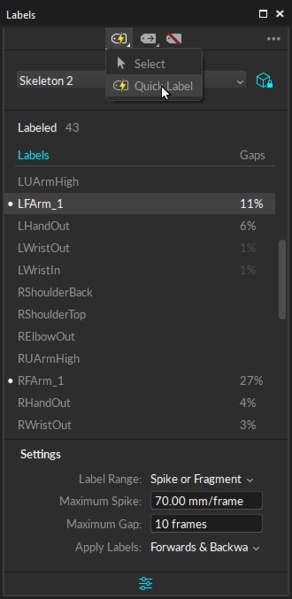
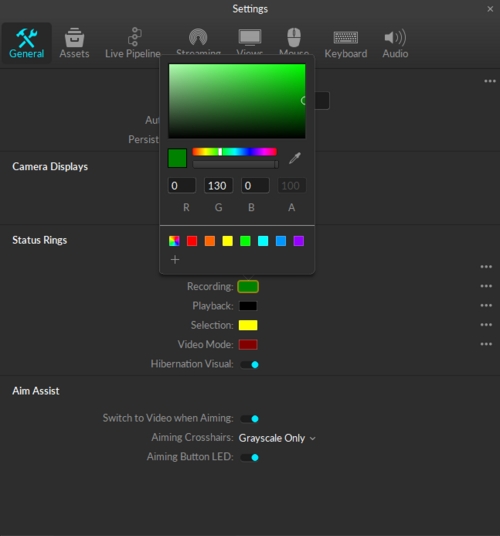
Detailed instructions for creating and using Skeleton assets in Motive.
In Motive, Skeleton assets are used for tracking human motions. These assets auto-label specific sets of markers attached to human subjects, or actors, and create skeletal models.
Unlike Rigid Body assets, Skeleton assets require additional calculations to correctly identify and label 3D reconstructed markers on multiple semi-Rigid Body segments. To accomplish this, Motive uses pre-defined Skeleton Marker Set templates that define a collection of marker labels and their specific positions on a subject.
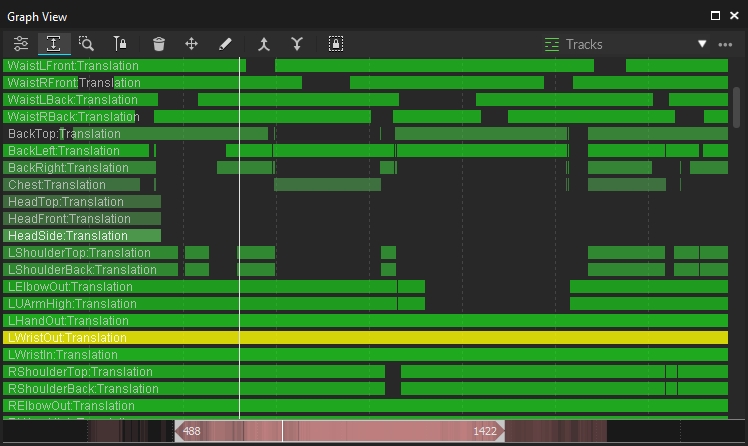
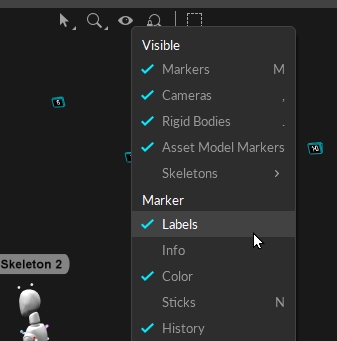
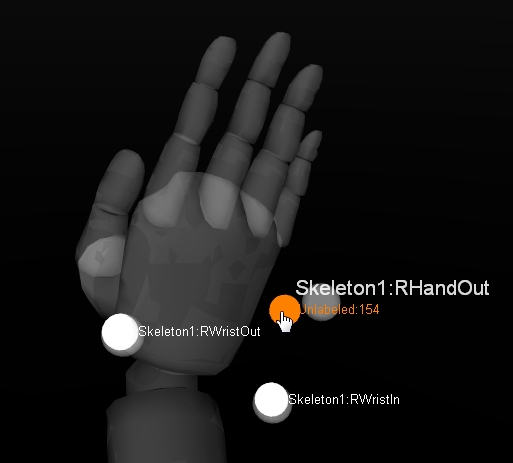
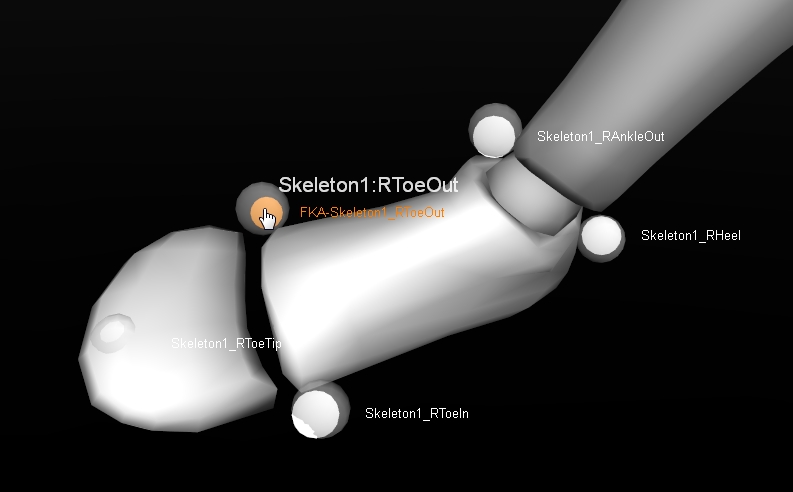
Motive license: Skeleton features are supported only in Motive:Body or Motive:Body - Unlimited.
Skeleton Count: The standard Motive:Body license supports up to 3 Skeletons. To track more Skeletons, a Motive:Body - Unlimited license is required.
Height range: Skeleton actors must be between 1'7" and 9' 10" tall.
Use the default create layout to open related panels that are necessary for Skeleton creation. (CTRL + 2).
When it comes to tracking human movements, proper marker placement is especially important. In Motive's pre-programmed Skeleton Marker Sets, each marker indicates an anatomical landmark, such as left elbow out, right hip, etc., when modeling the Skeleton. If markers are misplaced, the Skeleton asset may not be created, or bad marker placements may result in labeling problems, creating extra work in post-processing of the data.
Attaching markers directly to a person’s skin can be difficult due to hair, oil, and moisture from sweat. For this reason, we recommend mocap suits that allow Velcro marker bases. In instances where markers must be attached directly, make sure to use appropriate skin adhesives to secure the marker bases as dynamic human motions tend to move the markers during capture.
Open the Create tab on the Builder pane.
From the Type drop-down list, select Skeleton.
Select a Marker Set to use from the drop-down menu. The number of required markers for each Skeleton is shown in parenthesis after the Marker Set name.
When a Marker Set is selected, the corresponding marker locations are displayed over an avatar in the . Right-drag to rotate the avatar to see the location of all the markers.
Have the subject strike a calibration pose (T-pose or A-pose) and carefully place retroreflective markers at the corresponding locations of the actor or the subject.
The positions of markers shown in white are fixed and must be in the same location for each skeleton created. These markers are critical in auto-labeling the skeleton.
The positions of markers shown in magenta are relative and should be placed in various positions in the general area to create skeletons that are unique to each actor.
All markers need to be placed at respective anatomical locations of a selected Skeleton as shown in the Builder pane. Skeleton markers can be divided into two categories: markers that are placed along joint axes (joint markers) and markers that are placed on body segments (segment markers).
Joint markers need to be placed carefully along corresponding joint axes. Proper placements will minimize marker movements during a range of motions and will give better tracking results. To accomplish this, ask the subject to flex and extend the joint (e.g., knee) a few times and palpate the joint to locate the corresponding axis. Once the axis is located, attach the markers along the axis where skin movement is minimal during a range of motion.
Proper placement of Joint Markers improves auto-labeling and reduces post-production processing time.
Segment markers are placed on Skeleton body segments, but not around a joint. For best tracking results, place segment markers asymmetrically within each segment. This helps the Skeleton solve to thoroughly distinguish left from right for the corresponding Skeleton segments throughout the capture. This asymmetrical placement is also emphasized in the avatars shown in the Builder pane.
If attaching markers directly to skin, wipe off any moisture or oil before attaching the marker.
Avoid wearing clothing or shoes with reflective materials that can introduce extraneous reflections.
Tie up hair, which can occlude markers around the neck.
Remove reflective jewelry.
Place markers in an asymmetrical arrangement by offsetting the related segment markers (markers that are not on joints) at slightly different height.
In the Builder pane, the number of Markers Needed and Markers Detected must match. If the Skeleton markers are not automatically detected, manually select the Skeleton markers from the .
Find detailed descriptions of each template in the section .
Biomechanics Marker Sets require precise placement of markers at the respective anatomical landmarks. The markers directly relate to the coordinate system definition of each respective segment, affecting the resulting biomechanical analysis.
The markers need to be placed on the skin for direct representation of the subject’s movement. Use appropriate adhesives to place markers and make sure they are securely attached.
Place markers where you can palpate the bone or where there is less soft tissue in between. These spots have fewer skin movements and provide more secure marker attachment.
While the basic marker placement must follow the avatar in the Builder pane, additional details on the accurate placements can be found on the page.
Many Skeleton Marker Sets do not have medial markers because they can easily collide with other body parts or interfere with the range of motion, all of which increase the chance of marker occlusions.
However, medial markers are beneficial for precisely locating joint axes by associating two markers on the medial and lateral side of a joint. For this reason, some biomechanics Marker Sets use medial markers as calibration markers. Calibration markers are used only when creating Skeletons but removed afterward for the actual capture. These calibration markers are highlighted in red from the 3D view when a Skeleton is first created.
After creating a Skeleton from the Builder pane, calibration markers need to be removed. First, detach the calibration markers from the subject. Then, in Motive, right-click on the Skeleton in the perspective view to access the context menu and click Skeleton → Remove Calibration Markers. Check the assigned marker positions to make sure that the Skeleton no longer expects markers in the corresponding medial positions.
A proper calibration posture is necessary because the pose of the created Skeleton will be calibrated from it.
The avatar in the Builder pane does not change to reflect the selected pose.
The T-pose is commonly used as the reference pose in 3D animation to bind two characters or assets together. Motive uses this pose when creating Skeletons. A proper T-pose requires straight posture with back straight and head facing directly forward. Both arms are parallel to the ground, forming a “T” shape, with the palms facing downward. Both arms and legs must be straight, and both feet need to be aligned parallel to each other.
The A-pose is especially beneficial for subjects who have restricted mobility in one or both arms. Unlike the T-pose, arms are abducted at approximately 40 degrees from the midline of the body, creating an A-shape. There are three different types of A-pose: Palms down, palms forward, and elbows bent.
Palms Down: Arms straight. Abducted, sideways, arms approximately 40 degrees, palms facing downwards.
Palms forward: Arms straight. Abducted, sideways, arms approximately 40 degrees, palms facing forward. Be careful not to over rotate the arm.
Elbows Bent: Similar to all other A-poses. arms approximately 40 degrees, bend elbows so that forearms point towards the front. Palms facing downwards, both forearms aligned.
Once the skeleton markers are correctly placed for the selected template, it's time to finish creating the skeleton.
Select the calibration Pose you plan to use to define the Skeleton from the drop-down menu. This is set to the T-pose by default.
The Constraints drop-down allows you to assign labels that are defined by the Marker Set template (Default) or to assign custom labels by loading a previously prepared XML file of constraint names.
Select the Visual template to apply to the skeleton. Options are: Segment; Avatar - male; Avatar - female; None; or Cycle Avatar, which cycles between the male and female avatars. This value can be changed later in the Skeleton Properties.
Enter a unique name for the skeleton. The skeleton name is included as a prefix in the label for each of the skeleton markers.
Ask the subject to stand in the selected , feet shoulder-width apart. The T-pose should be done with palms downward.
Click Create. Once the Skeleton model has been defined, confirm all Skeleton segments and assigned markers are located at the expected locations. If any of the Skeleton segments seem to be misaligned, delete and create the Skeleton again after adjusting the marker placements and the calibration pose.
Several changes can be made to Skeleton assets from the Modify tab of the Builder pane, or through the context menus available in the 3D Viewport or the Assets Pane.
Skeleton marker colors and marker sticks can be viewed in the 3D Viewport. They provide color schemes for clearer identification of Skeleton segments and individual marker labels. To make them visible, enable Marker Sticks and Marker Colors under the visual aids in the perspective view pane.
Skeleton assets can be recalibrated using the existing Skeleton information. Recalibration recreates the selected Skeleton using the same Skeleton Marker Set and refreshes expected marker locations on the assets.
There are several ways to recalibrate a Skeleton:
From the Modify tab of the Builder pane.
Select all of the associated Skeleton markers in the 3D Viewport, right-click and select Skeleton (1) --> Recalibrate from Selection.
Right-click the skeleton in the Assets pane and select Skeleton (1) --> Recalibrate from Markers.
Skeleton recalibration does not work for Skeleton templates with added markers.
Constraints store information on marker labels, colors, and marker sticks which can be modified, exported and re-imported as needed. For more information on exporting and importing constraints, please refer to the Constraints XML Files page.
To modify marker colors and labels, use the Constraints pane.
Right-click the skeleton in the asset pane and select Constraints --> Reset Constraints to Default to update the Skeleton markers with the default constraints template.
Skeleton Marker Sets can be modified slightly by adding or removing markers to or from the template. Follow the below steps for adding/removing markers.
Modifying, especially removing, Skeleton markers is not recommended since changes to default templates may negatively affect the Skeleton tracking if done incorrectly.
Removing too many markers may result in poor Skeleton reconstructions, while adding too many markers may lead to labeling swaps.
If any modification is necessary, try to keep the changes minimal.
Open the Modify tab on the Builder pane.
In the 3D Viewport, select the Skeleton segment that you are adding add the extra markers to.
CTRL + left-click on the marker that you wish to add to the skeleton.
On the Marker Constraints tool in the Builder pane, click to add and associate the selected marker to the selected segment.
You can also add Constraints from the Constraints pane.
Reconstruct and Auto-label the Take.
Extra markers added to Skeletons will be labeled as Skeleton_CustomMarker#. Use the to change the label as needed.
To Remove
Enable selection of Marker Constraints from the visual aids option in perspective view.
[Optional] Under the advanced properties of the target Skeleton, enable the Marker to Constraint Lines property to view which markers are associated with different Skeleton bones.
Open the Modify tab on the Builder pane.
Select the Skeleton segment to modify and the Marker Constraints you wish to dissociate.
Delete the association by clicking on the in the Constraints section.
Alternately, you can click to remove selected markers from the Constraints pane.
From the , right click the Take and select Reconstruct and Auto-label.
A Marker stick connects two markers to create a visible line. Marker sticks define the shape of an asset, showing which markers connect to each other, such as knee to hip, and which don't, such as hand to foot. Skeleton Marker Sets include the placement of marker sticks.
Changes the color of the selected Marker Stick(s).
Autogenerates Marker Sticks for the selected Trained Markerset asset. Does not apply to skeleton assets.
Connects all of the selected Markers to each other. Not recommended for skeleton assets.
Creates Marker Sticks based on the order in which the markers were selected.
Removes the selected Marker Stick(s).
For newly created Skeletons, default Skeleton creation properties are configured under the Application Settings pane. Click the button and select Assets.
Properties of existing, or recorded, Skeleton assets are configured under the Properties pane while the respective Skeletons are selected.
To configure Advanced properties, click the button in the top right corner of the pane.
Assets can be exported into the Motive user profile (.MOTIVE file) if they need to be re-imported. The user profile is a text-readable file that contains various configuration settings in Motive, including the asset definitions.
When asset definitions are exported to a MOTIVE user profile, the profile stores the marker arrangements calibrated in each asset, which can be imported into different takes without creating a new asset in Motive.
The user profile stores the spatial relationship of each marker to the others in the asset. Only the identical marker arrangement will be recognized and defined with the imported asset.
To export all of the assets in Live-mode or in the current TAKE file, go to File menu and selected Export Assets. You can also select the File menu → Export Profile option to export other software settings as well as the assets.
There are two ways of obtaining Skeleton joint angles. Rough representations of joint angles can be obtained directly from Motive, but the most accurate representations of joint angles can be obtained by pipelining the tracking data into a third-party biomechanics analysis and visualization software (e.g. Visual3D or The MotionMonitor).
For biomechanics applications, joint angles must be computed accurately using the respective Skeleton model solve, which can be accomplished by using biomechanical analysis software. Export C3D files or stream tracking data from Motive and import into an analysis software for further calculation. From the analysis, various biomechanics metrics, including the joint angles, can be obtained.
Joint angles generated and exported from Motive are intended for basic visualization purposes only and should not be used for any type of biomechanical or clinical analysis. A rough representation of joint angles can be obtained by either exporting or streaming the Skeleton Rigid Body tracking data. When exporting the tracking data into CSV, set the Use World Coordinates export setting to Local to obtain bone segment position and orientation values in respect to its parental segment, roughly representing the joint angles by comparing two hierarchical coordinate systems. When streaming the data, set Local Rigid Bodies to true in the streaming settings to get relative joint angles.
Each Skeleton asset has its marker templates stored in a Constraints XML file. A Skeleton Marker Set can be modified by exporting, customizing, and importing the Constraints XML files. Specifically, customizing the XML files will allow you to modify Skeleton marker labels, marker colors, and marker sticks within a Skeleton asset. For detailed instructions on modifying Skeleton XML files, read the Constraints XML Files page.
To export Skeleton constraints XML file
To export a Skeleton XML file, right-click on a Skeleton asset under the Assets pane and select Constraints --> Export Constraints to export corresponding Skeleton marker XML file.
To import Skeleton constraints XML file
When creating a new Skeleton, you can import a constraints XML file under the Labels section of the Builder pane. To import a constraints XML file to an existing Skeleton, right-click on a Skeleton asset under the Assets pane and select Constraints --> Import Constraints.


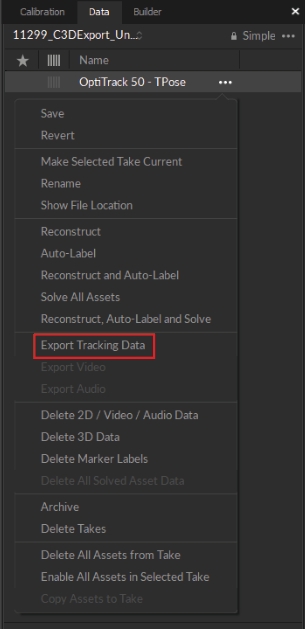
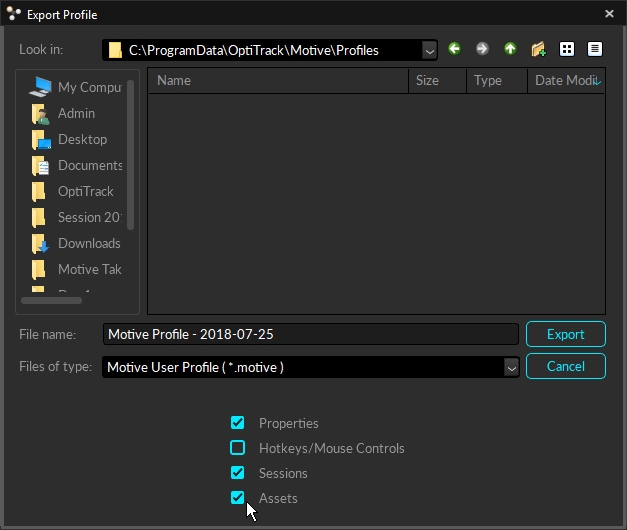
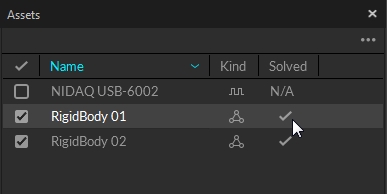
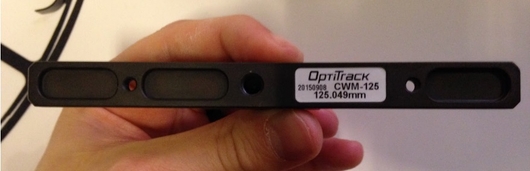
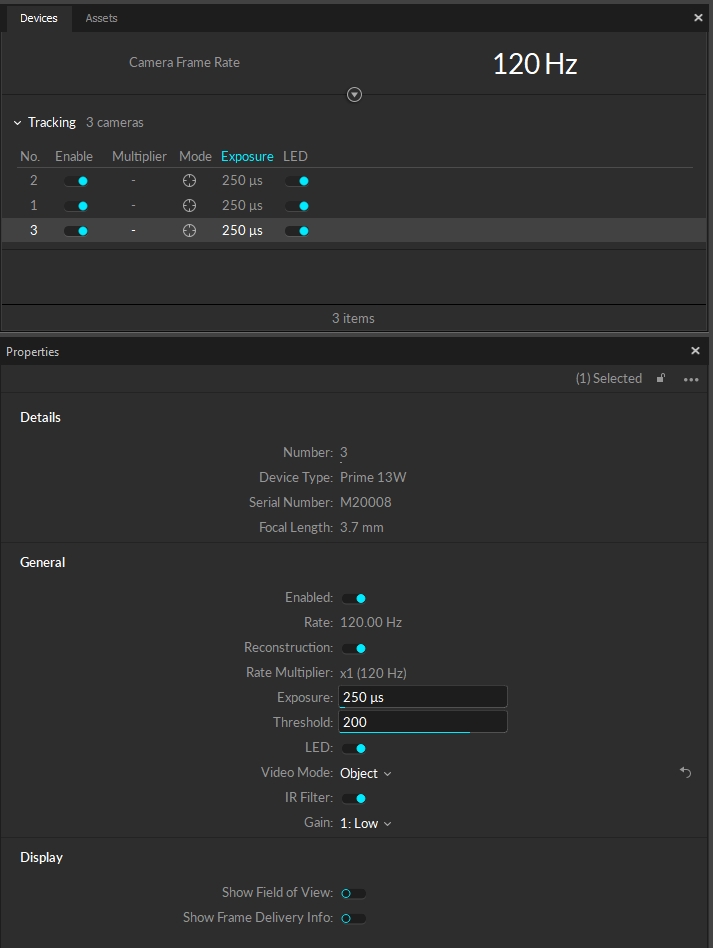
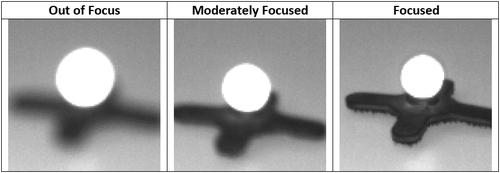
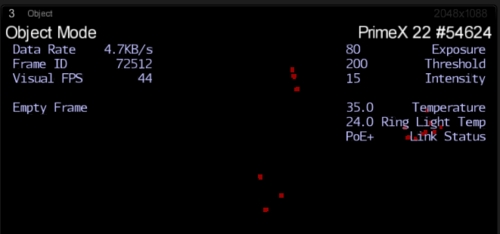
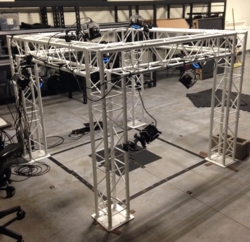
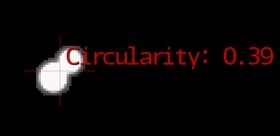
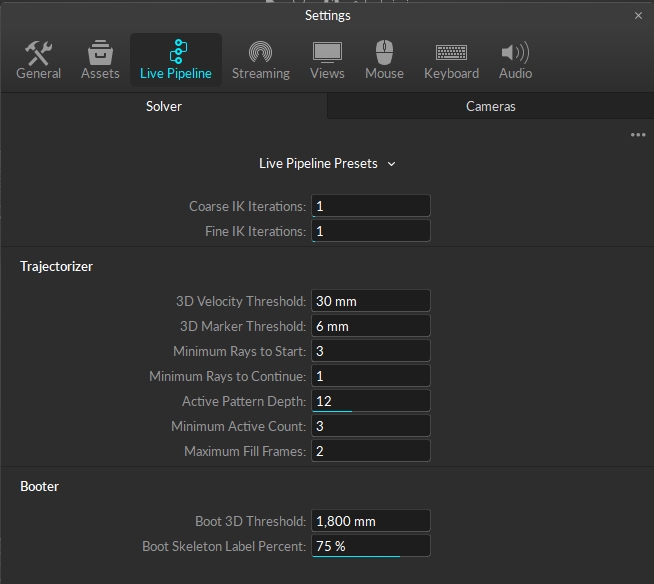
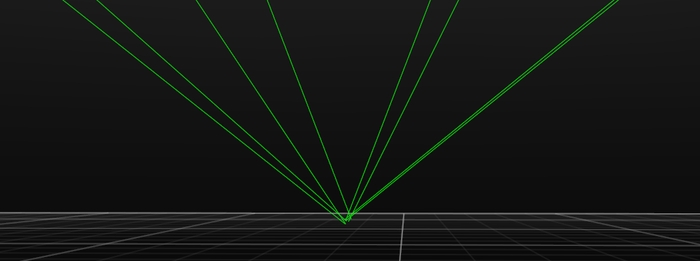
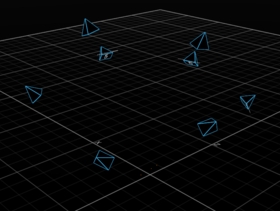
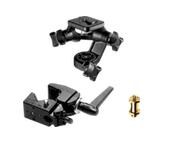
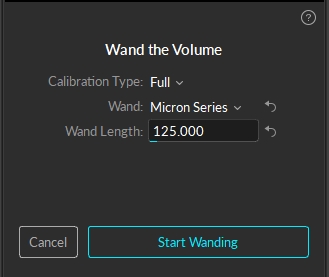
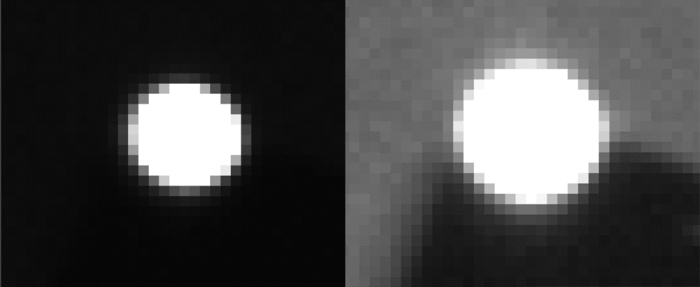
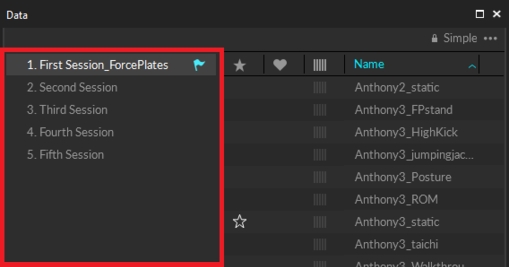
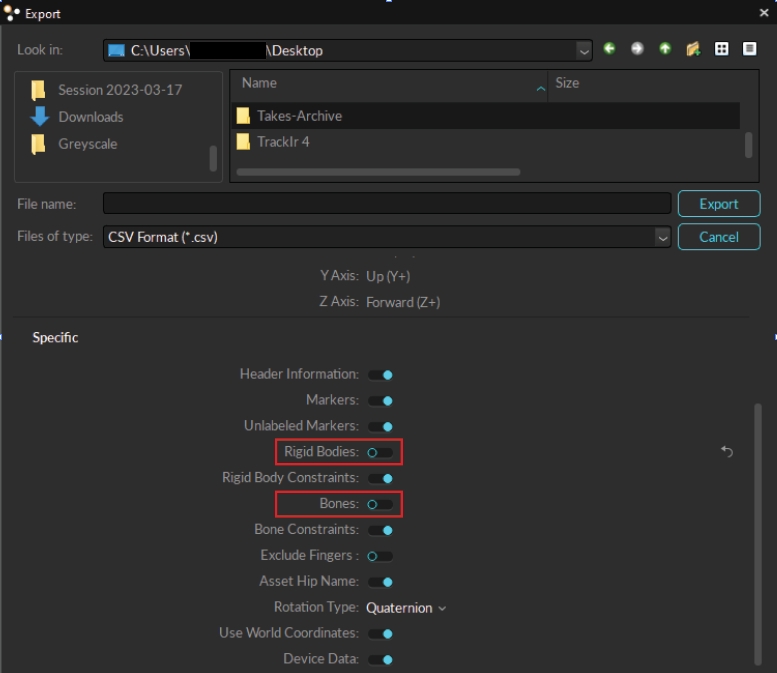
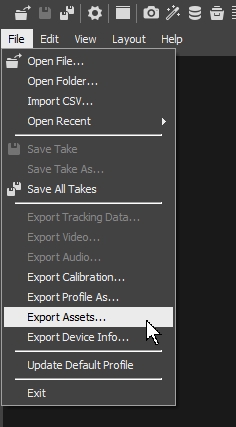

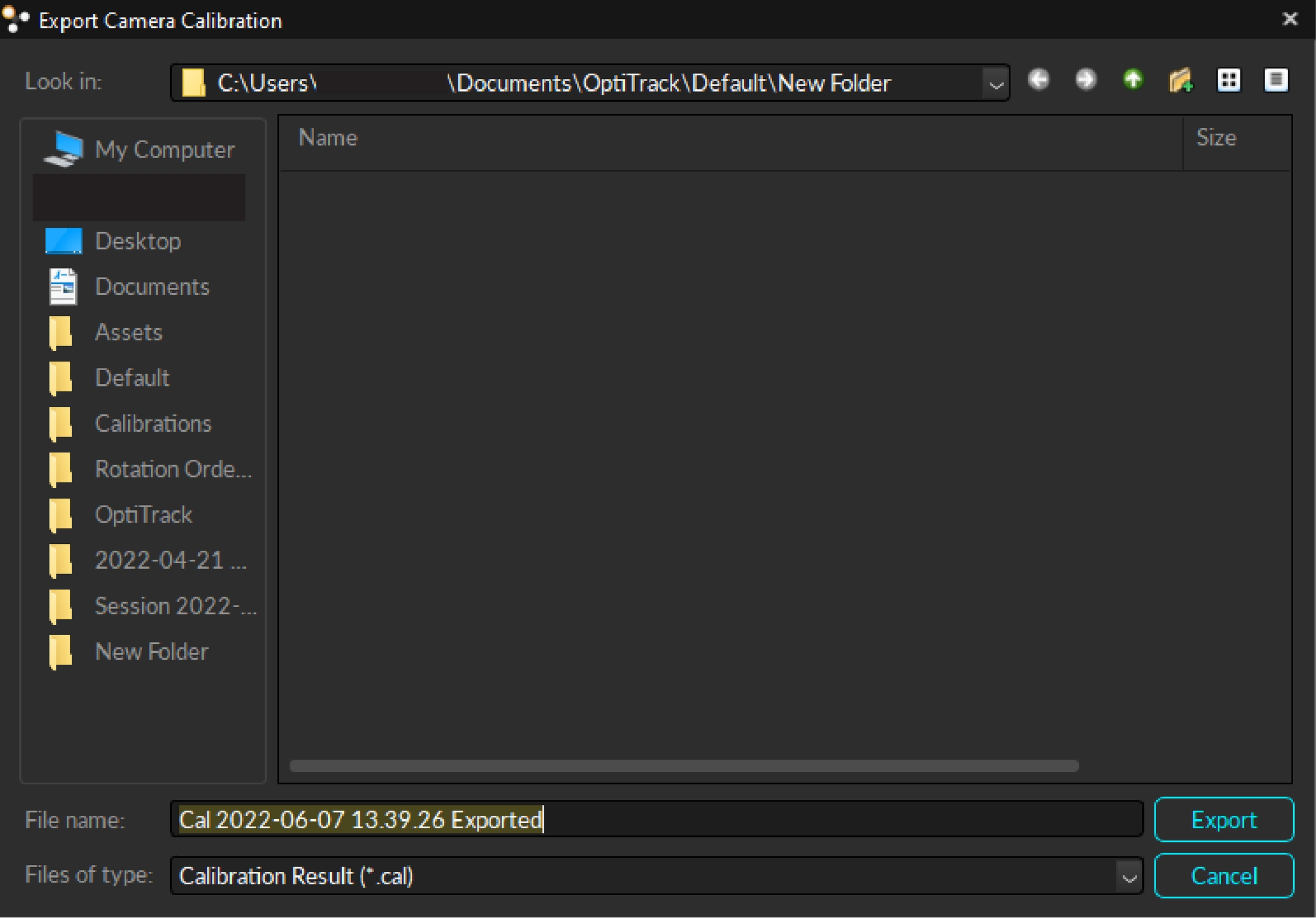


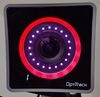
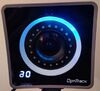
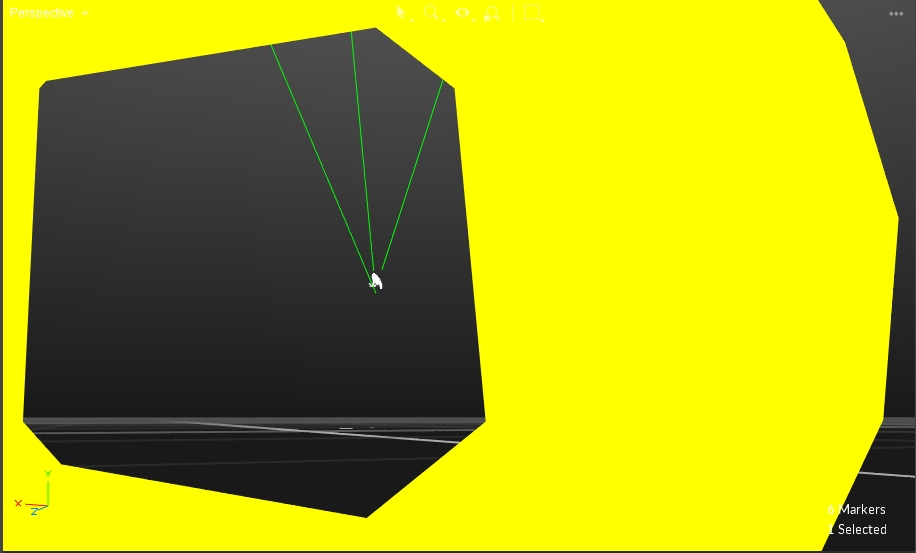
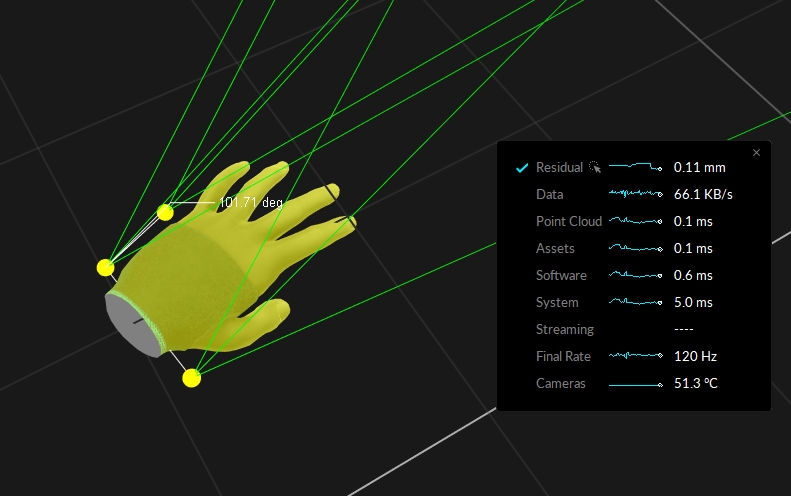
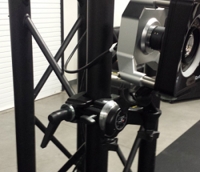
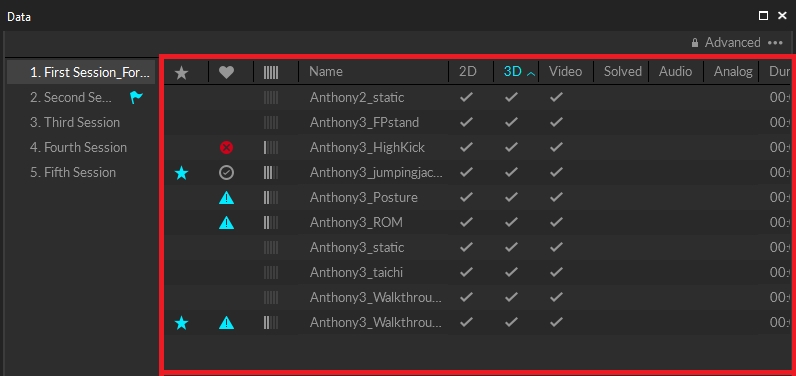
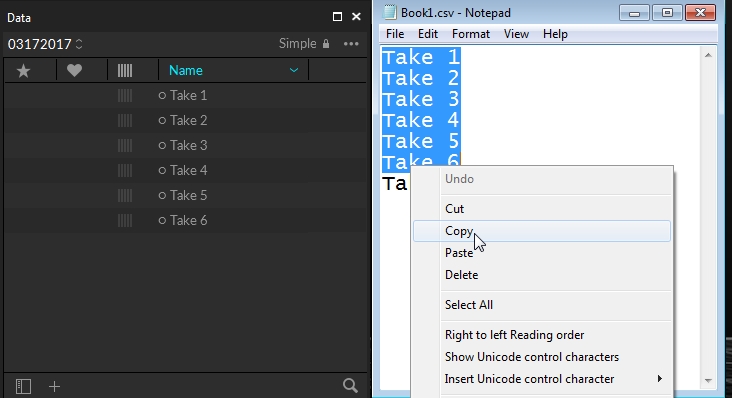
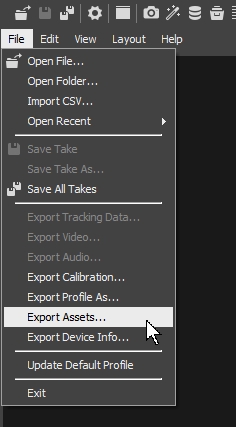
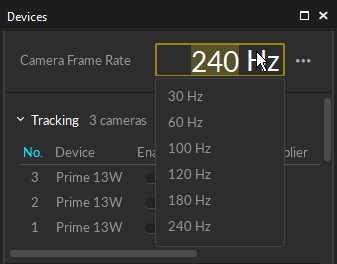
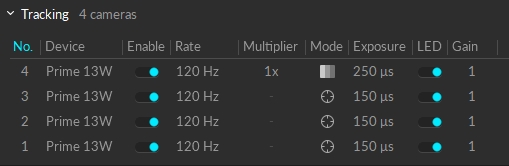
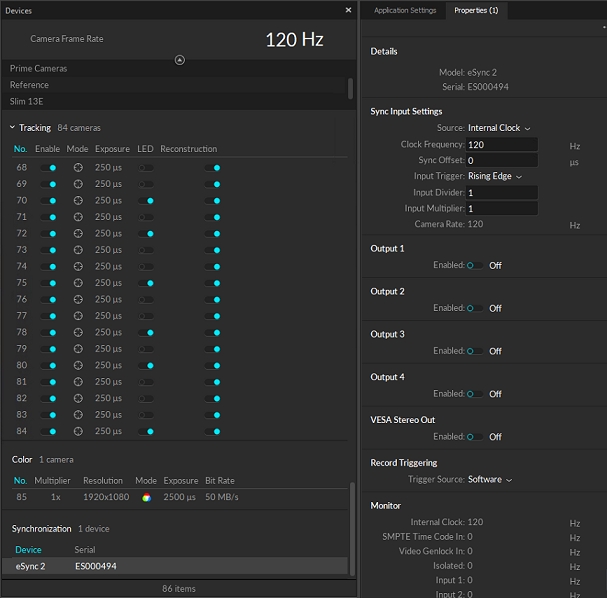


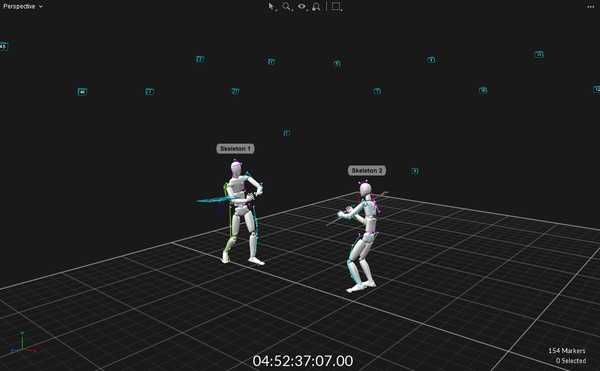
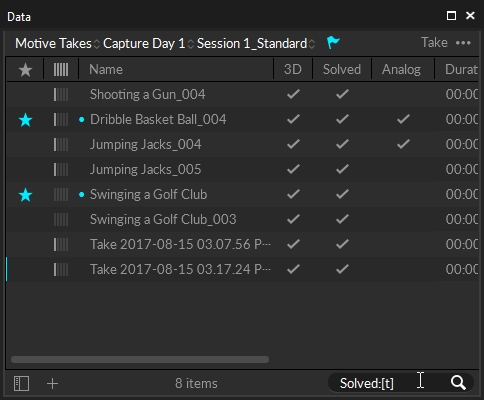

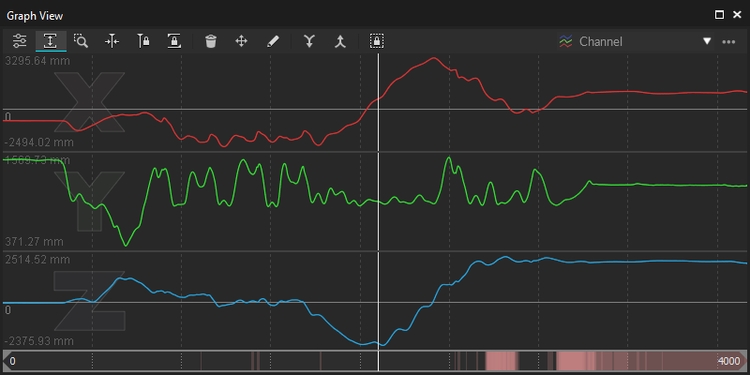
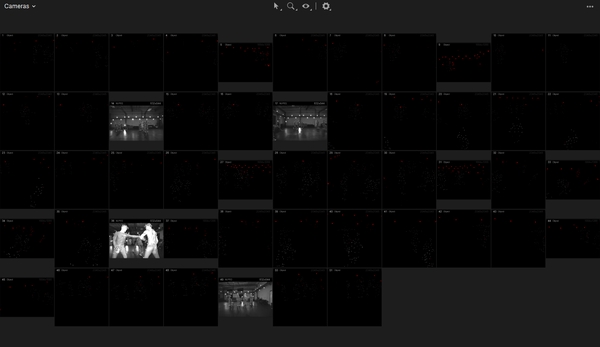
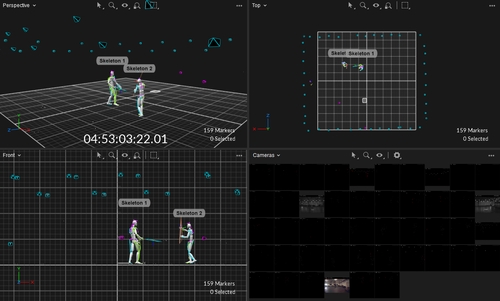

The Builder pane can be accessed under the View tab or by clicking the icon on the main toolbar.
The Builder pane is used for creating and editing trackable models, also called trackable assets, in Motive. In general, Rigid Body assets are created for tracking rigid objects, and Skeleton assets are created for tracking human motions. A new feature in Motive 3.1 allows you to create Trained Markersets to track objects that are neither rigid nor human skeleton templates.
When created, trackable models store the positions of markers on the target object and use the information to auto-label the markers in 3D space. During the auto-label process, a set of predefined labels are assigned to 3D points using the solver pipeline, and the labeled dataset is then used for calculating the position and orientation of the corresponding Rigid Bodies or Skeleton segments. Auto-labeling is not available for Trained Markersets.
The trackable models can be used to auto-label the 3D capture both in Live mode (real-time) and in the Edit mode (post-processing). Each created trackable model will have its own properties which can be viewed and changed under the . If new Skeletons or Rigid Bodies are created during post-processing, the Take will need to be auto-labeled again in order to apply the changes to the 3D data.
On the Builder pane, you can either create a new trackable asset or modify an existing one. Select the Type of asset you wish to work on, and then select whether you wish to create or make modifications to existing assets. Create and Modify tools for different Asset types will be explained in the sections below.
Edit Mode is used for playback of captured Take files. In this mode, you can playback and stream recorded data and complete post-processing tasks, such as creating and modifying assets. The Cameras View displays the recorded 2D data while the 3D Viewport represents either recorded or real-time processed data as described below.
There are two modes for editing:
Edit: Playback in standard Edit mode displays and streams the processed 3D data saved in the recorded Take. Changes made to settings and assets are not reflected in the Viewport until the Take is .
Edit 2D: Playback in Edit 2D mode performs a live reconstruction of the 3D data, immediately reflecting changes made to settings or assets. These changes are displayed in real-time but are not saved into the recording until the Take is and saved. To playback in 2D mode, click the Edit button and select Edit 2D.
Please see the page for more information about editing Takes.
To create Rigid Bodies, select Rigid Body from the Type option and click the Create tab at the top. Here, you can create Rigid Body assets and track any markered-objects in the volume. In addition to standard Rigid Body assets, you can also create Rigid Body models for head-mounted displays (HMDs) and measurement probes as well.
Tip: The recommended number of markers per Rigid Body is 4 ~ 12 markers.
You may encounter limits if using an excessive number of markers, or experience system performance issues when using the refine tool on such an asset.
Step 1.
Select all associated Rigid Body markers in the .
Step 2.
On the Builder pane, confirm that the selected markers match those on the object you want to define as the Rigid Body.
Step 3.
Click Create to define a Rigid Body asset from the selected markers.
You can also create a Rigid Body by doing the following actions while the markers are selected:
Perspective View (3D viewport): While the markers are selected, right-click on the perspective view to access the context menu. Under the Markers section, click Create Rigid Body.
Assets pane: While the markers are selected in Motive, click on the add button at the bottom of the .
Hotkey: While the markers are selected, use the create Rigid Body hotkey (Default: Ctrl +T).
Step 4.
Once the Rigid Body asset is created, the markers will be colored (labeled) and interconnected to each other. The newly created Rigid Body will be listed under the .
This feature can be used only with HMDs that have the clips mounted.
For using OptiTrack system for VR applications, it is important that the pivot point of the HMD Rigid Body gets placed at the appropriate location, which is at the root of the nose in between the eyes. When using the HMD clips, you can utilize the HMD creation tools in the Builder pane to have Motive estimate this spot and place the pivot point accordingly. It utilizes known marker configurations on the clip to precisely position the pivot point and set the desired orientation.
Make sure Motive is configured for tracking .
Open the Builder pane under and click Rigid Bodies.
Under the Type drop-down menu, select HMD. This will bring up the options for defining an HMD Rigid Body.
You can also define a measurement probe using the Builder pane. The measurement probe tool utilizes the precise tracking of OptiTrack mocap systems and allows you to measure 3D locations within a capture volume. For more information, please read through the .
Open the Builder pane under the and click Rigid Bodies.
Bring the probe into the tracking volume and create a from the markers.
Under the Type drop-down menu, select Probe. This will bring up the options for defining a Rigid Body for the measurement probe.
Caution
The probe tip MUST remain fitted securely in the slot on the calibration block during the calibration process.
Do not press in with the probe since the deformation from compressing could affect the result.
The Builder pane has tools that can be used to modify the tracking of a Rigid Body selected in Motive. To modify Rigid Bodies, select a single Rigid Body and click the Modify tab to display the options for editing a Rigid Body.
The Rigid Body refinement tool improves the accuracy of Rigid Body calculation in Motive. When a Rigid Body asset is initially created, Motive references only a single frame to define the Rigid Body. The Rigid Body refinement tool allows Motive to collect additional samples to achieve more accurate tracking results by improving the calculation of expected marker locations of the Rigid Body as well as the position and orientation of the Rigid Body itself.
Steps
From the menu, open the Builder pane, or click the button on the toolbar.
Click on the Modify tab.
Select the Rigid Body to be refined in the Asset pane.
To refine the asset in
The Probe Calibration feature under the Rigid Body edit options can be used to re-calibrate a pivot point of a measurement probe or a custom Rigid Body. This step is also completed as one of the calibration steps when first creating a measurement probe, but you can re-calibrate it under the Modify tab.
In Motive, select the Rigid Body or a measurement probe.
Bring out the probe into the tracking volume where all of its markers are well-tracked.
Place and fit the tip of the probe in one of the slots on the provided calibration block.
Click Start.
The Modify tab is used to apply translation or rotation to the pivot point of a selected Rigid Body. A pivot point of a Rigid Body represents both position (x,y,z) and orientation (pitch, roll, yaw) of the corresponding asset.
Use this tool to translate a pivot point in x/y/z axis (in mm). You can also reset the translation to set the pivot point back at the geometrical center of the Rigid Body.
Use this tool to apply rotation to the local coordinate system of a selected Rigid Body. You can also reset the orientation to align the Rigid Body coordinate axis and the global axis. When resetting the orientation, the Rigid Body must be tracked in the scene.
The OptiTrack Clip Tool basically recalibrates an HMD with OptiTrack HMD Clips to position its pivot point at an appropriate location. The steps are basically the same as when first creating the .
This feature is useful when tracking a spherical object (e.g., a ball). It will assume that all of the markers on the selected Rigid Body are placed on a surface of a spherical object, and the pivot point will be calculated and re-positioned accordingly. Simply select a Rigid Body in Motive, open the Builder pane to edit Rigid Body definitions, and then click Apply to place the pivot point at the center of the spherical object.
The Align to Geometry feature provides an option to align the pivot of a rigid body to a geometry offset. Motive includes several standard geometric objects that can be used, as well as the ability to import custom objects created in other applications. This allows for consistency between Motive and external rendering programs such as Unreal Engine and Unity.
To use this feature, select the rigid body from the assets pane. In the Properties pane, click the button and select Show Advanced if it is not already selected.
Scroll to the Visuals section of the asset's properties. Under Geometry, select the object type from the list.
To import your own object, select Custom Model. This will open the Attached Geometry field. Click on the file folder icon to select the .obj or .fbx file to import into Motive.
To align an asset to a specific camera, select both the asset and the camera in the 3D ViewPort. Click Camera in the Align to... field in the Modify tab.
To align an asset to an existing Rigid Body, you must be in 2D edit mode. Click the Edit button at the bottom left and select EDIT 2D from the menu.
The asset you wish to align must also be unsolved. If necessary, right-click on the asset in the Assets pane and select Remove Solve from the context menu.
Now that your asset is unsolved, select it in the 3D Viewport, then select the rigid body that you wish to align it to. Once both assets are selected, click Rigid Body in the Align To... field.
By default, the Modify tab of the Builder pane is locked to the asset selected in the 3D Viewport. To change the asset from the Builder pane instead, click the icon at the top of the Modify tab to unlock the drop-down list.
To work with and/or , you must select the items you wish to modify in the 3D viewport.
From the Create tab, select the Skeleton option from the Type dropdown menu. Here, you select which to use, choose the calibration pose, and create the Skeleton model.
Step 1.
Select a Skeleton Marker Set template from the Template drop-down menu. The Builder pane will display a Skeleton avatar that shows where the markers need to be placed on the subject for the selected template. When the template is selected, the display will show where to place the rigid bodies. Right-click and drag the mouse to rotate the model view.
Step 2.
Refer to the avatar and place the markers on the subject accordingly. For accurate placements, ask the subject to stand in the calibration pose while placing the markers. It is important that these markers get placed at the right spots on the subject's body for the best Skeleton tracking. Thus, extra attention is needed when placing the .
Step 3.
Double-check the marker counts and their placements. It may be easier to use the in Motive to do this. The Builder pane will track the detected markers.
Step 4.
In the Builder pane, once the number of Markers Needed and Markers Detected match, the Create button will become active. If Skeleton markers are not automatically detected, manually select them from the .
Step 5.
Assign a Name to the skeleton. Motive will use this name as a prefix when creating skeleton marker labels. You can also assign custom labels by loading previously prepared files after the skeleton is created.
Step 6.
Next step is to select the Skeleton creation pose settings. Under the Pose section drop-down menu, select the desired calibration pose for defining the Skeleton. This is set to the T-pose by default. Note that the image in the Builder pane remains in A-pose regardless of your selection.
Step 7.
Ask the subject to stand in the selected calibration pose. Standing in a proper calibration posture is important because the pose of the created Skeleton will be calibrated from it. For more details, read the section.
Step 8.
Click Create to create the Skeleton. Once the Skeleton model has been defined, confirm all Skeleton segments and assigned markers are located at expected locations. If any of the Skeleton segments seem to be misaligned, delete and create the Skeleton again after adjusting the marker placements and the calibration pose.
You can also select a Skeleton and use the CTRL + R hotkey to refresh the Skeleton tracking if needed.
Existing Skeleton assets can be recalibrated using the existing Skeleton information. Basically, the recalibration recreates the selected Skeleton using the same Skelton Marker Set. This feature recalibrates the Skeleton asset and refreshes expected marker locations on the assets.
To recalibrate Skeletons, select all of the associated Skeleton markers from the perspective view along with the corresponding Skeleton model. Make sure the selected Skeleton is in a calibration pose, and click Recalibrate. You can also recalibrate from the context menu in the or in the .
Skeleton recalibration does not work with Skeleton templates with added markers.
In Motive 3.1, users can create assets from any object that is not a Rigid Body or a pre-defined Skeleton using the Trained Markersets feature. This article will cover the basics of creating and modifying a Trained Markerset asset from the Builder pane. Please refer to the article for more information on using this feature.
Attach an adequate number of markers to your flexible object. This is highly dependent on the object but should cover at least the outline and any internal flex points. e.g., if it's a mat, the mat should have markers along the edges as well as dispersed markers in the middle in an asymmetrical pattern.
Record the movements you want of the object, trying to get as much of the full range of motion as possible.
In Edit mode, select the markers attached to the object.
Once the asset is created, use the Training function so Motive can learn the object's full range of motion and how it moves through 3D space. Click Train from Take then playback the .tak file created in step 2 of the asset creation. Use the Clear button to remove the asset's existing training.
In Motive, a Bone is a virtual structure that connects two joints and represents a segment of a virtual skeleton or Trained Markerset. To access these functions, select either the entire asset (to use the auto-generate option), or select the specific markers or bones that you would like to modify in the 3D Viewport.
You can add or remove marker constraints (referred to as in version 3.0 and earlier) from an asset using the Builder pane.
From the Viewport visual options, enable selection of Marker Constraints.
Access the Modify tab on the Builder pane.
Select the asset whose marker constraints you wish to modify.
in the 3D Viewport, CTRL + left-click on a marker constraint that's associated with the selected asset. Click the
Motive 3.1 includes the ability to modify Marker Sticks for all asset types, directly from the Builder pane. Select two or more of the asset's markers in the 3D Viewport to activate this tool set.
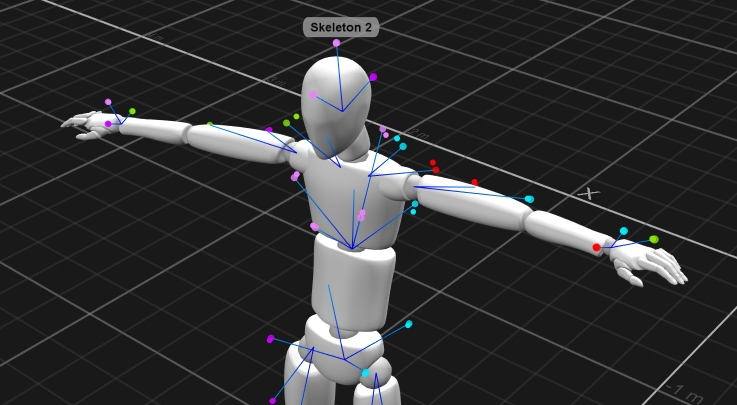
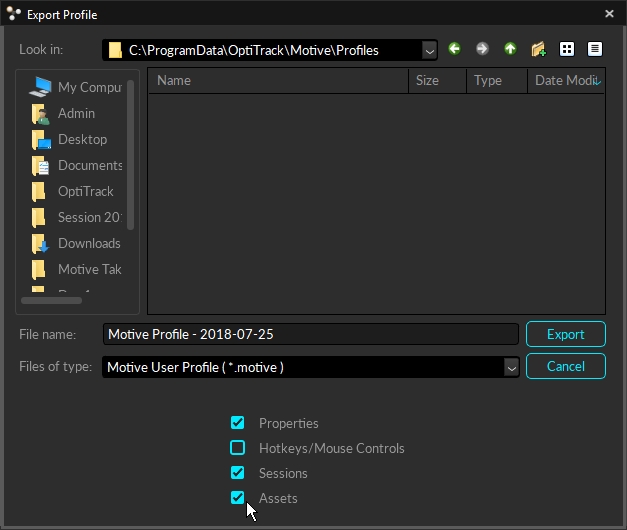
This page provides detailed instructions on camera system calibration and information about the .
Calibration is essential for high quality optical motion capture systems. During calibration, the system computes the position and orientation of each camera and number of distortions in captured images to construct a 3D capture volume in Motive. This is done by observing 2D images from multiple synchronized cameras and associating the position of known calibration markers from each camera through triangulation.
If there are any changes in a camera setup the system must be recalibrated to accommodate those changes. Additionally, calibration accuracy may naturally deteriorate over time due to ambient factors such as fluctuations in temperature. For this reason, we recommend recalibrating the system periodically.

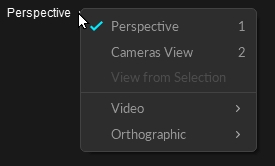
Under the Orientation drop-down menu, select the desired orientation of the HMD. The orientation used for streaming to Unity is +Z forward and Unreal Engine is +X forward, or you can also specify the expected orientation axis on the client plugin side.
Hold the HMD at the center of the tracking volume where all of the active markers are tracked well.
Select all 8 HMD active markers in the 3D viewport.
Click Create. An HMD Rigid Body will be created from the selected markers and it will initiate the calibration process.
During calibration, slowly rotate the HMD to collect data samples in different orientations.
Once all necessary samples are collected, the calibrated HMD Rigid Body will be created.
Place and fit the tip of the probe in one of the slots on the provided calibration block.
Note that there will be two steps in the calibration process: refining Rigid Body definition and calibration of the pivot point. Click the Create button to initiate the probe refinement process.
Slowly move the probe in a circular pattern while keeping the tip fitted in the slot, making a cone shape overall. Gently rotate the probe to collect additional samples.
After the refinement, Motive will automatically proceed to the pivot point calibration.
Repeat the same movement to collect additional sample data for precisely calculating the location of the pivot or the probe tip.
When sufficient samples are collected, the pivot point will be positioned at the tip of the probe and the Mean Tip Error will be displayed. If the probe calibration was unsuccessful, just repeat the calibration again from step 4.
Once the probe is calibrated successfully, a probe asset will be displayed over the Rigid Body in Motive, and live x/y/z position data will be displayed under the Probe pane.
In the Refine section of the Modify tab of the Builder pane, click Start...
Slowly rotate the Rigid Body to collect samples at different orientations until the progress bar is full.
You can also refine the asset in Edit mode. Motive will automatically replay the current take file to complete the refinement process.
Once it starts collecting the samples, slowly move the probe in a circular pattern while keeping the tip fitted in the slot, making a cone shape overall. Gently rotate the probe to collect additional samples.
When sufficient samples are collected, the mean error of the calibrated pivot point will be displayed.
Click Apply to use the calibrated definition or click Cancel to calibrate again.
On the Marker Constraints section of the Builder pane, click + to add the marker to the definition or - to remove the marker.
Use the Constraints pane to modify marker label and/or colors.
Auto-generates bones at flex points for the selected asset.
Adds (+) or Removes (-) the selected bone(s).
Adds a bone chain between two selected bones. Whichever bone is selected first becomes the parent bone, the second becomes the child bone.
Unparents the selected bone or bones. This removes the bone chain between the bones.
Reroots the selected child bone and makes it the parent in the bone chain.
Changes the color of the selected Marker Stick(s).
Autogenerates Marker Sticks for the selected Trained Markerset asset.
Connects all of the selected Markers to each other.
Creates Marker Sticks based on the order in which the markers were selected.
Removes the selected Marker Stick(s).


Prepare and optimize the capture volume for setting up a motion capture system.
Apply masks to ignore existing reflections in the camera view.
Collect calibration samples through the wanding process.
Review the wanding result and apply calibration.
Set the ground plane to complete the system calibration.
Full: Calibrate all the cameras in the volume from scratch, discarding any prior known position of the camera group or lens distortion information. A Full calibration will also take the longest time to run.
Refine: Adjusts slight changes in the calibration of the cameras based on prior calibrations. This will solve faster than a Full calibration. Use this only if the cameras have not moved significantly since they were last calibrated. A Refine calibration will allow minor modifications in camera position and orientation, which can occur naturally from the environment, such as due to mount expansion.
Refinement cannot run if a full calibration has not been completed previously on the selected cameras.
The Calibration pane will guide you through the calibration process. This pane can be accessed by clicking on the icon on the toolbar or by entering the calibration layout from the top-right corner . For a new system calibration, click the New Calibration button and Motive will walk you through the steps.
Cameras need to be appropriately placed and configured to fully cover the capture volume.
Each camera must be mounted securely so that it remains stationary during capture.
Motive's camera settings used for calibration should ideally remain unchanged throughout the capture. Re-calibration may be required if there are any significant modifications to the settings that influence the data acquisition, such as camera settings, gain settings, and Filter Switcher settings.
The default grid size for the 3D Viewport is 6 square meters. To change this to match the size of the capture volume, click the Settings button. On the Views / 3D tab, adjust the values for the Grid Width and Grid Length as needed.
Before performing a system calibration, all extraneous reflections or unnecessary markers should be removed or covered so they are not seen by the cameras. When this isn't possible, extraneous reflections can be ignored by masking them in Motive.
When the cameras detect reflections in their view, it will be indicated with a warning sign to alert which cameras are seeing reflections; for Prime series cameras, the indicator LED ring will also light up in white.
Masks can be applied by clicking Mask in the calibration pane, and it will apply red masks over all of the reflections detected in the 2D camera view. Once masked, the pixels in the masked regions will entirely be filtered out from the data. Please note that Masks get applied additively, so if there are already masks applied in the camera view, clear them out first before applying a new one.
The calibration pane will display a warning for any cameras that see reflections or noise in their view.
Check the corresponding camera view to identify where the reflection is coming from, and if possible, remove it from the capture volume or cover it for the calibration.
In the Calibration pane, click Mask to apply masks over all reflections in the view that cannot be removed or covered, such as other cameras.
The wanding process is Motive's core pipeline for collecting calibration samples. A calibration wand with preset markers is waved repeatedly throughout the volume, allowing all cameras to see the calibration markers and capture the sample data points from which Motive will compute their respective position and orientation in the 3D space.
For best results, the following requirements should be met:
At least two cameras must see all three of the calibration markers simultaneously.
Cameras should see only calibration markers. If any other reflection or noise is detected during wanding the sample will not be collected and may affect the calibration results negatively. For this reason, the person doing the wanding should not be wearing anything reflective.
The markers on the calibration wand must be in good quality. If the marker surface is damaged or scuffed, the system may struggle to collect wanding samples.
There are different types of calibration wands suited for different capture applications. In all cases, Motive recognizes the asymmetrical layout of the markers as a wand and applies the dimensions of the wand selected at the beginning of the wanding process in calculating the calibration.
Unless specified otherwise, the wands use retro-reflective markers placed in a line at specific distances. For optimal results, it is important to keep the calibration wand markers untouched and undistorted.
Confirm that masking was successful, and the volume is free of extraneous reflections. Return to the masking steps if necessary to mask any items that cannot be removed or covered.
To complete a full calibration, deselect any cameras that were selected during the previous steps so that no cameras are selected.
Set the Calibration Type. If you are calibrating a new capture volume, choose Full Calibration.
Under the Wand settings, specify the wand type you will use. Selecting the wrong wand type may result in scaling issues in Motive.
Double check the calibration setting. Once confirmed, press Start Wanding to start collecting wanding sample.
Bring your calibration wand into the capture volume and wave the wand gently across the entire volume. Slowly draw figure-eights repetitively with the wand to collect samples at varying orientations while covering as much space as possible for sufficient sampling.
Wanding trails will show in color in the for each camera. As you wand, consult the Cameras Viewport to evaluate individual camera coverage. Each camera should be thoroughly covered with wand samples (see image, below). If there are any large gaps, focus wanding on those areas to increase coverage.
The will display a table of the wanding status to monitor the progress. For best results, wand evenly and comprehensively throughout the volume, covering both low and high elevations.
Continue wanding until the camera squares in the turn from dark green (insufficient number of samples) to light green (sufficient number of samples). Once all the squares have turned light green the Start Calculating button will become active.
Press Start Calculating in the . Generally, 1,000-4,000 samples per camera are enough. Samples above this threshold are unnecessary and can be detrimental to a calibration's accuracy.
Marker Labeling Mode
When performing calibration wanding, leave the Marker Labeling Mode at the default setting of Passive Markers Only. This setting is located in Application Settings → Live-Reconstruction tab → Marker Labeling Mode. There are known problems with wanding in one of the active marker labeling modes. This applies for both passive marker calibration wands and IR LED wands.
For Prime series cameras, the LED indicator ring displays the status of the wanding process.
When wanding is initiated, the LED ring turns dark.
When a camera detects all three markers on the calibration wand, part of the LED ring will glow blue to indicate that the camera is collecting samples. The location of the blue light will indicate the wand position in the respective camera view.
As calibration samples are collected by each camera, all the lights in the ring will turn green to indicate enough samples have been collected.
Cameras that do not have enough samples will begin to glow white as other cameras reach the minimum threshold to begin calibration. Check the 2D view to see where additional samples are needed.
When all of the cameras emit a bright green light to indicate enough samples have been collected, the Start Calculating button will become active.
Pess Start Calculating to calibrate. The length of time needed to calculate the calibration varies based on the number of cameras included in the system and the number of collected samples.
As Motive starts calculating, blue wanding paths will display in the view panes, and the Calibration pane will update with the calibration result from each camera.
Click Show List to see the errors for each camera.
When the calculation is done the results will display in the Calibration pane.
The result is determined by the mean error, resulting in the following ratings: Poor, Fair, Good, Great, Excellent, and Exceptional.
If the results are acceptable, press Continue to apply the calibration. If not, press Cancel and repeat the wanding process.
In general, if the results are anything less than Excellent, we recommend you adjust the camera settings and/or wanding techniques and try again.
Mean Ray Error
The Mean Ray Error reports a mean error value on how closely the tracked rays from each camera converged onto a 3D point with a given calibration. This represents the preciseness of the calculated 3D points during wanding. Acceptable values will vary depending on the size of the volume and the camera count.
Mean Wand Error
The Mean Wand Error reports a mean error value of the detected wand length compared to the expected wand length throughout the wanding process.
The final step of the calibration process is setting the ground plane and origin for the coordinate system in Motive. This is done using a Calibration Square.
Place the calibration square in the volume where you want the origin to be located, and the ground plane to be leveled.
If using a standard OptiTrack calibration square, Motive will recognize it in the volume and display it as the detected device in the Calibration pane.
Align the calibration square so that it references the desired axis orientation. Motive recognizes the longer leg on the calibration square as the positive z axis, and the shorter leg as the positive x axis. The positive y axis will automatically be directed upward in a right-hand coordinate system.
Use the level indicator on the calibration square to ensure the orientation is horizontal to the ground. If any adjustment is needed, rotate the nob beneath the markers to adjust the balance of the calibration square.
Once the calibration square is properly placed and detected by the , click Set Ground Plane. You may need to manually select the markers on the ground plane if Motive fails to auto-detect the ground plane.
If needed, the ground plane can be adjusted later.
A custom calibration square can also be used to define the ground plane. All it takes to make a custom square is three markers that form a right-angle with one arm longer than the other, like the shape of the calibration square.
To use a custom calibration square, select Custom in the drop-down menu, enter the correct vertical offset and select the square's markers in the 3D Viewport before setting the ground plane.
The Vertical Offset is the distance between the center of the markers on the calibration square and the actual ground and is a required value in setting the global origin.
Motive accounts for the vertical offset when using a standard OptiTrack calibration square, setting the origin at the bottom corner of the calibration square rather than the center of the marker.
When using a custom calibration square, measure the distance between the center of the marker and the lowest tip at the vertex of the calibration square. Enter this value in the Vertical Offset field in the Calibration pane.
To have the most control of the location of of the global origin, including placing it at the location of a marker, we recommend setting the origin to the pivot point of a rigid body.
Create the Rigid Body.
Align the Rigid Body's pivot point to the location you would like to set as the global origin (0,0,0). To align the pivot point to a specific marker, shift-select the marker and the pivot point. From the Builder pane, click the Modify tab and select Align to...Marker.
Select the Rigid Body in the Assets pane before proceeding to set the ground plane.
In the Calibration pane, select Rigid Body for the Ground Plane. Motive will set the origin to the selected Rigid Body's pivot point.
On the main Calibration pane, Click Change Ground Plane... for additional tools to further refine your calibration. Use the page selector at the bottom of the pane to access the various page.
The Ground Plane Refinement feature improves the leveling of the coordinate plane. This is useful when establishing a ground plane for a large volume, because the surface may not be perfectly uniform throughout the plane.
To use this feature, place several markers with a known radius on the ground, and adjust the vertical offset value to the corresponding radius. Select these markers in Motive and press Refine Ground Plane. This will adjust the leveling of the plane using the position data from each marker.
To adjust the position and orientation of the global origin after the capture has been taken, use the capture volume translation and rotation tool.
To apply these changes to recorded Takes, you will need to reconstruct the 3D data from the recorded 2D data after the modification has been applied.
To rescale the volume, place two markers a known distance apart. Enter the distance, select the two markers in the 3D Viewport, and click Scale Volume.
Calibration files are used to preserve calibration results. The information from the calibration is exported or imported via the CAL file format. Calibration files eliminate the effort of calibrating the system every time you open Motive. Calibration files are automatically saved into the default folders after each calibration. In general, we recommend exporting the calibration before each capture session. By default, Motive loads the last calibration file that was created. This can be changed via the Application Settings.
Note: Whenever there is a change to the system setup (e.g. cameras moved) these calibration files will no longer be relevant and the system will need to be recalibrated.
The continuous calibration feature continuously monitors and refines the camera calibration to its best quality. When enabled, minor distortions to the camera system setup can be adjusted automatically without wanding the volume again. In other words, you can calibrate a camera system once and no longer worry about external distortions such as vibrations, thermal expansion on camera mounts, or small displacements on the cameras. For detailed information, read the Continuous Calibration page.
Enabling/Disabling Continuous Calibration
Continuous calibration is enabled from the Calibration Pane once a system has been calibrated. It will also show when the continuous calibration last updated and its current status.
When capturing throughout a whole day, temperature fluctuations may degrade calibration quality and create the need to recalibrate the capture volume at different times of the day. However, repeating the entire calibration process can be tedious and time-consuming especially for a system with a large number of cameras.
Instead of repeating an entire full calibration, you can record Takes while wanding and takes with the calibration square in the volume and use those takes to re-calibrate in the post-processing. This saves calibration calculation time on the capture day because you can apply the calibration from the recorded wanding take in the post-processing instead. Offline calibration allows time to inspect the collected capture data, re-calibrating from a recorded Take only when signs of degraded calibration quality are seen in the captures.
Capture wanding and ground plane Takes. At different times of the day, record wanding Takes that resemble the calibration wanding process. Also record corresponding ground plane Takes with the calibration square set in the volume to define the ground plane.
Open the Take to be recalibrated.
From the Calibration pane, click Load Calibration...
Browse to and select the wanding Take that was captured around the same time as the Take to be recalibrated.
From the Calibration pane, click New Calibration.
In Edit mode, click Start Wanding. Motive will import the wanding from the Take file selected in step 3 and display the results.
Click the Start Calculating button.
(Optional) Export the calibration results by selecting Export Camera Calibration from the File menu. The results will be saved as s .cal file.
Click Apply Results to accept the calibration.
Motive will move to the next step in the calibration process, setting the ground plane. If the ground plane is in a separate Take, then click Done and proceed to step 10. If the ground plane is in the calibration Take already loaded, then move to step 13.
From the Calibration pane, click Load Calibration...
Browse to and select the Ground Plane Take that was captured around the same time as the Take to be recalibrated.
From the Calibration pane, click Change Ground Plane.
Select Custom for the ground plane type, enter the distance, select the three markers of the ground plane from the 3D Viewport, then click Change Ground Plane.
Motive will display a warning that any 3D data in the take will need to be reconstructed and auto-labeled. Click Continue to proceed.
Partial calibration updates the calibration for selected cameras in a system by updating their position relative to the already calibrated cameras. Use this feature:
In a high camera count systems where only a few cameras need to be adjusted.
To recalibrate the volume without resetting the ground plane. Motive will retain the position of the ground plane from the unselected cameras.
To add new cameras into a volume that has already been calibrated.
Select the camera(s) to be recalibrated in the Cameras Viewport.
Open the Calibration Pane and select New Calibration.
Select the Calibration Type. In most cases you will want to set this to Full, such as when adding new cameras to a volume or adjusting several cameras. When the camera moved slightly, Refine works as well.
Specify the wand type.
From the Calibration Pane, click Start Wanding. A warning message will ask you to confirm that only the selected cameras will be calibrated. Click continue.
Wand in front of the selected cameras and at least one unselected camera. This will allow Motive to align the cameras being calibrated with the rest of the cameras in the system.
When you have collected sufficient wand samples, click Calculate.
The Calibration Pane will display the . Repeat steps 2-7 until the results are Excellent or Exceptional.
Click Apply. The selected cameras will now be calibrated to the rest of the cameras in the system.
Notes:
This feature requires the unselected cameras to be in a good calibration state. If the unselected cameras are out of calibration, using this feature will return bad calibration results.
Partial calibration does not update the calibration of the unselected cameras. However, the calibration report that Motive provides does include all cameras that received samples, selected or unselected.
Cameras can be modified using the gizmo tool if the Settings Window > General > Calibration > "Editable in 3D View" property is enabled. Without this property turned on the gizmo tool will not activate when a camera is selected to avoid accidentally changing a calibration. The process for using the gizmo tool to fix a misaligned camera is as follows:
Select the camera you wish to fix, then view from that camera (Hotkey: 3).
Select either the Translate or Rotate gizmo tool (Hotkey: W or E).
Use the red diamond visual to align the unlabeled rays roughly onto their associated markers.
Right click and choose Correct Camera Position/Orientation. This will perform a calculation to place the camera more accurately.
Turn on if not already done. Continuous calibration should finish aligning the camera into the correct location.
The OptiTrack motion capture system is designed to track retro-reflective markers. However, active LED markers can also be tracked with appropriate customization. If you wish to use Active LED markers for capture, the system will ideally need to be calibrated using an active LED wand. Please contact us for more details regarding Active LED tracking.
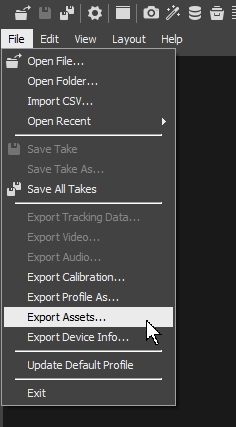
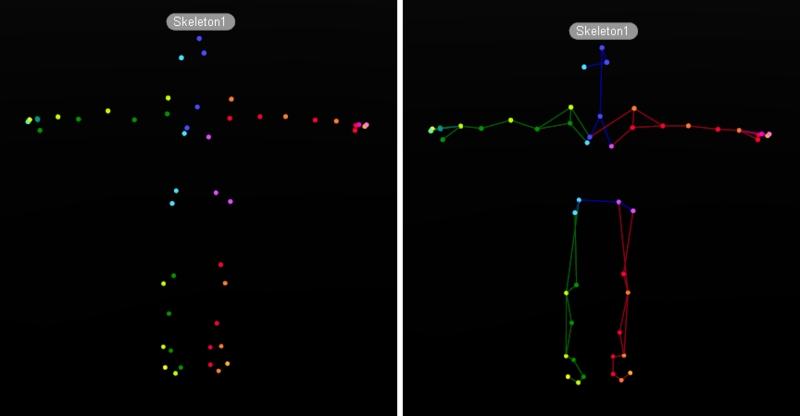
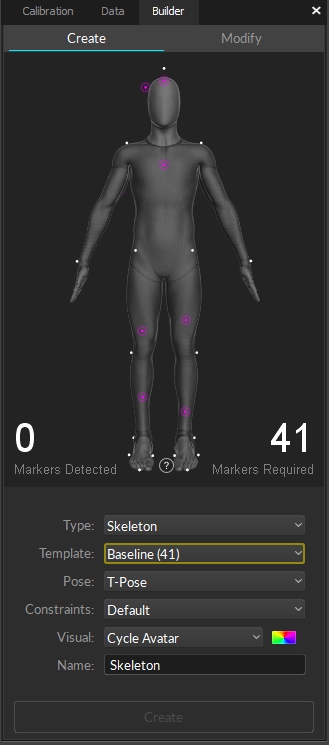
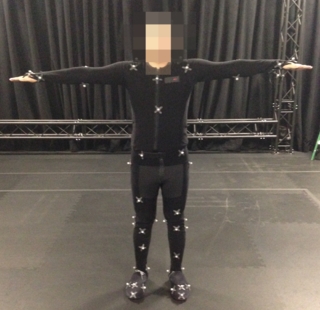
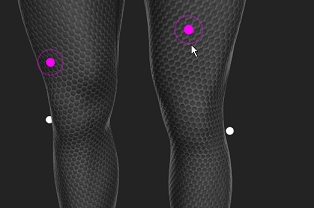
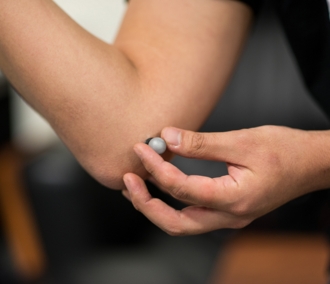
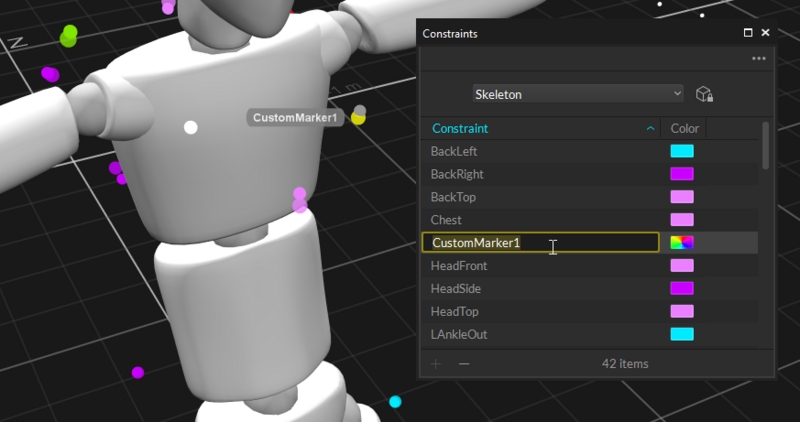
Instructions and tips on using the Graph View pane to visualize tracking data.
IMU data (Orientation)
Force Plate Data (Force and Moment)
Analog Data
Telemetry Data
In Edit Mode, graphs are used to review and post-process the captured data. In addition to the graphs available in Live mode, edit mode includes the ability to graph 3D positions of reconstructed markers.
In addition to the standard graph layouts (channel, combined, tracked), the user can create custom layouts to monitor specific data channels only. Motive allows up to 9 graphs plotted in each layout and up to two graph view panes to be opened simultaneously.
To open a Graph View pane, click either the or the icon on the main toolbar, or select Graph 1 or Graph 2 from the View menu.
Select a marker, bone, or asset in the 3D Viewport to display its data on the graph.
Graph Editor
Opens the Data and Visuals sidebar to customize a selected graph within a layout.
Auto Extents
Toggle to autoscale X/Y/Z graphs.
Zoom Fit
(selected range)
Zooms into selected frame region and centers the timeline accordingly.
Click the context menu button in the top right corner of the Graph View pane to select layout options.
Creates a new graph layout.
Creates a new graph layout based on the current layout.
Deletes the current graph layout.
Saves the changes to the graph layout XML file.
Takes an XML snapshot of the current graph layout. Once a layout has been particularized, both the layout configuration and the item selection will be fixed and it can be exported and imported onto different sessions.
Opens the file location where the XML files for the graph layouts are stored.
Alt + left-click on the graph and drag the mouse left and right to navigate through the recorded frames. You can do the same with the mouse scroll wheel as well.
Scroll-click and drag to pan the view vertically and horizontally throughout plotted graphs. Dragging the cursor left and right will pan the view along the horizontal axis for all of the graphs. When navigating vertically, scroll-click on a graph and drag up and down to pan vertically for the specific graph.
Right-click and drag on a graph to free-form zoom in and out on both vertical and horizontal axis. If the Auto Extents Graph is enabled, the vertical axis range will be fixed according to the max and min value of the plotted data.
Frame range selection is used when making post-processing edits to specific ranges of the recorded frames. Select a range by left-clicking and dragging the mouse left or right. The selected frame ranges are highlighted in yellow. You can also select more than one frame ranges by shift-selecting multiple ranges.
Left-click and drag on the navigation bar to scrub through the recorded frames. You can do the same with the mouse scroll as well.
Scroll-click and drag to pan the view range range.
Zoom into a frame range by re-sizing the scope range using the navigation bar handles. You can also Alt + right-click on the graph to select a specific range to zoom to.
The working range (also called the playback range) is both the view range and the playback range of a corresponding Take in Edit mode. Only within the working frame range will recorded tracking data be played back and shown on the graphs. This range can also be used to output a specific frame range when exporting tracking data from Motive.
The working range can be set from different places:
In the navigation bar of the Graph View pane, drag the handles on the scrubber to set the working range.
Use the navigation controls on the Graph View pane to zoom in or zoom out on the frame ranges to set the working range.
The working range can also be set from the Control Deck when in the Edit mode.
The selection range is used to apply post-processing edits only onto a specific frame range of a Take. Selected frame range will be highlighted in yellow on both the Graph View pane and the Timeline in the Control Deck.
Gap indication
When playing back a recorded capture, the red shading on the navigation bar indicates the number of occlusions from labeled markers. Brighter red means that there are more markers with labeling gaps in that section.
Left-click and drag over the graph to select a specific frame range. Frame range selection are used in the following workflows:
Zooming: Zoom to the selected range by clicking on the button or by using the F hotkey.
Tracking Data Export: Restrict exported tracking data to the selected range for easier analysis.
Reconstruction: Focus on a specific frame range during the post-processing reconstruction pipeline (Reconstructing / Reconstruct and Auto-labeling).
Labeling: Assign or modify marker labels, or run the auto-label pipeline on selected ranges only.
Post-processing data editing: Apply editing tools to the selected frame range only. Please see the page for more detail.
Data Clean-up: Delete 3D data or marker labels on selected ranges.
Right-click on any graph pane to open a Context menu with View options. From here, you can show or hide the Toolbar and Navbar, or create new layouts (covered in the Customize Graph Layout section, below).
Options are limited when using a System Layout. User-defined Layouts include more options, and will display the data included in the selected graph panel. This allows the user to quickly remove data from graph by unchecking the data type to remove it. Once removed, use the the Graph Editor Sidebar to add it again.
The layouts feature allows users to organize and format graphs to suit their individual needs. The following layouts are available by default:
Channel
Combined
Tracks
Combined-primary
Force plates
Rigid body/bone
Users can also create and save custom layouts of up to 9 graphs each, specifying which data channels to plot on each graph. This section will focus on the system layouts and standard User Layouts. Please see the section Customize Graph Layout, below, for instructions to create custom graphs.
Commonly used layouts are available under System Layouts.
The Channel View provides X/Y/Z curves for each selected marker, providing verbose motion data that highlights gaps, spikes, or other types of noise in the data.
The Combined View provides X/Y/Z curves for each selected marker at same plot. This mode is useful for monitoring positions changes without having to translate or rescale the y-axis of the graph.
The Tracks View is a simplified view that can reveal gaps, marker swaps, and other basic labeling issues that can be quickly remedied by merging multiple marker trajectories together. You can select a specific group of markers from the drop-down menu. When two markers are selected, you can merge labels by using the Merge Keys Up and Merge Keys Down buttons.
The Combined-Primary view graphs the data in a single plot, similar to the Combined view, but this view only displays the data for the final marker selected (known as the Primary selection in Motive). Changes made to the data based on this view (e.g., filling gaps or smoothing ranges) will apply to all the selected markers, even those not displayed on the graph.
The Force Plates View plots six variables for the selected Force Plate: Ground Reaction Forces on the left (Fx/Fy/Fz) and Rotational moments (Mx/My/Mz) on the right.
The Rigid Body / Bone View plots pivot point position (X/Y/Z), rotation (pitch/yaw/roll), or mean error values of the selected Rigid Body asset(s). Use the Lock Selection button to keep the graph locked to the selected asset(s).
To add IMU data in the graph, click the Edit Graph button. On the Data tab, scroll to the IMU section and select the data you wish to plot.
The template view is a nine-panel sample layout that includes a variety of graph options.
To replace any of the pre-set graphs, right-click in the panel with the graph you want to replace and select Clear Graph.
To remove a panel altogether, right-click and select Remove Graph.
If all three graphs in a column are removed, the remaining two columns will resize to fit the pane.
Click in any of the graph panels then click the Edit Graph button to select the data to plot in that panel. Click in another panel to select the data to plot there and continue these steps until all the data you wish to plot is selected.
The graph layout can be customized to monitor data from channels involved in a capture, as explained in the next section. Once a custom layout is created, it appears in the User Layouts section.
Custom layouts can serve as templates that require the user to make a selection in the 3D viewport, or they can be particularized to permanently lock the graph to a specific object or objects.
Select Create Graph Layout from the pane menu located on the top-right corner.
Right-click on the graph. Under Grid Layout, choose the number of rows and columns for the grid. The maximum allowed is 3 x 3.
Expand the Graph Editor by clicking on the icon on the tool bar.
Click on a graph from the grid to select it (it will appear highlighted). Edits made using the Graph Editor will apply only to the selected graph.
Next, check the data channels to plot from the Data tab of the Graph Editor. You can also change the color to use when plotting the corresponding data channel by clicking the color box to the right of the selection.
Format the style of the graph using the Visuals tab. See the Visuals tab section below for more information the available settings.
Repeat steps 4 through 6 until each of the graphs in the layout is configured.
Select one or more markers or assets (Rigid Bodies, Skeletons, force plates, or NI-DAQ channels) to monitor.
Lock the selection for any graphs that should stay linked to the current selection. Individual graphs can be locked from the context menu (right-click on the graph and select Lock Selection) or all graphs can be locked by clicking the button on the toolbar.
Once all related graphs are locked, move on to next selection and lock the corresponding graph. Repeat as needed.
When you have the layout configured with the selections locked, you can save the configurations as well as the implicit selections (i.e. what data to graph) temporarily to the layout. However, unless the layout is particularized to the explicit selections (i.e. the asset being graphed), you will need to select the items in Motive to plot the respective graphs each time you load the layout.
To update the layout, right-click in any of the graph panes and select Update Layout.
This action saves and explicitly fixes the selections that the graphs are locked to in an XML file. Once a layout has been particularized, you can re-open it in different sessions and plot the data channels from the same subject without locking the selection again. When the particularized layout is selected again, it looks for items in the Take (labeled markers, Rigid Bodies, Skeletons, force plates, or analog channels) with the same names as those contained in the particularized layout.
Click the button in the top right corner of the pane and select Particularize layout.
Particularized graphs are indicated by an icon at the top-right corner of the graph.
The Preferred Layout settings allow you to select graph defaults for both Live and Edit modes. These can be System layouts or custom layouts.
To select a layout:
Click the icon on the main toolbar to open the Settings panel.
Click the Views settings.
On the Graphs tab, enter the name of the layout you wish to use exactly as it appears on the layout menu into the Preferred Live Layout and the Preferred Edit Layout fields.
Use the Graph Editor to choose which data channels to plot (on the Data tab) and to format the overall look of the graph (from the Visuals tab).
When the Editor sidebar is expanded, one of the graph panes will change color to indicate the current selection. Changed made in the graph editor will apply only to this pane. After configuring the pane to your needs, left click in any other to change the selection. Continue until each pane is configured.
Navigation controls are disabled while the Graph Editor is open.
Open the Graph Editor by clicking the icon on the main toolbar.
The categories shown on the Data tab reflect the assets available in the Take or Live capture environment. Device, Force Plate, and IMU channels are shown only when such assets are present.
Only enabled, or checked, data channels will be plotted on the selected graph using the color specified. Once channels are enabled, one or more objects (marker, Rigid Body, Skeleton, force plate, or DAQ channel) must be selected (or locked) to display data in the graph.
Plot the 3D position (X/Y/Z) data of selected, or locked, marker(s) onto the selected graph.
Plot pivot point position (X/Y/Z), rotation (pitch/yaw/roll), or mean error values of the selected Rigid Body or Skeleton asset(s) onto the selected graph. The asset must be solved.
Plot analog data of selected analog channel(s) from a data acquisition (NI-DAQ) device onto the selected graph.
Plot force and moment (X/Y/Z) of selected force plate(s). The plotted graph respects the coordinate system of the force platforms (z-up).
Plot rotation (pitch/yaw/roll) values of the IMU in the selected Rigid Body, solved or unsolved.
Telemetry graphs provide information useful for monitoring performance of the Live system.
In Edit mode, the graph displays data from the original capture and is not affected by changes made to the Take in post production such as adding or deleting assets. This allows OptiTrack Support Engineers to observe system information from a recorded Take while troubleshooting issues that occurred during a capture.
Telemetry graphs can be selected from the Data tab of the Graph Editor or by right-clicking on a user layout and selecting Telemetry, which displays the menu shown below.
In Motive, latency values are measured, not calculated, resulting in precise and accurate values. See our Latency Measurements page for more information.
The point cloud reconstruction processing time (in ms).
Rigid Body solving processing time (in ms).
The cumulative solving processing time for skeleton and trained markerset (in ms).
Peripheral device solving processing time (in ms).
Software pipeline processing time from synchronized camera frame group arrival time to data streaming out (measured, in ms).
Total system processing time from camera mid-exposure to streaming out (measured, in ms.)
NatNet streaming data rate (frames/sec).
Peripheral device sampling rate (frames/sec).
The calculated frame rate (frames/second).
NatNet per-frame streaming packet size (bytes/Mocap frame).
The average camera temperature as measured from each camera's temperature sensor (in degrees Celsius).
The cumulative data rate for all cameras in the frame group for the selected frame (Measured in KBps/frame).
A frame group is the set of cameras that contribute data to the current frame. This may include all the cameras in the system, or a subset.
The largest allocated camera frame buffer (pool size) among all cameras (camera frames).
The smallest allocated camera frame buffer (pool size) among all cameras (camera frames).
The average allocated camera frame buffer (pool size) among all cameras (camera frames).
The Visual tab has settings that affect the overall look and style of the graph. Like the settings on the Data tab, Visuals are set independently for each of the panels in the graph pane.
Labels the selected graph.
Configures the style of the selected graph:
Channel: Plots selected channels onto the graph.
Combined: Plots X/Y/Z curves for each selected markers fixed on the same plot.
Gap: Plots markers as tracks along the timeline to easily monitor and fix occluded gaps on selected markers.
Enables or disables the range handles located at the bottom of the frame selection.
Sets the height of the selected row in the layout. The height is determined by a ratio to a sum of all stretch values:
(row stretch value for the selected row)/(sum of row stretch values from all rows) * (size of the pane).
Sets the width of the selected column in the layout. The width size is determined by a ratio to a sum of all values:
(column stretch value for the selected column)/(sum of column stretch values from all columns) * (size of the pane).
Displays the current frame values for each data set.
Displays the name of each plotted data set.
Plots data from the primary selection only. The primary selection is the last item selected in the Assets pane or the 3D Viewport.
Shows or hides the x gridlines.
Shows or hides the y gridlines.
Sets the size of the major grid lines, or tick marks, on the y-axis values.
Sets the size of the minor grid lines, or tick marks, on the y-axis values.
Sets the minimum value for the y-axis on the graph.
Sets the maximum value for the y-axis on the graph.
Creates vertical distance between the plotted points when tracking multiple markers or assets in a single graph.
Sets the number of decimal places to show in the graph values. The default value of -1 will show 2 decimal places. Set the value to 0 to round to the nearest whole number.


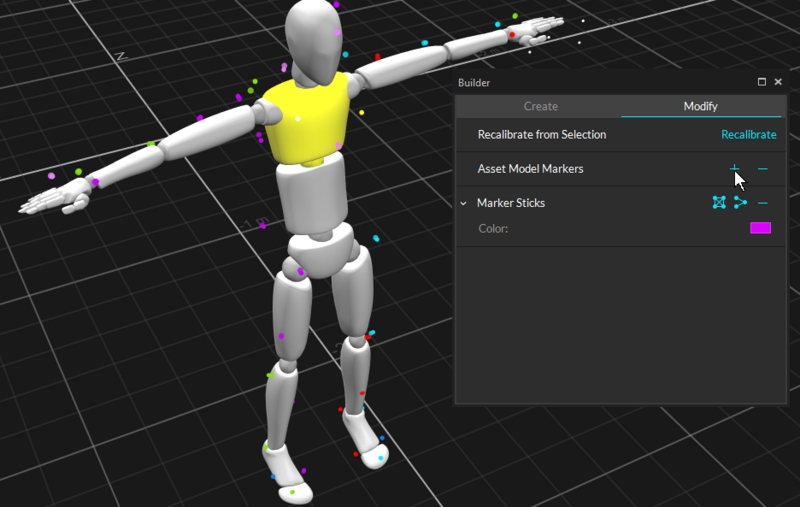
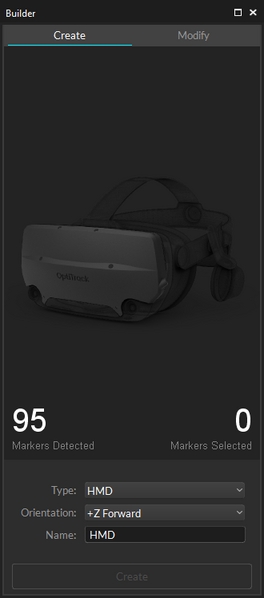
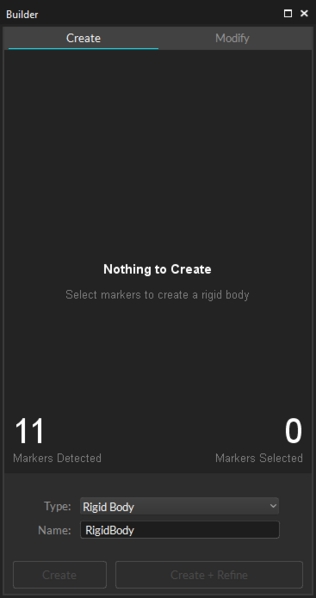
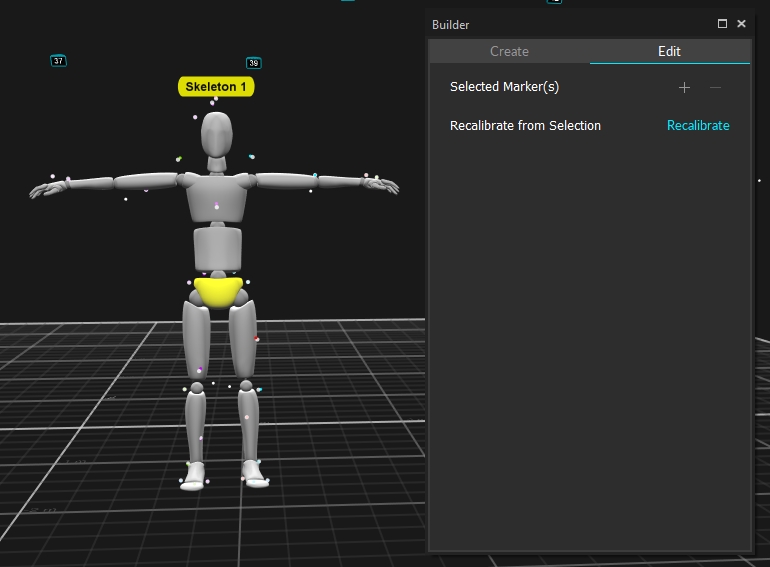
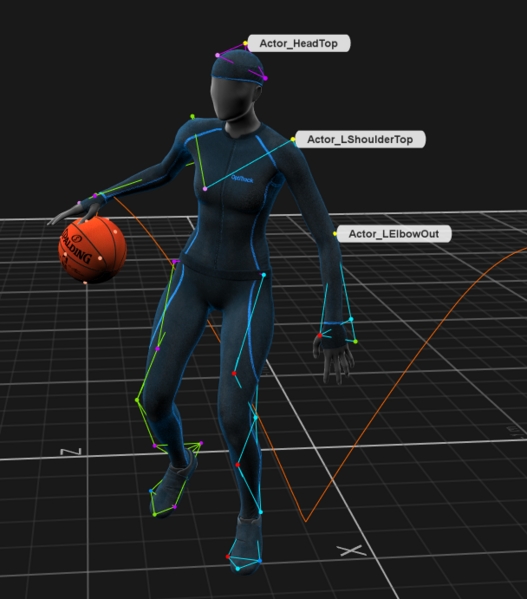
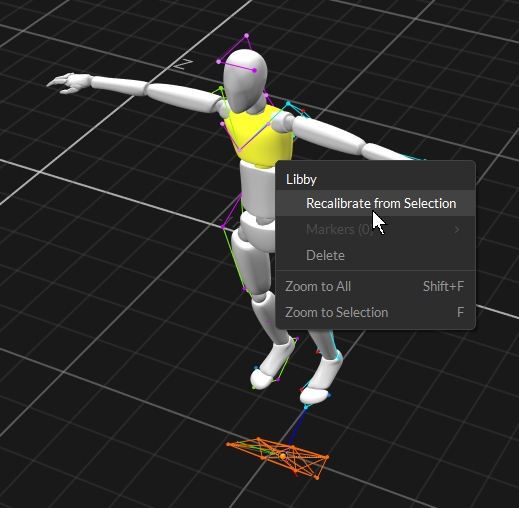
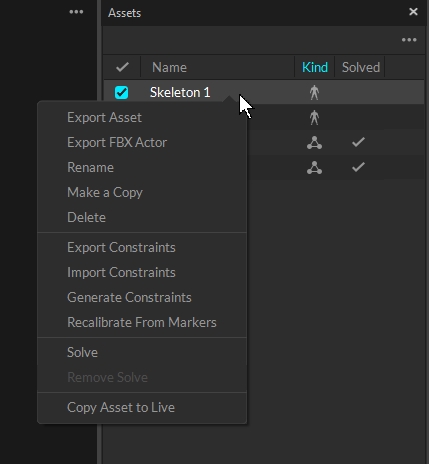
Lock Cursor Centered
Locks the timeline scrubber at the center of the view range.
Delete Selected Keys
Deletes the selected frame region.
Move Selected Keys
Translates trajectories in selected frame region. Select a range and drag up and down on a trajectory.
Draw Keys
Manually draw trajectory by clicking and dragging a selected trajectory in the Editor.
Merge Keys Up
Merges two trajectories together. This feature is useful when used with the Tracks View graphs. Select two trajectories and click this button to merge the bottom trajectory into the top trajectory.
Merge Keys Down
Merges two trajectories together. This feature is useful when used with the Tracks View graphs. Select two trajectories and click this button to merge the top trajectory into the bottom trajectory.
Lock Selection
Locks the current selection (marker, Rigid Body, Skeleton, force plates, or NI-DAQ) onto all graphs on the layout. This is used to temporarily hold the selections.
Select Layout
Displays the name of the system or user defined Layout currently in use. When clicked, opens the Layout menu.
Context Menu
Opens the Pane Options menu.


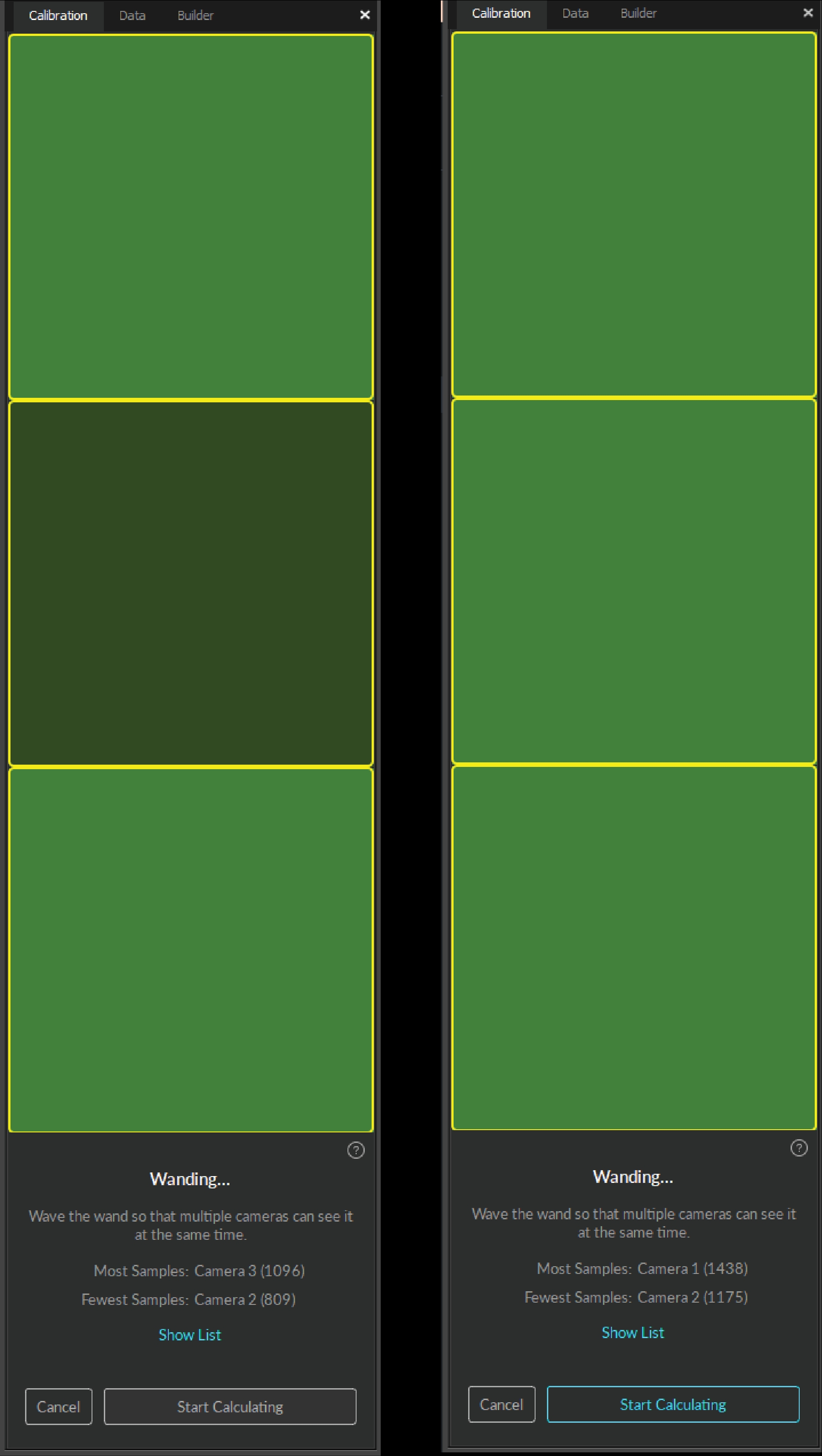
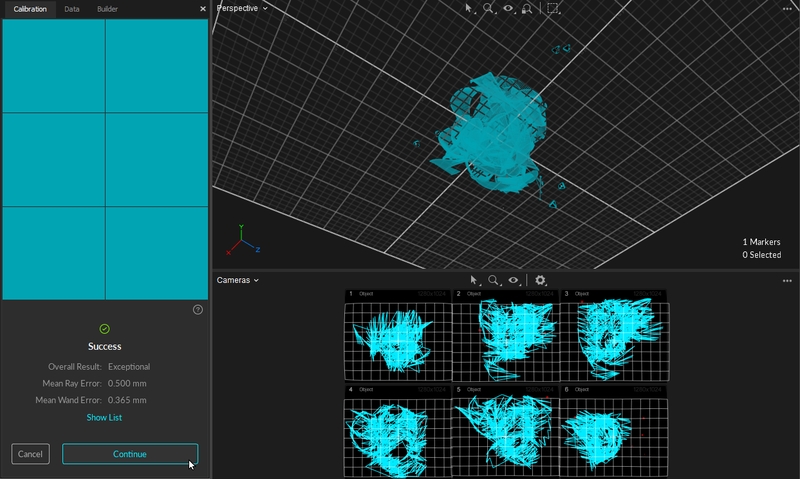
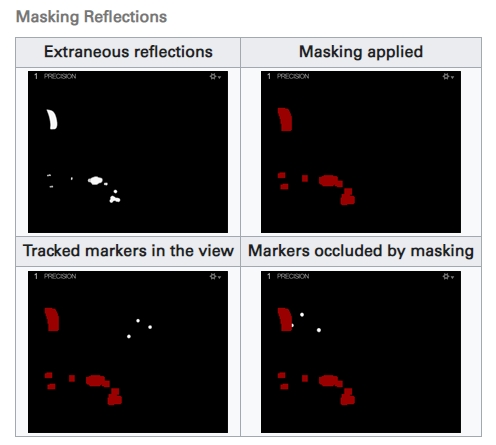
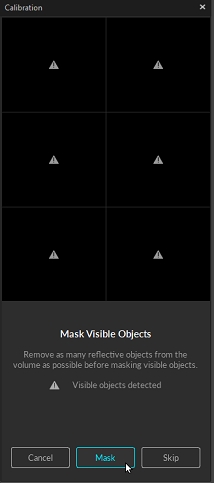
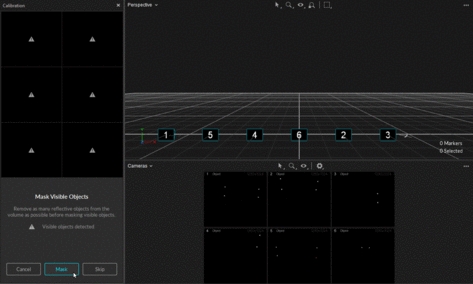
Welcome to the Quick Start Guide: Getting Started!
This guide provides a quick walk-through of installing and using OptiTrack motion capture systems. Key concepts and instructions are summarized in each section of this page to help you get familiarized with the system and get you started with the capture experience.
Note that Motive offers features far beyond the ones listed in this guide, and the capability of the system can be further optimized to fit your specific capture applications using the additional features. For more detailed information on each workflow, read through the corresponding workflow pages in this wiki: and .
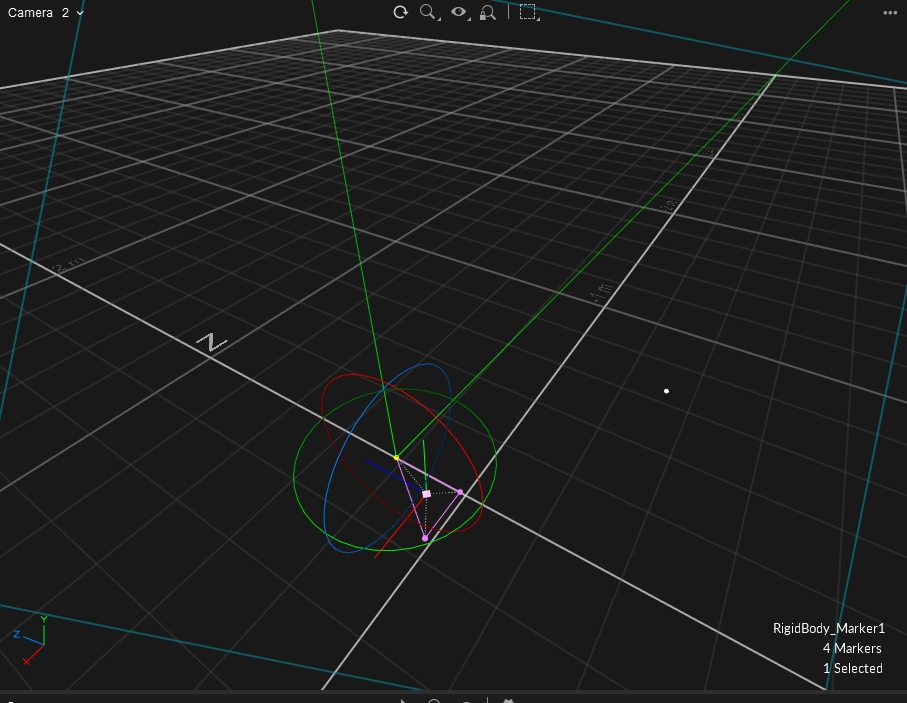
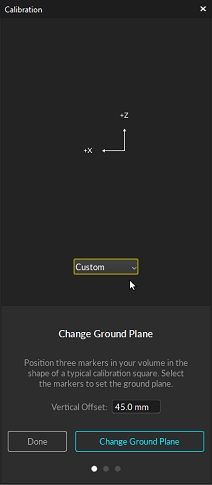
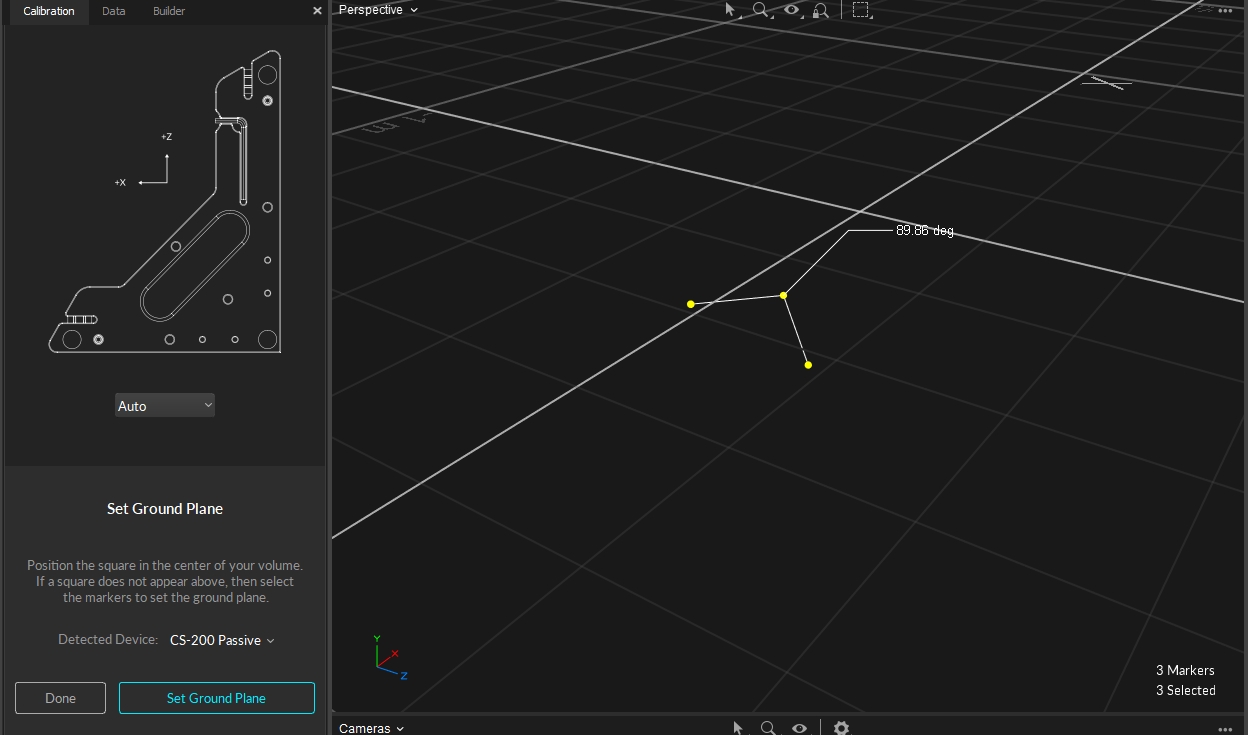


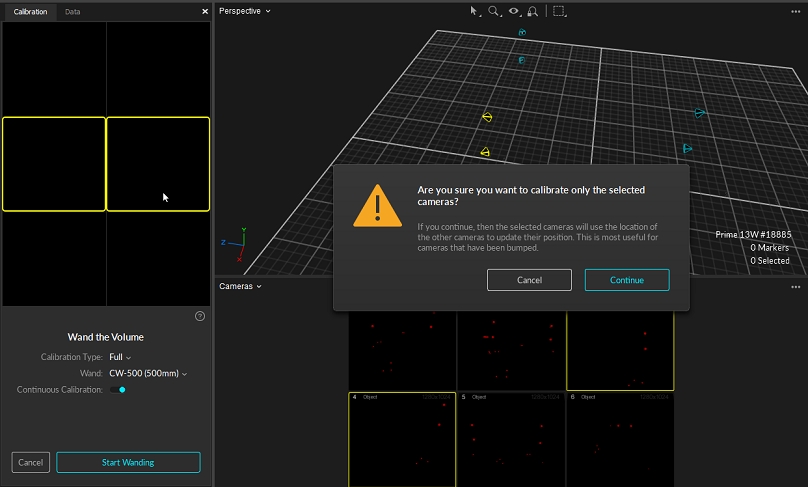
For best tracking results, you need to prepare and clean up the capture environment before setting up the system. First, remove unnecessary objects that could block the camera views. Cover open windows and minimize incoming sunlight. Avoid setting up a system over reflective flooring since IR lights from cameras may get reflected and add noise to the data. If this is not an option, use rubber mats to cover the reflective area. Likewise, items with reflective surfaces or illuminating features should be removed or covered with non-reflective materials in order to avoid extraneous reflections.
Key Checkpoints for a Good Capture Area
Minimize ambient lights, especially sunlight and other infrared light sources.
Clean capture volume. Remove unnecessary obstacles within the area.
Tape, or Cover, remaining reflective objects in the area.
See Also: Hardware Setup workflow pages.
Ethernet Camera Models: PrimeX series and SlimX 13 cameras. Follow the below wiring diagram and connect each of the required system components.
Uplink Switch: For systems with higher camera counts that uses multiple PoE switches, use an uplink Ethernet switch to link and connect all of the switches to the Host PC. In the end, the switches must be connected in a star topology with the uplink switch at the central node connecting to the host PC. NEVER daisy chain multiple PoE switches in series because doing so can introduce latency to the system.
High Camera Counts: For setting up more than 24 Prime series cameras, we recommend using a 10 Gigabit uplink switch and connecting it to the host PC via an Ethernet cable that supports 10 Gigabit transfer rate — Cat6a or above. This will provide larger data bandwidth and reduce the data transfer latency.
PoE switches are categorized based on the maximum power level that individual ports can supply. The table below shows the power output of the various types of PoE switches and lists the current camera models that require each power level.
For network switches provided by OptiTrack, refer to the label for the number of cameras supported for each switch.
Connect PoE Switch(es) to the Host PC: Start by connecting a PoE switch into the host PC via an Ethernet cable. Since the camera system takes up a large amount of data bandwidth, the Ethernet camera network traffic must be separated from the office/local area network. If the computer used for capture is connected to an existing network, you will need to use a second Ethernet port or add-on network card for connecting the computer to the camera network. When you do, make sure to turn off your computer's firewall for the particular network under Windows Firewall settings.
Connect the Ethernet Cameras to the PoE Switch(es): Ethernet cameras connect to the host PC via PoE/PoE+ switches using Cat 6 or above, Ethernet cables.
Power the Switches: The switch must be powered in order to power the cameras. To completely shut down the camera system, the network switch needs to be powered off.
Ethernet Cables: Ethernet cable connection is subject to the limitations of the PoE (Power over Ethernet) and Ethernet communications standards, meaning that the distance between camera and switch can go up to about 100 meters when using Cat 6 cables (Ethernet cable type Cat5e or below is not supported). For best performance, do not connect devices other than the computer to the camera network. Add-on network cards should be installed if additional Ethernet ports are required.
External Sync: If you wish to connect external devices, use the eSync synchronization hub. Connect the eSync into one of the PoE switches using an Ethernet cable, or if you have a multi-switch setup, plug the eSync into the aggregation switch.
There are multiple categories for Ethernet cables, and each has different specifications for maximum data transmission rate and cable length. For an Ethernet based system, category 6 or above Gigabit Ethernet cables should be used. 10 Gigabit Ethernet cables – Cat6a or above— are recommended in conjunction with a 10 Gigabit uplink switch for the connection between the uplink switch and the host PC in order to accommodate for the high data traffic.
Also, please use a cable that has electromagnetic interference shielding on it. If cables without the shielding are used, cables that are close to each other could interfere and cause the camera to stall in Motive.
We recommend using only cables that have electromagnetic interference shielding. If unshielded cables are used, cables in close proximity to each other have the potential to create data transfer interference and cause cameras to stall in Motive.
Unshielded cables do not protect the cameras from Electrostatic Discharge (ESD), which can damage the camera. Do not use unshielded cables in environments where ESD exposure is a risk.
See Also: Network setup page.
Optical motion capture systems utilize multiple 2D images from each camera to compute, or reconstruct, corresponding 3D coordinates. For best tracking results, cameras must be placed so that each of them captures unique vantage of the target capture area. Place the cameras circumnavigating around the capture volume, as shown in the example below, so that markers in the volume will be visible by at least two cameras at all times. Mount cameras securely onto stable structures (e.g. truss system) so that they don't move throughout the capture. When using tripods or camera stands, ensure that they are placed in stable positions. After placing cameras, aim the cameras so that their views overlap around the region where most of the capture will take place. Any significant camera movement after system calibration may require re-calibration. Cable strain-relief should be used at the camera end of camera cables to prevent potential damage to the camera.
See Also: Camera Placement and Camera Mount Structures pages.
In order to obtain accurate and stable tracking data, it is very important that all of the cameras are correctly focused to the target volume. This is especially important for close-up and long-range captures. For common tracking applications in general, focus-to-infinity should work fine, however, it is still important to confirm that each camera in the system is focused.
To adjust or to check camera focus, place some markers on the target tracking area. Then, set the camera to raw grayscale mode, increase the exposure and LED settings, and then Zoom onto one of the retroreflective markers in the capture volume and check the clarity of the image. If the image is blurry, adjust the camera focus and find the point where the marker is best resolved.
See Also: Aiming and Focusing page.
In order to properly run a motion capture system using Motive, the host PC must satisfy the minimum system requirements. Required minimum specifications vary depending on sizes of mocap systems and types of cameras used. Consult our Sale Engineers, or use the Build Your Own feature on our website to find out host PC specification requirements.
Motive is a software platform designed to control motion capture systems for various tracking applications. Motive not only allows the user to calibrate and configure the system, but it also provides interfaces for both capturing and processing of 3D data. The captured data can be recorded or live-streamed into other pipelines.
If you are new to Motive, we recommend you to read through Motive Basics page after going through this guide to learn about basic navigation controls in Motive.
Motive Activation Requirements
The following items are required to activate Motive. Please note that the valid duration of the Motive license must be later than the release date of the version that you are activating. If the license is expired, please update the license or use an older version of Motive that was released prior to the license expiration date.
Motive 3.x license
USB Security or Hardware Key
Host PC Requirements
Required PC specifications may vary depending on the size of the camera system. Generally, you will be required to use the recommended specs with a system with more than 24 cameras.
OS: Windows 10, 11 (64-bit)
CPU: Intel i7 or better, 3+ GHz
RAM: 16GB of memory
GPU: GTX 1050 or better with the latest drivers and support for OpenGL 3.2+
OS: Windows 10, 11 (64-bit)
CPU: Intel i7, 3+ GHz
RAM: 8GB of memory
GPU that supports OpenGL 3.2+
Download and Install
To install Motive, download the Motive software installer from the Motive Download Page, then run the installer and follow its prompts.
License Activation Steps
Insert the USB Security Key into a USB-C port on the computer. If needed, you can also use a USB-A adapter to connect. If using a USB Hardware Key, insert it into a USB-A port.
Launch Motive.
Activate your software using the License Tool, which can be accessed in the Motive splash screen. You will need to input the License Serial Number and the Hash Code for your license.
After activation, the License tool will place the license file associated to the USB Security Key in the License folder. For more license activation questions, visit or contact our .
When connecting either the Security Key or Hardware Key into the computer, please avoid sharing the USB controller with other USB devices that may transmit a large amount of data frequently. For example, if you have external devices (e.g. Force Plates, NI-DAQ) that communicate via USB, connect those devices to a separate USB controller so they don't interfere with the Security or Hardware Key.
By default, Motive will start on the calibration layout with all the necessary panes open. Using this layout, you can calibrate the camera system and construct a 3D tracking volume. The layout may be slightly different for certain camera models or software licenses.
The following panes will be open:
Connected cameras will be listed under the . This panel is where we can configure settings (FPS, exposure, LED, and etc.) for each camera and decide whether to use selected cameras for 3D tracking or reference videos. Only the cameras that are set to tracking mode will contribute to reconstructing 3D coordinates. Cameras in capture grayscale images for reference purposes only. The Devices pane can be accessed under the View tab in Motive or by clicking icon on the main toolbar.
When an object is selected in Motive, all of its related properties will be listed under the . For example, when a is selected in the 3D viewport, its corresponding will get listed in this pane, and we can view the settings and configure them as needed.
Likewise, this pane is also used to view the properties of the cameras and any other connected devices that are listed in the .
and recorded Takes to view and configure their properties.
This pane will be used in almost all of the workflows. The Devices pane can be accessed under the View tab in Motive or by clicking icon from the main toolbar.
The top is where 3D data is shown in Motive. Here, you can view and analyze 3D data within a calibrated capture volume. This panel will be used during the live capture and also in the playback of recorded data. In the perspective viewport, you can select any objects in the capture volume, use the context menu to perform actions, or use the to view and modify the associated properties.
You can use the dropdown menu at the top-left corner to switch between different viewports, and you can also use the button at the top-right corner to split the viewport into multiple. If desired, an additional View pane can be open by opening up a Viewer pane under the or by clicking icons on the main toolbar.
The bottom viewport is the Cameras viewport. Here, you can monitor the view of each camera in the system and apply . This pane is also used to examine markers, or IR lights, seen by the cameras in order to examine how the 2D data is processed and reconstructed into 3D coordinates.
The Calibration pane is used in camera calibration process. In order to compute 3D coordinates from captured 2D images, the camera system needs to be calibrated first. All tools necessary for calibration is included within the Calibration pane, and it can also be accessed under the or by clicking icon on the main toolbar.
Use the following controls for navigating throughout the 2D and 3D viewports in Motive. Most of the navigation controls are customizable, including both mouse actions and hotkeys. These mouse and keyboard controls can be customized through the Application Settings panel.
Rotate view
Right + Drag
Pan view
Middle (wheel) click + drag
Zoom in/out
Mouse Wheel
Select in View
Left mouse click
Toggle selection in View
CTRL + left mouse click
Now that the cameras are connected and showing up in Motive, the next step is to configure the camera settings. Appropriate camera settings will vary depending on various factors including the capture environment and tracked objects. The overall goal is to configure the settings so that the marker reflections are clearly captured and distinguished in the 2D view of each camera. For a detailed explanation on individual settings, please refer to the Devices pane page.
To check whether the camera setting is optimized, it is best to check both the grayscale mode images and tracking mode (Object or Precision) images and make sure the marker reflection stands out from the image. You switch a camera into grayscale mode either in Motive or by using the Aim Assist button for supported cameras. In Motive, you can right-click on the Cameras Viewport and switch the video mode in the context menu, or you can also change the video mode through the Properties pane.
Exposure Setting
The exposure setting determines how long the camera imagers are exposed per each frame of data. With longer the exposure, more light will be captured by the camera, creating the brighter images that can improve visibility for small and dim markers. However, high exposure values can introduce false markers, larger marker blooms, and marker blurring – all of which can negatively impact marker data quality. It is best to minimize the exposure setting as long as the markers are clearly visible in the captured images.
In order to start tracking, all cameras must first be calibrated. Through the camera calibration process, Motive computes position and orientation of cameras (extrinsic) as well as amounts of lens distortions in captured images (intrinsics). Using the calibration results, Motive constructs a 3D capture volume, and within this volume, motion tracking is accomplished. All of the calibration tools can be found under the Calibration pane. Read through the Calibration page to learn about the calibration process and what other tools are available for more efficient workflows.
See Also: Calibration page.
Duo/Trio Tracking Bars: The camera calibration is not needed for Duo/Trio Tracking bars. The cameras are pre-calibrated using the fixed camera placements. This allows the tracking bars to work right out of the box without the calibration process. To adjust the ground plane, used the Coordinate System Tools in Motive.
Starting a Calibration
To start a system calibration, open the Calibration Pane. Under the Calibration pane, you can choose to start a new calibration or to modify the existing one. For this guide, click New Calibration for a fresh calibration.
Masking
Before the system calibration, any extraneous reflections or unnecessary markers should ideally be removed or covered so that they are not seen by the cameras. However, it may not always be possible to remove all of them. In this case, these extraneous reflections can be ignored by applying masks over them during the calibration.
Check the calibration pane to see if any of the cameras are seeing extraneous reflections or noise in their view. A warning sign will appear over these cameras.
Check the camera view of the corresponding camera to identify where the extraneous reflection is coming from, and if possible, remove them from the capture volume or cover them so that the cameras do not see them.
If reflections still exist, click Mask to automatically apply masks over all of the reflections detected in the camera views.
Once all of the reflections have been masked or removed, click Continue to proceed to the wanding step.
Wanding
In the wanding stage, we will use the Calibration Wand to collect wanding samples that will be used for calibrating the system.
Set the Calibration Type to Full.
Under the Wand settings, specify the wand that you will be used to calibrate the volume. It is very important to input the matching wand size here. When an incorrect dimension is given to Motive, the calibrated 3D volume will be scaled incorrectly.
Click Start Wanding to start collecting the wanding sample.
Once the wanding process starts. Bring your calibration wand into the capture volume and start waving the wand gently across the entire capture volume. Gently draw figure-eight repetitively with the wand to collect samples at varying orientations and cover as much space as possible for sufficient sampling. Wanding trails will be shown in colors on the . A grid/table displaying the status of the wanding process will show up in the Calibration pane to monitor the progress.
As each camera collects the wanding samples, the camera grid representing the wanding status of each camera will start changing its color to bright green. This provides visual feedback on whether sufficient samples have been collected by each camera. Wave the wand until all boxes are filled with bright green color.
Once enough samples have been collected, press the Start Calculation button to start calibrating. The calculation may take a few minutes to complete.
When the calculation is finished, its results will get displayed. If the overall result is acceptable, click Continue to proceed to setting up the ground. If the result is not satisfactory, click Cancel and go through the wanding once more.
Setting the Ground Plane
Now that all of the cameras have been calibrated, the next step is to define the ground plane of the capture volume.
Place a Calibration Square inside the capture volume. Position the square so that the vertex marker is placed directly over the desired global origin.
Orient the calibration square so that the longer arm is directed towards the desired +Z axes and the shorter arm is directed towards the desired +X axes of the volume. Motive uses the y-up right-hand coordinate system.
Level the calibration square parallel to the ground plane.
At this point, the Calibration pane should detect which calibration square has been placed in the tracking volume. If not, you may want to specifically select the three markers on the calibration square from the in Motive.
Click Set Ground Plane to complete the calibration.
Once the camera system has been calibrated, Motive is ready to collect data. But before doing so, let's prepare the session folders for organizing the capture recordings and define the trackable assets, including Rigid Body and/or Skeletons.
Motive Recordings
Each capture recording will be saved in a Take (TAK) file and related Take files can be organized in session folders. Start your capture by first creating a new Session folder. Create a new folder in the desired directory of the host computer and load the folder onto the Data pane by either clicking on the icon OR just by drag-and-dropping them onto the data management pane. If no session folder is loaded, all of the recordings will be saved onto the default folder located in the user documents directory (Documents\OptiTrack\Default). All of the newly recorded Takes will be saved within the currently selected session folder which will be marked with the symbol.
See Also: Motive Basics page.
Motive Profiles
Motive's software configurations are saved to Motive Profiles (*.motive extension). All of the application-related settings can be saved into the Motive profiles, and you can export and import these files and easily maintain the same software configurations.
Place the retro-reflective markers onto subjects (Rigid Body or Skeleton) that you wish to track. Double-check that the markers are attached securely. For skeleton tracking, open the Builder pane, go to skeleton creation options, and choose a marker set you wish to use. Follow the skeleton avatar diagram for placing the markers. If you are using a mocap suit, make sure that the suit fits as tightly as possible. Motive derives the position of each body segment from related markers that you place on the suit. Accordingly, it is important to prevent the shifting of markers as much as possible. Sample marker placements are shown below.
See Also: Markers page for marker types, or Rigid Body Tracking and Skeleton Tracking page for placement directions.
Create Rigid Body
To define a Rigid Body, simply select three or more markers in the Perspective View, right-click, and select Rigid Body → Create Rigid Body From Selected. You can also utilize CTRL+T hotkey for creating Rigid Body assets. You can also use the Builder pane to define the Rigid Body.
Create Skeleton
To define a skeleton, have the actor enter the volume with markers attached at appropriate locations. Open the Builder pane and select Skeleton and Create. Under the marker set section, select a marker set you wish to use, and a corresponding model with desired marker locations will be displayed. After verifying that the marker locations on the actor correspond to those in the Builder pane, instruct the actor to strike the calibration pose. Most common calibration pose used is the T-pose. The T-pose requires a proper standing posture with back straight and head looking directly forward. Then, both arms are stretched to sides, forming a “T” shape. While in T-pose, select all of the markers within the desired skeleton in the 3D view and click Create button in the Builder pane. In some cases, you may not need to select the markers if only the desired actor is in view.
See Also: Rigid Body Tracking page and Skeleton Tracking page.
Once the volume is calibrated and skeletons are defined, now you are ready to capture. In the Control Deck at the bottom, press the dimmed red record button or simply press the spacebar when in the Live mode to begin capturing. This button will illuminate in bright red to indicate recording is in progress. You can stop recording by clicking the record button again, and a corresponding capture file (TAK extension), also known as capture Take, will be saved within the current session folder. Once a Take has been saved, you can playback captures, reconstruct, edit, and export your data in a variety of formats for additional analysis or use with most 3D software.
When tracking skeletons, it is beneficial to start and end the capture with a T-pose. This allows you to recreate the skeleton in post-processing when needed.
See Also: Data Recording page.
After capturing a Take. Recorded 3D data and its trajectories can be post-processed using the Data Editing tools, which can be found in the Edit Tools pane. Data editing tools provide post-processing features such as deleting unreliable trajectories, smoothing select trajectories, and interpolating missing (occluded) marker positions. Post-editing the 3D data can improve the quality of tracking data.
General Editing Steps
Skim through the overall frames in a Take to get an idea of which frames and markers need to be cleaned up.
Refer to the Labels pane and inspect gap percentages in each marker.
Select a marker that is often occluded or misplaced.
Look through the frames in the Graph pane, and inspect the gaps in the trajectory.
For each gap in frames, look for an unlabeled marker at the expected location near the solved marker position. Re-assign the proper marker label if the unlabeled marker exists.
Use Trim Tails feature to trim both ends of the trajectory in each gap. It trims off a few frames adjacent to the gap where tracking errors might exist. This prepares occluded trajectories for Gap Filling.
Find the gaps to be filled, and use the Fill Gaps feature to model the estimated trajectories for occluded markers.
Re-Solve assets to update the solve from the edited marker data
Markers detected in the camera views get trajectorized into 3D coordinates. The reconstructed markers need to be labeled for Motive to distinguish different trajecectories within a capture. Trajectories of annotated reconstructions can be exported individually or used (solved altogether) to track the movements of the target subjects. Markers associated with Rigid Bodies and Skeletons are labeled automatically through the auto-labeling process. Note that Rigid Body and Skeleton markers can be auto-labeled both during Live mode (before capture) and Edit mode (after capture). Individual markers can also be labeled, but each marker needs to be manually labeled in post-processing using assets and the Labeling pane. These manual Labeling tools can also be used to correct any labeling errors. Read through the Labeling page for more details in assigning and editing marker labels.
Auto-label: Automatically label sets of Rigid Body markers and skeleton markers using the corresponding asset definitions.
Manual Label: Labeling individual markers manually using the Labeling, assigning labels defined in the Marker Set, Rigid Body, or Skeleton assets.
See Also: Labeling page.
Motive exports reconstructed 3D tracking data in various file formats, and exported files can be imported into other pipelines to further utilize capture data. Supported formats include CSV and C3D for Motive: Tracker, and additionally, FBX, BVH, and TRC for Motive: Body. To export tracking data, select a Take to export and open the export dialog window, which can be accessed from File → Export Tracking Data or right-click on a Take → Export Tracking data from the Data pane. Multiple Takes can be selected and exported from Motive or by using the Motive Batch Processor. From the export dialog window the frame rate, measurement scale, and frame range of exported data can be configured. Frame ranges can also be specified by selecting a frame range in the Graph View pane before exporting a file. In the export dialog window, corresponding export options are available for each file format.
See Also: Data Export page.
Motive offers multiple options to stream tracking data onto external applications in real-time. Tracking data can be streamed in both Live mode and Edit mode. Streaming plugins are available for Autodesk Motion Builder, Visual3D, The MotionMonitor, Unreal Engine 4, 3ds Max, Maya (VCS), and VRPN, and they can be downloaded from the OptiTrack website. For other streaming options, the NatNet SDK enables users to build custom client and server applications to stream capture data. Common motion capture applications rely on real-time tracking, and the OptiTrack system is designed to deliver data at an extremely low latency even when streaming to third-party pipelines. Detailed instructions on specific streaming protocols are included in the PDF documentation that ships with the respective plugins or SDK's.
See Also: Data Streaming page


USB Port: For a Security Key, USB C or USB A with an adapter. For a Hardware Key, USB A is required
USB Port: For a Security Key, USB C or USB A with an adapter. For a Hardware Key, USB A is required
The Control Deck, located at bottom of Motive, is where you can control recording (Live Mode) or playback (Edit Mode) of capture data. In the Live mode, you can use the control deck to start recording and assign filename for the capture. In the Edit mode, you can use this pane to control the playback of recorded Take(s).
Show one viewport
Shift + 1
Horizontally split the viewport
Shift + 2
PoE
15.4W
PrimeX 13 or 13W, SlimX 13, SlimX 41
PoE+
30W
PrimeX 22, PrimeX 41 or 41W, Prime Color, SlimX 120
PoE++
90W
PrimeX 120
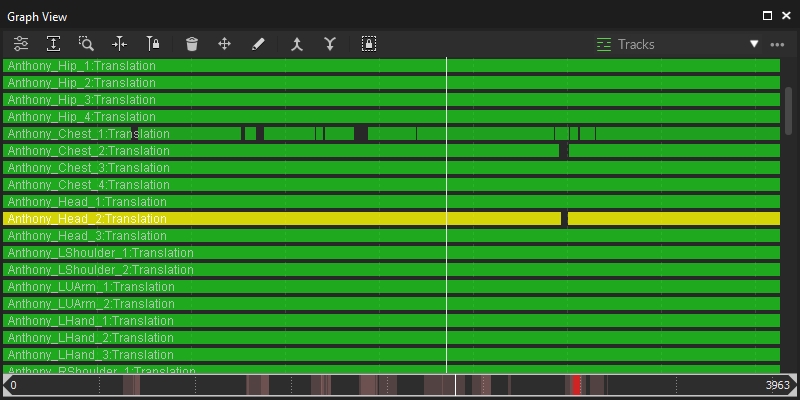
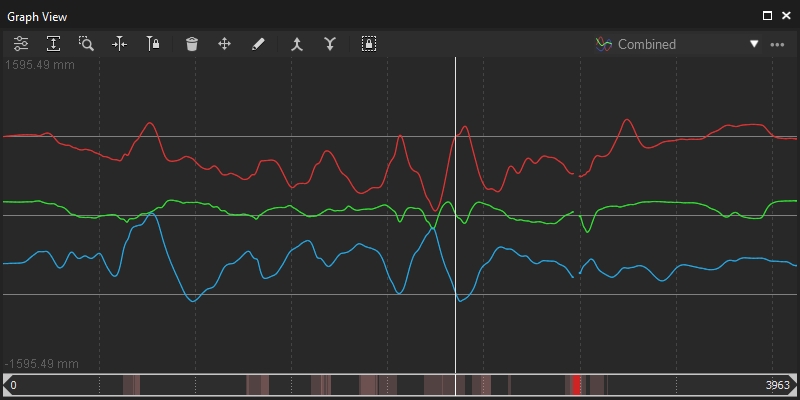
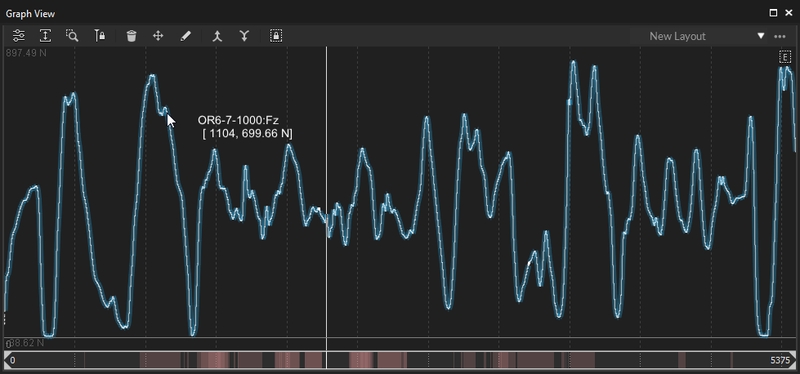

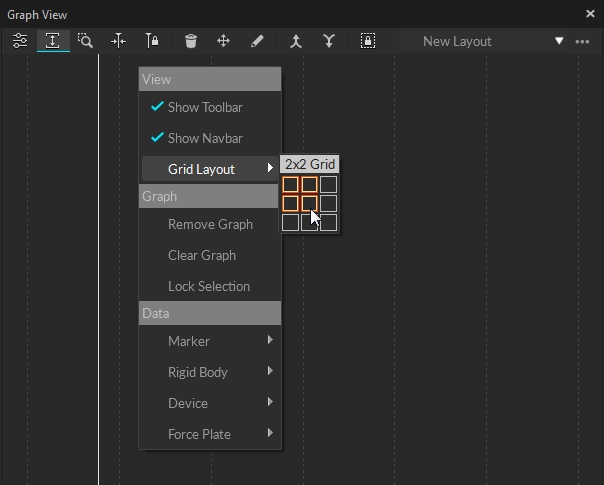



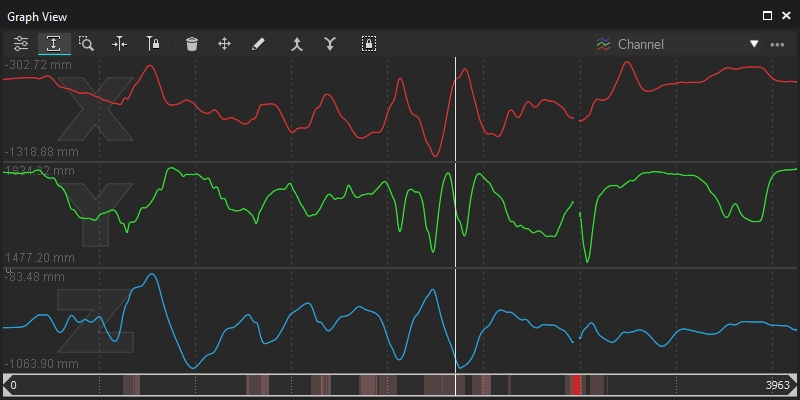


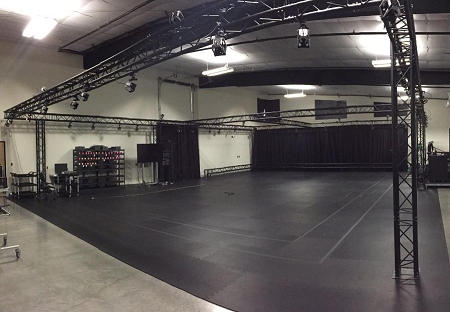
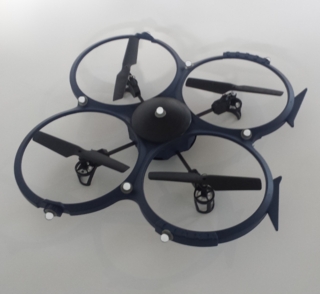
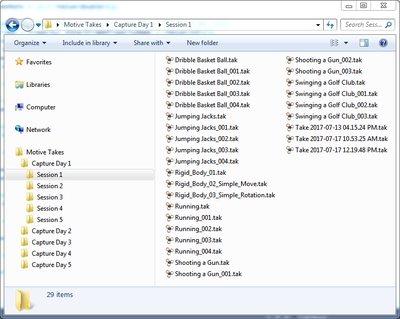
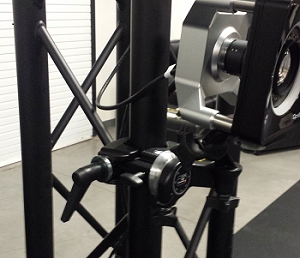
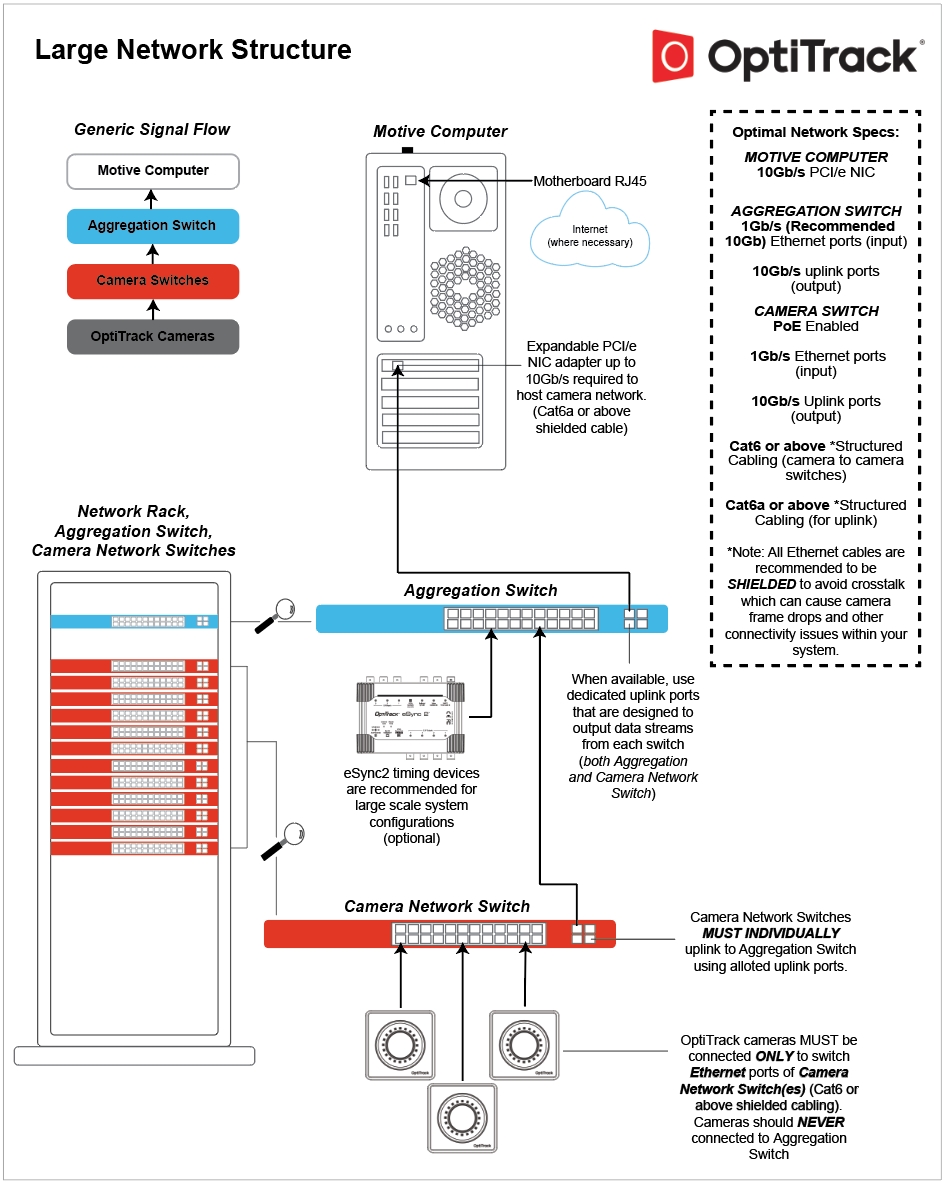
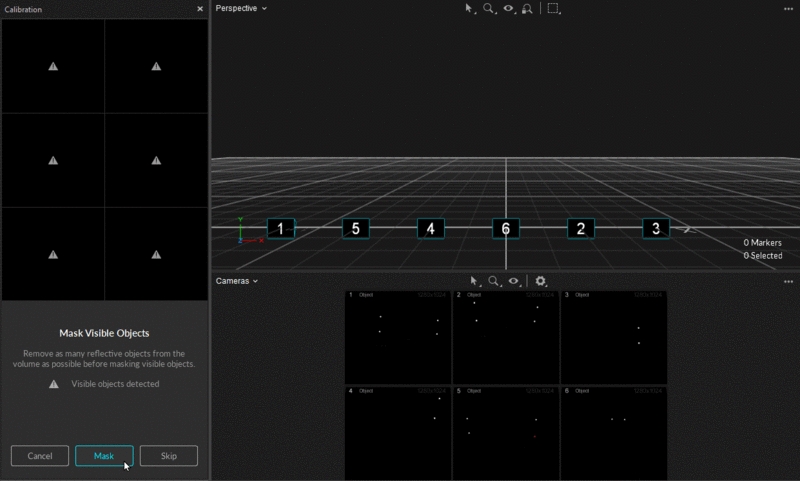
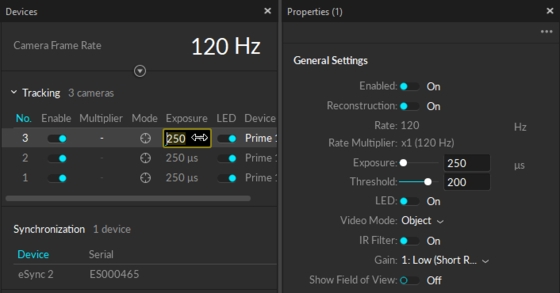
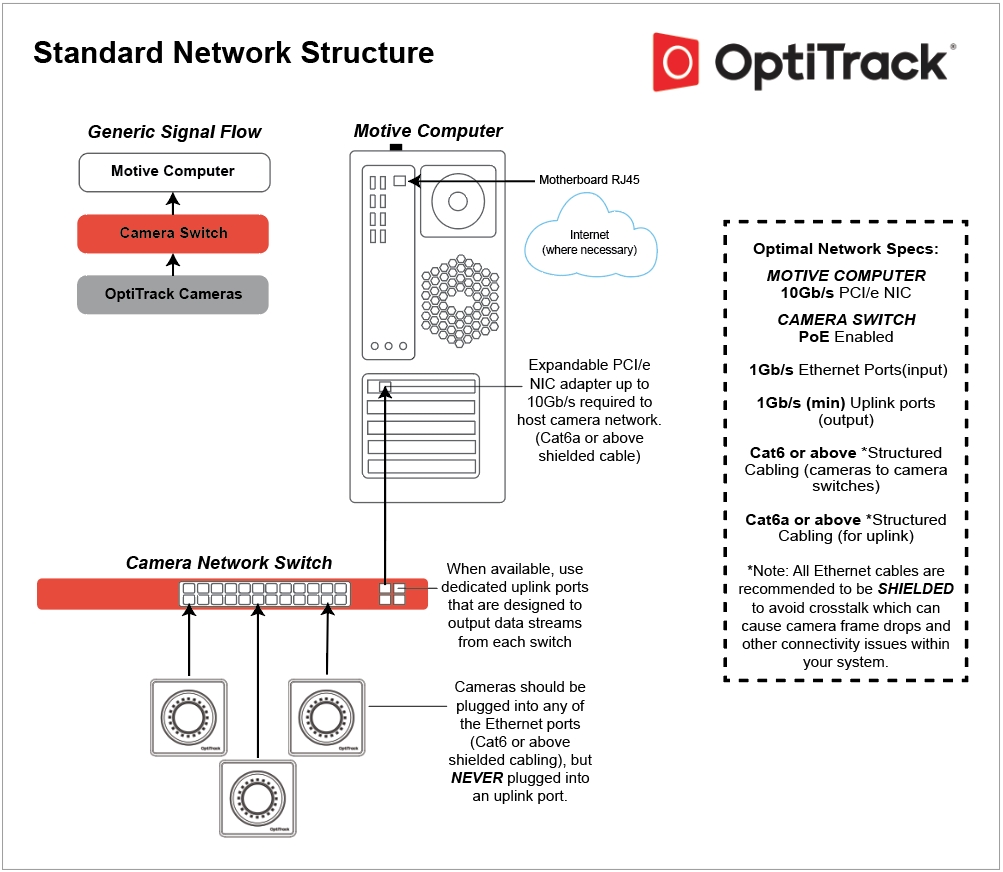
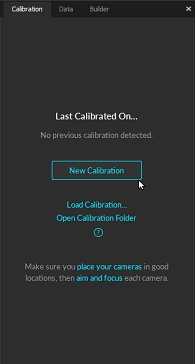
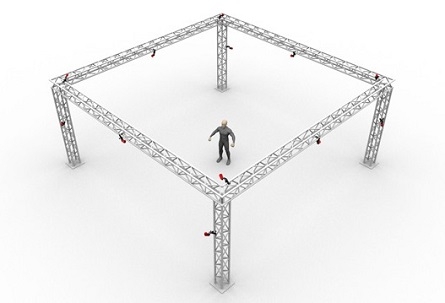
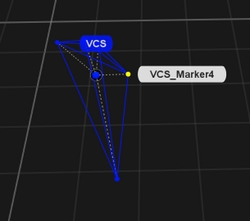
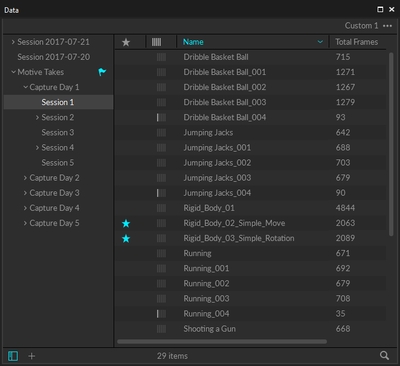

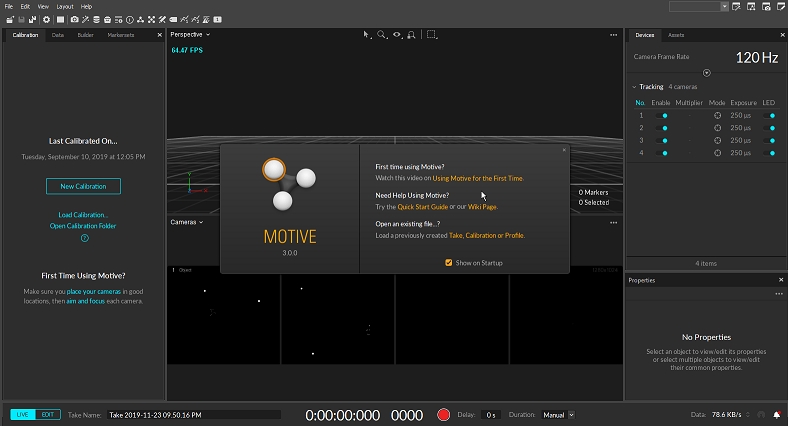
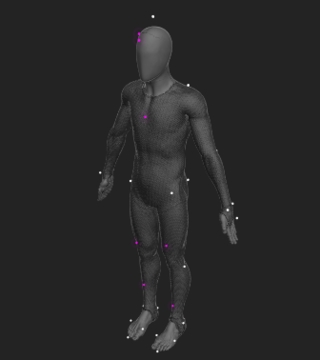
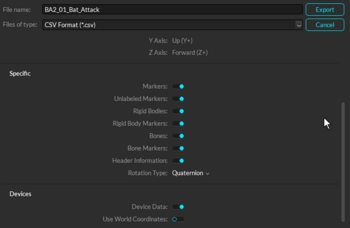
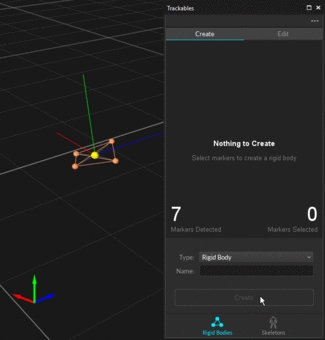
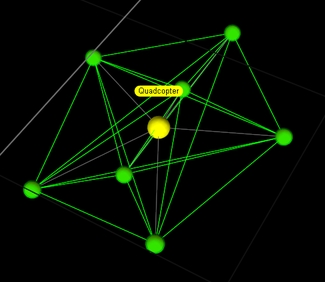
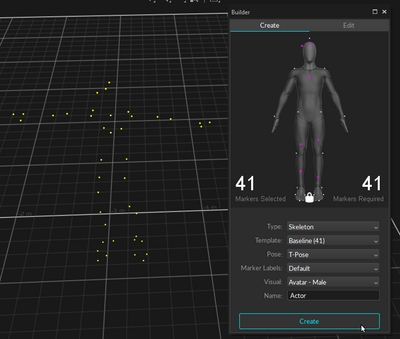
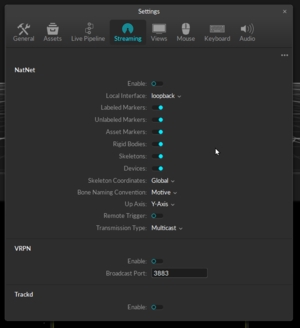
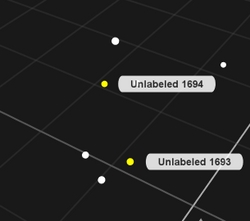


Not all PoE++ switches are the same. PoE++ Type 3 switches provide only 60W of power per port, which is insufficient to power a PrimeX 120 camera. A PoE++ Type 4 switch supplies 100W per port, providing the optimum power to each PrimeX 120 on the switch.
Not all PoE++ switches are the same. PoE++ Type 3 switches provide only 60W of power per port, which is insufficient to power a PrimeX 120 camera. A PoE++ Type 4 switch supplies 100W per port, providing the optimum power to each PrimeX 120 on the switch.
Not all PoE++ switches are the same. PoE++ Type 3 switches provide only 60W of power per port, which is insufficient to power a PrimeX 120 camera. A PoE++ Type 4 switch supplies 100W per port, providing the optimum power to each PrimeX 120 on the switch.


